At a glance
Expert’s Rating
Pros
- Whole-home coverage possible with just two nodes
- Fast Wi-Fi speeds
- 10Gbps Ethernet ports
Cons
- Mega expensive
- Some features require an Eero Plus subscription
Our Verdict
The Eero Max 7 offers some of the best Wi-Fi performance we’ve seen. But it’s ruinously expensive and you’ll still need to pay extra for features locked behind the Eero Plus subscription. Only open your wallet if you have cash to burn, or simply can’t wait to get a taste of Wi-Fi 7.

It’s the first system from Eero which uses the latest Wi-Fi standard – aka Wi-Fi 7 . This promises to be a game-changer, offering high wireless speeds with excellent reliability.
In short, Eero is pitching the Max 7 as a future-proofed system, whatever your home networking needs.
Predictably, with great power comes a great price tag and the Eero Max 7 is the most expensive mesh Wi-Fi system we’ve tested recently. More expensive even than TP-Link’s BE85 , which is a similarly-spec’d Wi-Fi 7 mesh system.
For larger homes, there’s also a three pack will set you back a cool £1700 / $1700.
Thomas Newton / Foundry
Design
- Ovoid towers with glossy plastic finish
- Ten internal antennas, no internal modem
- Two 10Gbps WAN/LAN ports, two 2.5Gbps WAN/LAN ports
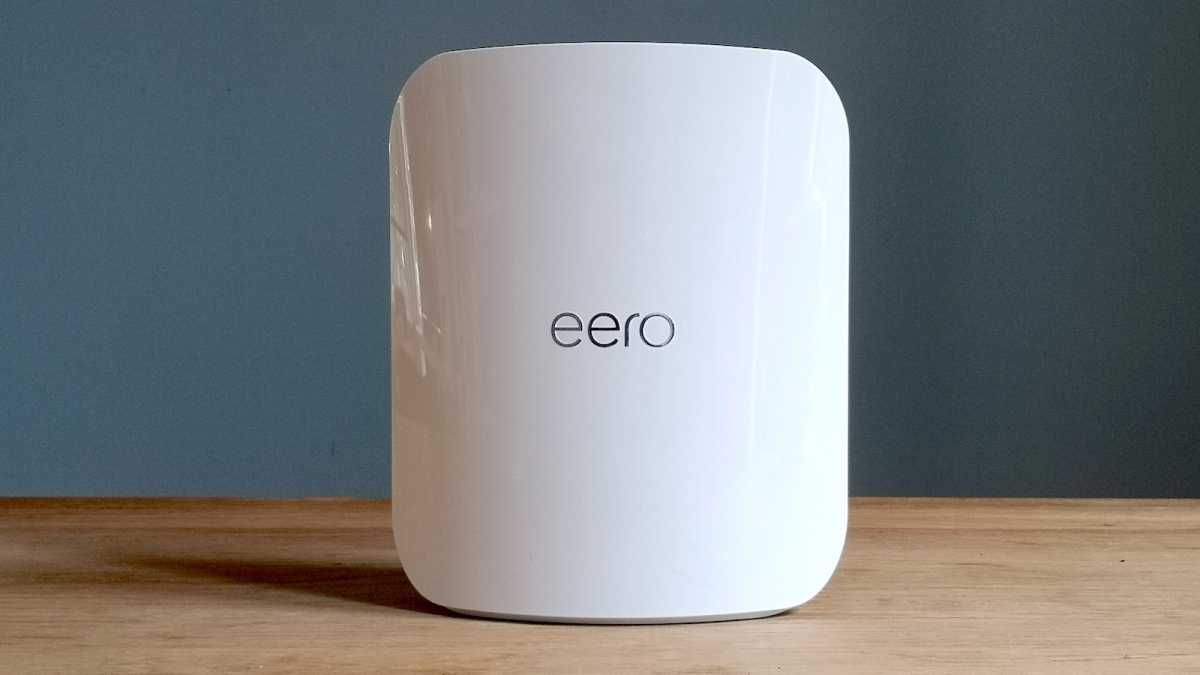
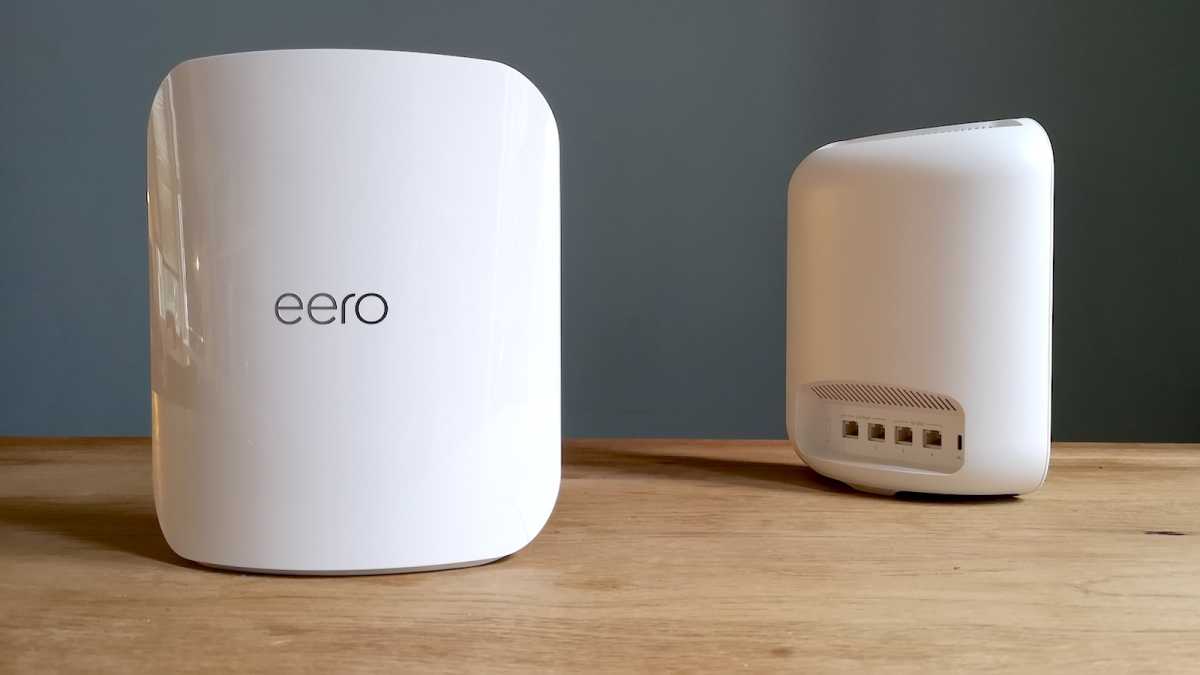
Until now, Eero units have been small and compact, around about the same shape and size as an Apple TV . The Eero Max 7 units are much bigger, and more closely resemble a modern router.
They’re sleek, upright-standing devices with reflective white plastic finish, and are similar to Netgear’s Orbi hardware in both shape and logo – the ‘Eero’ and ‘Orbi’ logos even use a similar Bauhaus-esque font.
One reason why the Eero Max 7 units are so much bigger is because they’ve got ten antennas crammed inside – older models like the Eero 6 had four. You get two bidirectional antennas on the 2.4GHz radio module, and four each on the 5GHz and 6GHz radios. You will likely see smaller (and cheaper) Wi-Fi 7 devices with 2×2 5GHz and 6GHz arriving in the months to come.
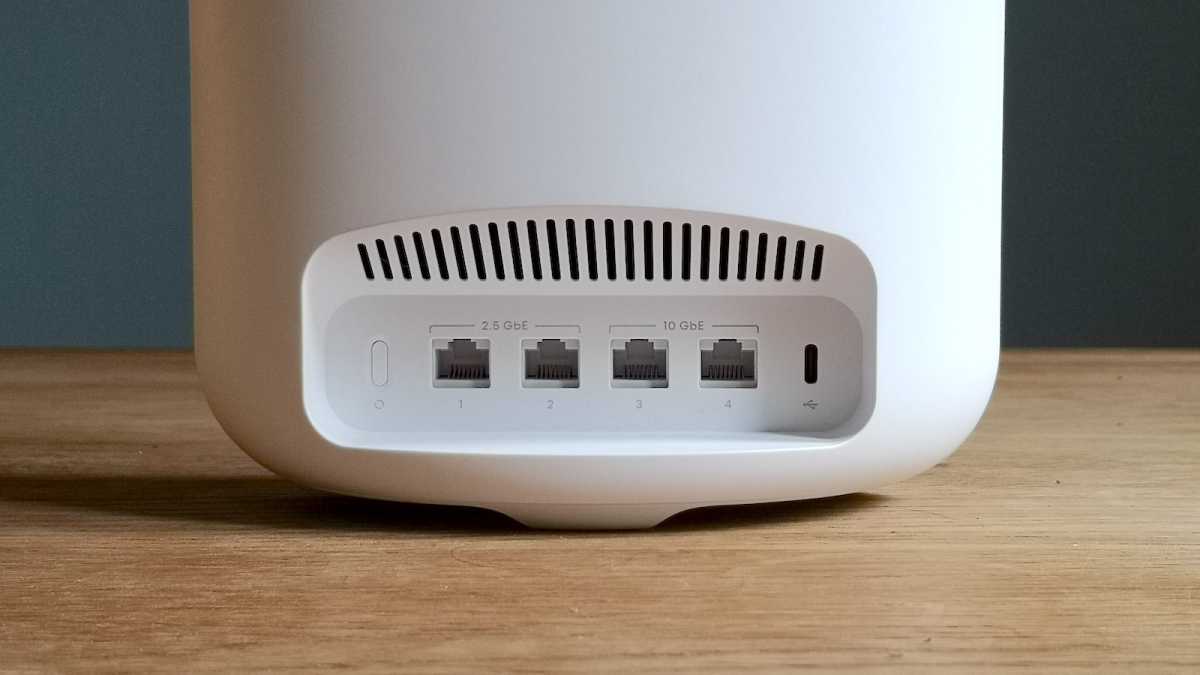
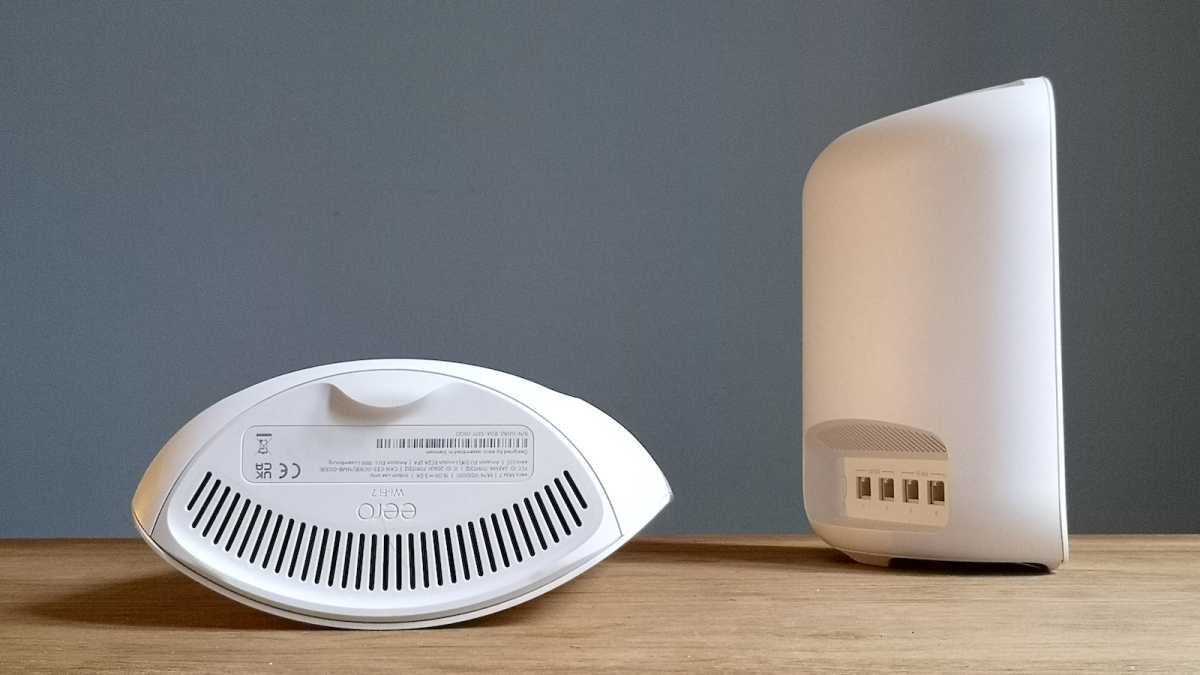
Another reason for the Eero Max 7’s bigger size is Ethernet ports. Here, you get four, whereas older units only gave you two, necessitating the purchase of an Ethernet hub or switch if you wanted to connect more wired devices.
This is really welcome, especially if you have a few set-top boxes or games consoles that you’d rather connect to the internet via an Ethernet cable. What’s even more welcome is the fact that all of these ports are WAN/LAN, meaning you can use any of them to connect to your modem. If that wasn’t enough, two of these are 10Gbps ports, while the other two are 2.5Gbps.
Thomas Newton / Foundry
Chances are you a) don’t yet have 10Gbps broadband from your ISP and b) the sum total of Ethernet bandwidth needed by all devices in your home at any one time doesn’t exceed 2.5Gbps. However, as speeds increase and devices in your home consume more traffic, increasingly, buyers after a home networking system that can really deliver will want to pay attention to things like top Ethernet port speeds. Even if you don’t need that ceiling room right now, it’s good to see this kind of capability arriving on shelves today for consumers.
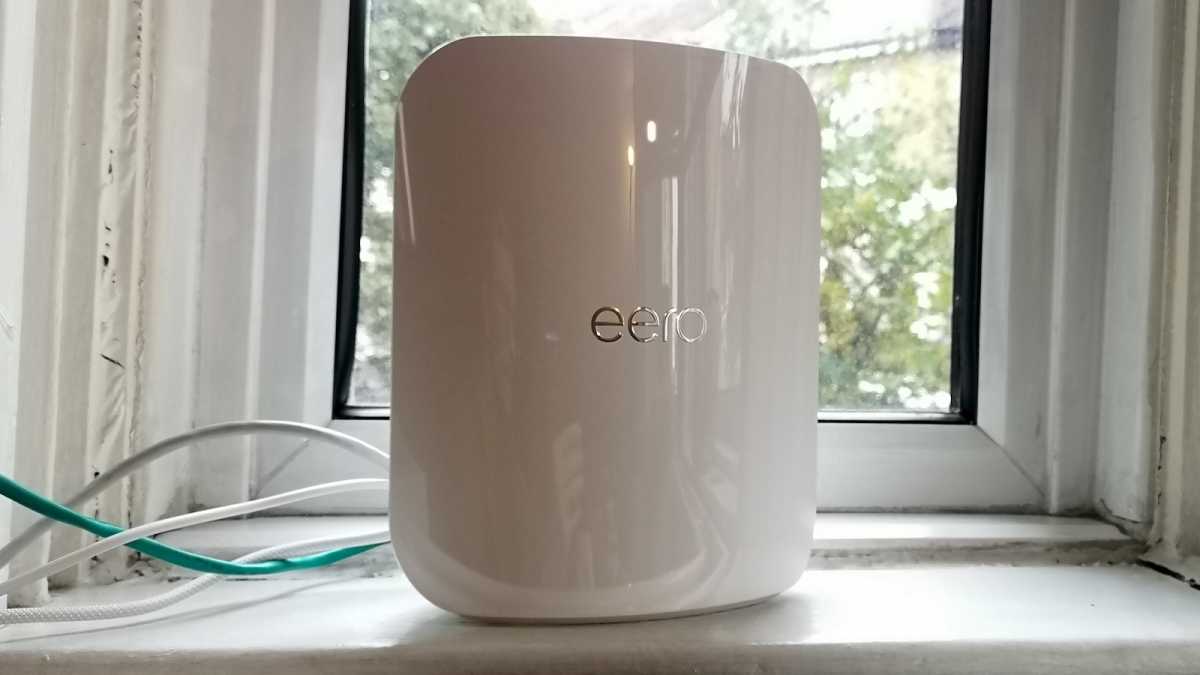
As a result of all of these extra components, the devices are significantly heavier than most of the home networking tech I get to handle. There are two large vents at the top and at the base of the Eero Max 7 units, large enough for an X-Wing to drop a proton torpedo down. The devices aren’t noisy in operation at all, but they do emit a fair amount of heat, as I found out one day when working in my cold office. I might not be able to afford to put the heating on, but at least I can warm my hands above an Eero Max 7.
The only other physical connection on the Eero Max 7 units is a Type-C USB port, used for mains power, and not for attaching any external drives.
Thomas Newton / Foundry
Setting up
- Simple app-assisted installation process
- Create an Eero account or use your Amazon credentials
- Setup takes around 15-20 minutes
The setup process is virtually the same as it is with any mesh Wi-Fi system, but if you’ve not set one up before, there’s no need to worry, as the Eero app’s instructions and diagrams couldn’t be clearer.
Power off your modem, and then position your first Eero Max 7 unit close by, connect it to your modem using the supplied Ethernet cable, and then power the router on at the mains.
Open up the app and make sure that Bluetooth is turned on, as the Eero Max 7 will use this to pair with your phone, and initiate the set-up process. If for whatever reason Bluetooth isn’t working, you can scan the barcode on the base of each Eero Max 7 instead.
Power your modem back on when the app tells you to, and wait for an internet connection to be established. If all goes well, you will at this stage be asked to give your new network a name, and create a network password.
Once the first Eero Max 7 unit is up and running, connecting any other is a case of tapping the ‘+’ icon in the top right corner of the app’s main menu, and repeating the pairing process.
In the first instance, you’re probably better off setting up the second router in the same room as the first one, purely for the purposes of pairing. Once the devices are joined, you can disconnect the second one from the mains, and set it up wherever it’s needed in your house.
As with any other kind of mesh system, you’ll want to pick a sweet spot – somewhere close enough to the main router so that a solid inter-router connection can be established, and somewhere close to where the extra Wi-Fi coverage is needed.
Thomas Newton / Foundry
Software and features
- Eero app makes network management easy
- Eero Plus subscription combines a VPN, password manager, and antivirus in one package
- Subscription required for parental controls and app blockers
As well as facilitating an easy network set up, the Eero app makes keeping track of what’s happening on your home network a breeze.
That is just as well, because unfortunately, there is currently no way to access the Eero Max 7’s settings through a desktop browser. Entering the IP address into the nav bar gave me a ‘Whoopsie’ message complete with the ‘see no evil’ monkey emoji – bemusing to say the least. Back to the mobile app.
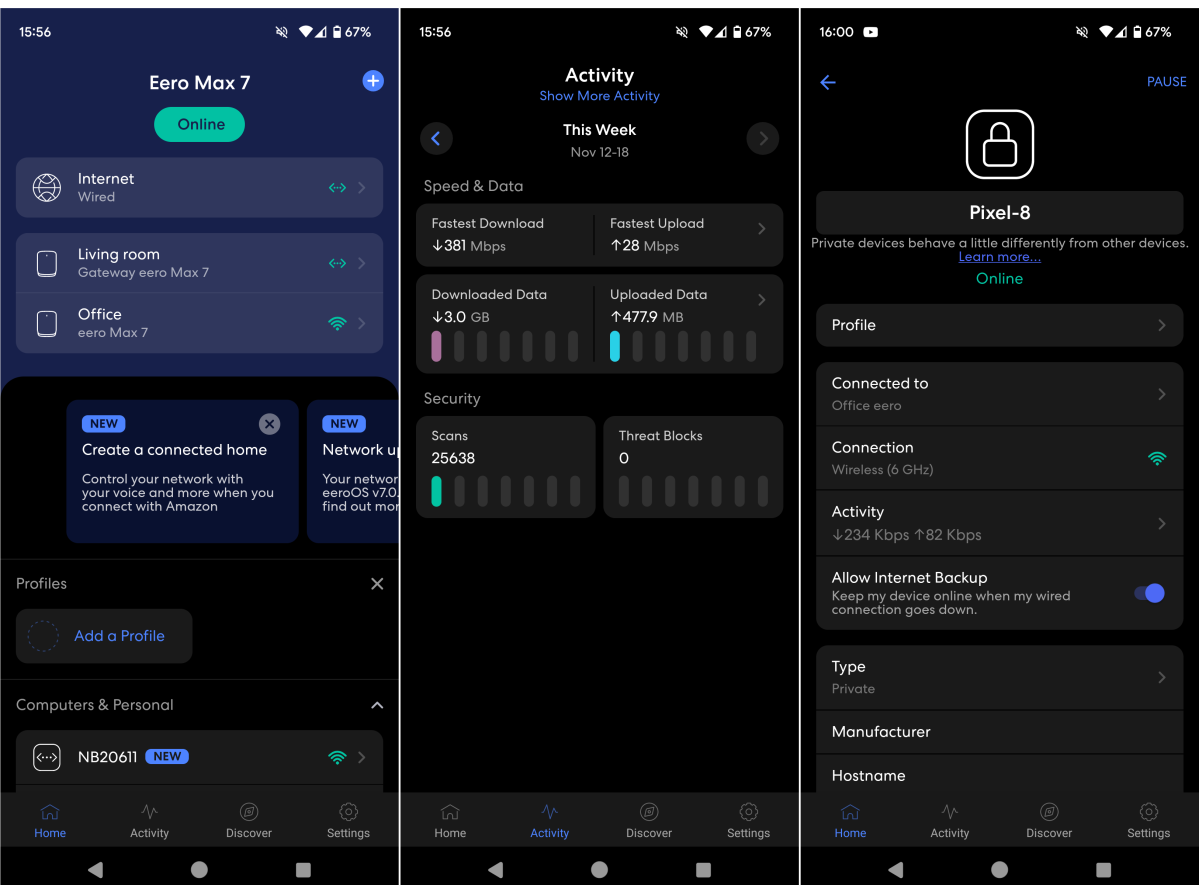
The Home menu gives you an overview of your Internet service’s status and your network topography – or, how many routers are active, and which client devices are connected to them. Tapping on each device will tell you which radio frequency (such as 6GHz) each device is using, and again, which router they’re connected to.
The Activity tab gives you a brief overview of how much data has been downloaded and uploaded, something that will mainly be of interest to people on capped plans, as well as how many scans the built-in router-level security system has performed.
The Discover tab is a bit more interesting, as it’s here that lets you dig in to Eero Plus (more on that shortly), enable still-in-beta features like optimising the network for gaming and video conferencing, and WPA3 encryption, and manage any Alexa-compatible devices – as I don’t have any voice-activated hardware, Alexa or otherwise, I can’t comment on how well this particular feature works.
There’s a network backup tool, which lets you assign a backup connection which will kick in if your fixed-line connection goes down. Unfortunatey, I can’t say how well this works either – I couldn’t find anyone nearby willing to help with this, and from experience, I know that my mobile network’s coverage is not sufficient to allow a phone or Mi-Fi to replace my fixed-line service.
Eero Plus is a built-in subscription service that includes a number of home security and data protection features like a password manager (powered by 1Password), a VPN (powered by Guardian), and antivirus (powered by Malwarebytes).
On the surface, getting a password manager, VPN, and antivirus under one subscription is very convenient and the subscriptions aren’t bank-breaking either (see the pricing section below).
However, what isn’t quite so good is the fact that if you want to make use of features like parental controls, which let you add things like content filters, app blocks (e.g. Facebook, Discord, YouTube), and ad blocks to specific profiles, and the router-level security features, then you’ll need an Eero Plus subscription as well.
It’s fairly common to see features like this on most mesh Wi-Fi systems, so why they’re put behind a subscription is baffling.
The last section of the app is the Settings page, which lets you do the basics like rename the network, change the network password, and set up a temporary Guest Wi-Fi access point. You can also toggle notifications settings from here, if you want to be alerted to any upcoming software updates, or if a new device has joined your network – everything is turned off by default.
You have the ability to assign port forwards for devices on the network, and manually change DNS settings, although doing the latter requires you to disable all Eero Plus features. Again, baffling.
You can set up an dynamic DNS service as well, but it has to use an Eero domain, you can’t select a third-party provider.
There is currently no way for you to install a VPN client on the Eero Max 7 itself either, though if you’re running a VPN on your client devices, it will allow that traffic through, as you’d expect.
You can’t split the system up into three separate SSIDs either – i.e. one for each radio frequency – and nor can you set rules which would force certain clients to always use a specific radio frequency.
This isn’t something that many users will be at all bothered about, and such an option would be at cross purposes with Eero’s TrueMesh approach, which we’ll return to in the section below. It’s also moot because of the way Wi-Fi 7 works, with devices being able to connect on both 5- and 6GHz at the same time.
At this point, it’s worth unpacking the BE20800 designation and talking about the theoretical maximum wireless speeds possible on all three radio bands here, the key word here being theoretical.
We’ve established that each Eero Max 7 router has ten antennas, two for 2.4GHz and four each for 5- and 6GHz. The reason why the latter two radios have more radios is so that there is more capacity for devices which can connect to those higher frequency bands, which means, in lay terms, you get better coverage throughout your home. This is partly why the Eero Max 7s are so big (and so expensive).
The ’BE20800’ label refers to both the official name of Wi-Fi 7, IEEE 802.11be – where the ’BE’ part comes from – and the top speeds possible on each of the Eero Max 7’s radios – 688Mbps (2.4GHz), 8640Mbps (5GHz), and 11520Mbps (6GHz), which comes to 20848Mbps, which rounds down to 20800.
This doesn’t mean that you will get speeds of around 8640Mbps and 11520Mbps, on those radio bands. The Google Pixel 8 , for example, the fastest client test device I’ve used for this review, has a 2×2 Wi-Fi 7 module, which means that the fastest theoretical speeds possible should be half of these top speeds here.
This is most likely why Eero says that the top wireless speed possible from the Eero Max 7 is 4.3Gbps (in other words, half of 8640Mbps), but it’s still something of a mystery.
The fact I didn’t have a Wi-Fi 7 device with a 4×4 radio meant I was never going to see speeds approaching the headline speeds during testing, as you will see in the next section.
Thomas Newton / Foundry
Performance
- Delivers 1.4Gbps on Wi-Fi 7 devices at close ranges
- Older devices can enjoy speeds in the range of 800-900Mbps
- Excellent coverage throughout the home
During testing, the Eero Max 7 delivered fast speeds well above 1Gbps in testing on newer devices up to five metres away. The really good news is, speeds recorded on older devices were fast as well, in the region of 800-900Mbps in the same locations.
At greater distances, the speeds dropped off, as you might expect, but even walls, doors and other physical obstacles didn’t seem to stop the Eero Max 7 from connecting to a Google Pixel 8 on the 6GHz band. I could even pick up 6GHz Wi-Fi out in the garden on the Pixel 8. In some cases, my Pixel 6 would jump between Channel 100 (5GHz) and Channel 34 (6GHz), staying on the latter for most of the time.
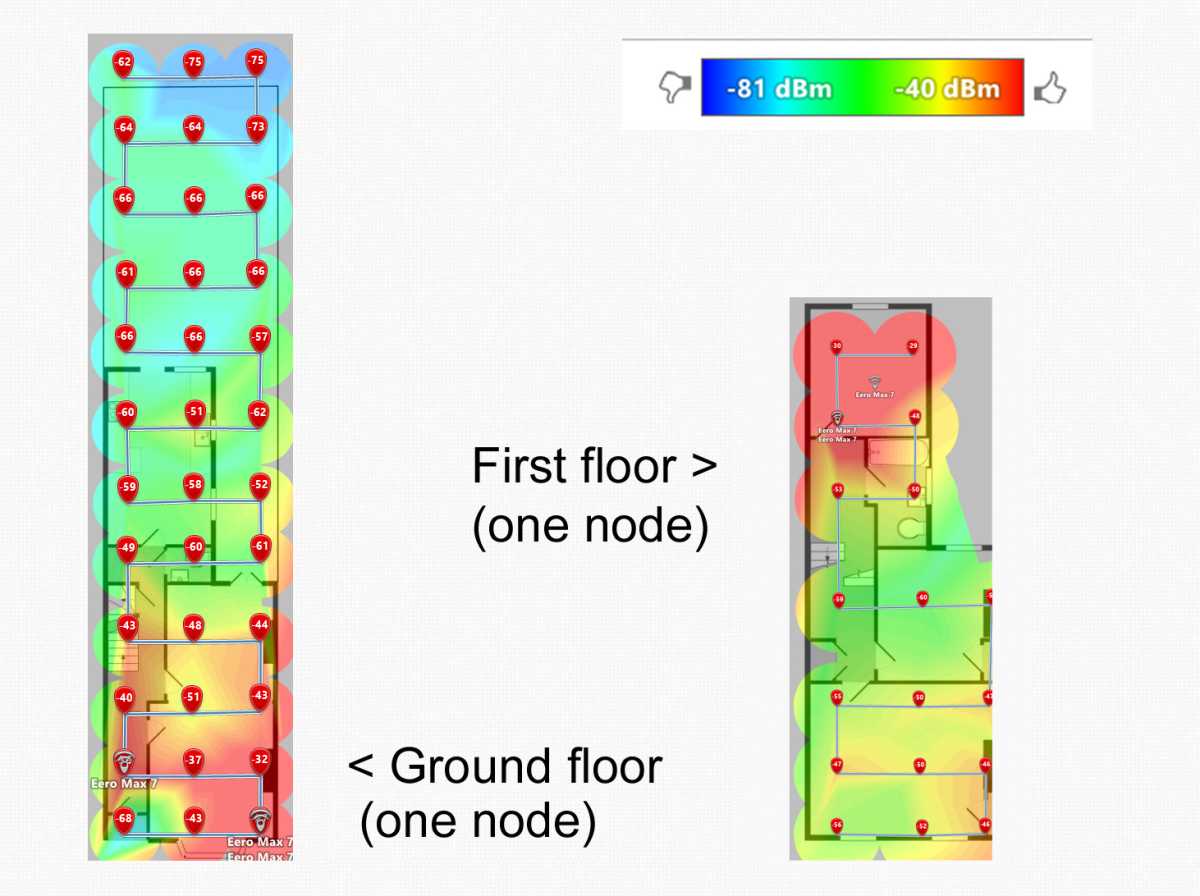
I set up the primary Eero Max 7 router in the same spot where I would set up a standalone router, in other words, close to where my Virgin Media Super Hub 3 sits parked in Modem Mode, and close to the master socket, towards the front of my house.
The first test takes place one metre away from the primary router, while the second test takes place five metres away, behind a non-loading bearing wall.
The second router is set up in my upstairs office, roughly 15 metres away from where the primary router is. This is where the third test takes place, one metre away from the second router. Note that one storey, plus a load-bearing wall sits between the two routers here, giving you an idea of the physical obstacles that the backhaul connection has to pass through.
Thomas Newton / Foundry
The final test takes places outside in the garden, roughly 20 metres away from the primary router, with two walls and two closed doors in the way.
You can see from the coverage maps above (created with Netspot) the range and strength of the signals generated by the two Eero Max 7 devices.
The Wi-Fi 7 spec increases capacity from 160MHz to 320MHz on the 6GHz radio frequency band, and so we should expect speeds to jump up on devices like the Eero Max 7.
For speed testing, I used the Wi-Fi 7-equipped Google Pixel 8 to see how fast the Eero Max 7 could go, using the WiFi Speed Test Pro tool.
I ran multiple speed tests in the same four locations in my house, and ran the same tests on a number of other test client devices, which have Wi-Fi 5 (Huawei Mate 10 Pro), Wi-Fi 6 (Realme X50 5G), and Wi-Fi 6E (Google Pixel 6) radios, respectively, to give you an idea of the kinds of real-world wireless speeds you can expect, and also compared these to Linksys’s Velop Pro 6E .
Note that there is no comparison data available for the Linksys Velop Pro 6E, as I did not have a Google Pixel 8 when I tested that system.
I was impressed by the Eero Max 7’s ability to provide whole-home coverage with just two routers. As you can see from the results, it’s the speed you get at distance that differentiates the two systems. I also found the Pixel 6 and Pixel 8 were connected over 6GHz in the majority of places in my terraced home, which is pretty fantastic.
However, that applies only up to a point. Speeds recorded out in the garden were impressive but in some cases not as fast as the Linksys Velop Pro 6E – but you should note that the Velop Pro 6E is a three-node system so it’s not an apples-to-apples comparison.
I should add that when I set up the Eero Max 7, the devices were talking to each other using wireless backhaul.
Unlike many older high-end systems, the Eero Max 7 doesn’t have a separate wireless backhaul channel that’s reserved for wireless backhaul communications, but, Eero says that an update rolled out to all of its devices in May this year does away with the need for that. Eero OS v6.14.0 means that all backhaul and device traffic will automatically be sent through whichever bands are the fastest and least congested, resulting in increased throughput and lower latency. The Eero Max 7 does also support Ethernet backhaul if you’d prefer to use that.
Thomas Newton / Foundry
Price & availability
The Eero Max 7 is available to buy in the UK and US now, priced at £599.99 / US$599.99 / CA$799.99 for a single unit, £1149.99 / US$1149.99 / CA$1679.99 for a two-pack, and £1699.99 / US$1699.99 / CA$2379.99 for a three-pack.
The Eero Max 7 can be picked up directly from the Eero website in Canada as well, in single, 2-pack, or 3-pack bundles.
Eero Plus subscription prices are as follows:
- UK: £9.99/month (or £99.99/year)
- US: $9.99/month (or $99.99/year)
- Canada: $12.99/month ($129.99/year)
- Australia: $15.99/month (or $159.99/year) – Note that the Eero Max 7 wasn’t sold in Australia at the time of review.
Should I buy the Eero Max 7?
Powerful, packed with features, and future-proofed, the Eero Max 7 is an impressive system that’s made less attractive by a couple of things, namely the price and the fact that common router features like network filters are tied into an (optional) Eero Plus subscription.
The best advice, though, is to wait a little longer until buying a Wi-Fi 7 system: prices are sure to come down fairly quickly. And if you read this purely for interest and actually want a system you can afford, consider the Linksys Velop Pro 7 , Velop Pro 6E or Netgear Orbi RBK762S instead, or another system from our best mesh Wi-Fi roundup.
Specs
- Dimensions: 183.90 x 221.89 x 89.90 mm
- Weight: 1.35kg
- 802.11be (Wi-Fi 7) tri-band (2.4GHz up to 600Mbps, 5GHz up to 2400Mbps, 6GHz up to 2400Mbps), 240 MHz channels in 5 GHz and 320 MHz channels in 6 GHz
- MU/SU-MIMO (2×2+4×4+4×4), OFDMA
- 2 x 10Gbps Ethernet WAN/LAN port
- 2 x 2.5Gbps Ethernet WAN/LAN port
- Amazon Alexa, Zigbee, and Matter support
- Thread Border Router
- Remote management via Eero app (iOS, Android)
- Guest Wi-Fi
- Wi-Fi management
- IPv4, IPv6
- WPA
- WPA2
- WPA2/WPA3 hybrid (beta)
- Parental controls (with Eero Plus management)
- VPN, password manager, and antivirus (with Eero Plus management)
Author: Thomas Newton, Contributor, Tech Advisor

With more than 15 years of experience, Thomas has tested, benchmarked, and messed around with countless phones, laptops, soundbars, speakers, printers, and smartwatches, and during a visit to a Wi-Fi testing facility, locked himself inside an anechoic chamber “to see what it felt like.” These days, Thomas mainly, but not exclusively, tests home networking devices and security software for Tech Advisor.
Recent stories by Thomas Newton:
- Linksys Velop Pro 6E review
- Amazon Eero 6 mesh Wi-Fi review
- Asus ZenWiFi XT9 review
