Sometimes, the phone you use every day holds some powerful features – they might just be hidden or unknown to you.
When Google released Android 16 in the summer of 2025, many users noticed the major new features related to Gemini AI and the fancy grouped notifications, but likely went right back into texting, browsing the web, and using Instagram like normal.
Yet, there are several features that might not be as obvious. It can take time to uncover the true productivity enhancers or find settings that help you make the most of your phone. It’s also important to know that, while Android 16 was the major update over the summer, Google has released quarterly updates since, including one in September and one in December.
These features include the ability to see Google Maps navigation on your home screen in a small pillbox, protections against text scams, and a way to limit the number of notifications you see. See below for an explanation of the feature, how it works, and how to find it.
1. Desktop Mode now lets you resize windows
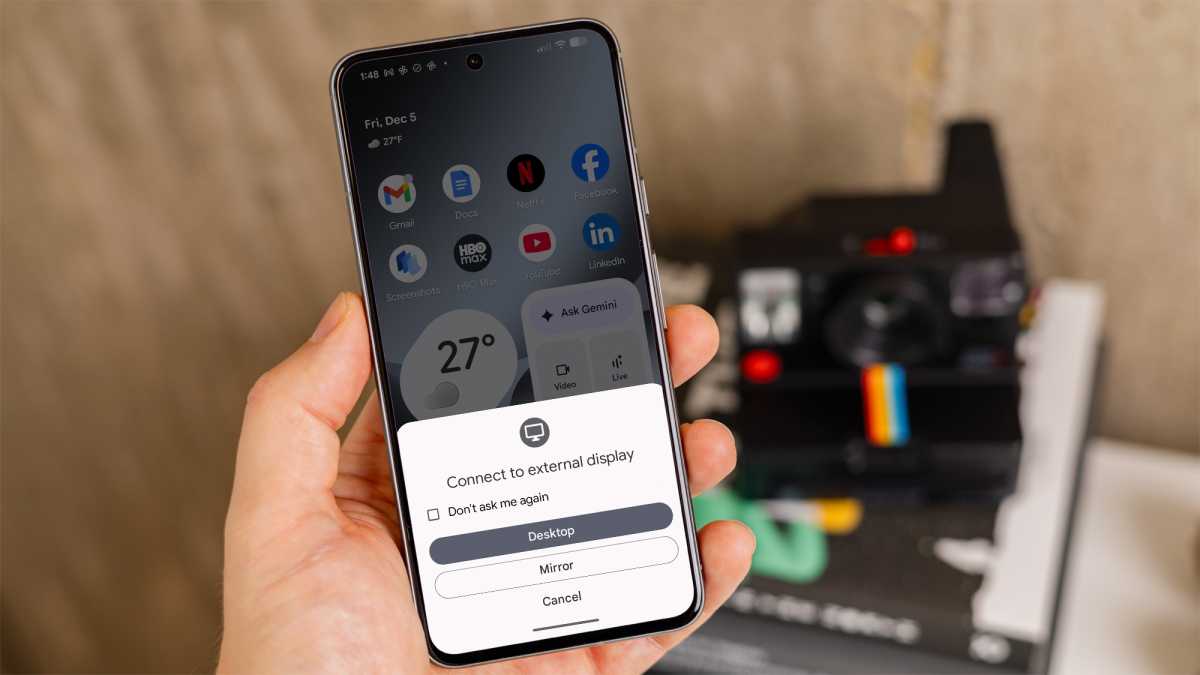
You may not regularly connect your phone to a computer display, but if you do, Android 16 adds some enhancements to make it all work even better. The idea is to show your phone in “desktop mode” so you can run a browser or even play games. Android 16 also now lets you resize windows like you’re on a Mac or Windows computer, helping to boost productivity.
How to use Desktop Mode
Desktop Mode runs automatically when you connect to a display, but you do need to enable Developer Mode first because it’s technically still in beta.
Go to Settings , then About phone . Tap on the Build number about seven times, which will then enable Developer mode.
You will also need a USB-C cable that supports display output (not all do), or an adapter for an HDMI cable. Once connected, a prompt will appear that allows you to use Desktop mode , or you can select an option to mirror whatever is on your phone.
Foundry
2. Remix in Google Messages
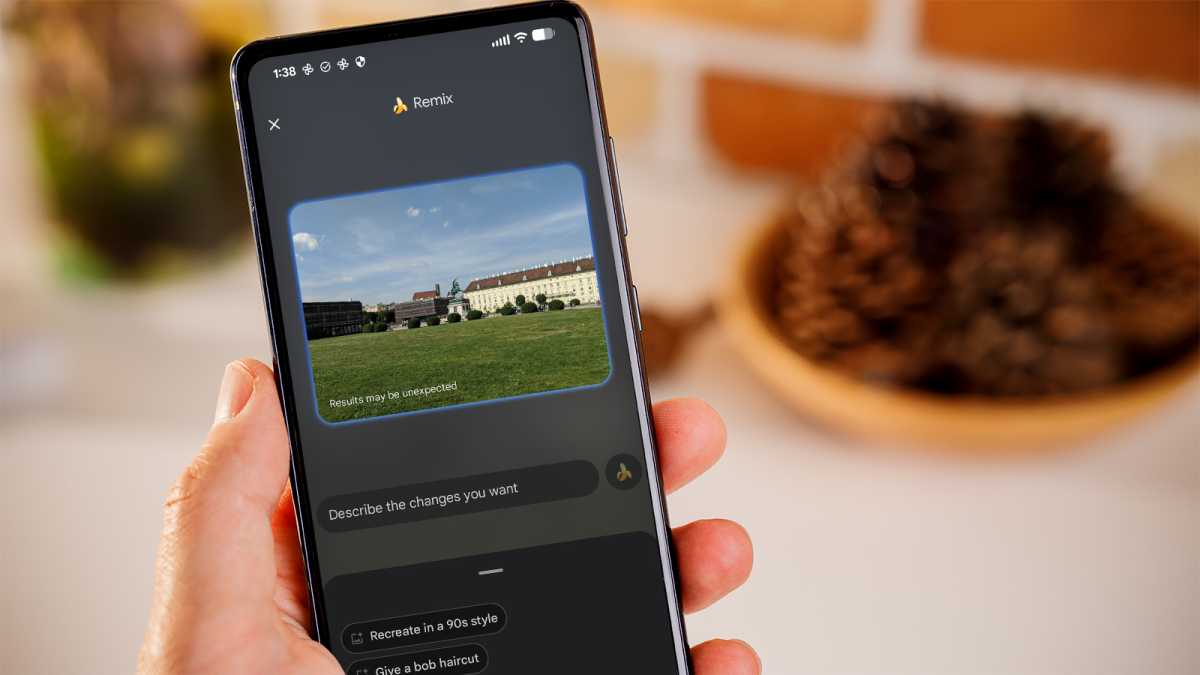
A fantastic new feature that’s part of Android 16 is called Remix. In Google Messages, you can select any image and ask Gemini to tweak it any way you want. For example, in a photo of a building with an open grassy area, you can ask Gemini to add a banana. You can then add a caption to the new image and send it in the same text chat you’re having.
How to use Remix
Make sure you update Google Messages to the latest version, and ensure that you have enabled Gemini. (In Messages, you will see the familiar gem icon for Gemini. Select that, and you will see a prompt to enable the bot.)
When you send or receive an image, long-press on the image, and you will see the Remix button. Select it and describe what you want Gemini to do to the photo. Select Done; now you can add a caption and click send.
Foundry
3. Share a Bluetooth audio stream with a friend
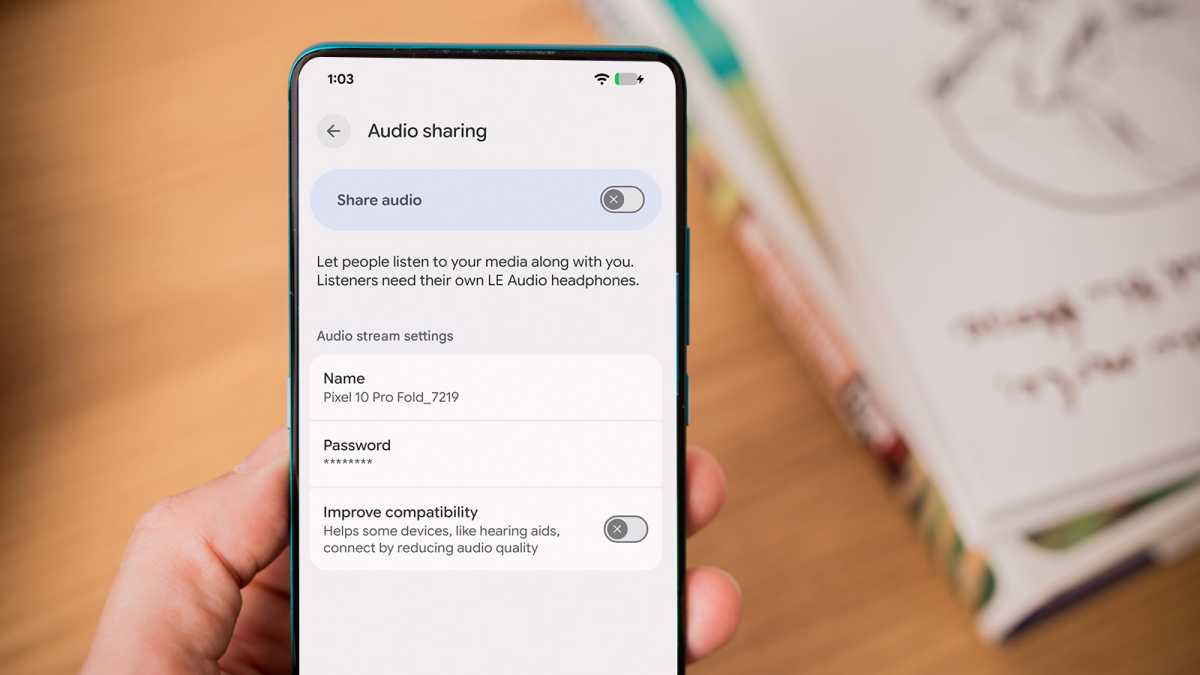
Android now lets you stream audio to more than one Bluetooth device at the same time. The feature was initially limited to beta, but it’s now official and works with Pixel devices. Sharing can come in handy if you are on a long car ride and want to listen to the same music with a friend. You can even adjust the volume for each connected device.
How to share a Bluetooth audio stream
To make it work, you will first need a Bluetooth LE device such as a recent pair of earbuds. This feature also requires a phone capable of broadcasting two audio streams, such as the Google Pixel 10 .
Go to Settings , then Connected devices , then Connection preferences . Look for the Audio sharing option and enable that. When you connect the second set of earbuds, a prompt will appear asking if you want to use that device. You will then see two volume sliders.
Foundry
4. Improved text scam protection
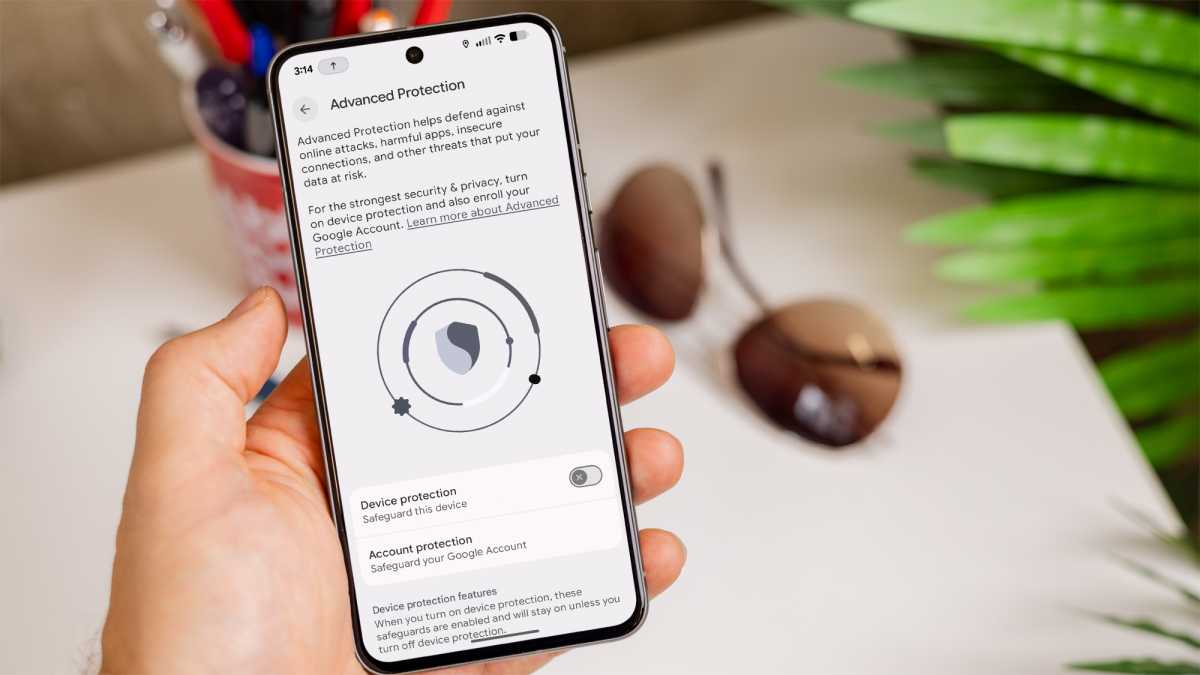
Android 16 adds enhanced protection against text scams and a few extra security features. For example, when you receive a text message, you can use Circle to Search to check if you suspect it is a scam. Android will warn you about the danger.
How to use the new text scam features
Go to Settings , Security & privacy , then Advanced Protection, and enable the feature. Most of the text scam features happen in real-time, so you don’t have to configure anything. To use Circle to Search when you suspect you received a scam text, long-press the navigation bar and then circle the entire text message. You’ll see a message about the scam.
Foundry
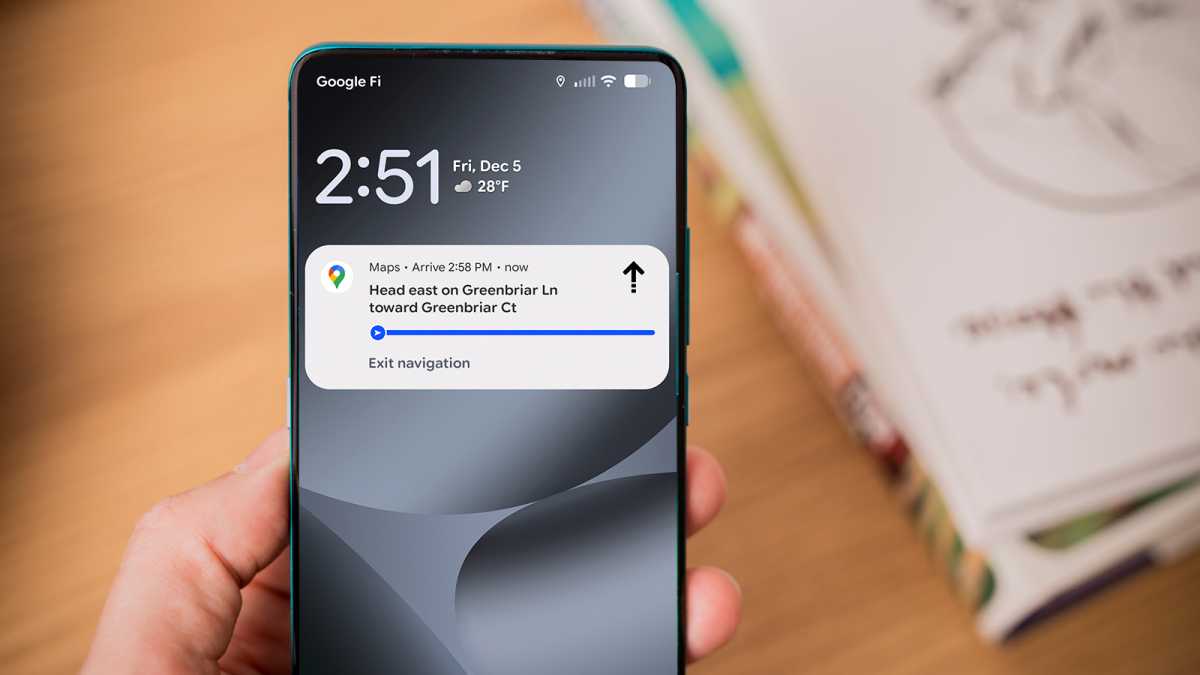
5. Live Updates for navigation
Android 16 added Live Updates that show on the home screen even when your phone is locked. For example, if you use Google Maps for directions, you will see a live update on the home screen showing the next turn to make and a status indicator. For Uber Eats, you will see the status of the delivery, all in real-time.
How to use Live Updates
Live Updates appear on the home screen automatically, as long as you are using a compatible app such as Uber Eats or Google Maps. Click on the update for more details.
Foundry
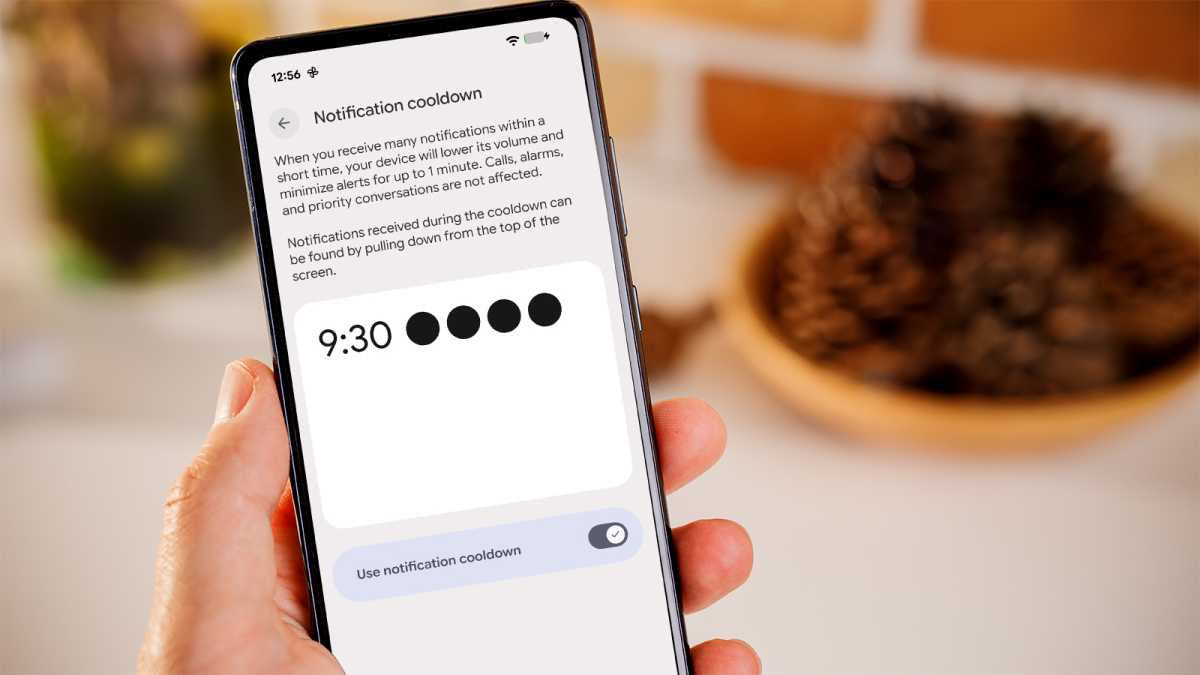
6. Notification cooldown minimizes pings
Google knows that notifications can be overwhelming and even slightly annoying at times. That’s why Android 16 includes a Notification Cooldown option that can automatically pause all notifications for up to one minute so you can take a breather.
How to enable Notification Cooldown
The fastest way to enable this feature is to go to Settings , then search for “cooldown” to see the option. Select Notification Cooldown and enable the feature. If you are barraged with notifications, you will notice you stop getting them for about a minute. After that, they will resume.
Foundry
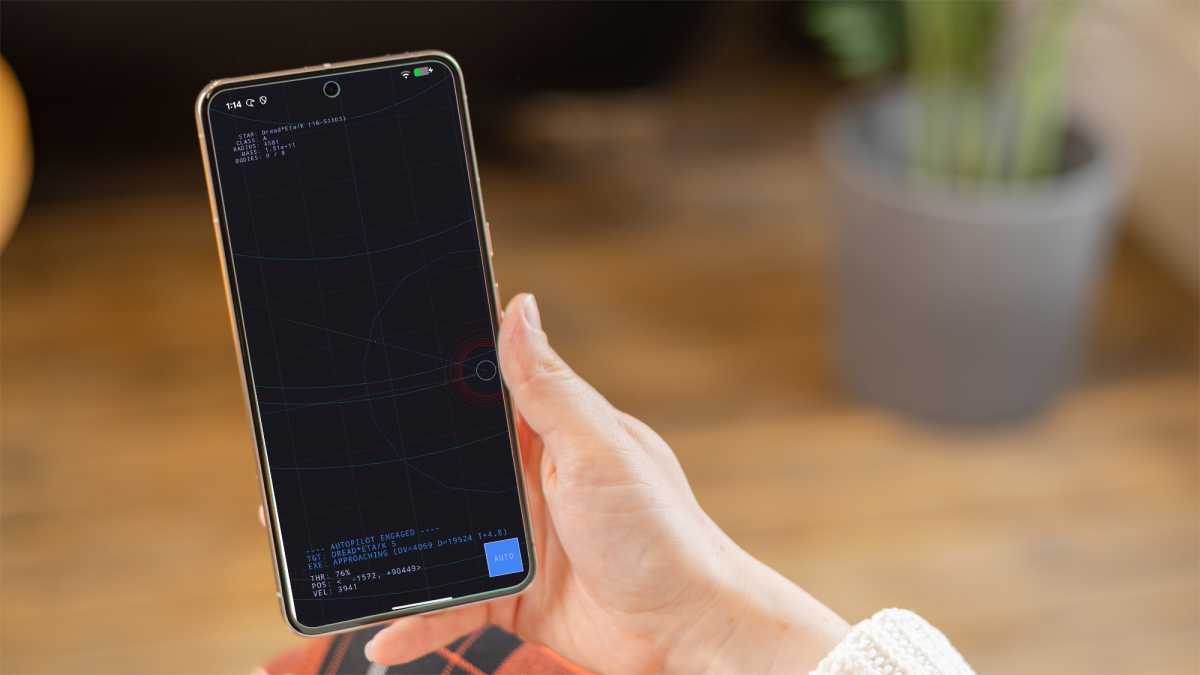
7. New spaceship game
Google engineers added a fun little diversion in Android 16 as part of a recent quarterly update. The new spaceship game uses vector graphics and is a throwback to the 70s. You can fly a ship around, then land on planets and plant flags.
How to find the spaceship game
The Spaceship game is a bit hard to find, so it’s more of an Easter egg. To launch the game, go to Settings , then About phone . Scroll down to where it says Android version and select that option, then press multiple times on Android version until you see the launch screen. Press and hold on the launch screen until the game starts.
Foundry
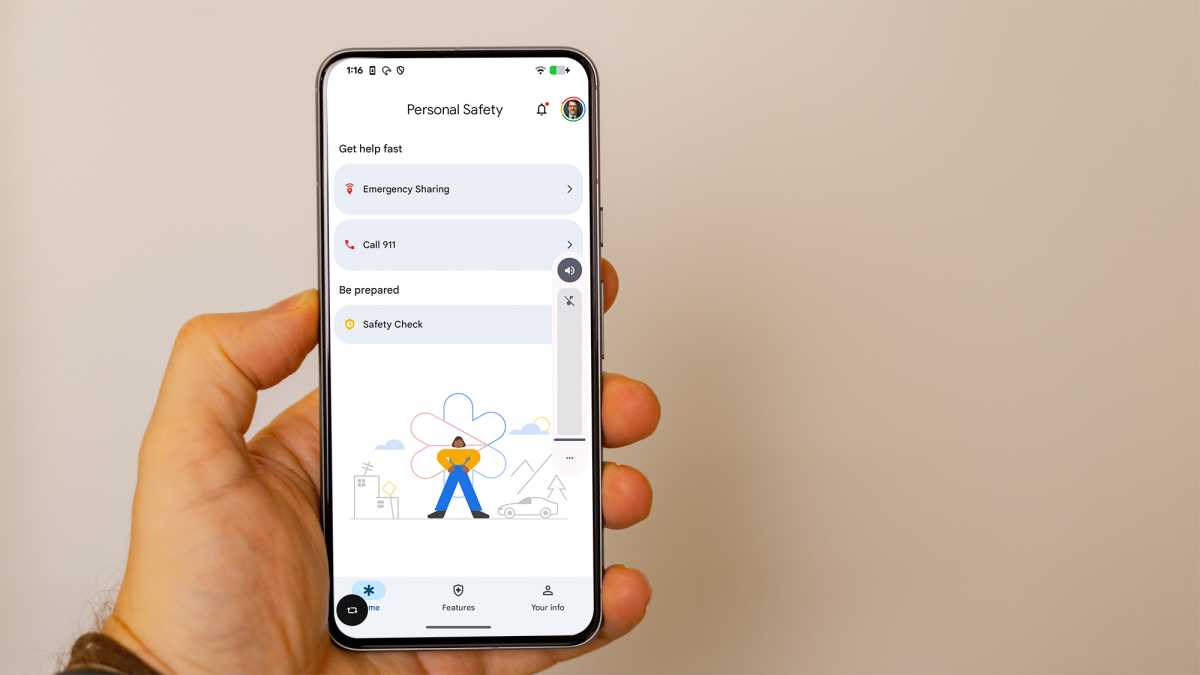
8. Personal Safety app for emergencies
Android 16 has new safety and protection features in case of an emergency, most notably a safety check that allows you to set a timer to confirm you are safe. If you do not respond within a set timeframe, your phone starts sharing emergency information with your key contacts. The latest update allows you to set a specific amount of time – say, 30 minutes – before contacts are notified.
How to find the Personal Safety app
To find the Personal Safety app, go to Settings and select Safety & emergency . At the top of the screen, you’ll see a button to Open Personal Safety that allows you to configure the service.
Foundry
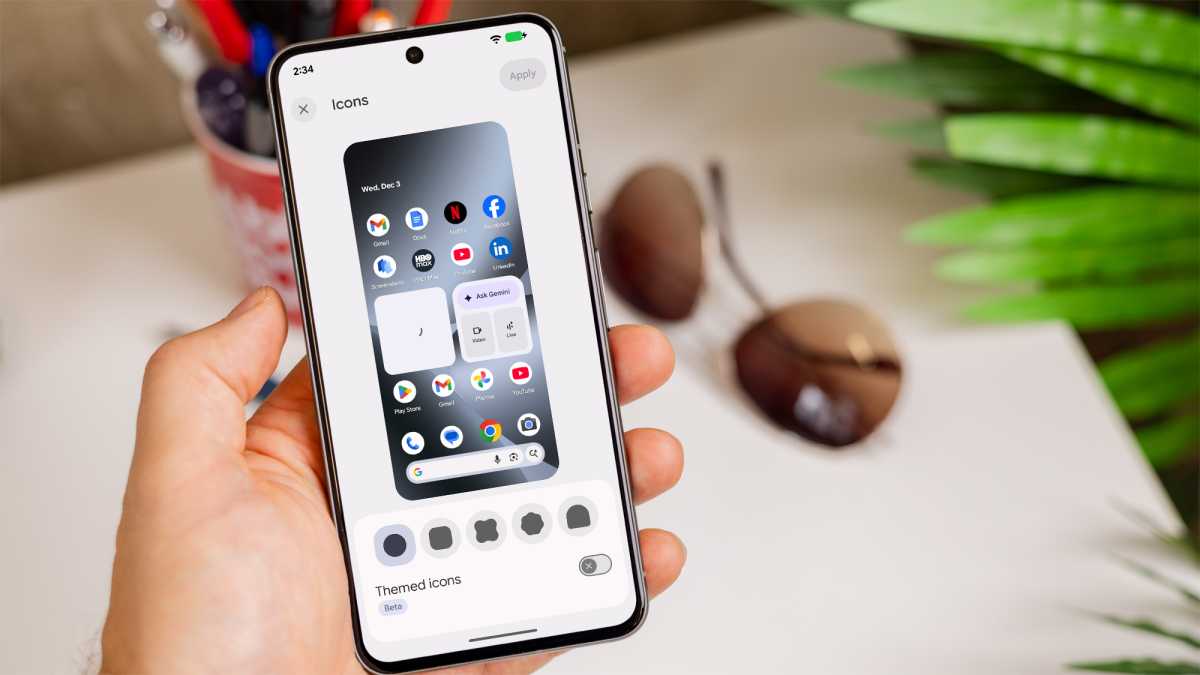
9. Custom icon shapes
Google added another playful feature that might not increase your productivity but could impress a few friends. Android icons for apps have traditionally been circles, but Android 16 lets you change the shape to a square or even a shape that looks like a Pac-Man figure.
How to change icon shapes
To change the shape of app icons, first go to the Wallpaper & style section in Settings . Swipe to the right to see the home screen and look for the Icons option. Select it and choose the new icon shape you want.
Foundry
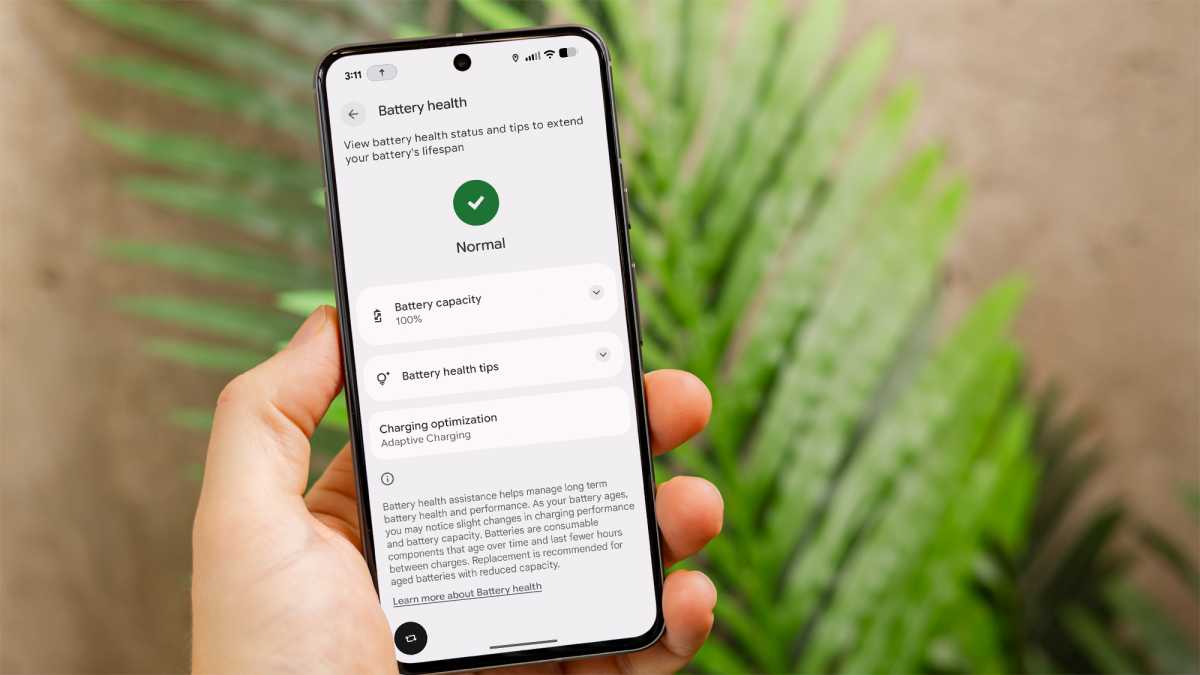
10. Check your battery health
One last feature that is helpful for anyone who owns an older phone has to do with battery health. Android 16 added a Battery Health feature that shows your battery capacity. Since capacity can deteriorate over time, it’s helpful to know if you are overcharging.
How to find Battery Health
Go to Settings and select Battery, then Battery Health . You’ll see an estimate of battery capacity. On a new phone, it will likely be 100%.
Foundry
Want more like this? You may also be interested in 10 easy ways to make your Android phone run faster and how to make your Android phone last up to 25% longer .
Author: John Brandon, Contributor, Tech Advisor

John Brandon is a well-known journalist who has published over 15,000 articles on social media, technology, leadership, mentoring, and many other topics. Before starting his writing career in 2001, he worked as an Information Design Director at Best Buy Corporation.
Recent stories by John Brandon:
- I turned my Pixel 10 Pro into an iPhone with these hacks
- Come at me: The iPhone still does these 9 things better than an Android
- 10 easy ways to make your Android phone run faster
