Printers have seen something of a resurgence recently, with many people having to work from home due to the pandemic and needing a way to print off important documents or homework for the kids. Along with this returns the old problem of running out of ink at just the wrong time or having to spend a small fortune buying new cartridges because you’re printing so much.
The services send ink – or toner – by post to ensure you don’t run out, and they also spread the cost over months so you don’t have to pay a lot at any one time. And they can work out cheaper than buying the cartridges yourself. Here’s how they work and what they cost. Note that all prices are for ink/toner only and do not include paper.
How do printing subscription services work?
The idea is simple. You pay a monthly amount for your ink and can print up to a specified number of pages each month or across the whole year. Brother’s service even includes a printer as part of the package. Usually, your printer will be connected to the internet so the service can monitor its ink levels, then send you out a replacement cartridge so it arrives before the wells run dry. In other cases, the capacity of the printers will mean you will only have to order the replacements a few times during the subscription.
While having a limit on the pages you can print might seem restrictive, if you take a little time to work out your printing habits then you should find a plan that fits in with your requirements. Of course, as with any subscription, try to estimate how much your current usage levels would cost you across a year, then compare it to what you’d get from using one of these services.
While it is possible, in some cases, to use your existing printer, you may need to buy one that’s compatible with the service. The printers are usually heavily subsidised, to make the idea of the subscription service more appealing.
There are a few different subscription-based printing services around, but here are how the major competitors line-up.
Note that we have compared pricing only with genuine manufacturer cartridges. You can save money by buying third-party ‘compatible’ ink or toner. While it is fine to do so, bear in mind that print quality may be inferior, prints may fade faster and check that the seller will accept returns if you find that your printer detects a non-genuine cartridge and refuses to print (unlikely, but it can happen).
Brother EcoPro
Brother’s EcoPro service, which isn’t available in the USA, is split into three main categories: mono, colour and fast colour printing. Each requires a printer as part of the package, and the options break down as follows:
Simple Mono Printing
With this package you receive a monochrome laser printer for £20 (+VAT) or you can use an existing Brother printer if it’s compatible. Then for £9.98 per month (over a 24 month subscription) you can print up to a maximum of 6,000 A4 pages per year, which works out to 500 per month. Brother estimates this will save you around 70% of the costs you would have incurred if you bought the printer, ink and printed 12,000 pages across the two years.
Obviously, if you only print 50 pages per month usually, then this would be a waste of money, but for those who are regularly churning out pages, it’s well worth considering.
Should you prefer a 12-month subscription, then it costs £13 p/m, plus the £20 (+VAT) for the printer.
Using these prices we can calculate that the cost per printed page with the Eco-Pro service works out (if you remove the printer cost) at £0.02 on the 24-month tier and £0.03 on the 12-month contract.
At the time of writing, you could buy a TN1050 Toner cartridge for £41.99 , which would print 1,000 pages. This would make the price per page £0.04, which is actually more expensive, especially if you then factor in the price of a printer.
With all the Brother EcoPro tiers, you’ll need to order replacement cartridges or toner manually online on the Brother EcoPro website, and you can only do so every thirty days.

Flexible Colour Printing
This works out at 3p per page on both the 12 and 24-month contracts.
Again, checking the Brother site we find that LC3213 cartridges in Black/Cyan/Magenta/Yellow retail at £51.59 for 400 pages. This makes the price per page 13p, which is considerably more than the subscription offering.
Fast Colour Printing
The most expensive tier includes the same cost for the printer, which this time is a Brother colour laser model, and allows up to 6,000 A4 colour pages per year. A 12-month contract costs £29.99p/m while the 24-month variant is £25p/m.
This works out at 6p per page on the 12-month contract and 5p if you go for the 24-month plan.
Looking on Brother’s site, the black toner cartridge with the code TN-247BK costs £91.19, plus similar prices for the three colour toners. This makes the cost of replacing the entire range of cartridges around £400, which will give you 2,300 pages of colour printing. This works out at £0.17 per page, thus proving that the subscription rate is the way to go if you want to print regularly.
You can check out all the details about the services and its tiers at the Brother EcoPro website.
HP Instant Ink
HP was the first manufacturer to offer a subscription service. Instant Ink works with lots of HP printer models with Wi-Fi. This means that HP knows when your ink is going to run out, so it can post you the replacement to arrive in time to hopefully avoid any disruption to your output.

The range of options is quite expansive, all based on how much you print each month. Be sure to leave yourself a bit of wiggle room though, as it’s quite expensive to print over your allotted number of pages.
One good thing is that unused pages get added to your rollover pot, meaning you can make use of them at a later date. Each tier has a maximum amount of rollover pages allowed, so check the HP Instant Ink site carefully before signing up so you know your entitlement.
The tiers on HP Instant Ink are priced as follows and are all per month:
Ink
- 15 pages – £0.99/$0.99
- 50 pages – £1.99/$2.99
- 100 pages – £3.49/$4.99
- 300 pages – £9.99/$11.99
- 700 pages – £22.49/$24.99
Toner
- 50 pages – £1.99/$1.99
- 100 pages – £3.49/$3.99
- 400 pages – £12.99/$13.99
- 800 pages – £17.99/$19.99
- 1500 pages – £22.99/$25.99
Ink
- 15 pages – £0.08/$0.08
- 50 pages – £0.48/$0.72
- 100 pages – £0.42/$0.60
- 300 pages – £0.40/$0.48
- 700 pages – £0.39/$0.43
Toner
- 50 pages – £0.48/$0.48
- 100 pages – £0.42/$0.48
- 400 pages – £0.39/$0.42
- 800 pages – £0.27/$0.30
- 1500 pages – £0.18/$0.20
You can cancel your plan at any time and there are no minimum contract lengths or any other commitments.
- Find out more about HP Instant Ink
HP states that you can save up to 70% on the cost of running your printer by using the subscription model, and while we can’t provide the exact saving for ever HP printer here, if you print regularly, you’ll definitely be better off with an Instant Ink plan rather than buying the ink direct from HP.
The same is true for Epson printers too.
Epson ReadyPrint
Not to be left out, Epson also offers an ink subscription service which it calls ReadyPrint. There are two main variants of the service, which are Flex and Go. This might sound like a Yoga channel on YouTube, but the plans offer different approaches to how you use an ink subscription service. Note that these are UK-specific: there are alternative offerings available in the US (scroll down to see them).

Flex
This works with either Epson’s Expression Home or Workforce printers, so if you have one of the those then you’re good to go. The plan has range of tiers available, all of which have different allowances for the number of pages you can print each month. Here’s how they break down:
- 30 pages – £1.29
- 50 pages – £1.99
- 100 pages – £3.49
- 300 pages – £9.99
- 500 pages – £16.49
Used pages rollover to the next month and can be kept for a maximum of two months, but if you need to print additional pages each month you can either pay £0.10 per sheet or move to a higher Flex tier. Bear in mind that A3 prints count as two pages.
Basing the price on a one-year contract (you can cancel at any time on ReadyPrint) this is how much each page costs:
- 30 pages – £0.50
- 50 pages – £0.48
- 100 pages – £0.42
- 300 pages – £0.40
- 500 pages – £0.40
Both the Workforce and Expression Home variants of Epson’s printers will automatically monitor their ink levels, then notify Epson when they are running low, so the service can send you out replacements just before they are needed.
Go
This is a pay-as-you-go version of ReadyPrint, which is best suited to those who have a more erratic printing patterns. With this service, you register your compatible Epson printer (the site will allow you to check before signing up), then like the Flex plan it will monitor your ink levels then automatically order a new cartridge when your current one about to run out. No contract or minimum payments, just an automated service. You can choose to pause this at any time, so you’re not tied into ordering cartridges forever.
The costs are the same as buying regular sized cartridges directly from Epson, so check the site to see how much they are before signing up. To find out more, visit the Epson ReadyPrint site.
In the USA, there is another element to the service, in that you can choose to buy a printer as part of the package, as with the Brother EcoPro service, which is only in the UK.
There are three different packages available, each with a certain printer best suited to the requirements of that tier. Basically, the higher the tier, the fastest the printer, the more pages you can print, plus there are additional features, such as larger tray capacity, a fax and ethernet connectivity. Here’s the range:
Home
Unlimited ink, Epson ET-2750U printer, 1,250 pages per month, $14.99 per month.
Office
Unlimited ink, Epson ET-3750U printer, 2,100 pages per month, $19.99 per month.
Business
Unlimited ink, Epson ET-5850U printer, 8,300 pages per month, $34.99 per month.
Which is the best printing service for you?
If you don’t already have a printer, then Brother EcoPro might be quite tempting, as you get one as part of the deal, plus the price per page is still very reasonable.
If you have an HP or Epson printer that’s supported by their schemes, it obviously makes most sense to go with whichever brand you have, as the cartridges aren’t cross compatible with the other brand. Do take the time to calculate how much you could save even if it means buying a new printer though as switching brands could work out cheaper in the long run.
Ultimately if you print a lot of pages at home or just like the idea of never running out of ink, then it’s well worth considering a subscription service as they can certainly reduce the frustration of having your printer well run dry at that crucial moment.
- Best printer deals UK
- How to print from iPhone or iPad
- How to get a laser or inkjet printer for £1.20
- How to fix common printer problems
Author: Martyn Casserly, Contributor, Tech Advisor

Martyn has been involved with tech ever since the arrival of his ZX Spectrum back in the early 80s. He covers iOS, Android, Windows and macOS, writing tutorials, buying guides and reviews.
Recent stories by Martyn Casserly:
- What ink do I need for my printer?
- How to print in Windows 10
- Inkjet vs Laser printer: Which one is right for you?
Home printers are working overtime for many people, with more of us than ever working from home. That means stock is hard to find along with decent deals but we’ve searched high and low for the best discounts nevertheless.
If your printer can’t cope or you’re sick of high ink costs, buying a new printer can solve the problem. We’ve rounded up the biggest bargains, and we also explain what to look for when buying a new printer.
With more demand than usual, printer deals are hard to find but here are the best ones in the US and UK.
What to look for in printer deals
It’s important to keep in mind that the price of the printer is just the beginning. You’ll also need to consider ink costs. Often what looks like a great value printer can turn out to be expensive in the long run because of expensive ink. Some manufacturers, including HP, now offer ink subscriptions which give you a fixed price for a certain number of prints per month, which makes it easy to know how much you’ll be spending.
Most modern printers are multifunction all-in-one devices that can scan and copy documents in addition to your standard printing capabilities. Some include a fax machine, too.
You can find printer reviews by category – choose from budget, laser, laser colour, inkjet and all-in-one models
Look out for Wi-Fi-enabled printers, as these are incredibly useful for when you need to print from your phone or a laptop. Also, consider whether they have USB ports or memory card slots for easier photo printing.
There are lots of different types of printers available, which can make it really tricky to decide which is right for you. It’s worth first noting that the printer market moves very slowly, so don’t be afraid of buying last year’s model.
Inkjet vs Laser
These are the two main printing technologies. An inkjet printer sprays tiny dots of ink onto paper and are generally cheaper than laser printers (though you may pay more in cartridges in the long run).
Laser printers, on the other hand, use a powdered ink called toner. The paper gets electronically charged to attract the ink into position. It’s then fused with heat onto the page. Laser printers work best for text and generally for printing quickly at high volume.
In terms of colour printing, inkjet printers can produce high-quality images but are usually slower. Colour laser printers, while faster than inkjets are more expensive to buy.
Ink cartridges might look cheaper than toner cartridges, but consider the cost per page: toner can often print 1000 pages or more, but ink might last only 100-200 pages. You can also use third-party toner which is much cheaper than genuine toner from Xerox, Samsung and others. Just make sure using it doesn’t void your warranty.
For more advice on which printer to buy, visit our best printer round-up .
Where to find printer deals
We’re bringing you our carefully curated list of the best printer deals right here, but here are a few retailers you can check out for yourself for printer deals:
US
- Amazon
- BestBuy
- Walmart
- Target
- Newegg
UK
- Amazon
- Argos
- Cartridge People
- Ebuyer
- HP Store
- John Lewis
- Ryman
- Currys
- AO
- Best Buy
- Box
- Scan
- Littlewoods
Where to find ink cartridge deals
Groupon often has discounts popular brands such as HP, Canon and Epson. See Groupon cartridge deals .
eBay is another place to check, though ensure you buy from an authorised reseller or a trustworthy source with a strong track record of positive reviews and ratings. See cartridge deals on eBay .
Author: Jim Martin, Executive Editor, Tech Advisor

Jim has been testing and reviewing products for over 20 years. His main beats include VPN services and antivirus. He also covers smart home tech, mesh Wi-Fi and electric bikes.
Recent stories by Jim Martin:
- The best 3D printers 2024
- Creality K1C review
- Bambu A1 review
Don’t let anyone tell you that you can’t print from your iPhone or iPad. If you have a printer with Wi-Fi it is likely to be a cinch to print off photos, emails, documents or Safari pages form your iPhone or iPad.
A cinch, that is, if your printer supports AirPrint, which is Apple’s printing standard. But don’t worry if you don’t , as there are further options for printing from iPhone or iPad.
- Thinking of buying a new printer? Check out the best deals right now .
How to print from iPad or iPhone using AirPrint
To use AirPrint, you’ll need either an iPad, iPhone or iPod touch. You’ll also need an AirPrint-enabled printer, a list of which can be found here . All of the major printer makers have AirPrint printers, and if you have a recent wireless printer it is likely to be AirPrint enabled.
Printing from your iPhone or iPad is very simple. Just make sure your printer is on and connected to Wi-Fi.
Now choose whatever you want to print in Mail, Safari, Notes, Photos or any of the other apps that have the sharing icon. This can be a square with an arrow pointing out of it, or just a curved arrow. Sometimes you have to tap three dots to see extra options which include the sharing icon.
When you see the sharing screen, Print should be in the bottom row (which is scrollable).

Tap Print and you’ll now see Printer Options along with a preview of what will be printed. The first time you print you’ll need to hit select printer. Your iPhone or iPad will then scan for a local AirPrint printer.
Select the one you want to use (likely to be the only printer shown in the list, but do watch out for your neighbours’ printers if they’re close by!), choose the number of copies and hit Print. It’s that simple.
How to print from iPad or iPhone if you don’t have an AirPrint printer
There are some third-party apps that’ll help you if you don’t have an AirPrint printer. PrintCentral is one that comes recommended.
They all work in a similar way. There’ll be a browser that allows you to see the files on your iPhone or iPad. You install some client software on your PC in order to physically connect up the printer to the iPhone/iPad so that they can see each other, and from there you can press print. It’s not idea, but it’s a solution nonetheless.
Finally, a simpler way of connecting printer to iPhone or iPad is offered via dedicated apps from printer makers such as HP ePrint, Xerox Print Portal, and Epson iPrint. These work much more like AirPrint, the app talks to the printer and off you go. So have a look in your app store to see if your printer manufacturer has an app that works with your printer.
Author: Matt Egan, Global Content Director, Foundry

Matt Egan is Global Content Director of Foundry, publisher of Tech Advisor, and a passionate technology fan who writes on subjects as diverse as smartphones, internet security, social media and Windows.
Recent stories by Matt Egan:
- How to recover files from an SD card for free
- Best Kids Apps: Top Android & iPhone Apps For Children
- Can Macs get viruses?
Cheap printers have been around for years, and the joke was always that you were better off buying another cheap printer when the ink ran out as it would cost more to buy replacement cartridges.
Now, we live in a subscription world where everything from music and video to mesh Wi-Fi systems are provided as long as you keep paying a monthly fee.
Printer ink subscriptions aren’t new either. HP was among the first to move to printing-as-a-subscription a number of years ago with its free tier of 15 pages per month being an attractive option for many people. Free Ink For Life is no more, and 15 pages per month is unlikely to be enough for any household with children as printing has surged in lockdown because of home schooling.
Brother has recently launched its own subscription called EcoPro , seeming to compete with HP’s new HP+ service but where that only includes ink, EcoPro includes the printer as well.
What printer do I get for £1.20?
Fortunately, not a cheap and nasty one. There are three subscriptions: colour laser, mono laser and colour inkjet.

And with all of them, you get a printer for £1 plus VAT. That means you could get a DCP-L3510CDW colour laser printer (actually a printer, copier and scanner) worth £264 for just £1.20.
Brother is offering its DCP-J1100DW all-in-one inkjet printer on the inkjet subscription, which costs £322.80 if you were to buy it from the company’s website separately. If you need to print on A3, that’s fine but receiving an A3-capable MFC-J5330DW costs £4.99 extra per month.
The mono laser option is the DCP-L2530DW which is worth £178.
You may not receive these exact models: Brother says it might send an equivalent model if it can’t supply the named one.
How much does an EcoPro subscription cost?
The cheapest is £9.98 per month, and that’s for a two-year subscription. If you only want to commit for a year, the price is £13 per month.
Here are all the options, along with the number of pages you can print per year:
The number of pages is the amount you’ll get from the included ink or toner per year according to an industry standard page. In other words, a normal amount of ink coverage: not full-page photos.
When the ink or toner runs out you have to order more via Brother’s EcoPro portal, and you can only do this once every 30 days. If you go over the 6000 pages, you can still print, but you’ll have pay a ‘top-up fee’.
Brother says the subscription costs mean you save 70% compared to buying the printer and supplies at full price. However, it’s always worth calculating the full cost of any subscription – just as with a mobile phone – to see the full outlay over one or two years.
Will the £1 offer end?
Yes. The offer of a printer for £1.20 runs until 31 March 2021, and after that you’ll be charged £20 instead.
Do I get to keep the printer?
Yep. It’s all yours: you’re not renting it. Bear in mind that the subscription will renew automatically at the end of 12 or 24 months if you don’t cancel it with at least 30 days’ notice in your Brother Online Account.
How does this help the environment?
Those ‘disposable’ printers mentioned at the start were bad for the environment. And that’s no joke.
Brother’s subscription is called EcoPro for a reason: the aim is to reduce the impact on the environment by recycling both used cartridges (you have to return them to Brother when they’re empty) and also the printer itself if you no longer want to keep it.
The company also reckons that by keeping printers in use for a longer period (as opposed to manufacturing new ones) can reduce CO2 emissions by up to 66%. You can even monitor the ‘total CO2e offset’ in your Brother account.
- Best printer deals
- Best printers
Author: Jim Martin, Executive Editor, Tech Advisor
Jim has been testing and reviewing products for over 20 years. His main beats include VPN services and antivirus. He also covers smart home tech, mesh Wi-Fi and electric bikes.
Recent stories by Jim Martin:
- The best 3D printers 2024
- Creality K1C review
- Bambu A1 review
Printers are great when they work, but when they don’t it can be extremely frustrating. Here’s how to solve some of the most common problems, including not printing at all through to blocked nozzles and other issues.
Printers can run reliably for many years and thousands of prints, but they can also malfunction or stop working entirely.
Sometimes the reason is as simple as over- or under use. Many people don’t use their inkjet printers often enough and this can lead to problems with dried-up ink blocking the nozzles. Overuse is less common than misuse: paper clips, hair bands and even food can fall into printers and cause paper jams (and worse).
If your printer can’t be fixed with these tips, check out our list of the best printers to buy, and the best printer deals right now.
My printer won’t print
There are many reasons why your printer won’t print, so start with the basics such as checking to see whether there is an error message or warning light on the printer. Make sure there is paper in the tray(s), check the ink or toner cartridges aren’t empty, the USB cable is plugged in or the printer is connected to Wi-Fi.
And if it is a network or wireless printer, try using a USB cable instead. In our experience, some Wi-Fi printers are unreliable in terms of their connection. So it’s worth unplugging your printer and any powerline network adapters it’s connected to, then turning everything back on again.
Select the right printer!
Sometimes the reason a printer won’t print is because you’ve installed some software which has a ‘virtual’ printer and this has set itself as the default. When you hit Print, a file will be saved by this virtual printer instead of the document being sent to your physical printer.
To check this, open the Control Panel from the Start menu. Then go to Devices and Printers, right-click the correct printer to use and set it as the default. (While you’re there, you can also ensure the printer’s status is set to Ready. If not, this could be the source of the problem.)
Next, make sure that the correct printer is selected in the program you are printing from – you should see an option to choose from a list as in the image below.

Microsoft has a printing troubleshooter that can help to identify problems. Click the Fix it button, download and run the program, then follow the steps in the wizard.
You can also open the Control Panel, Devices and Printers, right click the printer icon and select Troubleshoot. It doesn’t always help, but it’s worth trying.

HP has a Print and Scan Doctor to identify problems, and Canon has lots of great videos on its website – click your printer model and then click the Troubleshooting videos link.
Why can’t I print from my phone or tablet?
To print from an iPad, iPhone or iPod Touch, the printer must have Wi-Fi and also support AirPrint. The list of AirPrint printers is growing, but there are still a lot of printers, particularly older models, that don’t support it.
If you have a Mac with a printer attached, you can turn it into an AirPrint printer using HandyPrint . Printer Pro is an app for iOS devices that enables them to print to many wireless printers or a wired one attached to a PC or Mac.
Some Samsung phones, tablets and printers are designed to work together and printing is straightforward. Samsung also has its own app for printing to its printers, including from iPhones.
To print from any Android phone or tablet to any PC-connected printer you can use Google Cloud Print.
Install Cloud Print on the mobile device from the Google Play store . Next, using Google Chrome on your PC, go to the menu, Settings, Advanced Settings and click Manage. You can then add the printer attached to the PC. Provided the PC and printer are switched on, you can print from the Android device.
Do I need to replace the cartridges?
Printers warn that the ink is running out before it actually does. If you print only occasionally the remaining ink or tonermight last another couple of weeks, if not months.
Order new cartridges as soon as the message appears, but don’t install them until it either stops printing or the colours fade. A trick with laser printers is to remove the cartridge that’s running low and shake it gently from side to side. This sometimes allows the rest of the toner to be used. In other cases a counter is used and once a certain number of pages has been printed, the cartridge will be deemed as empty.
HP has an interesting scheme with many of its printers where you pay per month and cartridges automatically arrive at the right time.
If your colour ink has run out, but you must keep printing, you might be able to set your printer to print in black and white only. This is a setting you’ll find in printer properties in the Control Panel – or click the option when you go to print via an application you want to print from.
Why won’t web pages, Excel documents and photos print properly?
Web pages
Web pages can be any size and they aren’t limited by the width or height of the paper in your printer. They aren’t usually designed to be printed, which is why problems can occur.
Much of the time you will find a shrink-to-fit option in the printer settings that helps when your document or photo is just a bit too big to fit on the page. Some web pages, such as those with printable coupons, have a print button within the web page. Use that and not the print menu in the browser.
Office documents
If you’re trying to print an Excel sheet, be sure to select only the cells you need to print before clicking Print. Then you can choose ‘Print selection’ and change the other options to make sure it fits well on an A4 sheet. You can do other things, such as reducing the size of the margins, and switching from landscape to portrait orientation.
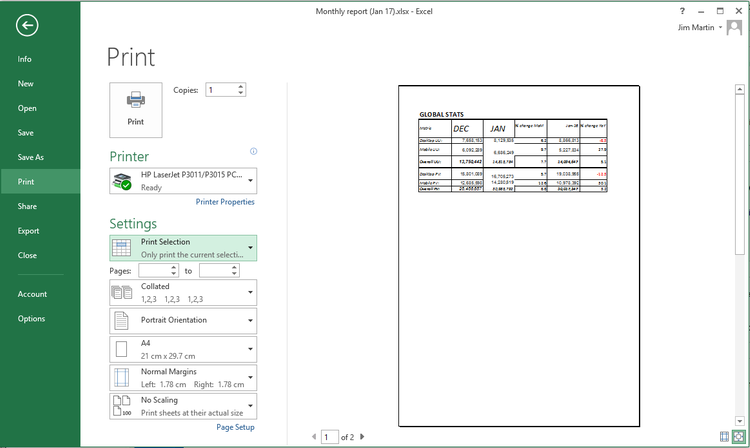
Similarly, when printing a Word document or any other, you can usually specify which pages to print so you don’t have to print them all.
Photos and pictures
For photos or images you want to print, it’s usually best to right-click on them in Windows Explorer and click Print. This way you will get to choose how large to print each photo.
If you select multiple photos in a folder, then right-click and choose Print you will be able to print them all at once, with more than one per sheet of paper (and you can choose the paper size here too). It’s similar to the ‘n-up’ option that you’ll find in Printing properties which allows you to print multiple pages of a document on a single sheet of A4.

Why does my printer say “Error”?
There are a few possible reasons, but the most common is to do with paper. T he first thing to check is whether the input tray is empty, but it’s also worth checking for paper jams. If you find one, try to work out why it’s happening rather than just pulling out a crumpled piece of paper from the paper tray and assuming you’ve fixed it.
Take the paper out of the tray, open all the flaps and look inside. You might need a torch to see the paper and long tweezers to reach it, especially if it’s only a very small piece which has been ripped off and left inside.
Look underneath the printer because there may be an access panel that can be removed to examine and clean the paper feed mechanism.
Old paper can absorb moisture, which makes it stick and then it is pulled through two or more sheets at a time. Keep it in a bag until it is needed. Check out Canon’s troubleshooting videos to see how to remove pieces of paper stuck in printers.
Also, try using thinner paper: most home printers will only handle photo paper at a maximum. They can’t usually print on card as it’s too stiff to be fed around corners.
Why is the print quality poor?
The nozzles on inkjet printer heads can become blocked causing horizontal streaks on prints and poor or wrong colours. Cleaning the print heads can solve the problem. The procedure varies from printer to printer and there may be an option on the printer control panel or in the printer software on the computer.
You might need to look this up in the manual. In your printer’s properties (either in an app or in the Windows Control Panel) you might find a maintenance section.

The type of paper affects the print quality and photocopier paper might be letting you down.
It can be too absorbent and inkjet ink soaks into it like blotting paper. Buy good quality paper for the best prints, and this is usually from the printer manufacturer itself, particularly for printing photos.
Laser printers are less dependent on paper, and smudges or spots in the same place on each page usually mean there’s dirt somewhere in the printer, typically on the ‘drum’.
Be very careful when cleaning the imaging drum, using only isopropyl alcohol and a soft lint-free cloth.
Read the manufacturer’s guidance on how to remove and clean the drum, which is often called an OPC.
We’ve also written a guide on how to match the colours on your screen to your printer.
Many printers are cheap to buy, but there’s a very good chance that you’ll spend much, much more on ink or toner cartridges than you did on the device itself. So, is it worth trying to save a bit of money by buying cheaper refills or should you stick with the more expensive genuine manufacturer cartridges?
We explain these options so you can decide which is best for you.
If you’re considering replacing the printer itself, then you check out our best printers guide.
Genuine ink & toner
Whichever model of printer you buy, the company that made it will have specific ink that it recommends you use. Of course, this is also most likely made by the said company and can be seen as something of a money grab due to the fact that it’s always more expensive than third party rivals. And just expensive in general.
The truth is a little more complicated. Ink is a serious business, as we can attest having once spent hours with a HP Inkologist explaining bonding agents, flow rates and various other properties.
All ink is not equal, and over the years various tests have proven this as such.

When you opt for a manufacturer’s own-brand ink you know that it has been designed to work specifically with your printer. It means you can expect the best image quality, the best fade-resistance and to get the quoted number of pages from the cartridge.
There’s also the security that it shouldn’t block up the nozzles or print heads on your device (in some cases the ink actually cleans them), plus it won’t affect your warranty on the printer.
The trade-off is that they’re more expensive than alternatives available online, but if you want the best performance, results and to potentially extend the life of your printer then this is the price you pay.

Depending on the make of your device, there will be different cartridges and toner packages available. Try searching the manufacturers’ online guides for which one to choose, such as these for Canon , HP , Epson , and Brother .
And also remember that in most cases, it’s possible to buy high-capacity cartridges which work out cheaper per page printed.
Third-party cartridges
If you’re looking to save some money in the short-term, then the individual cost of third-party cartridges will be hard to resist – especially if you own a colour laser printer. The reasons for these lower prices are manifold, not all of which are good.
The first is that they often use cheaper components. The ink might be water- rather than oil-based or the powders are of a lesser quality. The construction of the casings in some products are more fragile than the more expensive alternatives, which could lead to leaking or spillage. Plus, the connector fittings might not be quite up to the same standard as the manufacturers’ official products.

And if your printer has the printheads built into the cartridges, it’s likely you’re getting a refilled original manufacturer cartridge, or a lower-quality printhead.
All this being said, if your printer is old, or you only want to print out stuff that doesn’t matters and home work sheets rather than official documents for work or distribution, then the savings could be worth the risk. And, for balance, we at Tech Advisor have successfully used third-party toner in laser printer for years and saved hundreds upon hundreds compared to buying genuine toner.
Subscription services
If you would prefer to use genuine ink from the printer manufacturers, but don’t want to have to spend a chunk of money when the cartridges run dry, then it might be worth considering a subscription plan.
For example, HP has an initiative called Instant Ink whereby consumers can pay a low monthly amount based on the number of pages they think they’ll print each month. At the moment it’s free for 15 pages, £1.99 for 50, £3.49 for 100, and £7.99 for 300.

So long as your printer is able to connect to WiFi (most modern ones can) then whenever it’s running out of ink the device will inform HP who will then automatically send out a replacement cartridge. Everything is included in the subscription cost, and you can even roll over leftover page allowances from the previous month.
Epson offers something similar called ReadyInk , but instead of a subscription service the replacement cartridges are charged at the normal price and sent automatically whenever you’re about to run out.
Both of these are great solutions if you’re not able to easily get to a shop when your printer runs dry, or you can’t afford to be without a working printer for any length of time.
Whichever path you decide to walk, just be sure to find out which ink or toner your printer takes before ordering anything. To do this, search for the make and model online to see what’s listed as being compatible with your printer.
There are no hard or fast rules, and you could move freely between all the options listed above. Eventually you’ll find what works best for you. In the meantime, try to keep a log of how much you actually print each month, as this will allow you to make a more informed decision of your actual printer needs.
Author: Martyn Casserly, Contributor, Tech Advisor
Martyn has been involved with tech ever since the arrival of his ZX Spectrum back in the early 80s. He covers iOS, Android, Windows and macOS, writing tutorials, buying guides and reviews.
Recent stories by Martyn Casserly:
- Best printing subscription services
- How to print in Windows 10
- Inkjet vs Laser printer: Which one is right for you?
Getting your documents, spreadsheets, posters, and other creations from PC to paper is a relatively straightforward affair. But, as with all things in life, it’s only easy when you know how. We show you the steps to take if you want to set up a printer and use it with Windows 10.
For users still on earlier versions of Windows, we’ve also included instructions on how to set up a printer in Windows 8 and 8.1.
If you need to buy a printer, check out our recommendations of the best printers.
Setting up a local printer in Windows 10
Before you can print, you’ll need to tell Windows that there’s a device that can receive your document. To set this up, first plug the printer into your PC with its supplied USB cable and turn it on. If all goes well, Windows should recognise it and install the appropriate driver.
If that doesn’t happen, open the Start Menu and select Settings . From the window that appears, click on Devices then make sure the Printers & scanners section is highlighted in the left hand column.

In the main pane, click on the Add a new printer or scanner button.

Hopefully Windows will now detect your device. If this is the case then click on its name and follow the instructions that appear to complete the setup.
If the printer name doesn’t appear, then it could be that you need specific drivers or software. To find these, visit the manufacturer’s website and search for your model of printer. This should give you a link to the download you require.
Install it and follow the instructions on screen. Typically you leave the USB cable disconnected until instructed to plug it in.
Setting up a wireless printer
USB cables are pretty old fashioned when it comes to printers and most modern models have Wi-Fi. You’ll need to follow any instructions that come with the printer, as they vary too much to give anything specific here. Generally, this involves using the display on the printer itself to identify your home Wi-Fi network, then entering the password.
With this done, you can then follow the steps listed above in the Setting up a local printer section, as Windows should find the new device and add it. Again, you may still need to download software specific to the printer model from the manufacturer’s website.
Printing from Windows 10 applications
With your printer ready to roll, you can start sending it things to print. Again, this can vary from app to app, but the normal process is to go up to the menu bar at the top and select File>Print , choosing your printer, how many copies and so forth, then clicking on the Print option.

A shortcut that also works is holding down CTRL+P , which should take you to the Print options page.
Now, if all has gone to plan then you should be able to printout your documents and other paper-based creations to your heart’s content.
If you’re looking to print photographs, then read How print photos at a larger size , while for other related issues there’s also How to print from iPhone or iPad , and How to fix common printer problems .
Print in Windows 8 and 8.1 from desktop software
Each program can set its own method via which you can print, but most follow some common themes. In most cases, go to File>Print , and you can print. A similar number of desktop programs support CTRL+P as a shortcut – just hold down those two keys together.
One final, less usual, option is to look for a print icon or button. Some software makers simplify the print process by putting in place a print button. You’ll tend to find that the File, Print and Ctrl+P options also work, but a print icon can be a simpler way of doing things.
Print in Windows 8 and 8.1 from Windows apps
Things work a little different from within Windows apps. In this case you must first open the item you want to print. Then either mouse to the top- or bottom-right hand corner of the screen, or swipe in from the right edge of the screen if you are using a touchscreen device. Tap the Devices charm, and then tap Print .
Installing a printer in Windows 8 and 8.1
Using either method you should now be at a printer settings page. You’ll need to choose a printer from the list. In most home setups this will just be your one and only printer. If you can’t see the printer you want, or any printer, you may need to install your printer.
In most cases, all you have to do to set up a printer is to connect it to your PC. Simply plug the USB cable from your printer into an available USB port on your PC, and turn the printer on.
If you have a wireless printer that hasn’t been added to your home network, it’s a little more complicated and you’ll need to read the instructions that came with the printer to learn how to add it.
If you are unsure about any of this you can check by going to the Settings charm, and selecting Change PC settings . Select PC and devices , and then Devices . Your printer should appear under Printers. If it isn’t there you need to follow the steps outlined above in order to install it.
Assuming you have a printer installed and ready to go, at this stage you’ll see a preview of what you’re printing, along with the number of copies and the page orientation on the preview pane.
Choose the paper type, page layout, print orientation, and other output settings. Once you are happy, click Print .
Author: Martyn Casserly, Contributor, Tech Advisor
Martyn has been involved with tech ever since the arrival of his ZX Spectrum back in the early 80s. He covers iOS, Android, Windows and macOS, writing tutorials, buying guides and reviews.
Recent stories by Martyn Casserly:
- What is Google Gemini?
- How to back up your data for free
- You can now buy Microsoft Office 2024 on Amazon without a 365 subscription
Smartphones and tablets may have removed the need for physical documents in many cases, but we’re still a long way from being a paperless society. That’s why printers remain a useful device to have around the house.
As we tend to buy them infrequently, it can be a bit puzzling to know which type to choose: Should you go for a HP laser model or is an Epson inkjet better? So, here’s a quick guide on the main differences between inkjet and laser printers.
How do printers work?
While either type will perform general printing duties, inside they’re not the same. Inkjets, as the name suggests, have a large array of nozzles that shoot ink onto the paper. They also use ink cartridges or (in models like the Epson EcoTank ET-3750 ) reservoirs. These usually need to be replaced or refilled more often than the toner in a laser printer.

Laser printers, aside from sounding space-age and potentially lethal, don’t use ink at all. Instead they have toner cartridges which contain a powdery substance that is fused onto the paper by heat. It’s the laser that creates the image.
What do you intend to print?
The most important question, as with so many buying decisions in technology, comes down to what you actually intend to do with the device. The rule of thumb in this area is that if you want to print lots of photographs then an inkjet is the way to go as they produce better quality results.
On the other hand, documents tend to look sharper on laser models and usually print at a faster rate. This is why it’s more common to find laser printers in small offices.
If you’re going to be using the printer for everyday duties that include reports, school homework, a few photos, the occasional A4 poster, and things along these lines, then either will fit the bill. At this point, the main differentiator will become price.
How much do they cost to buy and run?
Inspecting our other ruling thumb reveals that Inkjets tend to be cheaper to buy upfront, but incur higher printing costs across their lifespan. This is due to the fact that ink is more expensive per page than toner and comes in cartridges with lower capacities.

You can shop around for third-party ink, which is usually cheaper than the name-brand cartridges, but in our testing over the years this has proven to be a false economy as the high-priced ones behave better and produce more consistent results. However, things aren’t as clear cut for laser printers: we have got by just fine with significantly cheaper third-party toner cartridges.
As an example of how cheap inkjets are to buy, we found this HP Envy 4527 available at Currys/PCWorld for only £35 . This deal includes a 4-month trial of HP Instant Ink which charges a low monthly fee to keep your ink supplies automatically replenished.
By contrast the cheapest colour laser printer we could find on the same site was the Brother HL3150CDW which was on offer at a reduced price of £129.99.
Don’t let the ticket price be the sole deciding factor though. Before clicking the buy button, do a little research to see how many pages each one prints before you need to replace the cartridge, and how much those replacements cost, as this will give you a clearer picture of the real cost of owning the device.
Also, take into consideration whether you can use it via Wi-Fi, Apple AirPrint or Google CloudPrint because it’s likely you’ll want the convenience of printing wirelessly from your phone, tablet and laptop.
Finally, check the dimensions of the printer, as some can be quite large and bulky, which isn’t always easy to accommodate in a home.
For our money, we’d go with an Inkjet as it offers flexibility and a low entry cost. But, if you want to produce lots of documents quickly for work purposes then the laser route might be best for you.
To see the latest offers from around the web, check out our Best printer deals page, as well as looking at the devices that currently make up our Best Printers 2018 chart.
Author: Martyn Casserly, Contributor, Tech Advisor
Martyn has been involved with tech ever since the arrival of his ZX Spectrum back in the early 80s. He covers iOS, Android, Windows and macOS, writing tutorials, buying guides and reviews.
Recent stories by Martyn Casserly:
- Best printing subscription services
- What ink do I need for my printer?
- How to print in Windows 10
