At a glance
Expert’s Rating
Pros
- Excellent quality prints
- Bright built-in light
- Easy to assemble
Cons
- Auto-levelling requires manual assistance
- Confusing touchscreen interface
Our Verdict
The Ender 3 S1 Pro produces fantastic prints, but there are cheaper 3D printers out there with similar features. But the S1 Pro’s print quality might still tempt you.
Best Prices Today: Creality 3D Ender 3 S1 Pro

Creality’s Ender 3 is a hugely popular budget 3D printer which was launched back in 2018. Now, the company offers a vast range of Ender models including nine just in the Ender 3 range.
The S1 Pro sits at the top end, just below the newly launched S1 Plus, which offers a bigger print volume but lacks of a couple of the Pro’s quality-of-life features such as the LED strip which lights up the build plate.
The S1 Pro may not qualify as a budget 3D printer, but it has all the features you’d want and doesn’t need any of the upgrades that many owners make to cheaper models.
So if you value convenience, this could well be the 3D printer for you: if you can live with its drawbacks.
Features & design
- 220 x 220 x 270mm build volume
- Touchscreen
- Direct-drive printhead
The Ender 3 S1 Pro is a fairly sizeable device, measuring 490 x 455 x 625mm (plus the spool of filament on top). It’s capable of printing models up to 220 x 220 x 270mm, a little smaller overall than the Anycubic Vyper ’s 240 x 240 x 265mm.
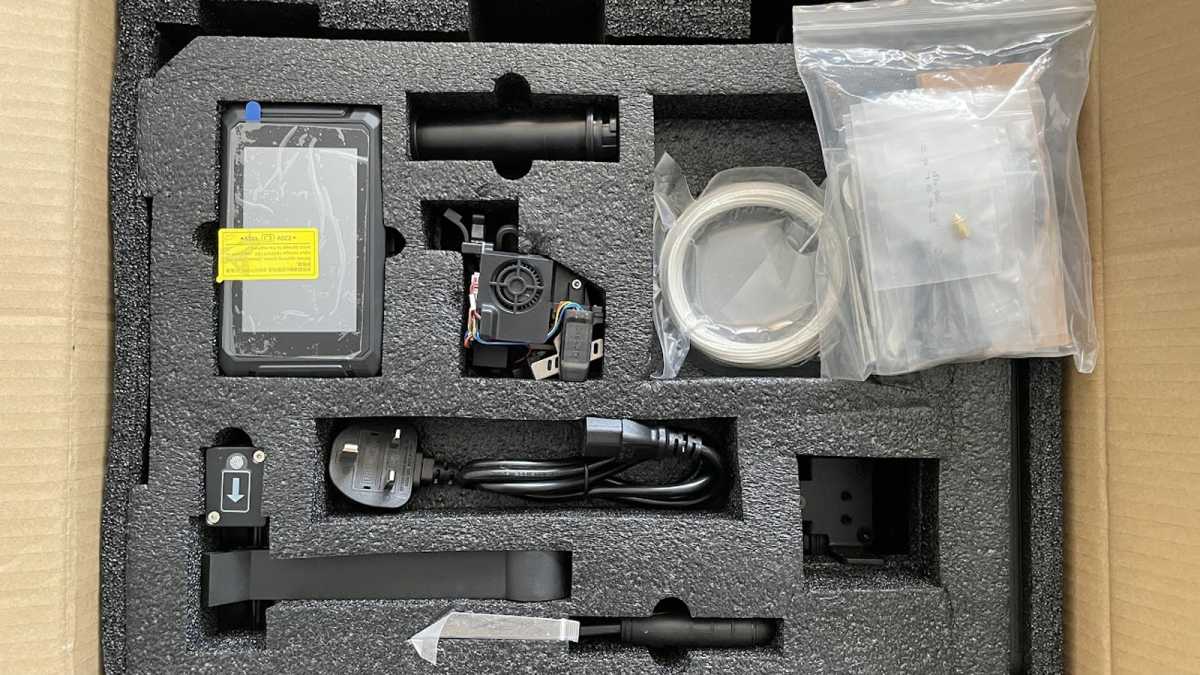
Both take up a similar amount of desk space, and both have similar design and build. Out of the box, it looks like there are lots of parts to assemble, but in reality it’s quite straightforward.
Don’t use the quick start guide if this is your first 3D printer: watch the video on the included SD card instead. It takes around 15 minutes to attach the print head to the gantry, the gantry and screen to the base, then plug in the wires which all have different plugs and can’t be plugged into the wrong sockets.
Jim Martin / Foundry
All the tools you need are included, plus some flush cutters for cutting filament, and a scraper which seems superfluous since the S1 Pro comes with a flexible, magnetic build plate which makes it simple to remove models after printing.
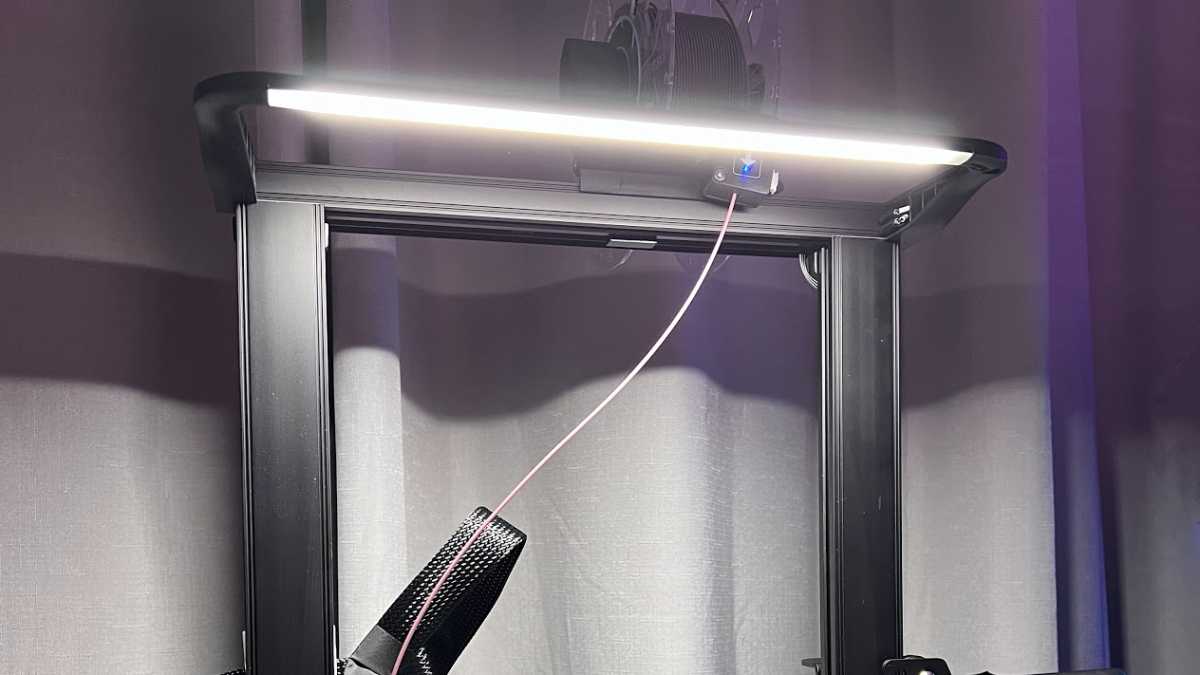
There are some other useful additions including a bright LED strip across the top of the gantry, a run-out sensor that stops printing automatically if the filament runs out, dual Z-axis screws for keeping the bed level as it rises and a 4.3in touchscreen for changing settings, selecting files to print and more.
Jim Martin / Foundry
An unexpected bonus is the bearings in the spool holder, which allow the spool of filament to rotate smoothly. Most printers just have a fixed plastic tube and the spool turns around that as the filament is drawn into the print head by the extruder.
Jim Martin / Foundry
The only issue is that this isn’t an enclosed printer (where Creality’s Sermoon series is) so if you want to print at those high temperatures, you’ll almost certainly need to put the S1 Pro in an enclosure – even if that’s a handy cupboard somewhere in your home – to maintain a higher ambient temperature than if the printer was just placed on a table or desk in a room.
The bed can reach 110°C, which is recommended for printing ABS.
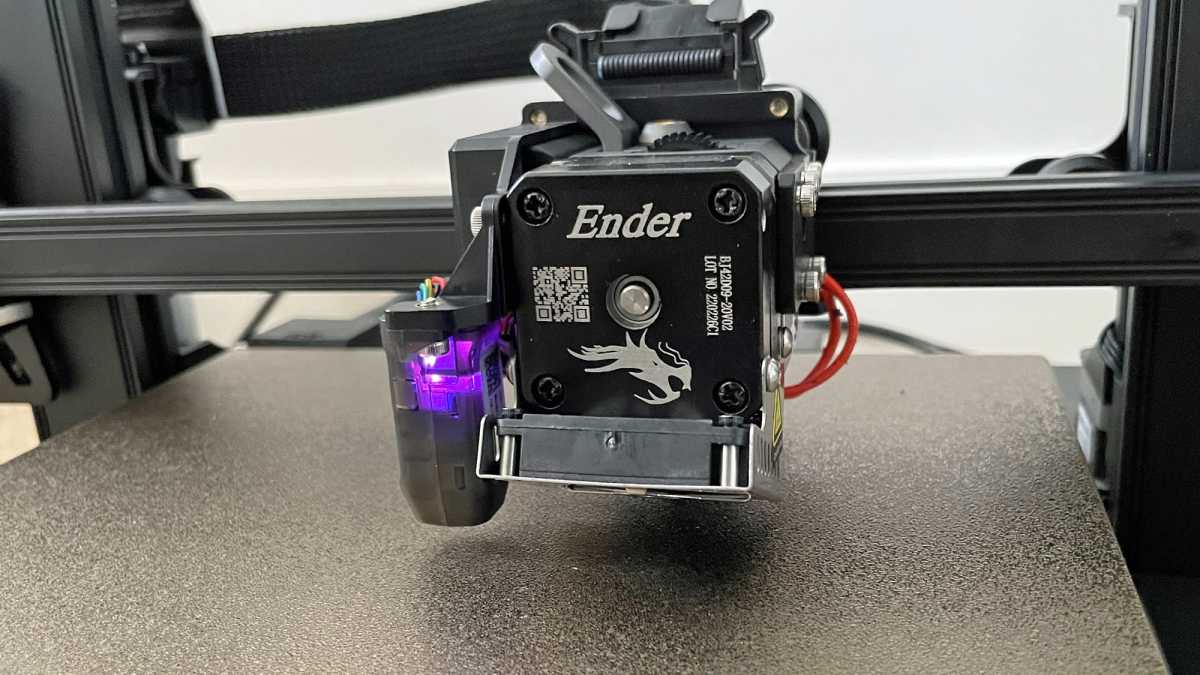
The cooling fan is placed at an angle under the motor, but this makes it very difficult to see the nozzle and the print: it’s not a massive problem, and it certainly seems to be effective at its job.
In the box, you’ll find a useful plasticised sheet with the settings Creality recommends for each type of filament, such as temperatures, whether an enclosure is needed and the retraction settings you should use in the slicer. The slicer is the software which turns the 3D model you want to print into instructions the printer can understand.
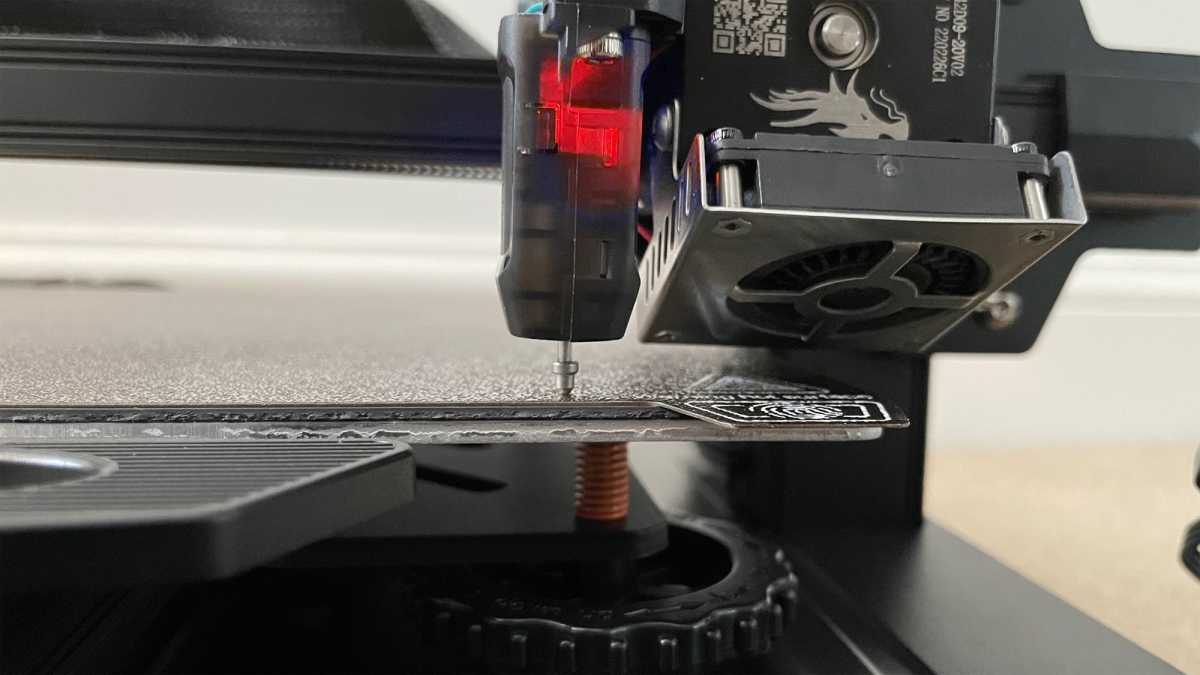
Attached to the side of the print head is Creality’s CR-Touch probe. This automatically checks the height of the bed at 16 points and is the reason why Creality says the S1 Pro has automatic bed levelling.
But it isn’t fully automatic. In fact, as you may have already seen from the photos, there are thumbwheels below each corner. These must be adjusted – using the aforementioned plastic sheet – to do the initial bed levelling, exactly like 3D printers that require manual levelling.
Jim Martin / Foundry
Once this is done, you can run the ‘auto levelling’ which checks for any minor variations across the print bed and compensates for them during printing.
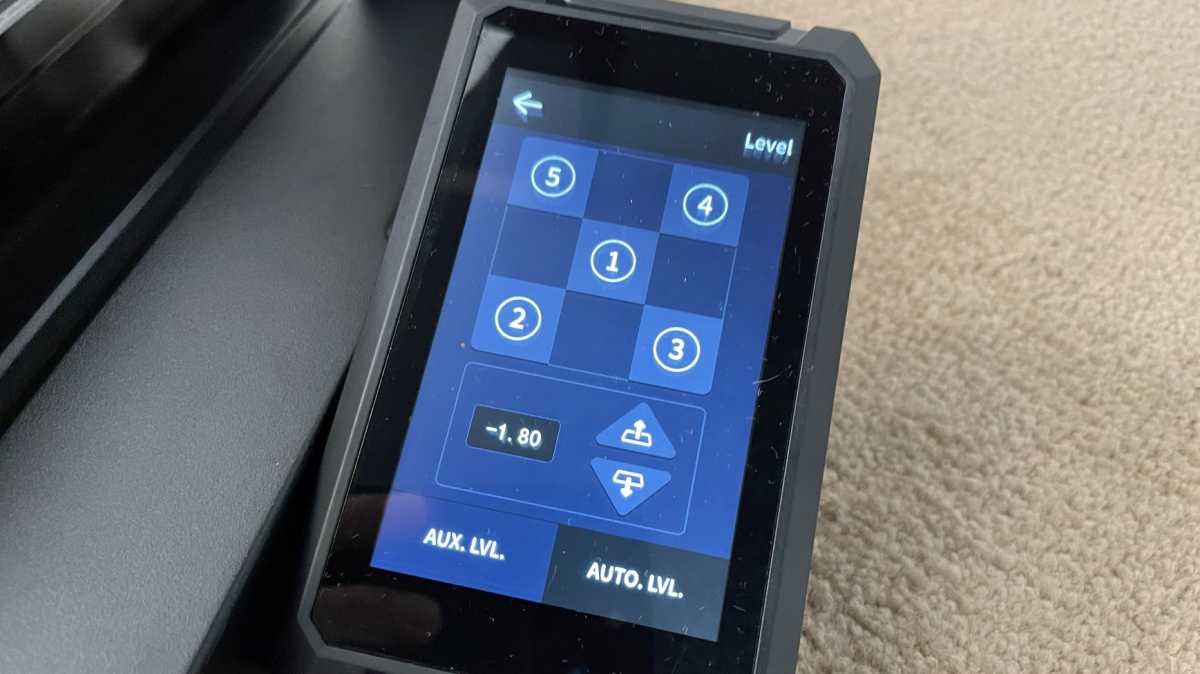
After this, you then use the sheet again to manually adjust the z-offset, which is the height of the bed relative to the nozzle on the print head. In the photo below you can see this is set to -1.80. You’d imagine that auto levelling would do this, but it doesn’t.
Jim Martin / Foundry
Even printers with ‘proper’ auto levelling (like the Anycubic Vyper ) still require you to adjust the z-offset, so it isn’t a problem with the S1 Pro. The only gripe is that the up and down buttons adjust the offset in 0.05mm steps, which is a little coarse.
But there is another gotcha with levelling. For some reason the printer doesn’t heat up the nozzle or bed before any of the levelling process, which it should do for the best accuracy.
You should manually set the nozzle and bed temperatures to those you’d usually print at if you don’t want to end up having to repeat the levelling process.
Even the user manual refers to the process as ‘assisted levelling’.
The clue is perhaps in the Pro suffix, but the Ender 3 S1 Pro isn’t designed to be beginner friendly. Unlike Creality’s Sermoon V1 Pro, whose touchscreen guides you through loading and unloading filament, the S1 Pro assumes a lot of 3D printing knowledge.
One thing that might confuse a first-time user is that there is no option in the menus for loading or removing filament. That is a manual (but very simple) process where you set the nozzle to an appropriate temperature for the type of filament you’re using (such as 220°C for PLA) and then use the lever on the print head to release pressure from the extruder gears and allow fillament to be either inserted or removed.
However, on the S1 Pro, if you hunt around, you’ll find an In/Out control under the Ready menu which allows you to specify how many millimetres to move the filament in or out. This isn’t really any easier though, but it does give you the ability to feed a known length of filament through the hotend and use this to calibrate the e-steps.
Jim Martin / Foundry
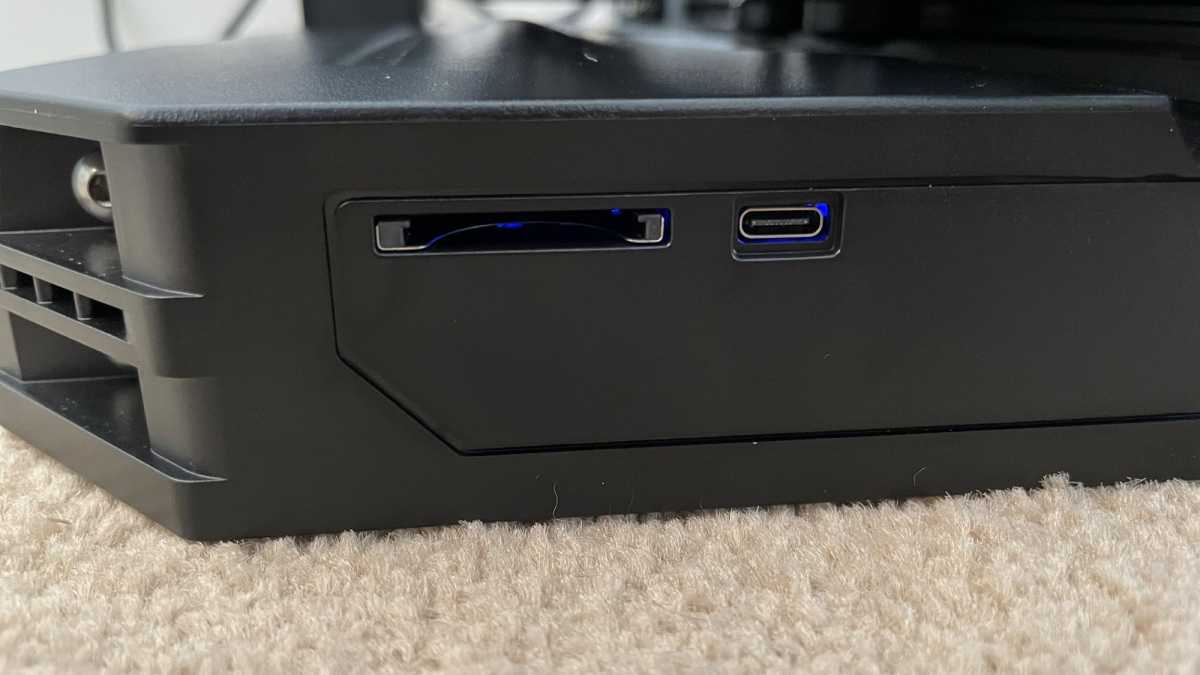
On the front is a full-size SD card slot and a USB-C port you can use to connect the S1 Pro to a PC, or perhaps to a Raspberry Pi if you wanted to use Octoprint to monitor prints from afar (there’s no built-in camera like you get with the Sermoon V1 Pro.
To the right is a pull-out tray for storing the included tools.
Upgrading the firmware is very far from easy. You may not need to, but if you do, it involves updating both the mainboard inside the printer via the full-size SD card slot, and separately updating the screen’s firmware using a microSD card you must insert into a hidden slot which you can get to only by disassembling the plastic cover that protects the screen.
Contrary to Creality’s instructions, the screen must be updated first, otherwise the printer will appear to be bricked – and freeze on the Creality logo. Ask me how I know…
Performance
One of the most noticeable things about the S1 Pro is how quiet it is. Specifically, the stepper motors are much quieter than on other 3D printers we’ve tested.
The fans are still quite noisy, though, with a high-pitched whine that’s not easy to ignore. Overall though, it’s one of the less intrusive printers for noise.
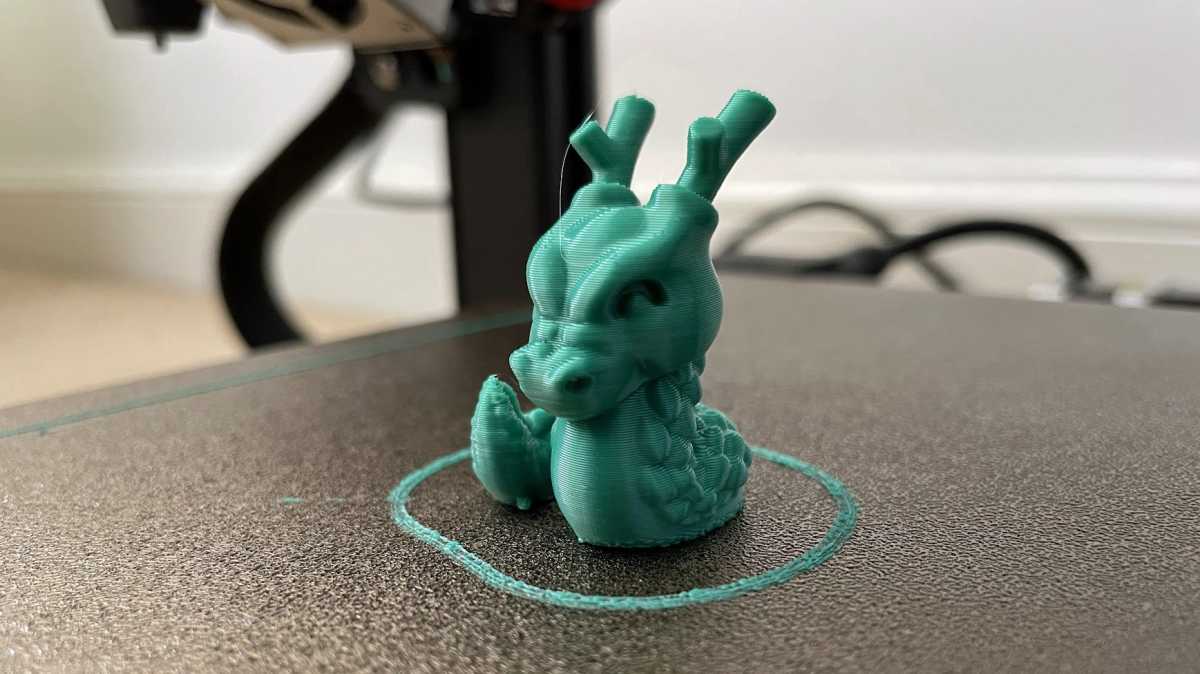
Out of the box, the S1 Pro delivered some very clean prints – whether printing models supplied on the SD card or using the default settings of the S1 Pro profile in Creality’s slicer.
Jim Martin / Foundry
The only change I made was to the Z Seam alignment, which Creality sets to be on the back of the print. That’s fine for models where you never see the back, but where it will be visible, changing the location to Random helps avoid a visible vertical seam where each layer begins and ends.
Jim Martin / Foundry
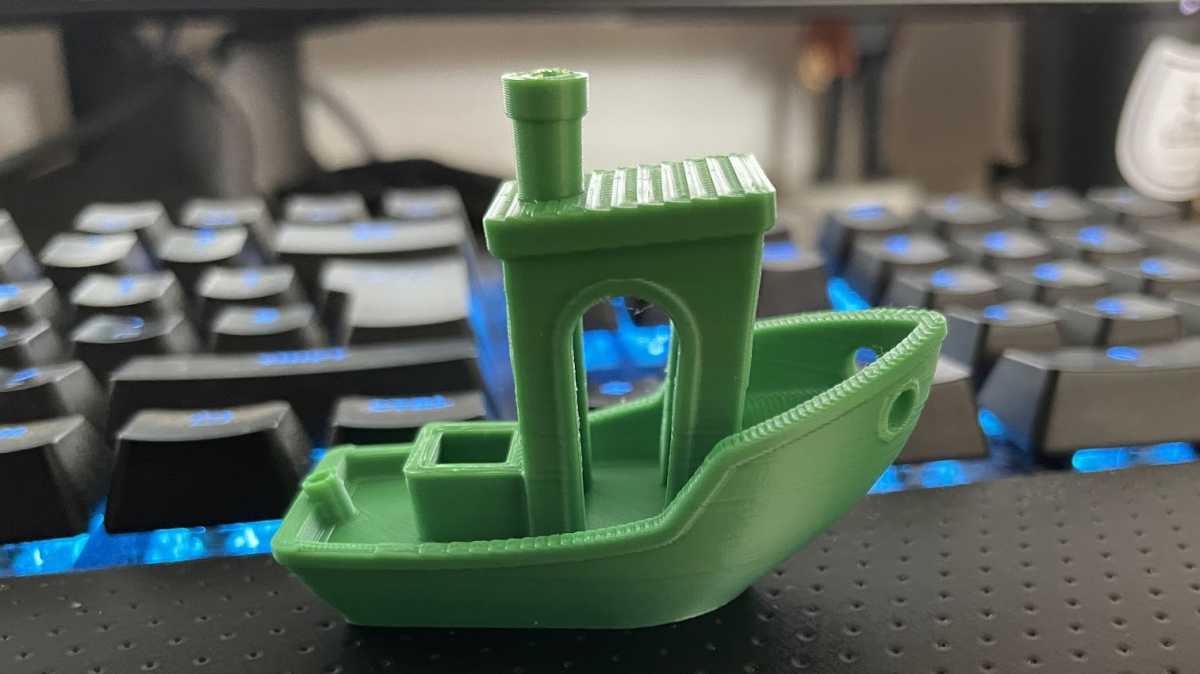
As usual, the first print was a 3DBenchy . This a a torture test which gives a good idea of how well the printer can handle the most difficult prints without taking too long, using up much filament and leaving you with a nice model that isn’t fit only for the bin.
There was virtually no stringing, where wisps of filament are left as the print head travels from one place to another but isn’t supposed to actually print anything. And bridging is also very impressive, with filament printed over surprisingly large gaps without it sagging and leaving no support for the following layer.
And every subsequent print was similarly well handled, with the same level of quality, even if you use the touchscreen to increase print speed up to as much as 150% (from the recommended speed of about 60mm/sec).
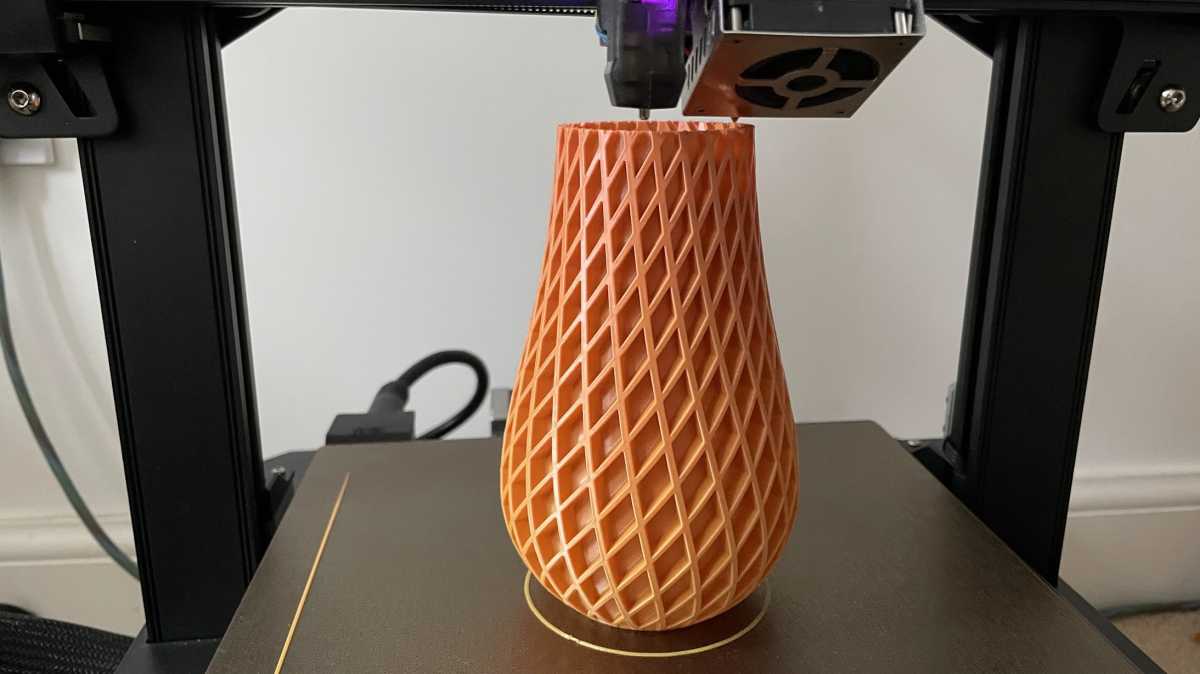
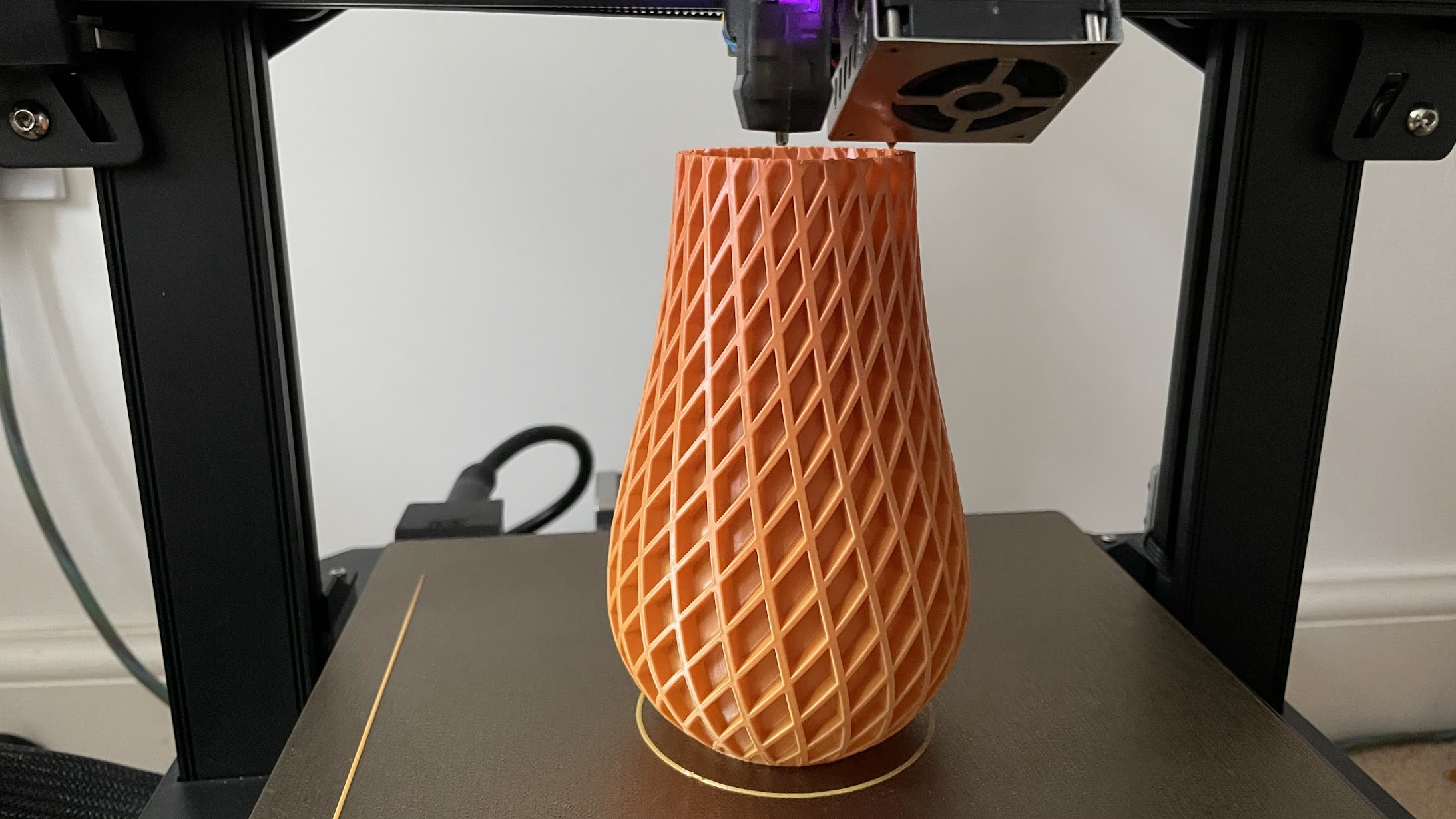
In ‘vase mode’ it printed a thin-walled vase virtually perfectly, the dual Z rails helping to ensure no layer shifting as it built up the almost 200mm-tall vase.
Jim Martin / Foundry
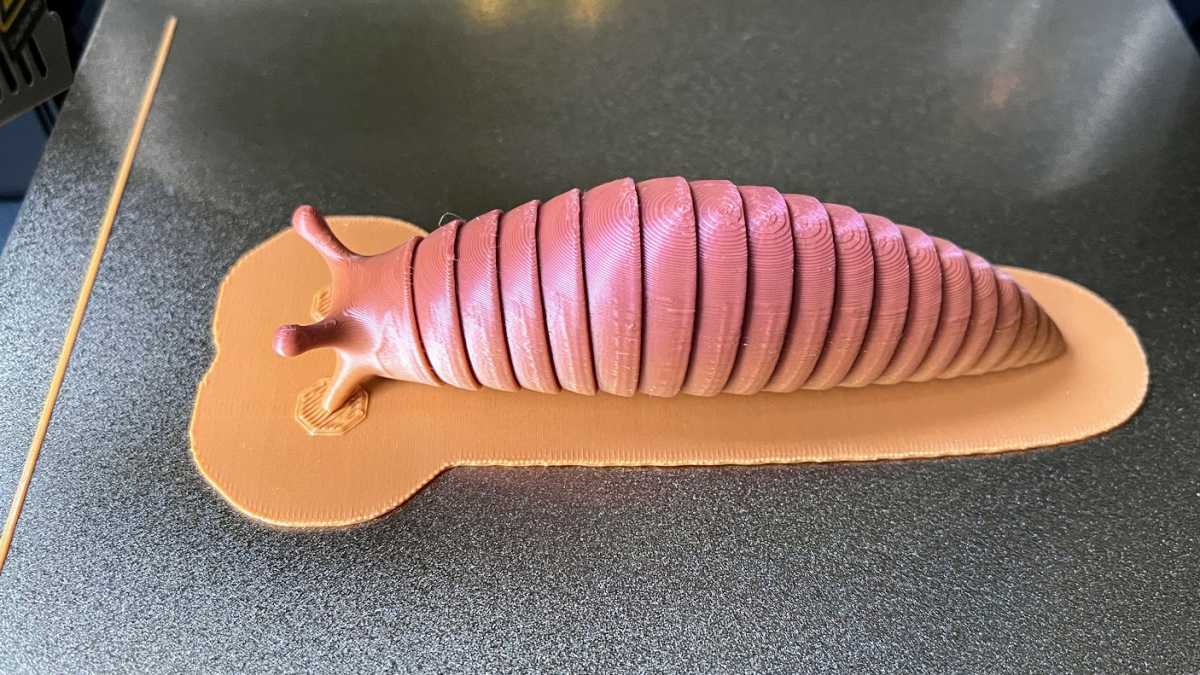
The only problem I encountered was when printing articulated (flexible) models whose first layer is made up of small individual sections. Although the first layer tended to adhere fine, some sections came away from the bed after around 10 layers.
Printing with a raft (shown below) fixed this, but added time to the print as well as using extra filament.
Jim Martin / Foundry
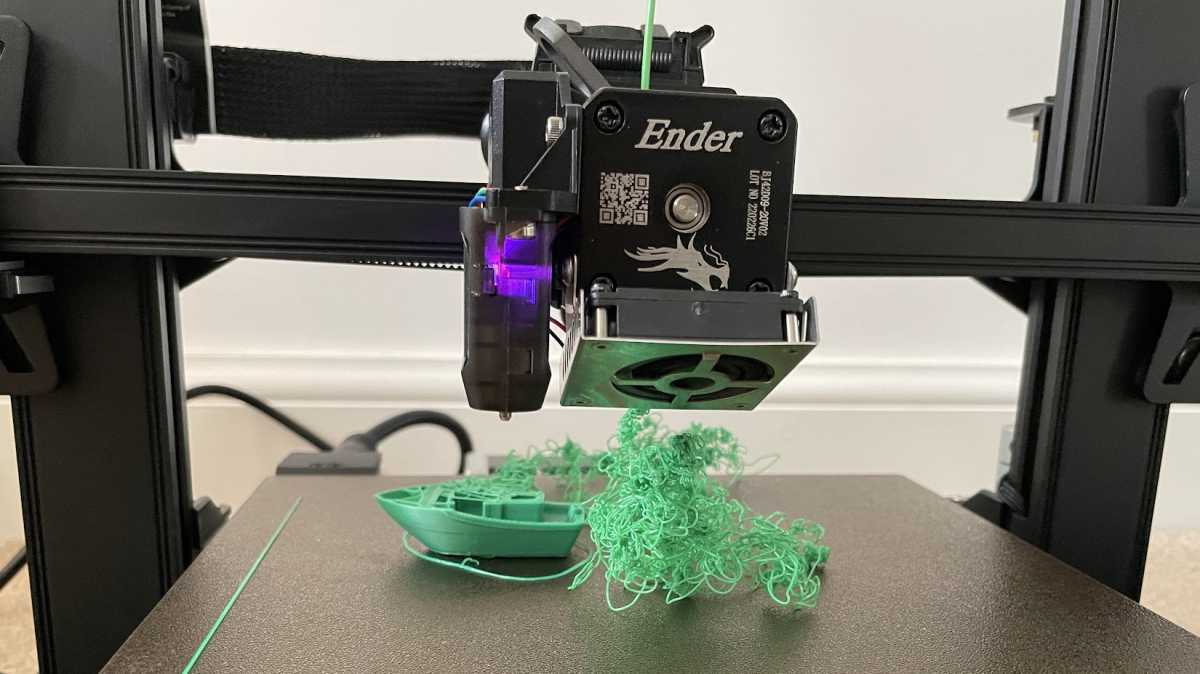
And, to be completely transparent, this happened on the second S1 Pro that Creality sent me. The first had a levelling problem that couldn’t be solved: it would print one object, but would always fail to print a second (as shown below) unless the levelling process was carried out again. While trying to diagnose the issue I found that several other S1 Pro owners had encountered similar problems.
Jim Martin / Foundry
Fortunately, the replacement behaved itself and was able to print object after object with no levelling worries.
Plus, the articulated models, such as the popular slug from Thingiverse , needed only a few sections to be freed up after printing – they tend to get stuck together, especially if you opt for the ‘standard 0.2mm’ quality in the slicer rather than going for the finest quality that takes considerably longer.
Printing at 140% size, the slug took around 7.5 hours to print at ‘standard’ quality, and a 3D benchy took about an hour and 40 minutes.
Price & availability
You can buy an Ender 3 S1 Pro from Creality for $479. If you can live without the LED strip, touchscreen (and use a rotary knob instead) the non-Pro S1 is $100 cheaper, but it also has a lower maximum nozzle temperature of 260°C and its bed can go to only 100°C.
Those in the UK can now buy directly from Creality’s website where the S1 Pro costs £469.
Confusingly, the www.crealityofficial.co.uk website isn’t the official place to buy one of the firm’s printers.
For $529/£539, you could instead opt for the Ender 3 S1 Plus that has a build volume of 300x300x300mm.
Verdict
The Ender 3 S1 Pro may be simple to assemble and produce excellent quality prints, but it can have a steep learning curve if it’s your first 3D printer and it is quite a bit more expensive than some of the competition.
3D printers are still a way from being mainstream devices and no-one should expect to be able to press ‘Print’ and instantly get perfect prints.
For those with more experience and perhaps looking at the S1 Pro as a second printer, you’ll be up and running in next to no time and getting great prints with minimal effort.
Best Prices Today: Creality 3D Ender 3 S1 Pro
Author: Jim Martin, Executive Editor, Tech Advisor

Jim has been testing and reviewing products for over 20 years. His main beats include VPN services and antivirus. He also covers smart home tech, mesh Wi-Fi and electric bikes.
Recent stories by Jim Martin:
- The best 3D printers 2024
- Creality K1C review
- Bambu A1 review
Just a few years ago, 3D printing was a hobby for geeks and nerds. It was difficult, frustrating and slow.
Fast forward to 2024, and that has all changed completely. Now, you can buy – for a very reasonable sum – a printer that works out of the box, doesn’t require hours of tweaking and adjusting and prints large models in hours – not days. Small models can take mere minutes.
Since you’re reading this, you’ve probably made it past the point of wondering what on earth you’d use a 3D printer for, but if not, there are many useful tools and gadgets as well as fun things to print, all of which are available to download free from sites such as Thingiverse and Printables .
Here we’ll explain what to look for in a 3D printer and recommend what you should buy.
First, a brief word on colour: consumer 3D printers are single-nozzle devices which print one colour at a time. If you want to multicolour prints, then Bambu’s P1S Combo and A1 Combo can hold four spools of filament and change colour automatically. Multicolour prints can take a long time, though, and waste filament.
One other thing: until you’ve spent time getting to grips with a 3D modelling app such as Fusion 360 or Tinkercad , you’ll be limited to printing objects that other people have designed. There are lots of them, but if you want something bespoke, you’ll have to create it yourself.
Don’t be put off buying a 3D printer, though. Choose wisely and you’ll be rewarded with a device that can print intricate, articulated models from the off.
We’re focusing mainly on FDM (fused deposition modelling) printers here because these are the most popular type. The other type is a resin 3D printer, such as the Creality Halot One Plus, which works very differently, and are designed for printing small, intricate, solid models.
Best 3D printers 2024
1. Bambu P1S – Best 3D printer for most people
Pros
- Excellent print quality
- Automatic colour changing
- Fast CoreXY motion system
Cons
- Basic non-touchscreen control panel
- Filament wastage can be high in multicolour printing
- No failed print detection
With so many tech products you get what you pay for. This inevitably means the “best” will also be the most expensive. It’s certainly the case here, but just because the P1S is expensive doesn’t mean it isn’t good value.
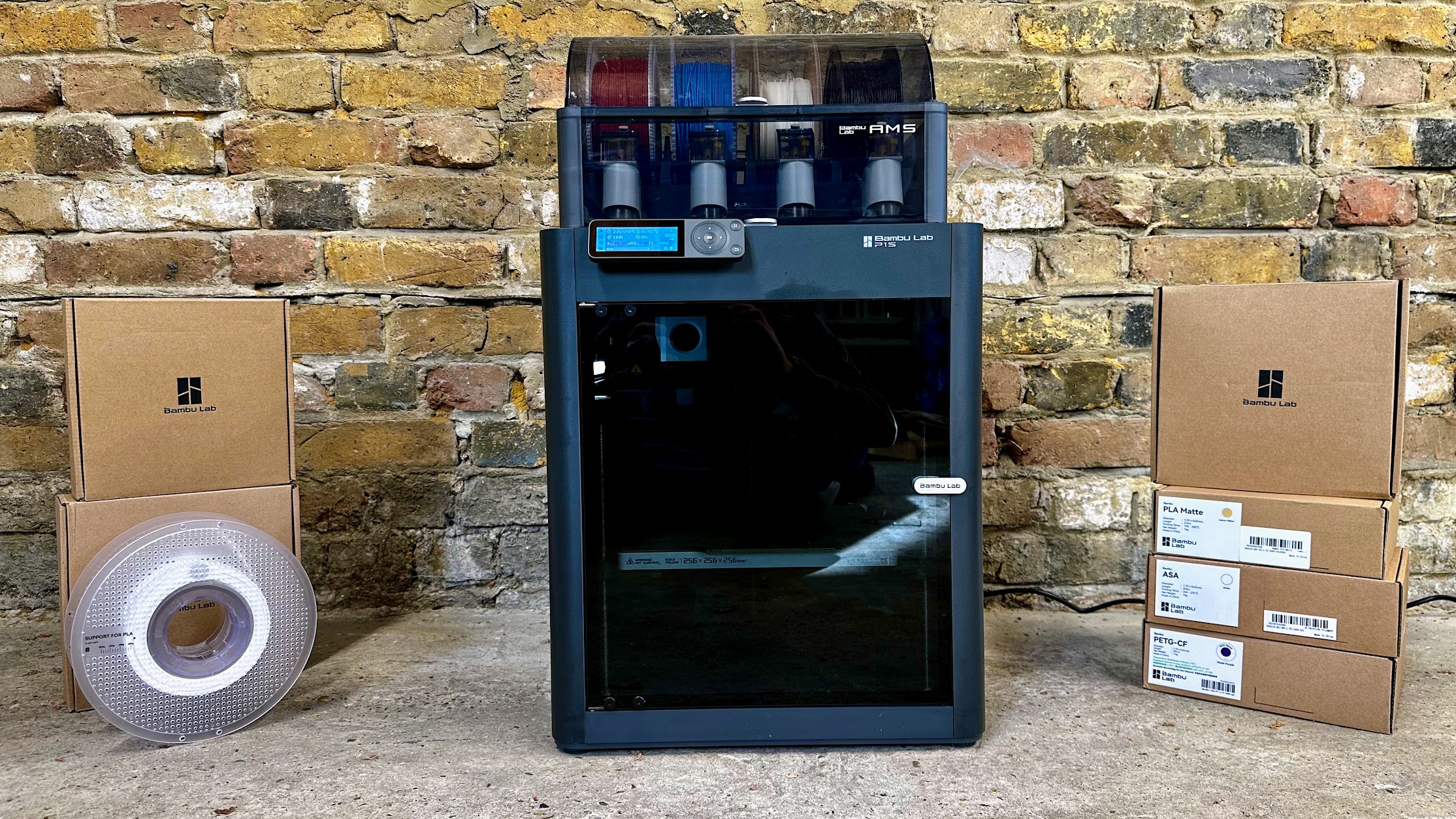
If you buy the P1S Combo, it will come with an AMS, a unit that sits on top of the printer. It holds four spools of filament and can load and unload them automatically and print in multiple colours without any assistance from you.
With only one nozzle, multicolour prints aren’t exactly fast. But the AMS also takes the pain out of changing filament when you want to print something in a different colour to the previous print.
If you don’t care about multicolour, you can buy the non-Combo version of the P1S for quite a bit less.
Overall, the P1S is a remarkably good printer. It’s really fast thanks to the use of a coreXY system, and as it’s fully enclosed it’s reliable even when printing with ASA, nylon, polycarbonate and other filament types because of the stable internal temperatures. More importantly, print quality is absolutely superb.
If there’s a downside, it’s the rubbish dot-matrix screen which seems very out of place on a printer this expensive. But, there are other ways to control the P1S, such as printing from a PC or phone via Wi-Fi. The Creality K1C is a good alternative if you must have a touchscreen, and it also has a few other features such as failed print detection.
If you just want to print with PLA, PETG and other filament types that don’t require an enclosure, take a look at Bambu’s A1 which is a lot cheaper.
Read our full Bambu P1S Combo review
2. Bambu A1 – Best budget 3D printer
Pros
- Fast, reliable printing
- Fully automatic levelling
- Excellent value
Cons
- Doesn’t support more exotic filament
- AMS Lite adds significantly to the price
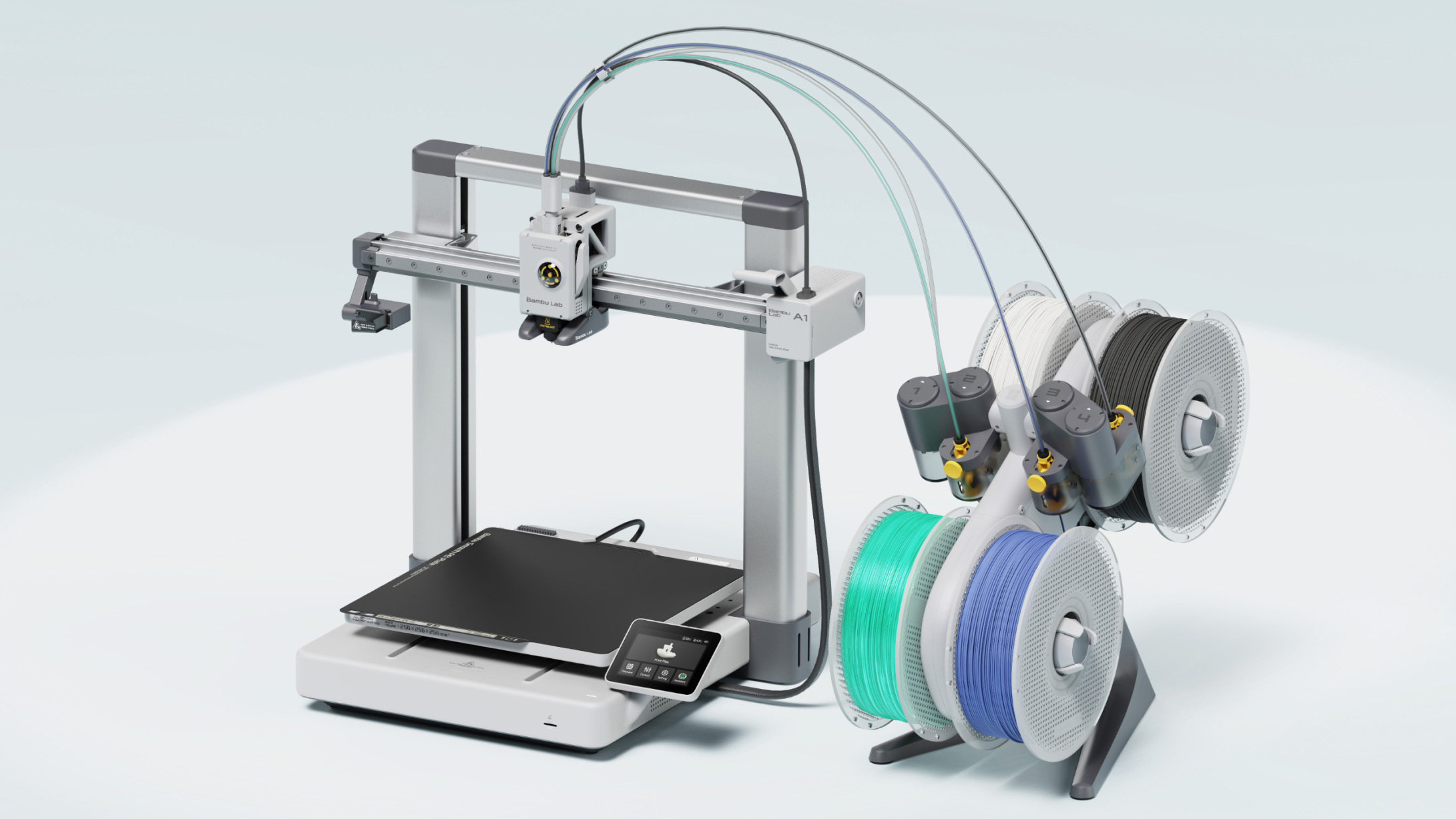
In our full review, we call the A1 “the 3D printer you’ve been waiting for”, and with good reason. It’s as close to ‘one click’ printing as you’ll get right now: it adjusts itself automatically for reliable printing and has all the features most people want, at a surprisingly affordable price. Bambu’s desktop and mobile apps are really good, too.
Like Bambu’s more expensive P1S, it can print models up to 256mm³ and you can buy the optional AMS Lite (shown to the right of the A1) for automatic multicolour printing.
The only drawback is that the A1 can’t really print nylon, ABS, ASA and other ‘exotic’ filaments because they require an enclosure. Without one, they tend to warp. The A1 can print carbon-fibre filaments if you buy Bambu’s hardened nozzle, which is very easy to fit.
Print quality, when using supported filament types, is sensational.
Read our full Bambu A1 review
3. Creality K1 Max – Best large 3D printer
Pros
- Fast, reliable printing
- Large build volume
- Fully automatic bed levelling
Cons
- Some features exclusive to Creality’s slicer
- No multi-colour capabilities
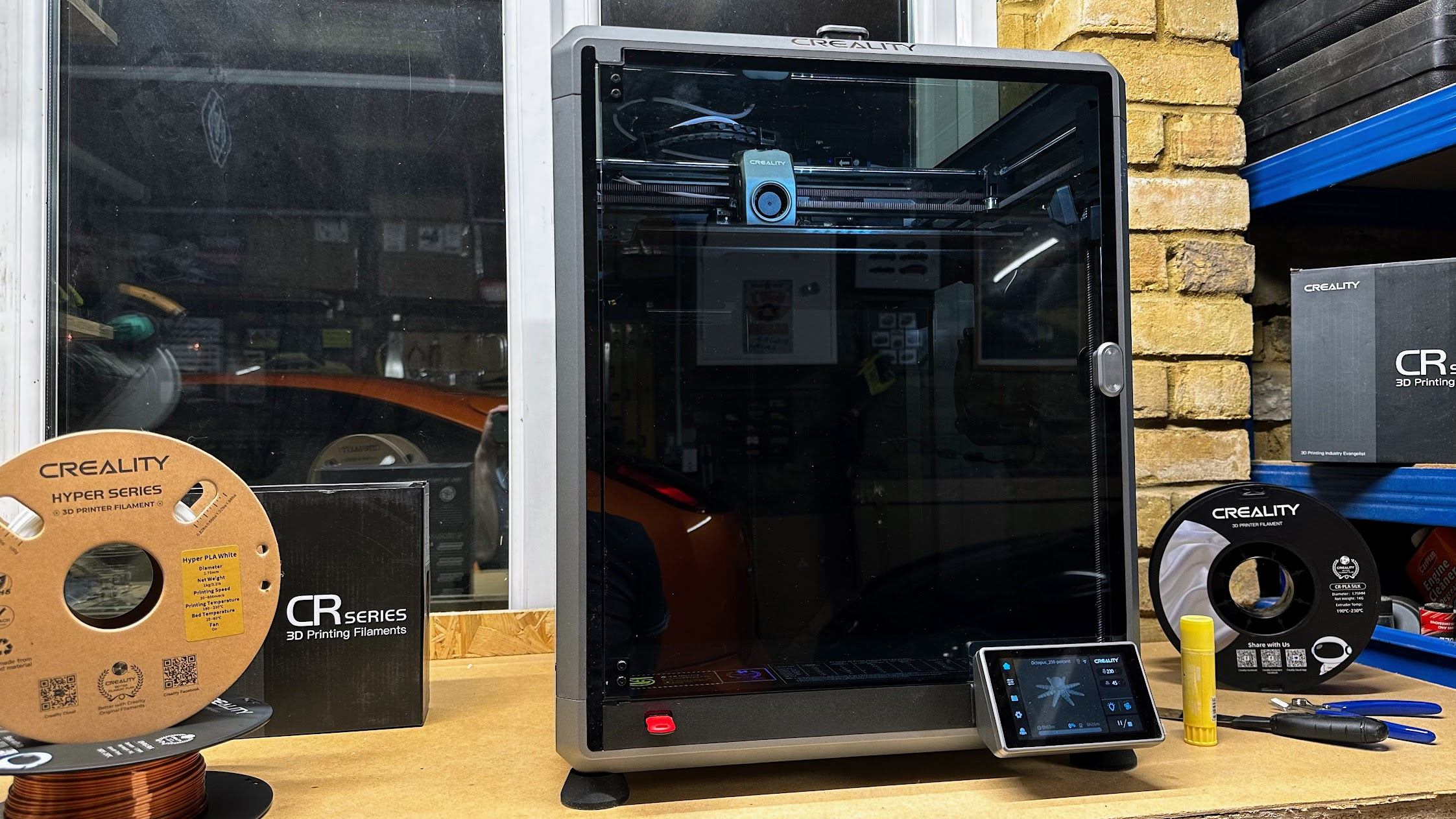
Some may say the K1 is just a poor copy of the Bambu P1S, but that does it a disservice when so many 3D printers are basically copies of each other. There are two models, the smaller K1 which is cheaper than the larger K1 Max.
The Max offers a 300x300x300 build volume, something not currently available from Bambu and it has an easy-to-use touchscreen. Bed levelling is fully automatic and it even has a LiDAR system that helps ensure prints are successful and good quality.
There’s built-in Wi-Fi and an ‘AI’ camera that can detect when prints are failing, as well as when you might have accidentally left a model or some tools on the build plate.
As both K1 and K1 Max use coreXY systems, they’re just as fast as the Bambu and although quality isn’t quite up to the P1S’s level, it’s still very good.
Read our full Creality K1 Max review
4. Elegoo Neptune 4 – Best cheap 3D printer
Pros
- Fast printing
- Automatic bed levelling
- Intuitive touchscreen controller
Cons
- No Wi-Fi
- More expensive in UK than US
- Elegoo’s slicer isn’t the best
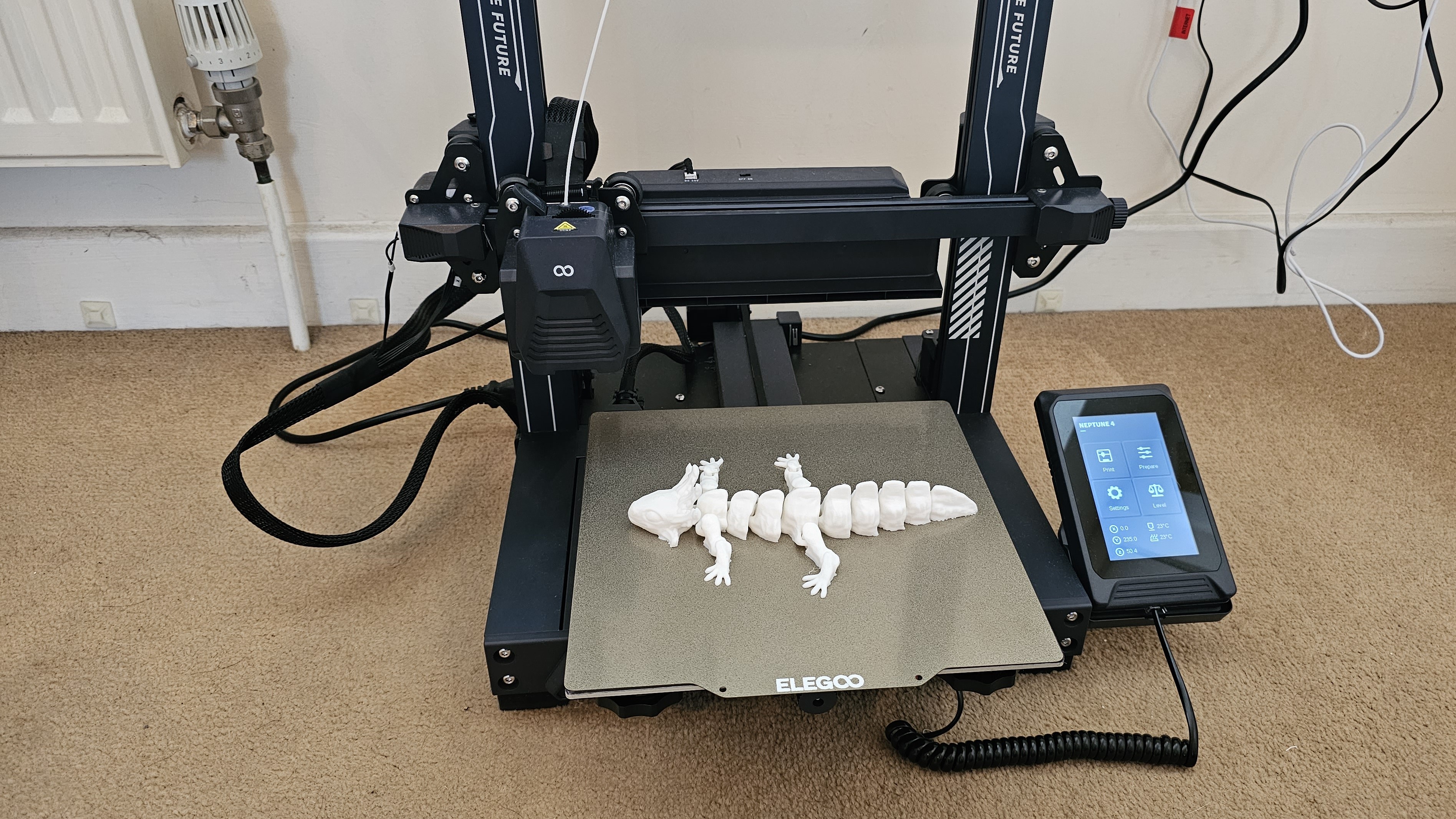
The Neptune 4 offers everything most people are looking for in a first 3D printer. It’s easy to set up, has auto bed levelling, a colour touchscreen and is pretty fast to boot.
That’s already a lot for the low price, so it’s not too surprising it doesn’t have Wi-Fi. Unlike some of the budget models here, it competes with the coreXY printers for speed thanks to an upgraded print head with much improved cooling over the Neptune 3.
It’s a shame that like the Ender 3 S1 Pro levelling isn’t completely automatic, but once you’ve adjusted the knobs, subsequent levelling is automatic.
Print quality is very good at the default 300mm speed, but it’s a good idea to use an alternative to Elegoo’s slicer which caused us quite a few headaches when prints failed.
Read our full Elegoo Neptune 4 review
5. Creality K1C – Best for exotic filaments
Pros
- Can print carbon fibre filaments out of the box
- Can print ASA, nylon, ABS as well as PLA and PETG
- Built in camera
Cons
- Single colour printing only
- Can be very noisy
- Frustrating to change filament
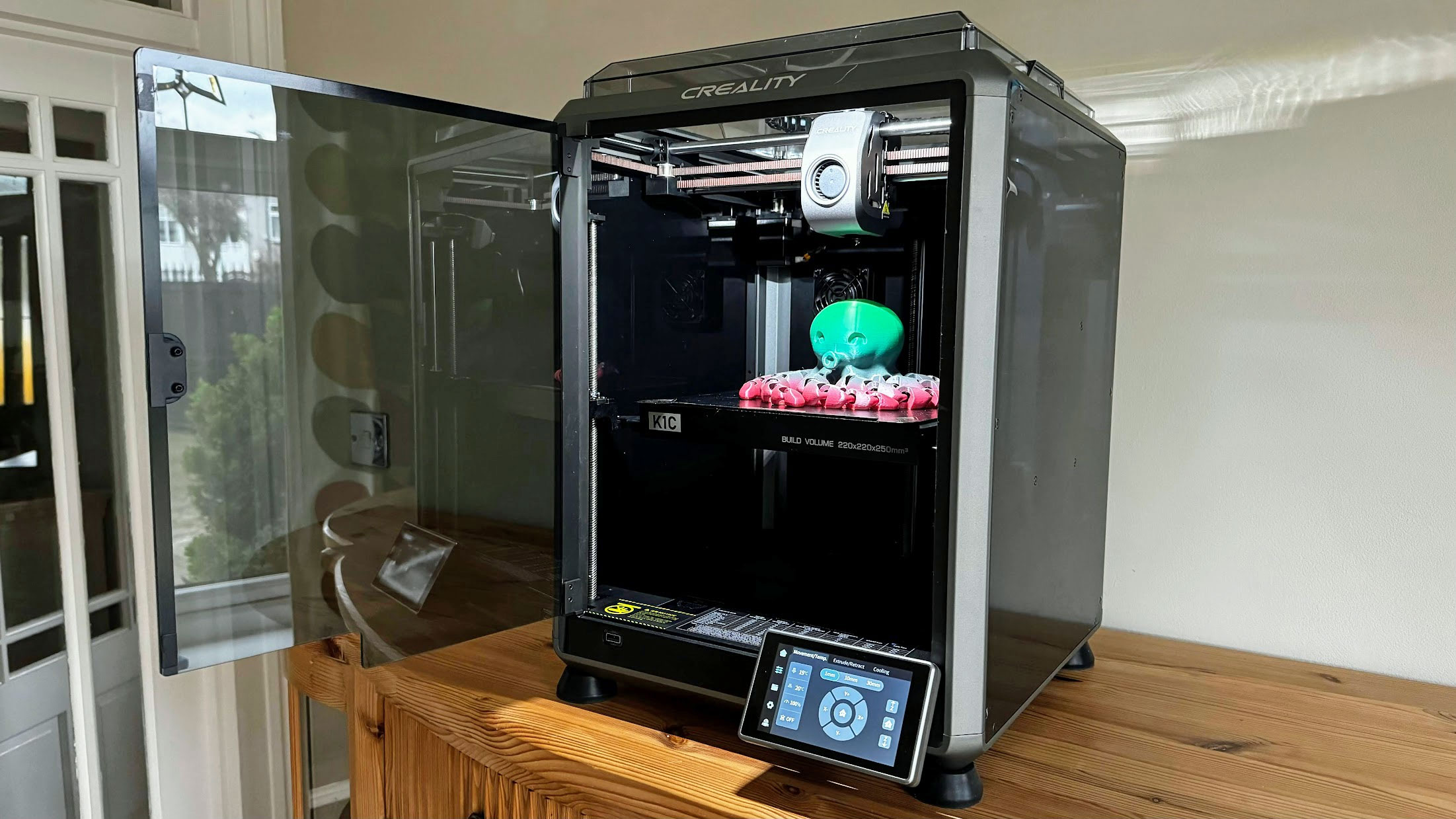
The K1C can print models up to 220x220x250mm, and comes almost fully assembled. It’s fully automatic, which means there’s no need to make any manual adjustments: it prints reliably from the word go.
Effectively, it’s an upgrade of Creality’s K1 and has a hardened steel nozzle that can print abrasive filaments like carbon-fibre infused PLA and PETG. Unlike the K1 it also has a camera for monitoring print progress remotely, and it’ll detect and notify you of problems like foreign objects left on the build plate and failed prints.
The touchscreen makes it easy to use, and Creality’s desktop and mobile apps aren’t bad, although they lack the polish and ease of use of Bambu’s.
The only real limitation is that the K1C can’t print in multiple colours, but if you don’t need to do that, it’s a great choice.
6. Anycubic Kobra 2 Plus – Best for printing huge models
Pros
- Massive build volume
- Fast
Cons
- Takes up a lot of space
- Not suitable for filaments which require an enclosure
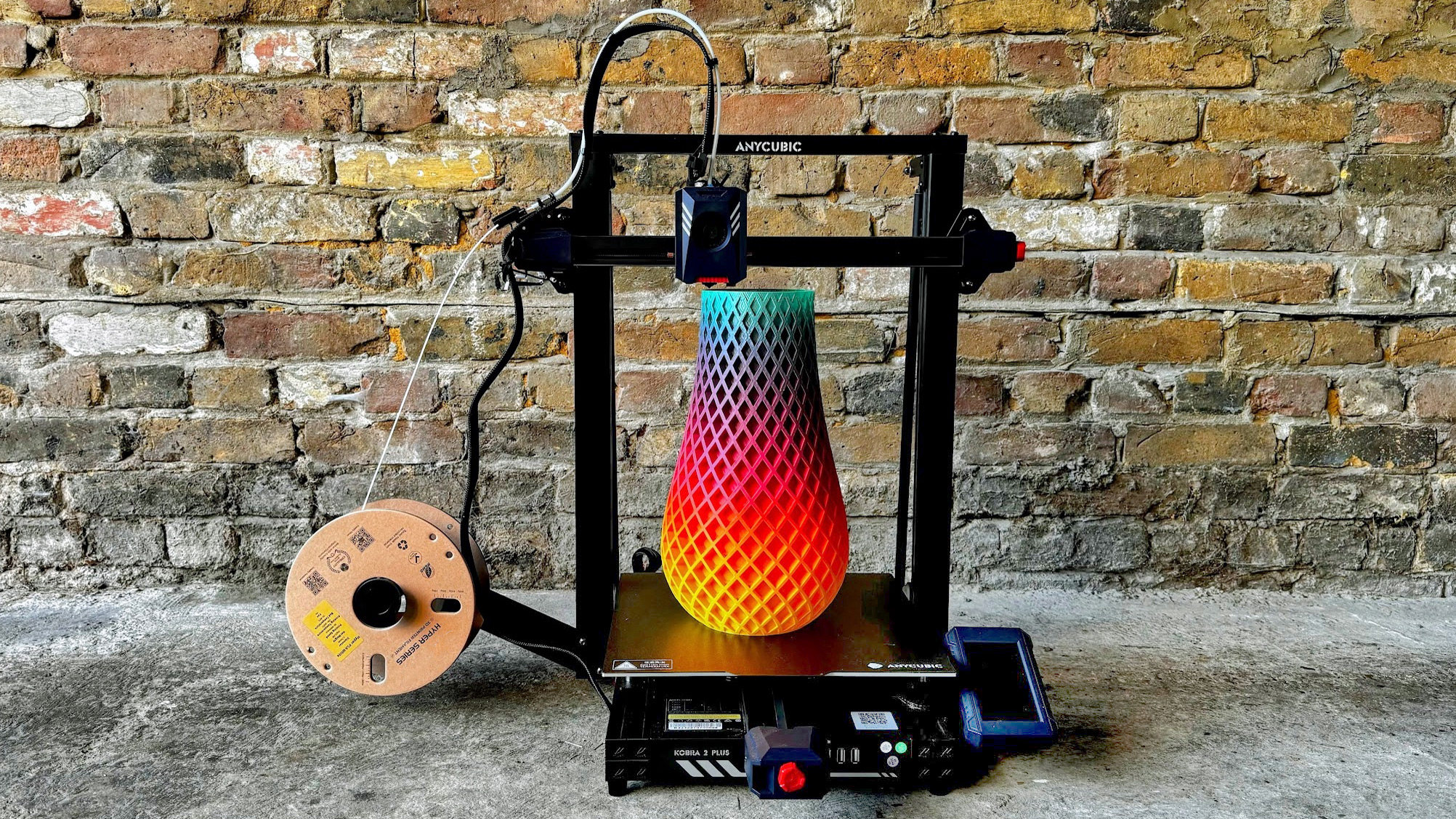
With a build volume of 320 x 320 x 400mm (WDH), the Kobra 2 Plus can print very large models. If that’s not enough, there’s also the Kobra 2 Max with an even larger 420 x 420 x 500mm volume.
It’s a bed slinger, which means the build plate moves backwards and forwards. In turn, this means you need quite a lot of desk space for the Kobra 2 Plus. It’s fast and capable of good print quality, and is pretty easy to use thanks to automatic bed levelling, vibration compensation and a colour touchscreen.
Read our full Anycubic Kobra 2 Plus review
7. Creality 3D Ender 3 S1 Pro
Pros
- Great print quality
- Almost all the features you’d want
Cons
- Auto-levelling requires manual input
- Slow by today’s standards
The S1 Pro is really a budget 3D printer but it’s more expensive than the cheapest because it has had all the bells and whistles thrown at it.
There’s the Sprite direct drive print head with dual metal gears for reliable extrusion. It’s capable of heating to 300C, so you can print with a wide range of filaments. The bed goes up to 110C, too, which helps prints adhere when working with more awkward types of filament.
It isn’t enclosed, though, and is a bed-slinger, so needs room in front and behind it to accommodate its range of travel. There’s a useful LED strip which is really bright, and a colour touchscreen. Its interface could be improved a bit, but it’s not bad.
Print quality is very good, but it isn’t fast. To improve it you can buy Creality’s Sonic Pad – a Klipper-based touchscreen – but this adds a lot of cost and hassle. If speed is important, choose a printer that offers 300mm/sec out of the box like the Bambu A1.
Read our full Creality 3D Ender 3 S1 Pro review
8. Creality Halot One Plus
Pros
- Easy to use & reliable
- Works with various slicers
- Great print quality
Cons
- Fan runs constantly during printing
- Requires post-printing cleanup + curing (like all resin printers)
- More expensive than some rivals
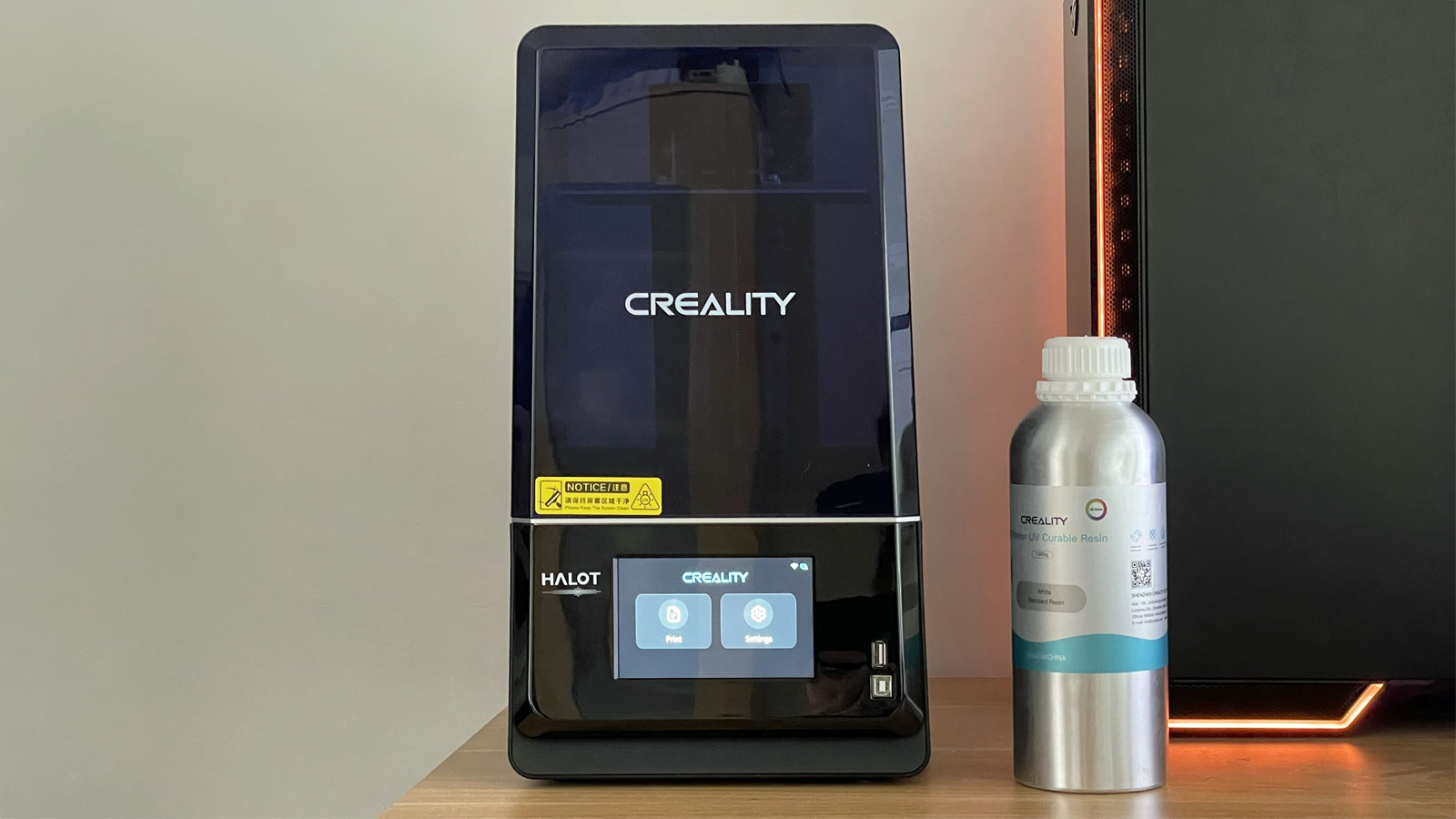
The Halot One Plus is an easy-to-use resin 3D printer that has a good-sized build volume, prints reliably and at high quality. It’s quite expensive compared to rivals, especially in the UK.
The Halot One Plus is a resin printer, so is very different to the others here. Instead of using filament on a reel, it prints using liquid resin which is cured, layer by layer, using UV light.
Build volume is smaller than the FDM printers here, but it’s still relatively large for a resin printer, and the screen’s high resolution means models have lots of fine detail.
The Halot One Plus printed ultra-reliably in our tests, but if you are keen on a resin printer, bear in mind that you have to clean up prints afterwards, which usually means buying a separate washing and curing device that looks a lot like a resin printer and takes up the same amount of desk space.
Read our full Creality Halot One Plus review
Buyer’s guide
Here are the key things you should look out for when choosing a 3D printer.
Automatic levelling
Unless the surface on which objects are printed is perfectly level, prints won’t stick to it and will fail sooner or later.
Manual levelling is a chore you could do without, so go for a printer with auto levelling. Be careful: some printers claim to have auto levelling, but rely on you to do a lot of the work. Which is why it pays to read reviews as well as knowing what to look for.
Heated bed
Almost all 3D printers have them, but it’s a must have. A heated bed will help prints to stick: don’t buy a printer without one.
PEI sheet
Models can be difficult to remove from the build plate. A PEI (polyetherimide) sheet helps immensely. It’s a flexible metal sheet with a textured coating is used, and held in place with magnets. When the model finishes printing, you simply lift the sheet off, flex it and the model pops off.
Touchscreen
Some printers still use a monochrome screen with a rotary dial or buttons. This isn’t nearly as easy to use as a touchscreen. Bambu P1S (and P1P) would be much better with a touchscreen, but it’s not the end of the world with those as you can print from your PC or phone using Bambu’s apps. When a printer doesn’t have Wi-Fi (or any networking) you are stuck using the screen it comes with.
Build volume
A printer’s build volume tells you how big an object it can print. It’s wise to assume that the actual maximum volume is a bit smaller than the specifications suggest, and go for one with a slightly larger volume than the biggest object you will need to print.
It can be hard to know this, and remember that a bigger volume means a bigger printer, which you’ll need space for.
Really large models can be printed in sections and superglued (or otherwise fixed) together, so you don’t necessarily need a huge printer.
Nozzle and bed temperatures
Most people print using PLA, the most common type of filament. It’s easy to work with, strong and durable.
All 3D printers have nozzles that go up to the 220°C or so that PLA requires. But if you want to print with ABS, PETG or another type that needs high temperatures, be sure to opt for a printer that can go up to around 300°C. But see Enclosure below, too.
Similarly, watch out for heated bed temperatures. Some won’t go beyond 80°C, but you’ll need 100°C or more for successful ABS prints.
Enclosure
Some materials such as ABS, ASA, polycarbonate and nylon need carefully controlled ambient temperature to prevent them from warping while printing. If you need to use these – perhaps because you want to print models that can survive exposure to sunlight, then look for an enclosed printer – essentially a self-contained box.
Run-out sensor
With large models taking many hours to print and the fact that you can’t always know if there’s enough filament left on the reel to complete it, a run-out sensor can be a life saver. It does it what it says: detects when the filament runs out and halts printing automatically, allowing you to load a new reel and carry on printing.
Without one, the filament could run out and the printer will carry on printing thin air, and you’d be none the wiser.
What’s the best 3D printer for beginners
The Bambu A1 is an excellent choice for beginners. It’s relatively affordable and is very easy to use because it handles so many things automatically. It’s also fast and offers top notch print quality.
How much does a beginner 3D printer cost?
Printers start from as little as $130 / £130, but you may want to spend more to get a better model with more features, faster speeds and better print quality. There are a lot of great printers under $500 / £500.
What type of 3D printer is best?
The most common type is FDM (printers that use filament on a spool), but the absolute best quality is from SLA printers, which use resin and are capable of printing much finer detail. There are lots of pros and cons of each type, but put simply, resin printers are best for small, intricate figurines, while filament printers are best for printing things that are useful around the home as well as models that hinge or articulate.
Is it cheap to use a 3D printer?
Spools of filament typically weigh 1kg and cost from $15 / £15 to $30 / £30. It’s therefore the weight of the model that matters most, not the size. So-called slicing software turns a 3D model into instructions a 3D printer can understand, and you can adjust the settings to save weight by minimising the amount of infill. Sometimes it’s cheaper to print your own parts, but sometimes you might find it’s cheaper to buy pre-made plastic things than to 3D print them.
Are 3D printers good for beginners?
3D printing is much easier than it used to be thanks to modern printers that automate a lot of the fiddly things like bed levelling. They can also compensate for vibrations, resume printing after a power cut or when the filament runs out. The difficult part is designing your own models to print, but there are thousands of pre-made models available online to download free.
Author: Jim Martin, Executive Editor, Tech Advisor
Jim has been testing and reviewing products for over 20 years. His main beats include VPN services and antivirus. He also covers smart home tech, mesh Wi-Fi and electric bikes.
Recent stories by Jim Martin:
- Creality K1C review
- Bambu A1 review
- Bambu A1: a full-size bed slinger 3D printer
