The age-old problem of computer viruses still hasn’t gone away. Some devices are more immune than others, with Chromebooks, iPads and iPhones being some of the best defended.
It’s a different story with Windows, though. Malware remains a threat, and you’d be a fool to connect any Windows laptop or PC to the internet without first ensuring there’s some protection from viruses and other malicious things that seek to do harm to your system.
Your files might get encrypted by ransomware, so you can’t access them. There’s no guarantee the criminals behind it will send you a decryption key even if you pay, so the best option is to ensure your computer is well protected in the first place. Oh, and make sure you have a backup of any important files.
The thing is, it’s not just viruses and other types of malware you need to worry about these days. Scams, whether send via email, social media or text message, are rife and it’s easy to get caught out.
Criminals don’t create viruses and scam messages for a laugh: they’re trying to con you out of their money.
The question, then, is how do you protect yourself from this stuff – especially if you have a laptop or PC running Windows 10 or 11?
And you probably know what the answer is. Antivirus software is still the best way to keep safe, and modern antivirus apps can also help you avoid falling for scams and protect you from identity theft.
It’s wise, though, to choose a security app that will protect you when you’re using your phone and tablet as well as your Windows laptop and PC.
Many of these apps now include a VPN to give you extra security and privacy while you browse the web, and will warn you if any app is trying to access your device’s camera and microphone so they can’t spy on you without your knowledge.
These security apps also tend to include password managers which remember all your logins so you can have different passwords for all your accounts, which is the best way to keep them safe.
Identity protection is also something to look out for. This does various things, such as monitoring the dark web for your email addresses, passwords and other personal information, and then alerting you if it’s spotted so you can take action. The very best services – often an add-on subscription – will include a dedicated person who can help you if someone does steal your ID.
To answer the question at the very top of this artile, yes, Windows does still need antivirus software , but you’re best off getting a full security suite that will protect you from much more than just viruses.
Does Windows come with antivirus software?
It does indeed: Windows 10 and 11 have Windows Defender. Microsoft has included virus protection in Windows for many years, and the latest version of Defender is the strongest it’s ever been.
If your laptop or PC didn’t come with any other antivirus software pre-installed then Windows Defender will already be protecting you. But is it any good?
Yes it is. Although in the most recent report from AV-Test it didn’t quite block 100% of threats, it has an excellent track record. It regularly matches or beats antivirus apps from the top names, such as Norton, McAfee and Bitdefender.
But there is a drawback. You might assume Defender won’t slow down your laptop and much as apps from other companies because it’s part of Windows, but in fact it causes websites to load more slowly, and files can take longer to copy than if you use rival software.
But more important than this, it doesn’t offer the extra features you get with paid-for security suites, so you’re not as well protected from dangerous websites, scams lurking in social media feeds and in phishing emails.
Of course, there are still advantages: Defender doesn’t cost anything and it’s already installed, which is convenient. Just remember that it isn’t protecting your phone or tablet, though.
Is it worth paying for antivirus software?
Hopefully, you already know the answer to this question.
We’ve already explained that Windows Defender can slow down your computer and – at least in the most recent test – didn’t catch 100% of viruses and so-called zero-day threats.
But a paid-for security app, such as Norton 360 or McAfee Total Protection , provides a wider range of features that protect you as well as your PC or laptop.
You can expect to get alerts when apps want to access your webcam, notifications that an email address or password was exposed in a data breach, plus warnings of fake and dangerous websites.
Paid-for antivirus software is regularly updated and new features added, so while it’s yet another thing you have to pay for, it could save you a lot more than you spend on it.
If you want to see which security suites we recommend, then read our roundup of the best antivirus apps.
The bottom line line is that if you want the best protection, you should get good security software. Often, a single subscription will protect your whole family’s devices including mobile phones and tablets.
What can I do to beef up Windows 10’s security for free?
You can’t get the same level of protection for free without putting in a fair amount of work and, in some areas, you simply can’t get the protection at all.
But there are things you can do. Here are two you should do straight away:
- Install and use a password manager
- Install a VPN service
A good password manager such as Bitwarden will store all your logins and enter them when you need to log into an app, website or service. It might mean changing duplicated passwords on a lot of sites, but aim to have a different, strong password for all websites and services that store personal information that you wouldn’t want to be compromised.
Often, password managers will tell you where you’ve used the same password so you can more easily change it. Some will even link you directly to that site’s password change page.
Second, a VPN encrypts your internet connection and helps to add security and offer privacy while you visit websites, download files and other online activities. You don’t need to use one all the time, and you should only use a trustworthy VPN service, but there are some good free VPNs to choose between.
Be very careful what you click on
Many of the scams these days work by tricking you into clicking on links in emails, which then downloads malware, or clicking through to fake versions of websites which then ask you to log in, therefore stealing your account details.
A good rule of thumb is to always navigate to a site yourself. If you get an email saying your account password needs changing, or even that there’s a great sale on, then don’t click on the link. Instead, go to your browser and type in the address of the site. If the sale is real, then you’ll be able to find it.
Be very cautious about links in emails or social media messages too, as these can be just as perilous. Basically, treat every link or download as suspicious, and you can avoid a lot of problems.
Here are common scams to avoid.
Make regular backups
Another way to protect your data is to make regular offline backups. Yes, using online services is a good idea, and as you’ll see from our best cloud storage roundup there’s plenty of choice, but with Ransomware becoming more of a threat we’d also highly recommend creating your own local, offline backups too.
Follow our guide on how to backup Windows for more details on the software you can use, and how to set up a regular schedule for protecting your precious data.
Don’t use an Administrator account
Another thing you can do, especially if you want to add protection to laptops or PCs that your kids use, is to avoid using Windows accounts with Administrator privileges. This simple modification can eradicate many of the threats out there, as malware, spyware, and the like will not be able to install itself.
To do this you’ll need to create a new Administrator account (as you’ll want one on your system), then change your existing account to a Standard one.
This can be achieved in Settings > Accounts > Family & other people , where you add either a family member or a generic account.
Set this as an Administrator, then log out of your existing account. Log in as the new one, click on your normal account and when the option to Change account type appears click on it. This opens a window where you can select to make that account either Standard or Administrator .
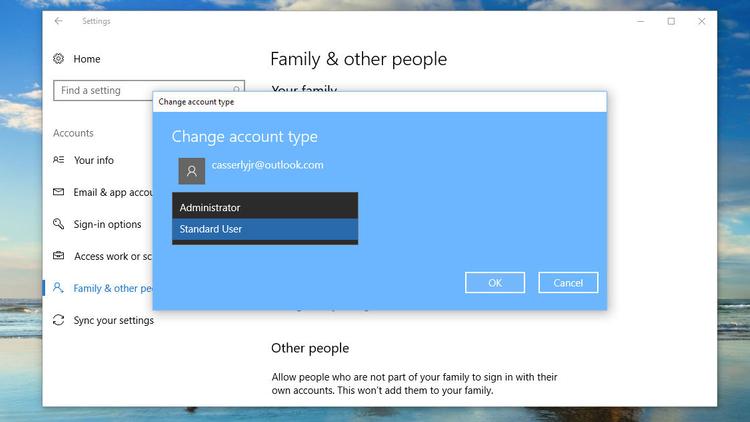
With this up and running it should offer a fair amount of protection from downloads laced with malware.
If you do find that certain programs you use regularly require the higher-level access, then you can always give that a special pass. Read how to run programs as Administrator in Window 10 for more details.
- How to remove a virus from Windows
- Best antivirus software for Windows (plus free options )
- Best antivirus deals
- Best VPN services
- Best VPN deals
Author: Martyn Casserly, Contributor, Tech Advisor

Martyn has been involved with tech ever since the arrival of his ZX Spectrum back in the early 80s. He covers iOS, Android, Windows and macOS, writing tutorials, buying guides and reviews.
Recent stories by Martyn Casserly:
- How to back up your data for free
- These ad blockers keep your internet browsing experience clean and calm
- Best password managers 2023
