One of the advantages many Android smartphones have over iPhones is the ability to add storage by using a microSD card. Simply popping one in the tray can instantly turn a standard 128GB device into one capable of holding your entire music library, movie collection and a wealth of photos and videos.
But how can you access all of this extra storage when you want to watch or listen to the content you’ve added? We show you the simple steps to finding the files stored on a microSD card in your Android phone .
Insert the SD card properly
Mattias Inghe
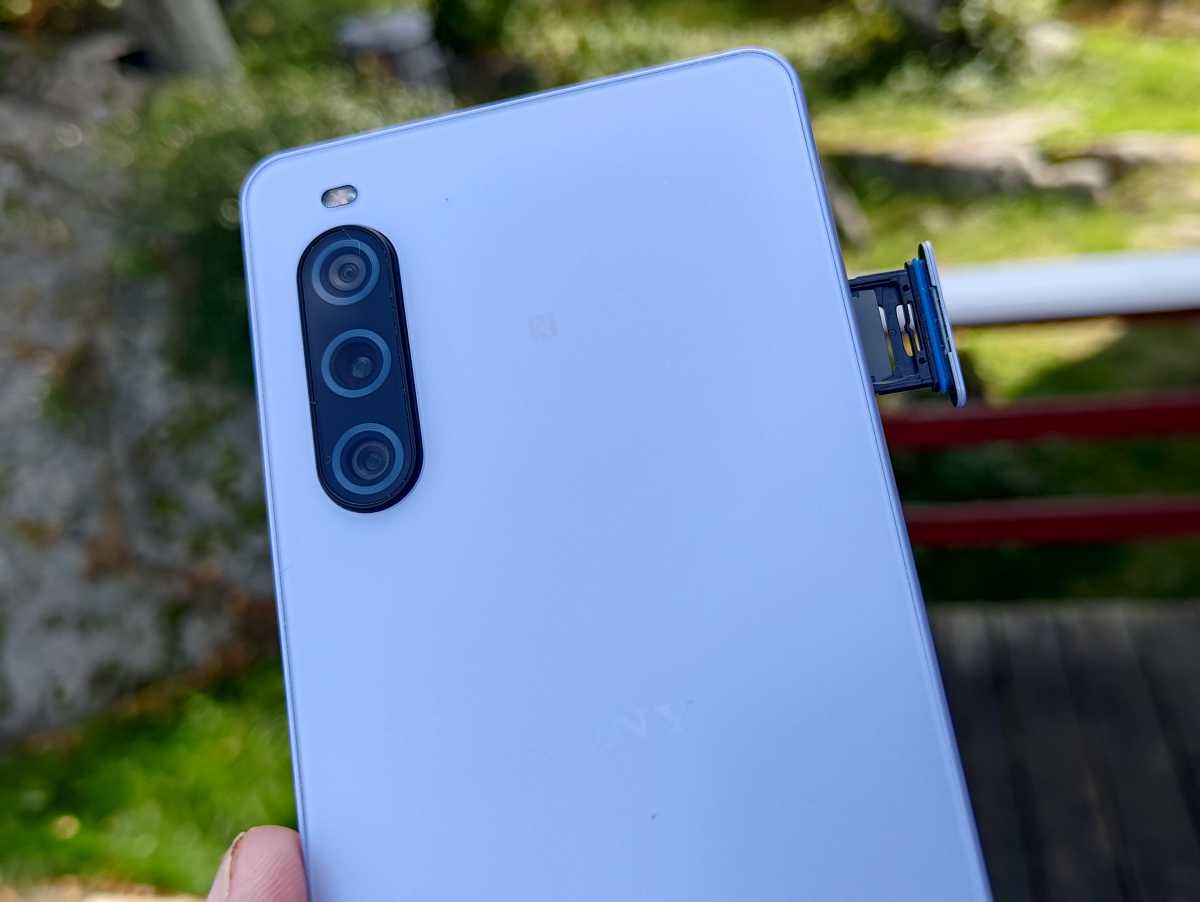
Before accessing your SD card, ensure it is correctly inserted into your Android device.
To do so, power off your device and insert the SD card into the designated slot. While around 99.9% of phones have a tray that you pull out, a handful of others still have a slot behind the battery.
Then, power the device back on. Your phone should automatically detect the SD card.
Access files using the file manager
Dominik Tomaszewski / Foundry
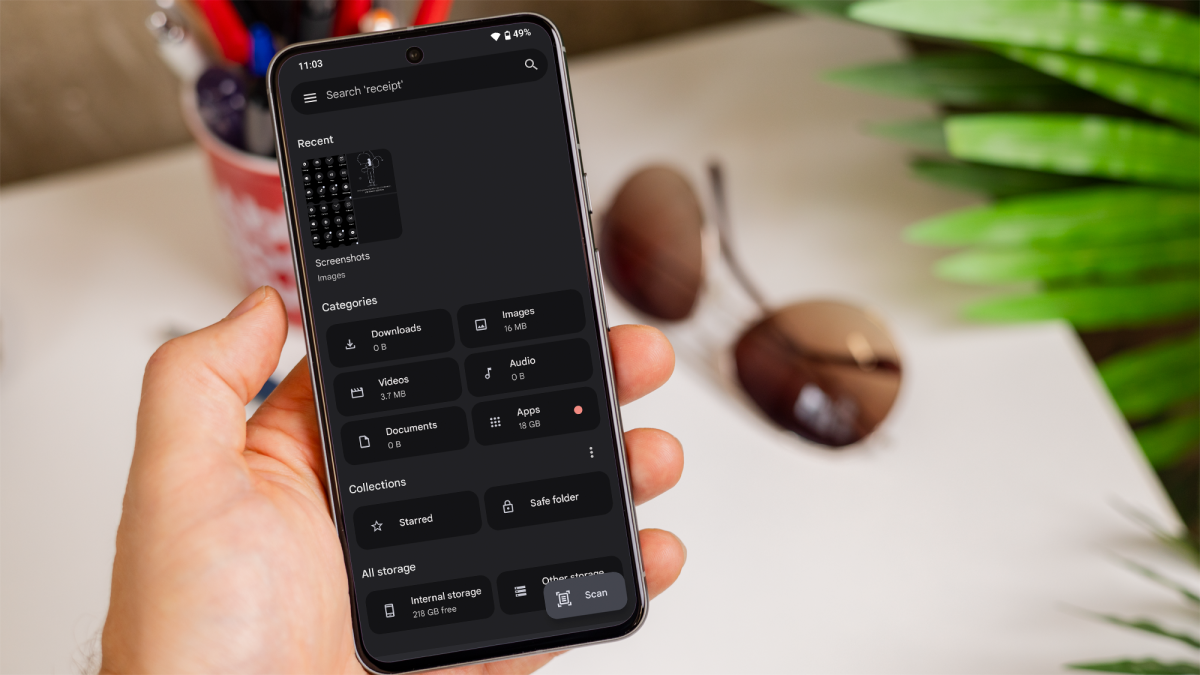
Most Android phones come with a built-in file manager app, which you can use to view files on the SD card.
To do so, open the phone’s file manager app from the app drawer and look for the option labeled ‘SD Card’, ‘External Storage’, ‘Other storage’ or something similar. Tap on this option to browse files stored on the SD card.
If your phone doesn’t have a file manager, you can download one from the Google Play Store, such as ‘Files by Google.’
How to manage SD card files using a PC
You can also manage files on your SD card using a computer. Here’s how:
- Remove the SD card from your phone and insert it into your computer’s card reader (or use a USB adapter).
- Open File Explorer (Windows) or Finder (Mac) on your computer.
- Locate the SD card under the ‘Devices’ section.
- Browse, copy, move, or delete files as needed.
After making changes, safely eject the SD card before removing it from the computer.
How to set the SD card as default storage
If you want to use your SD card as the default storage for apps, photos, or downloads:
- Go to ‘Settings’ on your Android device.
- Navigate to ‘Storage’ or ‘Device Maintenance’.
- Select SD Card as the default storage location for apps, photos, or downloads.
This will help save space on your internal storage by directing files to the SD card instead.
How to format the SD card
If your device doesn’t recognize the SD card or it has errors, you may need to format it:
- Go to ‘Settings’ > ‘Storage.’
- Select the SD card and choose ‘Format.’
- Follow the prompts to complete the process.
Remember, however, that formatting will erase all data on the card, so be sure to back up any important files first .
Author: Artur Tomala, Mobile Writer, Tech Advisor

Artur is a Mobile Writer at Tech Advisor, where he covers a range of smartphone, tablet and smartwatch-related topics. He has been working in the tech industry since 2021, including time spent leading a team focused on mobile news, reviews and product rankings. As an ambassador for the productivity app Notion, he runs training workshops and creates advanced templates to help people stay organised and productive.
Recent stories by Artur Tomala:
- How to set up a new Android phone
- Samsung Galaxy A26: Everything you need to know
- What is an eSIM and how does it work?
