Have you ever heard of “Connectivity Labs”? Probably not because Samsung hides this Wi-Fi menu deep in the settings of its Galaxy phone and tablets, but it’s well worth a look.
Unlocking it gives you access to advanced analysis functions, smart connection options and diagnostic tools that are not available in the normal view. We’ll show you step by step how to activate the secret feature and what it can do.
How to activate the secret “Connectivity Labs” menu
To activate the hidden Wi-Fi menu, you don’t need a developer account or special apps – just a few specific steps. This is how it works:
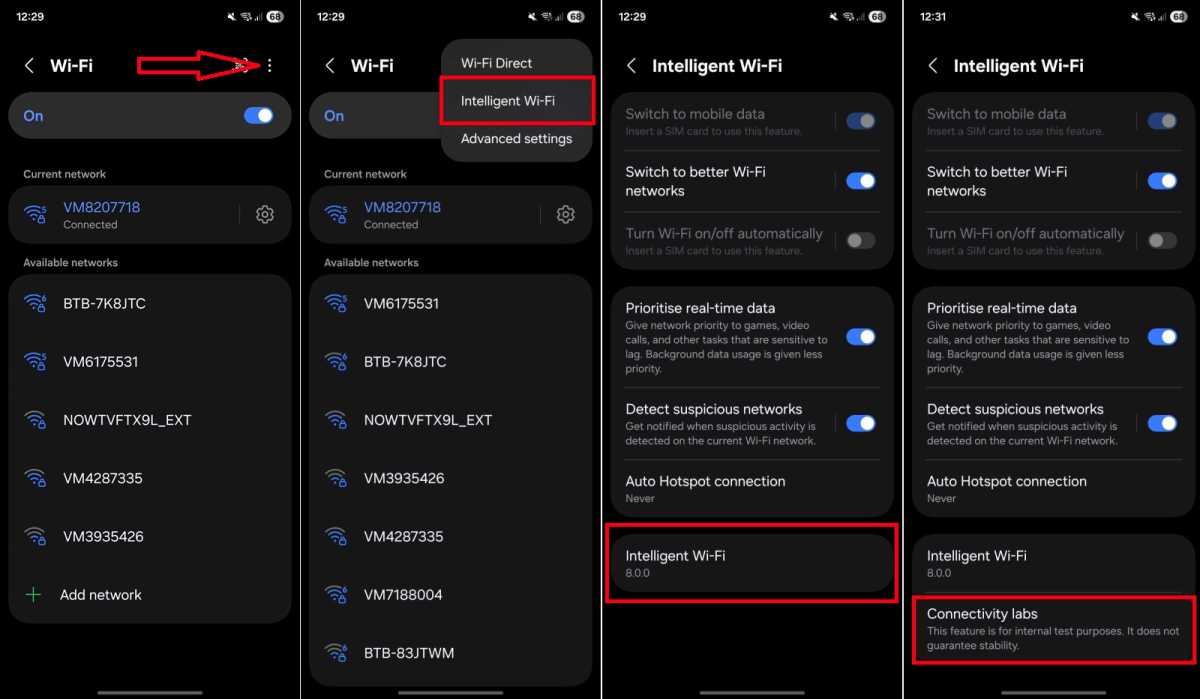
- Open the Settings app on your Samsung Galaxy.
- Tap on “Connections”, then on “Wi-Fi”.
- Tap on the three dots (⋮) at the top right and select “Intelligent Wi-Fi”.
- Scroll down and tap the “Intelligent Wi-Fi” button several times .
- After a few clicks, a message will appear: “Connectivity Labs is enabled”
- The new menu is then displayed below “Intelligent Wi-Fi”.
“Connectivity Labs” is available on Samsung Galaxy devices with One UI 7 and the current One UI 8 beta. As the function was first introduced in 2023, it should also be enabled on devices with One UI 6, too.
Anyron Copeman / Foundry
Connectivity Labs: 6 great features you can use
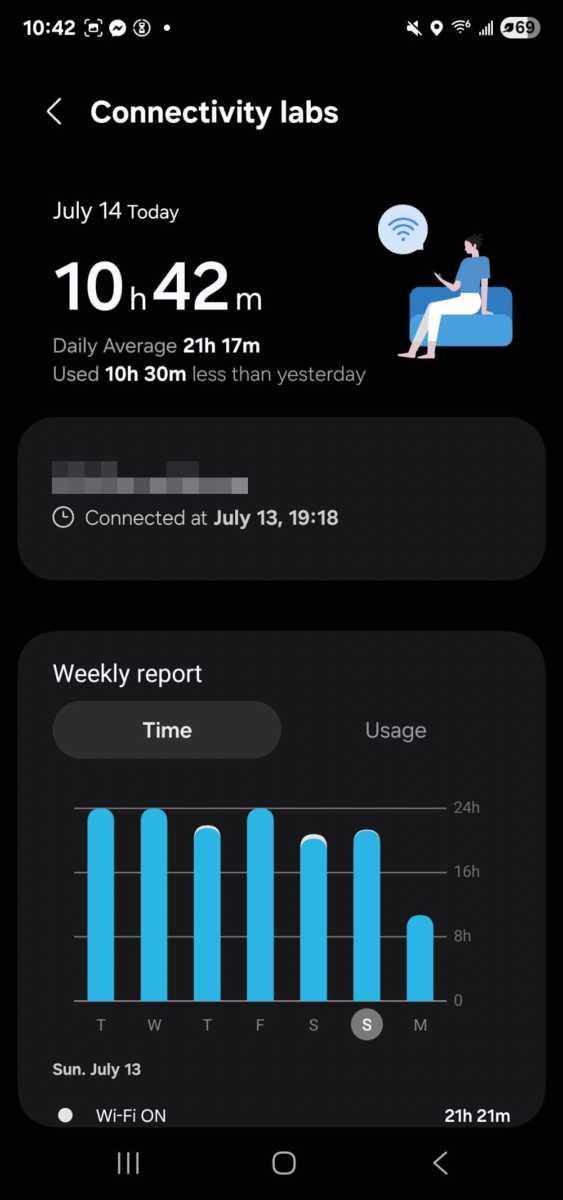
1. Wi-Fi usage at a glance
Right at the start, the new menu shows a diagram of your Wi-Fi usage over the last few days – including the frequency bands used.
Handy if you want to know how often you switch between 2.4- and 5GHz.
PC-Welt
2. Wi-Fi analysis for the home
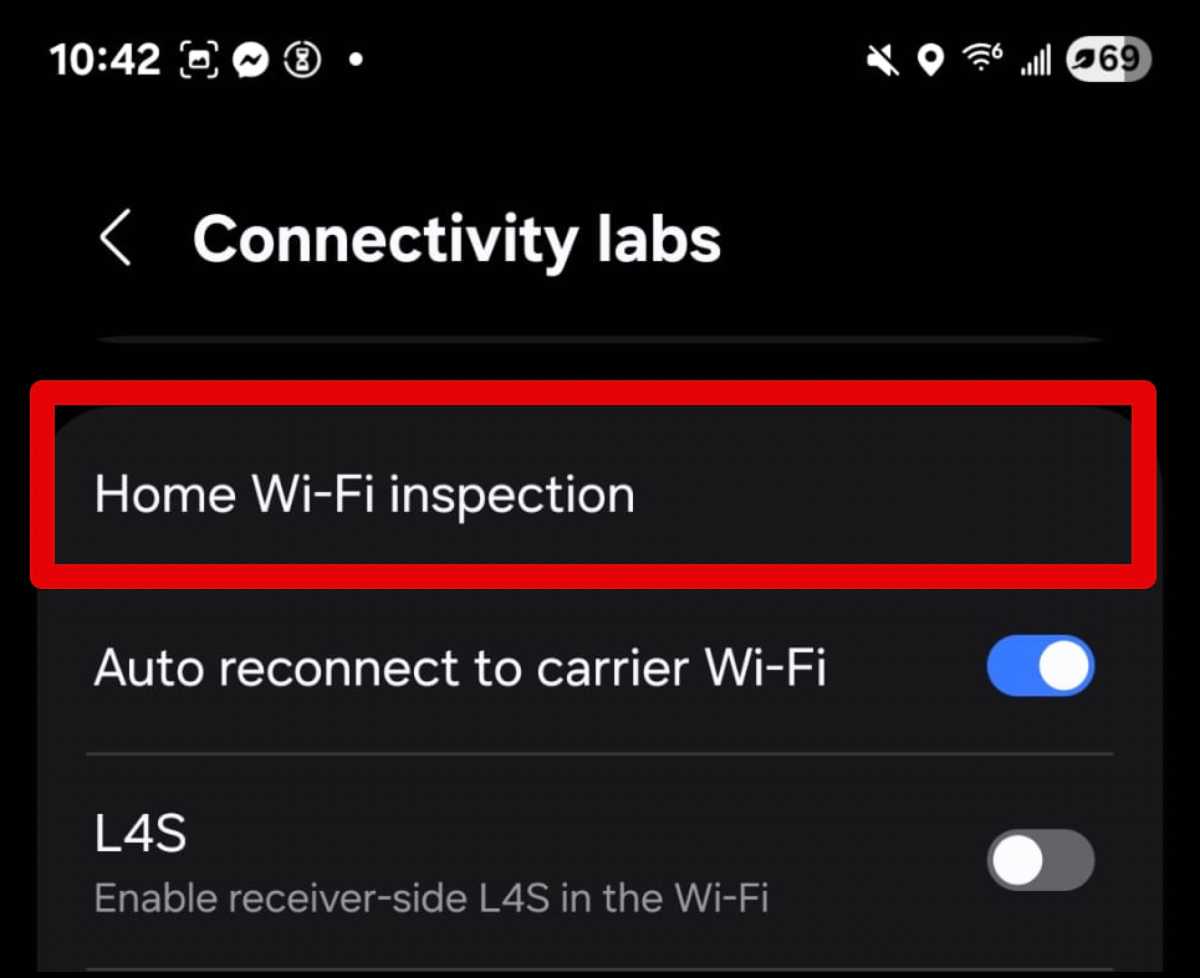
The “Home Wi-Fi Inspection” function is particularly exciting. This allows you to analyse your Wi-Fi coverage in the home.
Walk through your home with your smartphone while it checks where reception is strong or weak, including analyses by router band and room.
This could help you improve the Wi-Fi performance in your house by moving your router or mesh nodes.
PC-Welt
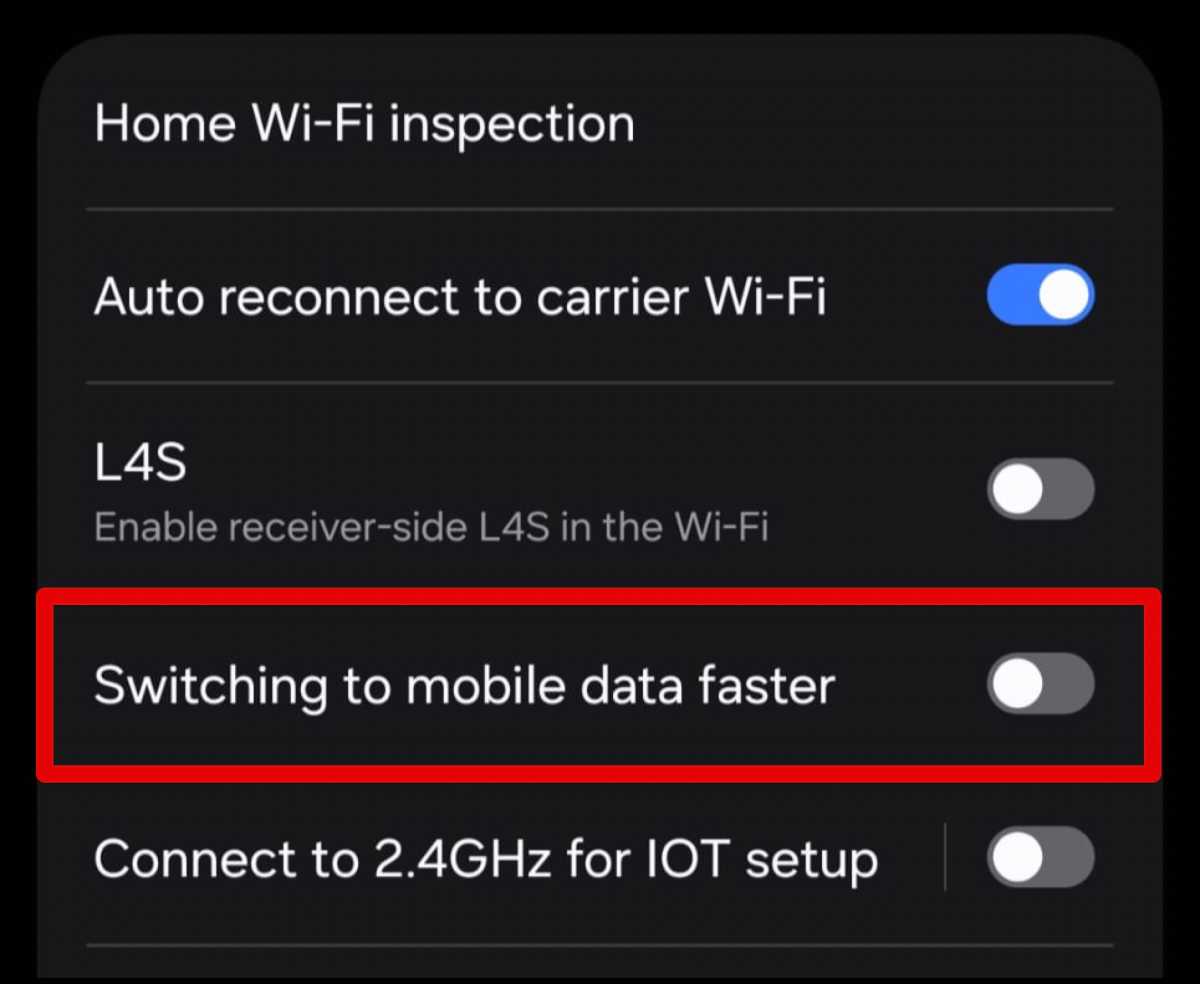
3. Better connection, less frustration
With the “Switch to mobile data faster” option, you can prevent your mobile phone from being stuck on a weak Wi-Fi signal for too long.
Highly recommended if you already have an unlimited data plan and live somewhere with a good 5G network signal.
PC-Welt
4. Hotspots from the provider? Better to decide for yourself
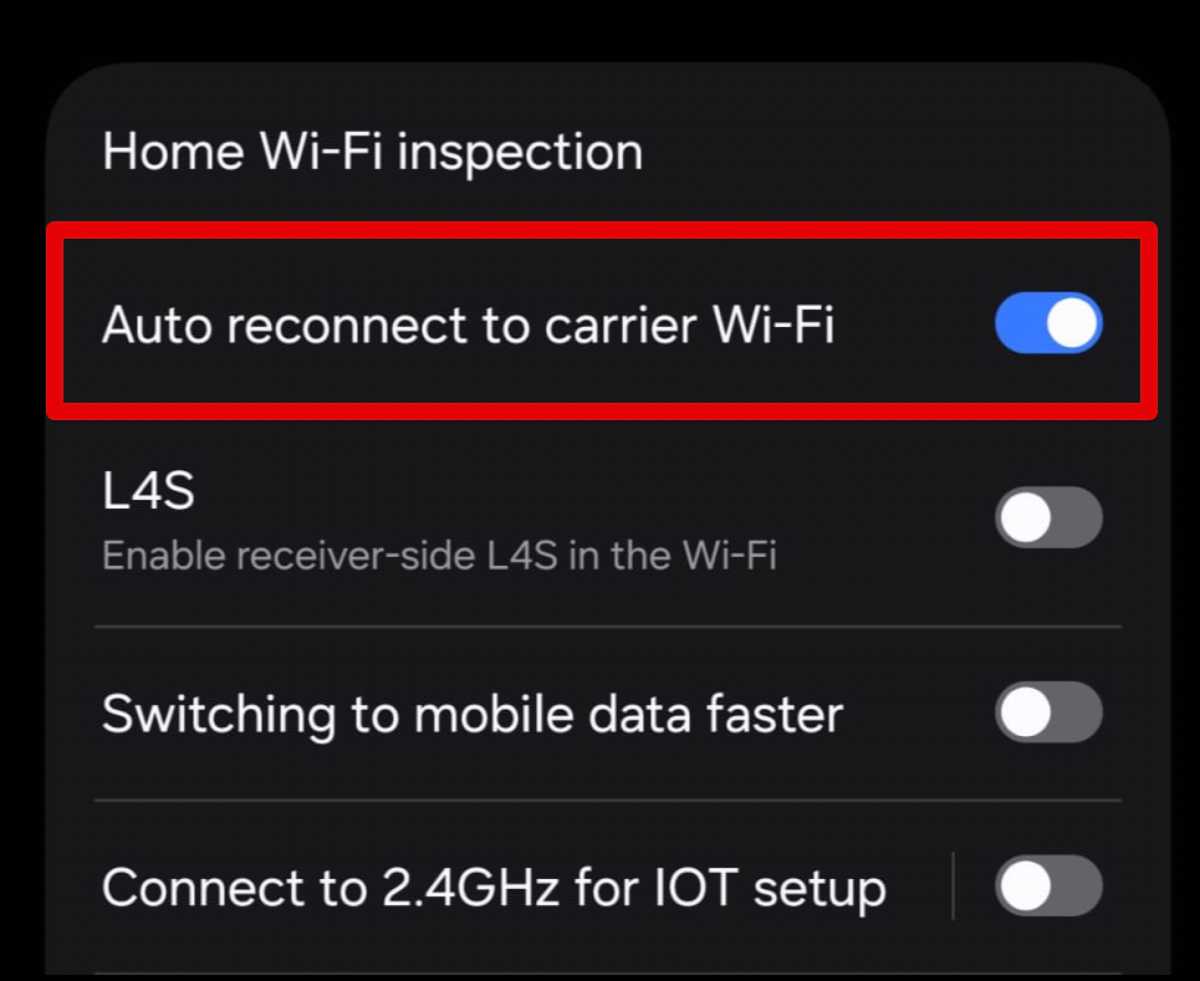
The “Auto reconnect to carrier Wi-Fi” option is activated by default on many Samsung devices. This means that your smartphone automatically connects to public Wi-Fi hotspots from your mobile phone provider – such as O2 or EE . Technically, this is done using an encrypted process known as IMSI encryption, which is available on Android 9 and higher.
This function is primarily intended for congested locations such as sports stadiums, railway stations or underground stations, where the mobile network quickly reaches its limits. The Wi-Fi is intended to provide a more stable and usable connection.
However, not everyone wants their own device to connect to external networks without being asked – even if they are certified. The automatic connection can be completely deactivated in the Connectivity Labs. This gives you control over when and where your device connects. In this article, we explain why you should turn off your Wi-Fi when leaving home .
PC-Welt
5. Customise Wi-Fi list individually
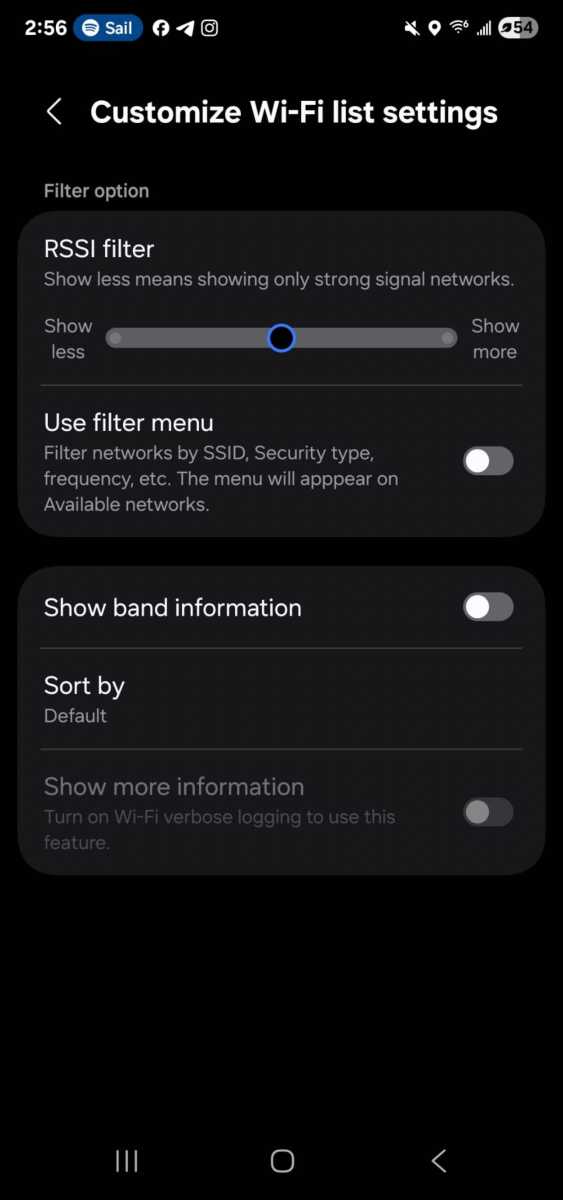
With the “Customise Wi-Fi list settings” function, you can keep track of the many available networks. Using specific filter settings, you can specify which Wi-Fi networks are displayed in the network list – for example, only secured networks, connections with certain standards such as Wi-Fi 6 or networks with stable signal quality.
This is particularly practical in densely populated areas or in public places where dozens of open or unstable networks appear. Instead of scrolling through a confusing list, you only see the connections that are relevant and secure for you.
PC-Welt
6. Wi-Fi developer tools for advanced users
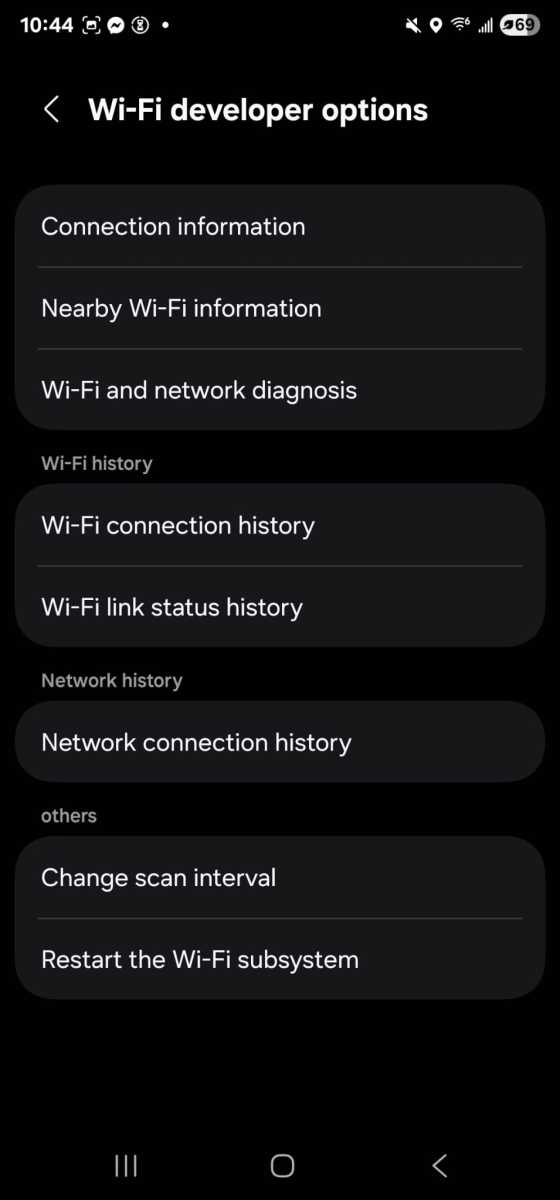
At the bottom of the menu, you will find the Wi-Fi developer options. This is where you can really go into detail, for example, with a list of all neighbouring networks, including signal strength.
This definitely saves nerves if you want to find the best network while travelling. Other functions in this submenu include:
- Option to restart the Wi-Fi module without restarting the entire phone
- Past connections and diagnostic data in the event of network faults
- Scan intervals that can be adjusted manually
PC-Welt
Can you go wrong with Connectivity Labs?
The good news first: No, you can’t seriously damage anything here. Although the functions in the Connectivity Labs are aimed at advanced users, they are designed in such a way that they do not make any far-reaching system changes.
It’s mainly about advanced settings, diagnostic tools and detailed displays – in other words, more transparency and control, but no risk to your device.
Nevertheless, if you make a lot of changes, you should know what you are doing. Individual options – such as the scan interval or automatic network selection – can have an impact on battery life, connection behaviour or convenience functions.
Our tip: Test changes in a targeted manner, make a note of the default settings if necessary and simply reset them if in doubt.
Best Galaxy S25 prices today

This article originally appeared on our sister publication PC-WELT and was translated and adapted from German.
Author: Florian Kastner, Contributor, Tech Advisor
Florian Kastner has been working as a freelance author in the areas of IT and marketing since 2016. He holds a computer science degree and has plenty of practical experience, specializing in the topics of AI, Android and VPN. Previously a ghostwriter, he has written for everything from computer magazines to renowned companies such as Hubspot. His passion: explaining complex issues in an understandable way, and converting them into easy-to-follow tutorials.
Recent stories by Florian Kastner:
- PSA: Turn off your phone’s Wi-Fi when leaving home
- Are you being spied on via WhatsApp? Here’s how to find out and fix it
