WhatsApp is built around communication with people you care about, many of which you’ll want to add to your list of contacts.
Rather than a number you might not recognise, this lets you give them a name that’s meaningful and shows in notifications. On most phones, your WhatsApp contacts are linked to your main phone ones.
Here are three ways to add a contact on WhatsApp, plus the extra step you’ll need for international numbers.
How to add a contact on WhatsApp
We’re using an iPhone for the purposes of this tutorial, but we’ll explain where the method differs on Android.
Add contact when starting a new chat
Artur Tomala / Foundry
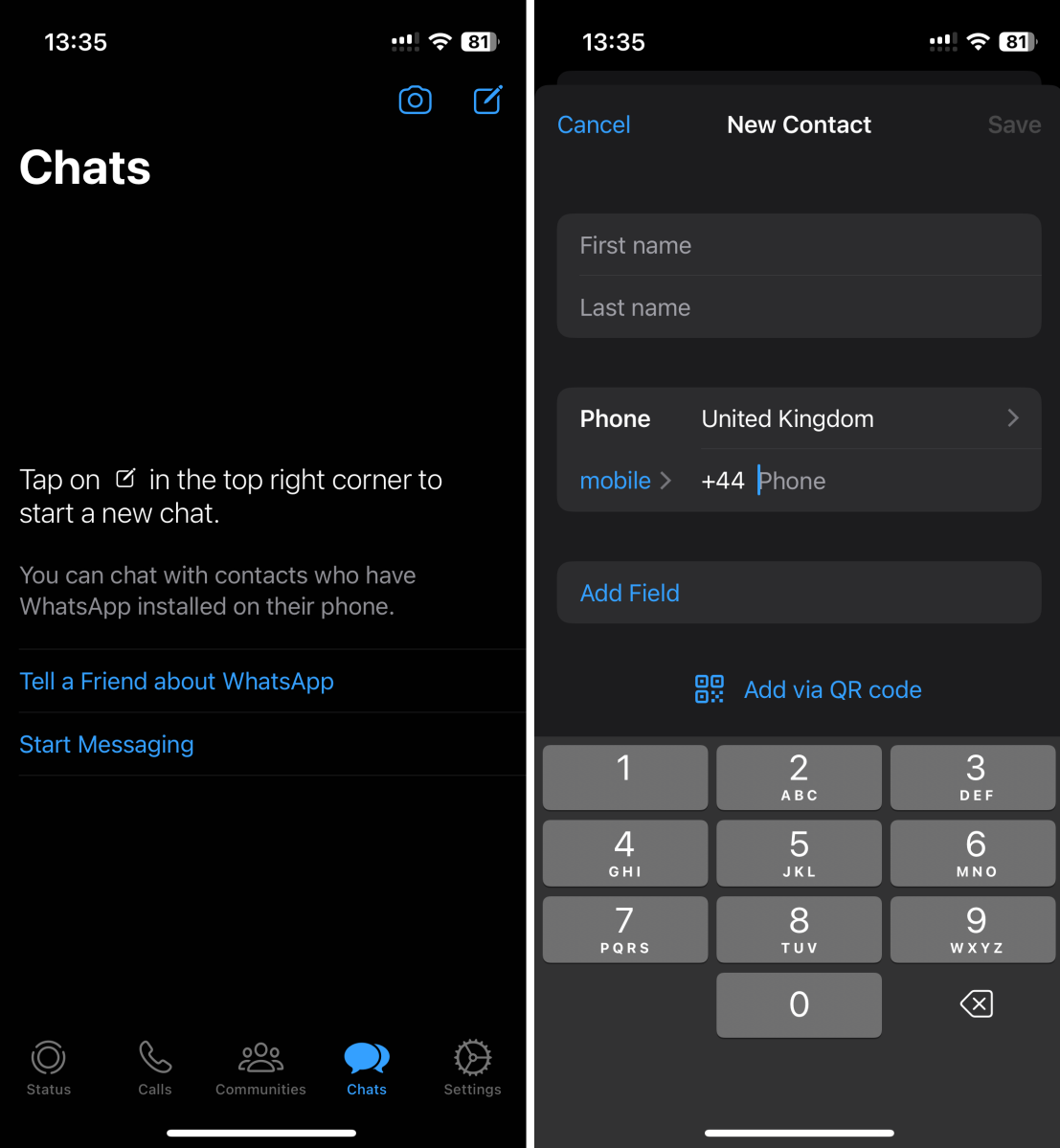
To get started, open WhatsApp on your device. On iPhone, tap the ‘Chats’ icon at the bottom of the screen, then the compose icon (looks like a pen in a square).
From the options that appear, select ‘New Contact’, then fill in the details as you would for any other contact.
On Android, tap the green compose icon in the bottom-right of the page (small square with point coming out of right side). Tap the ‘New contact’ button, then fill in the details.
Once created, choose your new contact from the list to start a conversation.
Add a number you’re already chatting with to contacts
Artur Tomala / Foundry
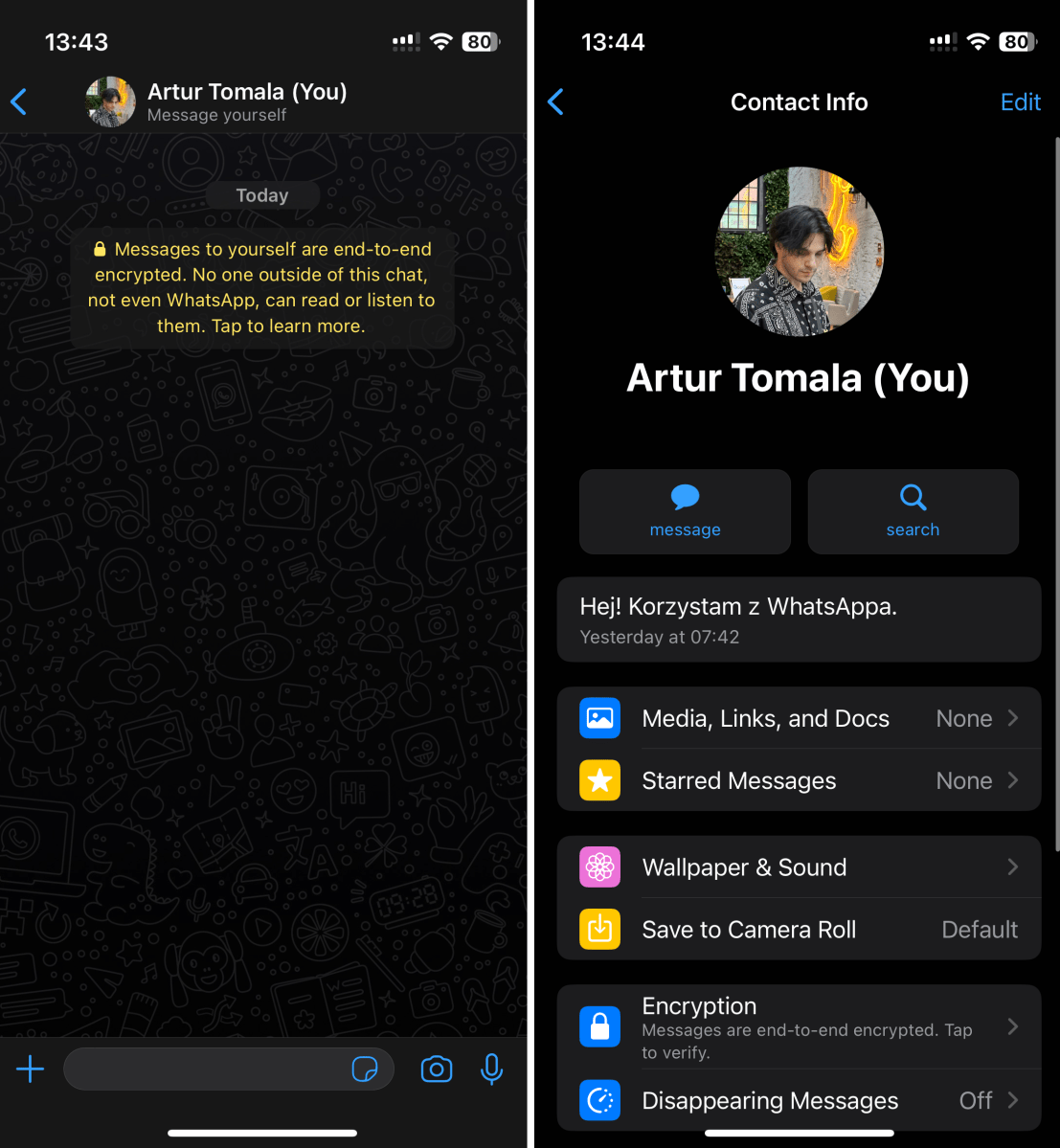
Once you are on the “Chats” tab, look for a chat with an unsaved contact. Unsaved contacts are represented by a phone number instead of a name in the chats list.
Open the chat with the unsaved contact, and then tap on the top app bar to access the information about that particular conversation. The top app bar usually contains essential information and options related to the chat.
On iPhone, tap the option which says ‘Save’ and add it to your contacts. On Android, tap the three dots in the top-right corner and choose ‘Add to contacts’.
Add someone from a group as a contact
Artur Tomala / Foundry
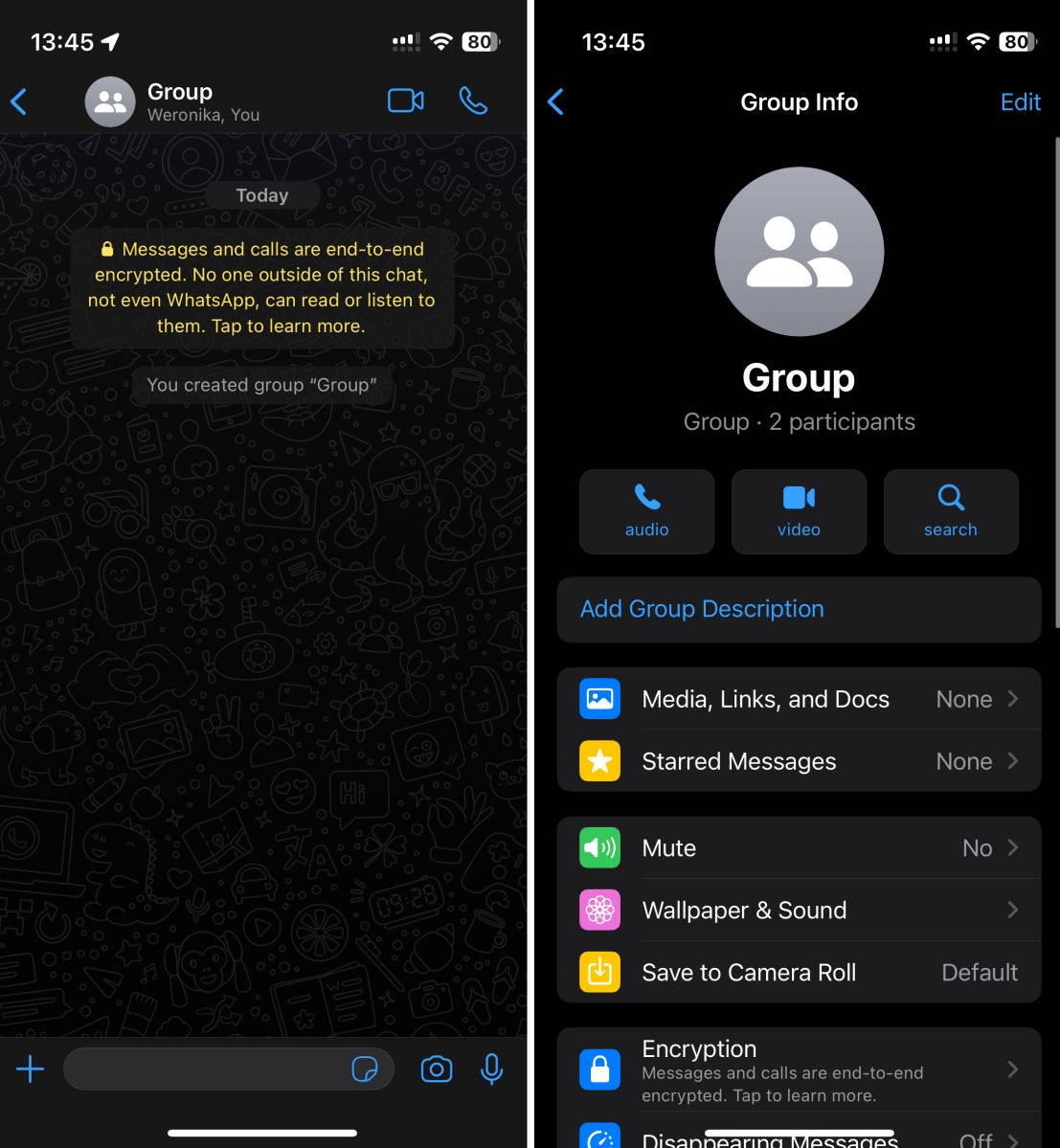
Open a WhatsApp group that includes a member you’d like to add to your contacts. Tap on the top app bar, then scroll down to see a full list of participants.
Find the contact you’d like to add or search for (most people have nicknames set). On iPhone or Android, tap them and choose ‘Add to contacts’.
How to add an international phone number to WhatsApp
Adding an international phone number follows largely the same process, but with one exception:
- Open your phone’s contacts app
- Create a new contact
- In the number field, add the country code before the number and remove the first ‘0’. For a mobile number in the UK, it would start ‘+447’
- Open WhatsApp and start a chat with that number, which should now appear in your WhatsApp contacts
- How to delete WhatsApp contacts
- How to archive and unarchive WhatsApp chats
- How to delete a WhatsApp chat
Sometimes it can also happen that you no longer want to have someone in your contact list . Fortunately, WhatsApp allows you to easily delete an unwanted contact.
Author: Artur Tomala, Mobile Writer, Tech Advisor

Artur is a Mobile Writer at Tech Advisor, where he covers a range of smartphone, tablet and smartwatch-related topics. He has been working in the tech industry since 2021, including time spent leading a team focused on mobile news, reviews and product rankings. As an ambassador for the productivity app Notion, he runs training workshops and creates advanced templates to help people stay organised and productive.
Recent stories by Artur Tomala:
- How to set up a new Android phone
- When will my Samsung Galaxy phone get One UI 7?
- How to get One UI 7 on your Samsung Galaxy phone
