Backing up your data might not be the most interesting of tasks, but it’s essential for ensuring that your photos, contacts, messages and apps are safe if something goes wrong. That’s why it’s very important to have a regular backup routine or that your phone is set to do it all automatically in the background.
Here’s a comprehensive guide on how to back up your Android device.
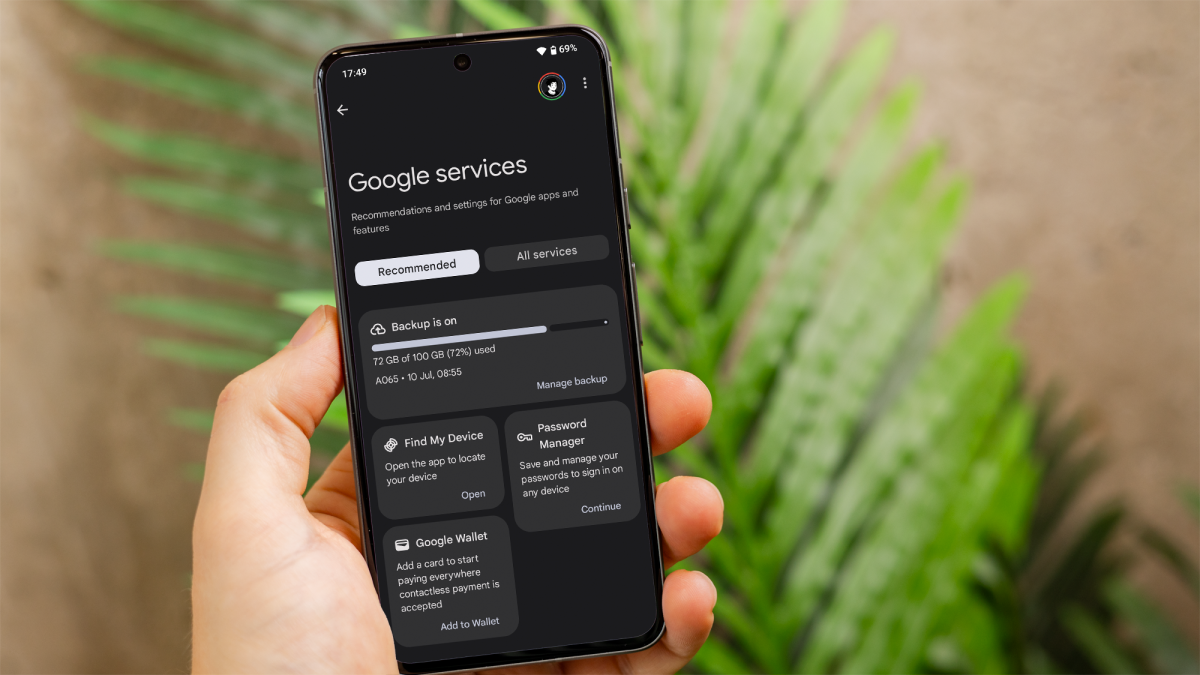
How to back up your Android device using Google Backup
Google Backup is a built-in feature on Android devices that allows you to back up all of your data – including app data, call history, contacts, device settings and SMS text messages – directly to your Google Drive.
This method is highly recommended because it is straightforward and integrates seamlessly with the Android ecosystem.
- Open the ‘Settings’ app on your Android device.
- Scroll down and tap on ‘System’ (or ‘Google’ on some devices).
- Tap ‘Backup’ (or ‘Manage backup’ if you chose the ‘Google’ tab).
- Ensure the ‘Back up to Google Drive’ option is turned on. If not, enable it and tap on ‘Account’ to select the Google account you want to use for the backup location.
- You can also tap on ‘Back up now’ to start an immediate backup.
- In the ‘Backup’ section, you’ll see options for what gets backed up, including ‘App data’, ‘Call history’, ‘Contacts’, ‘Device settings’, and ‘SMS text messages’.
- Make sure all desired options are enabled.
Dominik Tomaszewski / Foundry
How to back up photos and videos on Android
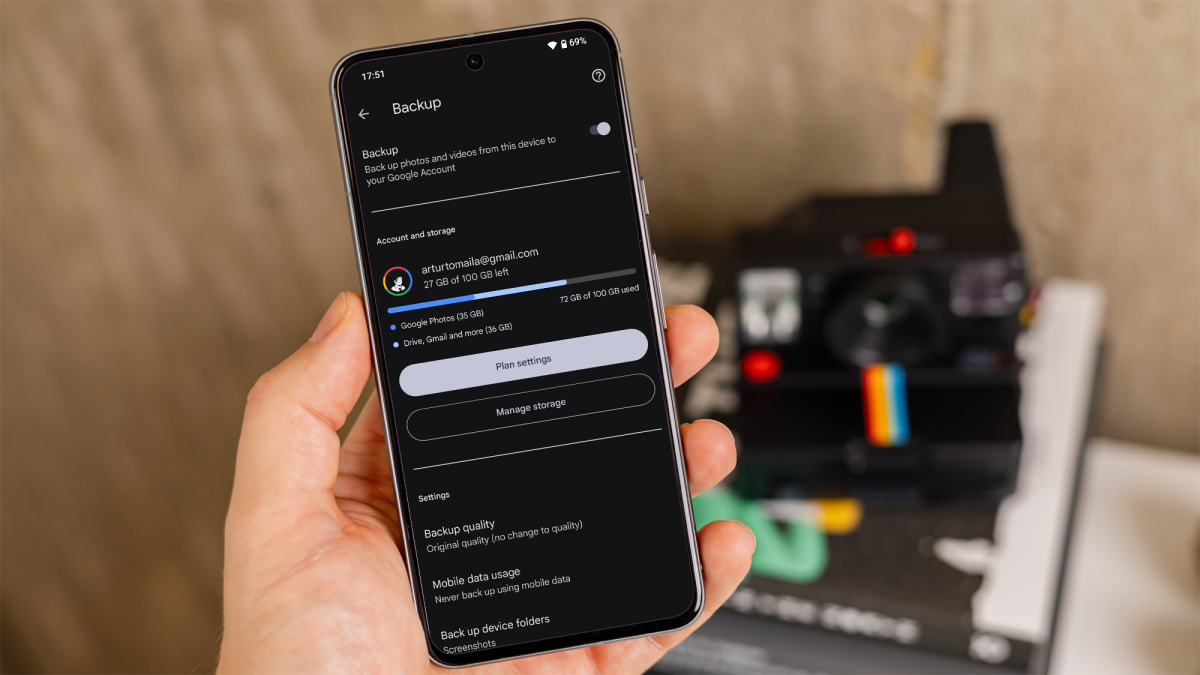
If you only want to back up your photos and videos, Google Photos offers a convenient way to do it and sync them across all your devices.
- Open the ‘Google Photos’ app.
- Tap on your profile picture or initial in the top right corner.
- Tap on ‘Photos settings’.
- Select and turn on ‘Back up & sync’.
- You can also choose either ‘Original quality’ (for full-resolution backups) or Storage saver (compressed versions that take up less space).
Dominik Tomaszewski / Foundry
How to back up contacts on Android
By backing up your contacts, you can easily restore them if you switch to a new device or if your current device gets lost or damaged.
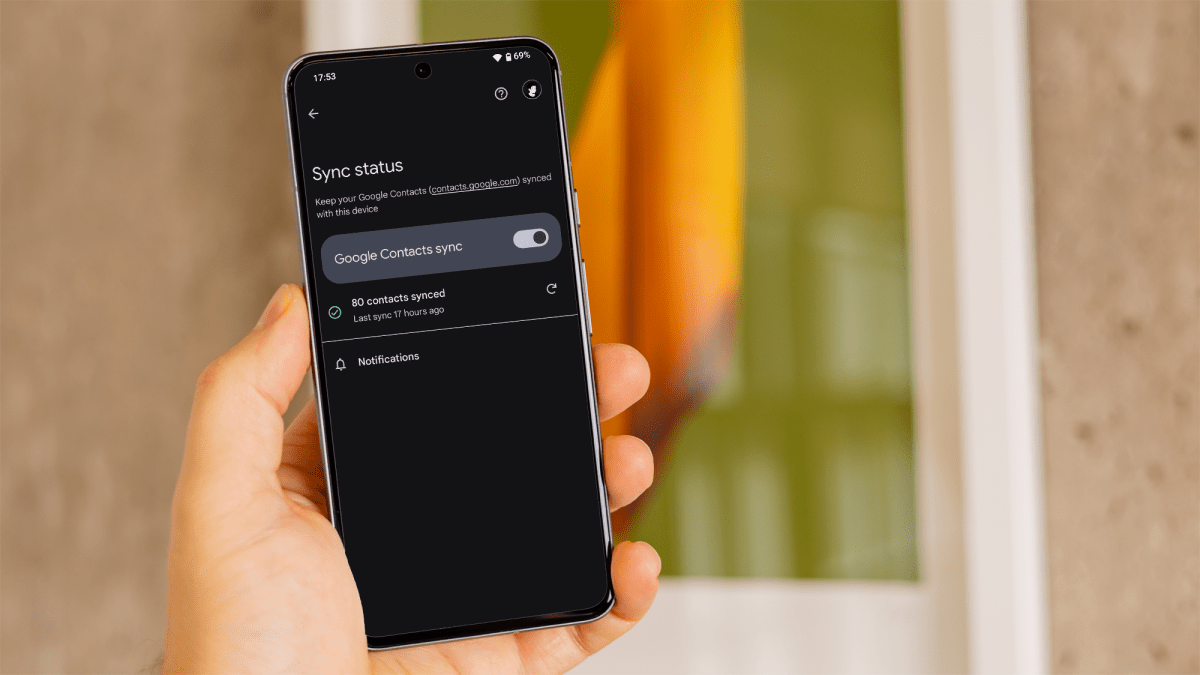
If it’s crucial to you, you can use Google Contacts to sync only your contacts with your Google account, ensuring they are always safe and accessible.
- Open the ‘Contacts’ app.
- Tap on your profile picture or initial in the top right corner.
- Tap on ‘Google Contacts sync settings’.
- Tap on ‘Status’ and enable ‘Google Contacts sync’.
- You can also enable the option to ‘Automatically back up and sync device contacts’ there.
Dominik Tomaszewski / Foundry
How to back up messages on Android
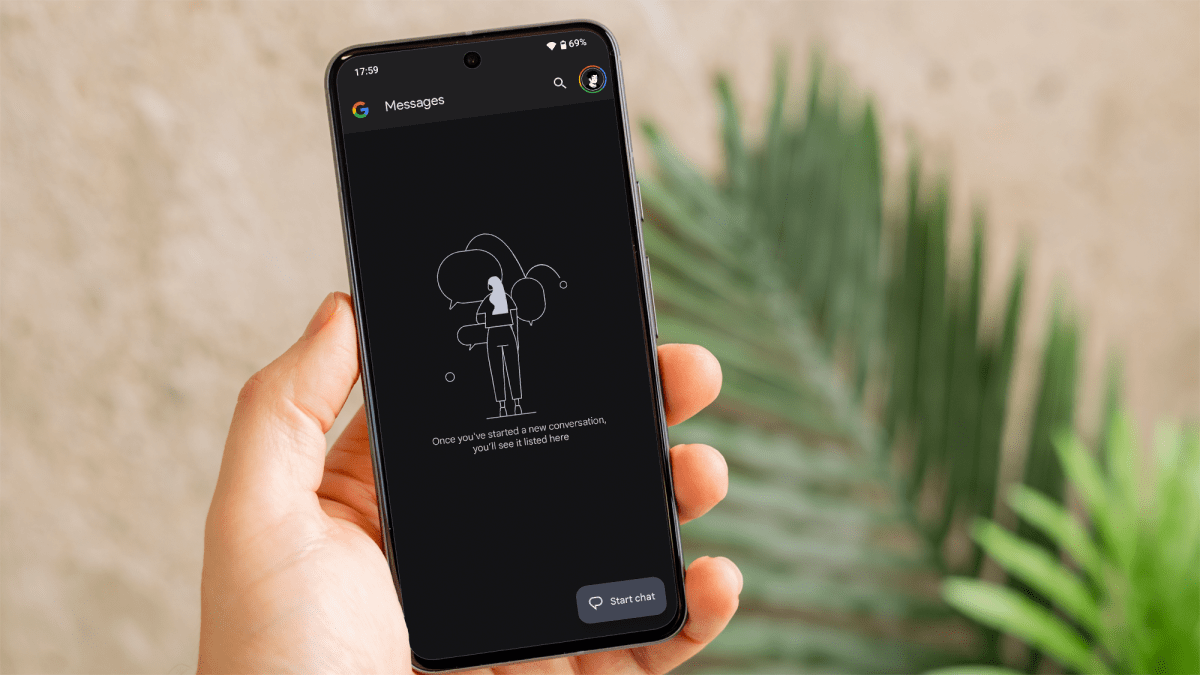
You may find your phone has preinstalled software to back up your text messages, so it’s a good idea to check. Open your messaging app, go the options menu and look for a Backup/Restore option.
If it’s not the case for your device, simply use the Google Drive (the first method) or use a third-party app.
Dominik Tomaszewski / Foundry
You might also want to know how to back up WhatsApp if you use that service.
How to back up apps on Android
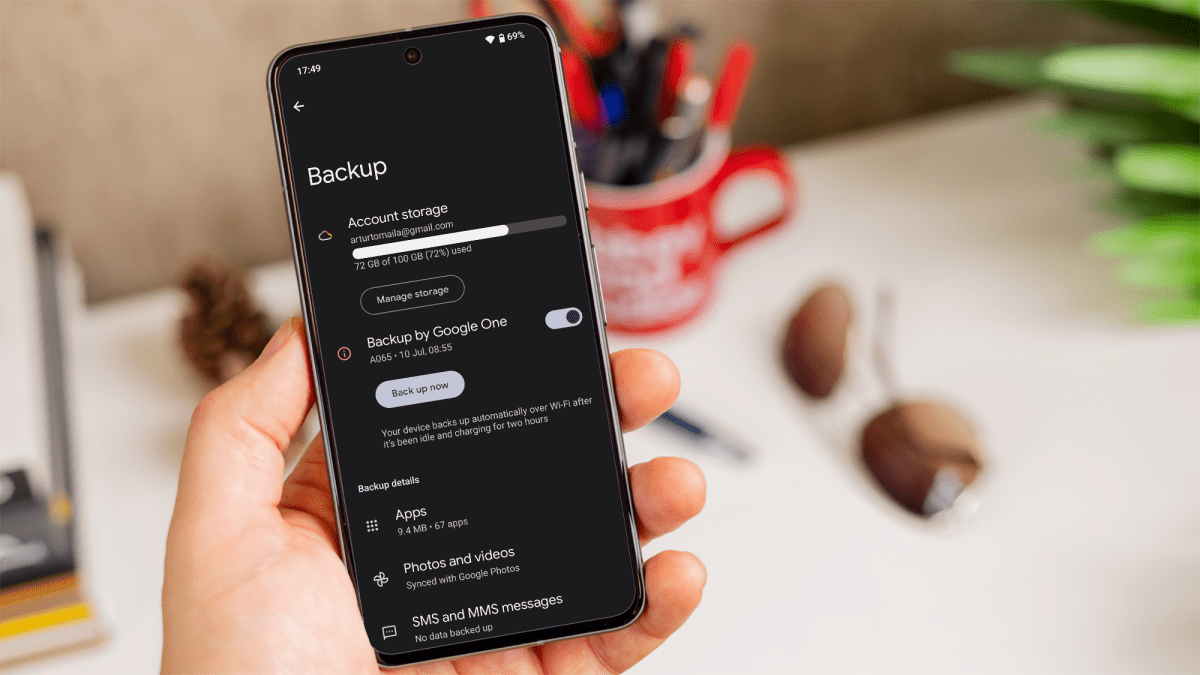
Apps and their associated data, such as settings and progress, are an integral part of your device. Google Drive allows you to back up app data, ensuring that when you restore your device or set up a new one, your apps and their data are easily restored.
If you follow the first method above and perform a single or set up an automatic backup to Google Drive, your apps and associated data will also be saved.
Dominik Tomaszewski / Foundry
If you’d also like to learn how to backup and restore Android apps , you can follow our seperate guide.
How to do a manual back up of Android
For those who prefer more control over their backup process, manual backups allow you to copy important files directly from your device to a computer or an SD card. This method is useful for backing up specific files and folders that might not be covered by automatic backup solutions.
Author: Artur Tomala, Mobile Writer, Tech Advisor

Artur is a Mobile Writer at Tech Advisor, where he covers a range of smartphone, tablet and smartwatch-related topics. He has been working in the tech industry since 2021, including time spent leading a team focused on mobile news, reviews and product rankings. As an ambassador for the productivity app Notion, he runs training workshops and creates advanced templates to help people stay organised and productive.
Recent stories by Artur Tomala:
- How to set up a new Android phone
- Samsung Galaxy A26: Everything you need to know
- What is an eSIM and how does it work?
