While prices have increased in recent years, you still get loads of benefits for just £8.99/$14.99 per month or £95/$139 per year.
If you’ve never signed up before, you can get a 30-day free trial and avoid being charged any extra. However, to avoid further charges, you’ll need to cancel your membership before the trial ends.
Equally, if you’ve had Prime for a while and have had enough of it, it may also be the right time to cancel. Don’t worry, your benefits won’t be taken away until you’re due to be charged.
Sign in to your account if you haven’t used the app before, then follow these steps:
- Tap hamburger menu (three horizontal lines) at the bottom right
- Tap ‘Prime’, then ‘Prime’ again
- Tap the down arrow next to the Prime logo at the top, then ‘Manage my membership’
- Tap ‘Manage membership’ at the top of the screen, then ‘Update, cancel and more’
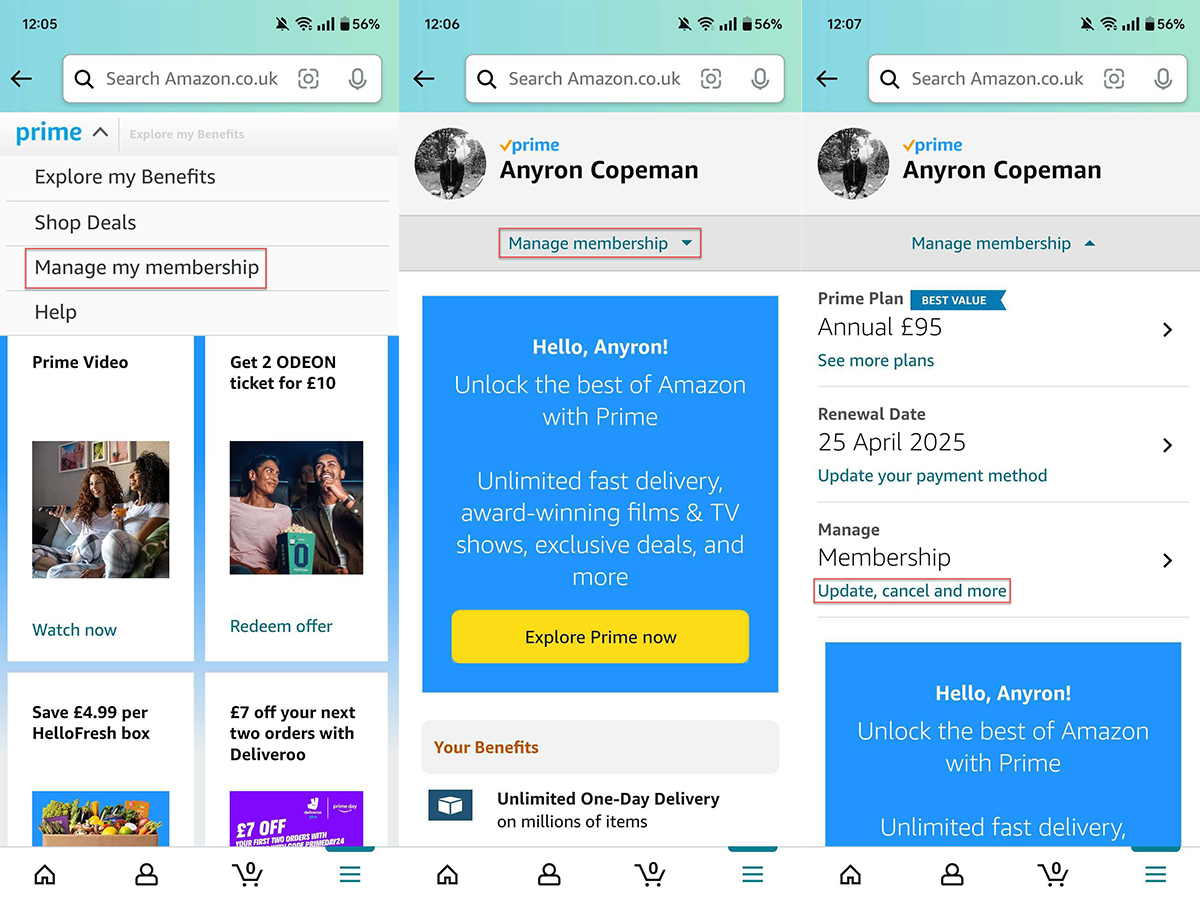
Anyron Copeman / Foundry
- Tap ‘End membership’
- Scroll to the bottom of the page, then tap ‘Continue to cancel’
- Tap the yellow ‘End on [date]’ button to confirm
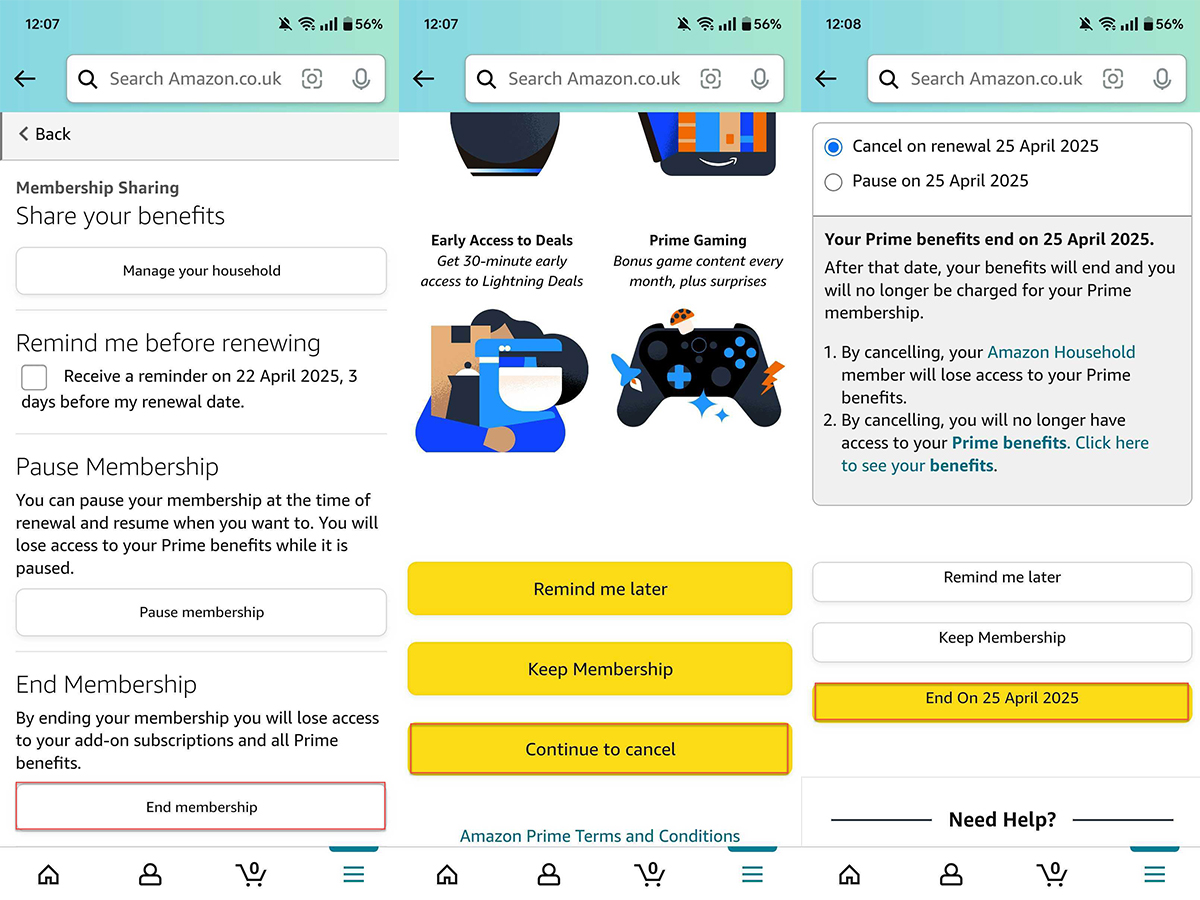
Anyron Copeman / Foundry
As mentioned in the screenshot above, your Prime benefits will still be available until the end of your subscription or trial.
Of course, you can also use the web browser on your mobile device to cancel Prime, but it’ll look similar to the desktop method.
On desktop, you’ll need to cancel via the website. The method is consistent across all web browsers and devices:
- Open a web browser and head to the Amazon website in your country (such as the UK or US )
- Sign in to your account if you haven’t done so already
- Hover over ‘Account & Lists’, then click ‘Your Account’
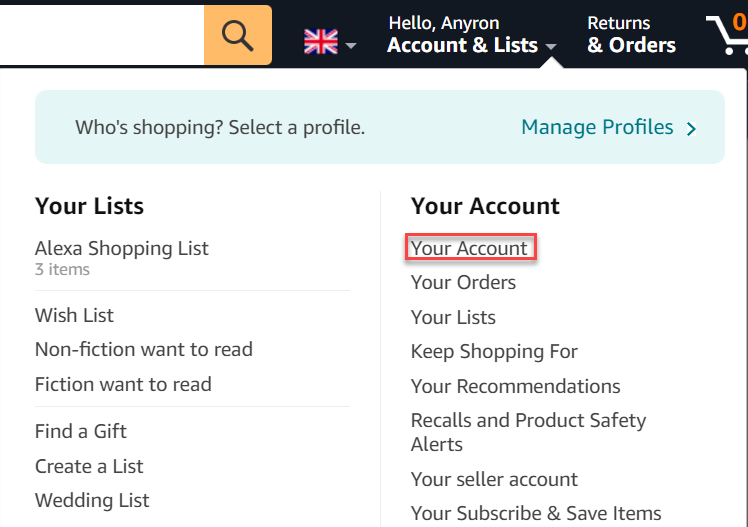
Anyron Copeman / Foundry
- Click the ‘Prime’ button
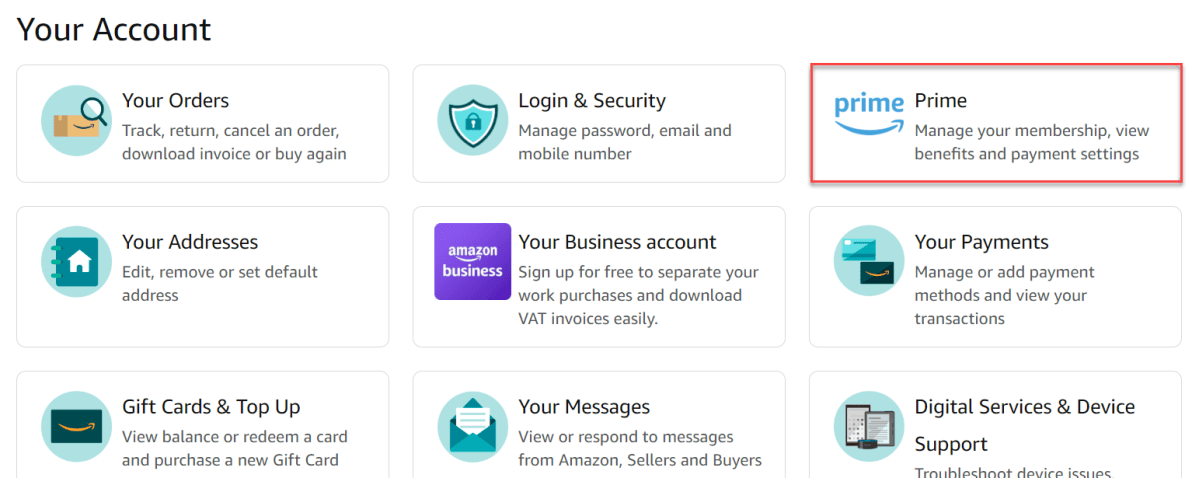
Anyron Copeman / Foundry
- Under the ‘Manage Membership’ heading, click ‘Update, cancel and more’
- Under ‘End Membership’, click the ‘End membership’ button
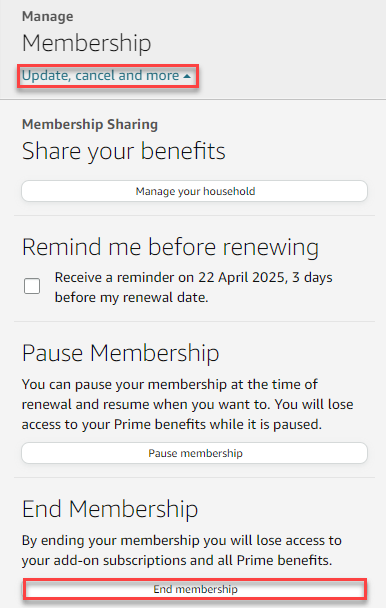
Anyron Copeman / Foundry
- From the bottom of the next screen, click ‘Continue to cancel’
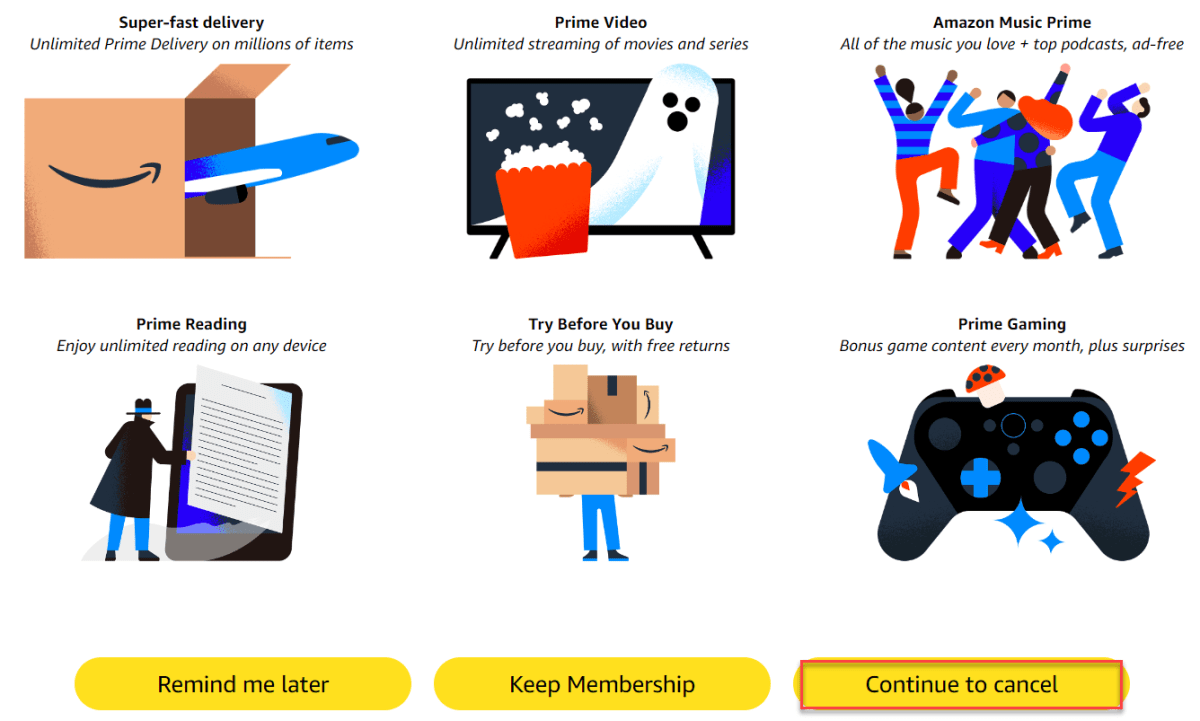
Anyron Copeman / Foundry
- From the next screen, click ‘End on [date] to confirm’
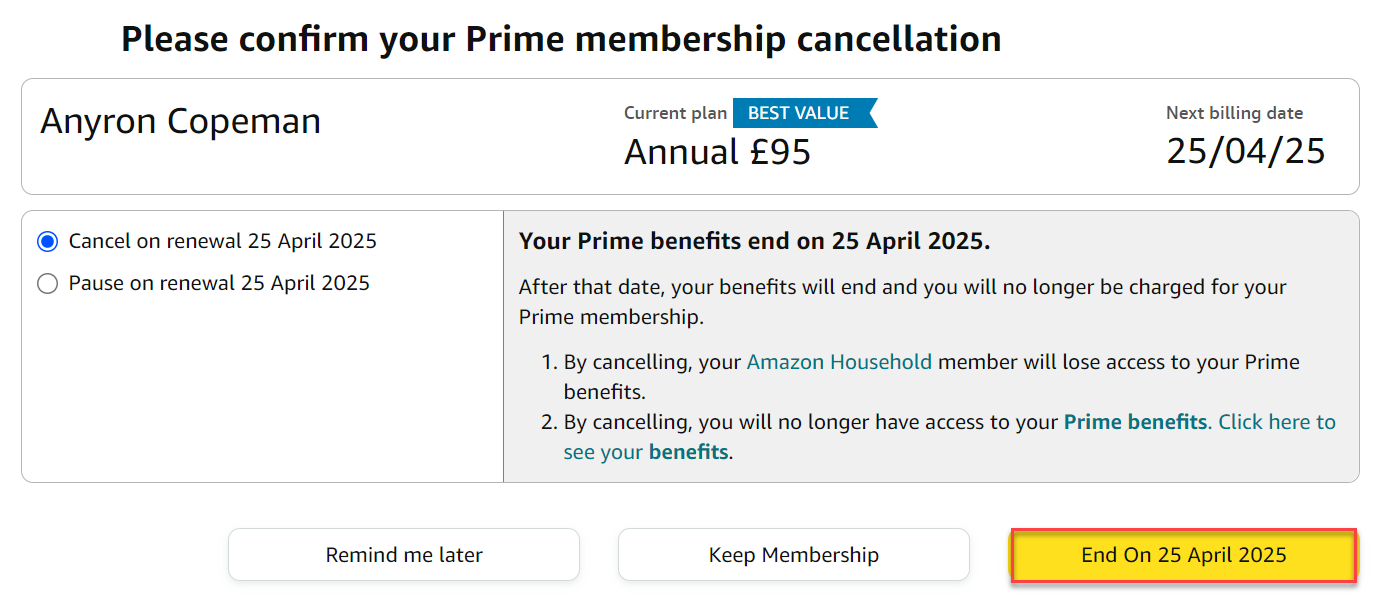
Anyron Copeman / Foundry
If you’ve paid for Prime but have not used any of its benefits, you can request a refund.
If you see a summary of your membership and management options at the top of the screen, you have a subscription. But you just see the benefits or free trial advertised, you aren’t.
- When is Amazon Prime Day? Best Deals
- What is Amazon Prime?
- Best Alternative Sales to Prime Day
- How to Sign Up for Amazon Prime
- How to get free delivery from Amazon (without Prime)
Author: Anyron Copeman, Mobile Editor, Tech Advisor

Anyron is Mobile Editor at Tech Advisor, where he’s been a mainstay of the editorial team since 2019. In his current role, Anyron is responsible for all smartphone, tablet and mobile network coverage on the site. A BA Journalism graduate, he has experience with a wide range of consumer tech products and services, including smartphones, tablets, foldables, wearables and more.
Recent stories by Anyron Copeman:
- I switched to a countertop dishwasher. Did it finally end my washing-up nightmare?
- Has Google stopped supporting your Nest Thermostat? Don’t replace it yet
- Is BT down? Outage information and fixes
