Zoom has become one of the most popular choices for remote meetings while workers are isolated at home due to the outbreak of coronavirus.
And it’s easy to see why. You click a link, download the software and you’re in the meeting on your phone or laptop.
- These are the best free tools for remote working
- Best online video conferencing services
However, you may not want your colleagues – or clients – seeing that you’re in your kitchen with the washing-up piled up behind you, or sat on your bed with a cat.
Fortunately, Zoom offers an easy way to change your background so people only see you. And you don’t need a green screen to do it: the software automatically cuts out your head and shoulders and does a pretty good job.
Note: you cannot change your background on the mobile app. It only works on Windows and macOS.
- How to look and sound amazing on a video call
How do I change the virtual background in Zoom?
You don’t need an account to join a meeting in Zoom, but you will have to create one if you want to change your background.
We’re assuming that you already have the Zoom app installed, but if not, get it from Zoom’s website on your PC or Mac.
When you’ve verified your email address you can then sign in with the email and password you just entered in the sign-up process.
Now click the settings icon near the top right of the window.

Click Virtual Background from the menu on the left.
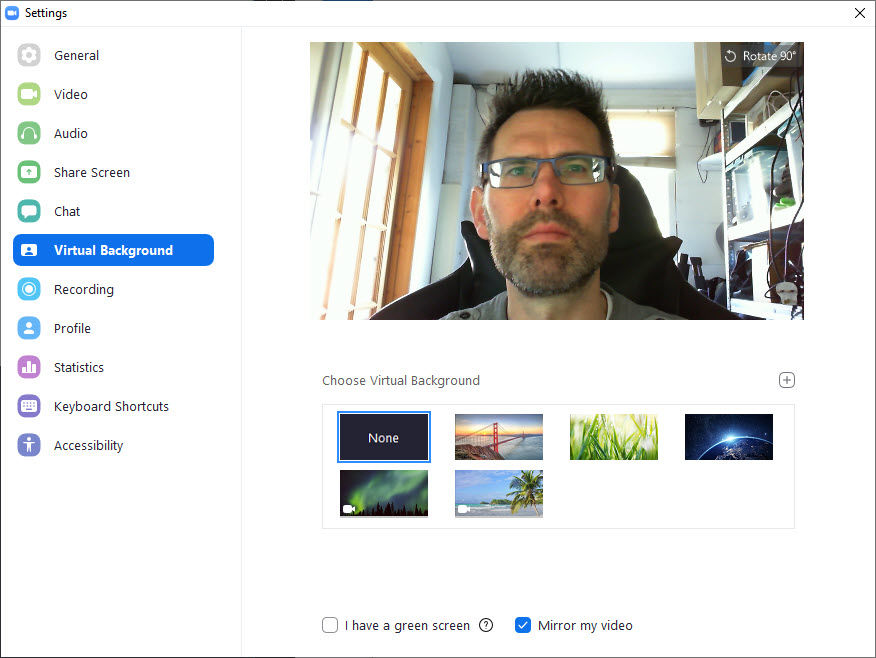
Some photo and video backgrounds are available: simply click on one to download them all and apply the one you clicked on.

You should see the background appear in the preview video, and you can return to your real background by clicking on ‘None’ in the list of backgrounds.

If you want to have your own custom background photo, then click the + icon as shown above, click AddImage and navigate to where your photo is stored.
You’ll need to make sure your image meets Zoom’s requirements:
- Minimum width of 960 pixels
- Maximum width of 1920 pixels
- Recommended dimensions 1920×1080, 16:9 aspect ratio
- Max file size: 5MB
JPG, GIF and PNG files are supported, and any transparent areas in a GIF will be displayed as white, not your real background.

Instead of uploading an image, you can upload a video. Just make sure the movement is subtle – no-one will thank you for using a distracting video in a meeting.
The good news is that Zoom can still apply a virtual background even if there is more than one person in the frame.
When you use Zoom, be aware of the privacy concerns . Also, here’s why you should be using a VPN when working from home .
Author: Jim Martin, Executive Editor, Tech Advisor

Jim has been testing and reviewing products for over 20 years. His main beats include VPN services and antivirus. He also covers smart home tech, mesh Wi-Fi and electric bikes.
Recent stories by Jim Martin:
- The best VPN services 2026: Stay protected with our expert top picks
- Is Amazon Alexa down? It’s probably not just you
- The best VPN for streaming in 2025
