Managing Google accounts on your Android device is simple and useful for switching emails, managing multiple accounts or just staying organised.
Whether you’ve just bought one of the best Android phones or the best Android tablets out there or need a refresher with your current one, here’s a step-by-step guide on how to change your Google account.
How to remove an existing Google account on Android
Before you can add your new Google account, you’ll need to remove the existing one. Here’s how:
- Open the ‘Settings’ app.
- Scroll down and select ‘Passwords and accounts’ or similar.
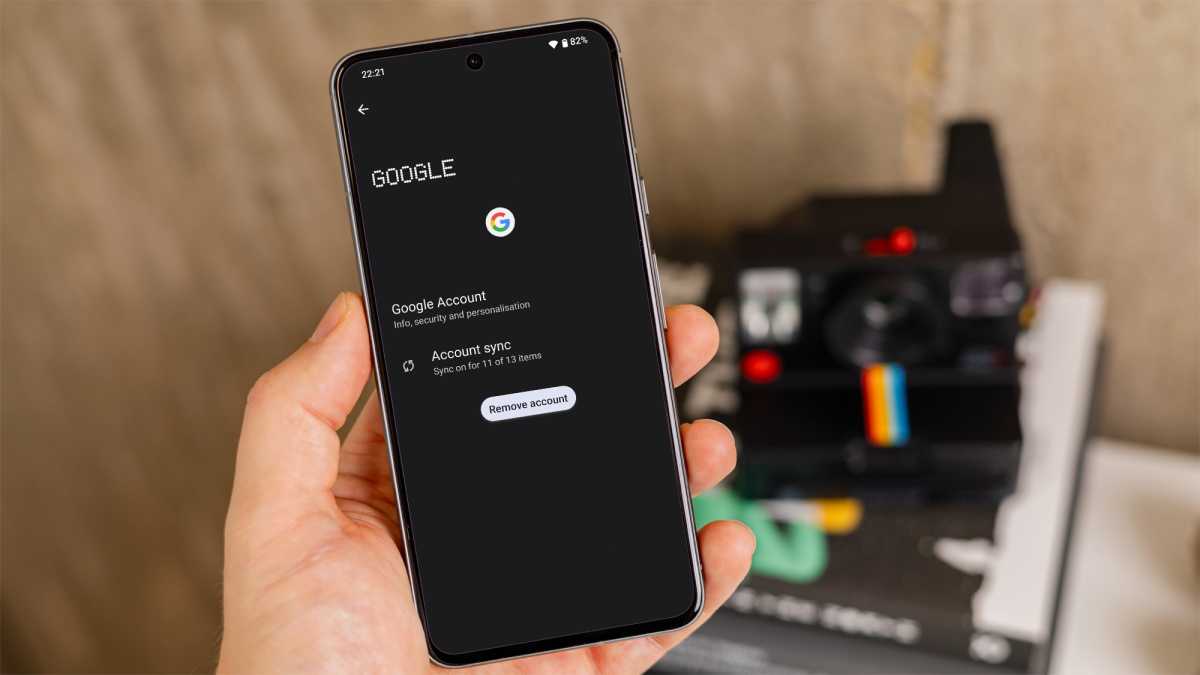
- Tap the Google account you want to remove.
- Tap ‘Remove account’ and confirm the action.
- You may need to enter your device’s password or PIN for security purposes.
Domink Tomazewski
Keep in mind that removing your Google account will also remove associated data such as emails, contacts and settings from your device. Ensure you have backed up any important information before proceeding.
How to add a new Google account on Android
After removing the existing account, you can add a new Google account:
- Open the ‘Settings’ app.
- Scroll down and select ‘Passwords and accounts’ or similar.
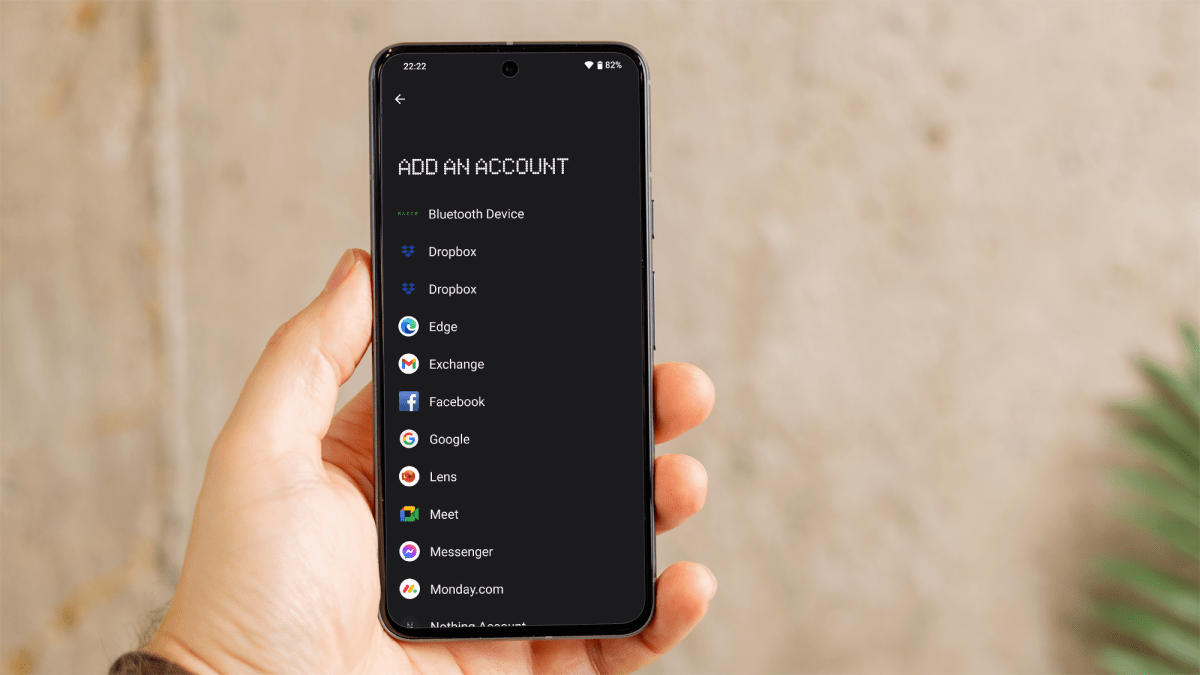
- Tap ‘Add account’ at the bottom of the list.
- From the list of account types, choose ‘Google’.
- Enter your email address and password for the new Google account.
- Follow any additional on-screen instructions to complete the sign-in process.
Dominik Tomaszewski / Foundry
How to add a second Google account on Android
If you want to manage multiple Google accounts on your Android device, follow these steps to add additional accounts:
- Open the ‘Settings’ app.
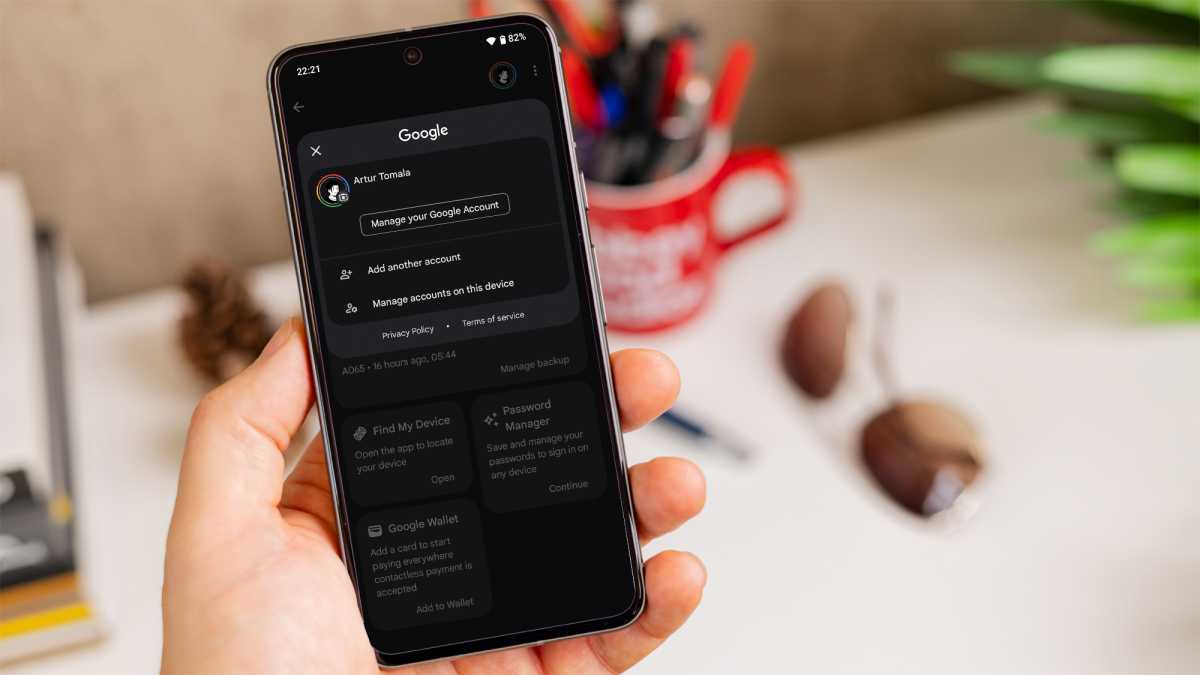
- Scroll down and select ‘Google’.
- Tap on your profile icon at the top right and choose ‘Add another account’.
- Enter your email address and password for the new Google account.
- Follow any additional on-screen instructions to complete the sign-in process.
Domink Tomazewski
In all Google apps that are tied to your Google account you will now be able to switch between accounts by tapping your profile icon at the top right and clicking the downward triangle next to the currently selected account. You will also receive notifications for both accounts, unless you change the default settings.
An alternative method of adding Google accounts is possible within the Google apps themselves. The steps are identical as those above.
Author: Artur Tomala, Mobile Writer, Tech Advisor

Artur is a Mobile Writer at Tech Advisor, where he covers a range of smartphone, tablet and smartwatch-related topics. He has been working in the tech industry since 2021, including time spent leading a team focused on mobile news, reviews and product rankings. As an ambassador for the productivity app Notion, he runs training workshops and creates advanced templates to help people stay organised and productive.
Recent stories by Artur Tomala:
- How to set up a new Android phone
- Samsung Galaxy A26: Everything you need to know
- What is an eSIM and how does it work?
