When Siri first launched on the iPhone 4s, Apple’s virtual assistant didn’t sound all that human. However, with recent iterations of iPhone, Siri sounds much more natural with more diversity not only in the voice itself, but the tone and even regional dialects.
It makes using Apple’s hands-free “Hey Siri” tech much more natural, like you’re conversing with a person and not a robot.
While the accent will still default to the region you’re in, you’re free to change both the accent and gender of Siri’s voice on your iPhone or iPad with just a few taps.
If you want to change Siri to speak in an American, Australian, British, Indian or South African accent, we’ve got you covered.
How to change Siri’s voice and gender on iPhone and iPad
- Time to complete: 1 minute
- Tools required: An iPhone or iPad
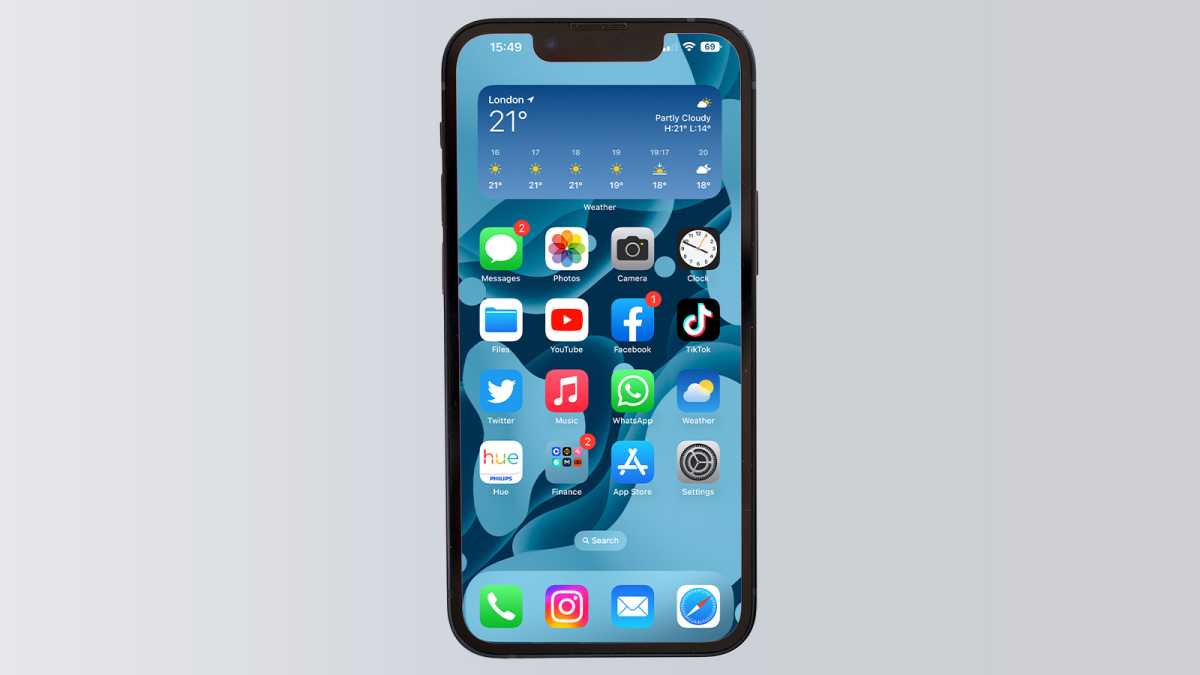
Open the Settings app
Lewis Painter / Foundry
The first step is to open the Settings app on your iOS device. For those new to iOS, it’s the app with the mechanical cog icon.
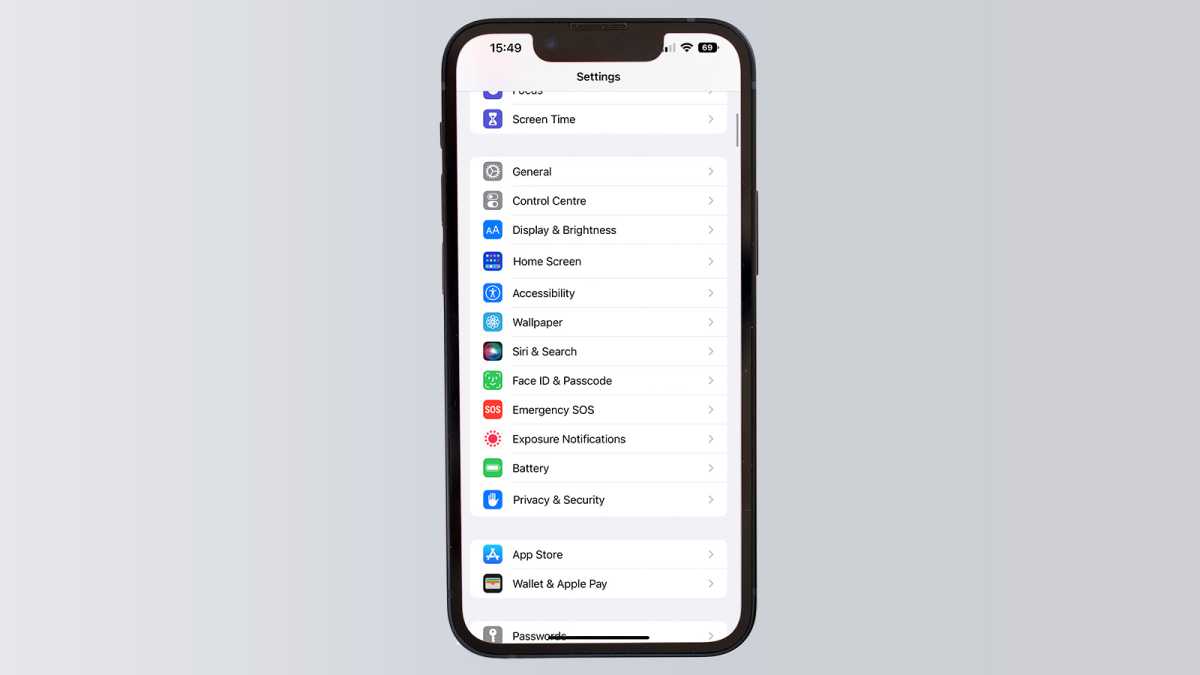
Tap Siri & Search
Lewis Painter / Foundry
From the main Settings app menu, scroll down and tap Siri & Search.
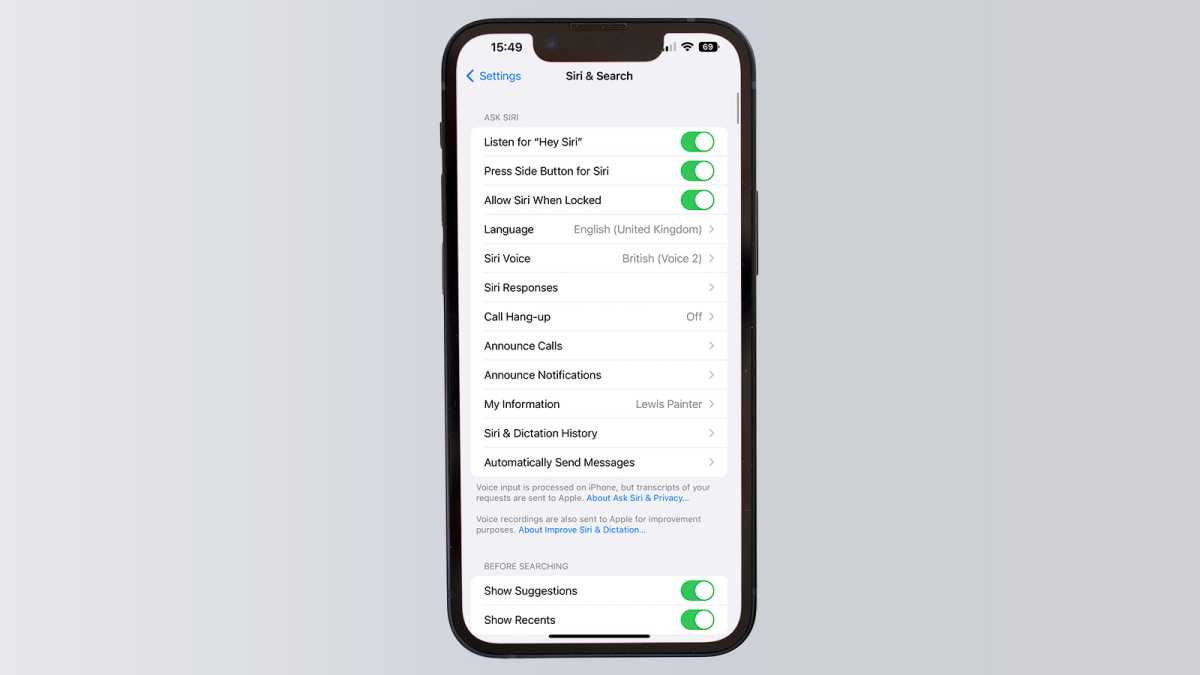
Tap Siri Voice
Lewis Painter / Foundry
This will take you to Siri’s Settings menu where you can customise not only the voice but how the virtual assistant operates, including allowing access to sensitive information when the phone’s locked. For the purposes of our tutorial, tap Siri Voice.
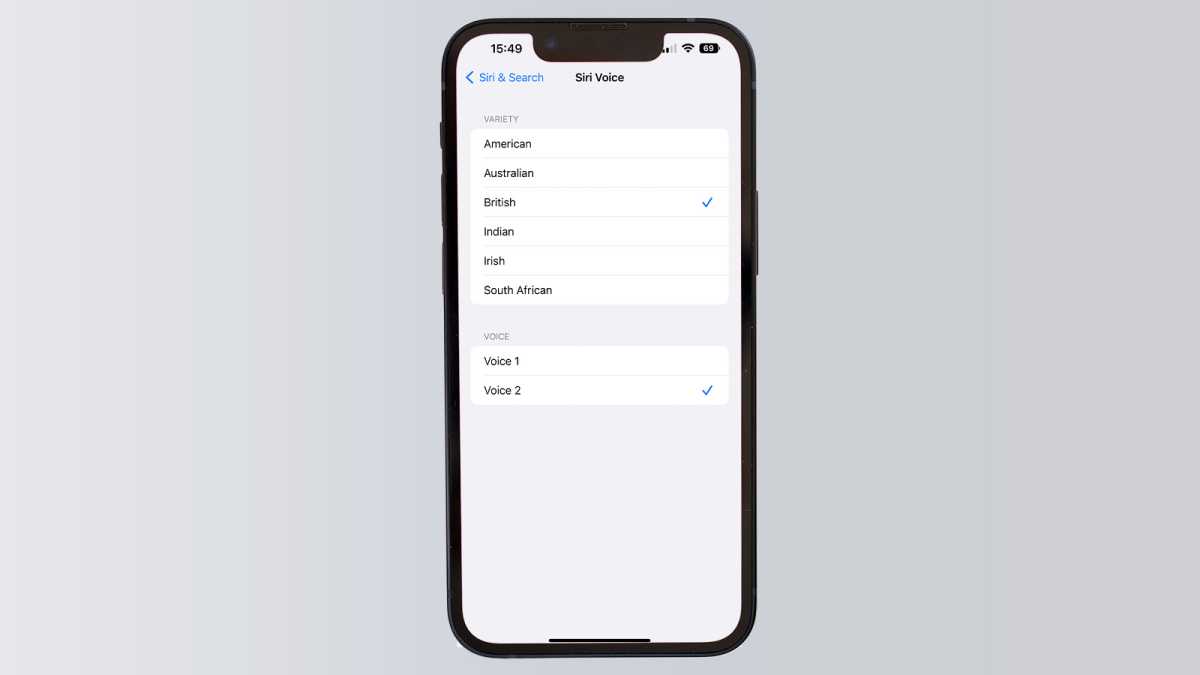
Select the accent you’d like Siri to have
Lewis Painter / Foundry
You can now choose the voice you’d like Siri to use when talking to Apple’s virtual assistant.
Those opting for an American accent have six voices to choose from – three female and three male – while the Australian, British, Indian, Irish and South African options have a single female and male voice to choose from. Simply tap on the voices to preview and select the one you’d like to use.
Related content you might like
- How to customise your Lock Screen in iOS 16
- Everything you need to know about iOS 16
- Which iPhone is best?
- Which iPad should I buy?
Author: Lewis Painter, Contributor, Tech Advisor

Lewis Painter was once a Tech Advisor Senior Staff Writer. He covers everything from iPhone to AirPods, plus a range of smartphones, tablets, laptops and gaming hardware.
Recent stories by Lewis Painter:
- How to take a screenshot on iPhone
- How to take great underwater photos with your iPhone
- Is the latest iPad mini still a realistic purchase?
