These days, Bluetooth is a feature many of us can’t live without. Almost all wireless headphones use it, as well as many keyboards, mice and other computer accessories.
Your laptop almost certainly has Bluetooth, whether it runs Windows, macOS or Chrome OS. All Mac PCs also have the technology built in, but the situation is a little less clear on Windows desktops.
Not all Windows 10 and 11 machines offer the functionality, but there are alternatives if it’s missing on your device. Here’s how to find out.
How to check if your PC has Bluetooth
We’re using Windows 11 for the purposes of this tutorial, but the method is identical on Windows 10.
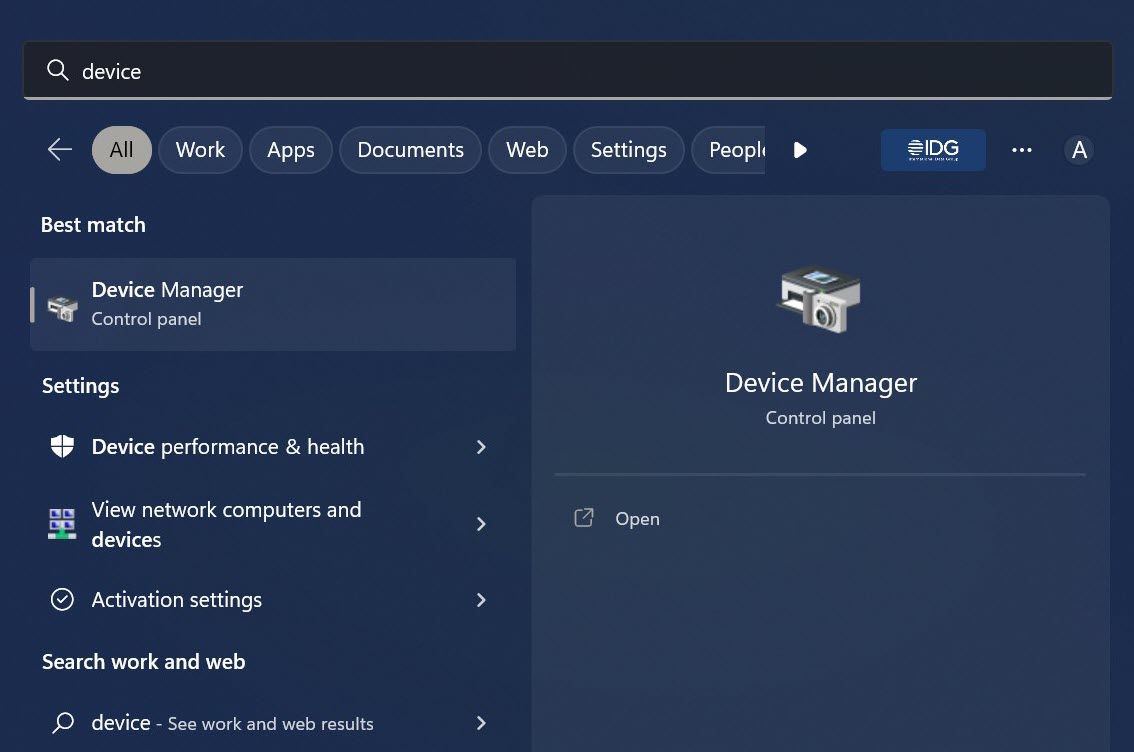
Open Device Manager
Anyron Copeman / Foundry
Click the search bar next to the Start menu, type ‘device’ and click the relevant option to open it. Alternatively, use the Windows key + X shortcut, followed by just M.
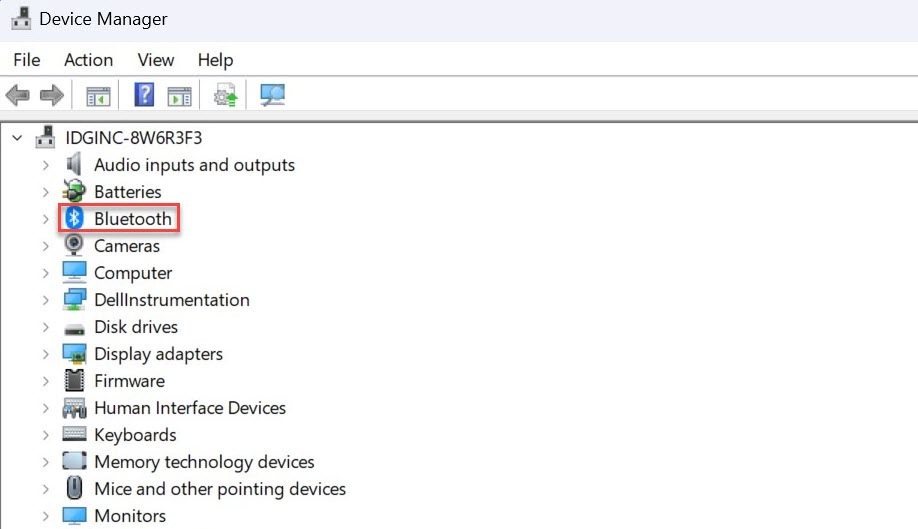
Check for ‘Bluetooth’ category
Anyron Copeman / Foundry
The device categories are sorted alphabetically, so you should spot Bluetooth quickly if it’s there. In the example below, it’s between Batteries and Camera. If you see it, your device does support Bluetooth.
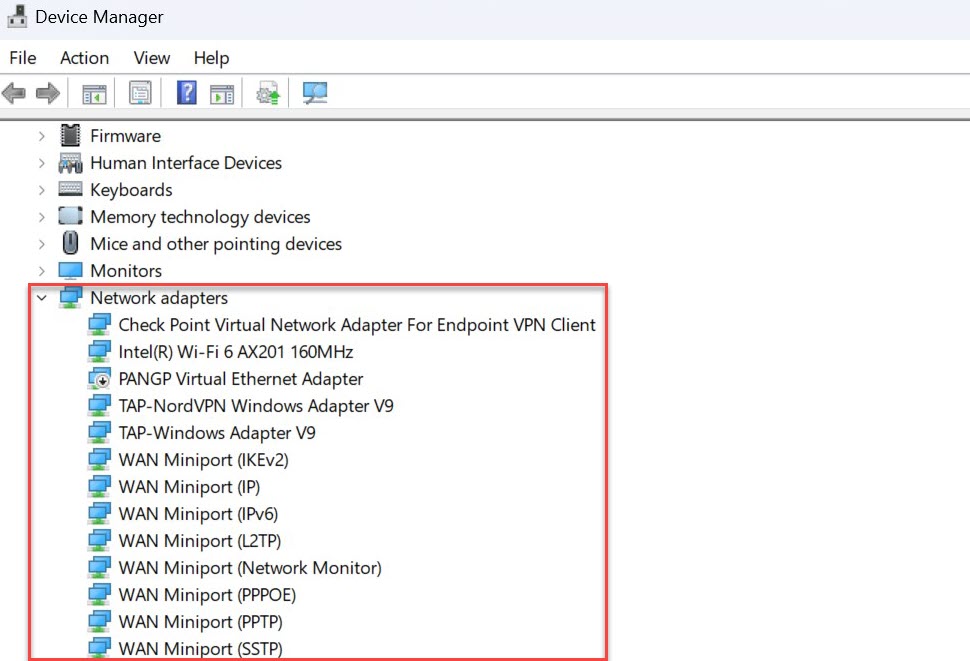
Check under ‘Network adapters’
Anyron Copeman / Foundry
Even if you don’t see a Bluetooth category there, it can sometimes appear under ‘Network adapters’. But if there’s no reference to Bluetooth in either location, your device doesn’t have it.
How to add Bluetooth to your PC
Even if your device doesn’t natively support Bluetooth, there’s an easy workaround. Simply buy a cheap Bluetooth dongle ( US / UK ) and plug it in to a free USB port.
The method for connecting to a Bluetooth device varies slightly between Windows 10 and Windows 11. Just make sure any device you want to connect to is in pairing mode – how to do this will vary, so check the instructions that come with it or research online.
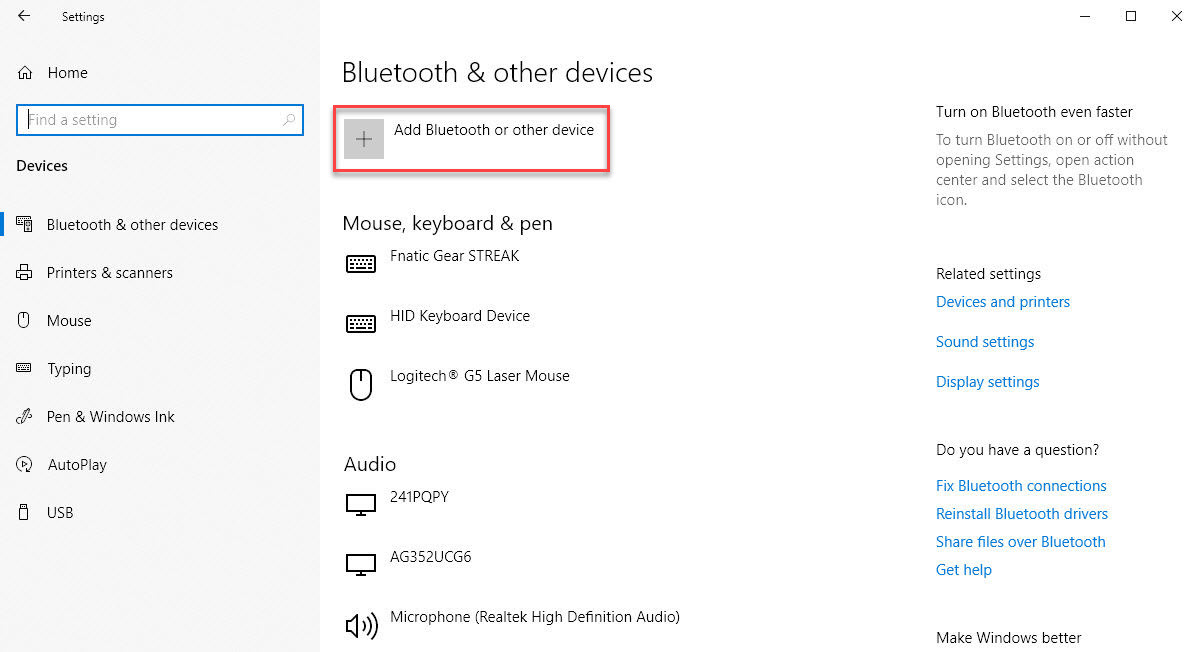
On Windows 10, head to Settings > Devices > Bluetooth & other devices, then click ‘Add Bluetooth or other device’. Your PC will scan and find any available Bluetooth devices that are discoverable – just click any that appear.
Sean Bradley / Foundry
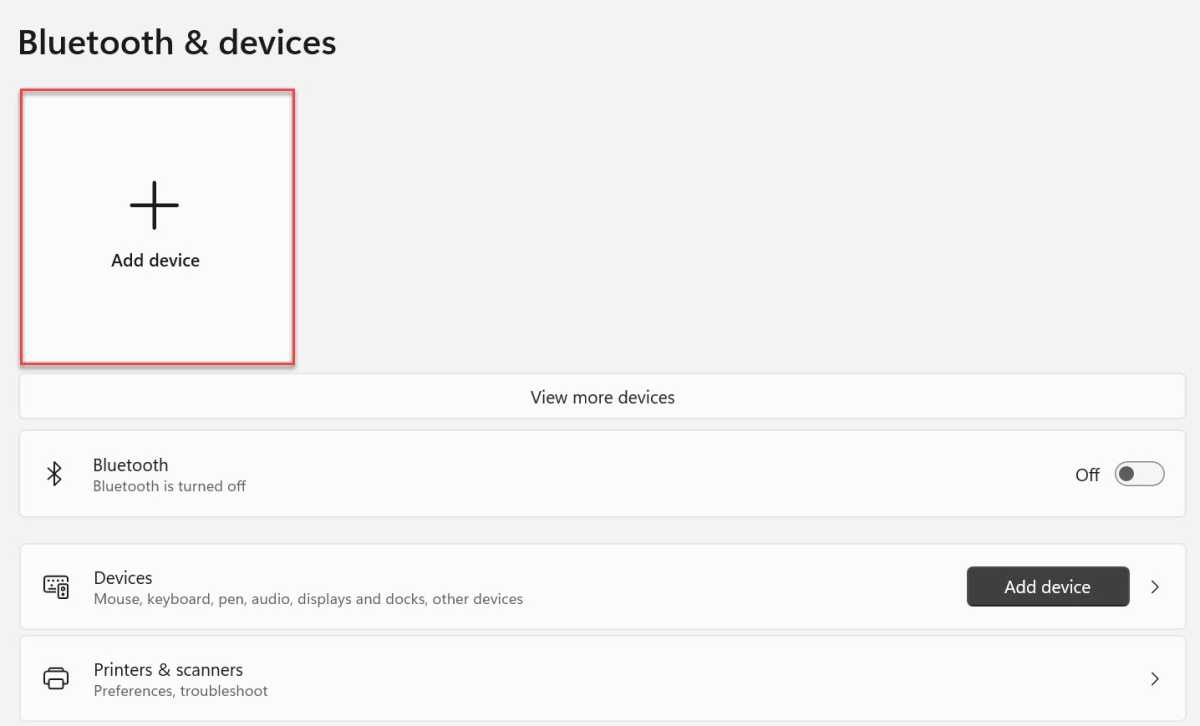
On Windows 11, head to Settings > Bluetooth & devices and click the large plus icon labelled ‘Add device’.
Anyron Copeman / Foundry
- How to remove login password in Windows
- How to use emoji in Windows
- 20 great Windows 11 keyboard shortcuts you should be using
Author: Anyron Copeman, Mobile Editor, Tech Advisor

Anyron is Mobile Editor at Tech Advisor, where he’s been a mainstay of the editorial team since 2019. In his current role, Anyron is responsible for all smartphone, tablet and mobile network coverage on the site. A BA Journalism graduate, he has experience with a wide range of consumer tech products and services, including smartphones, tablets, foldables, wearables and more.
Recent stories by Anyron Copeman:
- Apple could launch an 18-inch foldable device by 2028
- The best student deals and discounts in the US
- Windows 11 23H2 update: Everything you need to know
