WhatsApp has become an integral part of daily communication, connecting us with friends, family, and colleagues effortlessly. As we exchange messages and calls with numerous contacts over time, our WhatsApp address book can quickly become cluttered. Whether you wish to declutter your contacts, remove outdated connections, or simply maintain a streamlined list, knowing how to delete WhatsApp contacts is essential.
With these easy-to-follow instructions, you’ll be able to clean up your contact list, ensuring that it stays up-to-date with the people who truly matter to you. Whether you’re using WhatsApp on Android or iOS, it’s just a simple few steps.
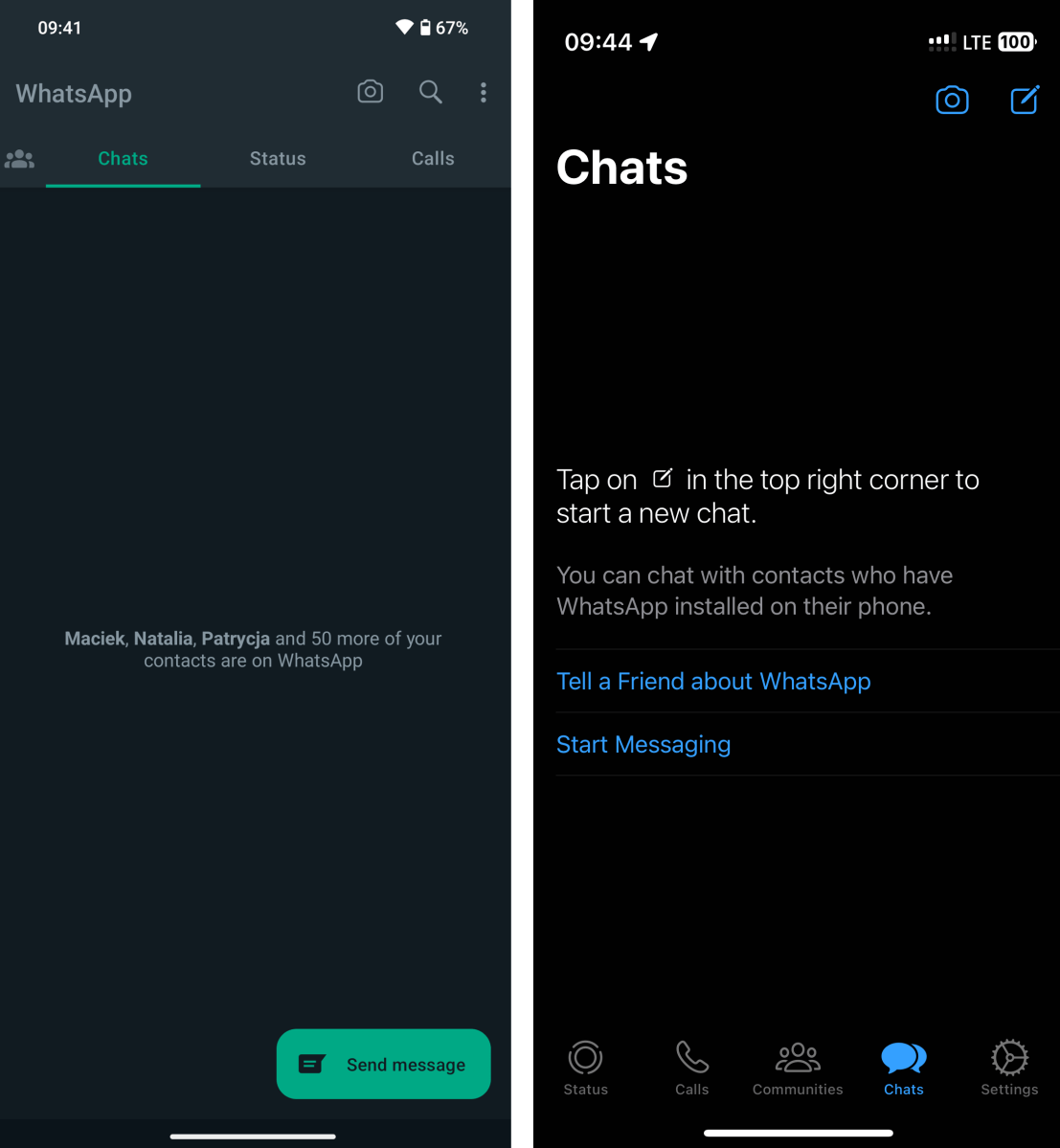
Open WhatsApp and go to the Chats tab
Artur Tomala / Foundry
To begin, open WhatsApp on your device and navigate to the Chats tab. Once you are on the Chats tab, tap the “New chat” button.
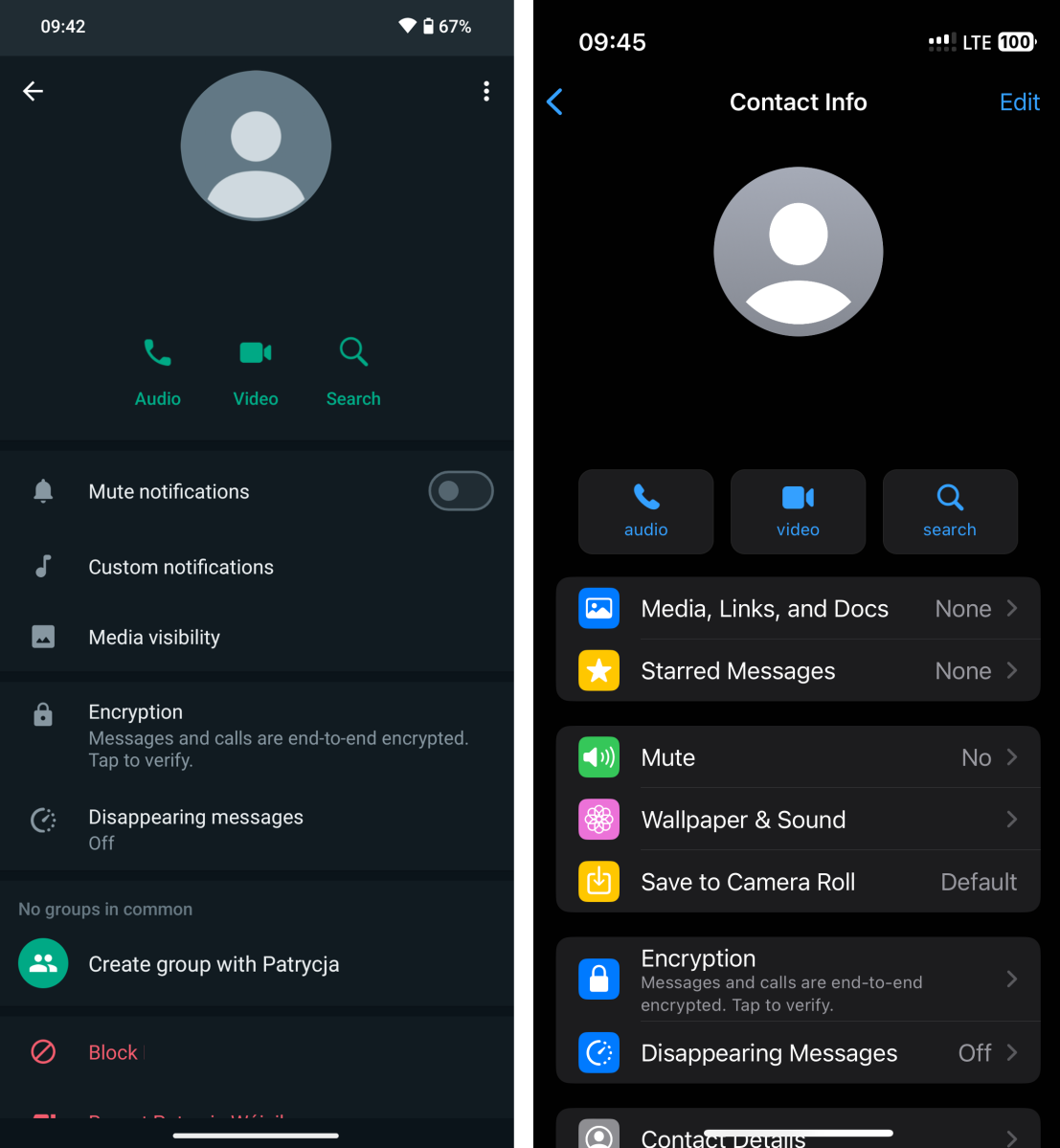
Search for or select the contact you’d like to delete
Artur Tomala / Foundry
In the New chat screen, you have two options: either search for the contact you want to delete or select them from your existing contact list. After finding or selecting the contact you wish to delete, tap on their name at the top of the chat window to access their contact details.
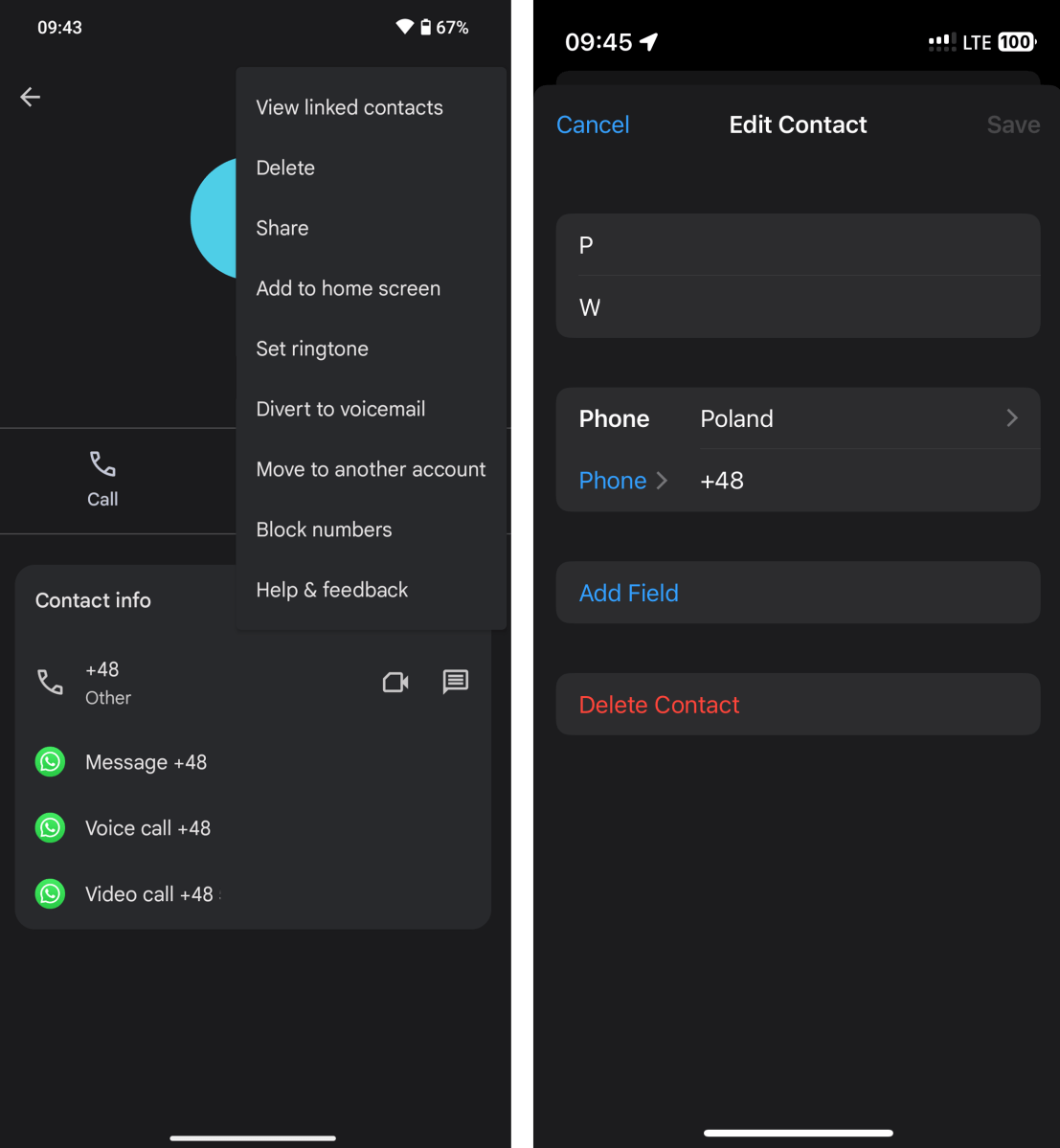
Delete unwanted contact
Artur Tomala / Foundry
Within the contact’s details page, tap on “More options,” which is usually represented by three vertical dots. From the list of options, choose “View in address book” and then select “More options” again to reveal additional actions. Finally, tap on “Delete” to remove the contact from your WhatsApp.
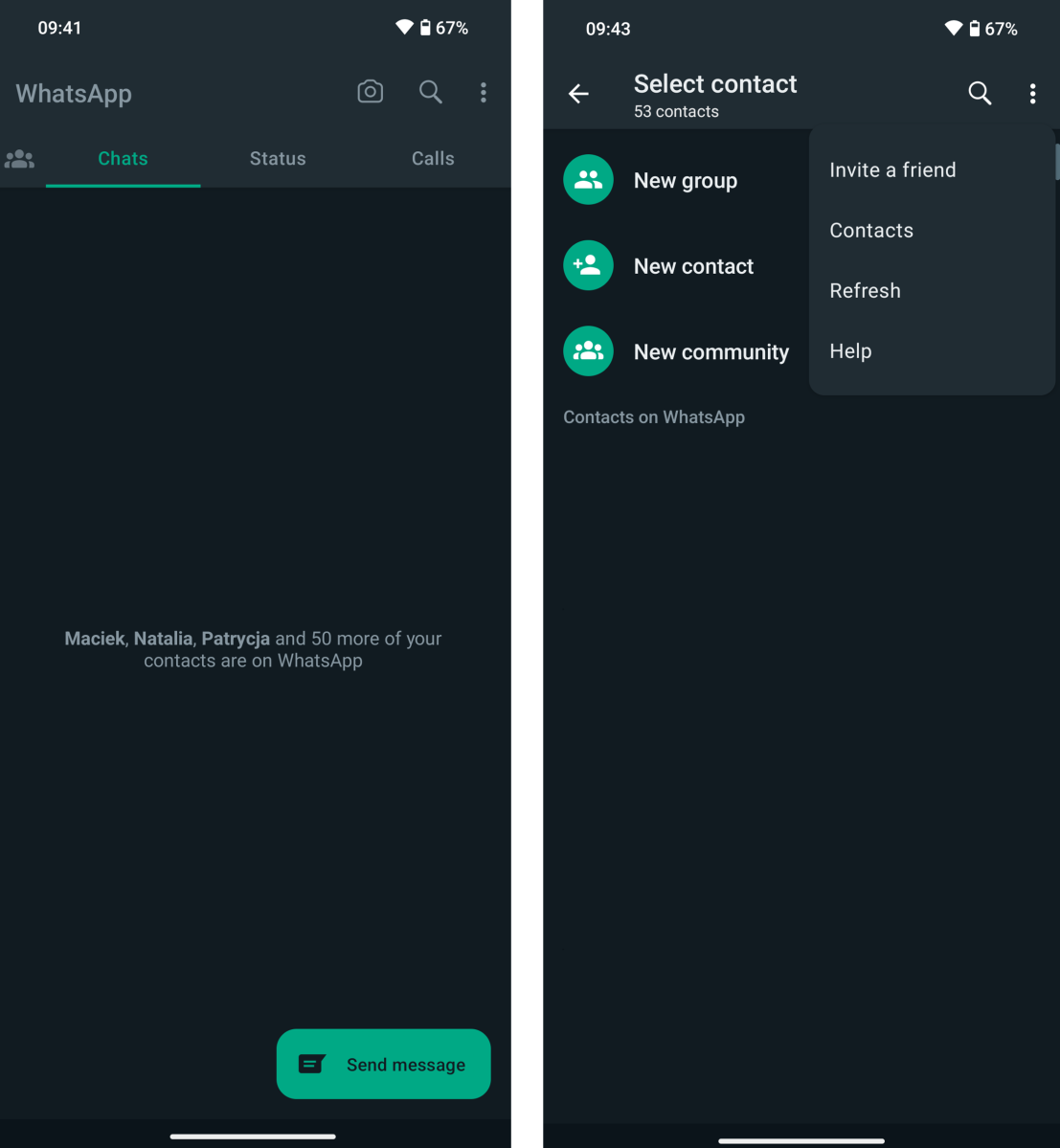
Refresh your WhatsApp contacts
Artur Tomala / Foundry
Return to the main WhatsApp screen by pressing the back button or using the appropriate navigation option. Then, tap on “New chat” once more, followed by “More options,” typically indicated by three vertical dots. In the list of options, choose “Refresh” to update your WhatsApp contacts and ensure any recent changes, including the deleted contact, are reflected in your contact list.
On iOS, deleting a contact from your phone’s address book won’t delete the chat history you have with them. You can also delete the message history itself if you no longer need it but want to keep the person in your contact list.
Author: Artur Tomala, Mobile Writer, Tech Advisor

Artur is a Mobile Writer at Tech Advisor, where he covers a range of smartphone, tablet and smartwatch-related topics. He has been working in the tech industry since 2021, including time spent leading a team focused on mobile news, reviews and product rankings. As an ambassador for the productivity app Notion, he runs training workshops and creates advanced templates to help people stay organised and productive.
Recent stories by Artur Tomala:
- How to set up a new Android phone
- Samsung Galaxy A26: Everything you need to know
- What is an eSIM and how does it work?
