Adobe Flash is a program which many websites still use to display videos, games, forms and other interactive elements. It has been around for years and is used by millions of people, but has rarely been in the news for good reasons. Just recently a major exploit was discovered that could allow a hacker to use a vulnerability in Flash to take over your computer. Worried you shouldn’t be, as Adobe was quick to fix the problem. However, Flash is a prime target for hackers and you can take steps to disable Flash. We’ll explain how to turn off Flash in Chrome, Firefox and Internet Explorer.
There are different versions of Flash – browser plugins and a separate Flash program – but you can turn them all off. You can use this website to check if you’ve successfully disabled Flash.
How to disable Adobe Flash: why you might not want to
Some websites still use Flash, and disabling it means you won’t see the items which require it. Sometimes this means you won’t see adverts, but it can be a problem if Flash is used for a booking form or an element in an online shop’s checkout.
Most sites have already stopped using Flash and switched to HTML 5, partly because Apple has never supported Flash on the iPhone or iPad. In fact, it’s worth using a mobile device to view any webpage which you can’t use on a desktop computer once you’ve disabled Flash as it will probably work ok.
How to disable Adobe Flash: why you should
Google and Mozilla blocked Flash between versions 11.0 and 11.7.700.169, but subsequent versions have been allowed to run. The last update was on 15 July to version 18.0.0.209 (and 18.0.0.203 in Internet Explorer).
If you can’t be bothered with the regular updating, you can set Flash to automatically update in the background, but for peace of mind against hackers you might prefer just to disable or uninstall the plugins altogether.
Flash can also cause your computer to become sluggish and unresponsive, and on laptops can even contribute to shorter battery life. In short, there aren’t many compelling reasons to keep Flash on your computer.
How to disable Adobe Flash in Google Chrome
In the browser’s address / search bar type chrome://plugins. Now click the Disable link for Adobe Flash Player. There’s also a tick box which you can untick if you’d rather allow Flash to run only when you need it to – you’ll get a prompt when you visit a site which uses Flash.

How to disable Adobe Flash in Firefox
Type about:addons in Firefox’s address bar and then click Plugins on the left-hand side. In the drop-down box you have a choice of Never Activate or Ask to Activate which gives you the same options as you get in Chrome, but in an easier-to-understand manner.

How to disable Adobe Flash in Internet Explorer
Click the cog icon at the top-right of the browser and then choose Manage add-ons. Then find and select Shockwave Flash Object in the list and click the Disable button.

How to uninstall Adobe Flash
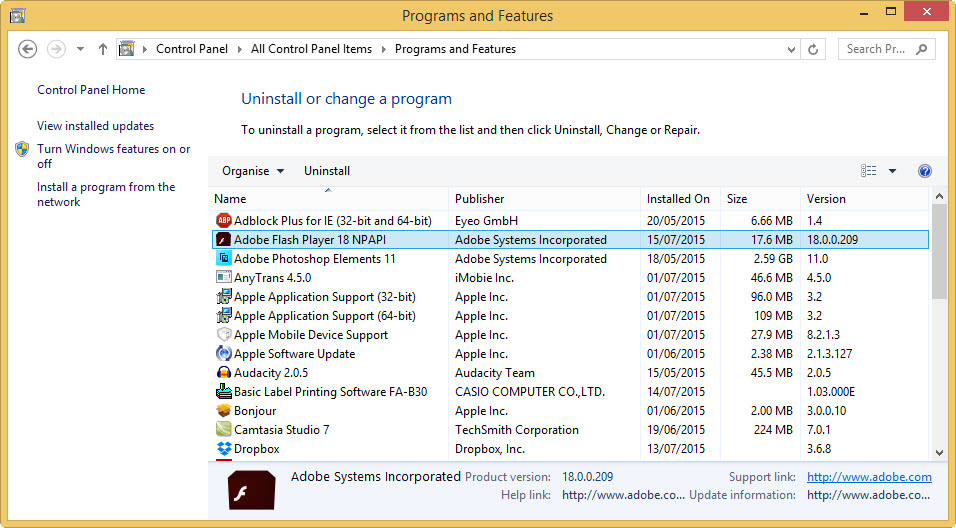
Head to the Control Panel in Windows and find Programs and Features, or use the search box and type uninstall. Now find Adobe Flash Player in the list, right-click on it and choose Uninstall.
Author: Jim Martin, Executive Editor, Tech Advisor

Jim has been testing and reviewing products for over 20 years. His main beats include VPN services and antivirus. He also covers smart home tech, mesh Wi-Fi and electric bikes.
Recent stories by Jim Martin:
- The best VPN services 2026: Stay protected with our expert top picks
- Is Amazon Alexa down? It’s probably not just you
- The best VPN for streaming in 2025
