Windows 11 was released back in October 2021, but plenty of people still aren’t convinced by Microsoft’s latest operating system.
Not everyone has the luxury of another device they can test it out on: you may have taken the risk on your main computer. But if you don’t like it, all hope is not lost. Microsoft makes it easy to go back to Windows 10 if it’s been less than 10 days since you installed Windows 11, and there’s still a way to do it if you’ve waited longer. In this article, we’ll run through both methods.
How to downgrade Windows 11 to Windows 10 within first 10 days
If you’ve tried out Windows 11 briefly but aren’t enjoying it, there is an easy way to go back to Windows 10. Just make sure it’s not been more than 10 days since you installed it and you haven’t installed any any other updates since. Otherwise, this method won’t work.
It’s also worth backing up your device before continuing. All your existing settings and files should be unaffected, but it’s worth having that extra peace of mind.
- Time to complete: 20 minutes
- Tools required: A device that’s been updated to Windows 11 within the last 10 days
Open Settings
Anyron Copeman / Foundry
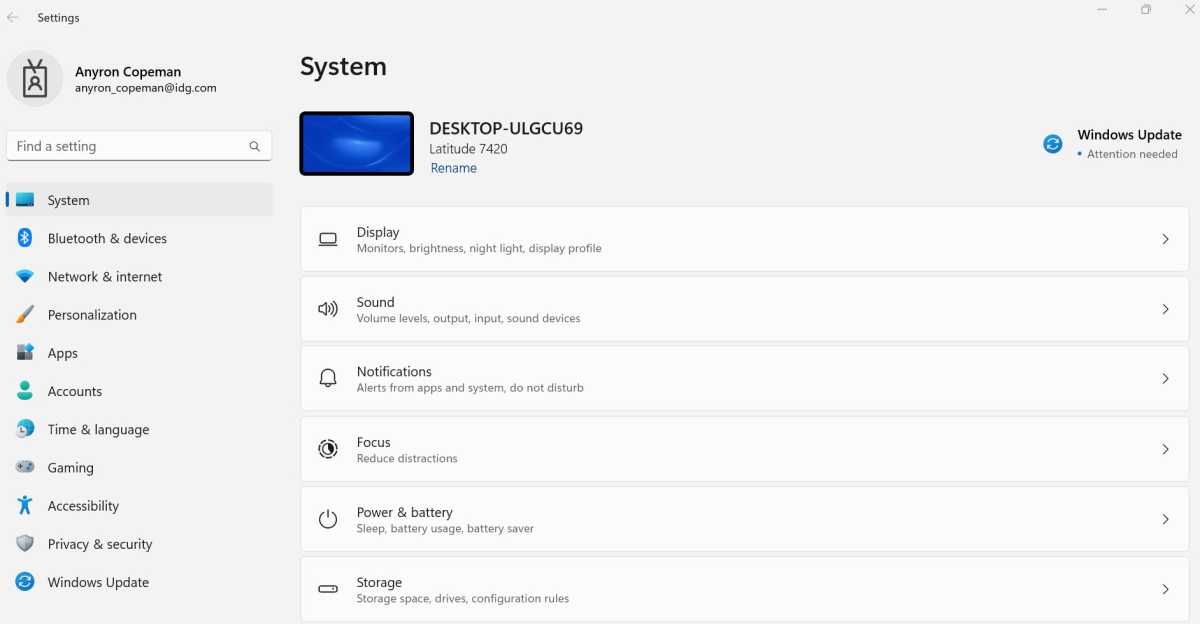
Open Settings and make sure ‘System’ is selected from the left pane
Go to Recovery
Anyron Copeman / Foundry
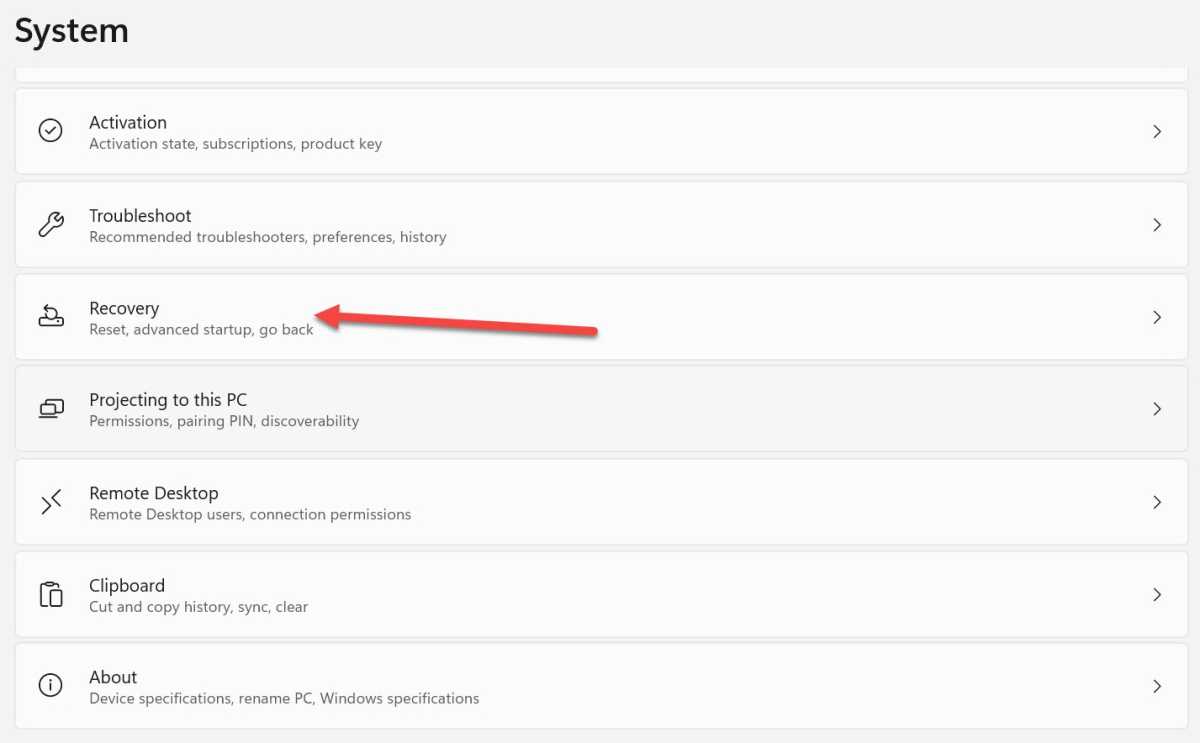
Scroll down to the option marked ‘Recovery’ and open it
Use the Go back option
Anyron Copeman / Foundry
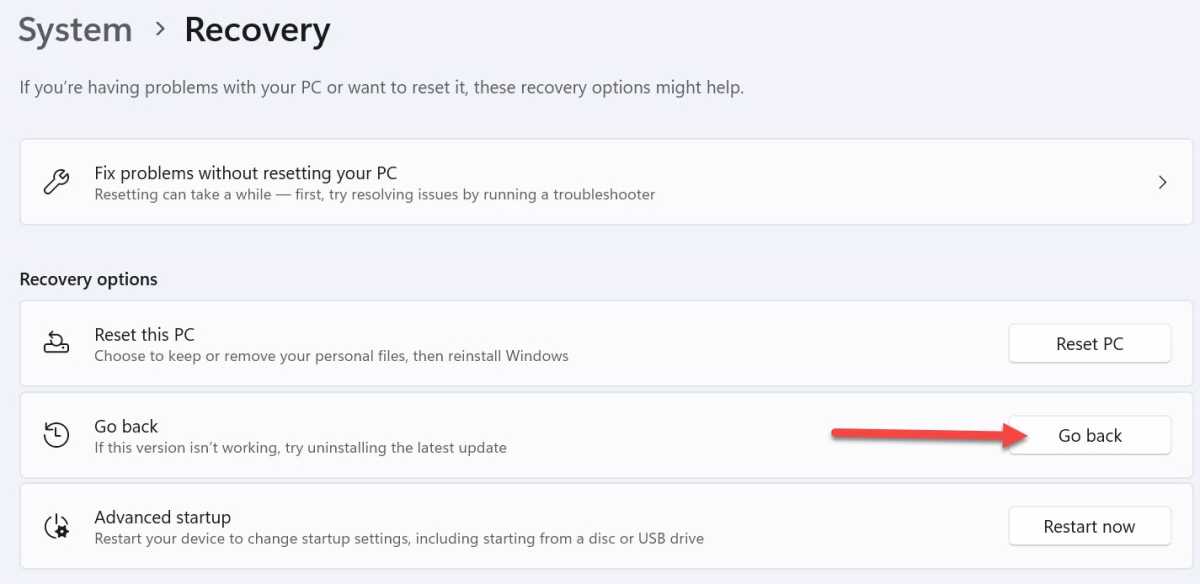
Under ‘Recovery options’, click ‘Go back’
Choose a reason
Anyron Copeman / Foundry
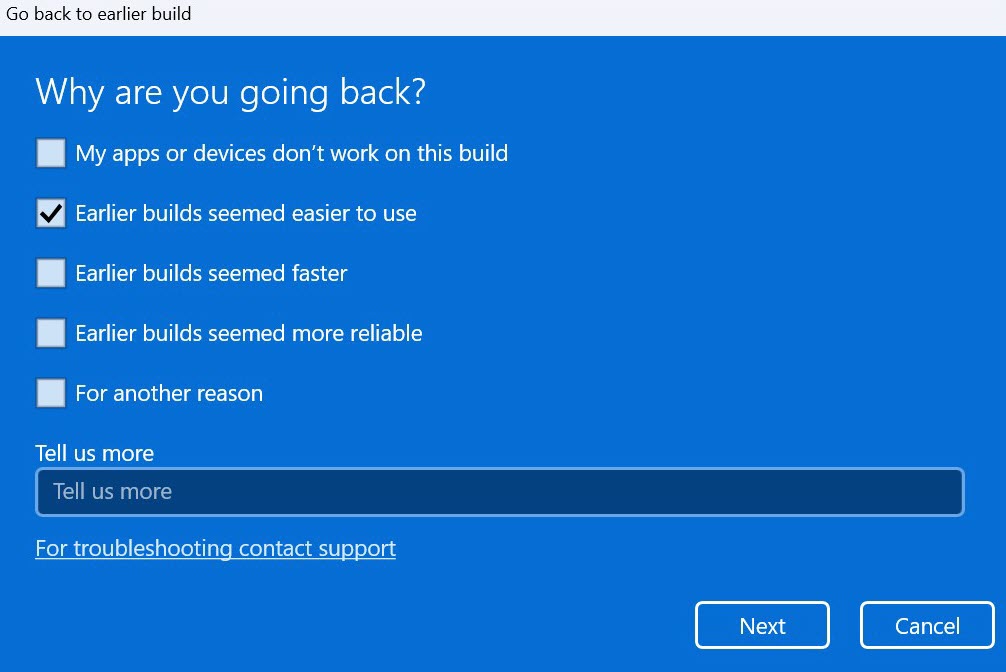
After a few seconds, you’ll be prompted to give a reason why you’re going back. Select the box next to anything on the list, then click ‘Next’
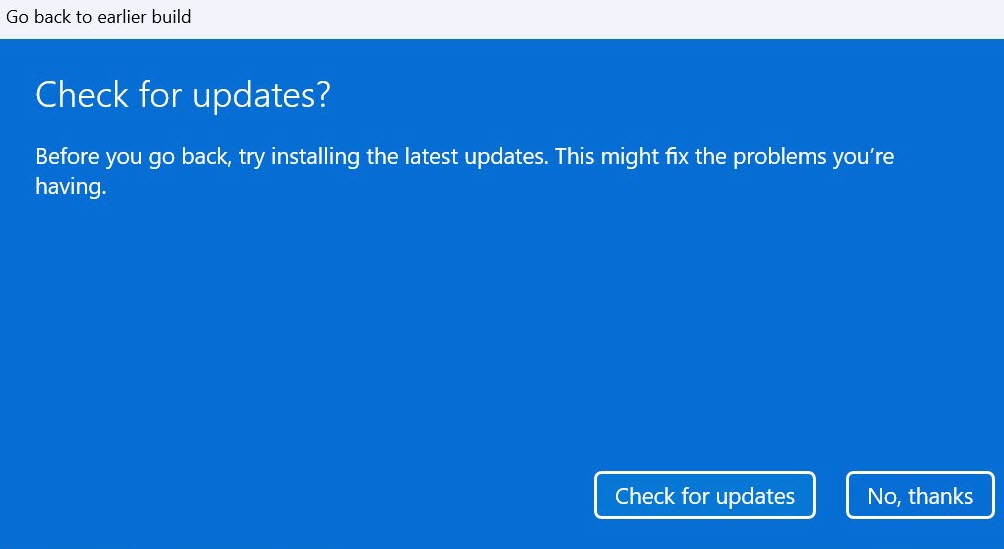
Don’t check for updates
Anyron Copeman / Foundry
You’ll then be prompted to check for updates. Choose ‘No, thanks’ instead
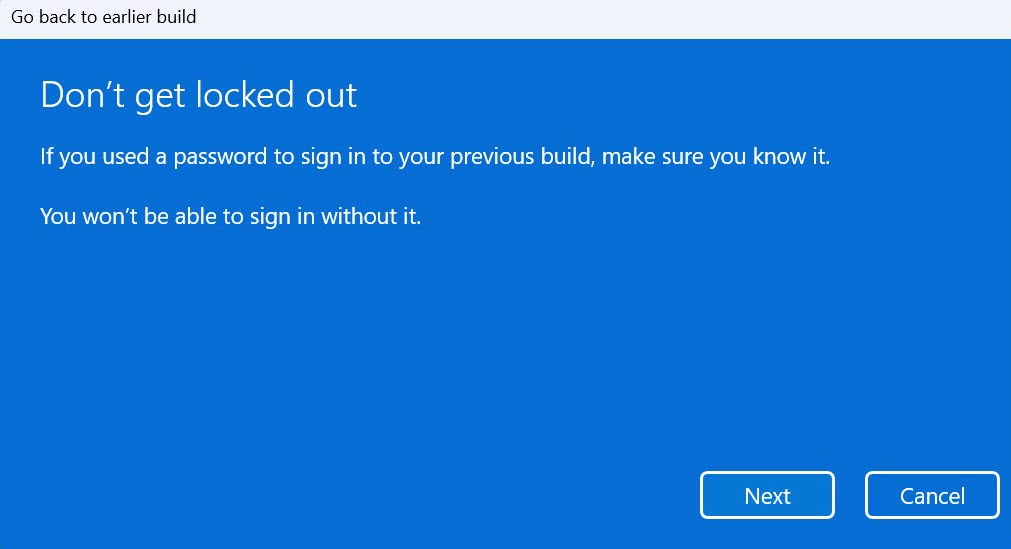
Know your password
Anyron Copeman / Foundry
As the next screen says, make sure you remember the password you use to log in. Click ‘Next’ to proceed
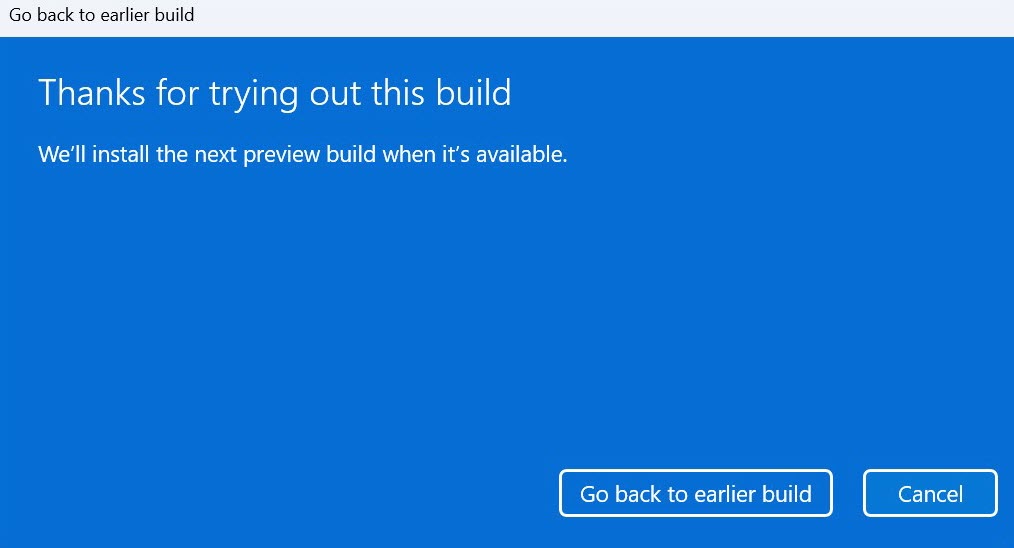
Go back!
Anyron Copeman / Foundry
Finally, click ‘Go back to earlier build’. This will take several minutes and your device will restart
All your existing settings and files should be unaffected, but it’s worth backing up your PC first to make sure.
How to downgrade Windows 11 to Windows 10 after 10 days
However, if it’s been more than 10 days or you don’t see the option mentioned above, there is another way. It involves a full reinstallation of Windows 10, although this is less complicated than it sounds. However, you’ll definitely need to do a backup first – this process will only work with a clean installation.
Firstly, head to
1. Head toWindows 10 download page on the Microsoft website
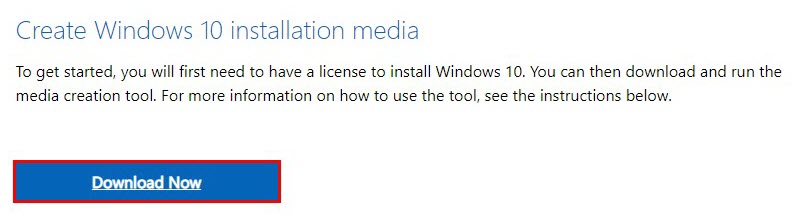
2. Under ‘Create Windows 10 installation media’, click ‘Download Now’
Anyron Copeman / Foundry
3. Once complete, click the downloaded file to open it
4. From the ‘Do you want to allow this app to make changes to your device?’ pop-up, select ‘Yes’
5. The Windows 10 Setup window will now appear. After a few seconds, click ‘Accept’ to agree to the terms and conditions

6. The ‘Getting a few things ready’ screen will show for a few seconds. From the next screen, select ‘Upgrade this PC now’ and click ‘Next’

7. The latest version of Windows 10 will now be downloaded. You can still use your PC in the meantime

8. Once the download is complete, click ‘Next’ and then ‘Accept’ from the following screen
9. From the ‘Choose what to keep’ screen, make sure you select ‘Nothing’, then ‘Next’ once again
10. You’ll now be on the ‘Ready to install’ page. Click ‘Install’ to begin the process, but be warned: there’s no going back from here
Once this process is complete, you’ll need to follow the steps as if you’re using the device for the first time. This won’t take too long, and you should be up and running with the latest version of Windows 10 within a few minutes.
Of course, the other option is to install Windows from a USB . This is preferable if you want to reinstall Windows 10 on multiple devices, as it’ll only need to be downloaded once.
If you’ve installed Windows 11 but are still on the fence about keeping it, you might want to try the 2022 Update , which adds lots of new features. But Windows 10 will continue to be supported until October 2025 – there’s no rush to make the switch. By that time, Windows 12 may even be here.
- How to get Windows 11 on an unsupported PC
- Should I still buy a Windows 10 laptop or PC?
- Will my PC run Windows 11?
Author: Anyron Copeman, Mobile Editor, Tech Advisor

Anyron is Mobile Editor at Tech Advisor, where he’s been a mainstay of the editorial team since 2019. In his current role, Anyron is responsible for all smartphone, tablet and mobile network coverage on the site. A BA Journalism graduate, he has experience with a wide range of consumer tech products and services, including smartphones, tablets, foldables, wearables and more.
Recent stories by Anyron Copeman:
- Windows 11 23H2 update: Everything you need to know
- Windows 12: Everything we know so far
- How to get the Google Play Store on Windows 11
