This tutorial is a step-by-step guide on how to digitally draw an eye, taken from the book Make Great Art on Your iPad by the British, Texas-based artist Alison Jardine.
We’ve used Adobe Photoshop to complete this process, which is available separately or as part of Adobe Creative Cloud . Some students are eligible for an extended free trial of Creative Cloud , and there are also ways to get Photoshop for free .
- Tools required: Adobe Photoshop
- Cost: From $19.99/£19.97 per month (free trial available)
Step 1
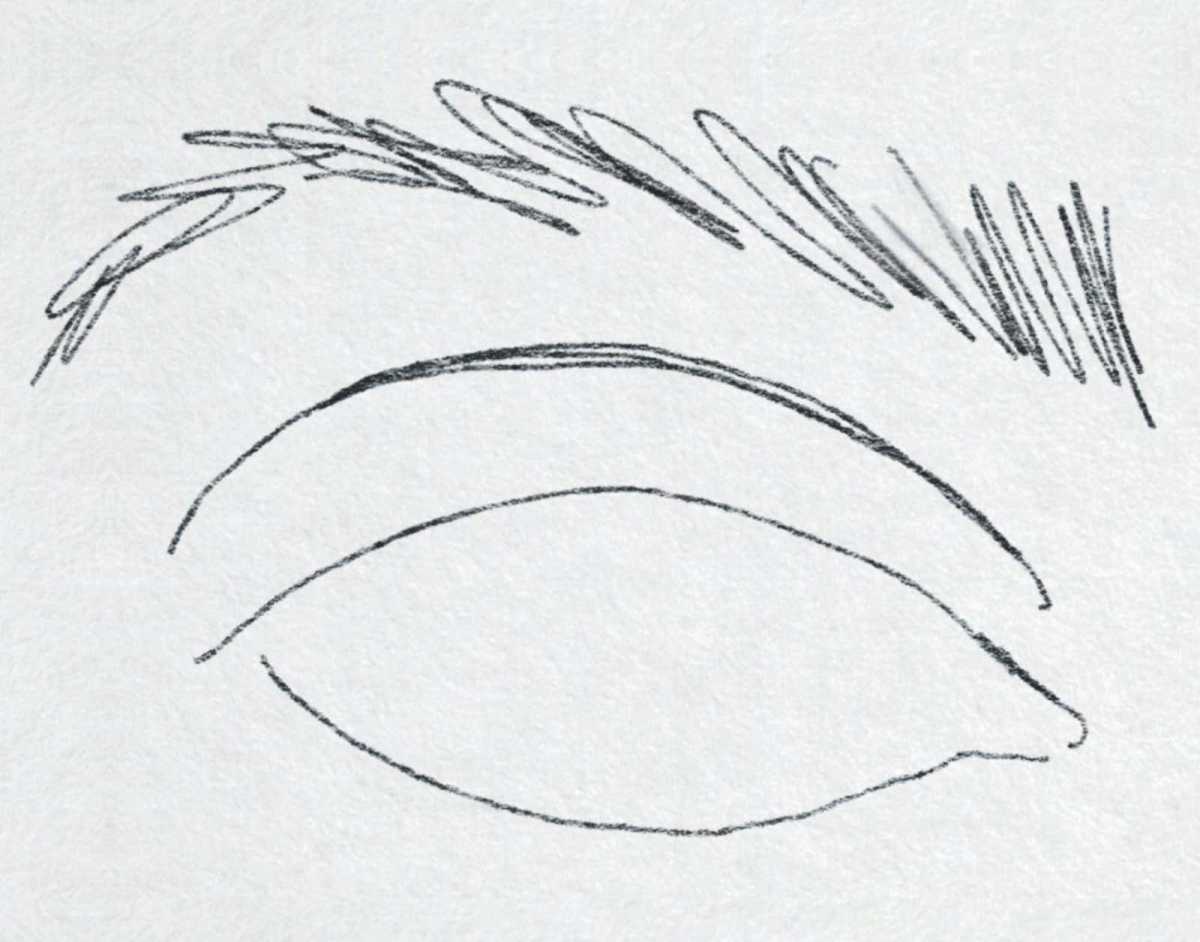
Foundry
Let’s focus on a simple way to draw an eye, using some of the great tools available in iPad apps. You could stand in front of a mirror and try this, or use a selfie.
Select the Pencil tool and draw the outline of the eye, eyelid, and eyebrow.
Step 2
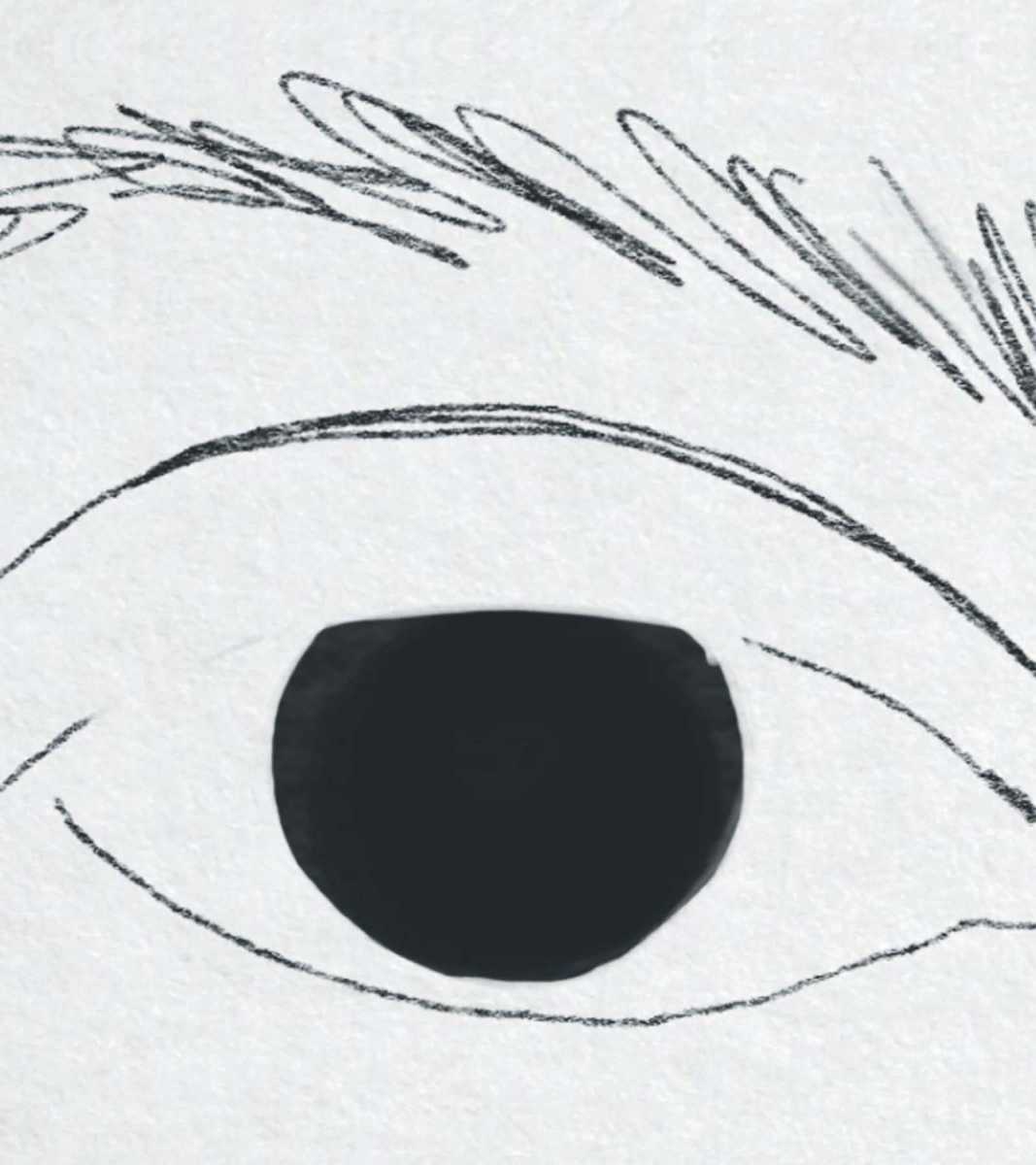
Foundry
Switch to a large ink or watercolour brush, and place a black dot in the eye.
Use the Eraser to remove the top of the circle.
Step 3
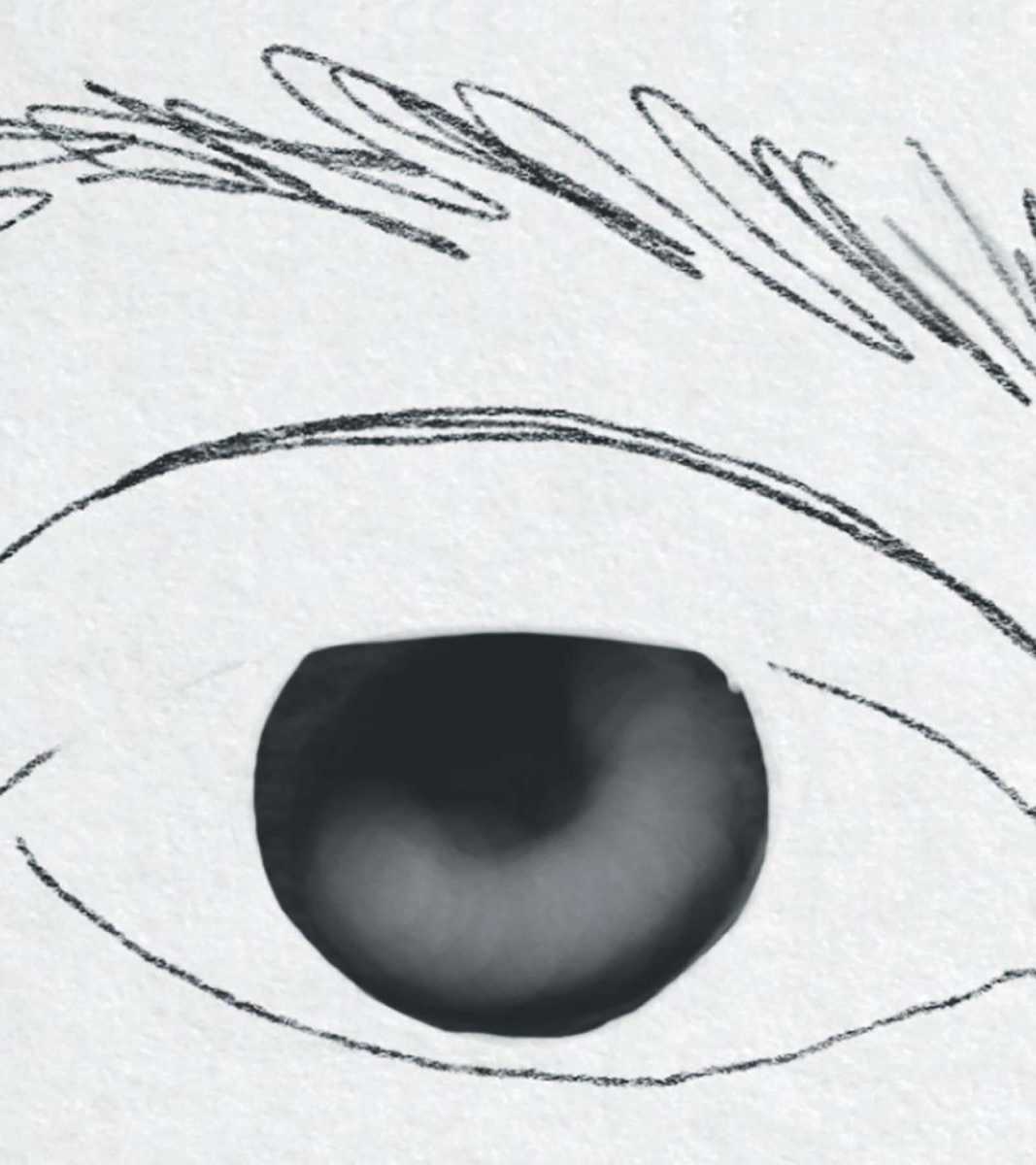
Foundry
Adjust the Eraser to a very transparent setting.
Draw a donut shape on the black iris.
Step 4
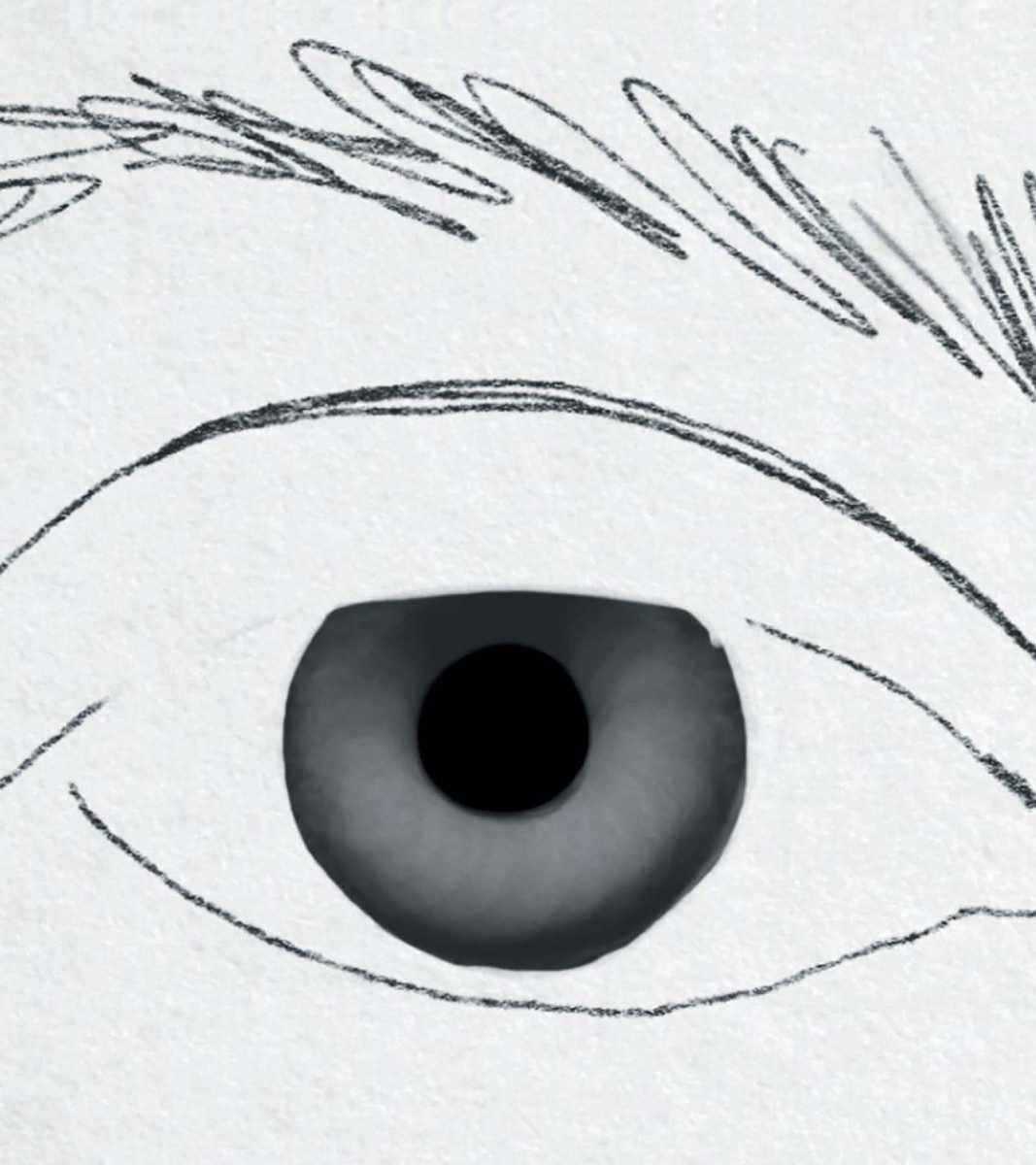
Foundry
Use a thin ink brush to pop a black circle in the middle.
Step 5
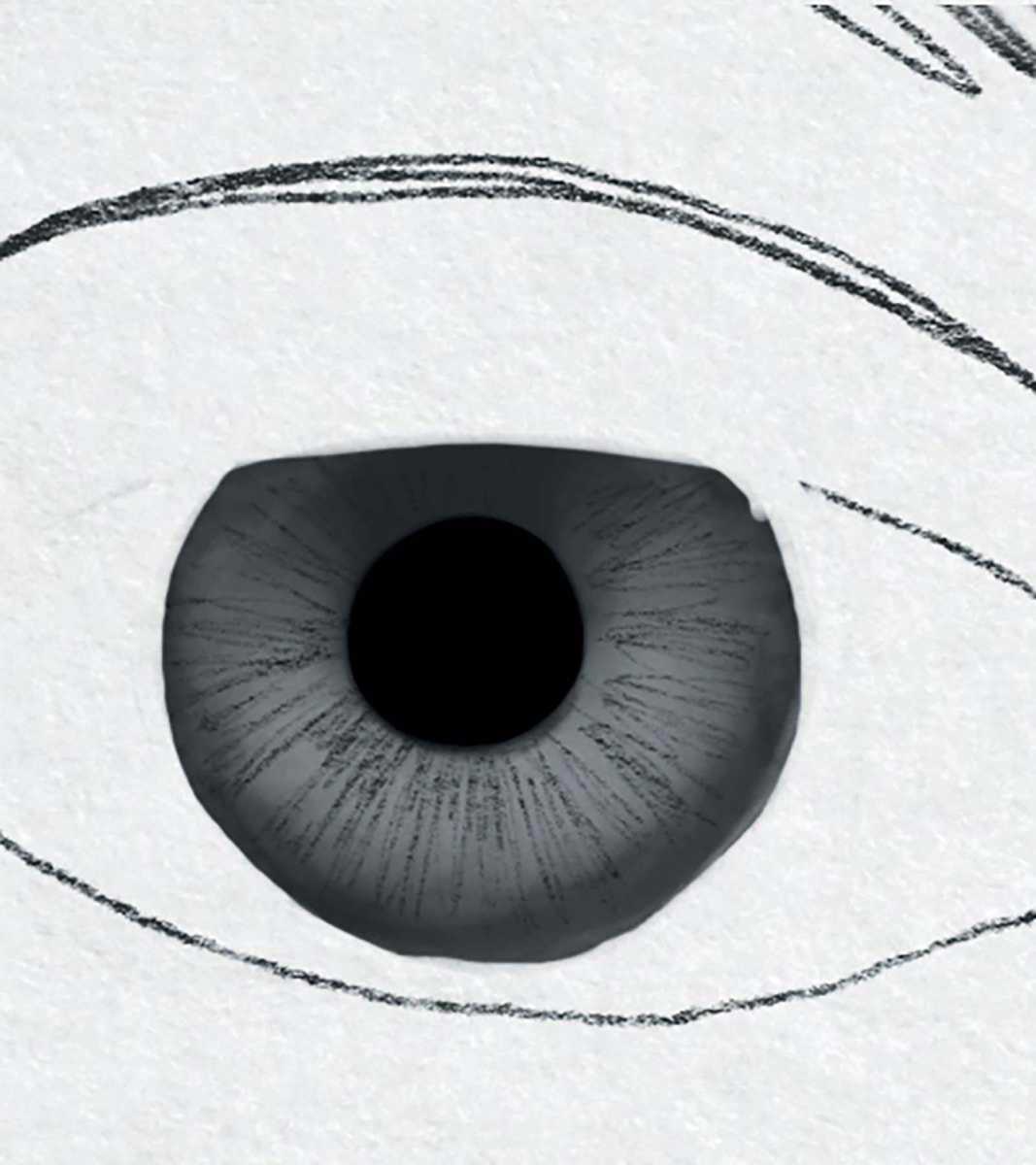
Foundry
With the Pencil on a fine, thin setting, draw iris details (radiating texture lines).
Step 6
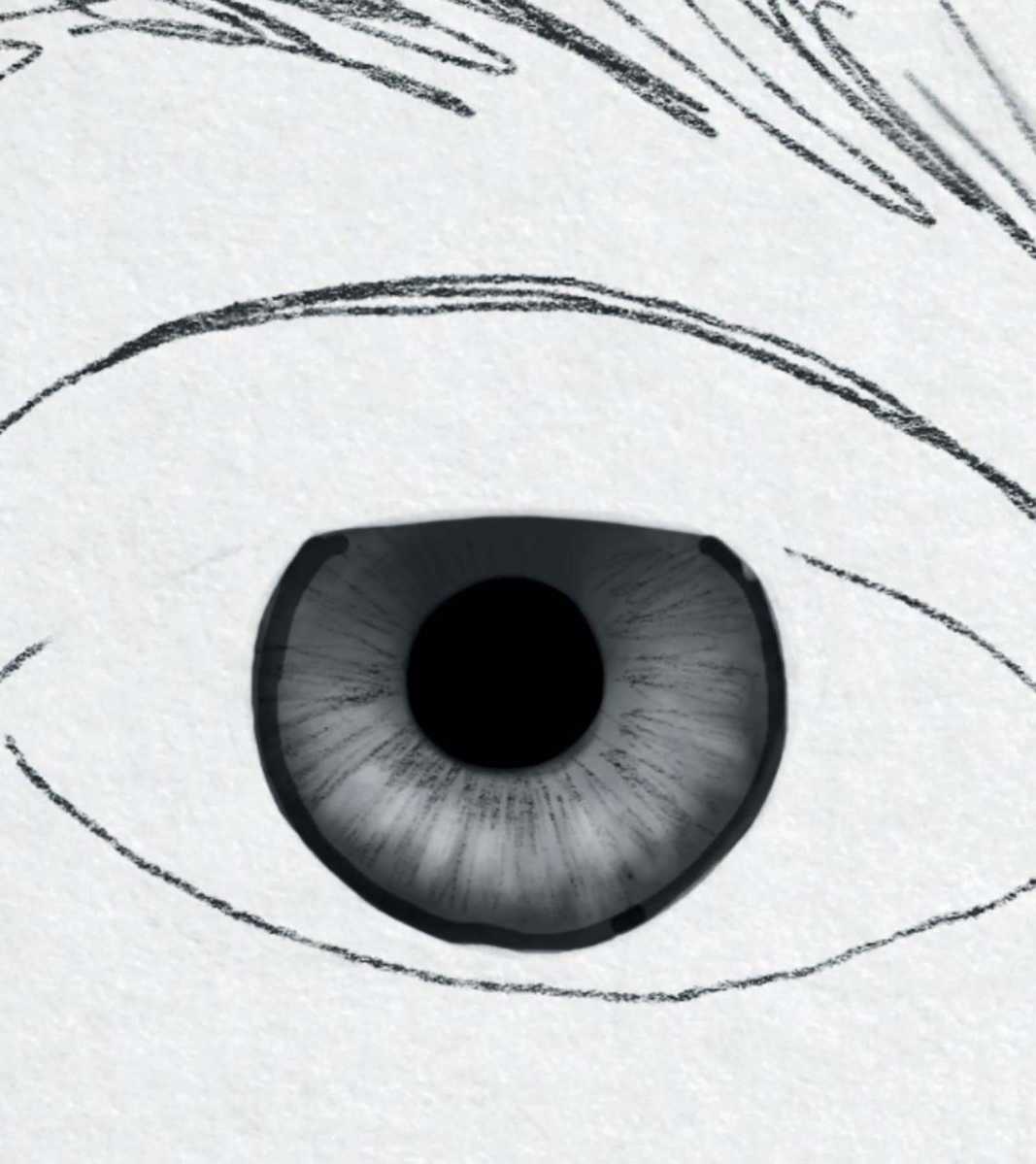
Foundry
Use the Eraser on a small, transparent setting to add lines of erased white around the iris.
Step 7
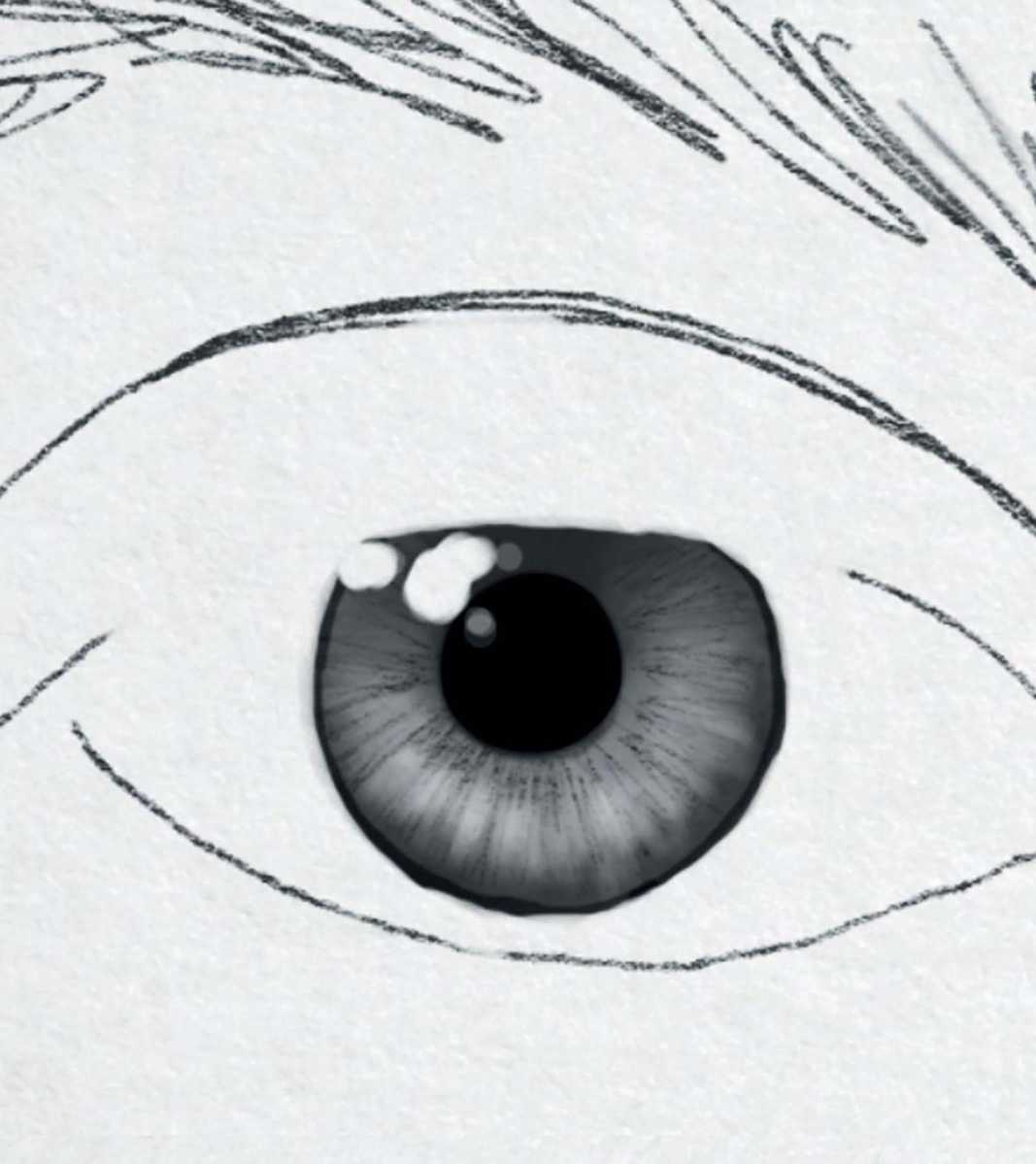
Foundry
Set the Eraser to very small, on full strength.
Dab a few pure-white highlights on the top of the iris.
You could reshape the outer edge at this point, too.
Step 8
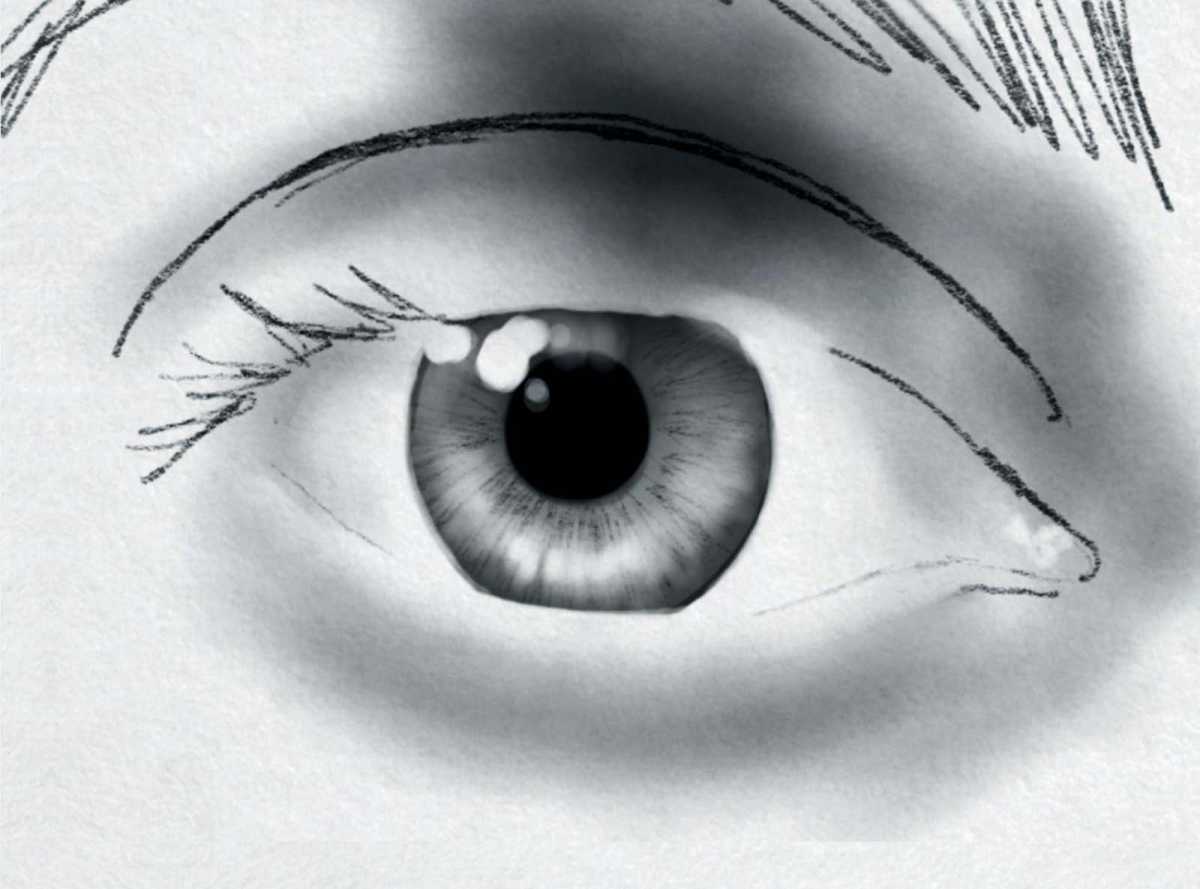
Foundry
Select a mid-translucent grey in the Spray Paint tool for the shadowed areas: on the eyelid fold, under the eyebrow, underneath the bottom eyelashes, and near the nose bridge.
Add some to the outer edges of the white eyeball because they are in shadow, too.
Touch the shadow lightly with the Smudge tool for smoothness.
Step 9
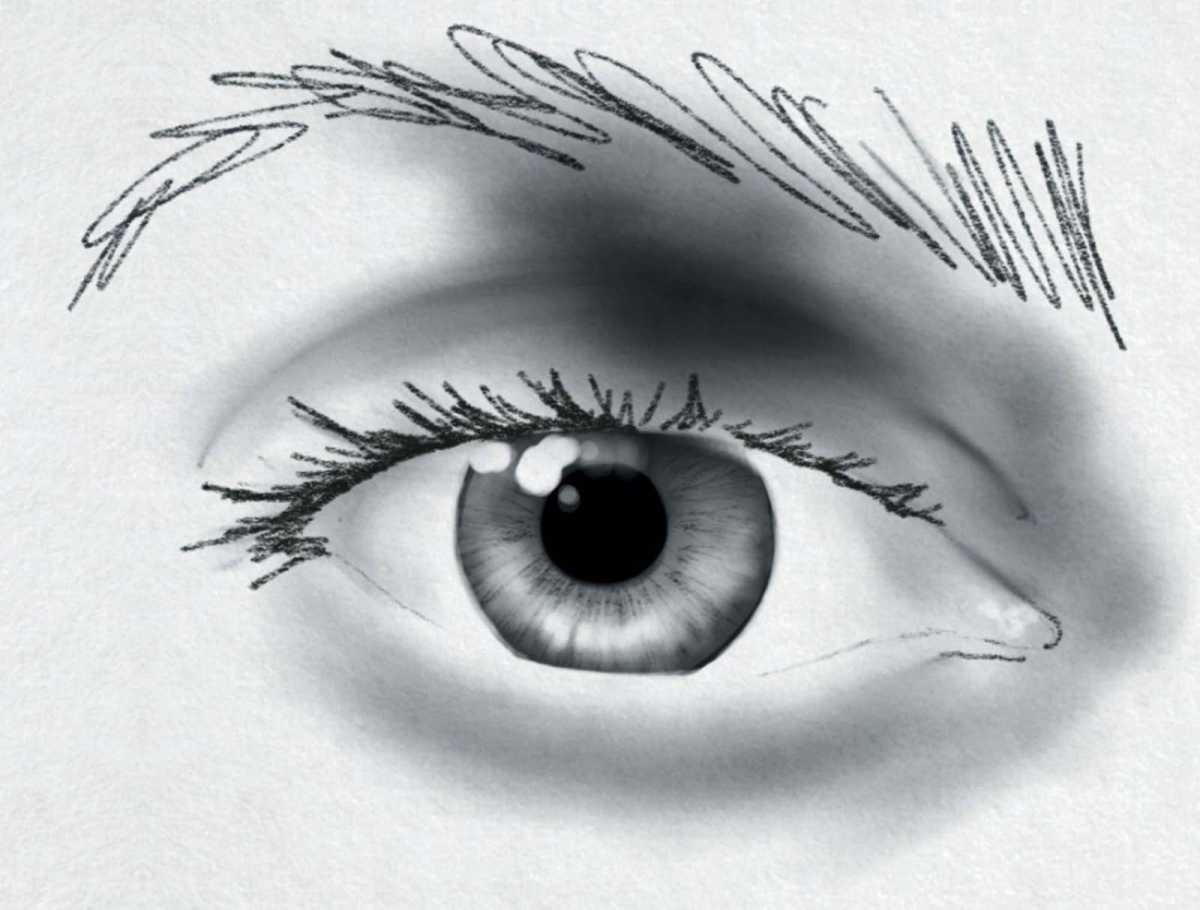
Foundry
Switch back to the Pencil, and begin the eyelashes.
Note how they clump together in triangular shapes. Use a thin setting, and go over the same areas repeatedly to create thick lashes — thicker on top than on the bottom.
Be sure to make the direction of the lashes change as you move from the outer edge to the centre, to the inner eye.
Add smaller hairs to the eyebrow.
Step 10
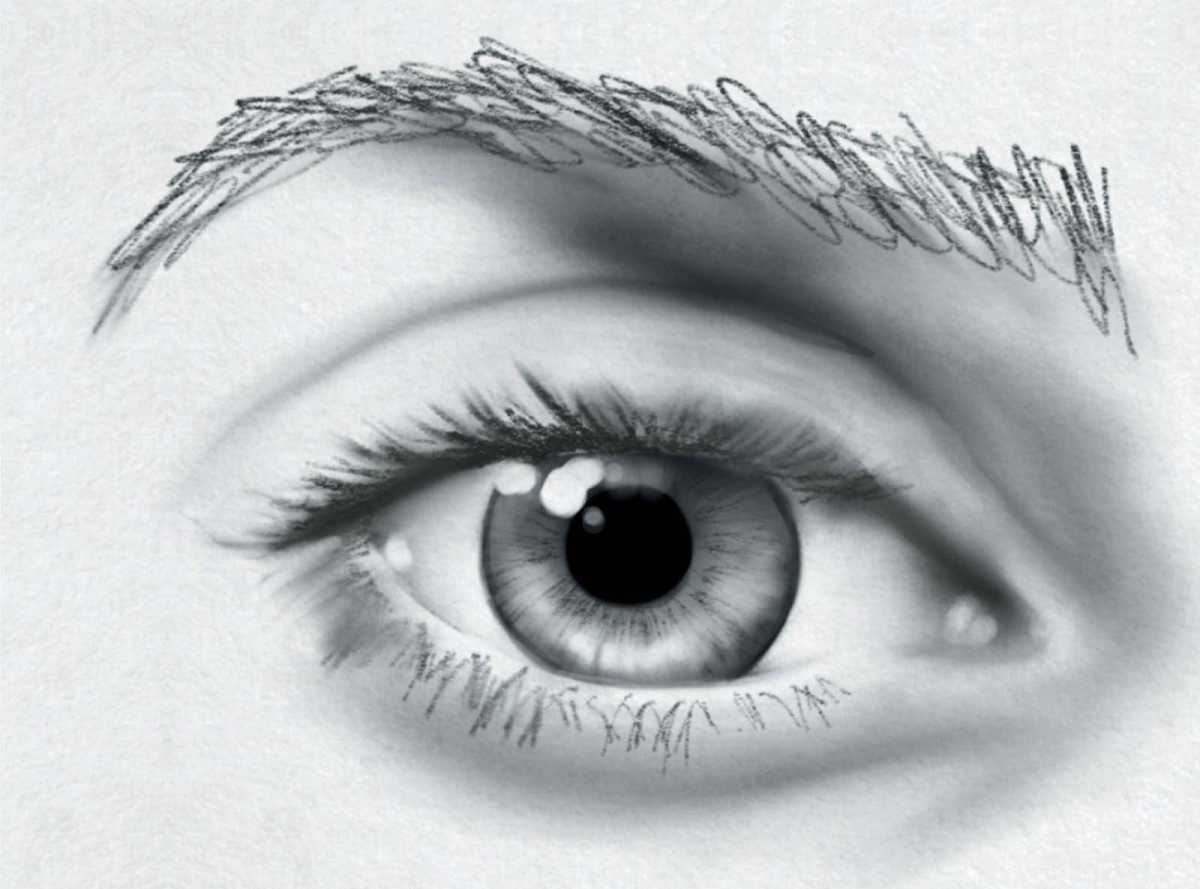
Foundry
Erase some of the shadow on the top of the eyelid and underneath the bottom eyelashes, where the skin curves around the eyeball.
Between the bottom of the eye and the eyelashes there is a strip of pale skin; a thin eraser line works well to depict this.
Step 11
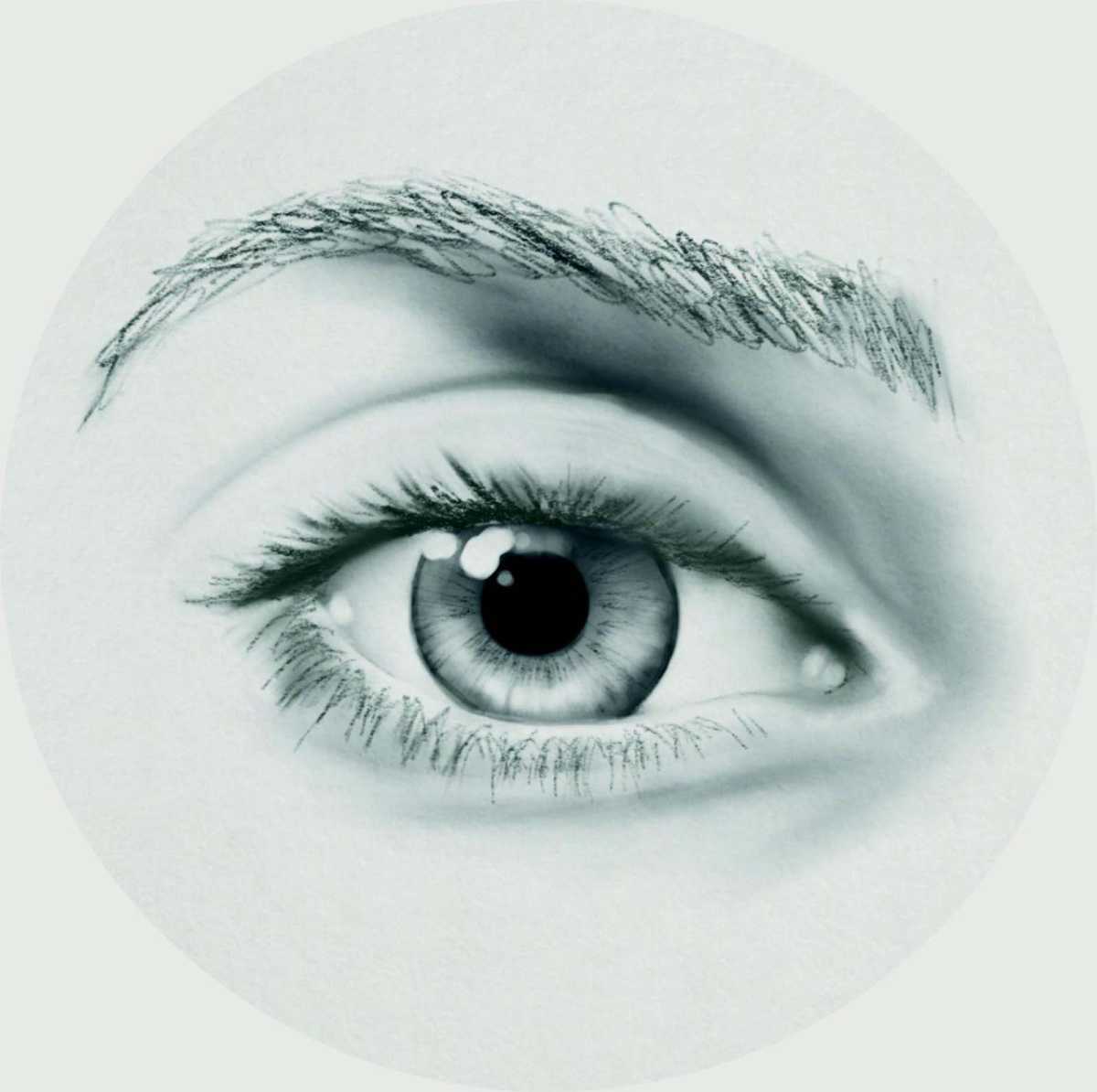
Foundry
Finally, add highlights to the watery interior corner of the eye near the nose and to the skin around it.
