The increase in popularity of video conferencing software Zoom can safely be described as a meteoric rise. In the space of just a few weeks, it went from relative outsider to the go-to app for virtual meetings, family catch-ups and even social events.
However, as a result of the boom in new users, the company admitted that its standards of privacy and security had “fallen short of expectations”. It’s now addressing this directly by introducing end-to-end encryption, which ensures that no-one except the participants (not even Zoom itself) has access to a meeting.
The feature is available on iOS, Android and Windows, but for the purposes of this tutorial we’ll be using the macOS version. Here’s how to start encrypting your Zoom calls.
How to enable encryption on Zoom
Before we begin, you’ll need to ensure your software is up to date. The feature is only available on version 5.4.0 and later.
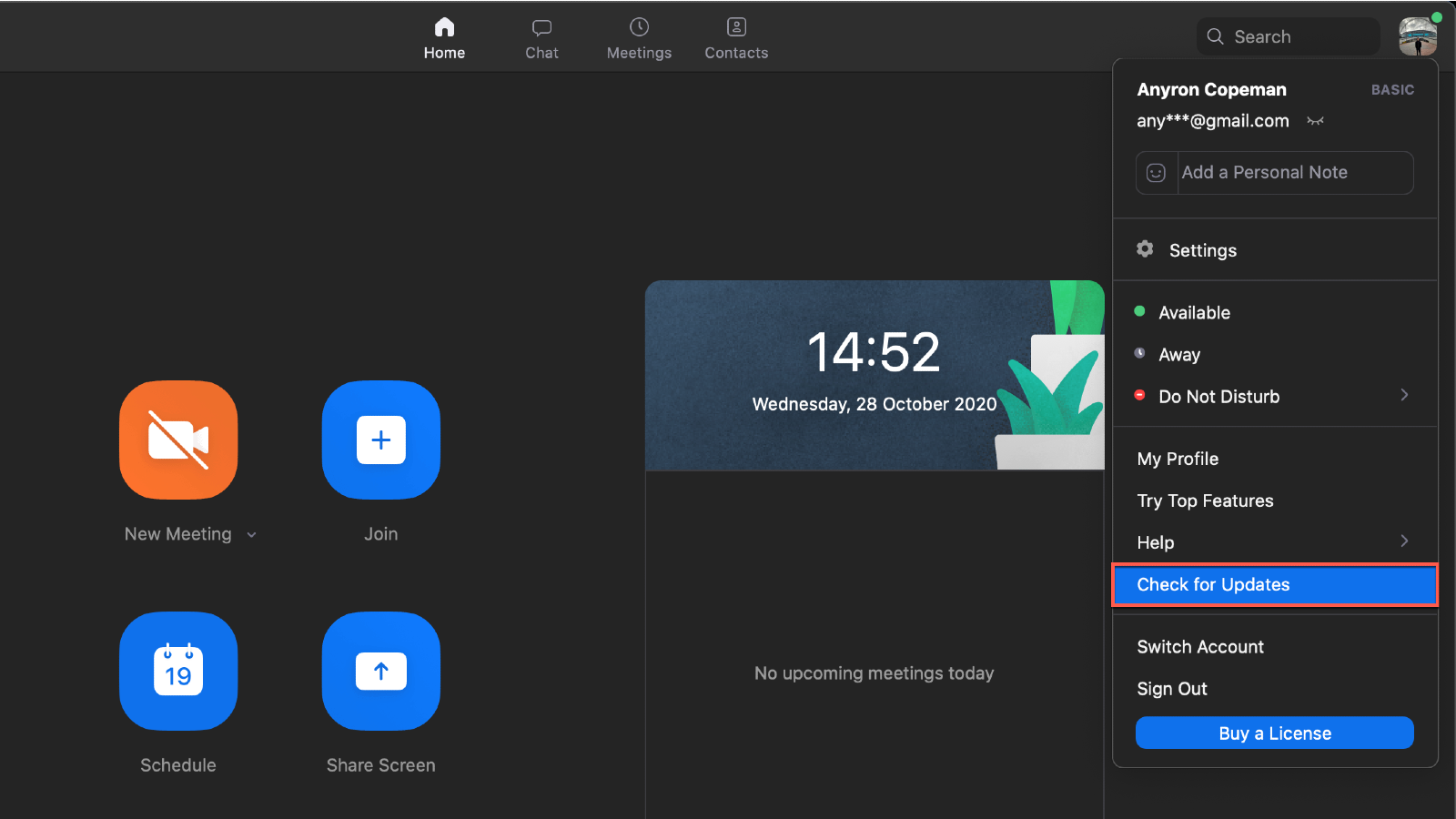
Head to the Google Play Store or App Store on mobile to see if any updates are available. On Mac and Windows, from the Zoom homepage click your icon in the top-right corner and choose ‘Check for Updates’.
- Head to the Zoom web portal and sign in
- Click on ‘Settings’ in the left pane
- In the ‘Meeting’ tab that appears, scroll down until you see the option saying ‘Allow use of end-to-end encryption’
- Enter your phone number and verify it with a text message code
- You should now see a new option titled ‘Default encryption type’. This is set to ‘Enhanced encryption’ by default, so click the circle next to ‘End-to-end encryption’ to select this instead
- This information will be automatically saved. Head back to the Zoom app and start a meeting as you normally would
- Click the green icon in the top left corner, which looks like a padlock inside a shield. You should see information about the meeting, including the type of encryption. Next to ‘End-to-end’, click ‘Verify’
- You should now see 8 separate five-digit numbers listed. If all the participants in the meeting have the same numbers, the meeting is encrypted
If you’re looking to enable end-to-end encryption for everyone in a team or group, there’s detailed information on the Zoom website .
To make the most out of the platform, check out our Zoom tips & tricks article . That includes the big one – how to get around the 40 minute limit on the free tier.
Author: Anyron Copeman, Mobile Editor, Tech Advisor

Anyron is Mobile Editor at Tech Advisor, where he’s been a mainstay of the editorial team since 2019. In his current role, Anyron is responsible for all smartphone, tablet and mobile network coverage on the site. A BA Journalism graduate, he has experience with a wide range of consumer tech products and services, including smartphones, tablets, foldables, wearables and more.
Recent stories by Anyron Copeman:
- Google Meet’s new translation feature is coming to rival Microsoft Teams
- Google Gemini’s new AI features could finally fix email, and I can’t wait
- What is DeepSeek AI and why should I care?
