If you regularly create, download or import any files, duplicates are inevitable. Copying documents or folders from one location to another or multiple backups both means the same file will be in more than one location.
Finding and deleting these is an easy way to free up space, and it’s possible using third-party software. Doing so manually will probably take ages, but it’s worth making sure apparent duplicates are actually the same file.
Some cameras use the same file name even when the photo is different, so it’s worth checking its size and date to see if they’re identical. The popular CCleaner software relies on name alone, so it’s not recommended in this situation.
There are paid solutions, but the app we’re using here is completely free and does everything you need.
How to find and delete duplicate files from Windows
Even though these are files you want to delete, it’s worth backing up your important data first.
From there, the method is the same on both Windows 10 and Windows 11 , as it relies on third-party software that’s available for all recent versions of WIndows.
Install Auslogics Duplicate File Finder
Anyron Copeman / Foundry
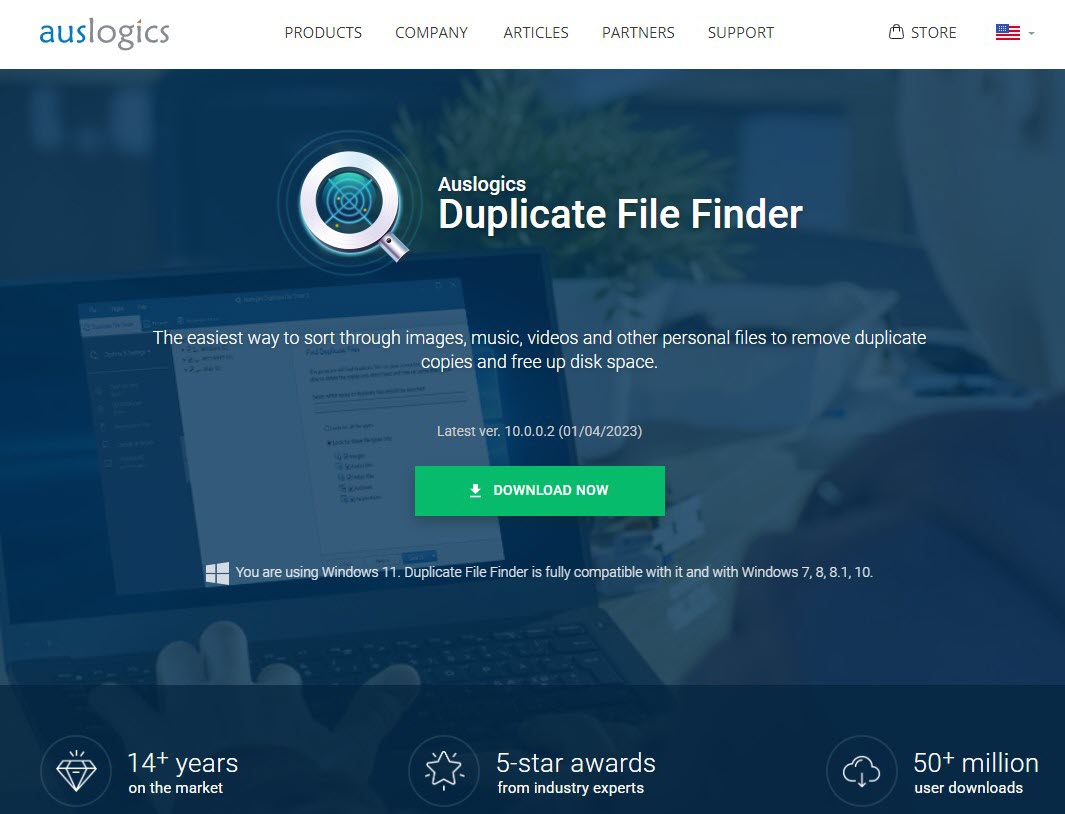
Head to the Auslogics website and click ‘Download Now’ – it should automatically recognise the operating system you’re using and download the right version.
Once complete, double-click the downloaded file, followed by ‘Agree and install’ and ‘Next’. Installation should only take a few seconds.
Find duplicate files
Anyron Copeman / Foundry
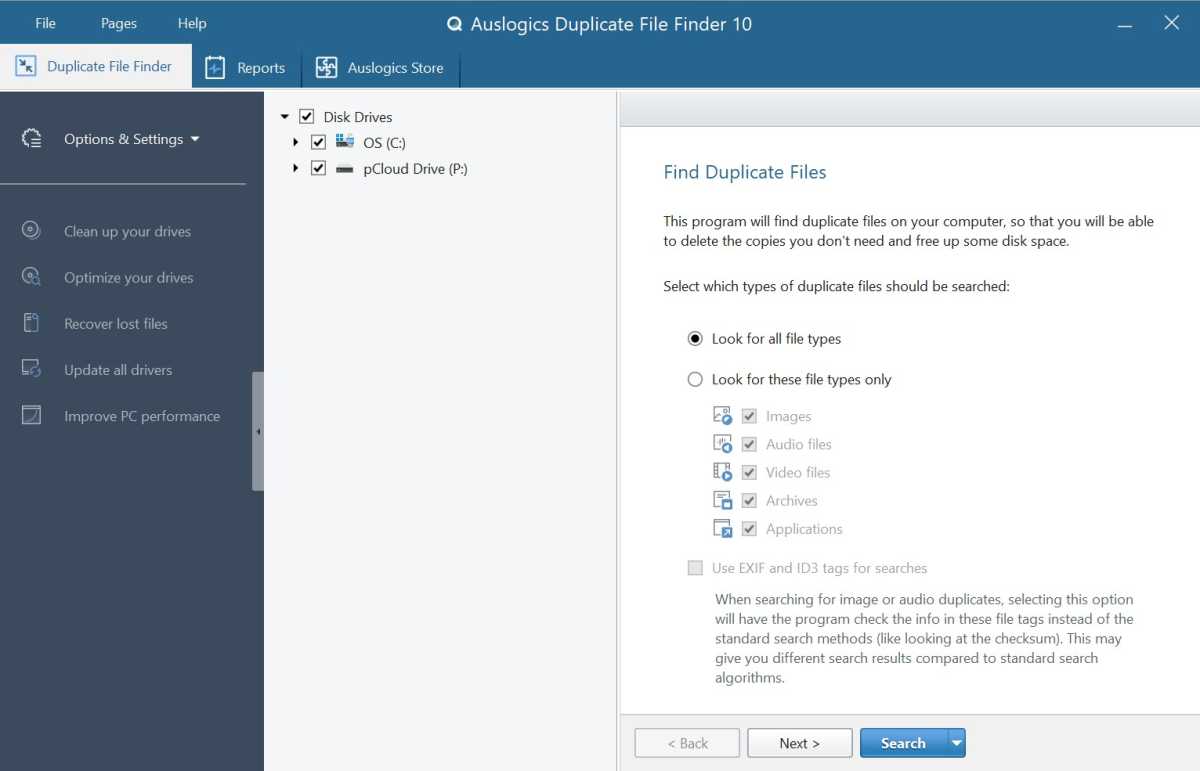
Launch the app if it’s not open already and it should look like the above. Chose which disk drives you’d like to be searched for duplicates, then ‘Look for all file types’ or only a specific few.
Click ‘Search’ to begin the process – it should only take a minute or two.
Select chosen duplicates
Anyron Copeman / Foundry
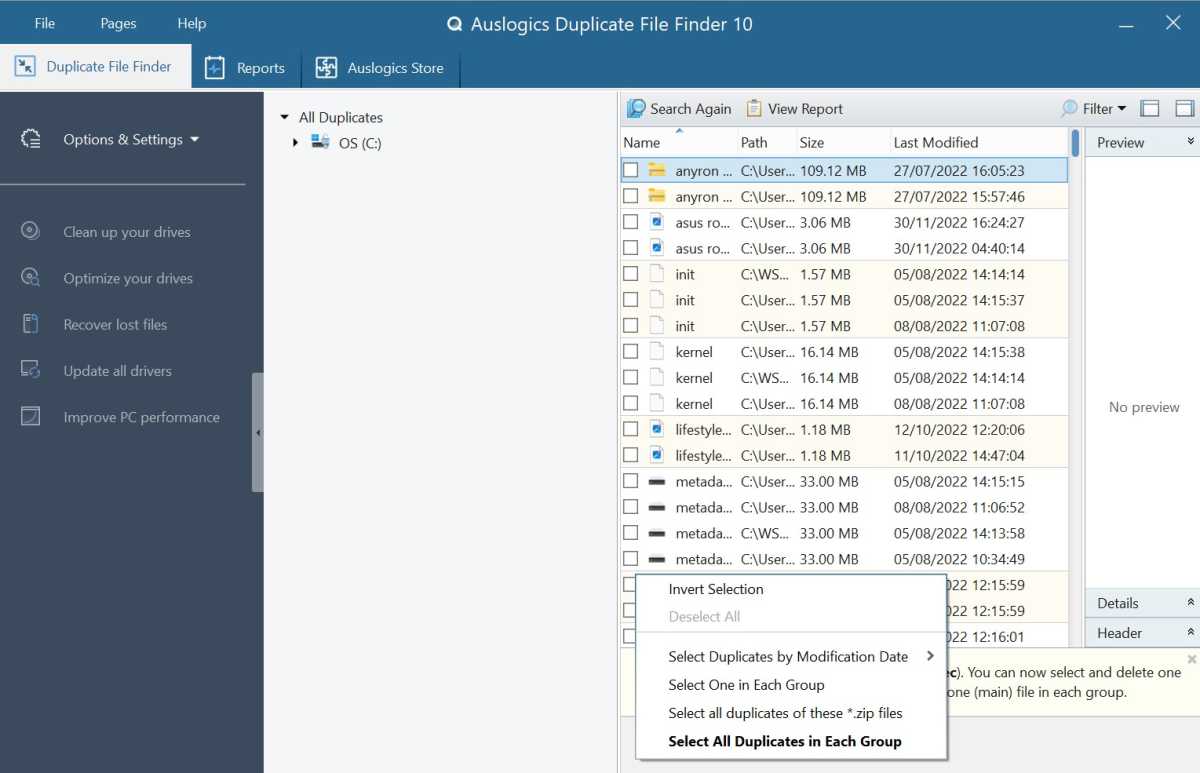
Once the search has finished, you’ll be presented with a list of all the duplicates which have been found (if there are any).
Clicking ‘Select’ will choose all duplicates by default, but the drop-down next to it has options for just one duplicate of each file, the earliest/latest version of a duplicate or only duplicates of .zip files. Of course, you can review these manually if you’d prefer.
Delete chosen duplicates
Anyron Copeman / Foundry
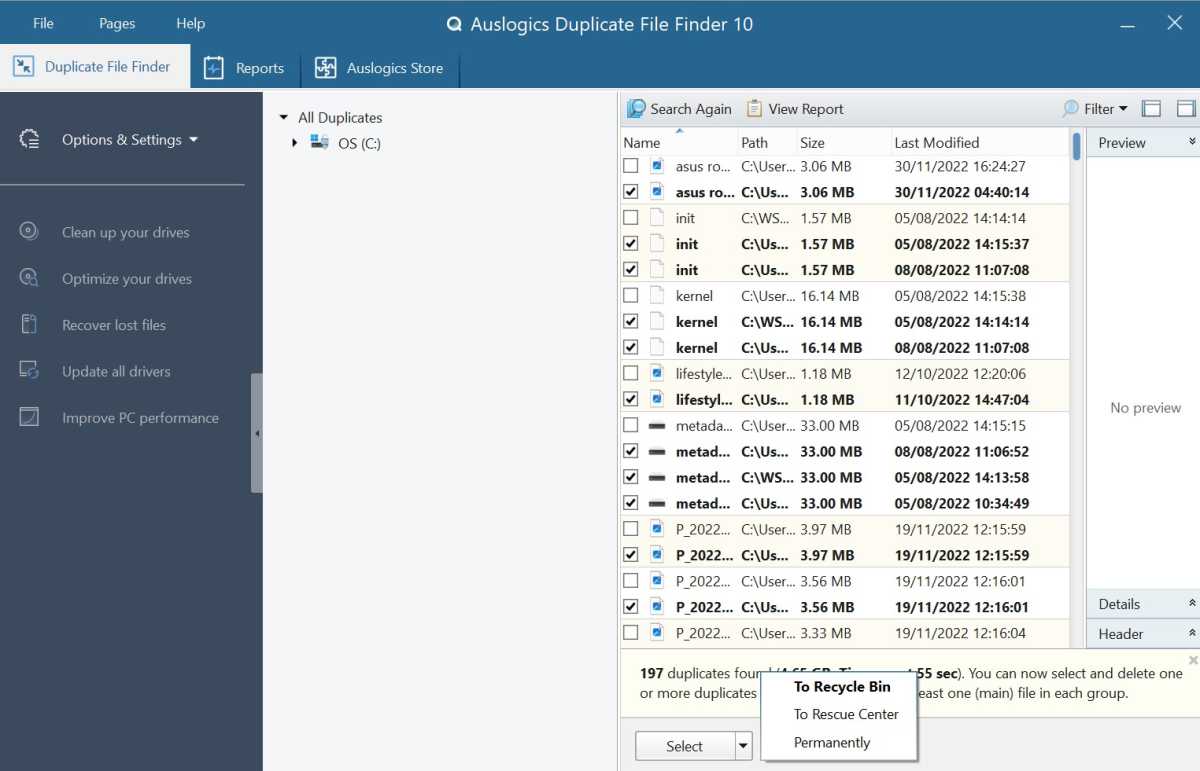
Once you have all the duplicates selected, it’s time to delete them.
Clicking ‘Delete Selected Files’ will send them to your computer’s Recycle Bin (where they’ll be permanently deleted after 30 days), but the drop-down next to it lets you choose ‘Rescue Center’ (backed up to the cloud so you can retrieve them if necessary) or permanent deletion immediately.
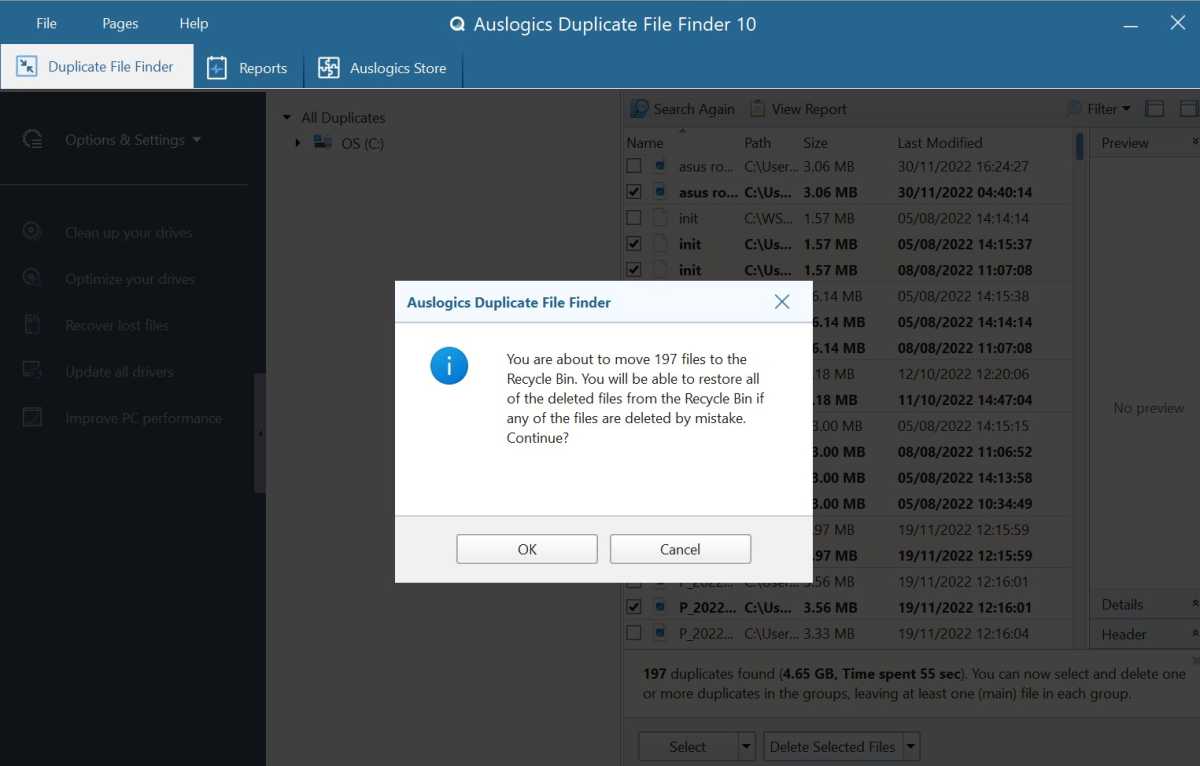
Confirm deletion
Anyron Copeman / Foundry
You’ll now see a pop-up warning you that files will be moved and deleted. Click ‘OK’ to continue – deletion should only take a few seconds.
That’s it! Your duplicate files will all now be removed.
If you don’t want to use the Auslogics app, Paralells Toolbox is a useful alternative. Finding and removing duplicate files is just one of the many features it offers, but you’ll have to pay $24.99/£20.99 per year for a subscription.
Once installed, just open the app and click Files > Find Duplicates. The official video below is filmed on a Mac, but the process is similar on Windows:
- How to speed up Windows
- How to speed up your PC
- Windows 11: Everything you need to know
Author: Anyron Copeman, Mobile Editor, Tech Advisor

Anyron is Mobile Editor at Tech Advisor, where he’s been a mainstay of the editorial team since 2019. In his current role, Anyron is responsible for all smartphone, tablet and mobile network coverage on the site. A BA Journalism graduate, he has experience with a wide range of consumer tech products and services, including smartphones, tablets, foldables, wearables and more.
Recent stories by Anyron Copeman:
- Windows 11 23H2 update: Everything you need to know
- Windows 12: Everything we know so far
- How to get the Google Play Store on Windows 11
