It isn’t always easy to find downloaded files on your phone. Even if you’re using the best Android phones or the best Android tablets , these files may be located in a place you may not find on your own.
However, trying to locate them can be a straightforward process, once you know where to look. This guide will take you through finding and managing your downloads effectively.
Where are downloads on Android?
Finding your downloaded files on an Android device typically involves accessing the ‘Downloads’ folder, which is the default location for files downloaded from the internet or from other apps. Here’s how you can locate it.
Using the Files app
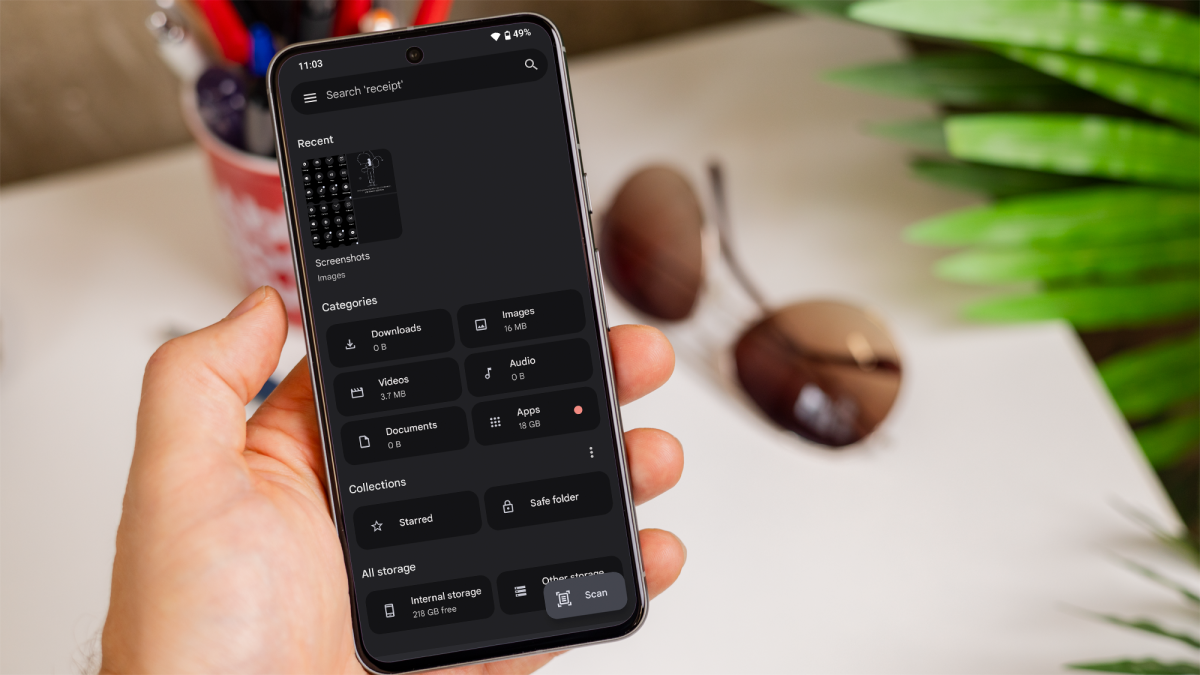
On most Android devices, there is a built-in file manager app named ‘Files’ or ‘My Files’. You need to locate and open this app from your app drawer or home screen.
Dominik Tomaszewski / Foundry
Once inside the file manager, you will usually find a ‘Downloads’ or ‘Download’ folder. You should tap on this folder to see a list of all the files you’ve downloaded.
Using a third-party file manager
If your device doesn’t have a built-in file manager or if you prefer more advanced features, you can download third-party file manager, such as the Files by Google app.
After installing the file manager app, open it and navigate to the main storage or internal storage section. Then, find the ‘Downloads’ folder.
Using the web browser
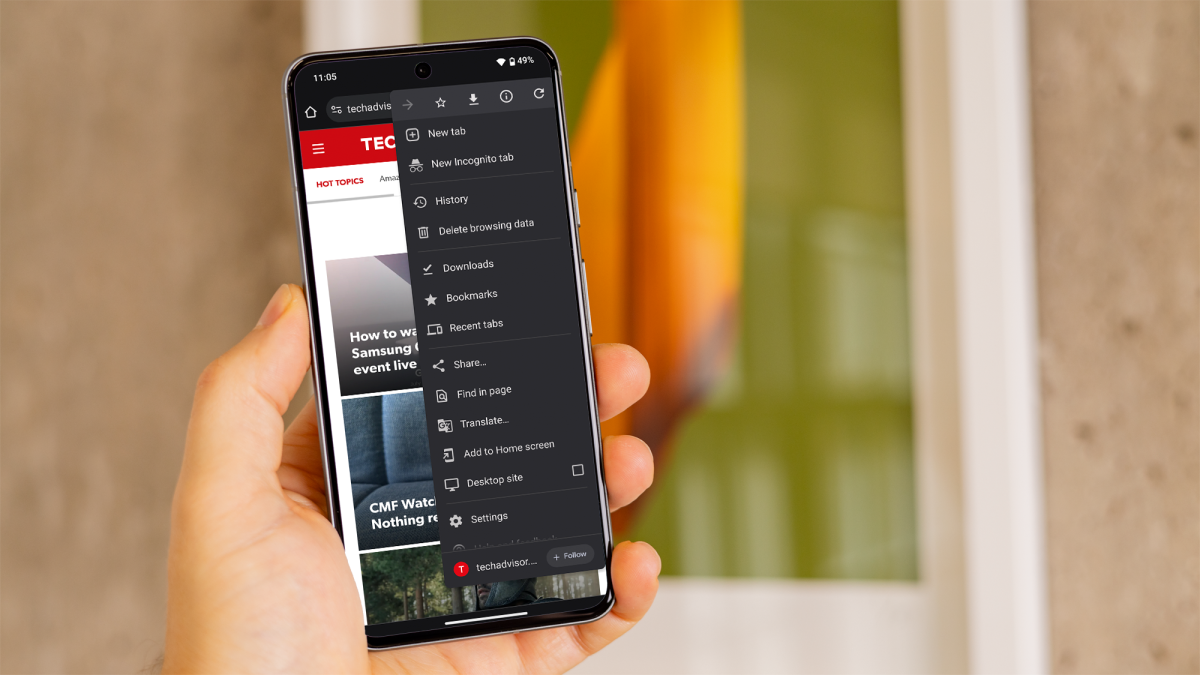
If you downloaded files using a web browser, you can often access downloads directly from the browser menu.
Dominik Tomaszewski / Foundry
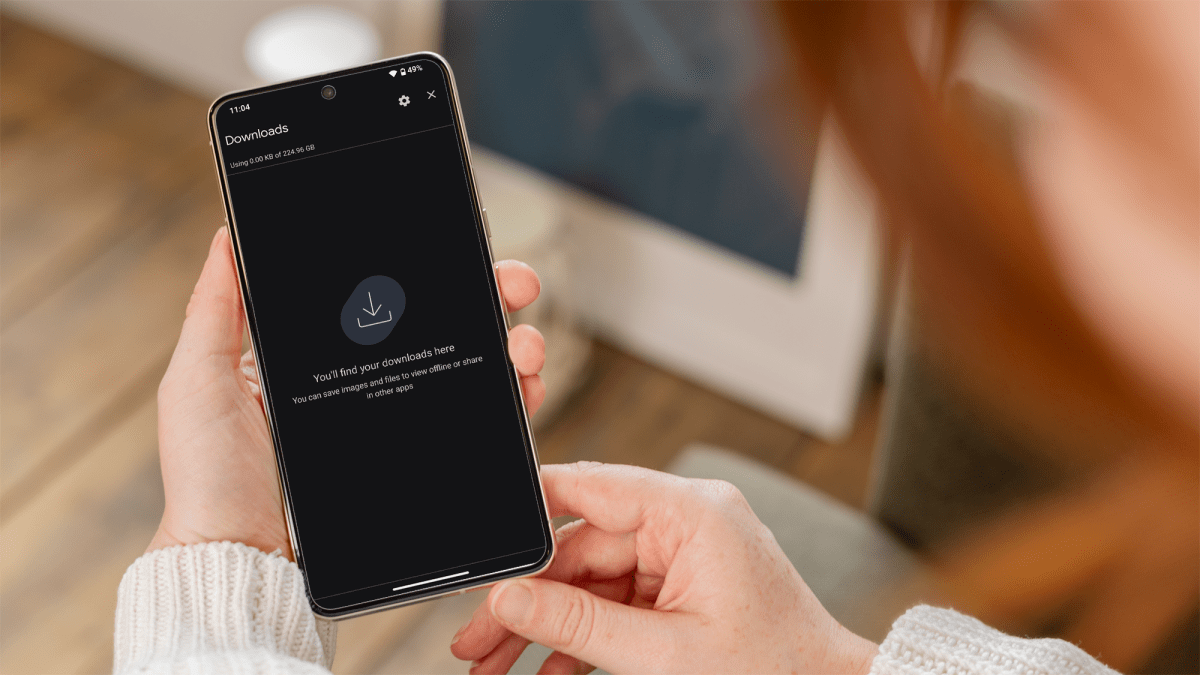
For instance, in Google Chrome, tap the three-dot menu in at the top-right corner and select “Downloads” to see your downloaded files.
Through specific apps
Some apps – like email clients or messaging apps – save downloaded files in their own folders.
You should check the app’s download or file section to locate these files.
Should I delete my downloads on Android?
Managing storage space on your Android device is crucial to maintain optimal performance.
Downloads can accumulate over time and take up valuable storage space. Deleting files you no longer need can help free up space, allowing your device to run more smoothly.
Keeping your downloads folder clean and organised can also make it easier to find important files when you need them. Regularly deleting old or unused files helps maintain order.
Cluttered storage can slow down your device. Cleaning out your downloads can contribute to better performance and faster operation.
Dominik Tomaszewski / Foundry
However, ensure that you don’t delete important documents, photos or other files that you might need in the future. Always double-check before deleting any file.
Be cautious with files that are part of apps or media you frequently use. Deleting these could affect the functionality of certain apps.
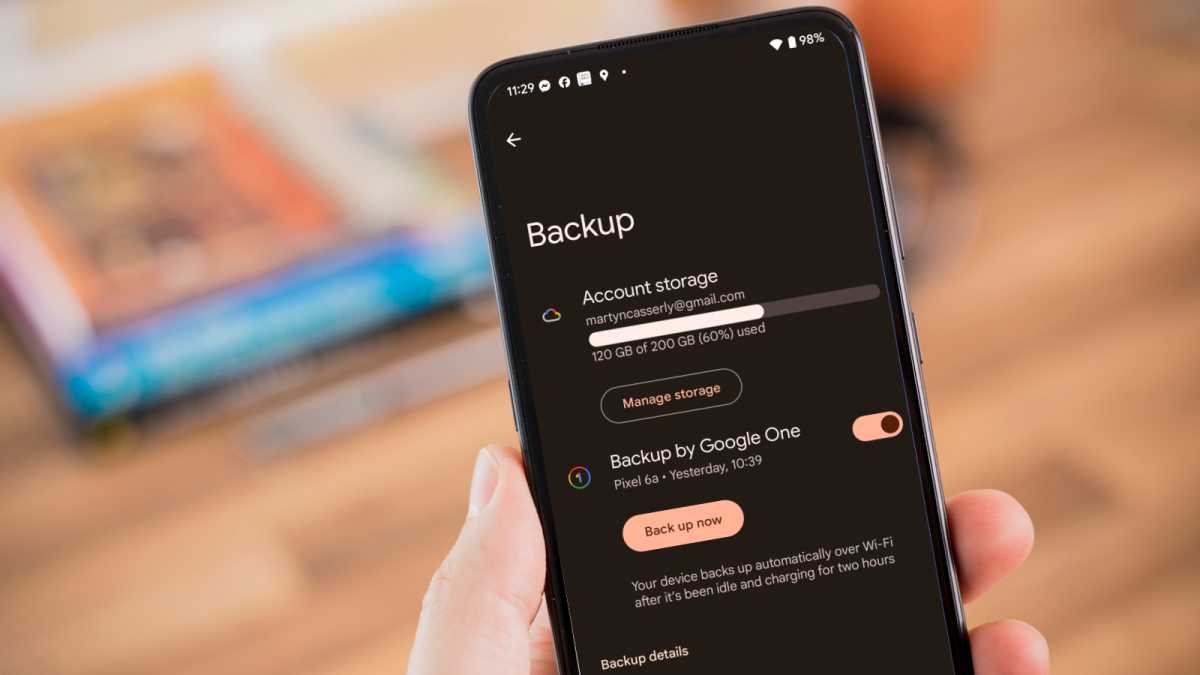
If you are unsure whether a file might be needed in the future, consider backing it up to cloud storage or an external device before deleting it from your phone.
Learn how to back up your Android so that you never lose important files. You might also want to know how to back up your data for free , if you don’t want to pay for cloud storage.
Martyn Casserly
Finding and managing downloads on your Android phone or tablet is straightforward, so long as you’re methodical about maintaining them.
Regularly reviewing and cleaning out your downloads folder can also help keep your device running efficiently and ensure you always have enough storage space for new files, be it apps or media.
Author: Artur Tomala, Mobile Writer, Tech Advisor

Artur is a Mobile Writer at Tech Advisor, where he covers a range of smartphone, tablet and smartwatch-related topics. He has been working in the tech industry since 2021, including time spent leading a team focused on mobile news, reviews and product rankings. As an ambassador for the productivity app Notion, he runs training workshops and creates advanced templates to help people stay organised and productive.
Recent stories by Artur Tomala:
- How to set up a new Android phone
- When will my Samsung Galaxy phone get One UI 7?
- How to get One UI 7 on your Samsung Galaxy phone
