With so many accounts across different apps and websites, it’s easy to forget a password or two.
Thankfully, if you’re using an Android phone, there are built-in tools and methods to help you recover saved passwords.
This guide will walk you through the steps to find and manage your passwords.
Google Password Manager
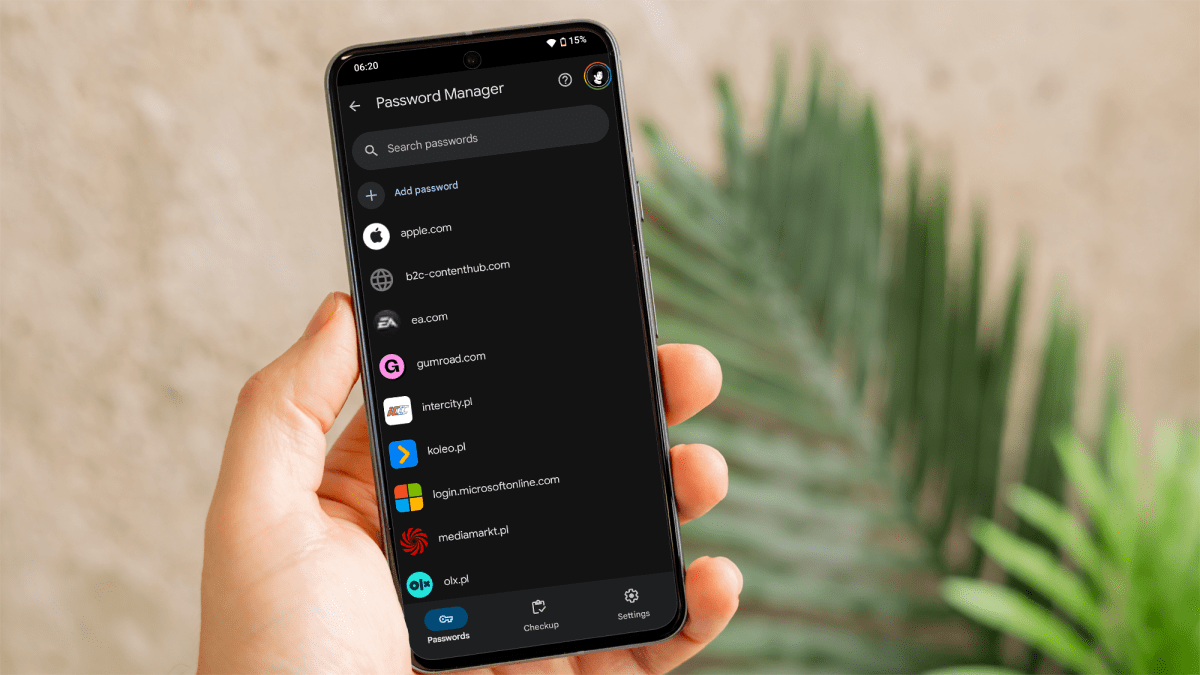
Google Password Manager is the primary tool for managing and retrieving passwords on Android. Here’s how you can access it:
- Open the ‘Settings’ app on your Android device.
- Scroll down and tap on ‘Google’ to open Google settings.
- Tap on ‘Password, passkeys and accounts’.
- You will see a list of saved passwords associated with your Google account. Tap on the desired site or app to view the password.
Dominik Tomaszewski / Foundry
You may need to authenticate using your fingerprint, face, or PIN before the password is revealed.
Saved Wi-Fi passwords
If you’re looking to retrieve a Wi-Fi password saved on your Android device, you can do so easily and also quickly share it with a friend that wants to log on. We have a full step-by-step guide on how to see a Wi-Fi password on Android that you can follow.
Third-party password managers
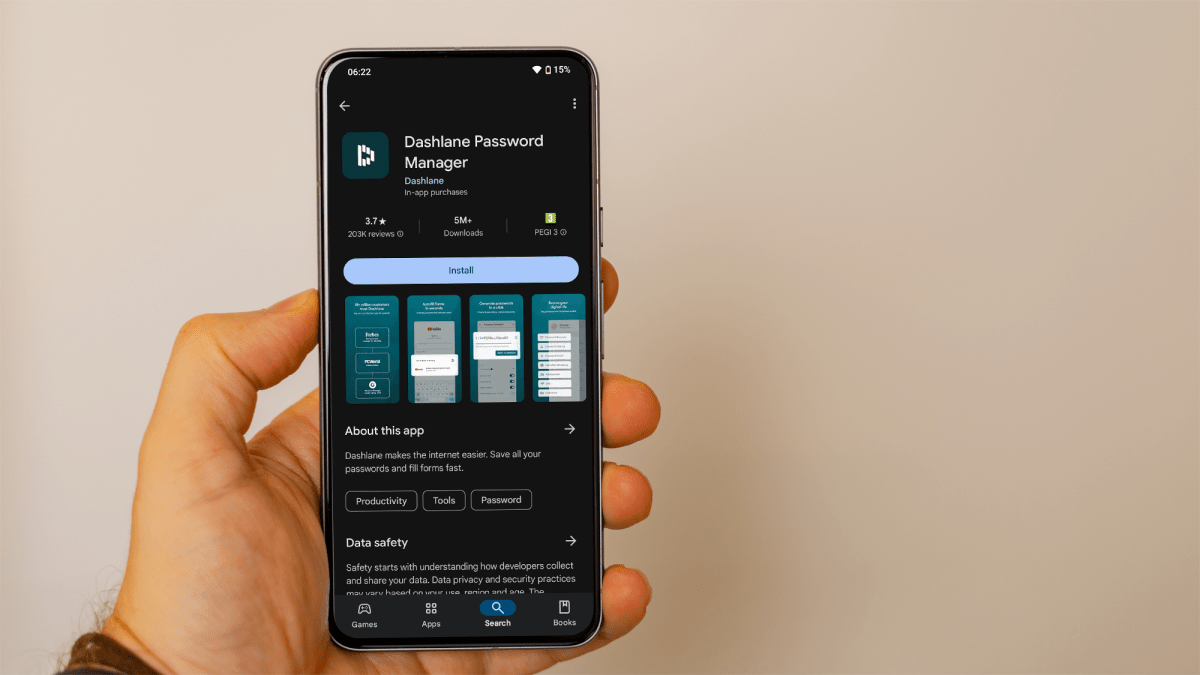
Third-party password managers like LastPass, Dashlane, and 1Password are popular alternatives for storing and retrieving passwords. If you use one of these services, follow these steps:
- Open the password manager app on your Android device.
- Authenticate using your master password, fingerprint, or face ID.
- Navigate to the ‘Vault’ or ‘Passwords’ section.
- Search for the app or website whose password you need.
- Tap to view the details, including the password.
Dominik Tomaszewski / Foundry
App-specific passwords
Some apps, like banking or email clients, store passwords within their own secure environments, making it difficult to retrieve them directly from the Android system. In such cases, you can:
- Check if the app offers a ‘Forgot password’ option to reset it.
- If the app syncs with a web service, try retrieving the password from the web interface.
- Consider contacting the app’s customer support for assistance.
While it’s convenient to retrieve passwords stored on your Android device, always prioritise security.
Be sure to enable two-factor authentication (2FA) that adds an extra layer of security to your accounts, making them harder to breach. Also use strong and unique passwords to avoid reusing the same ones across different accounts.
Take a look at our list of the best password managers and the best antiviruses to keep your data secured.
Author: Artur Tomala, Mobile Writer, Tech Advisor

Artur is a Mobile Writer at Tech Advisor, where he covers a range of smartphone, tablet and smartwatch-related topics. He has been working in the tech industry since 2021, including time spent leading a team focused on mobile news, reviews and product rankings. As an ambassador for the productivity app Notion, he runs training workshops and creates advanced templates to help people stay organised and productive.
Recent stories by Artur Tomala:
- How to set up a new Android phone
- Samsung Galaxy A26: Everything you need to know
- What is an eSIM and how does it work?
