Microsoft introduced a raft of design changes with Windows 11 , but the new taskbar was among the most controversial. With centred icons, a redesigned Action Center and new Widgets panel, it’s a big departure from the Windows 10 version.
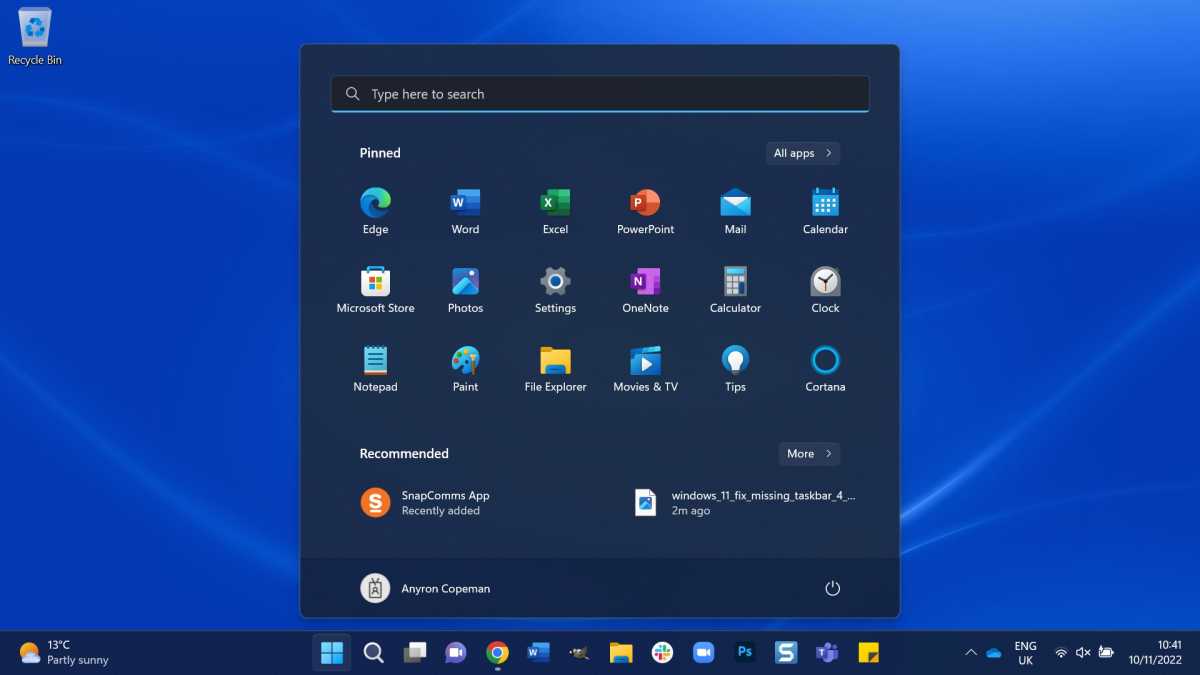
One of the apps you’ll find there, the Start menu, is unrecognisable. Live Tiles have been ditched for a simple launcher, consisting of ‘Pinned’ apps alongside ‘Recommended’ files and programs.
While you can roll back to Windows 10 , most people will be used to them by now. So what do you do if they suddenly disappear? That can happen after an update or restart, making Windows 11 very frustrating to navigate. You can use the Windows key on the keyboard to bring up the Start menu (and rest of the taskbar), but it’s far from an ideal workaround.
Fortunately, there are potential solutions available. Only one is recommended by Microsoft, while the other is a useful alternative if you’d rather not make changes to the Registry while waiting for a fix.
How to fix missing Start menu and taskbar permanently
Microsoft is usually quick to patch bugs like these, but there have been no reports of any recent issues. If you’ve tried restarting your device and installing any outstanding updates, you’re probably looking for a more permanent.
We can’t guarantee the the following method will work for you, but it has solved the issue in the past. Just be aware that it involves making changes to your device via the registry, many of which can’t be undone. If you’re in any doubt, try the temporary solution (below) first.
- Time to complete: 5 minutes
- Tools required: A Windows 11 device
Open Task Manager
Anyron Copeman / Foundry
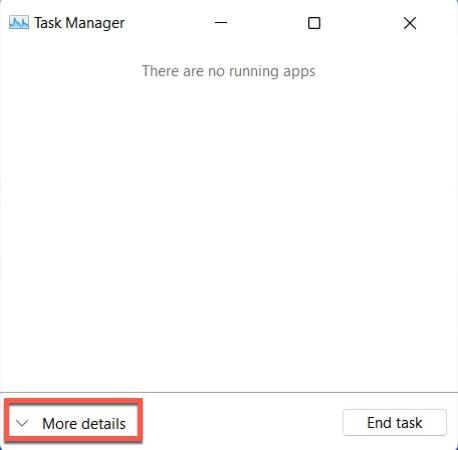
Use the Ctrl + Shift + Esc shortcut to open the Task Manager, then click the down arrow at the bottom of the window for ‘More details’. Once completed, this will say ‘Fewer details’ instead
Run a new task
Anyron Copeman / Foundry
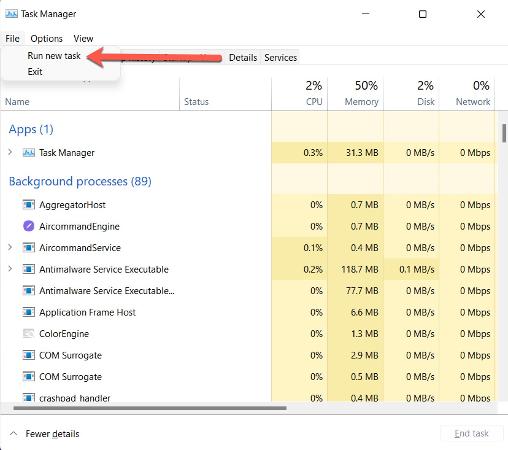
From the top-left corner, choose File > Run new task
Run Command Prompt
Anyron Copeman / Foundry
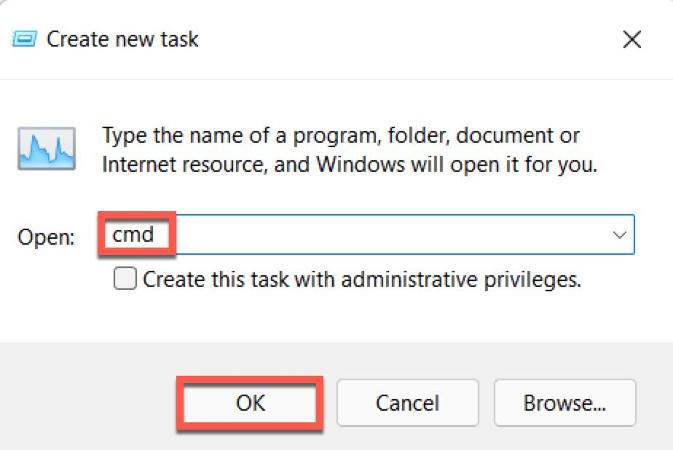
From the pop-up that appears, type ‘cmd’ and click ‘OK’
Enter this command

Anyron Copeman / Foundry
Copy and paste ‘ reg delete HKCU\SOFTWARE\Microsoft\Windows\CurrentVersion\IrisService /f && shutdown -r -t 0 ’ exactly as you see it here
Reboot
Anyron Copeman / Foundry
Hit enter. Your device will restart and the issue should be resolved once it boots up again
How to fix missing Start menu and taskbar temporarily
Understandably, you might be reluctant to make changes to the registry for what should be a temporary problem.
Microsoft has fixed similar issues in the past, but there is an alternative if you’d rather avoid dealing with the registry. However, it takes slightly longer than the permanent solution:
- Follow the same two steps as above until you get to the ‘Create new task’ pop-up
- Instead of ‘cmd’, enter ‘control.exe’ and click ‘OK’
- This will open the Control Panel. Navigate to Clock and Region > Set the time and date
- From the window that appears, choose the ‘Internet Tab’ along the top and click ‘Change settings…’
- Uncheck the ‘Synchronise with an Internet time server button’ and click ‘OK’
- Head back to the ‘Date and Time’ tab and click ‘Change date and time…’
- Change the calendar date to a few days in the future and click ‘OK’
- Restart your PC and the problem may be solved. You should then be able to change the date back to what it originally was, before restarting the device once again
If neither of these work and you need an urgent solution, consider resetting your device. Head to Settings > System > Recovery and click ‘Reset PC’ to get started, but this should be considered a last resort. You’ll also want to back up your device first.
- I forgot my Windows password. How do I log in?
- How to set up Windows 11 without a Microsoft account
- Windows 11: Everything you need to know
Author: Anyron Copeman, Mobile Editor, Tech Advisor

Anyron is Mobile Editor at Tech Advisor, where he’s been a mainstay of the editorial team since 2019. In his current role, Anyron is responsible for all smartphone, tablet and mobile network coverage on the site. A BA Journalism graduate, he has experience with a wide range of consumer tech products and services, including smartphones, tablets, foldables, wearables and more.
Recent stories by Anyron Copeman:
- Windows 11 23H2 update: Everything you need to know
- Windows 12: Everything we know so far
- How to get the Google Play Store on Windows 11
