Printers are great when they work, but when they don’t it can be extremely frustrating. Here’s how to solve some of the most common problems, including not printing at all through to blocked nozzles and other issues.
Printers can run reliably for many years and thousands of prints, but they can also malfunction or stop working entirely.
Sometimes the reason is as simple as over- or under use. Many people don’t use their inkjet printers often enough and this can lead to problems with dried-up ink blocking the nozzles. Overuse is less common than misuse: paper clips, hair bands and even food can fall into printers and cause paper jams (and worse).
If your printer can’t be fixed with these tips, check out our list of the best printers to buy, and the best printer deals right now.
My printer won’t print
There are many reasons why your printer won’t print, so start with the basics such as checking to see whether there is an error message or warning light on the printer. Make sure there is paper in the tray(s), check the ink or toner cartridges aren’t empty, the USB cable is plugged in or the printer is connected to Wi-Fi.
And if it is a network or wireless printer, try using a USB cable instead. In our experience, some Wi-Fi printers are unreliable in terms of their connection. So it’s worth unplugging your printer and any powerline network adapters it’s connected to, then turning everything back on again.
Select the right printer!
Sometimes the reason a printer won’t print is because you’ve installed some software which has a ‘virtual’ printer and this has set itself as the default. When you hit Print, a file will be saved by this virtual printer instead of the document being sent to your physical printer.
To check this, open the Control Panel from the Start menu. Then go to Devices and Printers, right-click the correct printer to use and set it as the default. (While you’re there, you can also ensure the printer’s status is set to Ready. If not, this could be the source of the problem.)
Next, make sure that the correct printer is selected in the program you are printing from – you should see an option to choose from a list as in the image below.

Microsoft has a printing troubleshooter that can help to identify problems. Click the Fix it button, download and run the program, then follow the steps in the wizard.
You can also open the Control Panel, Devices and Printers, right click the printer icon and select Troubleshoot. It doesn’t always help, but it’s worth trying.

HP has a Print and Scan Doctor to identify problems, and Canon has lots of great videos on its website – click your printer model and then click the Troubleshooting videos link.
Why can’t I print from my phone or tablet?
To print from an iPad, iPhone or iPod Touch, the printer must have Wi-Fi and also support AirPrint. The list of AirPrint printers is growing, but there are still a lot of printers, particularly older models, that don’t support it.
If you have a Mac with a printer attached, you can turn it into an AirPrint printer using HandyPrint . Printer Pro is an app for iOS devices that enables them to print to many wireless printers or a wired one attached to a PC or Mac.
Some Samsung phones, tablets and printers are designed to work together and printing is straightforward. Samsung also has its own app for printing to its printers, including from iPhones.
To print from any Android phone or tablet to any PC-connected printer you can use Google Cloud Print.
Install Cloud Print on the mobile device from the Google Play store . Next, using Google Chrome on your PC, go to the menu, Settings, Advanced Settings and click Manage. You can then add the printer attached to the PC. Provided the PC and printer are switched on, you can print from the Android device.
Do I need to replace the cartridges?
Printers warn that the ink is running out before it actually does. If you print only occasionally the remaining ink or tonermight last another couple of weeks, if not months.
Order new cartridges as soon as the message appears, but don’t install them until it either stops printing or the colours fade. A trick with laser printers is to remove the cartridge that’s running low and shake it gently from side to side. This sometimes allows the rest of the toner to be used. In other cases a counter is used and once a certain number of pages has been printed, the cartridge will be deemed as empty.
HP has an interesting scheme with many of its printers where you pay per month and cartridges automatically arrive at the right time.
If your colour ink has run out, but you must keep printing, you might be able to set your printer to print in black and white only. This is a setting you’ll find in printer properties in the Control Panel – or click the option when you go to print via an application you want to print from.
Why won’t web pages, Excel documents and photos print properly?
Web pages
Web pages can be any size and they aren’t limited by the width or height of the paper in your printer. They aren’t usually designed to be printed, which is why problems can occur.
Much of the time you will find a shrink-to-fit option in the printer settings that helps when your document or photo is just a bit too big to fit on the page. Some web pages, such as those with printable coupons, have a print button within the web page. Use that and not the print menu in the browser.
Office documents
If you’re trying to print an Excel sheet, be sure to select only the cells you need to print before clicking Print. Then you can choose ‘Print selection’ and change the other options to make sure it fits well on an A4 sheet. You can do other things, such as reducing the size of the margins, and switching from landscape to portrait orientation.
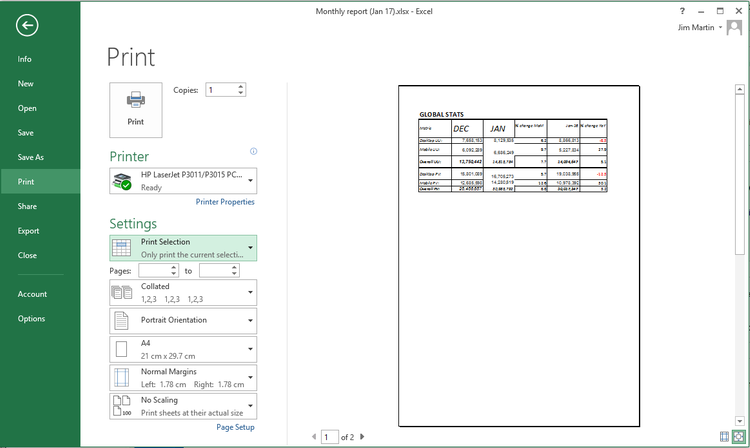
Similarly, when printing a Word document or any other, you can usually specify which pages to print so you don’t have to print them all.
Photos and pictures
For photos or images you want to print, it’s usually best to right-click on them in Windows Explorer and click Print. This way you will get to choose how large to print each photo.
If you select multiple photos in a folder, then right-click and choose Print you will be able to print them all at once, with more than one per sheet of paper (and you can choose the paper size here too). It’s similar to the ‘n-up’ option that you’ll find in Printing properties which allows you to print multiple pages of a document on a single sheet of A4.

Why does my printer say “Error”?
There are a few possible reasons, but the most common is to do with paper. T he first thing to check is whether the input tray is empty, but it’s also worth checking for paper jams. If you find one, try to work out why it’s happening rather than just pulling out a crumpled piece of paper from the paper tray and assuming you’ve fixed it.
Take the paper out of the tray, open all the flaps and look inside. You might need a torch to see the paper and long tweezers to reach it, especially if it’s only a very small piece which has been ripped off and left inside.
Look underneath the printer because there may be an access panel that can be removed to examine and clean the paper feed mechanism.
Old paper can absorb moisture, which makes it stick and then it is pulled through two or more sheets at a time. Keep it in a bag until it is needed. Check out Canon’s troubleshooting videos to see how to remove pieces of paper stuck in printers.
Also, try using thinner paper: most home printers will only handle photo paper at a maximum. They can’t usually print on card as it’s too stiff to be fed around corners.
Why is the print quality poor?
The nozzles on inkjet printer heads can become blocked causing horizontal streaks on prints and poor or wrong colours. Cleaning the print heads can solve the problem. The procedure varies from printer to printer and there may be an option on the printer control panel or in the printer software on the computer.
You might need to look this up in the manual. In your printer’s properties (either in an app or in the Windows Control Panel) you might find a maintenance section.

The type of paper affects the print quality and photocopier paper might be letting you down.
It can be too absorbent and inkjet ink soaks into it like blotting paper. Buy good quality paper for the best prints, and this is usually from the printer manufacturer itself, particularly for printing photos.
Laser printers are less dependent on paper, and smudges or spots in the same place on each page usually mean there’s dirt somewhere in the printer, typically on the ‘drum’.
Be very careful when cleaning the imaging drum, using only isopropyl alcohol and a soft lint-free cloth.
Read the manufacturer’s guidance on how to remove and clean the drum, which is often called an OPC.
We’ve also written a guide on how to match the colours on your screen to your printer.
Printer Reviews
SEE LATEST REVIEWS BY CATEGORY
- Reviews
- Phone Reviews
- Tablet Reviews
- Wearable Tech Reviews
- Home Tech Reviews
- Streaming Reviews
Printers might not be as exciting as a new smartphone but it’s likely we all need one at some point in our lives, even if it’s just occasionally. Whether you’re working from home or need an office printer for many people to use, we have reviewed and ranked ten of the best you can buy from tank system inkjets to large laser printers.
You might want to print a calendar, gig tickets, a boarding pass or some photos you’ve taken on your phone. Many printers are multi-function and therefore also handy for scanning and copying, too.
Whatever your needs, buying a new printer can be a confusing process. Not only do you have to worry about the upfront cost and whether it can print a good photo, but you’ve also got to consider print speeds, ongoing costs and a host of potential features.
It’s worth bearing in mind that the printer market moves slowly, and the latest printers aren’t always the best. Printer tech moves slowly so reviews might not be from this year or even the year before that but they stay on sale for a long time unlike phones or laptops .
Read on below our chart for more in-depth printer buying advice on things like whether to choose inkjet or laser.
Best printers 2023
1. Canon Pixma TS7450/1 – Best Overall

Pros
- Prints quickly
- Excellent quality
- Inexpensive to buy and run
Cons
- Mobile apps aren’t always intuitive
- Bulky design
- Photos need glossy paper

Printers are hard to even find in stock right now so a great value all-rounder from Canon at under £100 is worth snapping up, even though it is quite heavy.
This is a great value all-in-one printer that’s easy to set up and use. It’s also no slough with lots of features and versatile printing including documents and photos. Cheaper printers can be expensive to run but the TS7450 doesn’t even fall into this category.
The mobile apps are a little frustrating at times but print quality is good, although you’ll want to stick to proper glossy paper for photos. Note that the TS7451 is the same printer, only in white.
Read our full Canon Pixma TS7450 review
2. HP Envy Inspire 7220e – Best Compact Family Printer

Pros
- Attractive price
- Fast printing speeds
- 2-sided printing
- Good text and photo quality
Cons
- No ADF
- Can’t print on A4 glossy paper

Those looking for a compact and easy-to-use printer for the whole family might have just found it.
The Envy Inspire 7220e is an excellent all-rounder for those needing to regularly print text and photos at good speeds and affordable costs. The printer looks nice, has wide support for different wireless printing services and offers high-quality results.
It doesn’t have an automatic document feeder but that’s normal, so as long as you don’t need to print on A4 glossy paper, it’s a bit of a steal.
Read our full HP Envy Inspire 7220e review
3. Canon Pixma TS3350 MkII – Best Budget Printer

Pros
- Cheap
- High quality printing
- Connectivity
Cons
- Slow printing
- Expensive ink
If you’re looking for a cheap printer to handle day-to-day tasks then the TS3350 MkII (or TS3320 in the US) is an excellent choice.
This is not only affordable but offers great quality printing for a range of jobs, including colour images. This is even a copier and scanner too so you’re getting a lot for your money.
It’s quite slow so isn’t a workhorse and you’ll want to get XL cartridges to keep running costs down. For printing the occasional letter, boarding pass or family photo without breaking the bank it’s perfect.
Read our full Canon Pixma TS3350 MkII review
4. HP DeskJet Plus 4120 – Excellent Value Inkjet

Pros
- Very cheap
- Easy to use
- Good photo & graphics quality
Cons
- Average text quality
- Needs Instant Ink to keep running costs down
Those on a budget needing a printer for a mix of different tasks should consider the DeskJet Plus 4120 – known as the 4155 in the US.
It’s basic in style and design with things like a simple LCD display but keeps costs down, especially if you use HP’s Instant Ink subscription service.
Read our full HP DeskJet Plus 4120 review
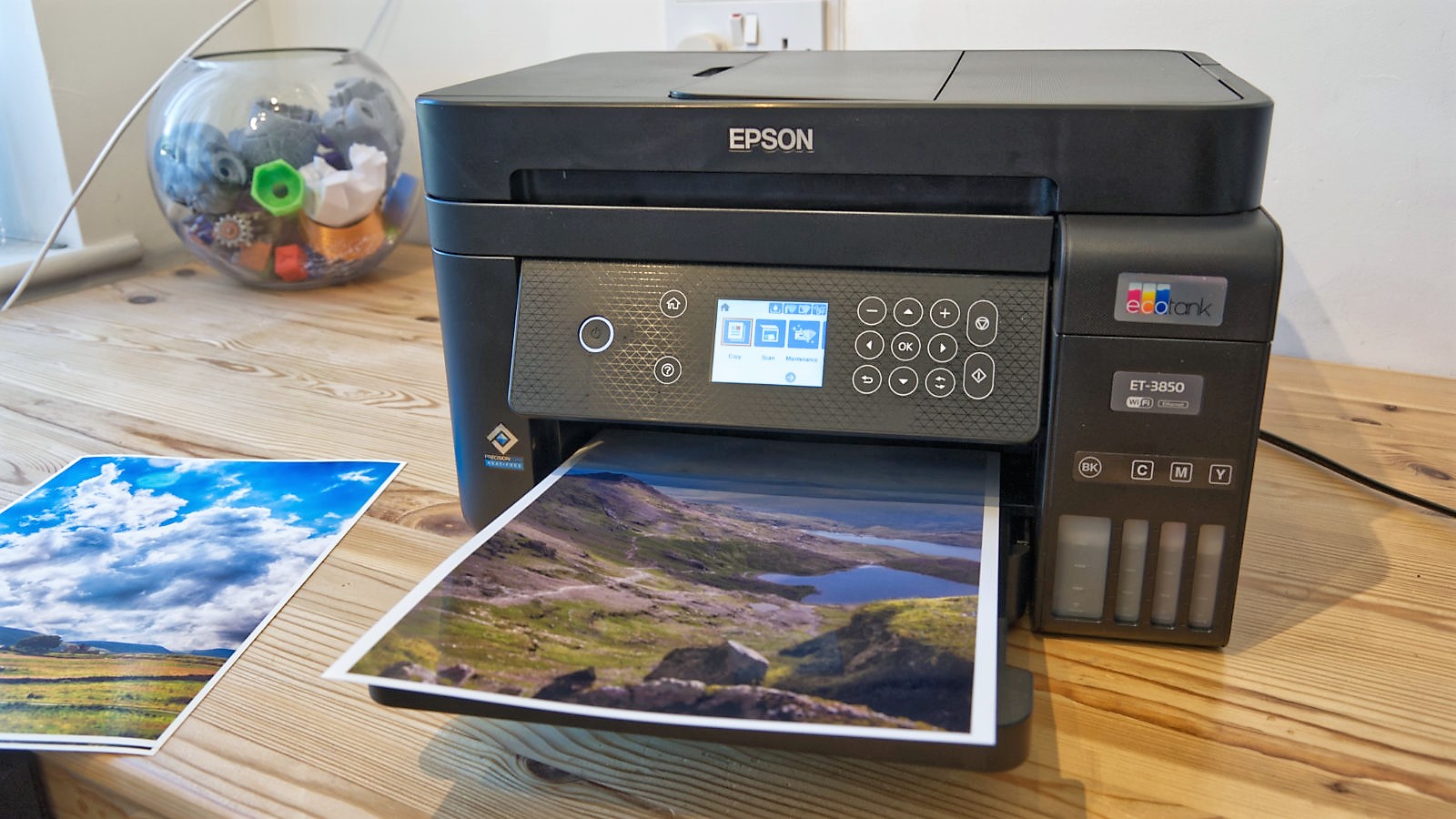
5. Epson EcoTank ET-3850 – Best Ink Tank Printer
Pros
- Cost per page is very low
- Good print speed
- Excellent print quality
Cons
- Pigment black isn’t ideal for photos
- Lack duplex copying
- One year warranty

Anyone against traditional cartridges should consider this EcoTank model from Epson. The ET-3850 offers high-quality printing at decent speeds while keeping the cost down, even if you’re printing A4 colour pages on a regular basis.
It’s more expensive to buy the device itself than cartridge rivals but may well work out better value in the long run. And it has virtually the same specs as higher-end EcoTank models, including the PrecisionCore print head.
One of the main practical downsides is that it doesn’t offer duplex printing and Epson only offers a one year warranty or 50,000 pages – whichever comes first.
Read our full Epson EcoTank ET-3850 review
6. HP Smart Tank 7605 – Best Small Office Printer

Pros
- Fax function
- Dual-band WLAN
- Touch display
- Additional XL-BK ink bottle
Cons
- Limited USB host functions
- No real off switch
If you’re looking for a great all-rounder then the Smart Tank 7605 is a hot contender with its wide range of functions and large amount of ink included in the box – enough for up to 12,000 pages.
It’s highly suitable for home or small office use, even if there’s a slight overreliance on the HP Smart app. Still, it can wirelessly print, copy, scan and fax, plus has an automatic document feeder.
The compact printer looks stylish and has a 3in touchscreen, the tank system keeps costs low and print quality is good. There’s little more we could ask for at this price.
Read our full HP Smart Tank 7605 review
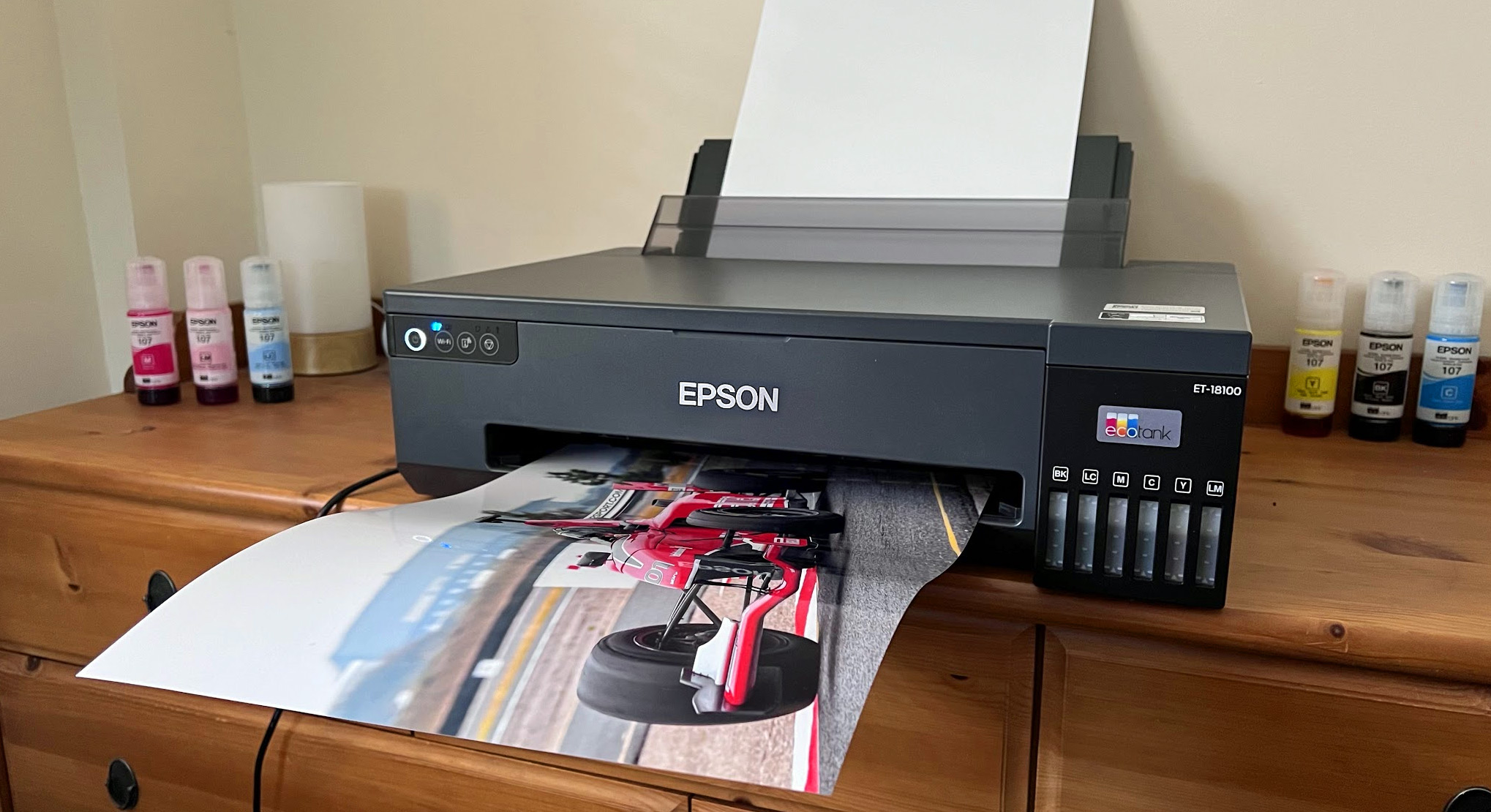
7. Epson EcoTank ET-18100 – Best Photo Printer
Pros
- Inexpensive photo prints
- Great print quality
- Mess-free ink refills
Cons
- No display
- No scanner / copier
- Expensive to buy
The ET-18100 has niche appeal because it’s been designed with a particular user in mind.
If you want to print a lot of photos at up to A3 sizes without breaking the bank, then you’re the target market. The printer itself is costly, but the ink tank design keeps running costs down.
The mess-free design is great and refill bottles are better for the environment, too. Print quality is excellent but as mentioned, you will need to print a lot of photos to justify this model.
With no display or copier/scanner functions, this isn’t an all-rounder.
Read our full Epson EcoTank ET-18100 review
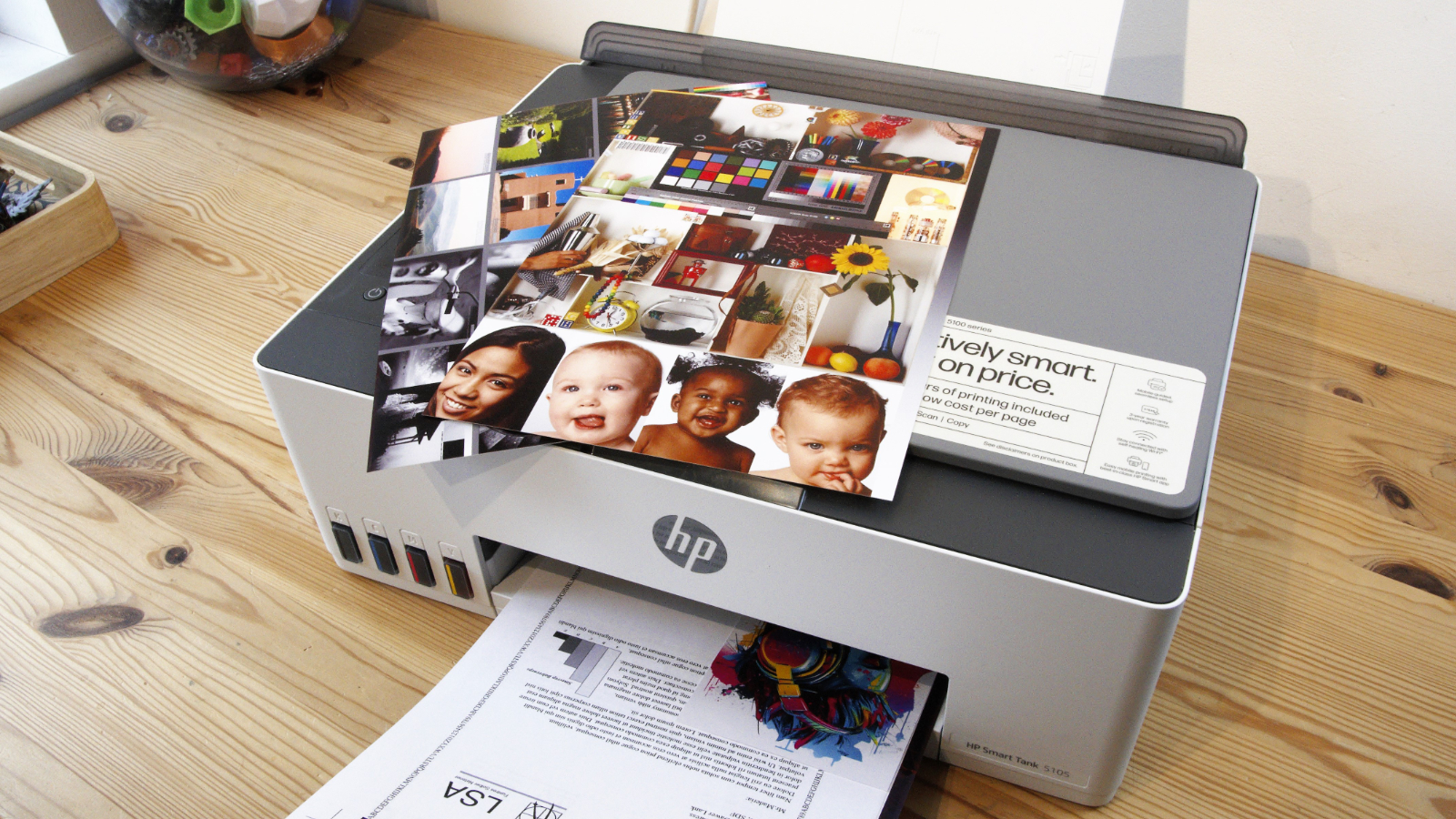
8. HP Smart Tank 5105 – Best Value Ink Tank Printer
Pros
- Cheap running costs
- Borderless on A4, A5
- Ink tank sensors
- Affordable printer
Cons
- Flimsy
- Awkward paper path
- Only 50ml coloured inks included
- No display
It’s great to see HP taking on Epson at ink tank printers and the 5105 is a practical solution for any home or small office customer that would like to worry less about the cost of printing.
Normally there’s a high initial price for the printer with an ink tank model but HP offers good value here, even if the supplied colour bottles are only 50ml and the build quality is on the flimsy end of the scale.
There’s also no display and this isn’t the fastest printer around either, but the quality is good for a range of tasks including surprisingly vibrant photos, and you can print borderless on A4 and A5 sheets.
It’s not all singing, all dancing but if a value for money ink tank printer is what you need then the 5105 is worth a look.
Read our full HP Smart Tank 5105 review
9. Epson Ecotank ET-8500 – Best Value Photo Printer
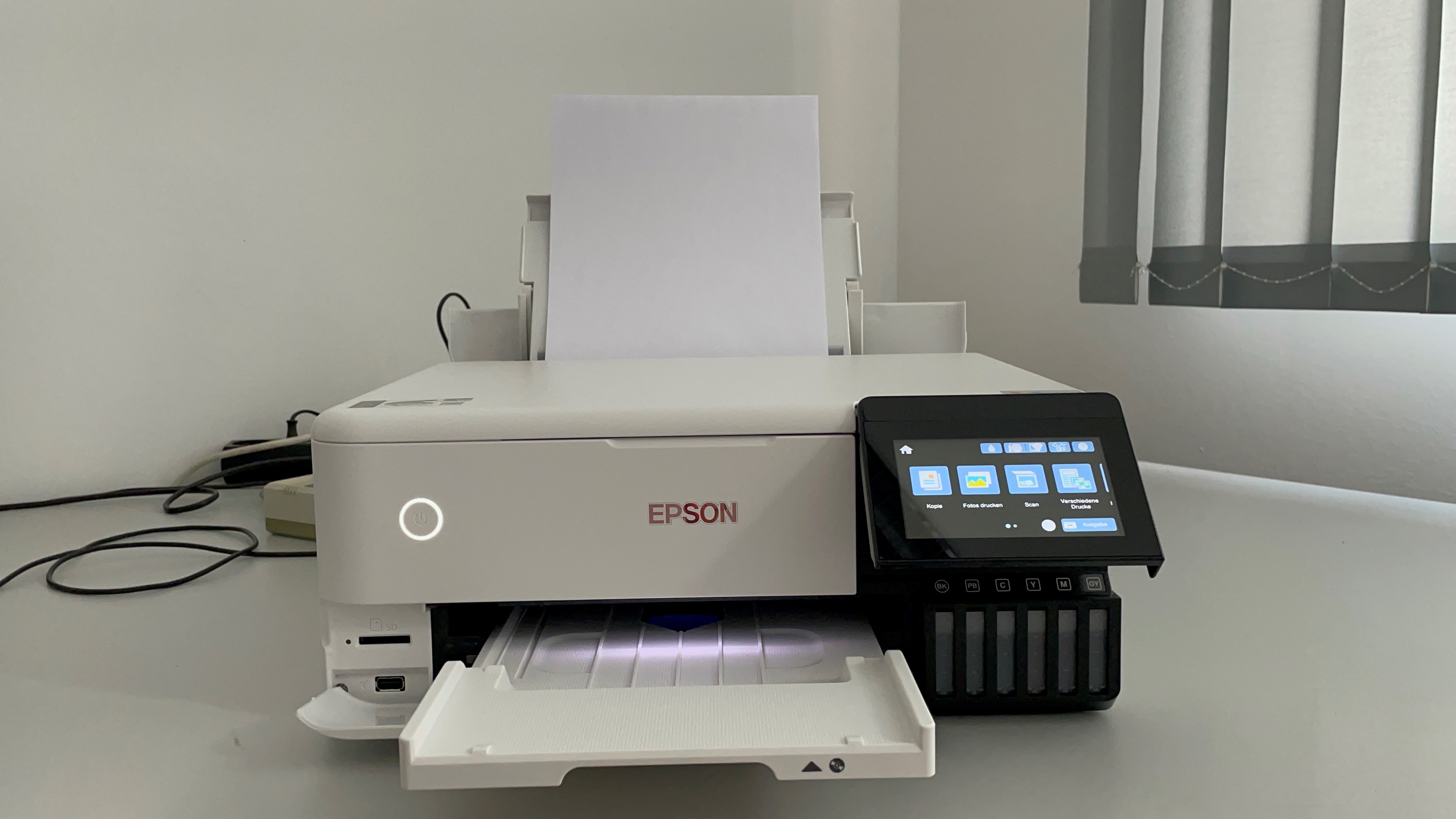
Pros
- Very high print quality
- Top for greyscale photos
- Processes many types of material
- Very low cost per page despite 6 colours
Cons
- No real off switch
- High purchase price
If printing photos is your thing, then the EcoTank 8500 is an excellent choice as this printer is designed for the task, although it can do regular printing and scanning as well.
It’s a fairly expensive printer at first but if you’re planning to print a lot of images then it should work out as a good investment in the long term with reliability and print costs.
Importantly, print quality is excellent and you can print on a variety of materials including fine art paper. It’s also got a large 10cm screen and no less than three different paper feeds.
Read our full Epson Ecotank ET-8500 review
10. Brother DCP-L3510cdw – Best Laser Printer

Pros
- 2-sided printing
- Decent performance
Cons
- Single-sheet scanning
- No colour screen
- Running costs
If you don’t need to print photos on photo paper but instead need a printer primarily for documents then a laser is a great choice.
The Brother DCP-L3510cdw uses LEDs instead of a laser, but it’s very similar and can reliably handle lots of printing with crisp quality at a decent speed.
You’ll need more room for it than a typical inkjet printer but running costs over the long term are more affordable and with Brother’s EcoPro subscription you get the printer for just £1.20!
This model has a basic LCD screen but still has useful features including 2-sided printing, a single-sheet scanner and Wi-Fi, complete with AirPrint support.
Read our full Brother DCP-L3510cdw review
How to choose a printer
There’s no single printer that will suit everyone, so while the list below is ordered it’s best not to worry too much about the number beside it. We’ve mixed together home and business printers, multifunction, colour and mono.
Inkjet vs laser
Printers come in two main forms: inkjet or laser, with colour and mono flavours of each. Lasers tend to be more expensive to buy, but provide better quality output, particularly where lots of text is involved. And they can be faster. Notice we said ‘tend’ – lasers aren’t always best.
As a basic rule, if you need to print only text, and a lot of it, a mono laser printer will offer the crispest text output and the best combination of fast page-per-minute output and low ink costs. If you need to print photos, choose an inkjet printer. A dedicated photo printer with individual cartridges for each colour will suit those who print only photos.
If you’re working from home and need to print a lot, a laser printer is likely going to be a better option.
You can also read our more in-depth comparison of the pros and cons of each type of printer .
What are printer running costs?
When buying a printer, remember that the price you pay in the store is just the beginning. Be sure to consider the cost of replenishing toner and other consumables over the lifetime of the printer. This is particularly important if you print a lot. A set of toner cartridges can easily approach the cost of a colour laser printer.
Most manufacturers quote a ‘page yield’ estimate for their ink cartridges, which is the typical number of pages you can expect to print before the cartridge runs out of ink. You can use the page yield to calculate the average cost per page and you’d be surprised to find how much this can vary from one printer to another.
Of course, if output quality matters more to you than cost, scoot over to the other end of the cost spectrum where there are more specialised printers that use five or even six inks for printing photographs. Those additional inks can produce excellent results for your photo prints, but they add to the cost, sometimes pushing the cost for photos up to 10p or more per page.
Some brands offer a cartridge subscription service, like HP’s Instant Ink , to keep costs to a minimum.
What is a multifunction printer?
Most modern printers are multifunction ‘all-in-one’ devices that include a scanner too. This allows you to scan photos and other documents and convert them into digital files that you can store on your computer or share with friends or colleagues. You can also print copies of your scanned documents, allowing the printer to stand in for a photocopier too.
Some models even include a fax machine. If you require a scanner and a photocopier as well as a printer, you’ll save money by buying in all-in-one – but if a standalone printer suits your needs, you may be able to spend less.
What about print speed and features?
Speeds quoted by manufacturers are almost never matched by real-world performance. If you often need to print in a hurry, look for independent reviews when choosing your printer.
Other useful features to look out for include additional USB ports and memory card slots that will allow you to print photos direct from a camera.
High-capacity paper trays capable of holding hundreds of sheets of paper, or an automatic document feeder that can handle scanning and copying work while you go and do something more important, might be worth looking out for.
Double-sided printing is handy for halving your paper usage.
It’s also worth thinking about the bundled software that comes with your printer. Some printers include software that provides basic editing features, such as red-eye removal or adjusting the colour balance – some even allow you to perform simple editing tasks using controls on the printer itself.
Author: Chris Martin, Managing Editor, Tech Advisor

Tech Advisor Managing Editor Chris got his break as a reporter at infamous site The Inquirer and has been with us for more than 12 years. With a BA degree in Music Technology, audio is his specialism, but over the years he has reviewed all kinds of gadgets, from smartwatches to mesh Wi-Fi to coffee machines.
Recent stories by Chris Martin:
- Canon Pixma G4510 review
Home printers are working overtime for many people, with more of us than ever working from home. That means stock is hard to find along with decent deals but we’ve searched high and low for the best discounts nevertheless.
If your printer can’t cope or you’re sick of high ink costs, buying a new printer can solve the problem. We’ve rounded up the biggest bargains, and we also explain what to look for when buying a new printer.
With more demand than usual, printer deals are hard to find but here are the best ones in the US and UK.
What to look for in printer deals
It’s important to keep in mind that the price of the printer is just the beginning. You’ll also need to consider ink costs. Often what looks like a great value printer can turn out to be expensive in the long run because of expensive ink. Some manufacturers, including HP, now offer ink subscriptions which give you a fixed price for a certain number of prints per month, which makes it easy to know how much you’ll be spending.
Most modern printers are multifunction all-in-one devices that can scan and copy documents in addition to your standard printing capabilities. Some include a fax machine, too.
You can find printer reviews by category – choose from budget, laser, laser colour, inkjet and all-in-one models
Look out for Wi-Fi-enabled printers, as these are incredibly useful for when you need to print from your phone or a laptop. Also, consider whether they have USB ports or memory card slots for easier photo printing.
There are lots of different types of printers available, which can make it really tricky to decide which is right for you. It’s worth first noting that the printer market moves very slowly, so don’t be afraid of buying last year’s model.
Inkjet vs Laser
These are the two main printing technologies. An inkjet printer sprays tiny dots of ink onto paper and are generally cheaper than laser printers (though you may pay more in cartridges in the long run).
Laser printers, on the other hand, use a powdered ink called toner. The paper gets electronically charged to attract the ink into position. It’s then fused with heat onto the page. Laser printers work best for text and generally for printing quickly at high volume.
In terms of colour printing, inkjet printers can produce high-quality images but are usually slower. Colour laser printers, while faster than inkjets are more expensive to buy.
Ink cartridges might look cheaper than toner cartridges, but consider the cost per page: toner can often print 1000 pages or more, but ink might last only 100-200 pages. You can also use third-party toner which is much cheaper than genuine toner from Xerox, Samsung and others. Just make sure using it doesn’t void your warranty.
For more advice on which printer to buy, visit our best printer round-up .
Where to find printer deals
We’re bringing you our carefully curated list of the best printer deals right here, but here are a few retailers you can check out for yourself for printer deals:
US
- Amazon
- BestBuy
- Walmart
- Target
- Newegg
UK
- Amazon
- Argos
- Cartridge People
- Ebuyer
- HP Store
- John Lewis
- Ryman
- Currys
- AO
- Best Buy
- Box
- Scan
- Littlewoods
Where to find ink cartridge deals
Groupon often has discounts popular brands such as HP, Canon and Epson. See Groupon cartridge deals .
eBay is another place to check, though ensure you buy from an authorised reseller or a trustworthy source with a strong track record of positive reviews and ratings. See cartridge deals on eBay .
Author: Jim Martin, Executive Editor, Tech Advisor

Jim has been testing and reviewing products for over 20 years. His main beats include VPN services and antivirus. He also covers smart home tech, mesh Wi-Fi and electric bikes.
Recent stories by Jim Martin:
- The best 3D printers 2024
- Creality K1C review
- Bambu A1 review
It can be frustrating to have a great image on your Windows PC , but find that when you print out a paper copy the colours aren’t the same. There are a number of reasons this can happen – a badly calibrated monitor or printer, the type of paper you use, using old or incorrect printer drivers, or simply too many colours in the original image – but there are a few steps you can take to remedy the situation or at least improve it.
Here are the ways you can make the colours of your printed images match those you see on your PC or laptop display.
Before you plough on through the methods below, know that some printers simply cannot replicate the colours you see on your monitor. Many home printers have three or four colours to play with and these must be combined to produce the wide range of colours – the gamut – that are present in most photos. Printers aren’t all created equal and may not be able to reproduce subtle changes in colour or certain skin tones.
Also, bear in mind that laser printers are usually much worse at printing photos than inkjet printers.
Calibrate your monitor
Before fiddling with the printer settings, it’s a good idea to calibrate the colours on your monitor to ensure it’s displaying things the way it should. Part of calibration is to set your screen’s brightness and contrast so they’re at appropriate levels. If you have your monitor set to 100% brightness, images could look bright and punchy, but that isn’t what is sent to your printer: it may receive a darker version – the true version.
This is why monitor calibration is so important if you are keen to get the best colour match between screen and printer.
Windows 10 comes with a built-in calibration tool that takes you through the process step-by-step.
To begin, open the Start menu, type Colour Calibration into the search field, then select the matching result. Select the Advanced tab, then in the Display Calibration section click the Calibrate Display button.

When the calibration tool launches it will guide you through setting up the various elements of your display.

When you’re finished, choose Current Calibration to save the settings, then click Finish .
If you want to take things up to another level then you can invest in a hardware colorimeter such as the Spyder 5 Elite . This physically measures the output of your display, and adjusts everything accordingly. It’s only really for professionals or serious enthusiasts though, and will cost you £190/US$240.
Change your paper
One common complaint is that of dull or dark colours, especially when it comes to photographs. This can be enhanced by using the correct sort of paper. While normal printer paper (often called copier paper) is fine for general documents and things like that, you should really be using photo paper or specific bright white paper when printing images you’ve captured on your camera or phone.
Photo paper has a glossy sheen that makes colours appear brighter, plus the composition of the surface also affects the way the ink behaves. Don’t overlook this point: printer manufacturers work hard to ensure their paper matches their inks, so you tend to get the best results if you pair an Epson or HP printer with the same brand of paper.
You can buy photo paper in packs, but it will be more expensive than the normal sheaves of A4 you’d pick up for general use.
It’s also worth considering buying a higher quality printer paper than the normal one you might usually select. Look at the GSM rating on the pack, as this shows you how thick the individual pages are. As a general rule of thumb, the higher the GSM number the better the quality of paper, and in turn the higher the chance of you getting good results.
If your printer offers the software option to enter the specific type of paper you’re using, then be sure to do this, as it could again add some improvements to the final image.
Calibrate your printer
You don’t really want to be using generic calibration settings for a printer, as they are all slightly different. To get the best performance you’ll want to either open the printer application that came with your device, or visit the manufacturers site and download the appropriate calibration software.
Each will take you through the steps required to get your device up to spec, usually involving printing out sheets and then scanning them back into the printer itself.
Hopefully, with all these steps complete, you should find that your prints are much closer to those on your screen.
Again, if you want to go down the professional route then there are calibration tools available online, as well as ICC profiles on offer from a variety of photo specialists, but for most people, most of the time, the steps above should get close enough while keeping costs to a minimum.
For more ways to deal with paper related problems, check out How to fix printer problems and we also have a useful guide on how to print out photos using Windows’ built-in functions..
Author: Martyn Casserly, Contributor, Tech Advisor

Martyn has been involved with tech ever since the arrival of his ZX Spectrum back in the early 80s. He covers iOS, Android, Windows and macOS, writing tutorials, buying guides and reviews.
Recent stories by Martyn Casserly:
- Do you need antivirus on Windows 10 & 11?
- Do cheap Windows keys work?
- How to dual boot Windows
