Windows 11 is a much better operating system now than the version at launch, but these frequent updates haven’t been without their issues.
Several updates have included unexpected bugs that affect core Windows 11 functionality, and that’s the case again at the time of writing. As Windows Latest reports , the optional KB5022360 update from January 2023 has been causing app crashes on Intel-powered devices – particularly those with older graphics drivers.
This is an optional update, so it won’t be downloaded automatically in the background. Your best option is to skip it altogether, but what if you’ve already installed it and are having issues?
The good news is that there are six potential solutions. These are all worth trying, whether app crashes are linked to an update or caused by something else.
Restart your device
It’s the most suggested fix for a variety of issues, but also one of the most effective. A simple restart can get everything working properly again within a few seconds, so it’s definitely worth a try.
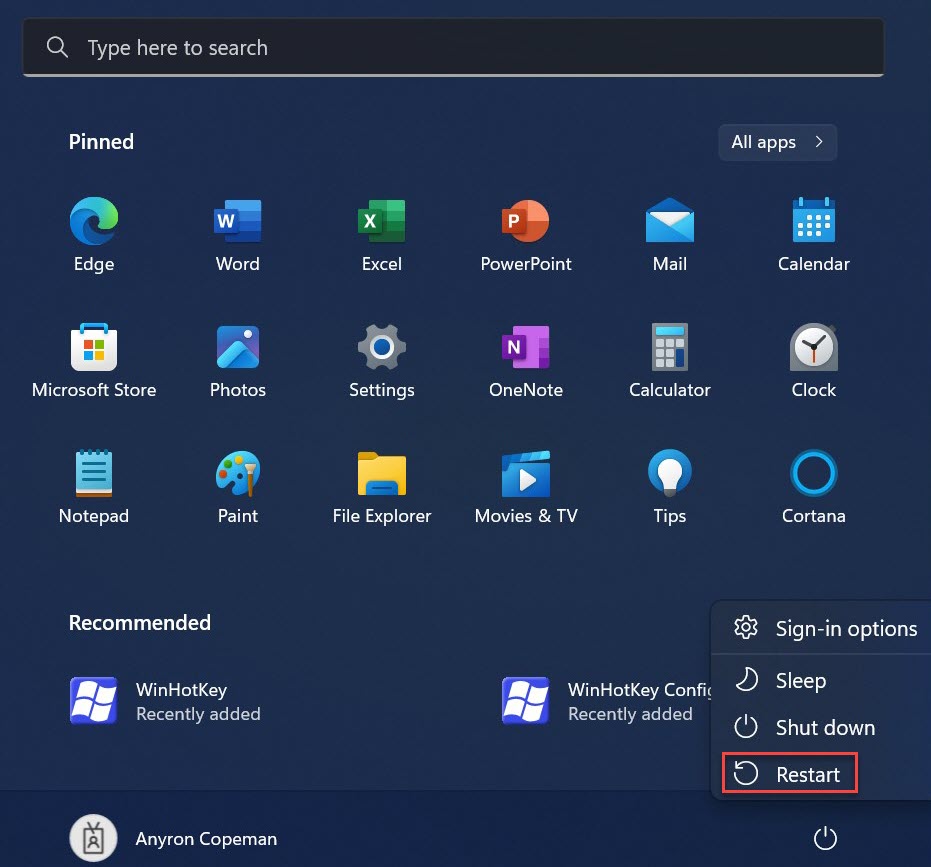
There are plenty of ways to restart your computer, but the easiest is by opening the Start menu, clicking the ‘Power’ icon in the bottom right corner and selecting ‘Restart’.
Anyron Copeman / Foundry
Check for Windows 11 updates
If a Windows 11 bug is widespread, Microsoft will be working on a fix as quickly as it can. By the time you’re reading this, a patch may have been released. Just make sure you’re not downloading version KB5022360 by mistake.
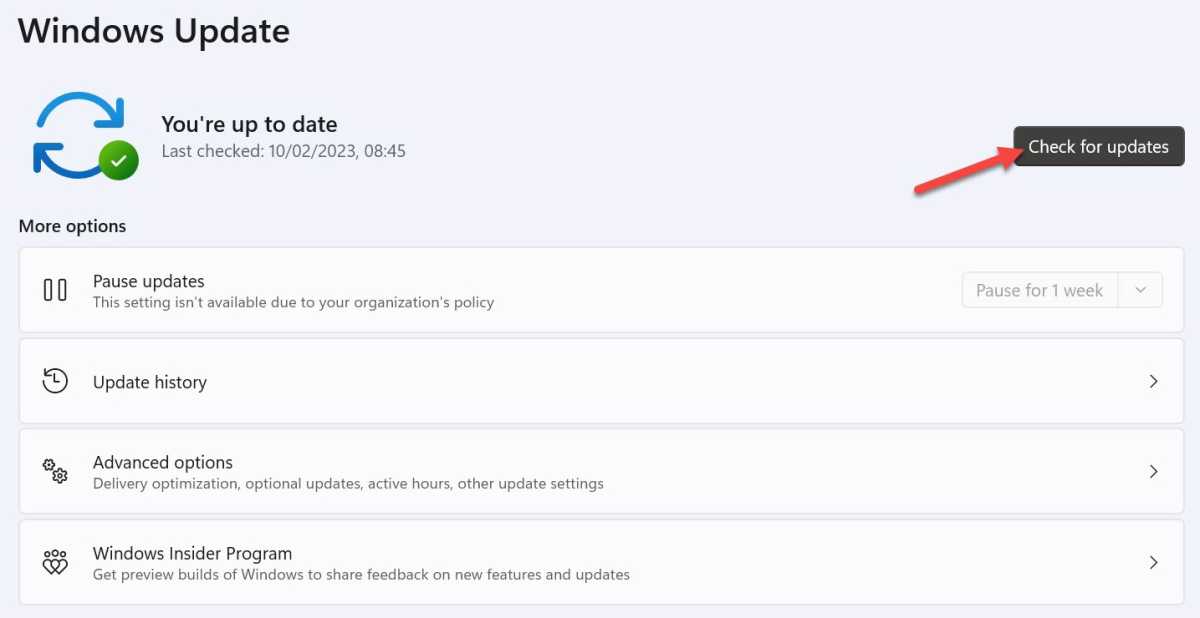
Head to Settings > Windows Update and click ‘Check for updates’. After a few seconds, any that are available will be displayed. Even if they don’t look relevant, click ‘Download now’ or ‘Download & install’, then restart your device to complete.
Anyron Copeman / Foundry
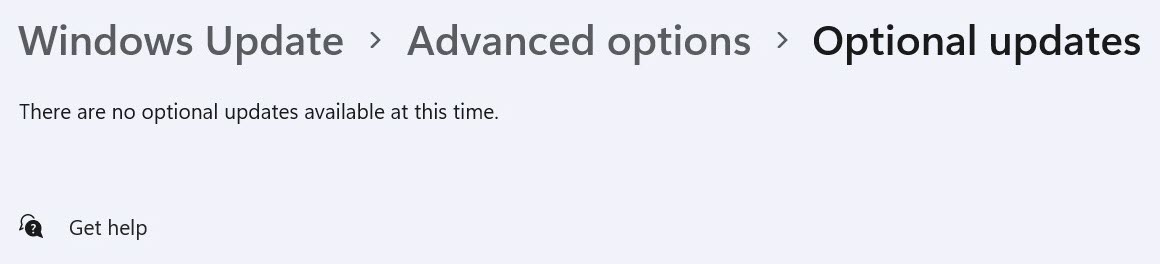
It’s also worth checking for optional updates. From Settings > Windows Update, choose ‘Advanced options’, then ‘Optional updates’. Again, download and install anything that’s available, then restart your device.
Anyron Copeman / Foundry
Check for relevant app updates
If only specific third-party apps that are crashing, the issue lies with them rather than Windows 11. Check for updates within the app itself or online – official Twitter accounts are usually a good source of information.
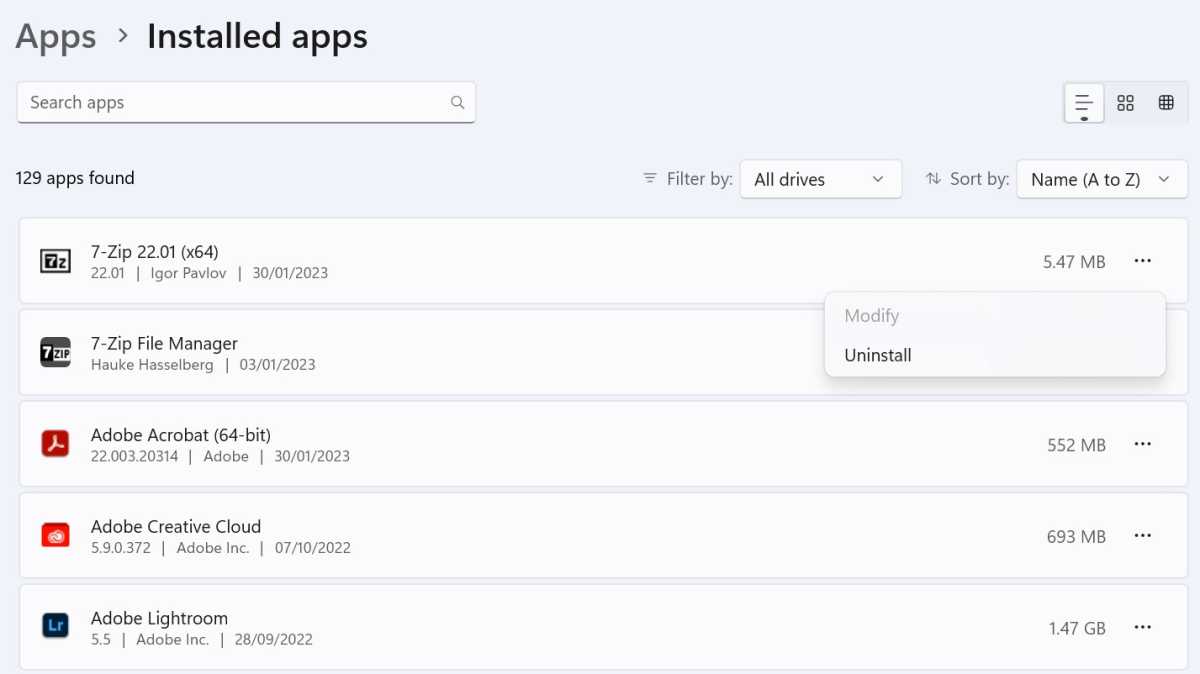
Can’t figure out whether you have the latest version? Simply uninstall it via Settings > Apps > Installed apps, then re-install it the same way you initially did, whether that’s via the Microsoft Store or the web.
Anyron Copeman / Foundry
Uninstall recent Windows 11 updates
However, if you’re confident that it’s a specific update causing app crashes, you can go ahead and uninstall it.
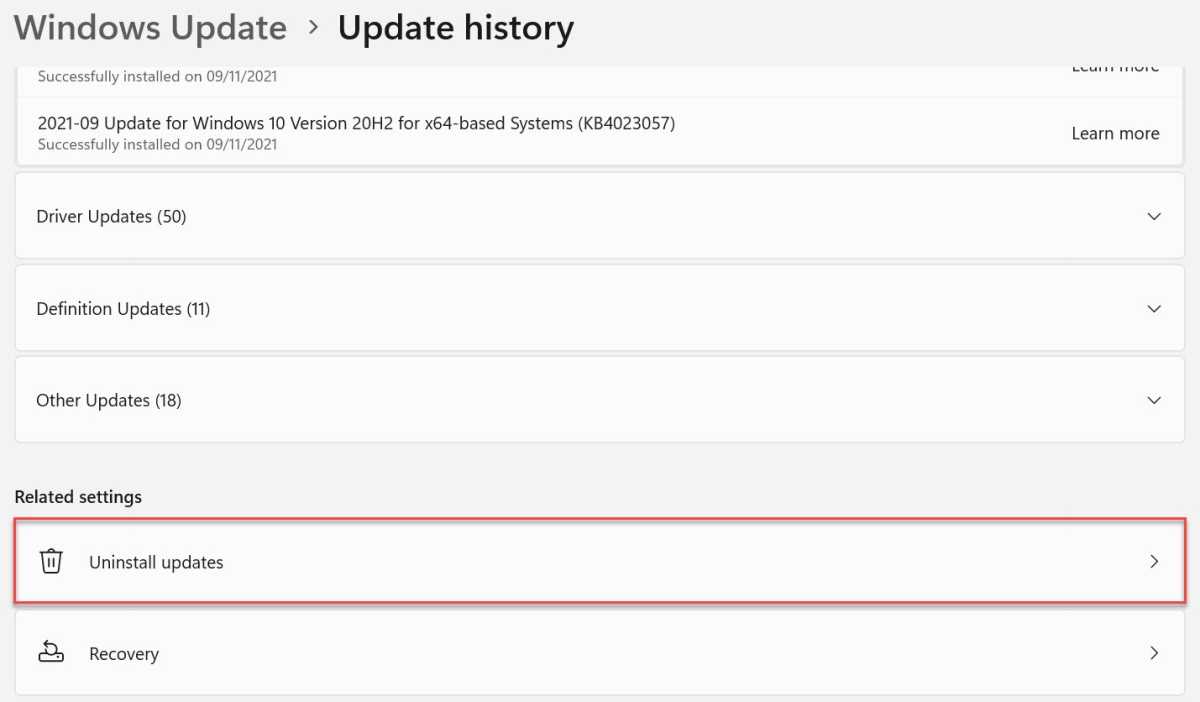
Head to Settings > Windows Update > Update history. Scroll all the way down to the ‘Related settings’ section and choose ‘Uninstall updates’.
Anyron Copeman / Foundry
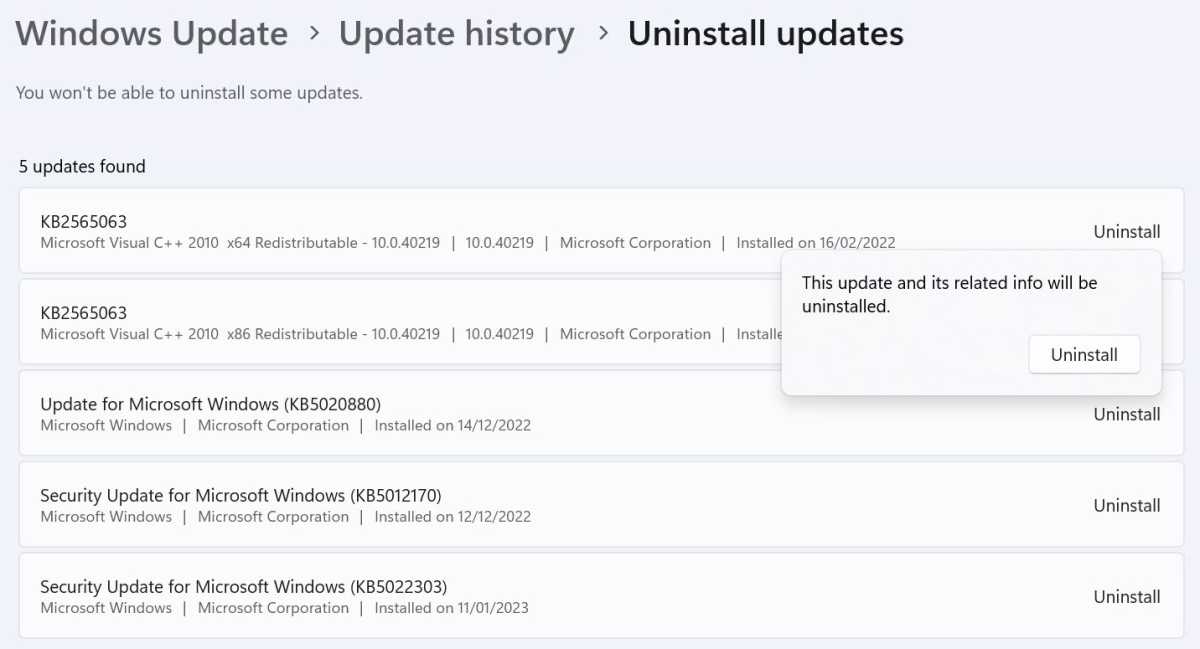
Next to anything you think might be leading to problems, click ‘Uninstall’, then ‘Uninstall’ once again to confirm. Follow the instructions, then restart to boot the previous version instead.
Anyron Copeman / Foundry
Check and fix corrupted files
Corrupted system files can often lead to app crashes. To check and then replace any with a working duplicate, you’ll need to use the SFC scan feature.
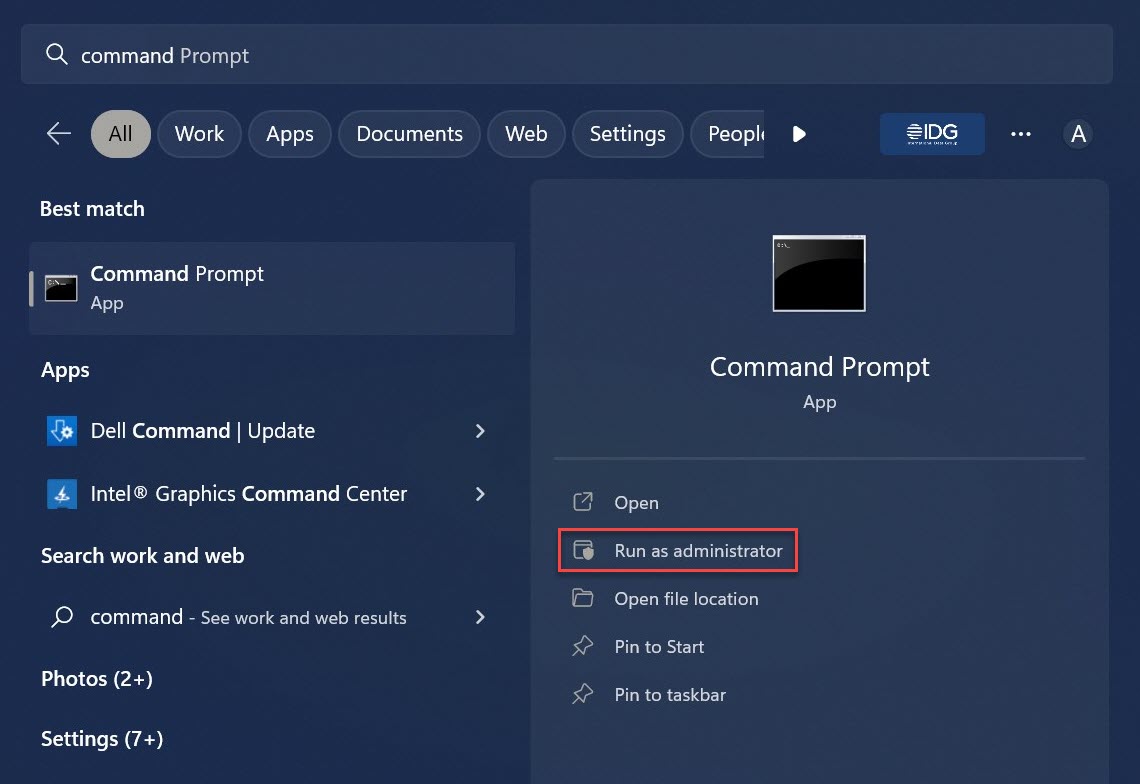
In the search bar next to Start menu, type ‘command’. With Command Prompt highlighted, click ‘Run as adminstrator’, followed by ‘Yes’ to confirm.
Anyron Copeman / Foundry
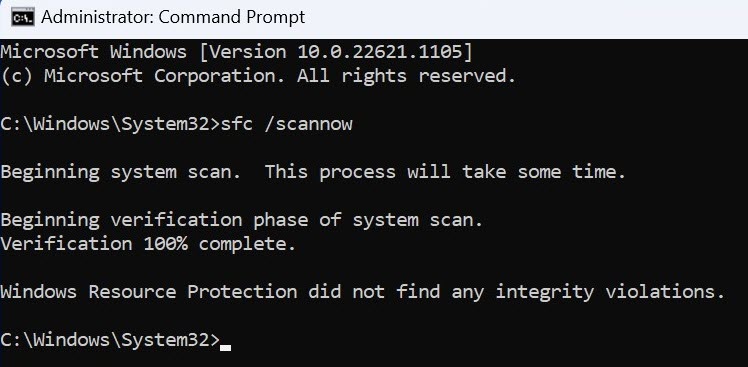
From the window that appears, type ‘sfc /scannow’ and hit enter. This will take a few minutes to complete.
If any corrupted files are detected, they’ll be removed automatically. But if you see a message saying ‘Windows Resource Protection did not find any integrity violations’, no issues were found.
Anyron Copeman / Foundry
Temporarily disable antivirus
Effective antivirus software is crucial on Windows 11, but it can interfere with the way some apps run. To see if it’s causing app crashes, it’s worth seeing what happens when you temporarily disable it.
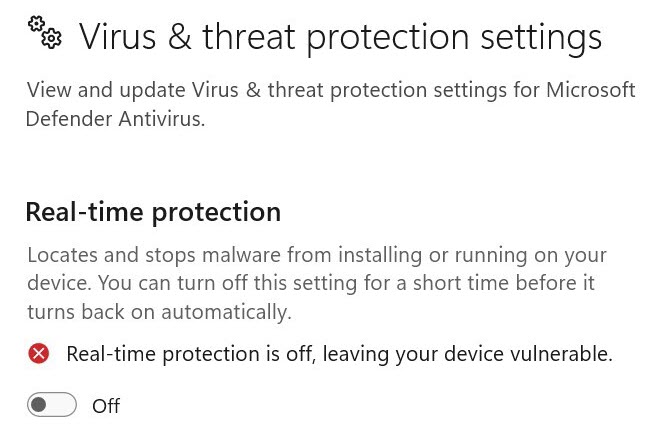
If you use the pre-installed Microsoft Defender, open the Windows Security app and select ‘Virus & threat protection’ from the left pane. Click the toggle labelled ‘Real-time’ protection to turn it off.
Anyron Copeman / Foundry
Try running a selection of apps which have been crashing recently to see if there are still issues. This will automatically turn back on after a ‘short time’, but you can use the steps above to make sure.
Of course, the method will look different if you’re using a third-party app. But if having real-time protection off appears to solve the problem, it’s worth switching to different antivirus software – at least for the time being.
- Windows 11 security update is causing app crashes, but there is a fix
- How to reinstall Windows 11 updates
- How to fix missing taskbar and Start menu in Windows 11
Author: Anyron Copeman, Mobile Editor, Tech Advisor

Anyron is Mobile Editor at Tech Advisor, where he’s been a mainstay of the editorial team since 2019. In his current role, Anyron is responsible for all smartphone, tablet and mobile network coverage on the site. A BA Journalism graduate, he has experience with a wide range of consumer tech products and services, including smartphones, tablets, foldables, wearables and more.
Recent stories by Anyron Copeman:
- Windows 11 23H2 update: Everything you need to know
- Windows 12: Everything we know so far
- How to get the Google Play Store on Windows 11
