Ever gone to join a meeting or watch a video, then realised the sound isn’t working? There are few things more frustrating, especially once you’ve figured out it’s your device causing the problem.
Annoyingly, there isn’t a one size fits all solution, either. You’ll need to strategically go through the steps below one by one, starting with the most obvious.
But whether you’re having issues with the internal speakers or connecting to external equipment, here are seven things to try on Windows 11.
Check your device isn’t muted
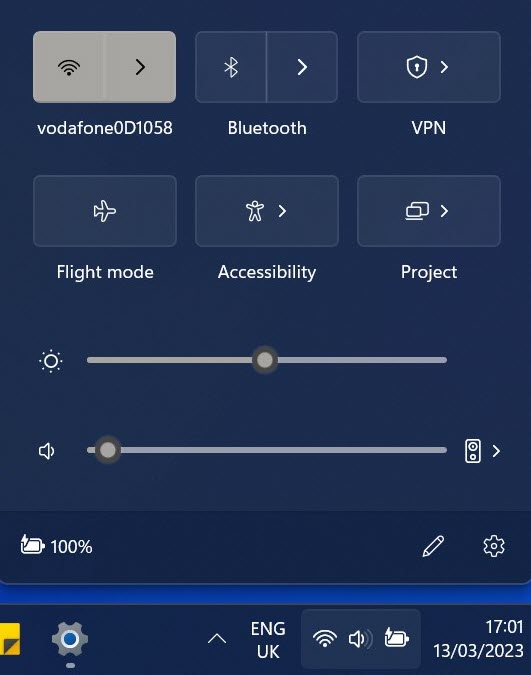
It sounds too obvious to mention, but it’s worth double checking that the sound is turned up to an audible level. Even at just 2% volume, Windows 11 doesn’t show the usual muted icon on the taskbar.
Anyron Copeman / Foundry
Click it or use the keys on your keyboard to increase the volume, then try playing the sound that wasn’t working again. It’s unlikely to fix the problem, but definitely worth a try.
Make sure correct output is selected
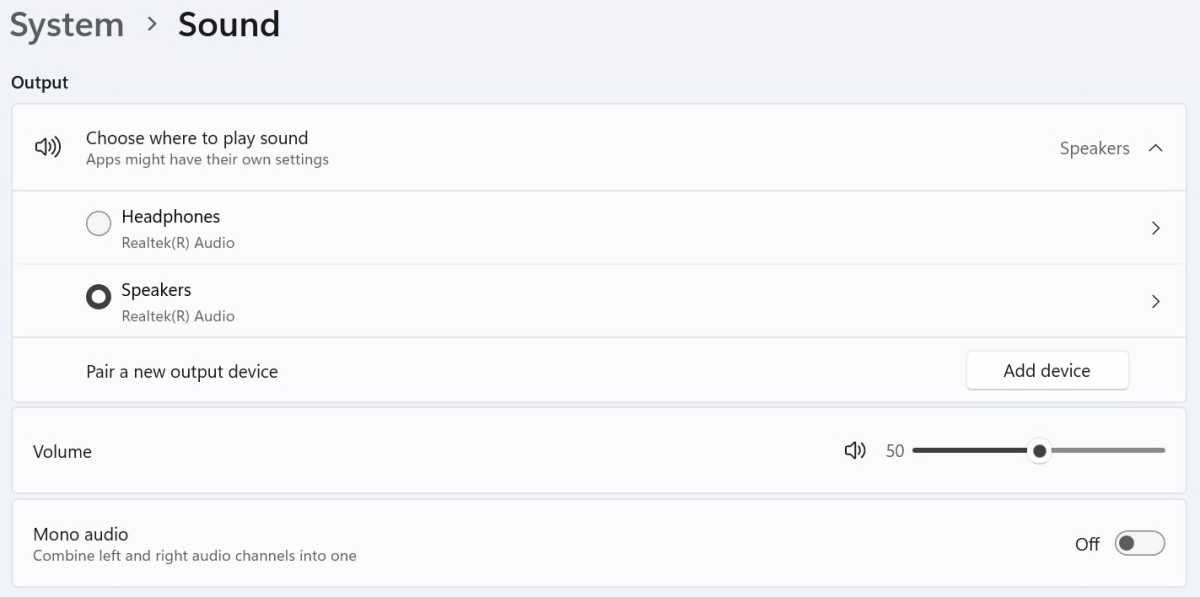
If you have audio equipment connected to your computer, Windows 11 may be selecting the wrong one by default. To check:
Head to Settings > System > Sound
Under ‘Choose where to play sound’, make sure your preferred device is connected. Then, make sure the volume slider below that is set to an appropriate level
Anyron Copeman / Foundry
Restart your device
Next, it’s time for the classic turning off and on again. It’s surprising just how many issues it solves – including those related to audio.
You probably know how to do this already, but if not:
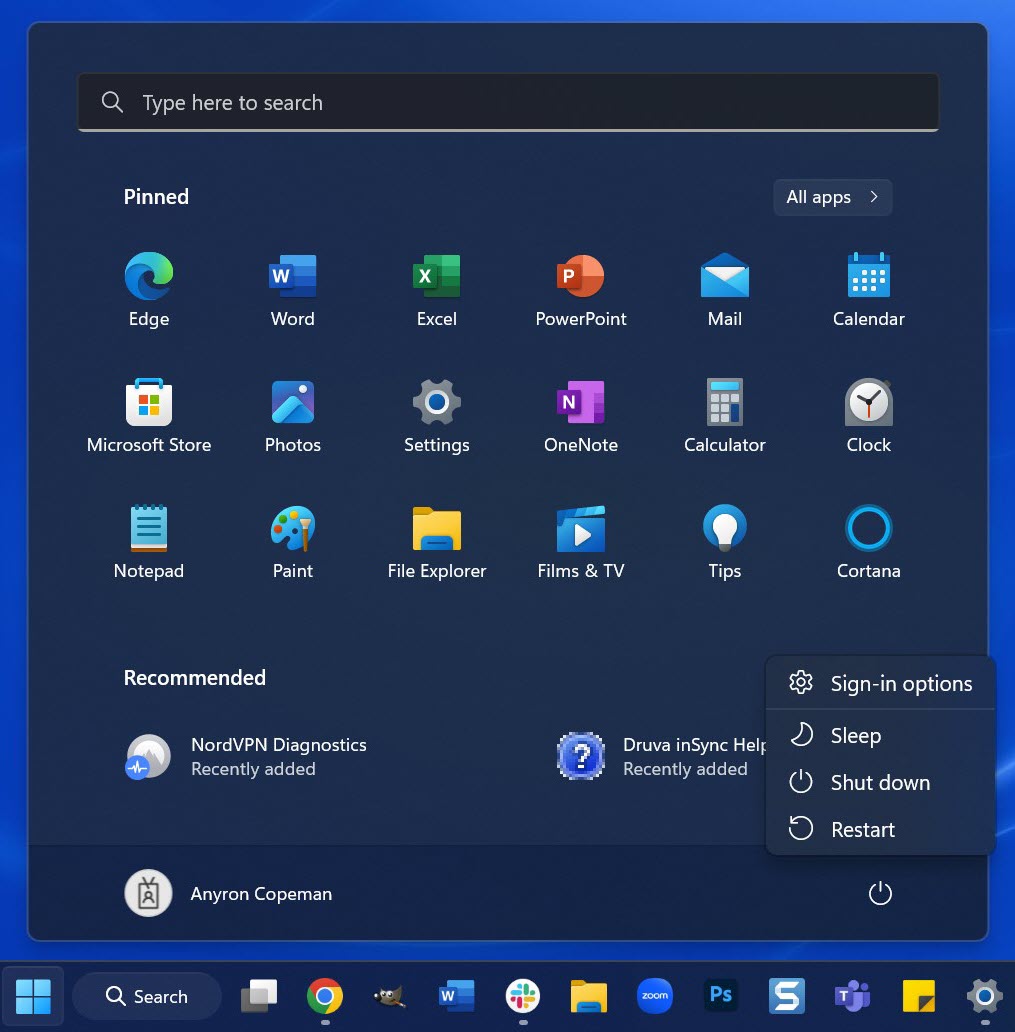
Open the Start menu
Click the power icon, which looks like a circle with a small vertical line
From the menu that appears, click ‘Restart’
Anyron Copeman / Foundry
After a few seconds, your device will be back up and running again. Try the audio to see if it plays properly now.
Check the app that’s not working
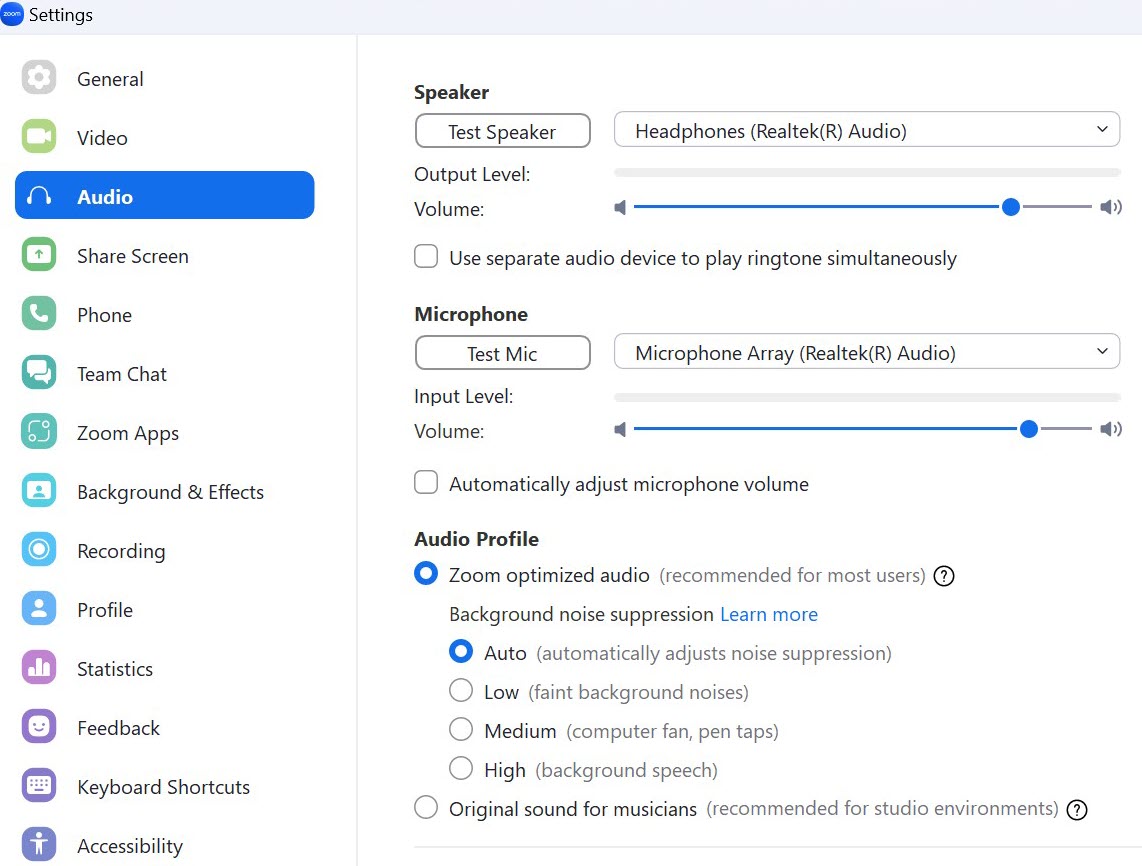
Is sound playing fine from one app, but not from another? If so, the issue is likely to be related to that specific app.
Almost every app which can play audio has a sound section. Find it and see if everything is working as intended. Some, such as Zoom (below) and Microsoft Teams, let you test what things sound like within the settings menu.
Anyron Copeman / Foundry
Run the troubleshooter
Microsoft has a range of troubleshooters built into the Settings app, and there are two related to audio. It’s worth running both to see if any issues are detected:
Head to Settings > System > Sound
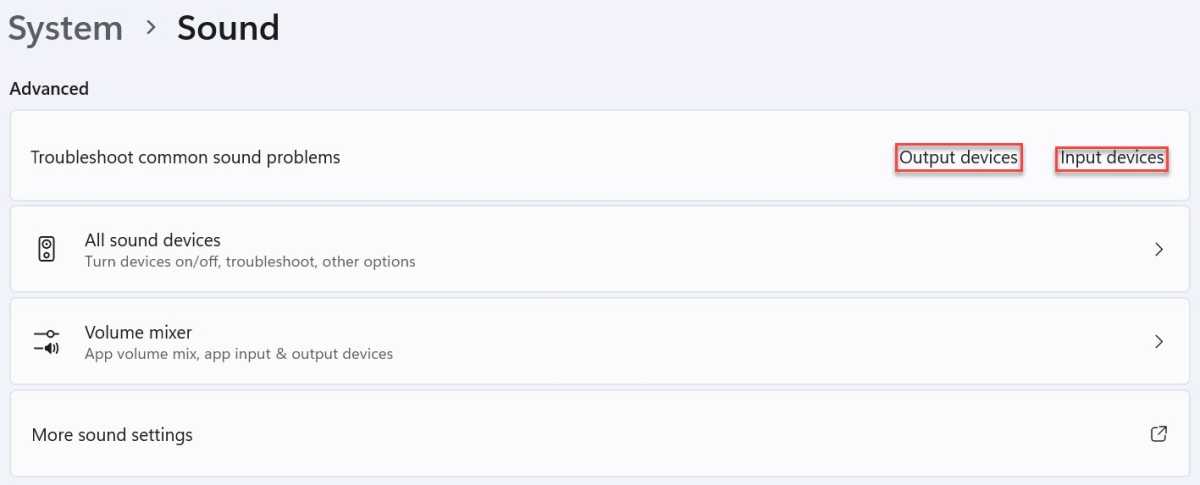
Under ‘Advanced’, find ‘Troubleshoot common sound problems’
Click ‘Output devices’ first, then ‘Input devices’ to run the respective troubleshooters. Each will search for related problems and fix any problems it finds
Anyron Copeman / Foundry
Check for driver updates
Most Windows 11 drivers update automatically in the background. But that might not be quick enough to avoid bugs and other issues. To manually check and install driver updates:
Open Device Manager
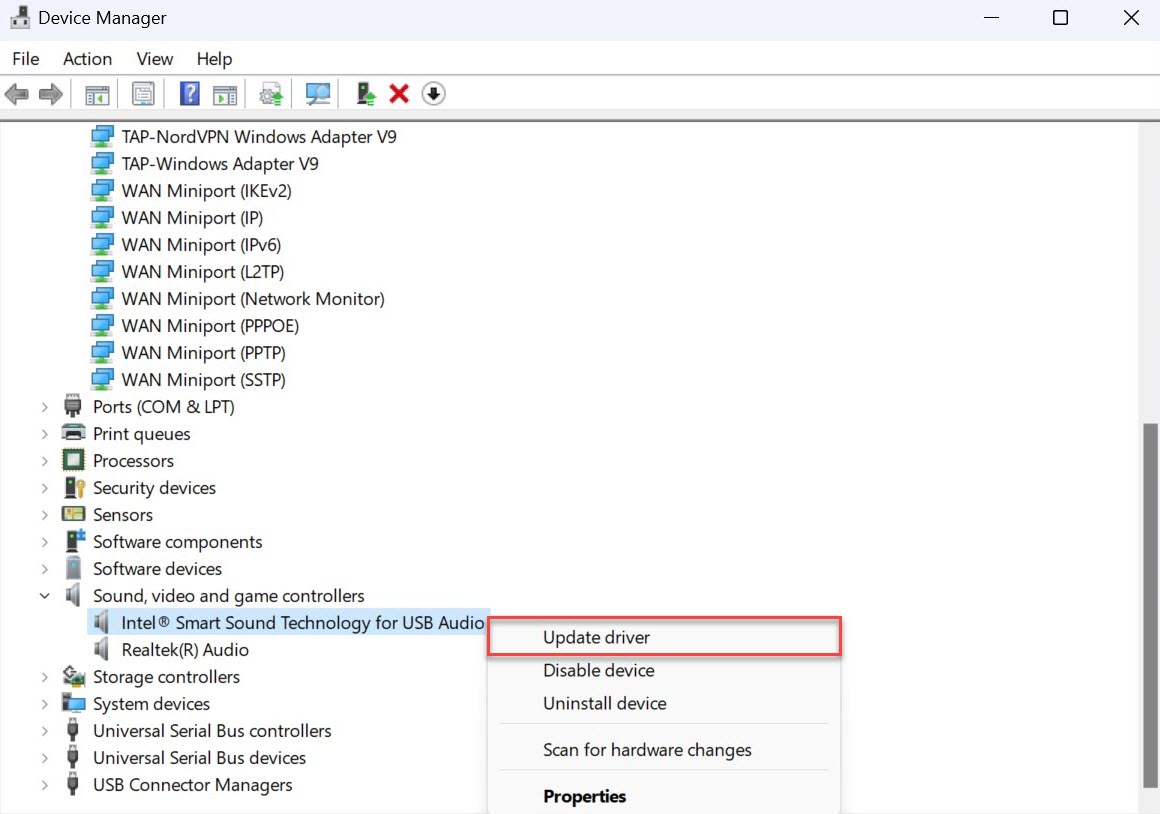
Scroll down to ‘Sound, video and game controllers’ and double click it
Right-click anything you see here and choose ‘Update driver’
Anyron Copeman / Foundry
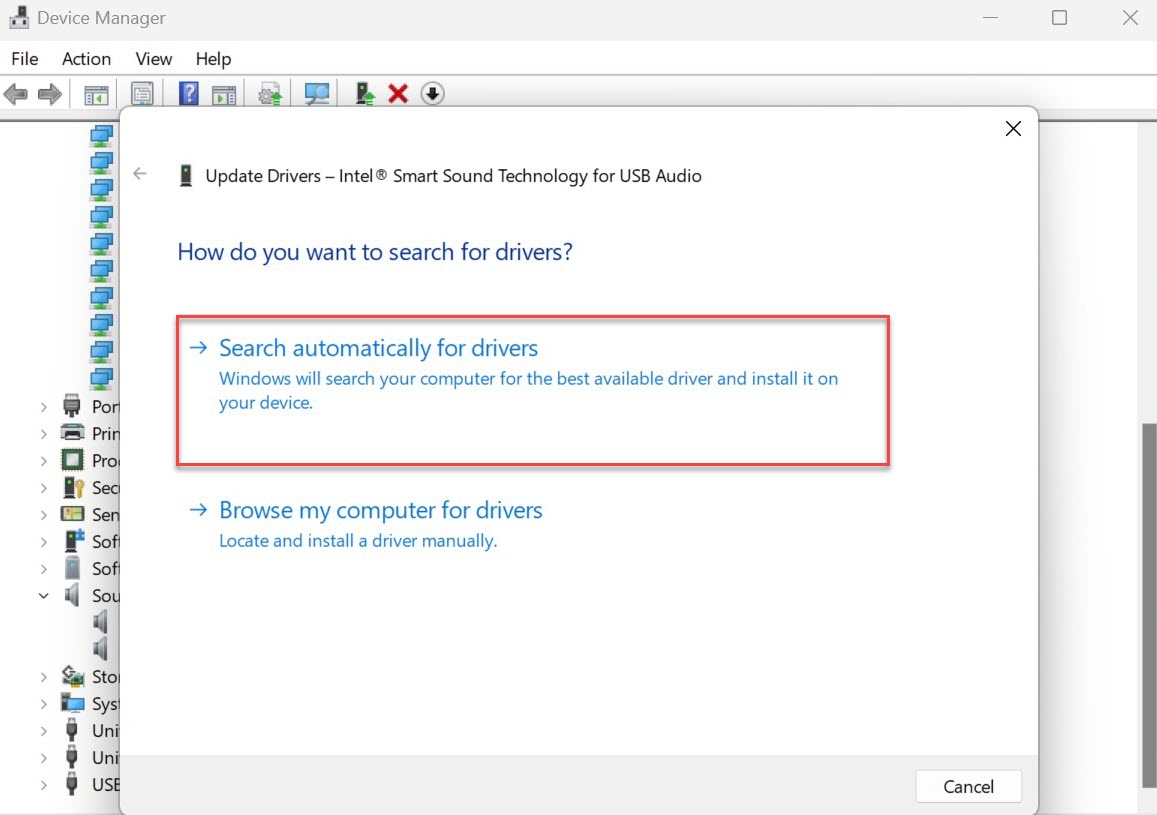
- From the pop-up that appears, click ‘Search automatically for drivers’
Anyron Copeman / Foundry
Within a few seconds, Windows 11 will find out if there are any updates to the drivers and install them.
Check for software updates
Audio problems may be caused by a bug in a specific version of Windows 11. Even if Microsoft doesn’t list it as a known issue, that doesn’t mean it doesn’t exist. To check:
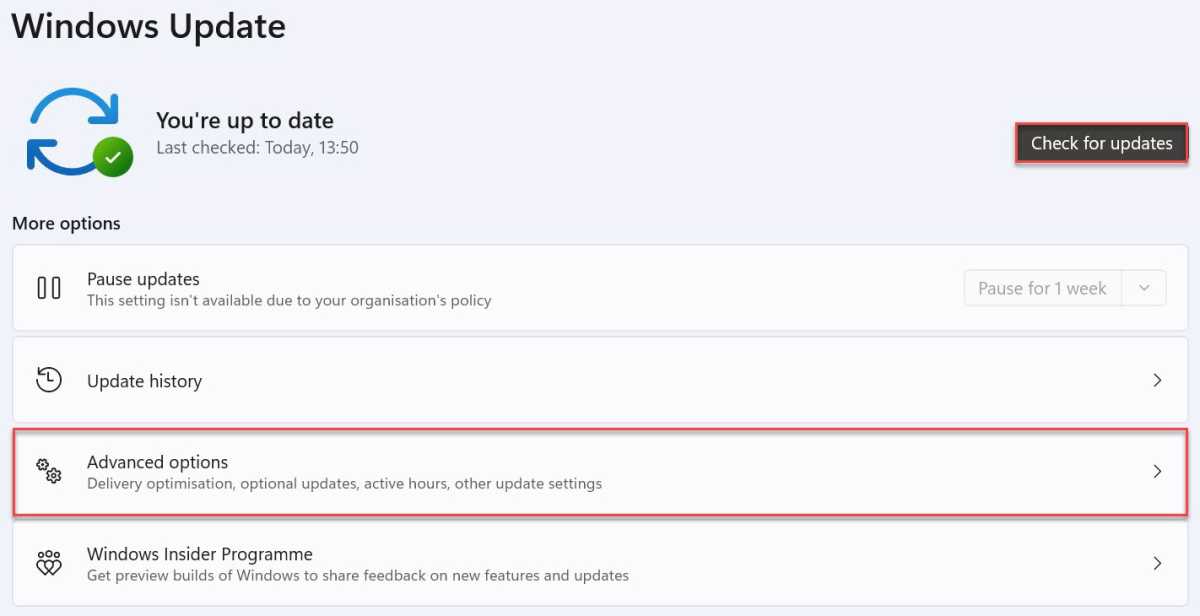
Head to Settings > Windows Update and clear any updates that are already there
Click ‘Check for updates’, then download and install anything which appears. This may take a few minutes, and you’ll need to restart your device to apply changes
Anyron Copeman / Foundry
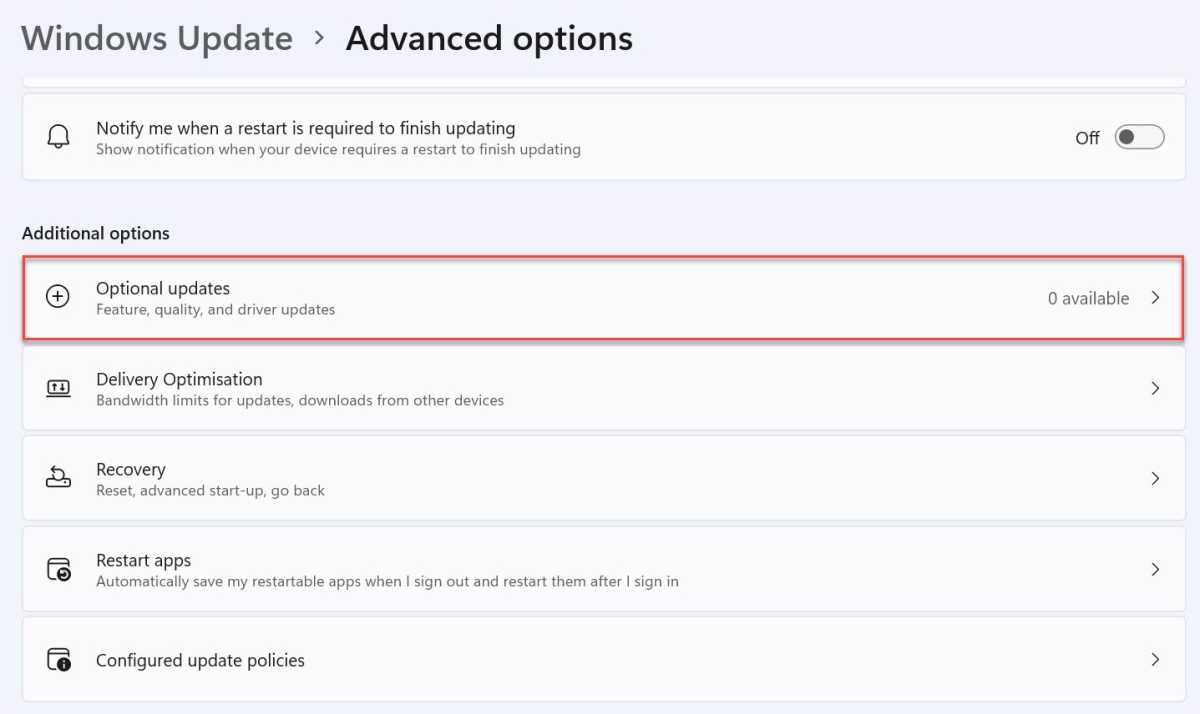
Head back to the Windows Update page and choose ‘Advanced options’
Under ‘Additional options’, click ‘Optional updates’, then download and install anything here. You may need to restart your device again
Anyron Copeman / Foundry
One of the seven solutions above should be able to fix the problem. If not, you may need to wait for Microsoft or the company behind the faulty product/app to release an update.
- How to fix sound problems in Windows 10
- How to fix microphone not working on Windows 10
- How to fix missing taskbar and Start menu in Windows 11
- How to fix internet connection problems in Windows 11
Author: Anyron Copeman, Mobile Editor, Tech Advisor

Anyron is Mobile Editor at Tech Advisor, where he’s been a mainstay of the editorial team since 2019. In his current role, Anyron is responsible for all smartphone, tablet and mobile network coverage on the site. A BA Journalism graduate, he has experience with a wide range of consumer tech products and services, including smartphones, tablets, foldables, wearables and more.
Recent stories by Anyron Copeman:
- Windows 11 23H2 update: Everything you need to know
- Windows 12: Everything we know so far
- How to get the Google Play Store on Windows 11
