Whether it’s connecting headphones to our phone or using a mouse on the computer, Bluetooth is something many of us rely on every day.
The ability to easily connect to wireless devices nearby is very convenient – but only when it’s working properly. Bluetooth issues are extremely frustrating, and if you’re reading this article, they’re probably affecting you right now.
However, all hope is not lost. There are plenty of Bluetooth problems in Windows 11 that can be solved without waiting for an update to fix it. Here are nine things to try.
Make sure Bluetooth is turned on
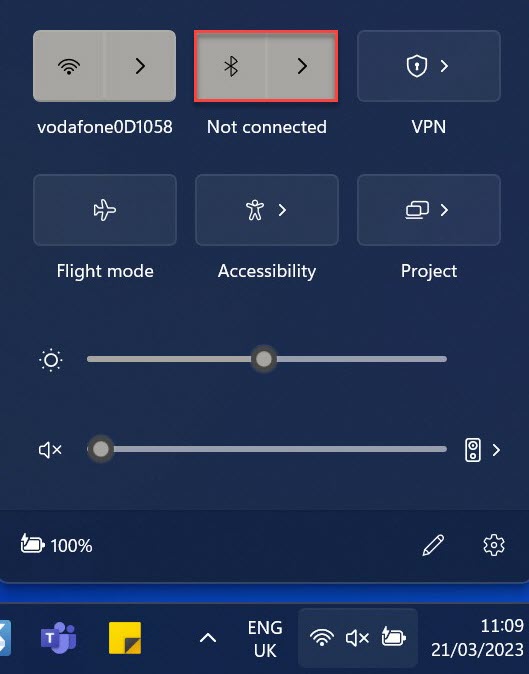
It sounds incredibly obvious, but it’s worth checking that Bluetooth hasn’t been turned off accidentally. If you’ve been adjusting the likes of volume, brightness and Wi-Fi in the Action Center, a single click or tap can turn off Bluetooth.
Click the Wi-Fi, volume or battery icons on the taskbar to bring up the Action Center, then see if the Bluetooth icon (highlighted in red below) is lit up. If not, click to activate, the select the right arrow next to it to see available devices.
Anyron Copeman / Foundry
Make sure Flight mode is turned off
Bluetooth can still work with Flight mode enabled, but it’ll automatically be deactivated each time you turn it on.
Head back into the Action Center and make sure the Flight mode icon (which looks like an airplane) isn’t lit up.
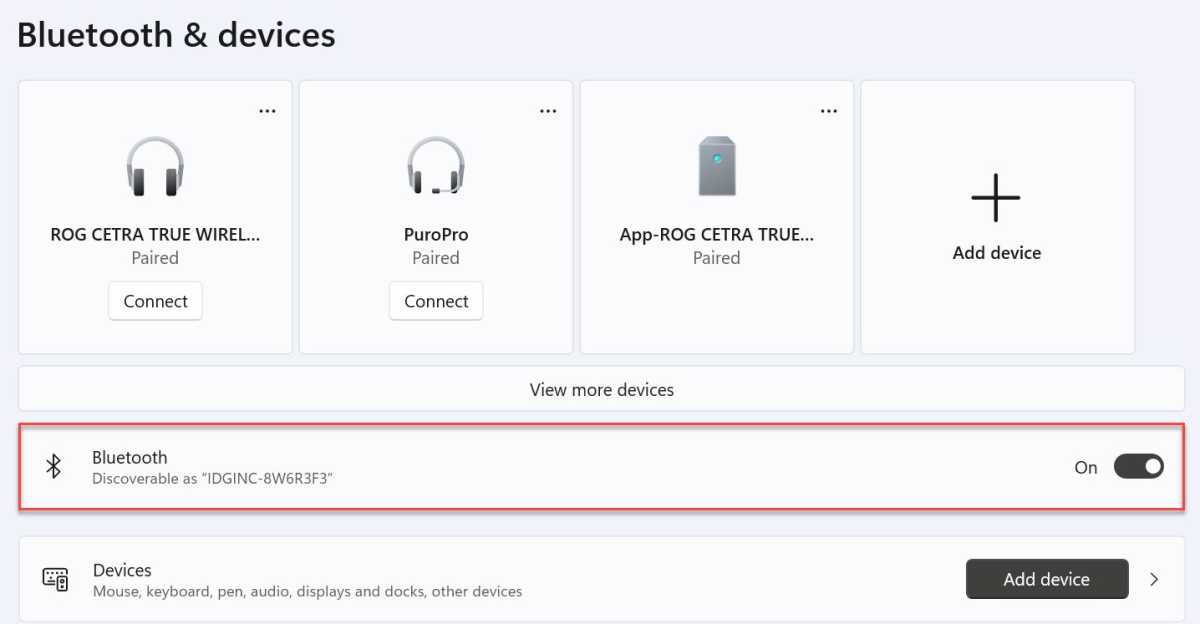
Turn on Bluetooth here, or via Settings > Bluetooth & devices. It’s also worth checking for a message saying ‘Discoverable as…’ – that indicates everything here is working as intended.
Anyron Copeman / Foundry
Restart your device
Another obvious one, but you might be surprised by just how many issues a simple restart can fix – including those related to Bluetooth:
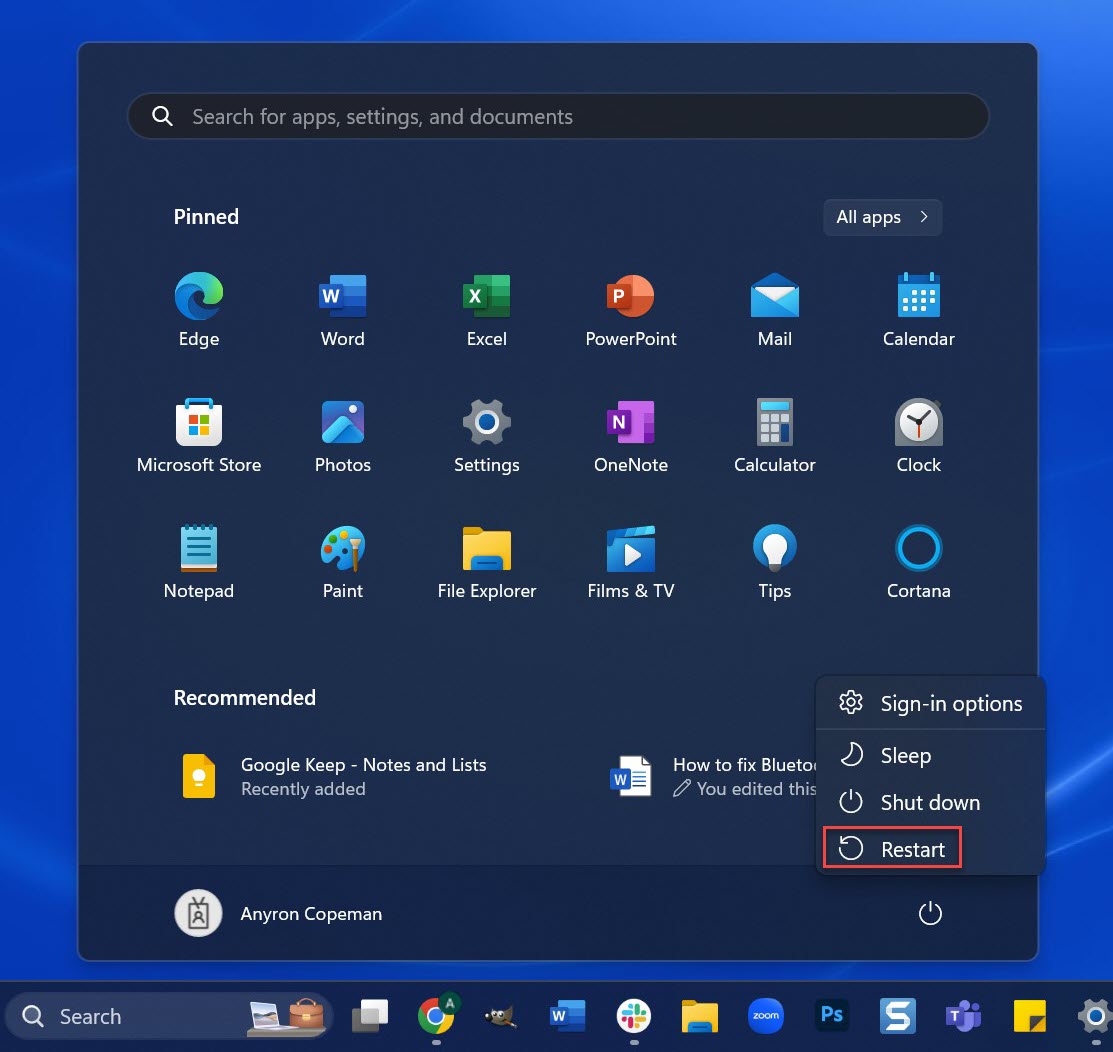
Open the Start menu
Click the power icon, which looks like a circle with a small vertical line
From the menu that appears, click ‘Restart’
Anyron Copeman / Foundry
Once your computer is back up and running, try connecting to a Bluetooth device like you normally would.
Run the Bluetooth troubleshooter
Windows 11 has various troubleshooters built into the Settings app, and Bluetooth is one of them. To run it:
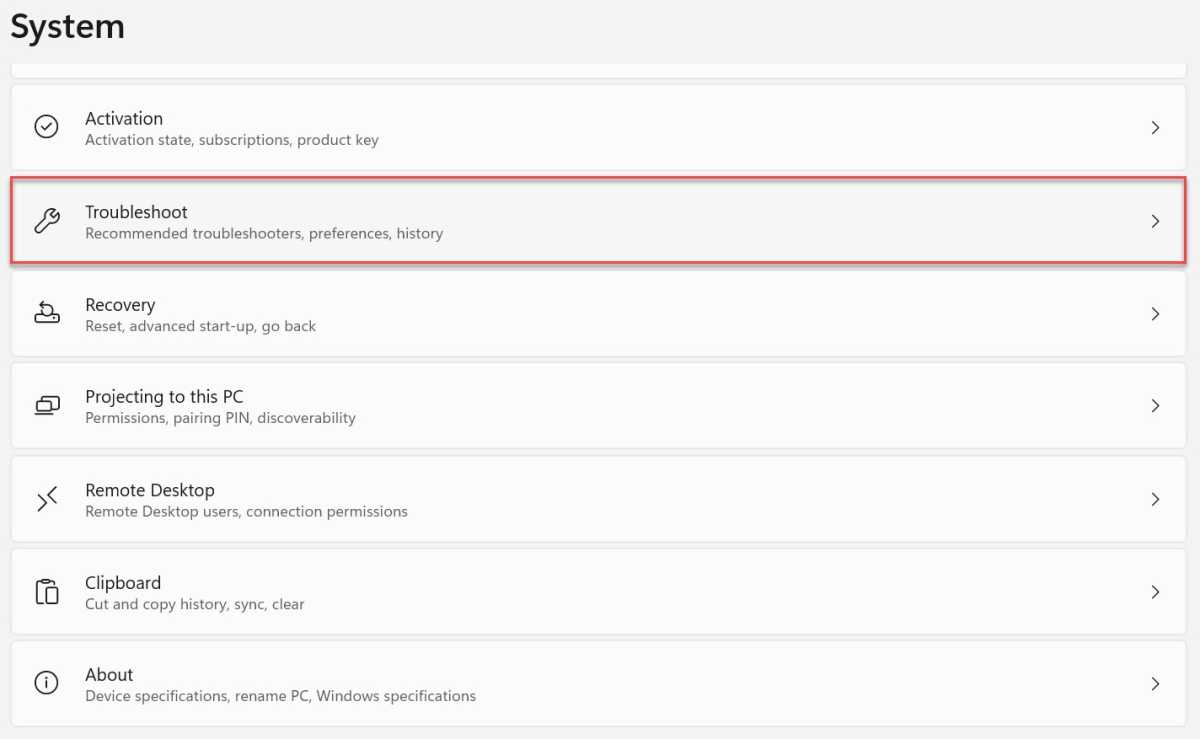
- Head to Settings > System > Troubleshoot
Anyron Copeman / Foundry
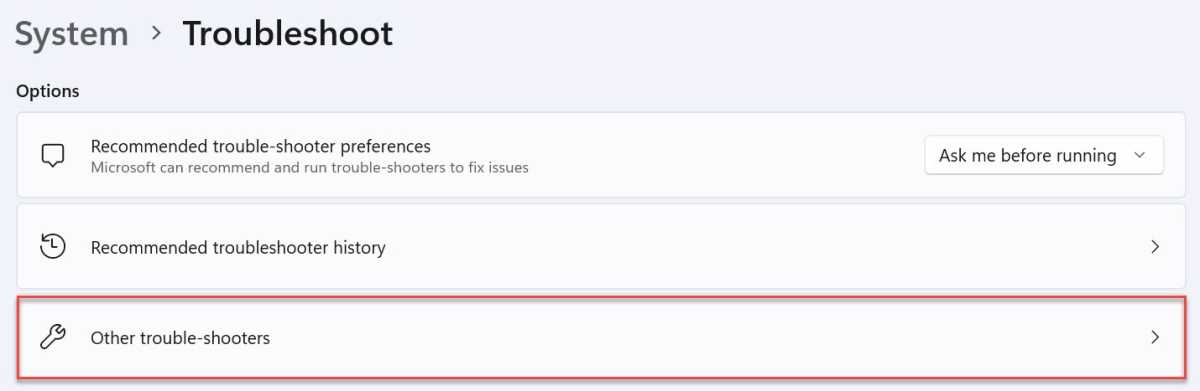
- Select ‘Other trouble-shooters’
Anyron Copeman / Foundry
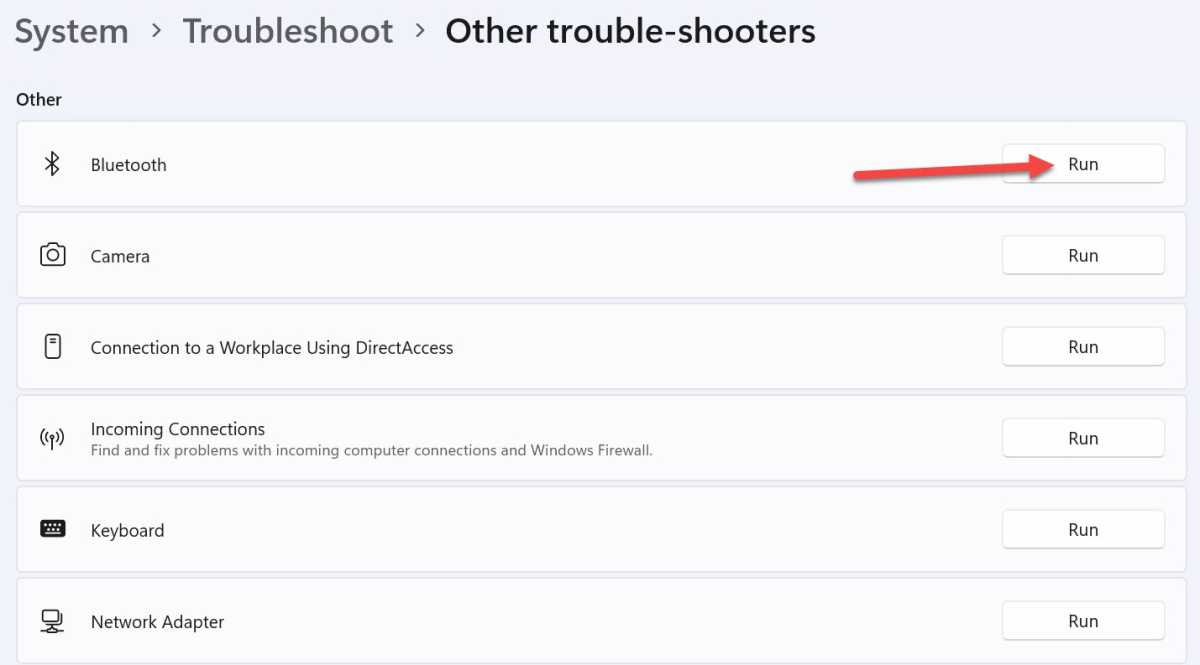
- Under the ‘Other’ sub-heading, you should see a Bluetooth option. Click ‘Run’
Anyron Copeman / Foundry
After a few seconds, the troubleshooter will be complete. If any problems have been found and fixed, see if Bluetooth is now working properly.
Restart Bluetooth services
The Windows 11 device itself isn’t the only thing you can restart. You can do the same thing with Bluetooth service, which may fix any issues with them:
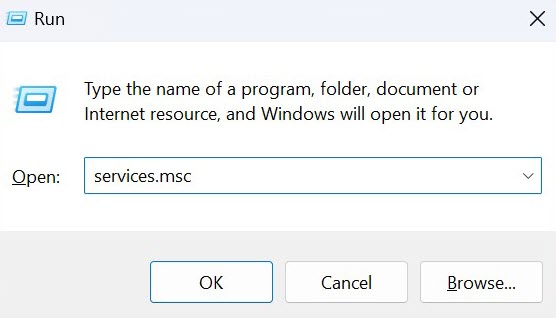
- Use Windows + R to open the Run menu, then type ‘services.msc’ and hit Enter
Anyron Copeman / Foundry
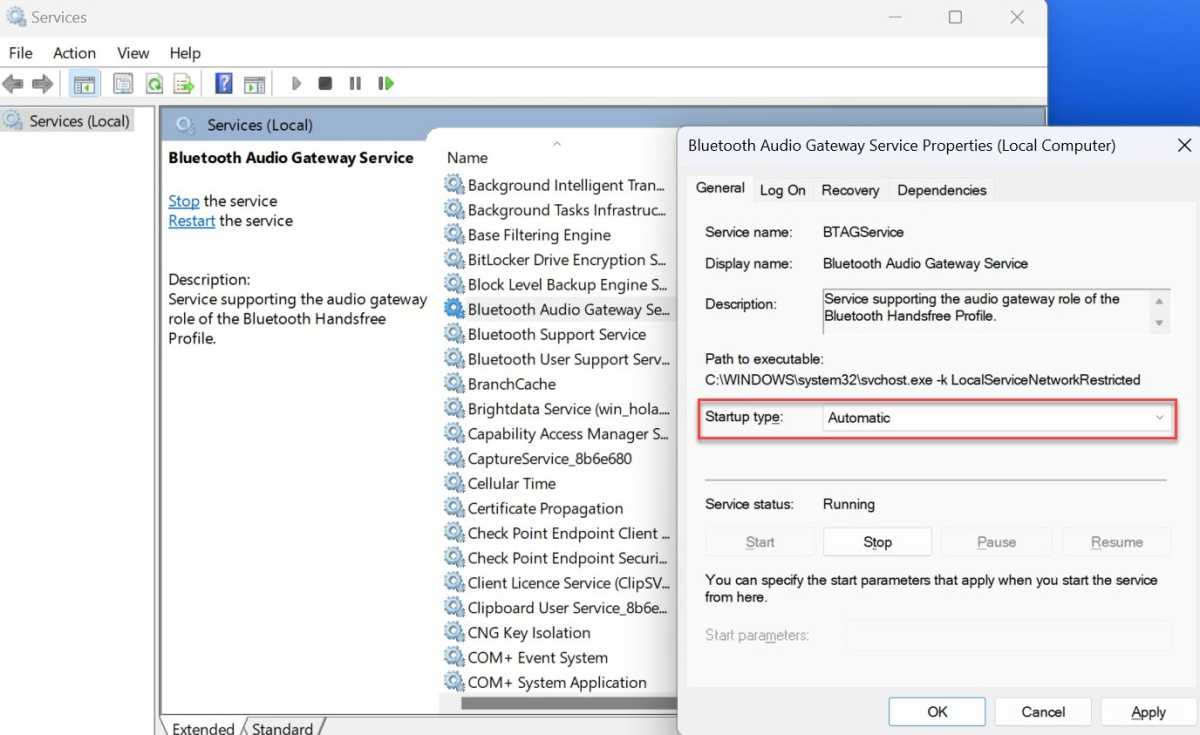
From the Services window that appears, find anything which mentions Bluetooth in the alphabetical list. There should be three in total: Audio Gateway, Support and User Support
Double-click each of these, then set the ‘Startup type’ to ‘Automatic’ and click ‘Start’ if it’s not greyed out. Click ‘OK’ to confirm
Anyron Copeman / Foundry
- Once all three have been completed, restart your device
Update Bluetooth drivers
Most Windows 11 drivers are updated automatically in the background, but there may still be updates that have yet to be installed. To check:
- In the search bar next to the Start menu, type ‘device manager’ and open the relevant app
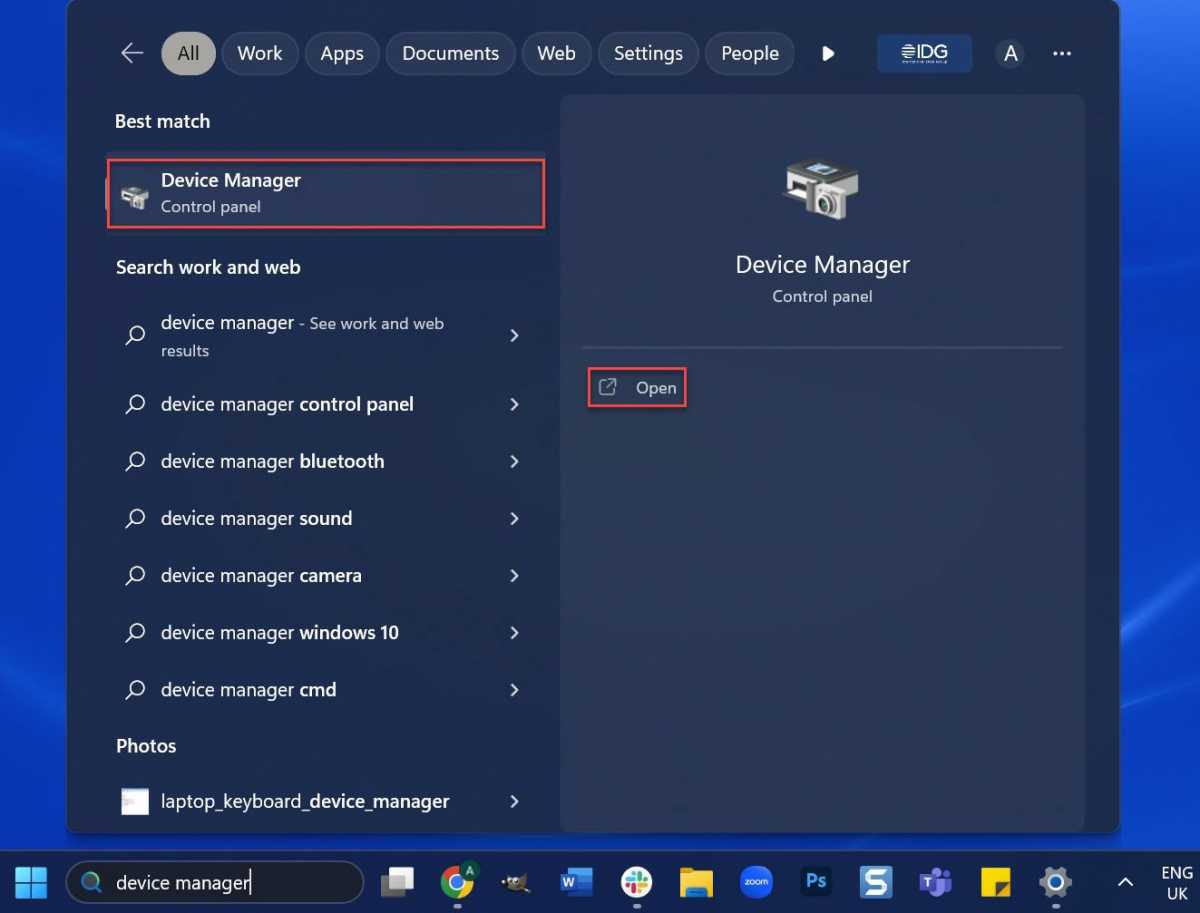
Anyron Copeman / Foundry
- Double-click the ‘Bluetooth’ section to expand it, then locate the specific Bluetooth adapter for your device. It should mention Intel, Realtek or Broadcom
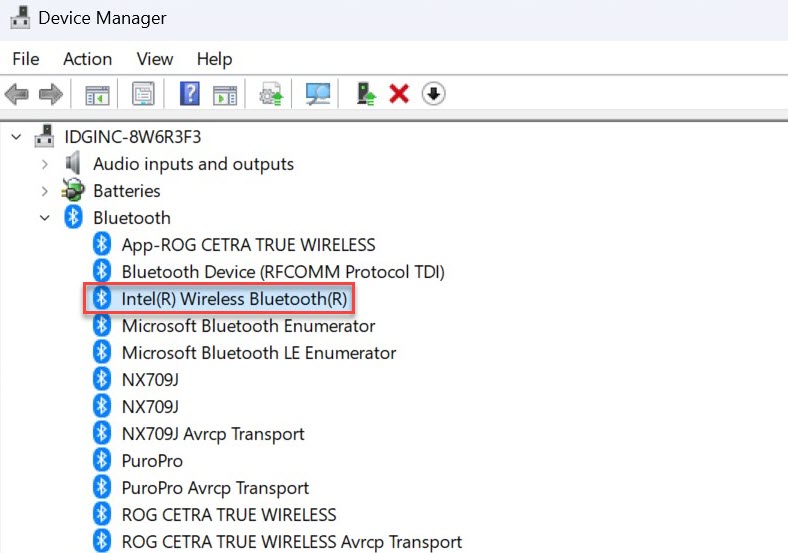
Anyron Copeman / Foundry
Tip: If you’re not seeing Bluetooth in the list, click ‘View’ from the top of the window, then ‘Show hidden devices’.
- Right-click the Bluetooth adapter and select ‘Update driver’
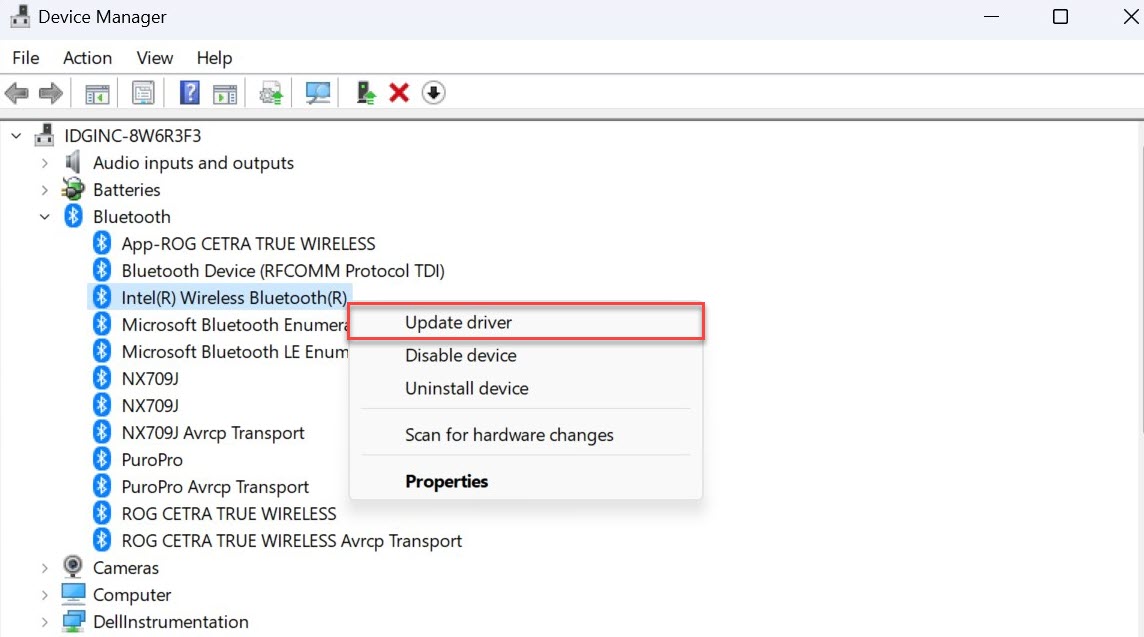
Anyron Copeman / Foundry
- From the window that appears, click ‘Search automatically for drivers’

Anyron Copeman / Foundry
After a few seconds, Windows 11 will check if you have the latest drivers. If not, the latest version will be installed.
But the Device Manager can’t find any driver updates, it’s worth double-checking via third-party software. IOBit’s Driver Booster 10 is our top pick, and the free version offers everything you need here.
Reinstall Bluetooth drivers
If you’ve managed to install a driver update but nothing has changed, it’s worth trying to reinstall them:
Head back to Device Manager and identify the Bluetooth adapter again
Right-click it, but this time choose ‘Uninstall device’
From the pop-up that appears, click ‘Uninstall’ to confirm
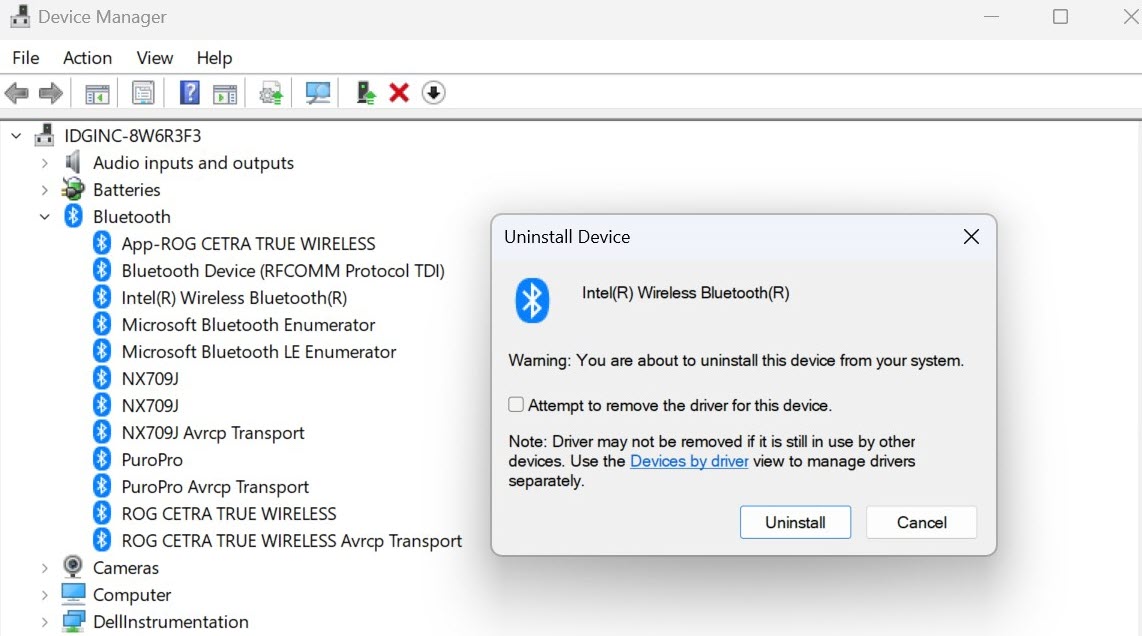
Anyron Copeman / Foundry
- Restart your device, and the driver will automatically be reinstalled
Wait a few minutes, then check to see if the problem has been fixed.
Stop Bluetooth from automatically turning off
In order to save power, Windows 11 sometimes puts features such as Bluetooth to sleep. That’s usually fine, but it might be affecting your connection. To disable this:
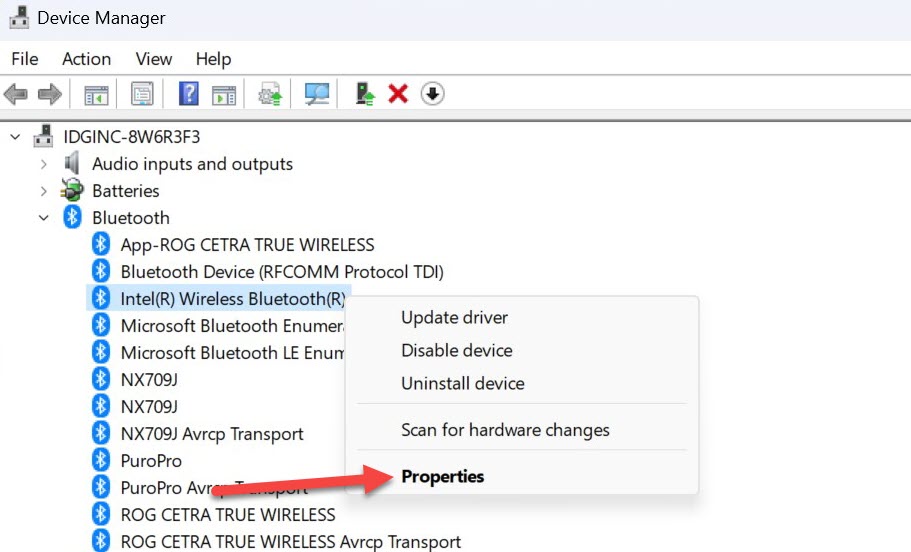
Head back to Device Manager and identify the Bluetooth adapter once more
Right-click it, but this time choose ‘Properties’
Anyron Copeman / Foundry
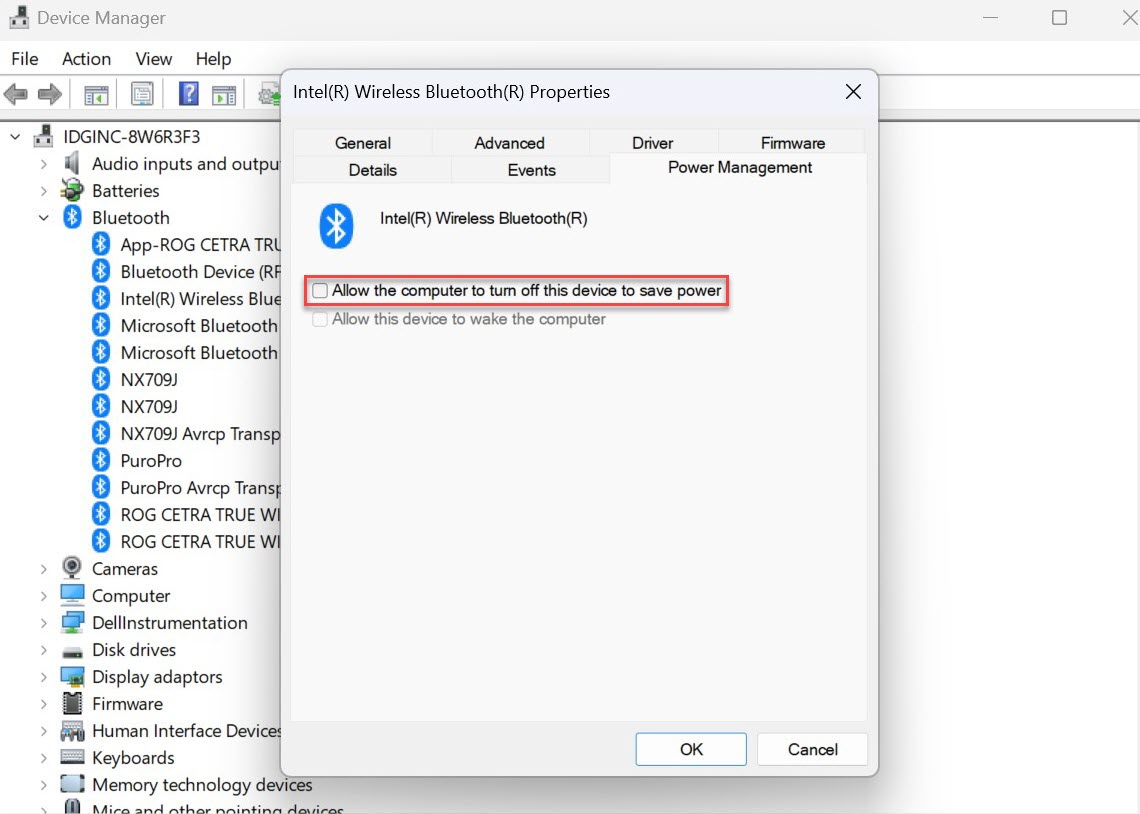
Select the ‘Power Management’ tab from the top
Uncheck the box next to ‘Allow the computer to turn off this device to save power’
Anyron Copeman / Foundry
- Click ‘OK’ to confirm, then restart your device
Update Windows 11 software
The Bluetooth issues may be caused by a bug in the version of Windows 11 you’re running. Installing a new update is the easiest way to solve this:
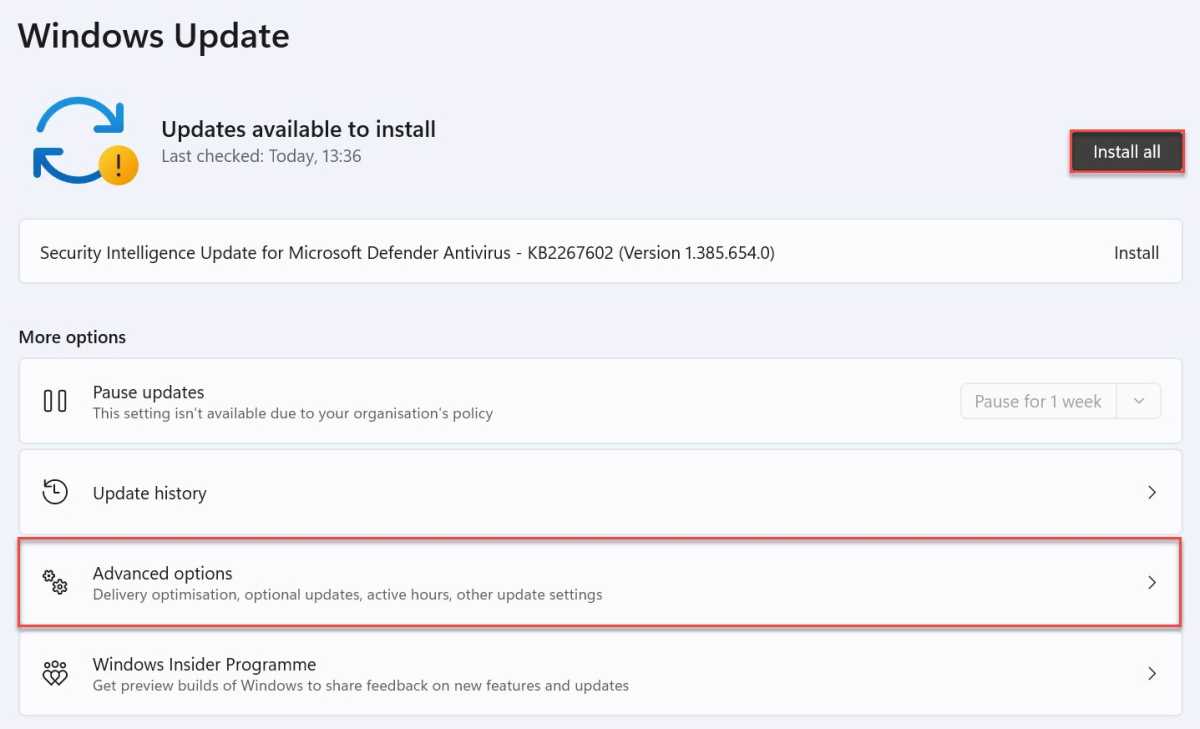
Head to Settings > Windows Update
Download and install any updates that are already there (this will require a restart), then click ‘Check for updates’
Anyron Copeman / Foundry
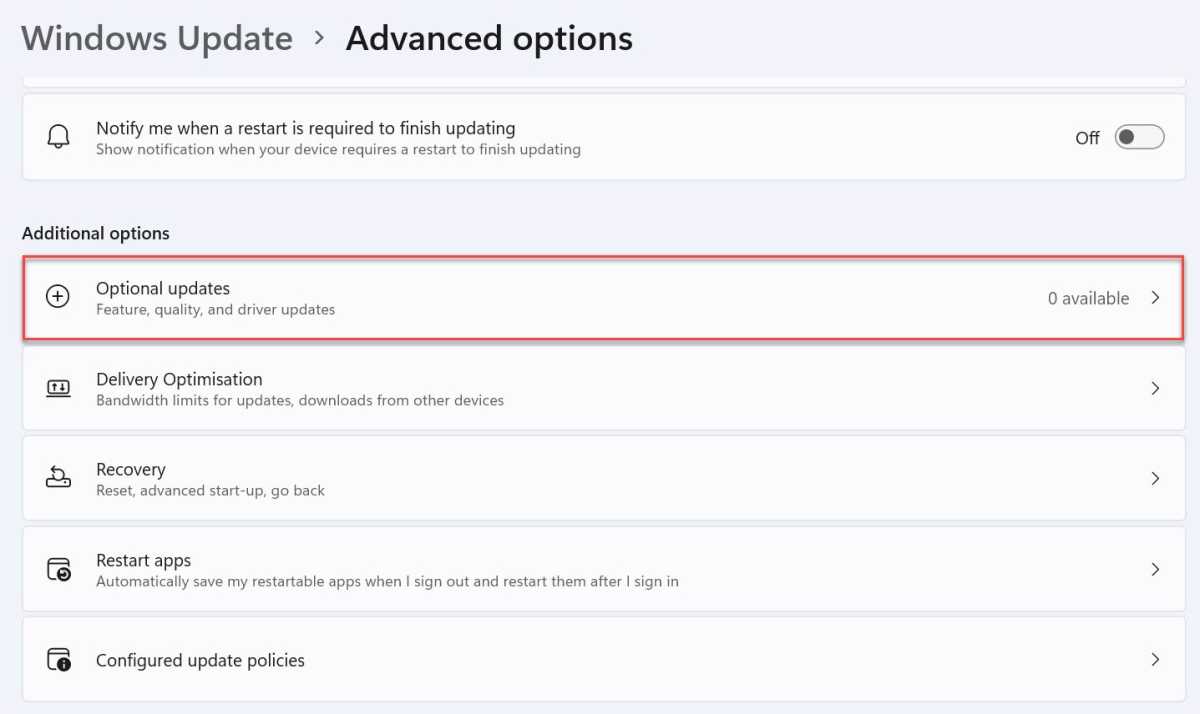
- After a few seconds, any that are available will appear. If nothing shows up, head to Advanced options > Optional updates and install anything you see there too
Anyron Copeman / Foundry
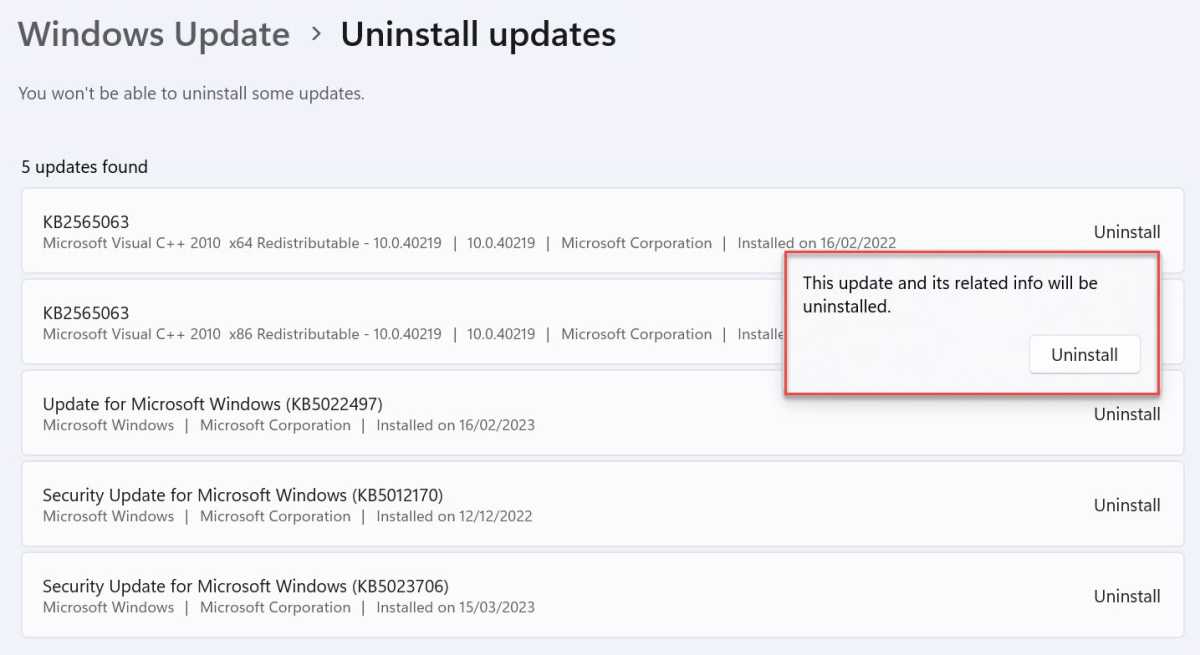
But if nothing is available and you’re confident a faulty update is causing the Bluetooth issues, you can uninstall it and go back to the previous version:
Head to Settings > Windows Update > Update history
Scroll down to the bottom of the page and click ‘Uninstall updates’
Locate the one that was installed most recently, then click ‘Uninstall’ followed by ‘Uninstall’ again to confirm
Anyron Copeman / Foundry
This process will take several minutes, and your device should restart automatically. None of your files or settings will be affected.
At least one of the solutions above will be able to fix the vast majority of Bluetooth issues you’re experiencing on Windows 11. If not, it’s likely to be related to the devices your connecting rather than your computer itself.
- How to check if your computer has Bluetooth
- How to fix internet connection problems in Windows 11
- How to fix Windows 11 audio that’s not working
Author: Anyron Copeman, Mobile Editor, Tech Advisor

Anyron is Mobile Editor at Tech Advisor, where he’s been a mainstay of the editorial team since 2019. In his current role, Anyron is responsible for all smartphone, tablet and mobile network coverage on the site. A BA Journalism graduate, he has experience with a wide range of consumer tech products and services, including smartphones, tablets, foldables, wearables and more.
Recent stories by Anyron Copeman:
- Windows 11 23H2 update: Everything you need to know
- Windows 12: Everything we know so far
- How to get the Google Play Store on Windows 11
