Just under a year after Windows 11 was first released, the OS has received its most significant update yet.
The 2022 Update adds a slew of new features, including changes to Start menu and File Explorer, new touchscreen gestures and the long-awaited return of drag-and-drop to the taskbar. You also get new camera effects and key accessibility tools such as Live Captions and Voice Access.
It’s an update that almost every Windows 11 user will want to install, but most people won’t be able to get the final version yet. Microsoft only released the 2022 Update on 20 September, and a rollout to all compatible devices will take several months – newer devices will get it first.
However, even if you can’t download it yet, there is a way to try an earlier version on all Windows 11 hardware. Here’s all you need to know about both methods.
How to install the Windows 11 2022 Update via Windows Update
While neither method is complicated, it’s much easier if the update is already available for your device. Should that be the case, you can just install it like any other update:
- Open Settings
- Click ‘Windows Update’ from the left pane
- Click ‘Check for updates’
- If any updates appear (even if they’re not the 2022 Update), download and install them. This may require a restart
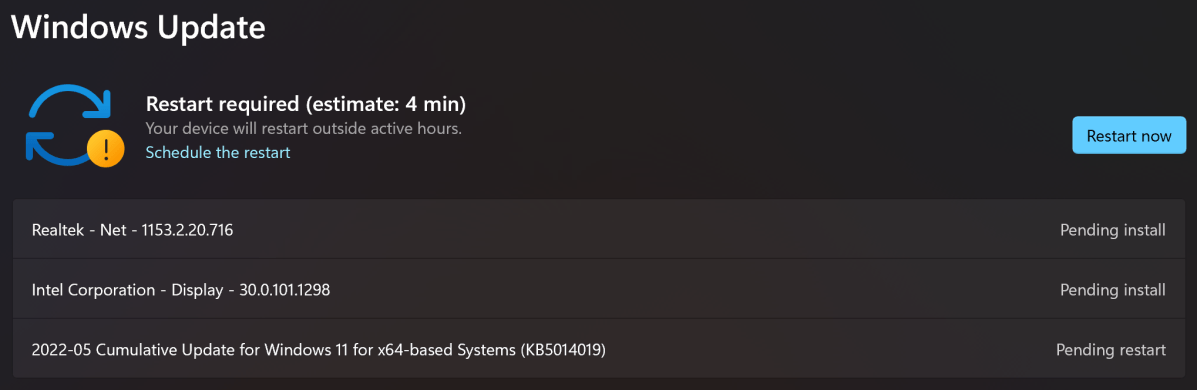
Anyron Copeman / Foundry
- Once your device has rebooted, repeat steps 1-3. If available, you should see ‘Windows 11, version 22H2’. Click ‘Download’ if it doesn’t begin automatically
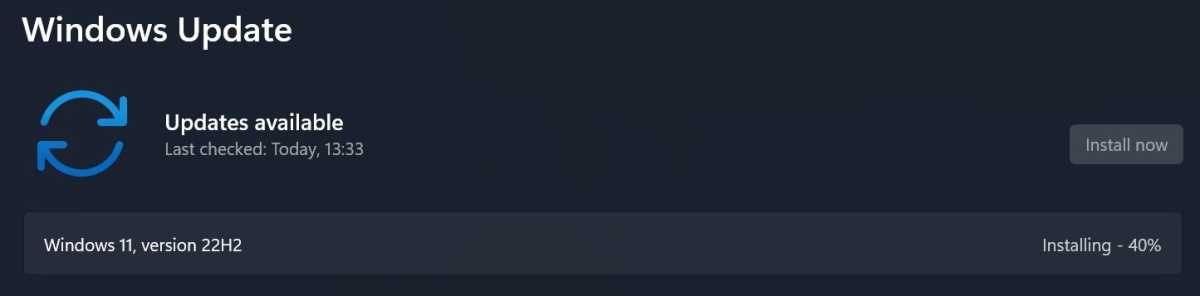
Anyron Copeman / Foundry
- To complete installation, restart your device again
That’s it! The 2022 Update has now been installed on your device. If you’re keen to install it and don’t want to go via the Windows Insider Program, it’s worth repeating these steps until it becomes available.
How to install the Windows 11 2022 Update via the Windows Insider Program
If you’ve tried the process above but the update isn’t showing, there is an alternative. The 2022 Update has been available via the Windows Insider Program since June, and the latest iteration is available in the Release Preview channel. That’s more stable than the Beta or Dev channels, and means it’s stable enough to run on your main computer.
There may be some tweaks in the final version, but all the main new features are here. The first step involves allowing diagnostic data to be sent to Microsoft – that’s a requirement for the Insider Program.
- Open Settings
- Select ‘Privacy & security’ from the left pane
- Under ‘Windows permissions’, choose ‘Diagnostics & feedback’
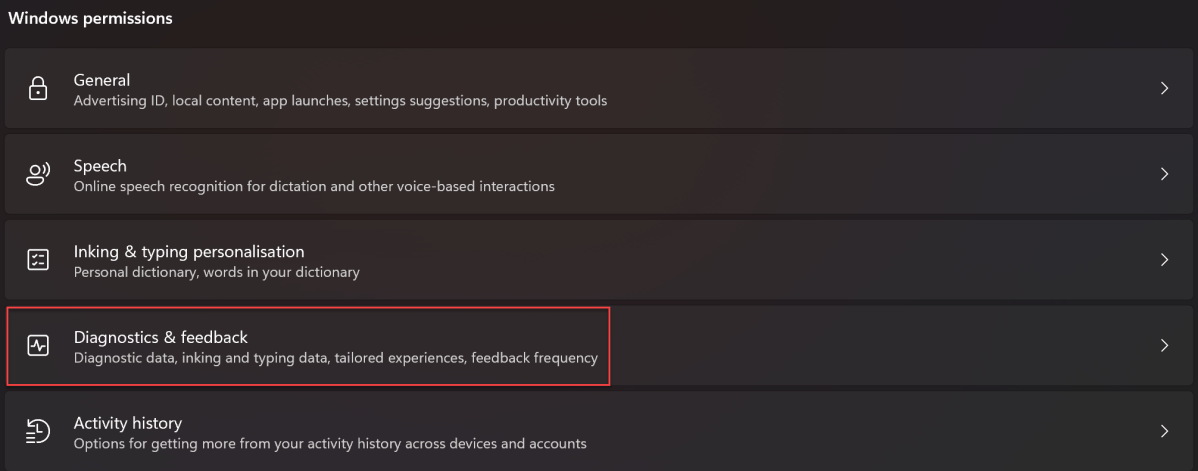
Anyron Copeman / Foundry
- Click the drop-down next to ‘Diagnostic data’, then the toggle next to ‘Send optional diagnostic data’ to turn it on
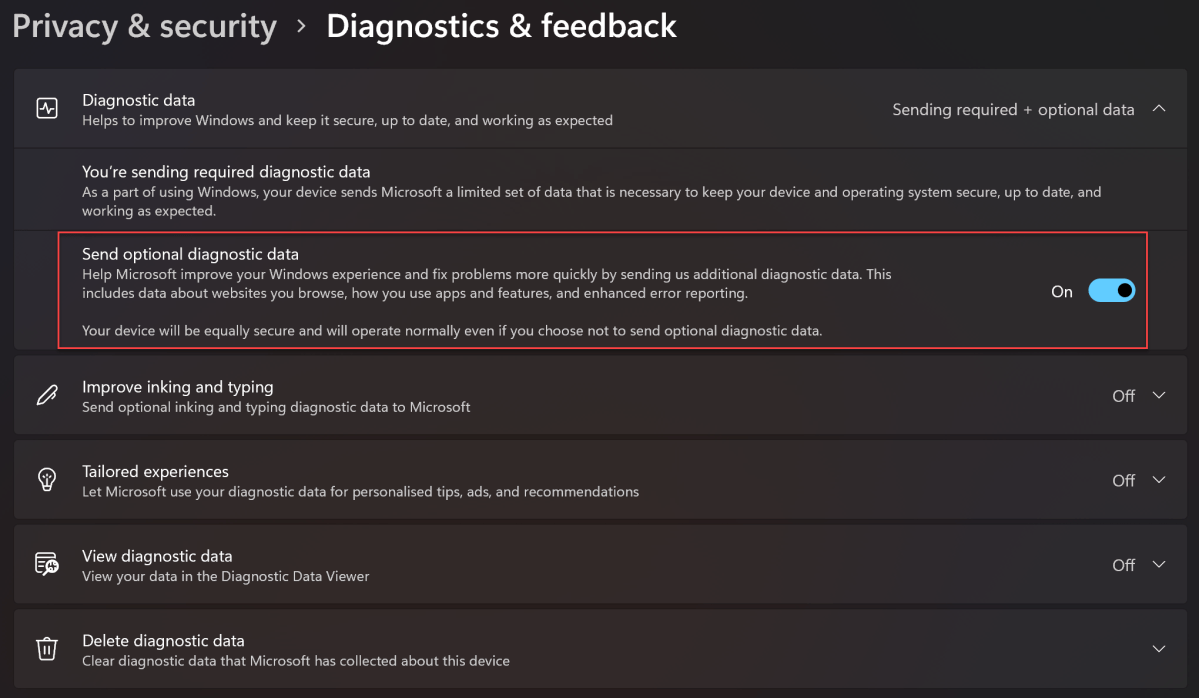
Anyron Copeman / Foundry
- Select Windows Update from the left pane
- Under ‘More options’, choose ‘Windows Insider Program’ (or ‘Programme’ if you’re in the UK)
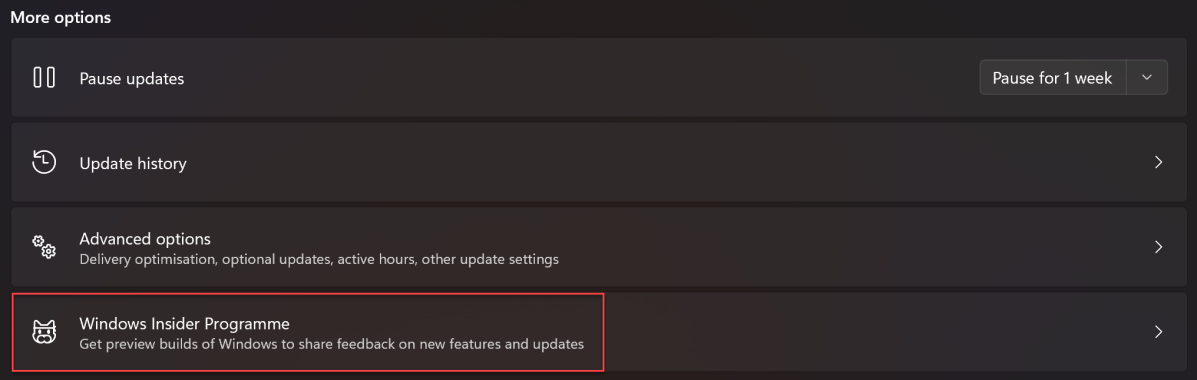
Anyron Copeman / Foundry
- After a few seconds, you should see a screen like the one below. Click ‘Get started’ to begin
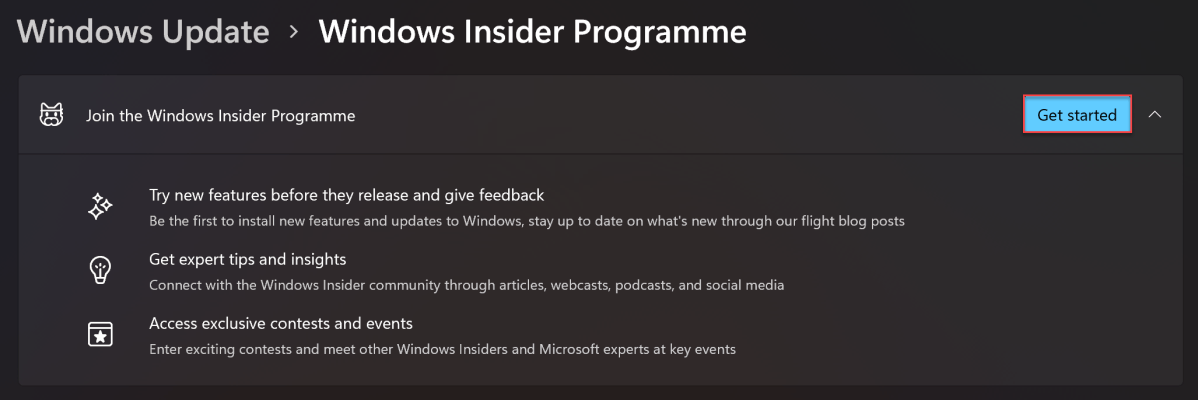
Anyron Copeman / Foundry
- From the pop-up that appears, link the same Microsoft account that you’re signed in with on the device
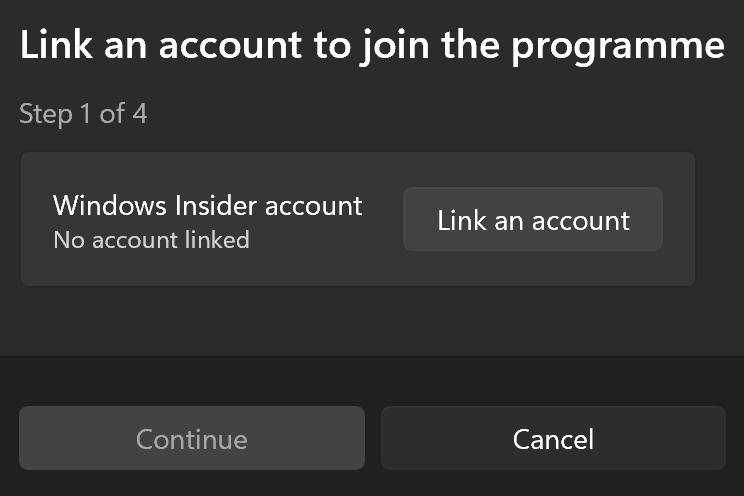
Anyron Copeman / Foundry
- Click continue to agree to terms
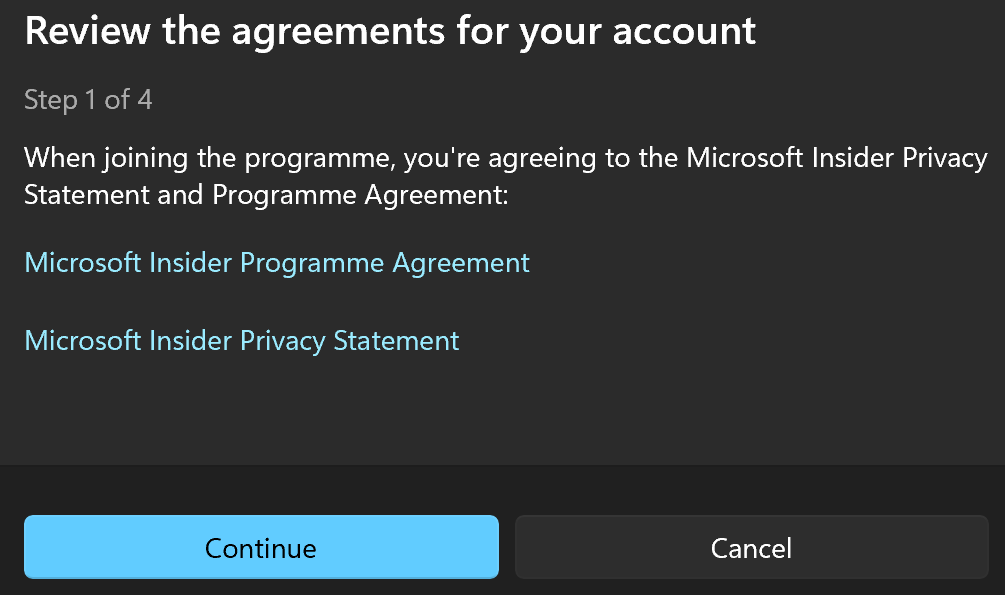
Anyron Copeman / Foundry
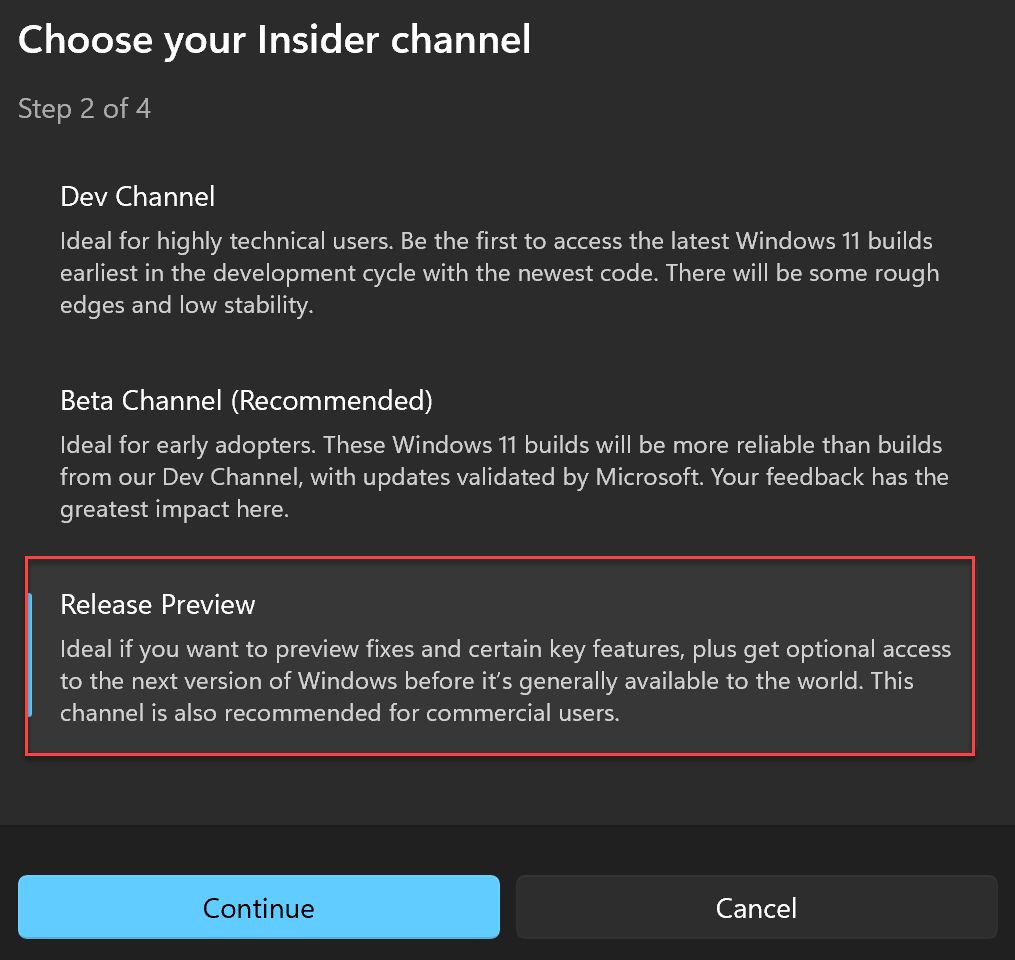
- From the next screen, choose ‘Release Preview’ and click ‘Continue’. The channel can easily be changed in the future if you’d like
Anyron Copeman / Foundry
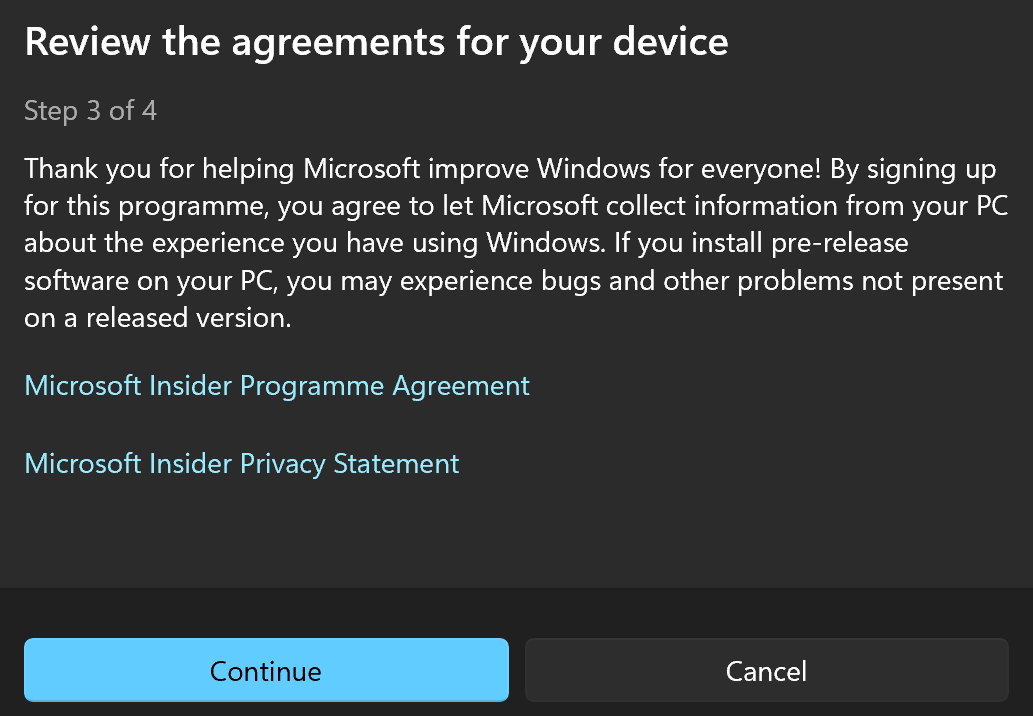
- Click continue again to agree to more terms
Anyron Copeman / Foundry
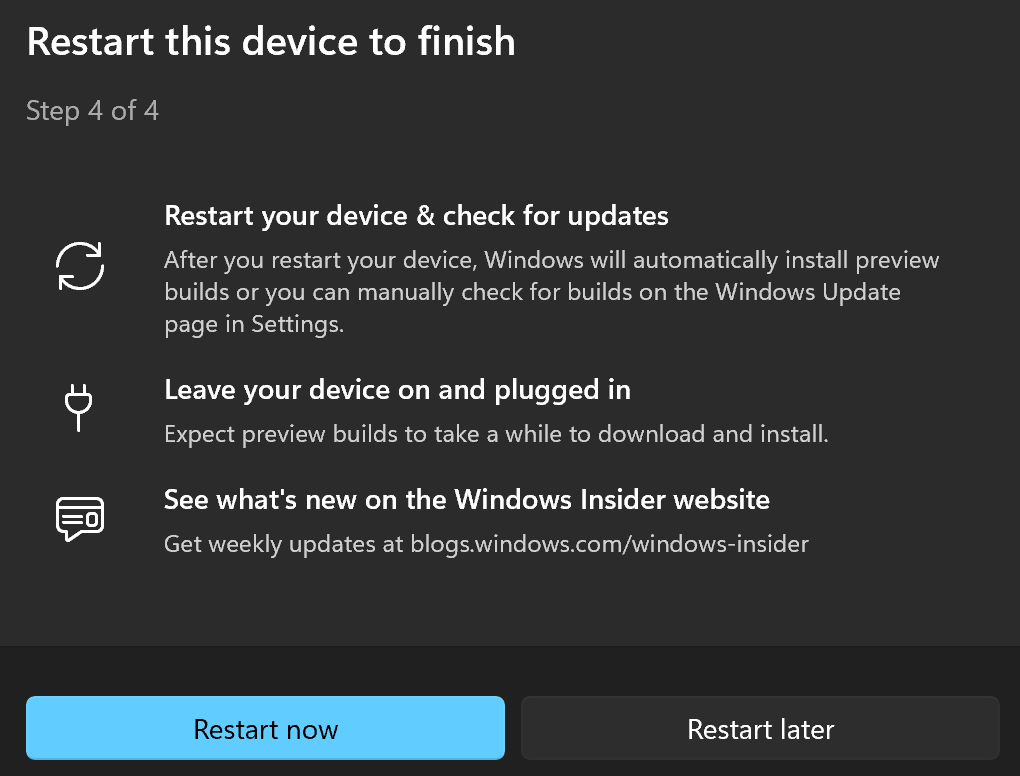
- Restart your device
Anyron Copeman / Foundry
Once that’s complete, early builds of Windows 11 will automatically be delivered to your device. To check and install these, head back to Settings > Windows Update and click ‘Check for updates’ once more.
After a few seconds, you should see a message saying ‘Windows 11, version 22H2 is available’. Click the ‘Download & install button’.

Anyron Copeman / Foundry
This will take a while to complete. After it’s done, you’ll be prompted to restart your device to complete installation.
What’s new in the Windows 11 22H2 update?
As expected, Windows 11’s first feature update is a big one. Unlike many Windows updates, there are new features you’ll actually want to use on a regular basis.
Perhaps the most eye-catching is folders within the Start menu, allowing you to group pinned apps that are related to each other. It also means lots more apps can be added to that main screen.
Its position means it’ll benefit from another addition – drag-and-drop support for the taskbar. But this is actually a returning feature – it was removed with the introduction of Windows 11.
If you get bored of the same desktop background, the new spotlight wallpaper feature lets Microsoft regularly move between options in its extensive library of stunning images. Task Manager is the latest app to get a Windows 11 redesign, while there are several new touch gestures.
But from an accessibility standpoint, Live Captions shouldn’t be overlooked. It automatically generates captions for any audio that’s playing on a Windows 11 device, regardless of the app you’re using. This can be a useful feature for anyone.
Author: Anyron Copeman, Mobile Editor, Tech Advisor

Anyron is Mobile Editor at Tech Advisor, where he’s been a mainstay of the editorial team since 2019. In his current role, Anyron is responsible for all smartphone, tablet and mobile network coverage on the site. A BA Journalism graduate, he has experience with a wide range of consumer tech products and services, including smartphones, tablets, foldables, wearables and more.
Recent stories by Anyron Copeman:
- Windows 11 23H2 update: Everything you need to know
- Windows 12: Everything we know so far
- How to get the Google Play Store on Windows 11
