One of the latest features to be added to WhatsApp is a fun one: the ability to have a personalised avatar. We’ve already seen these in the likes of Facebook Messenger and Apple’s iMessage (and FaceTime), but now you’ll be able to create a cartoon likeness of you even if you use WhatsApp on an Android phone.
You can then use it in chats to show your excitement, sadness or whatever else you’re feeling.
Here’s how to create one.
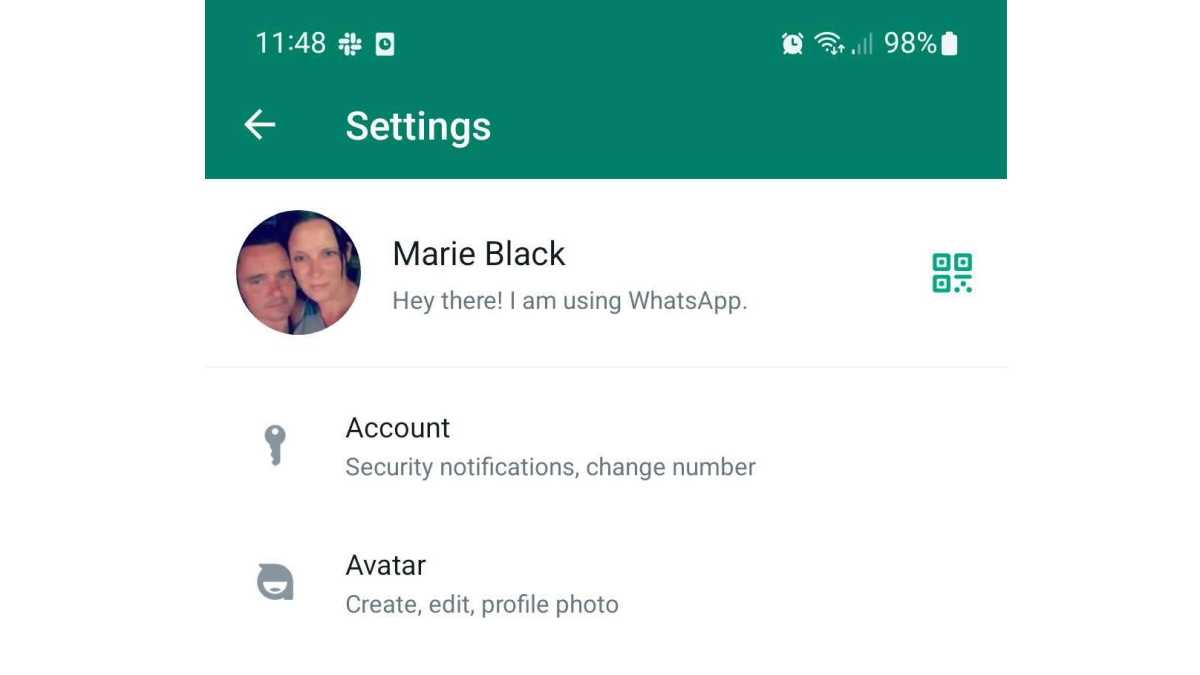
WhatsApp announced that the feature would start rolling out on 7 December 2022. This means, depending upon when you read this, you might not have avatars available yet on your device. You’ll know by opening the app, tapping the three dots in the top right corner and selecting Settings . Beneath the Account option you should see a new section called, strangely enough, Avatar .
Foundry
If you don’t have the Avatar section, head to your phone’s app store and check if there are any updates available for WhatsApp. Hopefully it won’t be long until the feature is available to all users.
How to create an avatar in WhatsApp
Start the process
Foundry
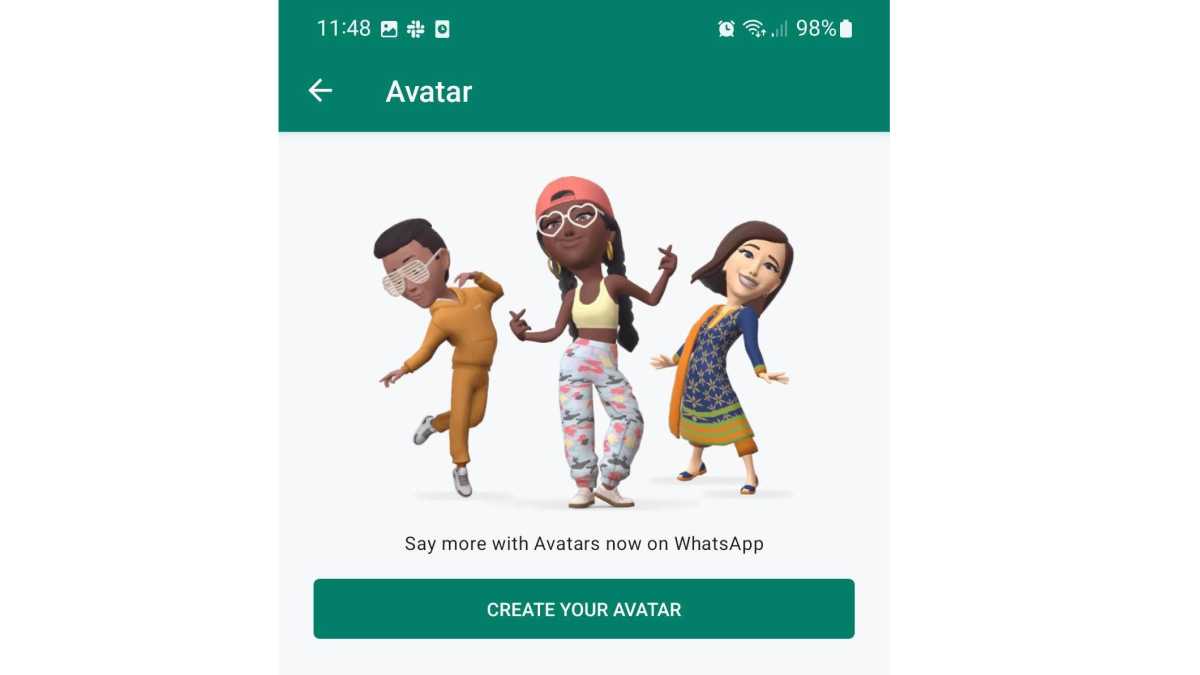
As explained above, go to Settings > Avatar and then tap the Create Your Avatar button.
Choose your look
Foundry
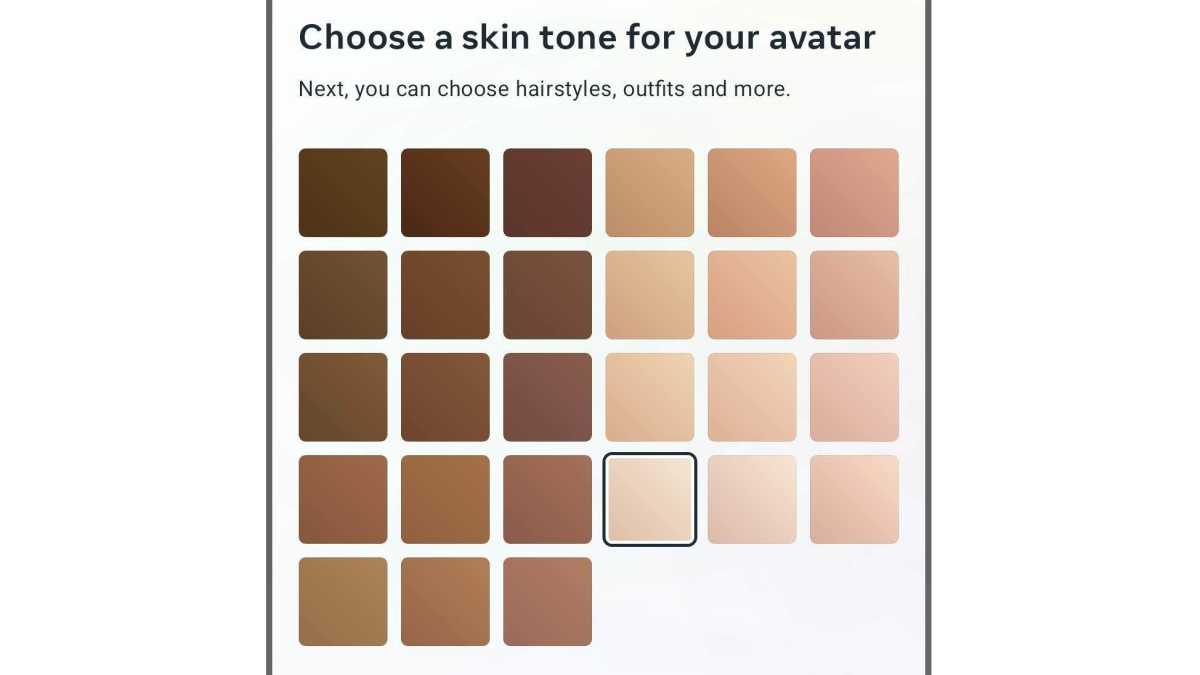
The first option is to select the colour of your skin you want for your avatar.
Design your features
Foundry
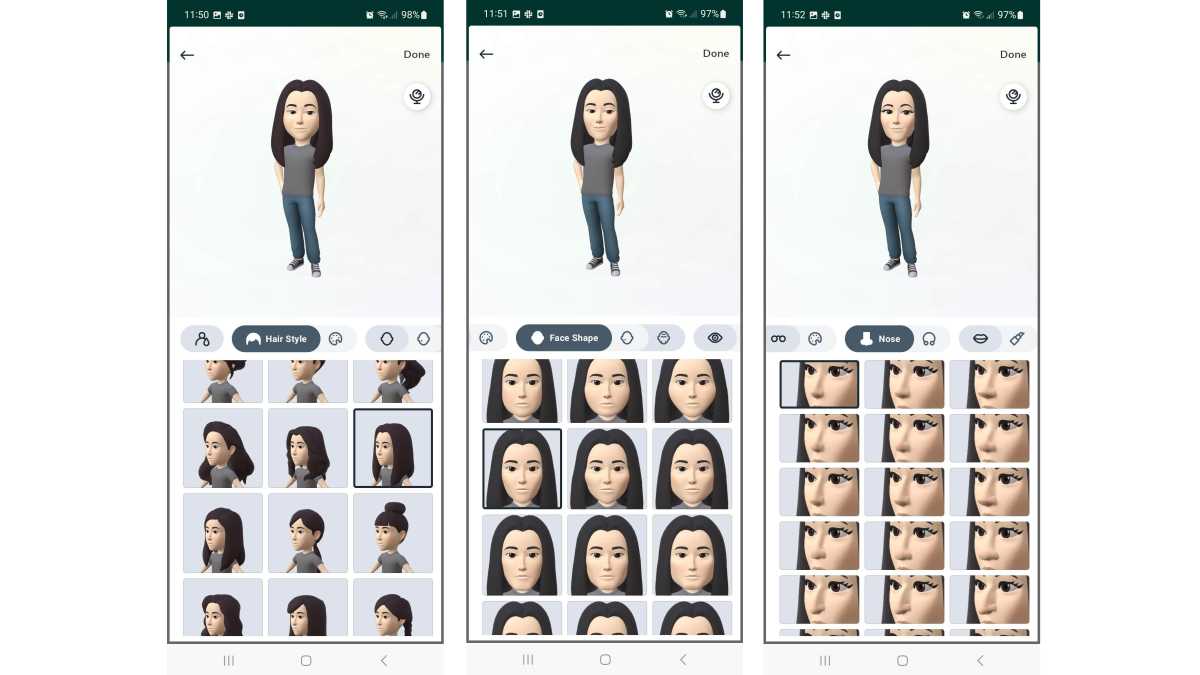
Now you’ll be able to go through various stages where you select your hairstyle, face shape, eyes, nose, mouth, makeup, whether you wear glasses and even nose piercings. This is done by simply choosing one of the squares in the main area that shows the example. Then, tap the icons in the strip between the full picture of your icon and the large squares below to move through the options.
Pick your body type and clothes
Foundry
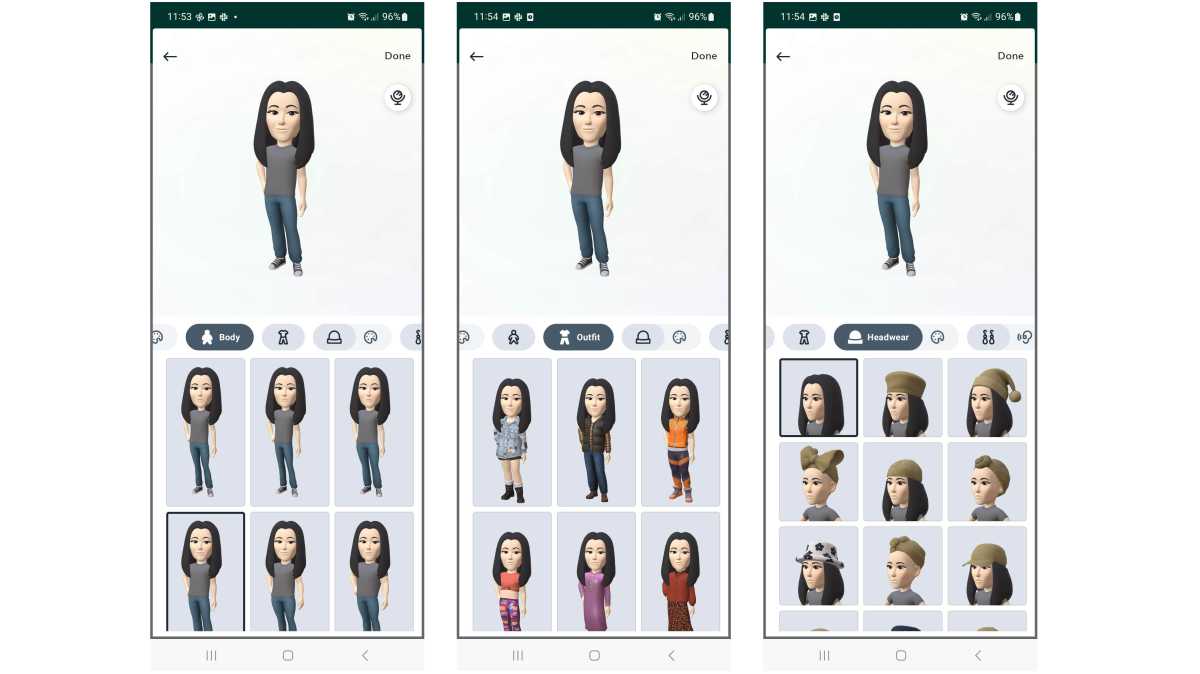
With the face and hair complete, you’ll now be able to choose your body type, as well as the clothes you want your avatar to wear. There are various outfits, headgear, and earrings available, plus there’s even an option to show a hearing aid if you are hard of hearing.
Complete your avatar
Foundry
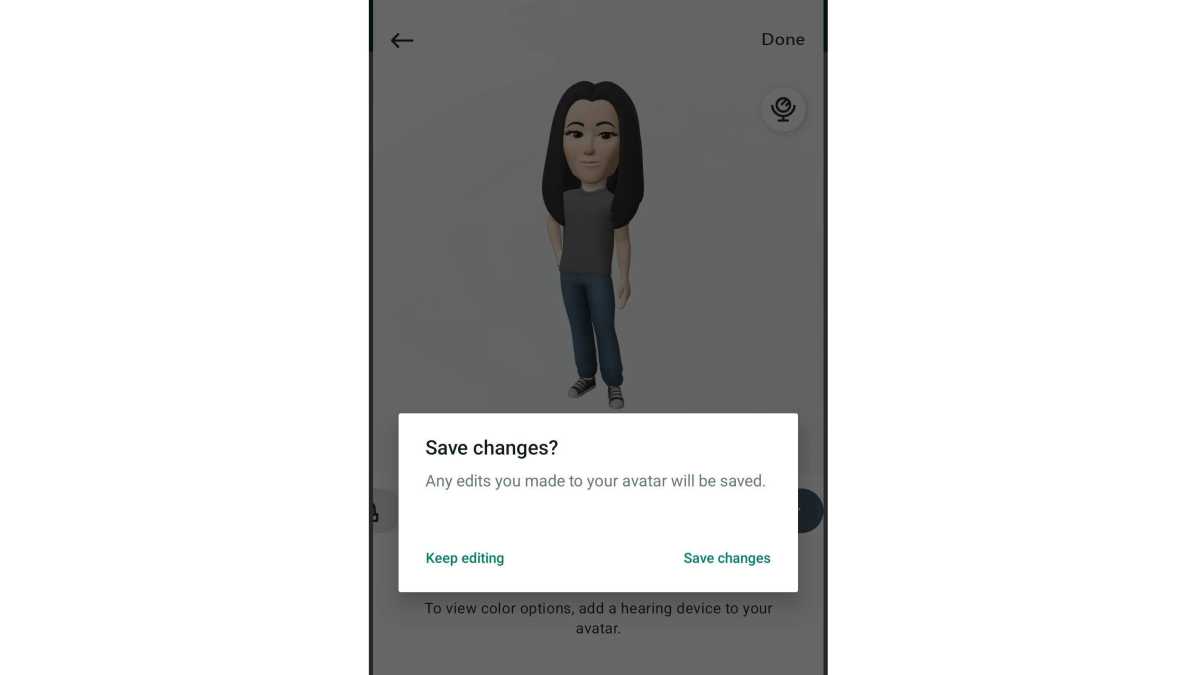
When you’re happy with your selections, tap the Save changes option and your new avatar will be available in the Stickers section of your Chats. Of course, you can return to the Avatar section at any time to change your look. Just repeat the processes above.
Use your avatar
Foundry
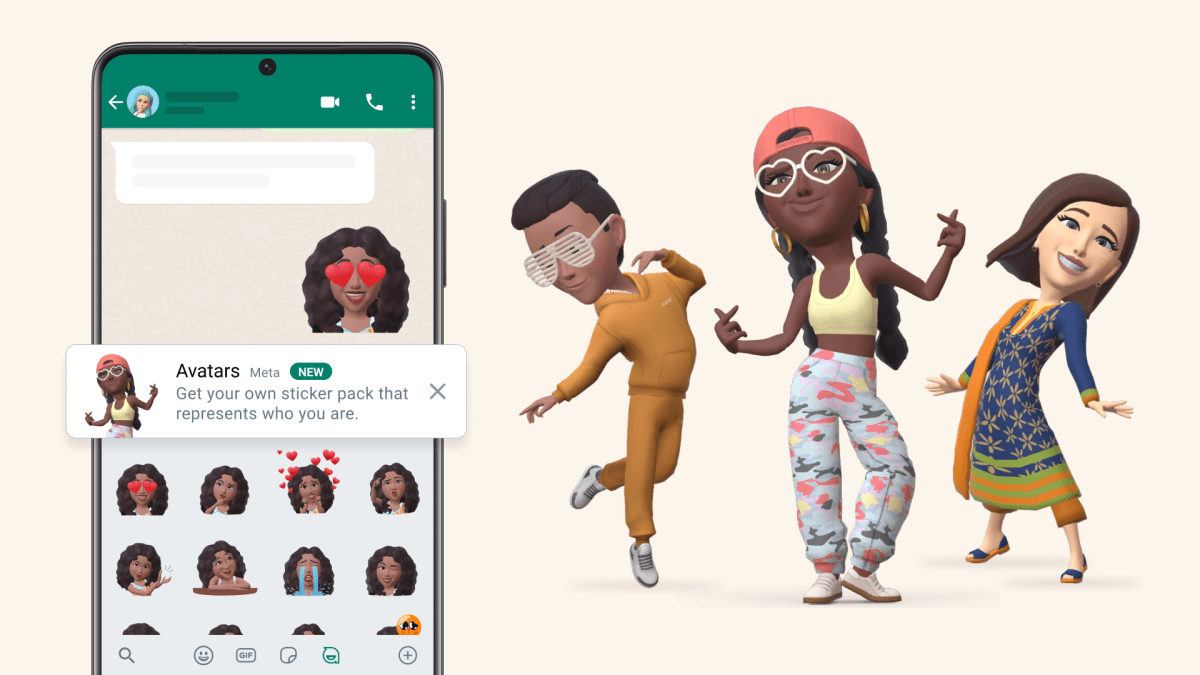
Now, when you want to select an avatar to use in a chat, simply tap the emoji button next to the keyboard at the bottom of the screen, select the Sticker option and you should see your new effigy in all its glory. Simply choose the one that best represents the emotion you want to show in the chat.
How to set your avatar as your profile picture
Your avatar isn’t only for chats, as you can also use it for your profile picture too. This is easy to do, as you just have to go to Settings , tap your profile picture and select Edit > Edit then choose Use Avatar . Now your friends will see your cartoon self when you appear in their chats.
- How to control WhatsApp ‘Last Seen’ and ‘Online’ status
- How to tell if you’ve been blocked on WhatsApp
- The three new WhatsApp privacy features you should use
Author: Martyn Casserly, Contributor, Tech Advisor

Martyn has been involved with tech ever since the arrival of his ZX Spectrum back in the early 80s. He covers iOS, Android, Windows and macOS, writing tutorials, buying guides and reviews.
Recent stories by Martyn Casserly:
- What is Google Gemini?
- How to back up your data for free
- You can now buy Microsoft Office 2024 on Amazon without a 365 subscription
