In the current cost of living crisis, many of us are trying to save money wherever we can.
Energy bills are getting a lot of attention, with tips such as avoiding the tumble dryer, turning down the heating and reducing time in the shower among the most popular.
But what about your computer? In the UK, Heatable estimates it costs an average of 56p per eight hours on a desktop PC or 24p on a laptop, meaning significant savings could be available.
Improving the energy efficiency of your device is also good news for battery life and the environment. Here are nine ways to achieve it in Windows 11 .
Reduce screen brightness
You probably already knew this one, but the brightness of your display can have a big effect on power consumption. Try to keep it as low as you can comfortably use it.
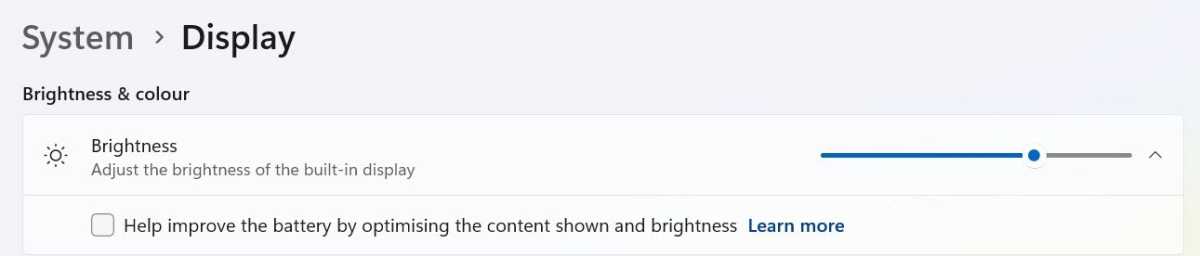
On most devices, a couple of the F keys should double as brightness controls. But if you’d prefer, head to Settings > System > Display and adjust the ‘Brightness’ slider.
Some monitors and laptops can also be set to adjust the brightness automatically depending on the external lighting. This is a good energy efficient option for most people, but you might be able to get away with lower brightness than it sets.
To control it manually, click the small down arrow next to the brightness slider (if you see one) and uncheck the box marked ‘Help improve the battery by optimising the content shown and brightness’.
Anyron Copeman / Foundry
Reduce screen refresh rate (if possible)
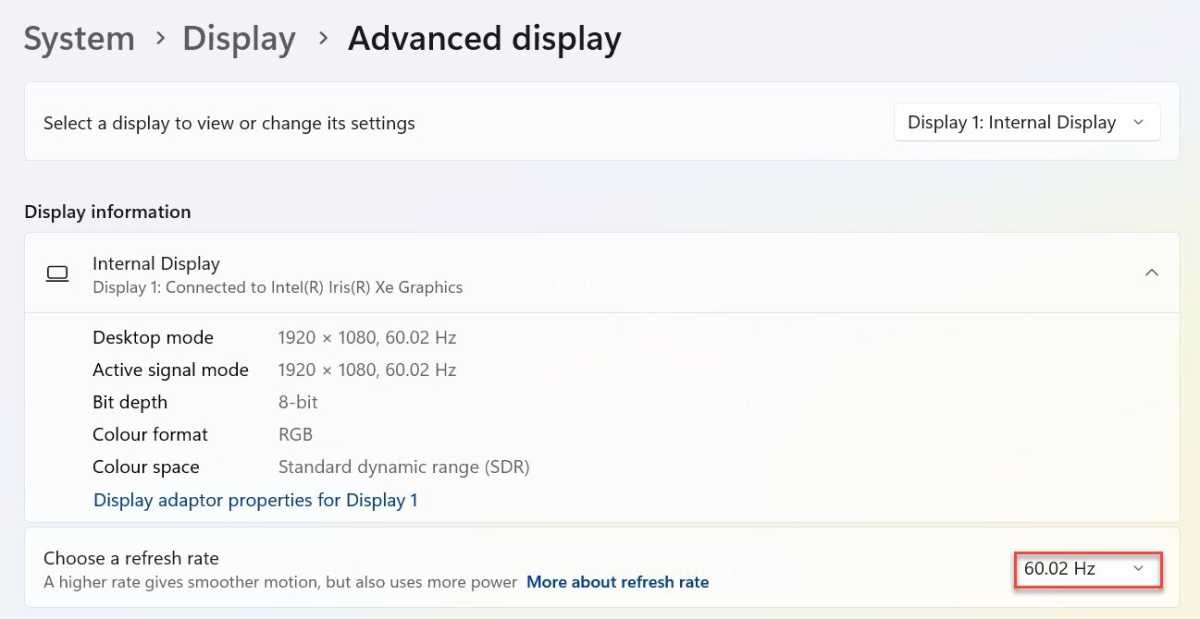
On Windows 11, the default screen refresh rate is 60Hz. But some displays can go as high as 360Hz, with plenty of options in between.
Refreshing up to 360 times per second has an obvious impact on power consumption, so it’s worth dialling this down if you can live without the extra fluidity.
Head to Settings > System > Display > Advanced display and click the drop-down box next to ‘Choose a refresh rate’.
Anyron Copeman / Foundry
Use a dark background and theme
Darker colours don’t need as much energy as lighter ones to illuminate, so it’s a good opportunity to reduce power consumption. There are two options within Settings > Personalisation that are worth adjusting.
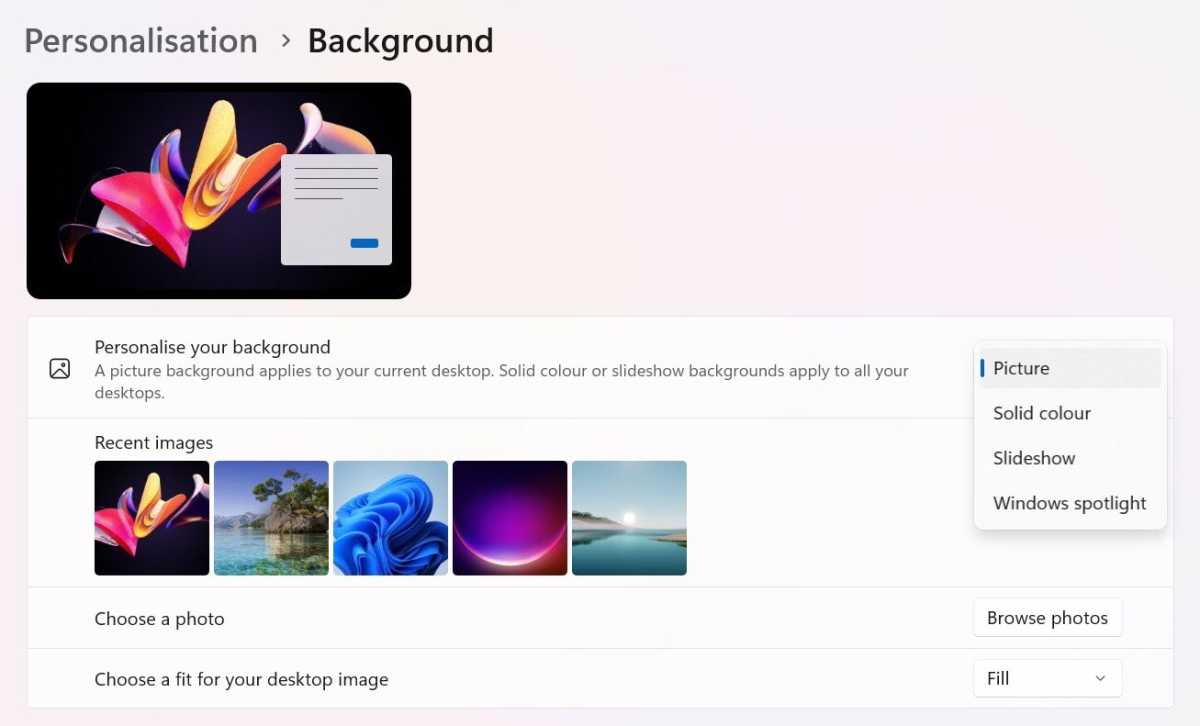
First, head to Background and select ‘Picture’ or ‘Solid colour’, then choose something with darker hues. Within Themes, this can be paired with specific accent colours, cursor design and system sounds.
Anyron Copeman / Foundry
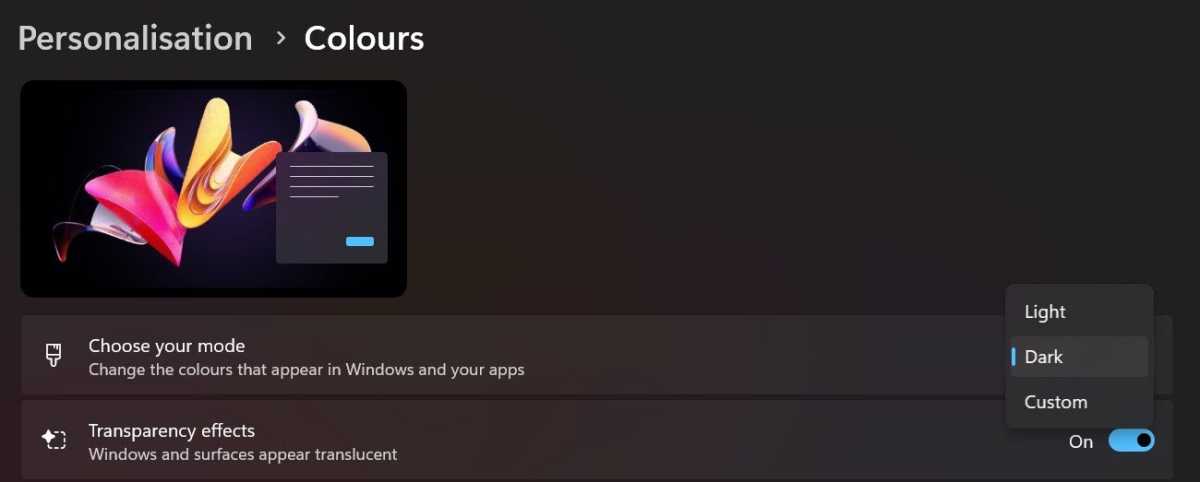
Then, go to Colours and select ‘Dark’ from the ‘Choose your mode’ drop-down.
Anyron Copeman / Foundry
Change power and battery settings
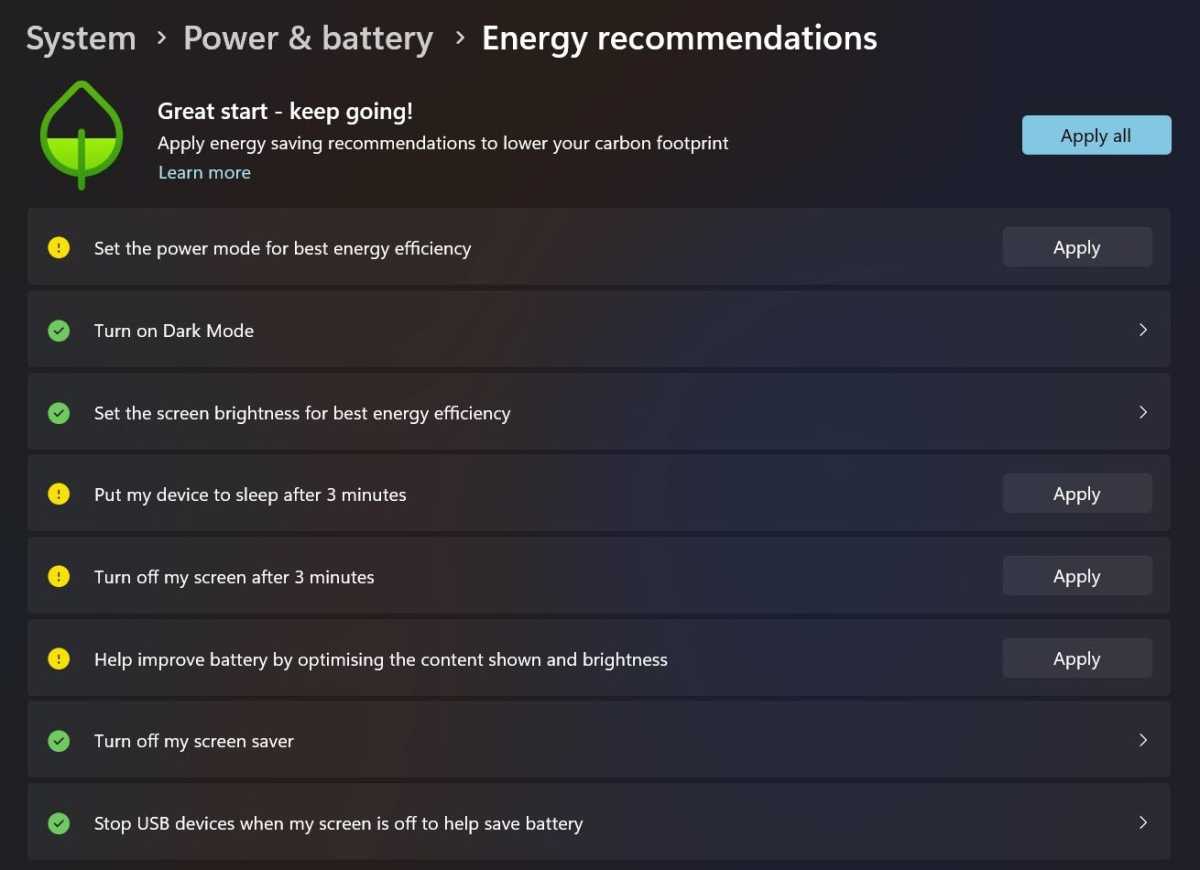
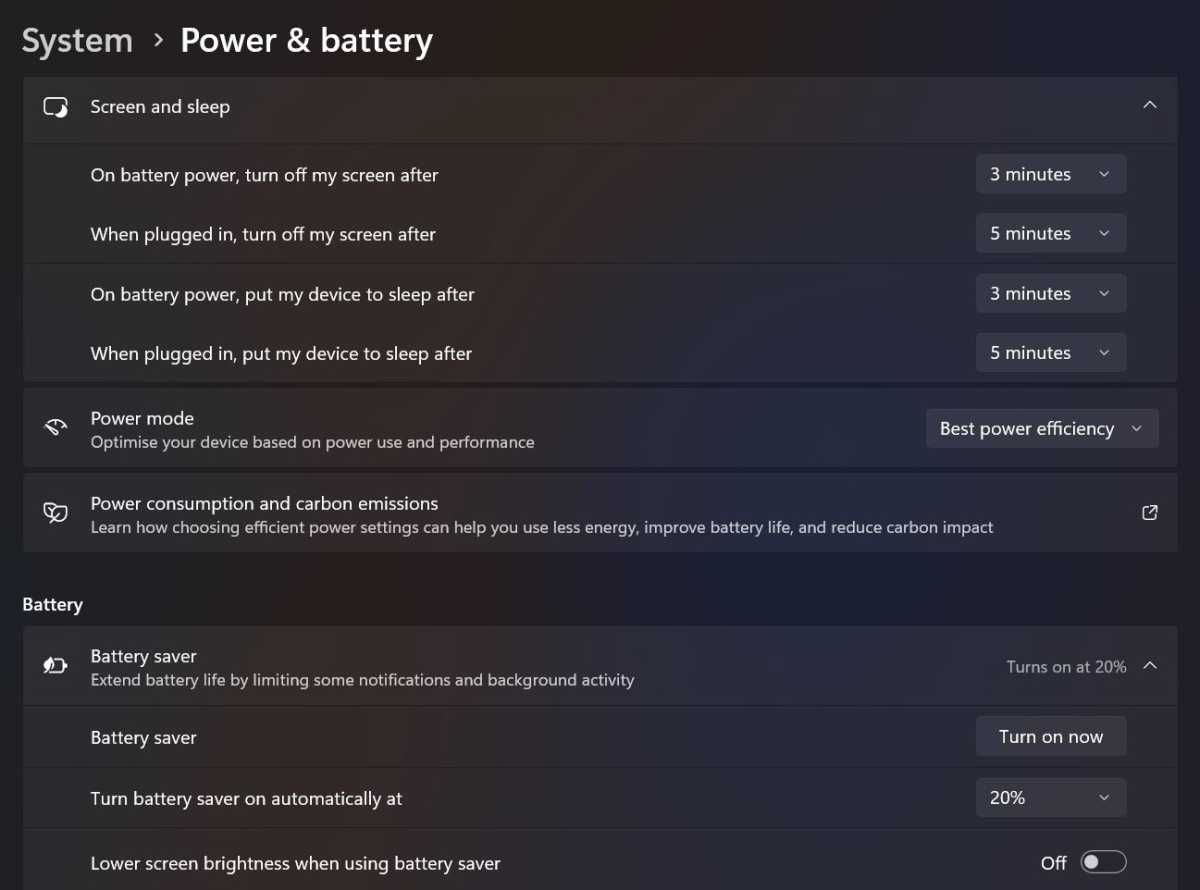
Windows 11 has a section within Settings dedicated to power and battery, and it’s probably the most effective way to improve energy efficiency.
Head to Settings > System > Power & battery, then click and apply any ‘Energy recommendations’ you like the look of.
Anyron Copeman / Foundry
Click the ‘Power mode’ drop-down and choose ‘Best power efficiency’. Monitor this to make sure performance doesn’t take a noticeable hit.
Then, click ‘Screen and sleep’ and choose the shortest idle time you’d be happy with before the screen turns off or device goes to sleep. The defaults below are usually acceptable for most people.
Anyron Copeman / Foundry
Disable animation effects
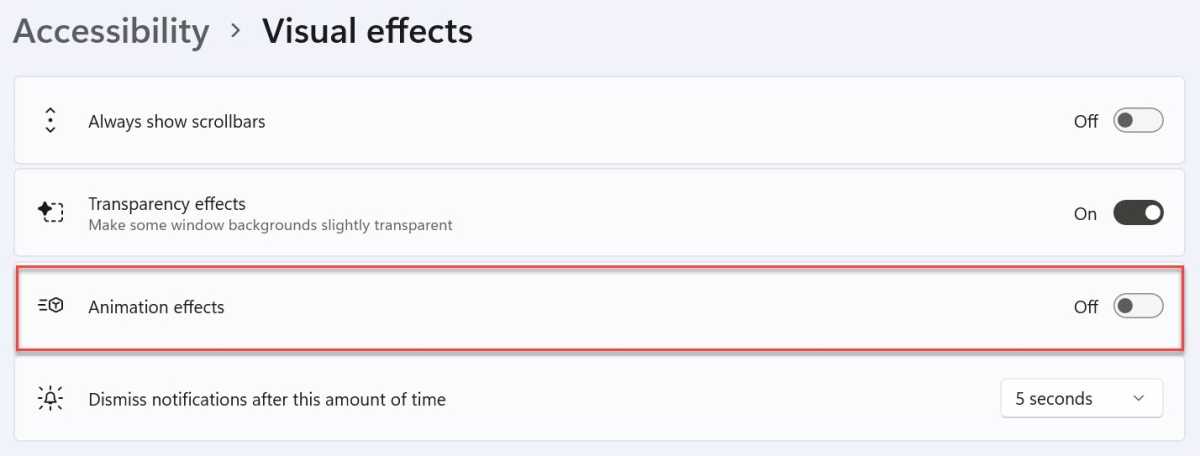
Every time you open, close or minimise an app in Windows 11, a short animation will play. It looks nice, but uses extra power that’s simply not necessary. As well as reducing the resources consumed, turning them off will also make your device feel a bit faster.
To do so, simply head to Settings > Accessibility > Visual effects and turn off the toggle next to ‘Animation effects’.
Anyron Copeman / Foundry
Stop apps unnecessarily running in the background
Many apps run in the background by default, but only a handful of these are necessary. Others will be consuming power without providing any benefit to you.
Remember: if you’re not sure about an app, just leave it or do some research first. Apps that appear insignificant may be important to the effective running of your device.
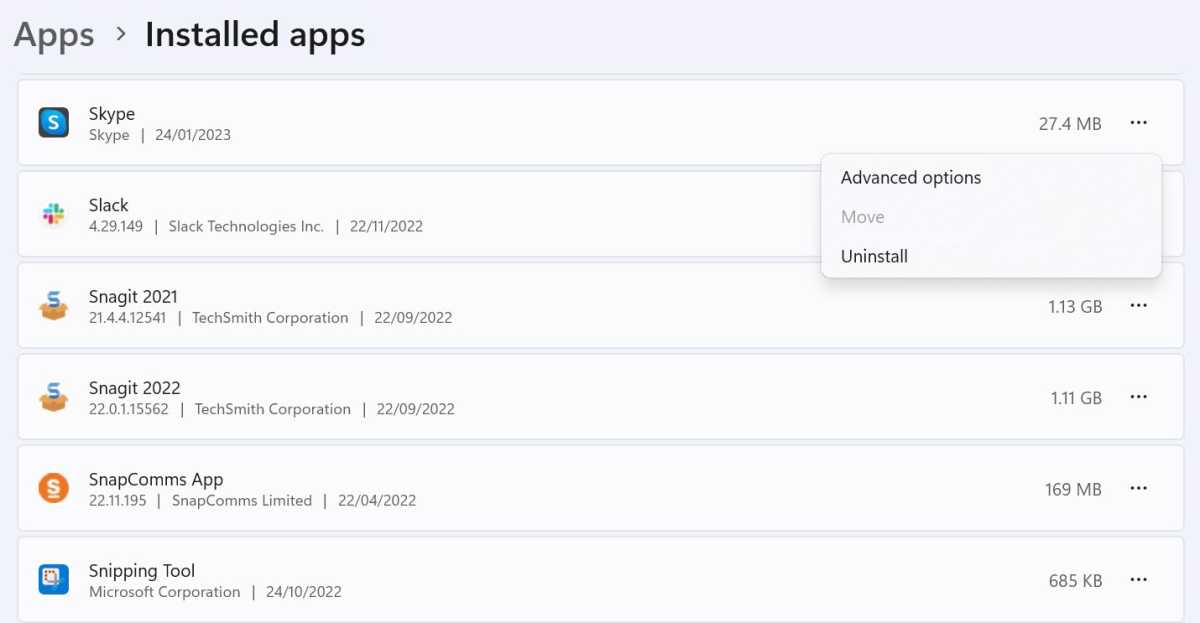
To see if you can turn any off, head to Settings > Apps > Installed apps and click the three dots next to the app’s name. Click ‘Advanced options’ if you see it – the feature won’t be available otherwise.
Anyron Copeman / Foundry
Under ‘Let this app run in background’, choose ‘Never’.
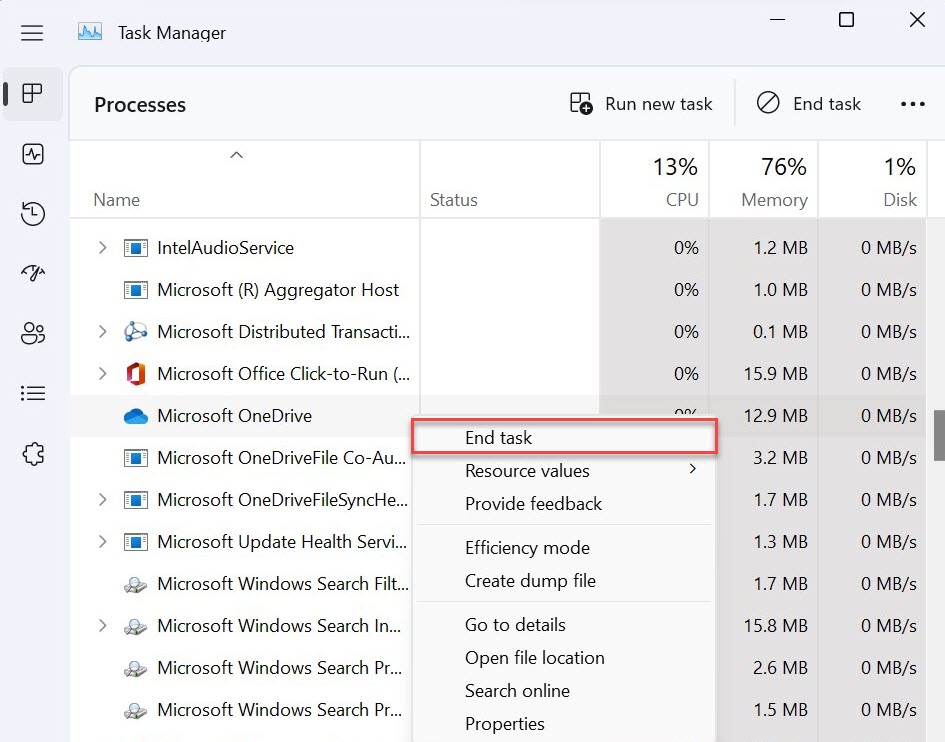
It’s also worth opening Task Manager and checking for any unnecessary ‘Background processes’ which are consuming a lot of power. Right-click any you’re sure about and click ‘End task’.
Anyron Copeman / Foundry
Stop charging when battery is full
If you use a laptop or tablet as your main computer, you may end up keeping it plugged in all the time. Some modern devices shut off power once it reaches 100% (sometimes even before), but others will continue trying to charge.
Dropping down to 99% and immediately charging to get back to 100% is bad for your battery, reducing its lifespan. Aim to only plug in your device when it’s actually running low on battery – under 50% at least.
Turn on airplane mode where possible
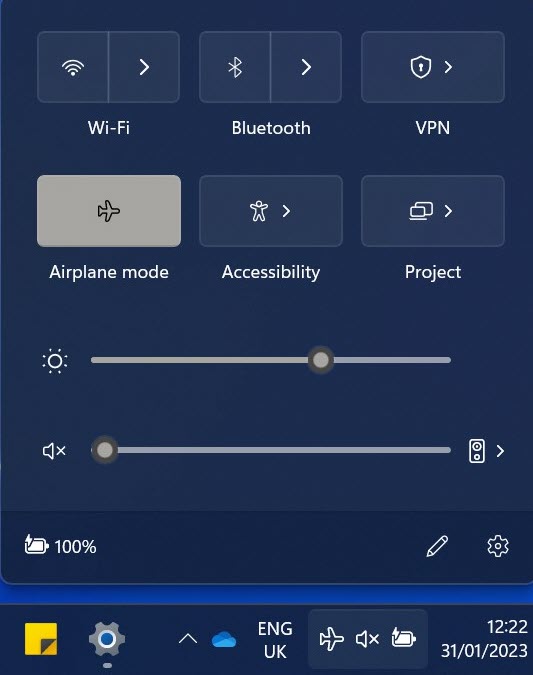
Most tasks on Windows 11 rely on an internet or Bluetooth connection. But if you don’t need them for a particular reason, turning on Airplane mode is an easy way to save power.
Just click the Wi-Fi, sound or battery icons in the taskbar to open the Action Center, then click the Wi-Fi and Bluetooth icons to make sure they’re not lit up, followed by the plan icon to turn on Airplane mode. To turn everything on again, just reverse these steps.
Anyron Copeman / Foundry
Use Microsoft Edge efficiency mode
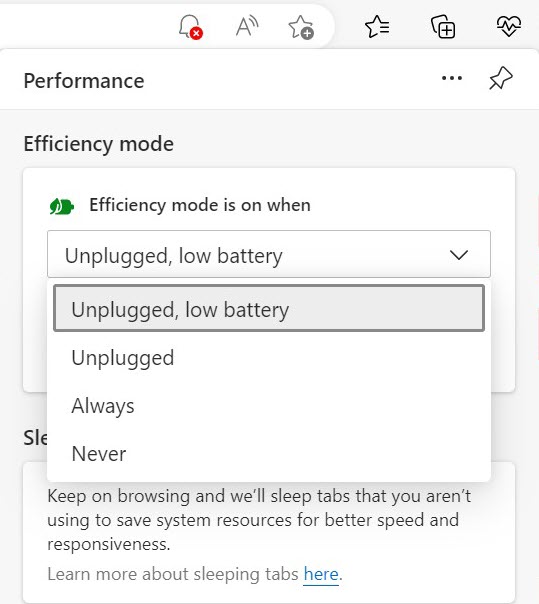
There’s no consensus on the most energy efficient web browser, but that changes if you use the efficiency mode built into Microsoft Edge. It reduces CPU usage by reducing activity on inactive tabs and putting those in the background to sleep after a few minutes.
By default, efficiency mode is enabled any time you use Edge with battery saver mode turned on. But this can be customised by clicking the three dots and choosing ‘Performance’. From there, you can decide when it’s activated.
Anyron Copeman / Foundry
- 12 hidden Windows 11 features that are actually worth using
- How to improve Windows 11 gaming performance
- How to make Windows 11 easier to use on tablets
Author: Anyron Copeman, Mobile Editor, Tech Advisor

Anyron is Mobile Editor at Tech Advisor, where he’s been a mainstay of the editorial team since 2019. In his current role, Anyron is responsible for all smartphone, tablet and mobile network coverage on the site. A BA Journalism graduate, he has experience with a wide range of consumer tech products and services, including smartphones, tablets, foldables, wearables and more.
Recent stories by Anyron Copeman:
- Windows 11 23H2 update: Everything you need to know
- Windows 12: Everything we know so far
- How to get the Google Play Store on Windows 11
