Setting up a new phone is a good opportunity to clean out the clutter on the old one, though we suspect you’d probably like to keep some of it. WhatsApp messages, pictures, video and other files are a good example of stuff that would be handy to keep hold of, and once you’ve configured the app on a new device you’ll find you can’t continue to use it on the previous one. Fortunately, with a bit of preparation you can move your entire WhatsApp account and all its associated data to its new home on a completely separate device.
The backup and restore process on an Android phone uses Google Drive to maintain an online backup of your messages and media, and provided you have the app installed on your new phone it can automatically retrieve it.
How to restore WhatsApp on a new phone
- On your old phone ensure you have the free Google Drive app installed and running. Download this from Google Play if you do not
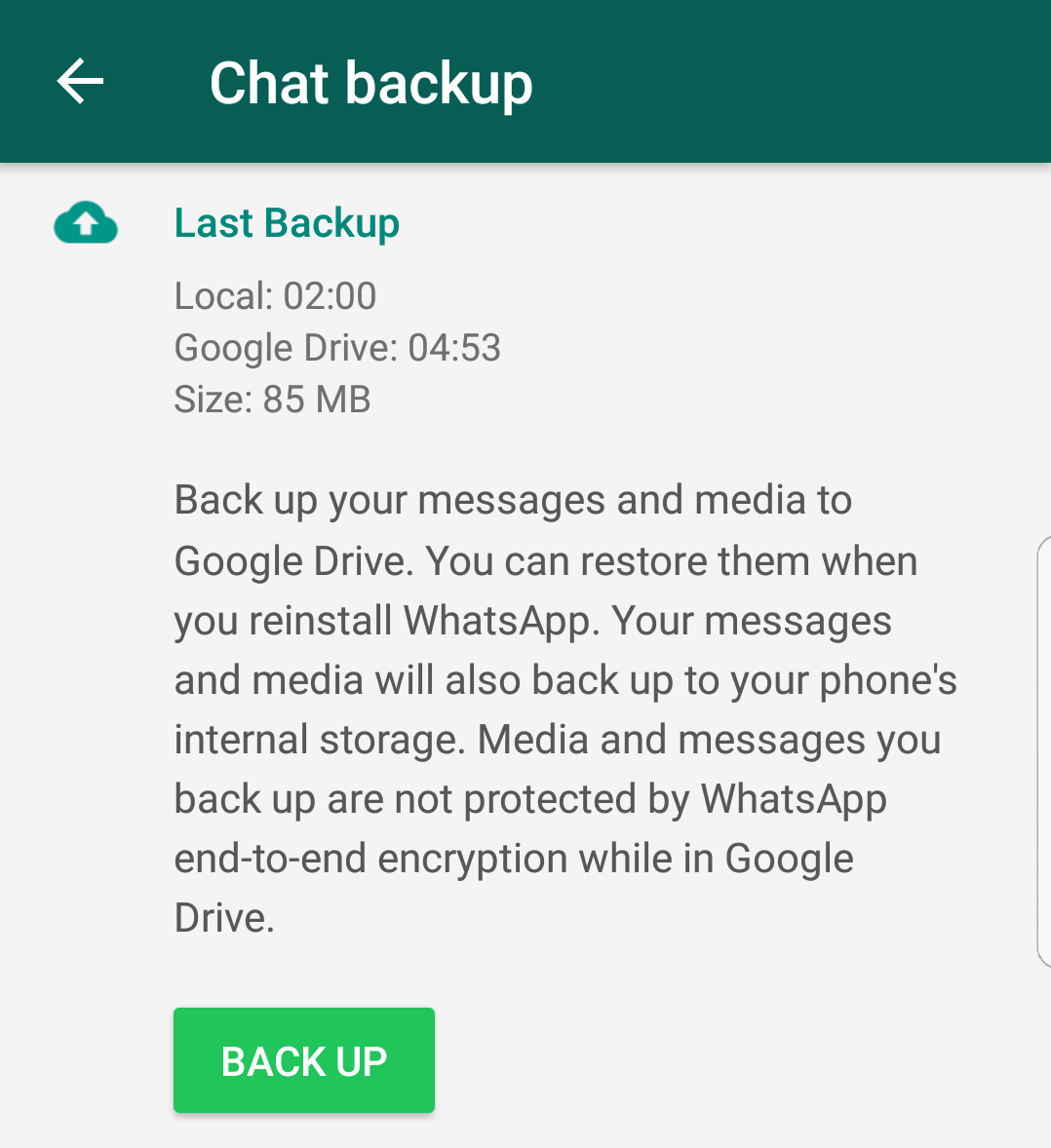
- Open WhatsApp and tap the three dots in the top right corner, then choose Settings > Chats > Chat backup

- By default WhatsApp will look to back up all your files overnight on a daily basis. However, if you’ve been using WhatsApp since or you didn’t have Wi-Fi turned, it’s possible this backup didn’t happen. Best to be on the safe side, so tap the green Back Up button to ensure you have a complete backup
- On your new phone install both WhatsApp and Google Drive from Google Play. You will want to be logged in using the same Google account as on your previous device
- Launch WhatsApp, click ‘Agree and Continue’ when presented with a message about the Terms of Service and Privacy Policy, then follow the prompts to verify your phone number
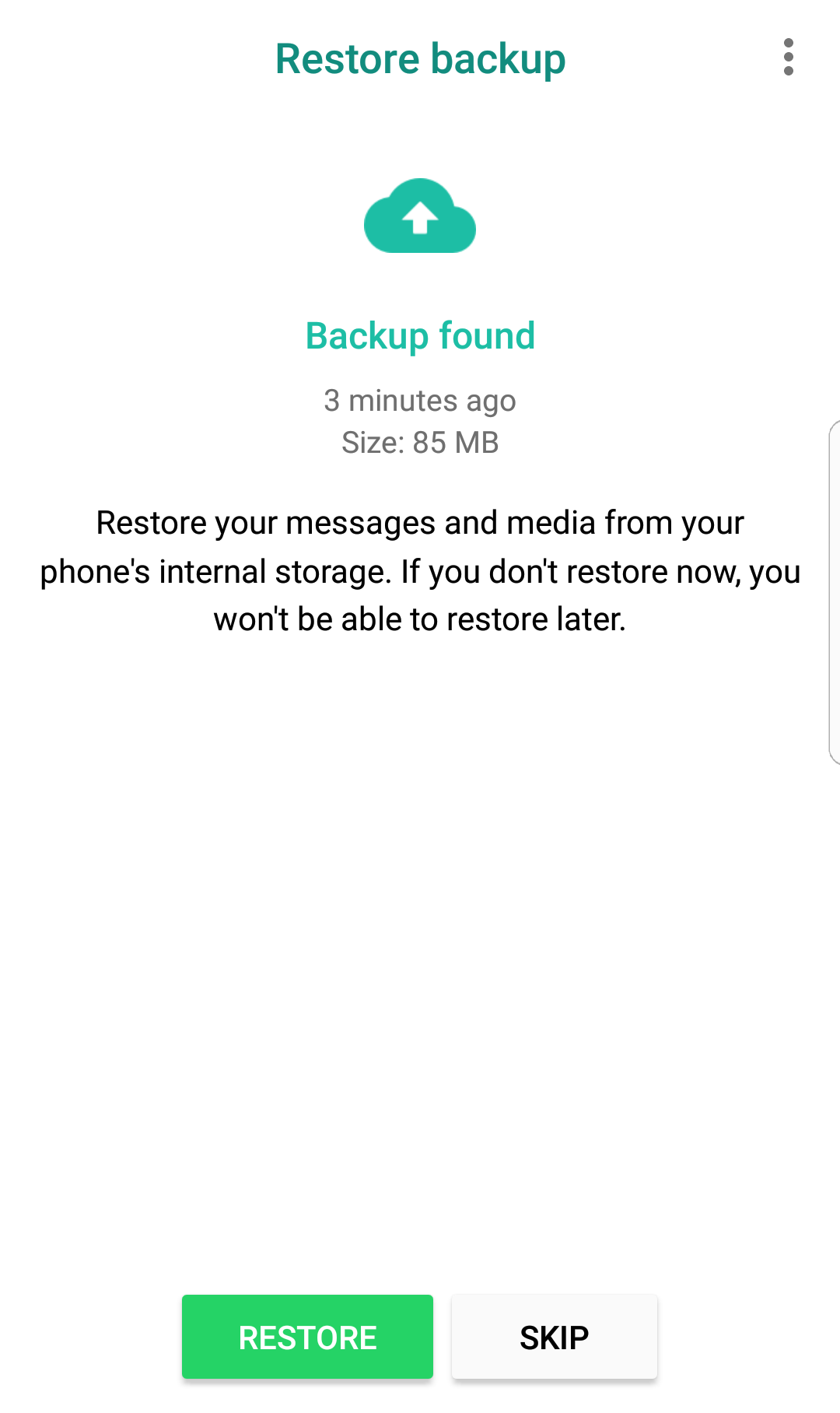
- WhatsApp will immediately look to Google Drive for an existing WhatsApp backup, and it should dig up the backup you created a few moments ago. If you wish to restore all your messages, photos and video on the new device then click the Restore button (if you choose Skip you will get a fresh installation of WhatsApp)
- WhatsApp will now begin downloading your files. Restoring your messages will take just a minute or two, though if you regularly send video and photos via the service these will take longer. You should find as soon as your messages have been restored you can begin using WhatsApp, while your media will continue downloading in the background
- Click Next to continue, then enter a name for your WhatsApp profile and again click Next. WhatsApp should now be up and running as it was on your old device
Author: Marie Black, Global Director of Content Operations, Foundry

Marie is Global Director of Content Operations at Foundry. A Journalism graduate from the London College of Printing, she’s worked in tech media for 20 years. These days she is focused on refining editorial processes and workflows, and on our evergreen, transactional and custom content strategy.
Recent stories by Marie Black:
- Smart Answers: GenAI tool makes it quicker and easier to find the info you need on Tech Advisor
- Is WhatsApp down? How to check and fix WhatsApp
- Is Slack down?
