In this Photoshop tutorial for beginners, we look at how you can extract a person or figure from one image and add them to another picture.
It’s an easy compositing process that opens up endless creative opportunities for mixing and matching people, places and times without hopefully raising too much suspicion.
Sure, deepfakes it ain’t, but it’ll certainly deepen your Photoshop skills.
We’ve used Adobe Photoshop to complete this process, which is available separately or as part of Adobe Creative Cloud . Some students are eligible for an extended free trial of Creative Cloud , and there are also ways to get Photoshop for free .
- Time to complete: 25 minutes
- Tools required: Adobe Photoshop
- Cost: From $19.99/£19.97 per month (free trial available)
Step 1
Foundry
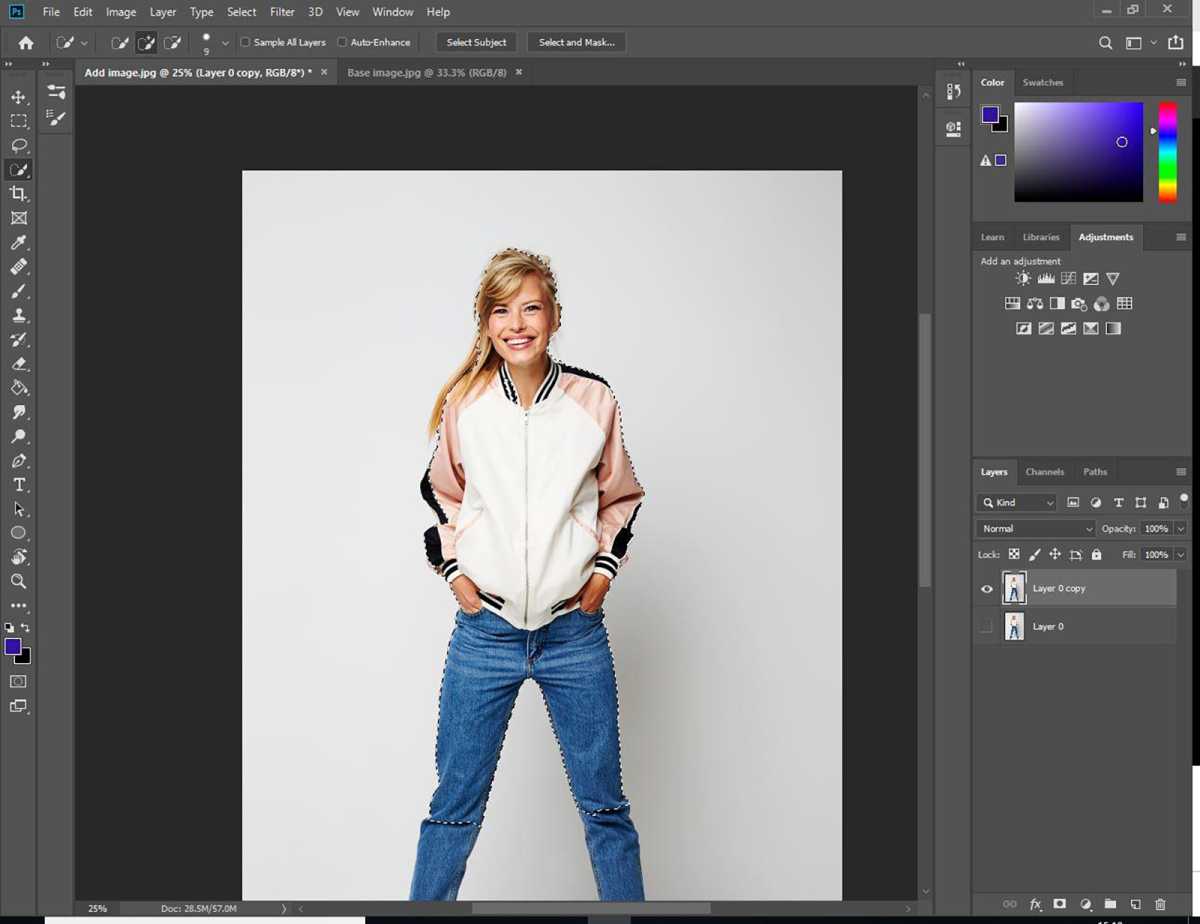
First, open up your two images on Photoshop.
Using the Quick Selection tool, roughly select the figure you want to extract.
Figures with a clean background are generally easier to extract. If your background is busy, we recommend using the Pen Tool to make a more precise path around the figure, which you can then convert into a selection – simply right click after drawing a path and then select Make Selection.
Step 2
Foundry
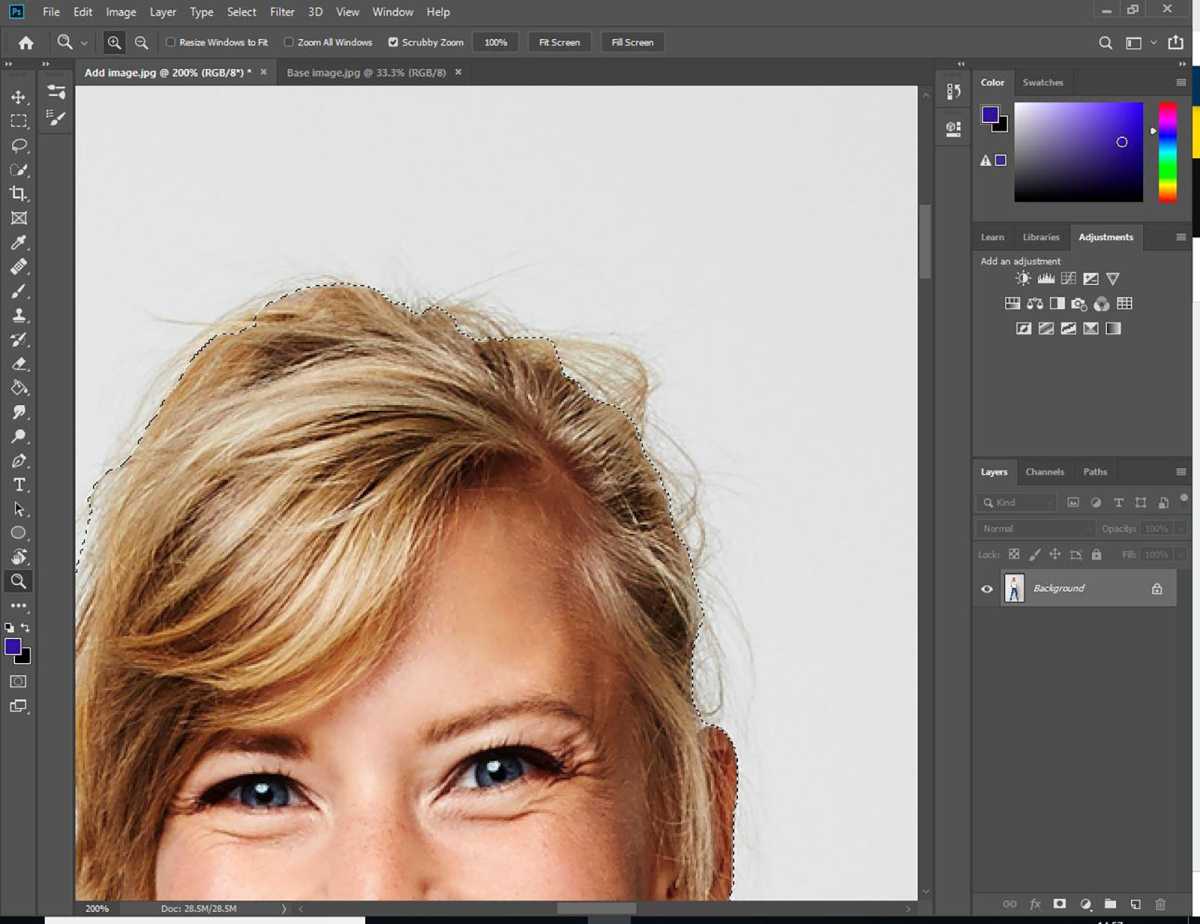
If you’re working with fine hair, don’t worry about making the selection too precise. We will refine it using the Select and Mask option.
Step 3
Foundry
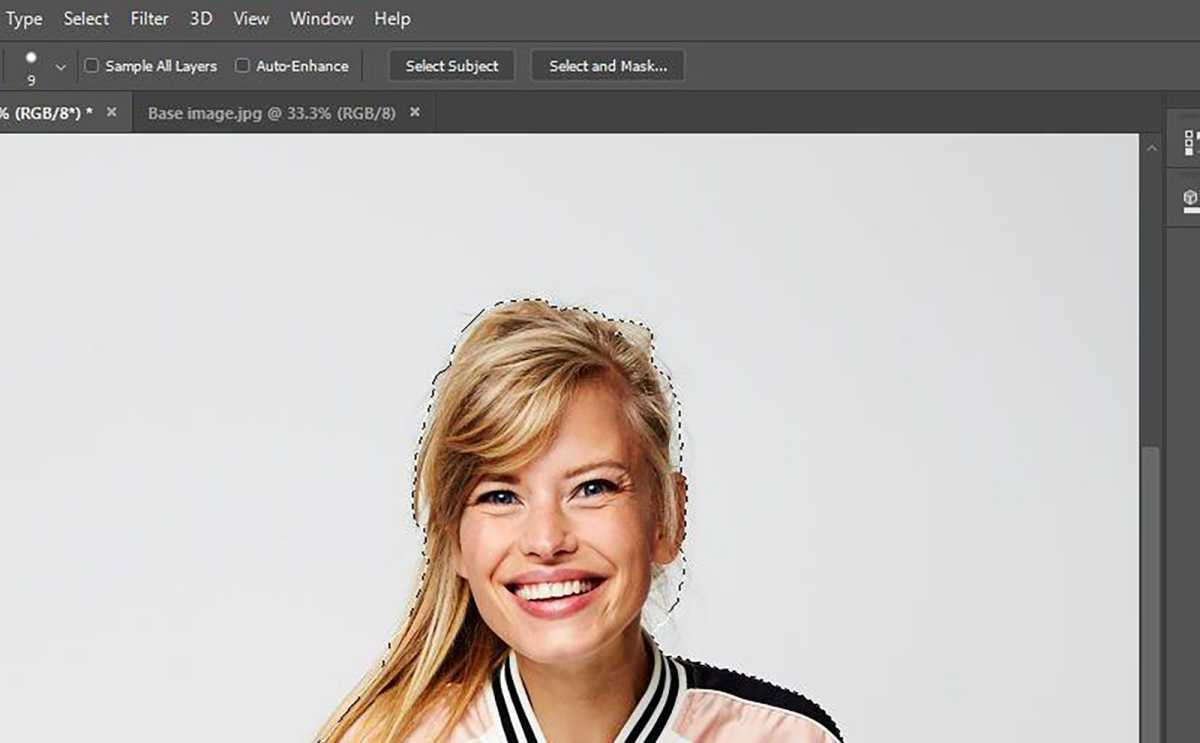
Click on Select and Mask from the options at the top of the workspace.
Step 4
Foundry
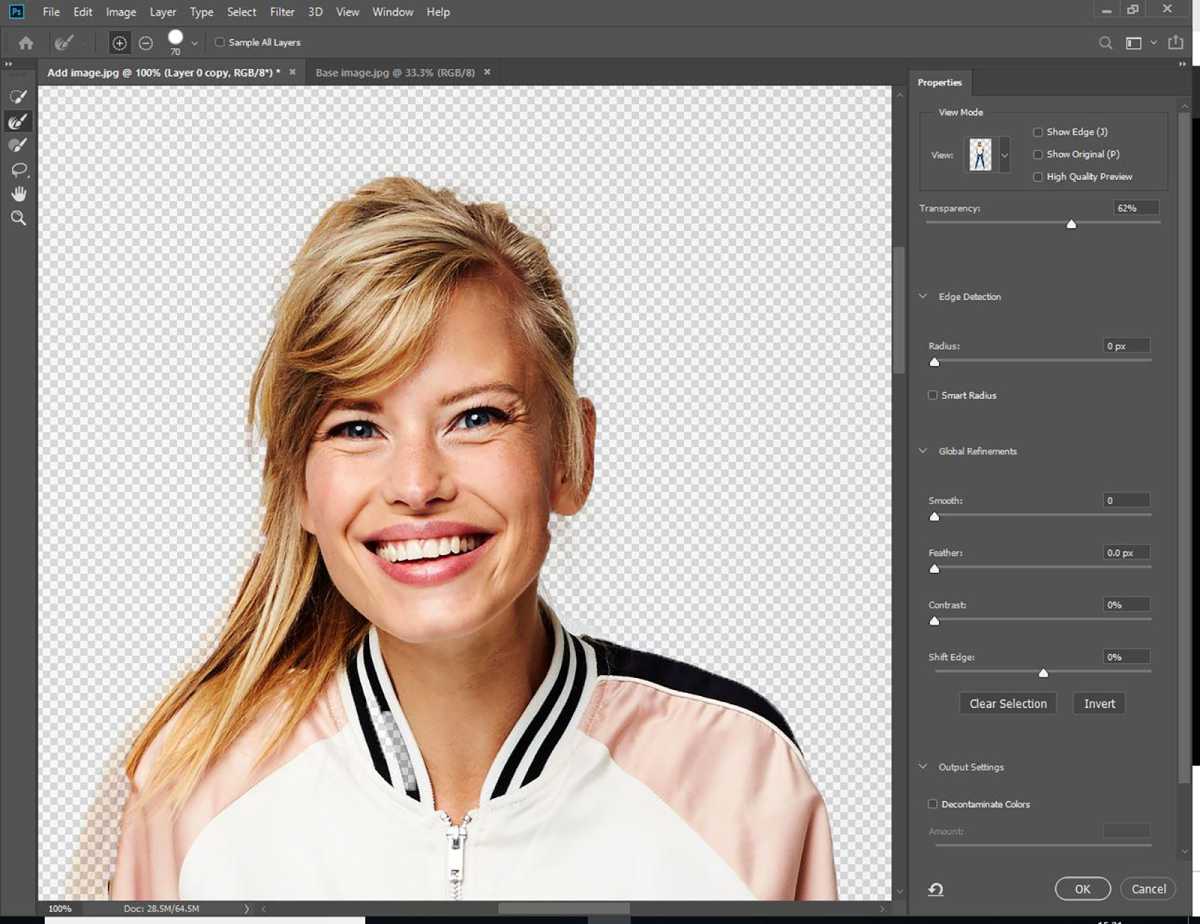
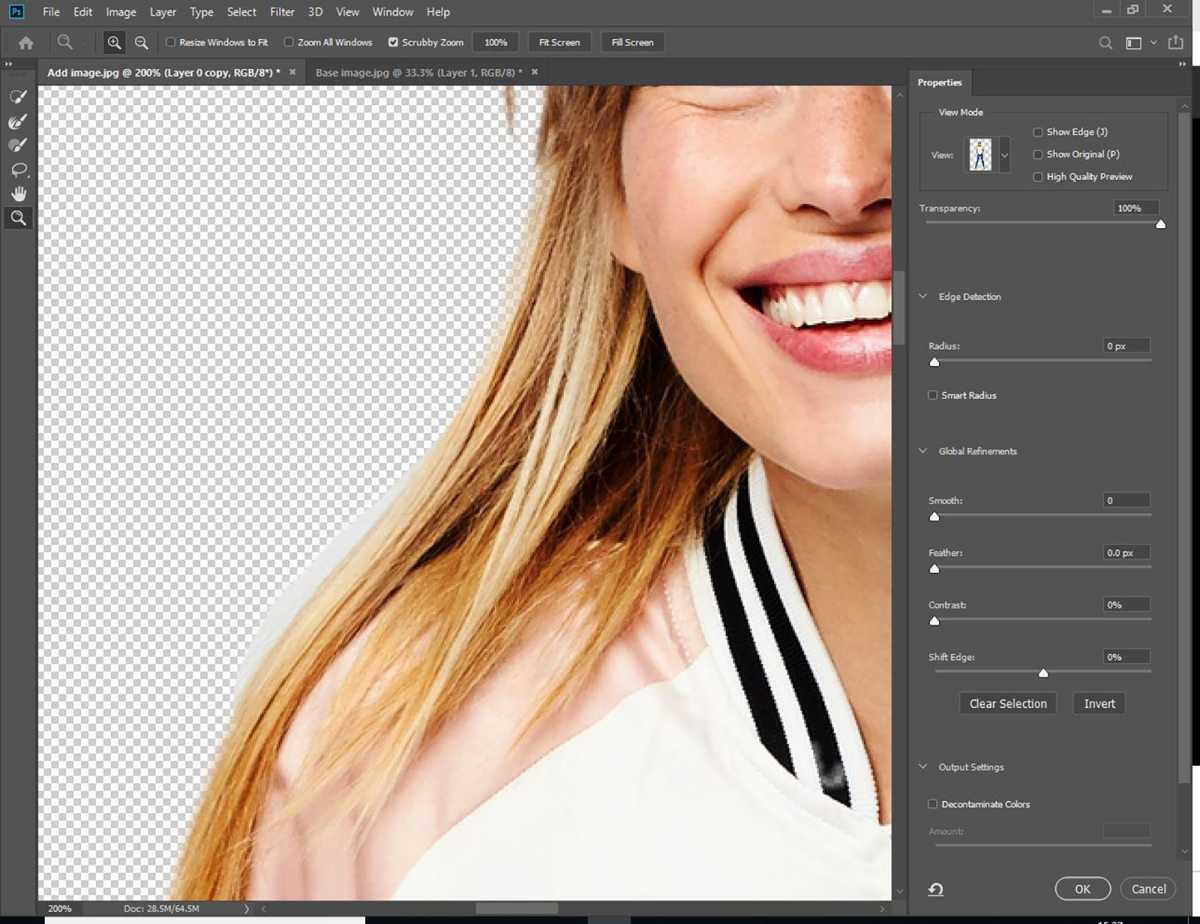
Using the Refine Edge Brush tool (the icon second from the top, on the left), paint over the edges of the hair.
Check that the View mode is set to Onion Skin and the Transparency setting is around 60 to 70%.
Step 5
Foundry
As you work with the Select and Mask tool, you can add more to what should be visible using the Quick Selection or Brush Tool, or remove any excess bits of selected background with the Refine Edge Brush. No rushing with this, just take your time.
Step 6
Foundry
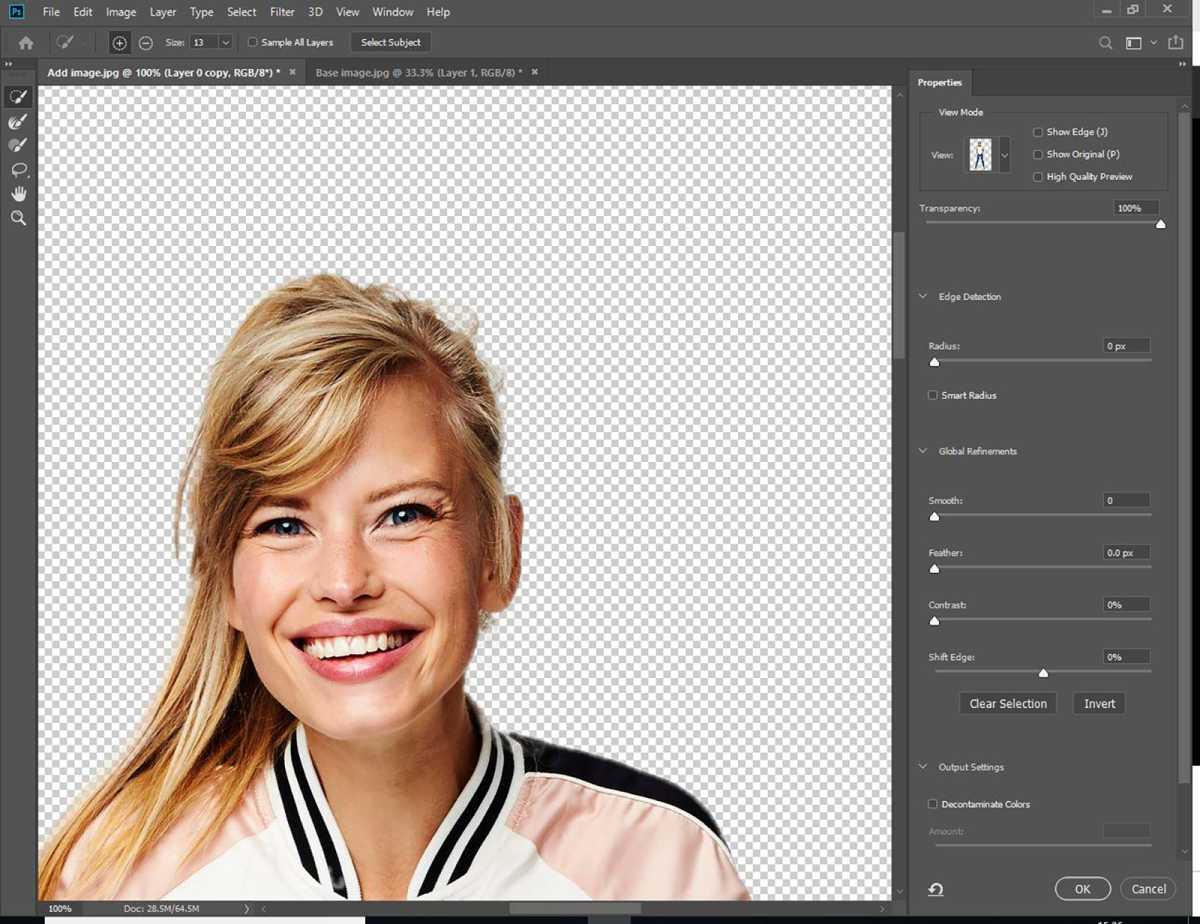
When you’re ready, click OK.
Once the dialogue closes, copy your new selection and paste it into your destination file.
Step 7
Foundry
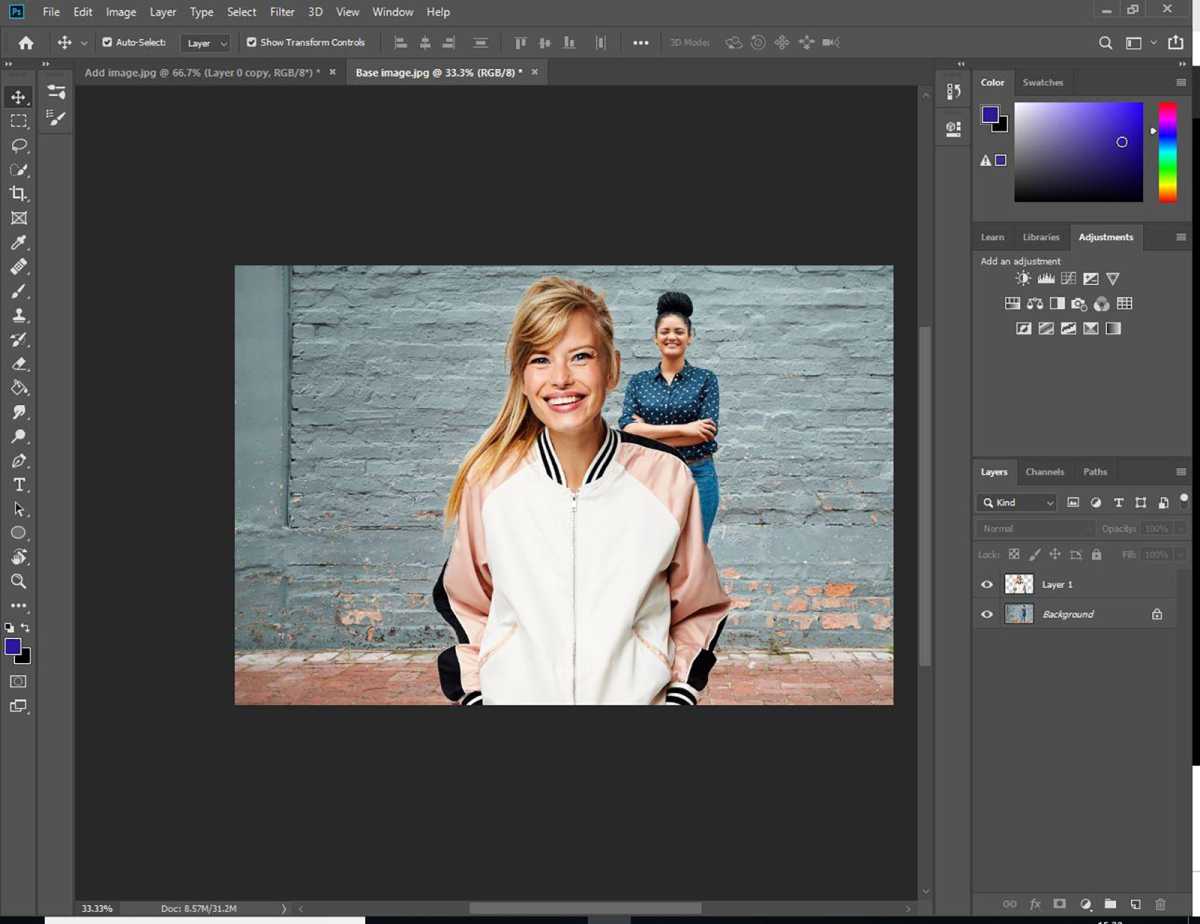
Now we’ll resize and play around with our extracted figure to find the right fit. You can play with size to give a sense of depth too if you wish (like we have here).
Step 8
Foundry
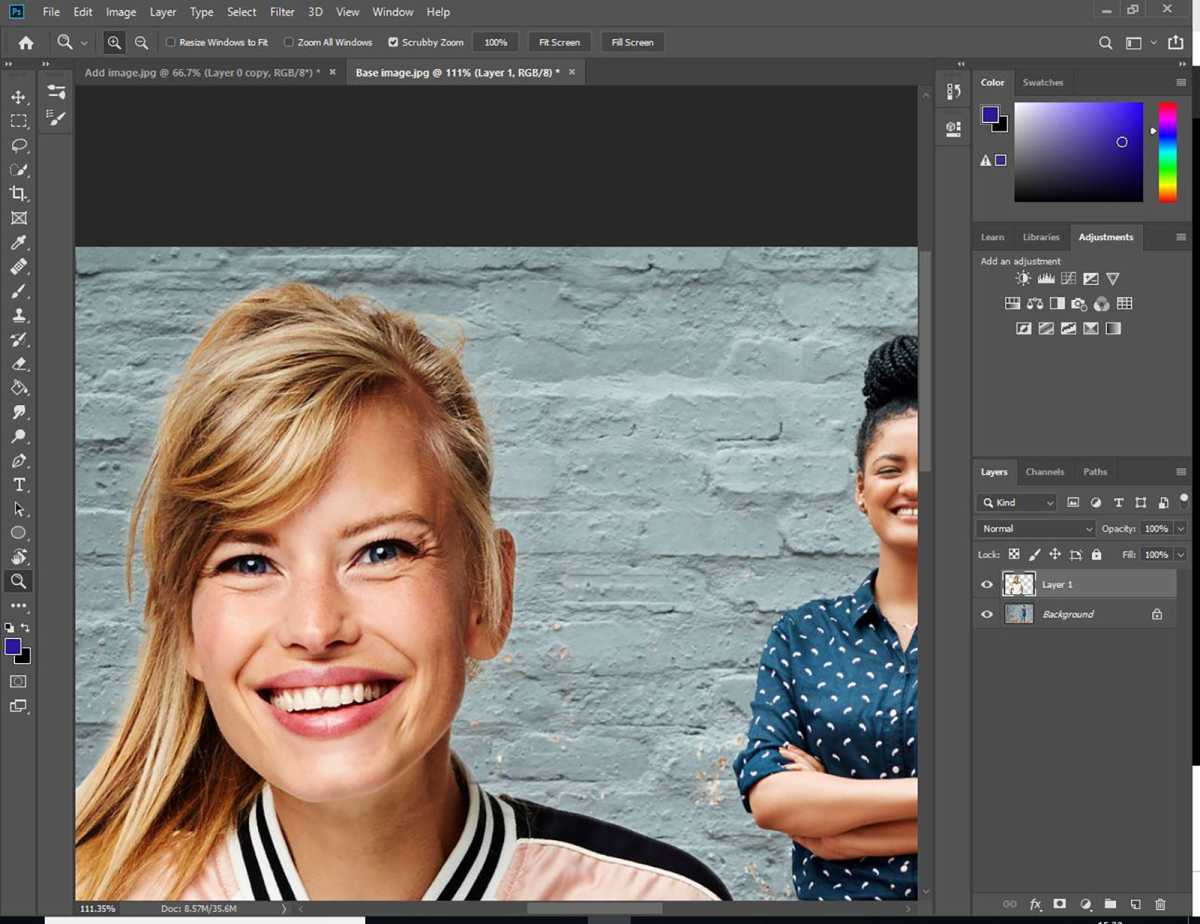
You should see that the refinements we added to our selection in the original image results in a clean extraction of fine hair strands, which helps make the final image appear more natural.
Step 9
Foundry
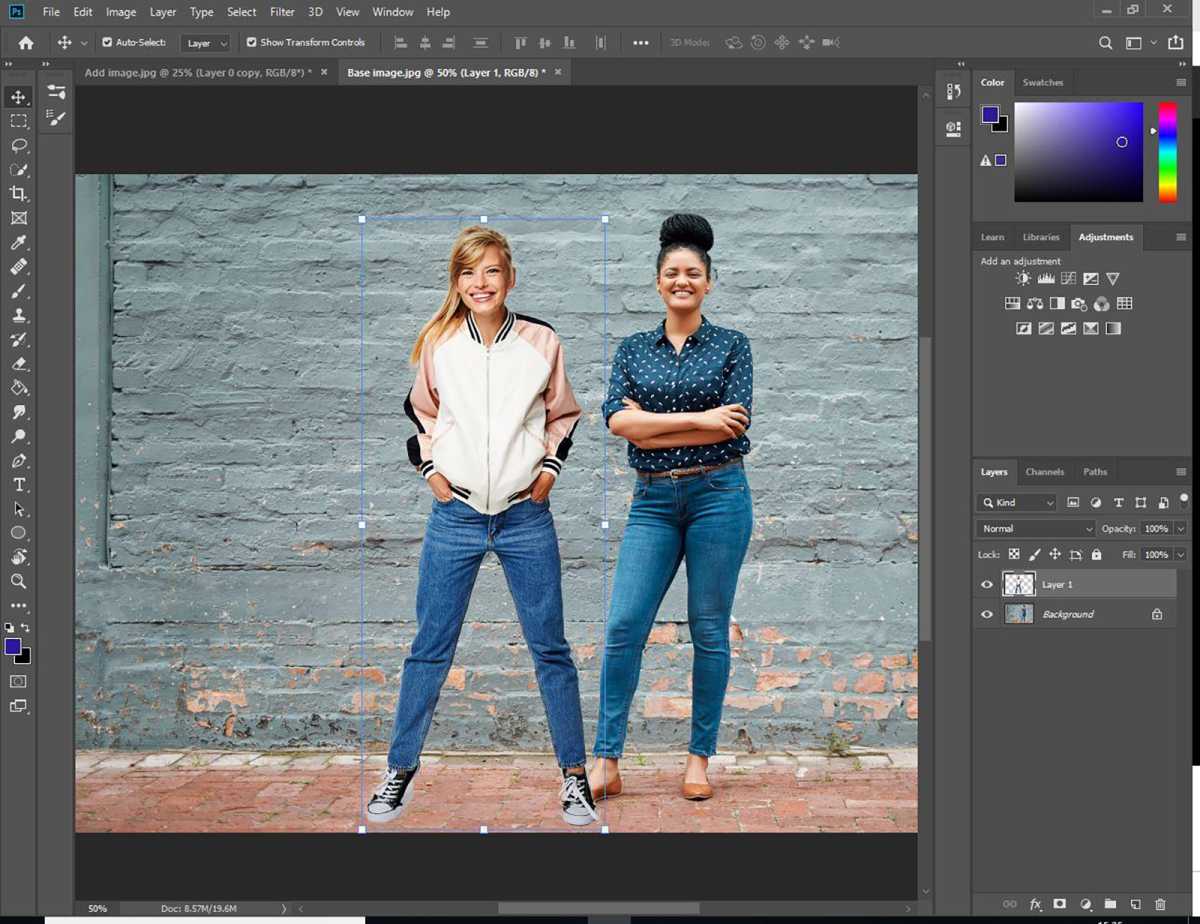
In our example, we’ve opted for our subjects to stand close to each other. Resize your extracted image in whichever way you see fit so it looks in-place with people in the new image.
Step 10
Foundry
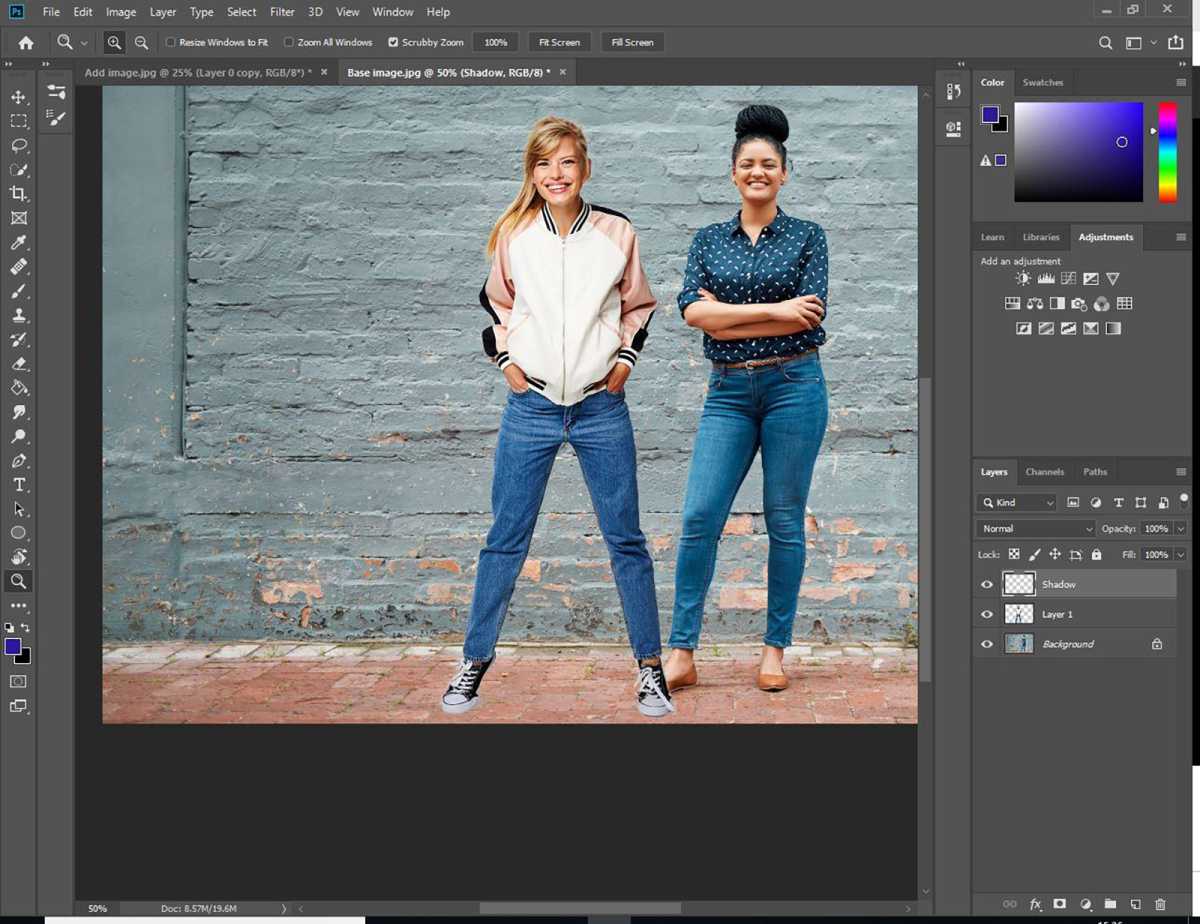
To help make the extracted figure appear even more natural, we’ll add shadows under the feet.
Create a new layer and name it Shadow.
Step 11
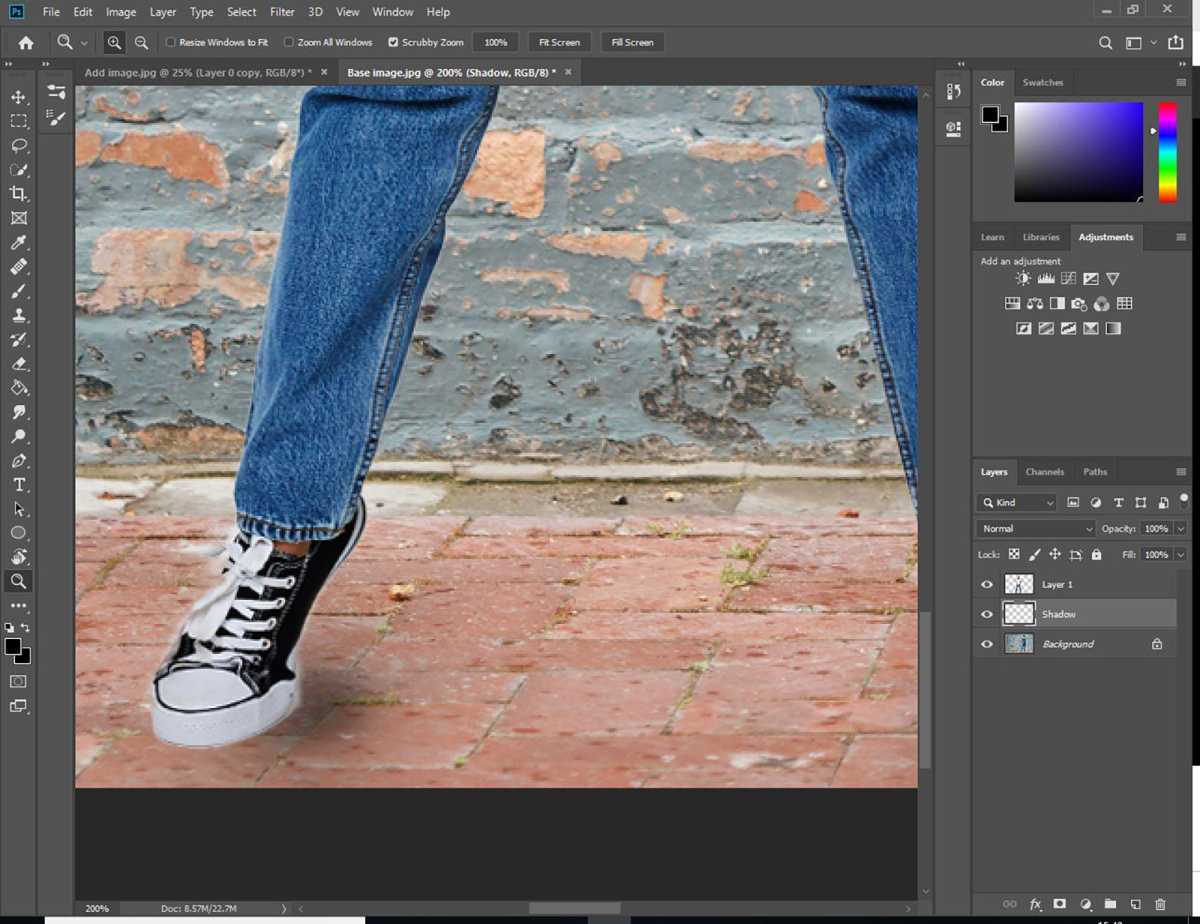
Foundry
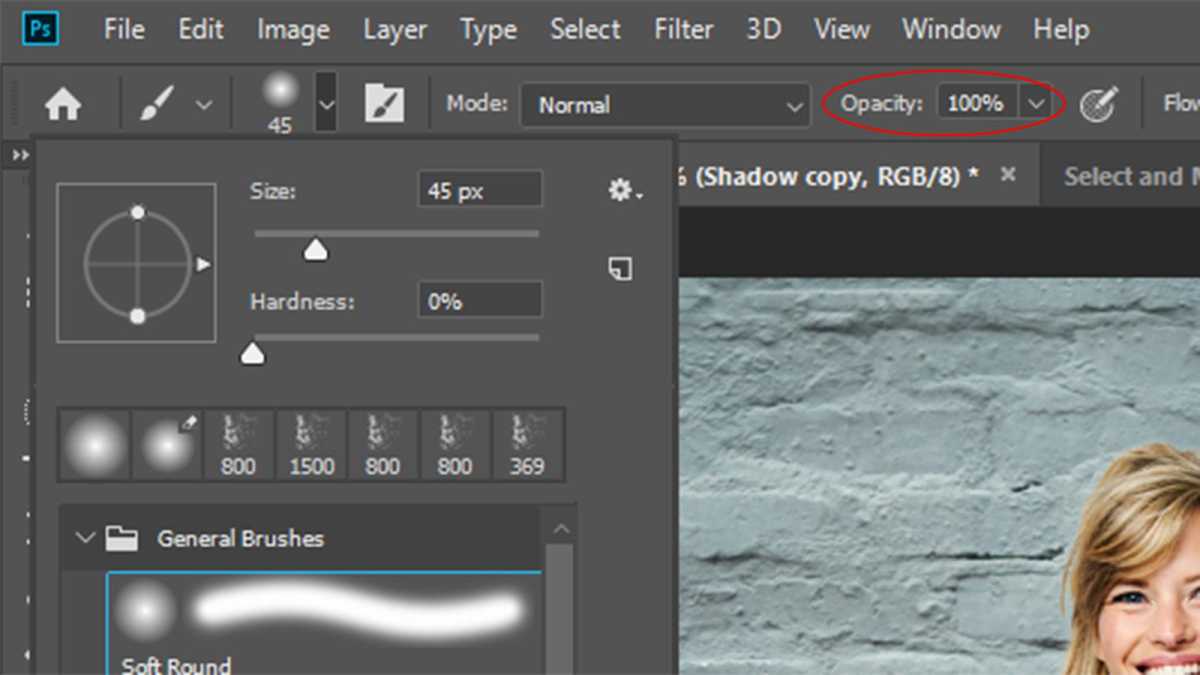
Using the Brush tool (B) with black (or a dark brown) selected, paint onto where the shadows should appear naturally. Remember to set the brush hardness to zero (see next step) for a softer look.
Step 12
Foundry
Adjust the brush hardness in the brush palette. You can also adjust the opacity percentage of the brush.
Step 13
Foundry
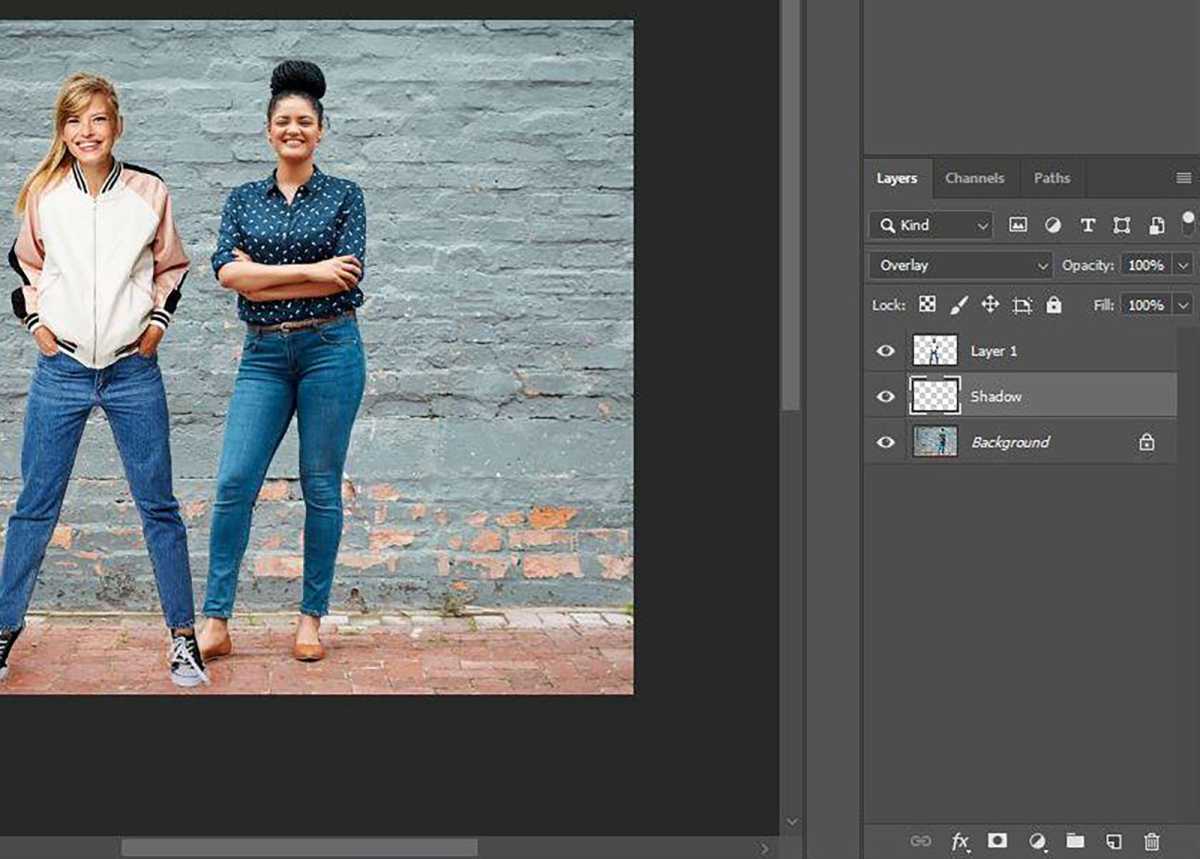
Change the Shadow layer’s mix to Overlay.
Step 14
Foundry
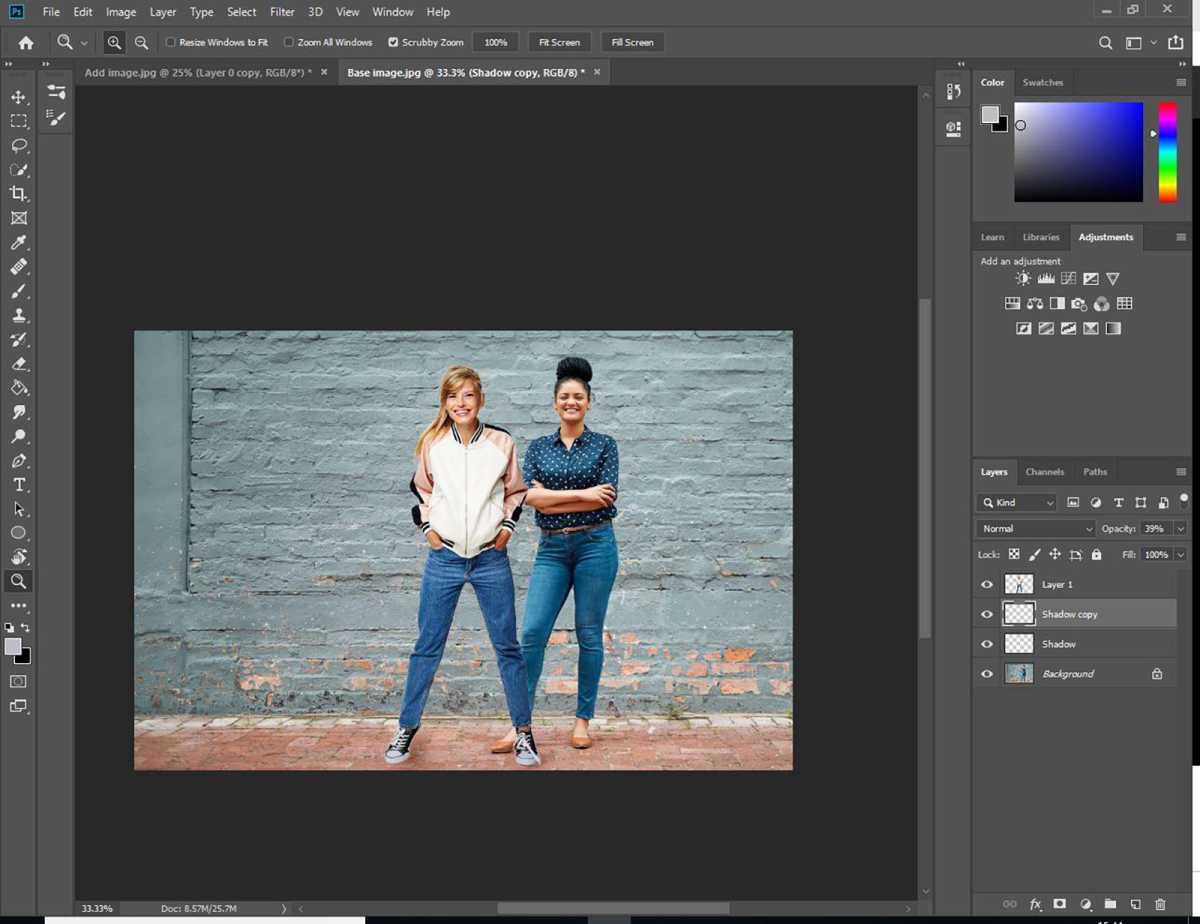
Now make a copy of the Shadow layer to intensify the shadow.
Step 15
Foundry
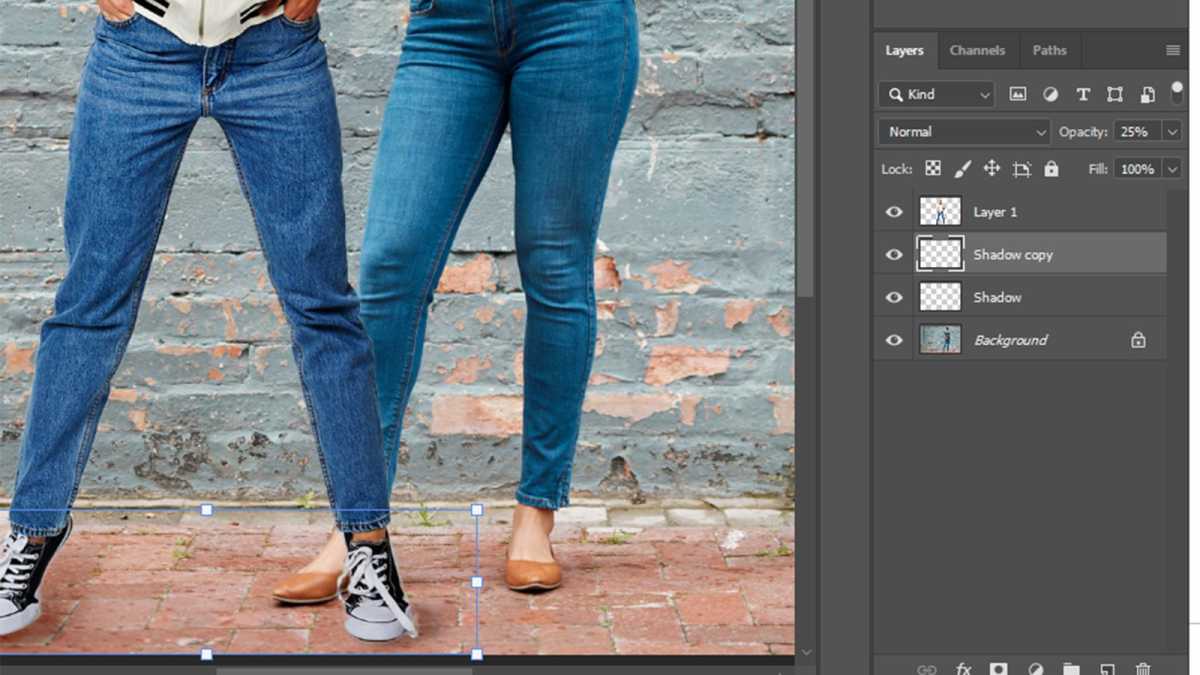
Reduce the opacity of the ‘Shadow copy’ layer to make it look more natural. Play around with the shadow until it looks right.
Step 16
Foundry
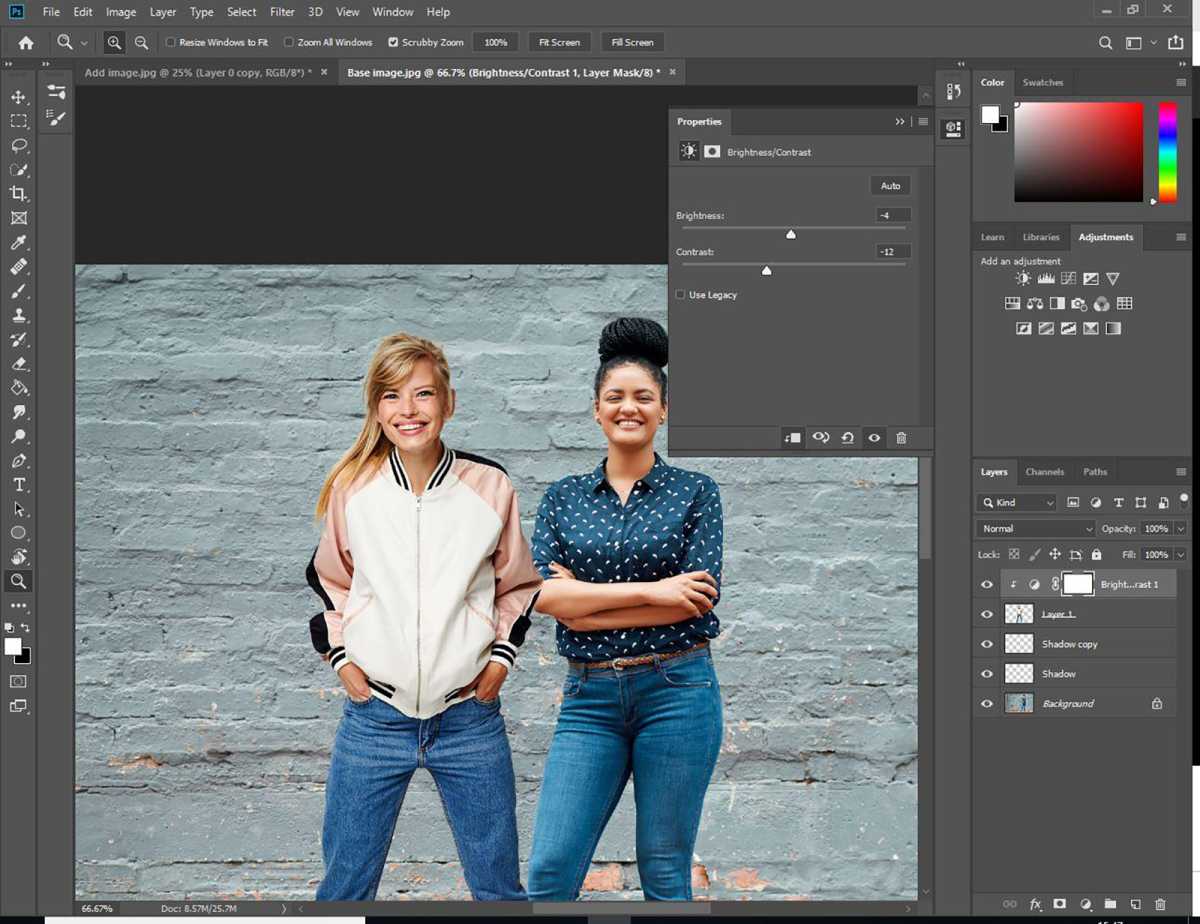
Next, you may need to adjust the brightness or contrast of the added figure to match it to the background image.
To do this, select the layer with the extracted figure and click on the Adjustment layer button at the bottom of the Layers palette (it’s the half-grey circle).
Note: Hold down Alt (or Option on Mac) and click on the adjustment layer. This will make sure the adjustment layer only affects the layer immediately below and not all the layers.
Use the sliders to play around with the brightness and contrast levels until you get something that, again, looks natural.
Step 17
Foundry
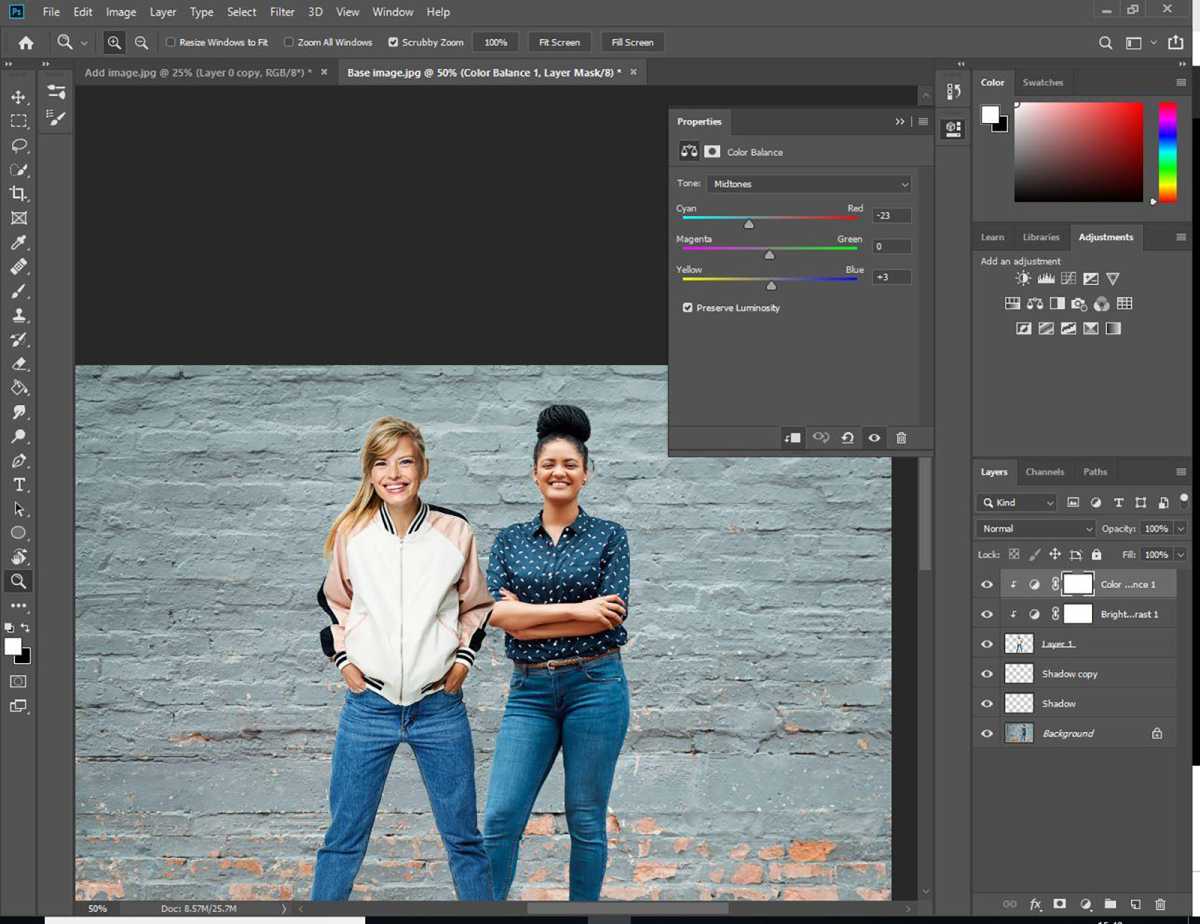
You may also want to adjust the colour balance. In our case the extracted image was slightly on the redder side.
Hold Alt/Option and click on the colour balance adjustment layer again so that it only affects the extracted figure and not the background image.
Step 18
Foundry
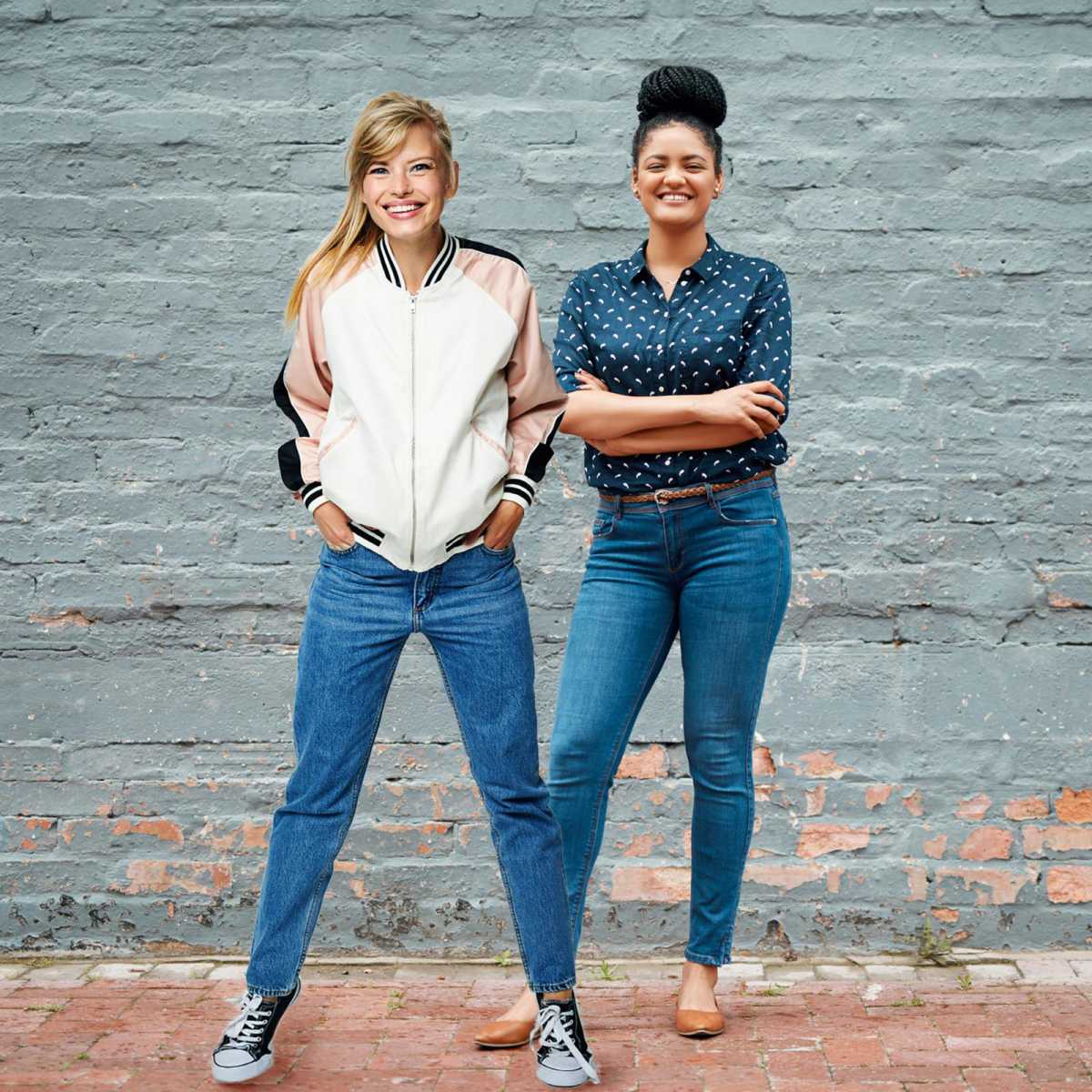
This is our final result.
Author: Somrata Sarkar, Contributor, Tech Advisor

Previously a Tech Advisor Senior Staff Writer, Somrata researches and writes about the best tech deals to help readers make smart, informed buying decisions. She’s an expert on accessories and also reviews laptops, phones, audio and other devices.
Recent stories by Somrata Sarkar:
- Is Adobe CC free for students?
- Get 41% off Adobe CC for a year & extra discounts for students
- Does Windows 11 come with Microsoft Office?
