It’s crucially important to keep your Windows 11 device up to date, but things don’t always go to plan.
Some updates inadvertently contain bugs, which can slow down your device and make you wish you’d stuck with the previous version. But sometimes, it’s just a problem with the way the update was applied.
If you’re unhappy with a recent update, it’s worth checking which is to blame. An issue during installation is usually solved by reinstalling it, but you may want to block an update if it’s known to cause issues. In this article, we outline how to do both.
How to uninstall updates in Windows 11
Whether you want to reinstall the update or block it, uninstalling the update will always be the first step. Fortunately, Microsoft makes the process relatively easy:
Open Settings, then select ‘Windows Update’ from the left pane
Under ‘More options’, click ‘Update history’
Scroll down to ‘Related settings’, then click ‘Uninstall updates’

Anyron Copeman / Foundry
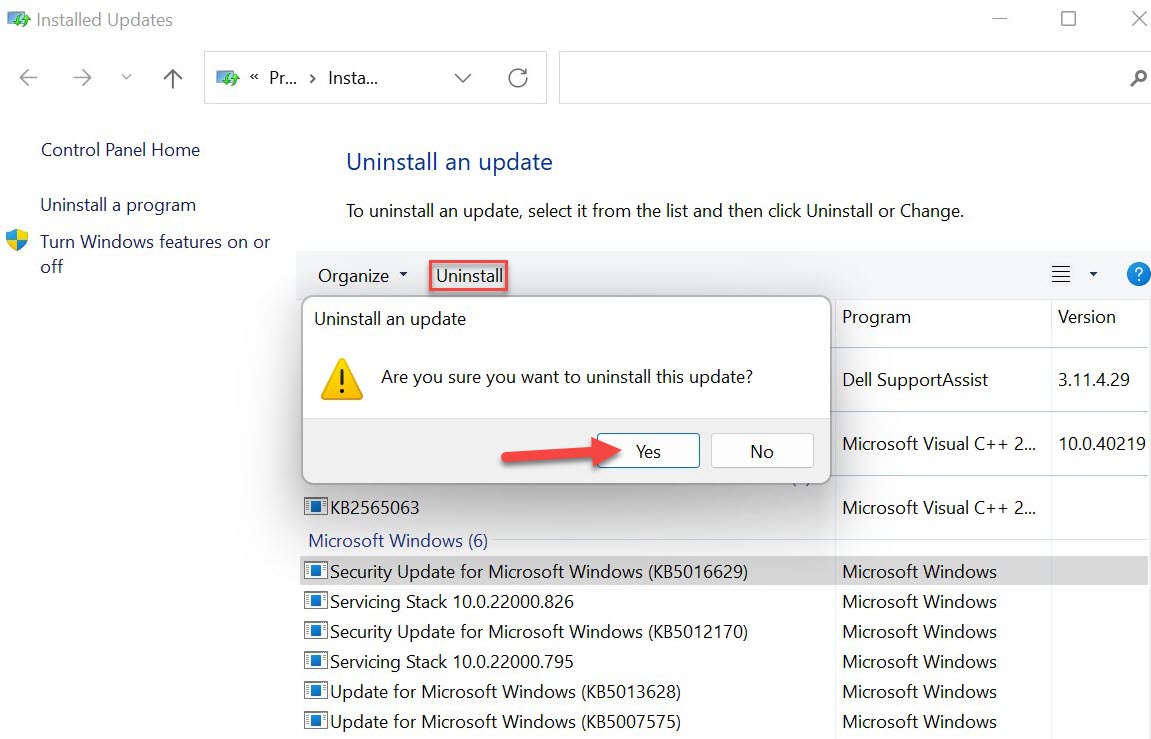
The Control Panel will now open, displaying all the updates you’ve recently installed
Click the offending update to highlight it, then click ‘Uninstall’ from above the list
Click ‘Yes’ to confirm, then restart your device when prompted
Anyron Copeman / Foundry
Assuming this is a Windows 11 security or feature update, this will just take you back to the version you had installed previously.
How to reinstall updates in Windows 11
That same update should now be available to download from Settings:
Open Settings
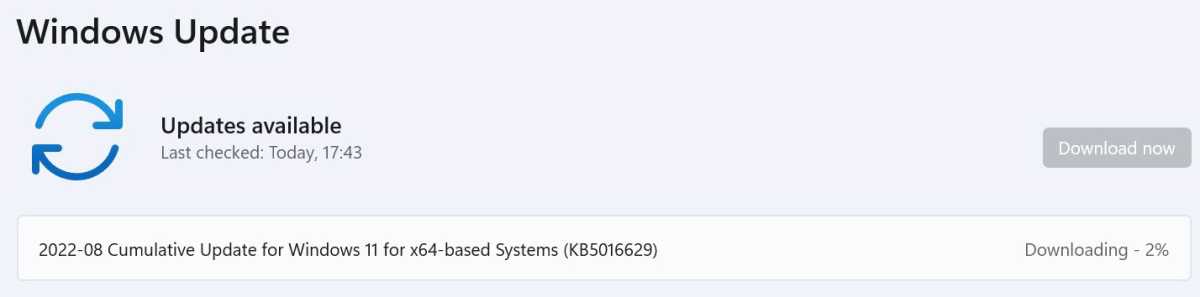
Select ‘Windows Update’ from the left pane, then click ‘Check for updates’
After a few seconds, the same update should now appear. Click ‘Download & install’
Anyron Copeman / Foundry
- To complete installation, restart your device when prompted
Not seeing the update appear? It may still be available via Microsoft’s Update Catalog – search using the update number beginning with KB. Once downloaded, double-click the file and follow the instructions to install it on your device. This will also require a restart.
How to block updates in Windows 11
If you know there’s a specific update causing the problems, your best bet is to prevent the system from ever downloading it again:
Download Microsoft’s ‘Show or hide updates’ tool
Double-click the downloaded file to open it. Bypass any warnings that it could be malicious – that’s not the case
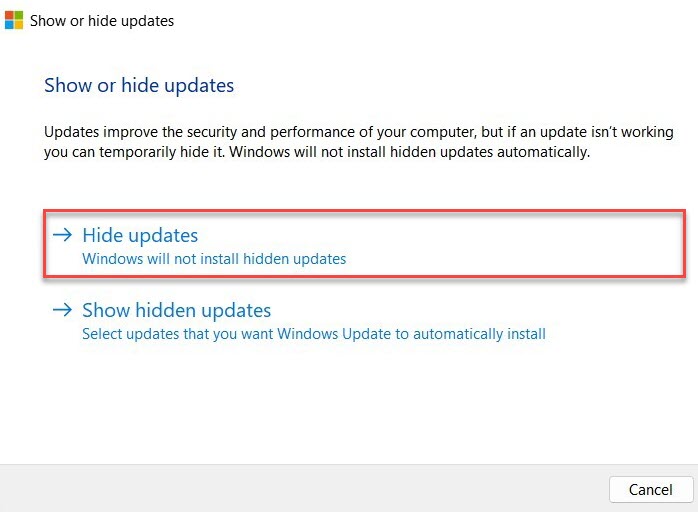
From the window that opens, click ‘Next’
From the next screen, click ‘Hide updates’
Anyron Copeman / Foundry
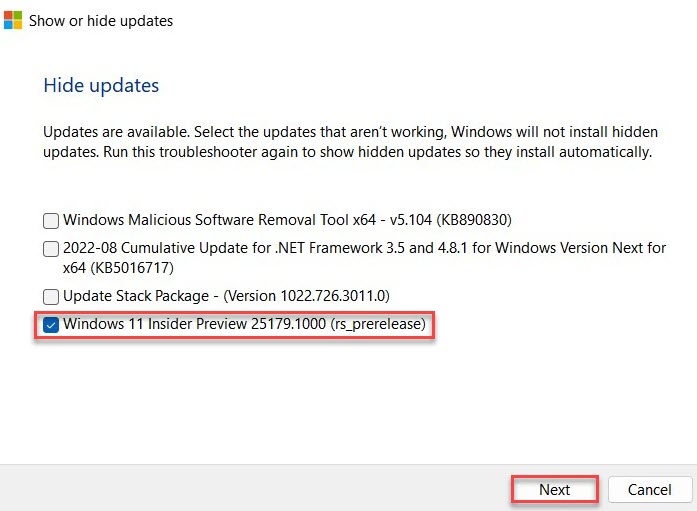
- Tick the box next to the problematic update and click ‘Next’
Anyron Copeman / Foundry
- Click ‘Close’
There’s no need to restart your device this time. If you ever change your mind, choose ‘Show hidden updates’ rather than ‘Hide updates’ in step 4.
- How to turn off automatic updates in Windows 11
- How to install the Windows 11 22H2 update early
- Windows 11: Everything you need to know
Author: Anyron Copeman, Mobile Editor, Tech Advisor

Anyron is Mobile Editor at Tech Advisor, where he’s been a mainstay of the editorial team since 2019. In his current role, Anyron is responsible for all smartphone, tablet and mobile network coverage on the site. A BA Journalism graduate, he has experience with a wide range of consumer tech products and services, including smartphones, tablets, foldables, wearables and more.
Recent stories by Anyron Copeman:
- Windows 11 23H2 update: Everything you need to know
- Windows 12: Everything we know so far
- How to get the Google Play Store on Windows 11
