After setting up a Windows device for the first time, you’ll notice plenty of software that’s already been installed.
Some of this is genuinely useful – most people couldn’t live without Settings or File Explorer, for example. But there are lots of other apps you’ll never use and might even forget about.
Microsoft includes lots of its own stock apps in Windows 11, but some PC and laptop makers also add their own. Not only are these annoying, they take up vital storage space and can slow down your device.
In this article, we’ll run through how to identify bloatware and then remove it from your computer. This tutorial only applies to Windows 11, but the process is similar on Windows 10.
What is bloatware?
Bloatware is an umbrella term to describe software which takes up space or uses device resources without being of use to the end user.
Which apps and services are considered bloatware will therefore vary, but there are a few popular examples. They include antivirus apps (especially those which encourage you to buy a subscription), entertainment apps, games and custom versions of tools such as notes and settings.
While this can have a negative effect on the user experience, the incentive for device makers is clear. Promoting their own services in addition to (or instead of) Microsoft’s is a useful way to increase popularity, while third-party companies will pay significant amounts of money for their apps to be installed.
It’s worth noting that bloatware on Windows is much less intrusive than Android, where extra apps and tools can transform the look and feel of your phone or tablet. But they’re still worth removing.
How to decide if a Windows 11 app is bloatware
In general, anything you recognise as an app or tool that isn’t required on Windows can be classified as bloatware. You can safely remove it without any harmful consquences for your device.
But what if you’ve never heard of it? A search online will shed some light, but a site such as shouldiremoveit.com is more reliable. Here, you can decide if any program is important to keep or simply bloatware.
How to remove bloatware on Windows 11
Removing bloatware is easier than you might think – everything can be uninstalled from within Settings:
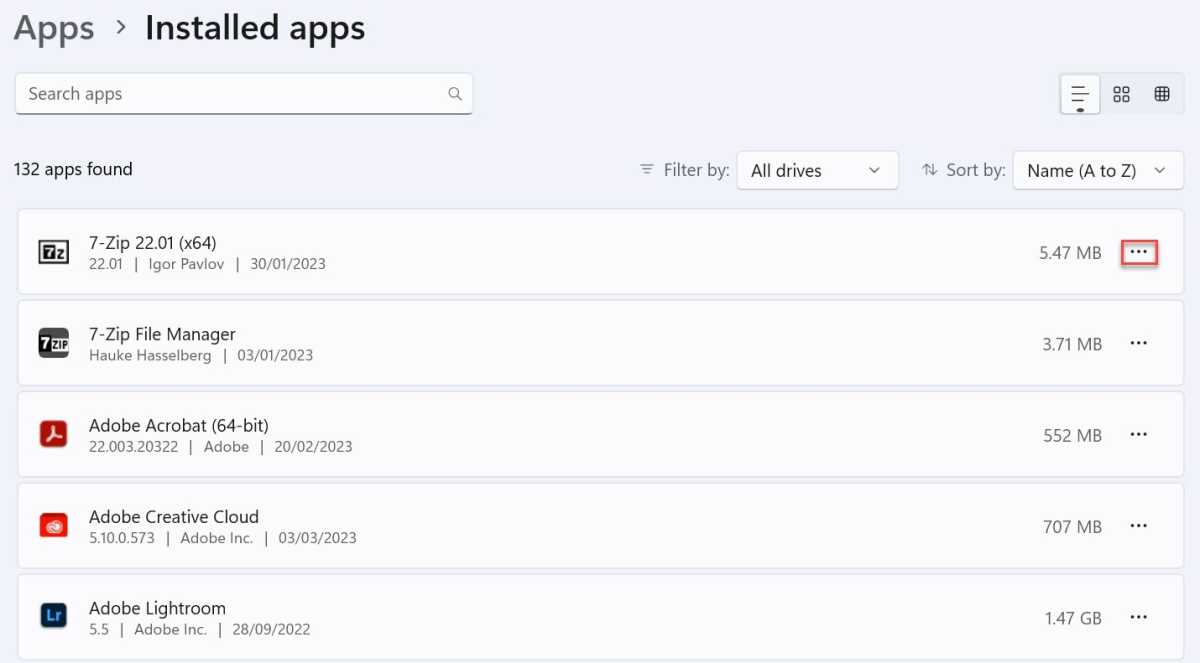
Head to Settings > Apps > Installed apps
You’ll now see a list of all your apps sorted alphabetically. Scroll or use the search bar to find any bloatware you’d like to remove
Click the three dots next to the first one and choose ‘Uninstall’
Anyron Copeman / Foundry
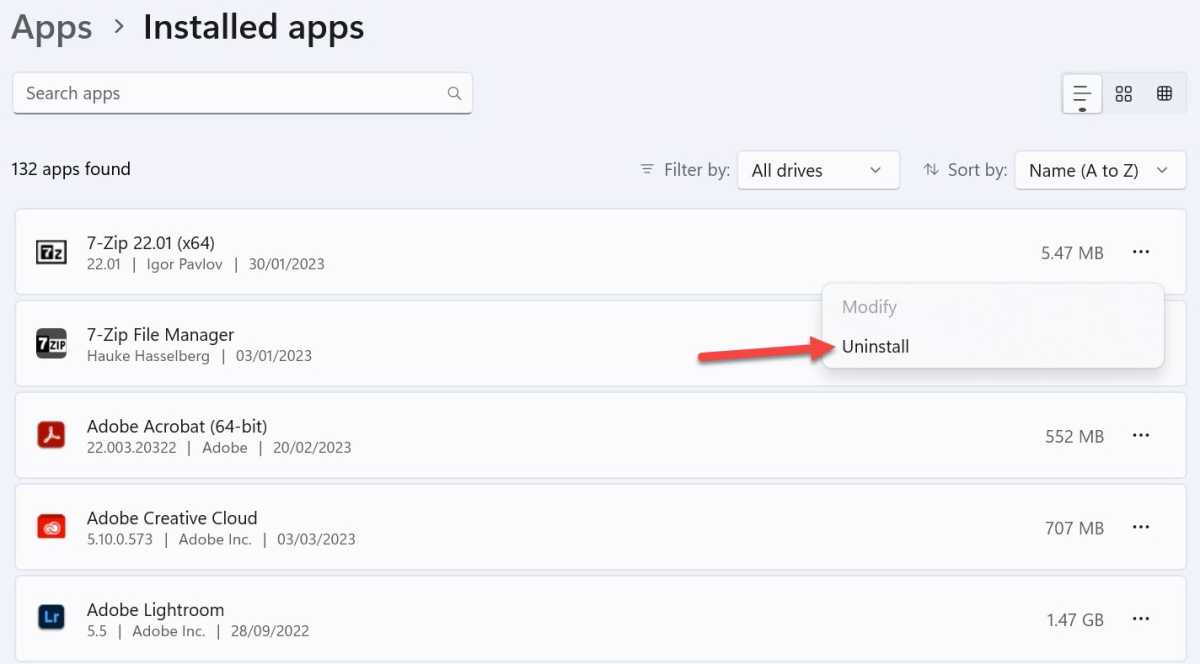
- Click ‘Uninstall’ again to confirm
Anyron Copeman / Foundry
An uninstall wizard may open for some apps. If that’s the case, just follow the on-screen instructions to complete the process
Repeat for all apps you’d like to uninstall
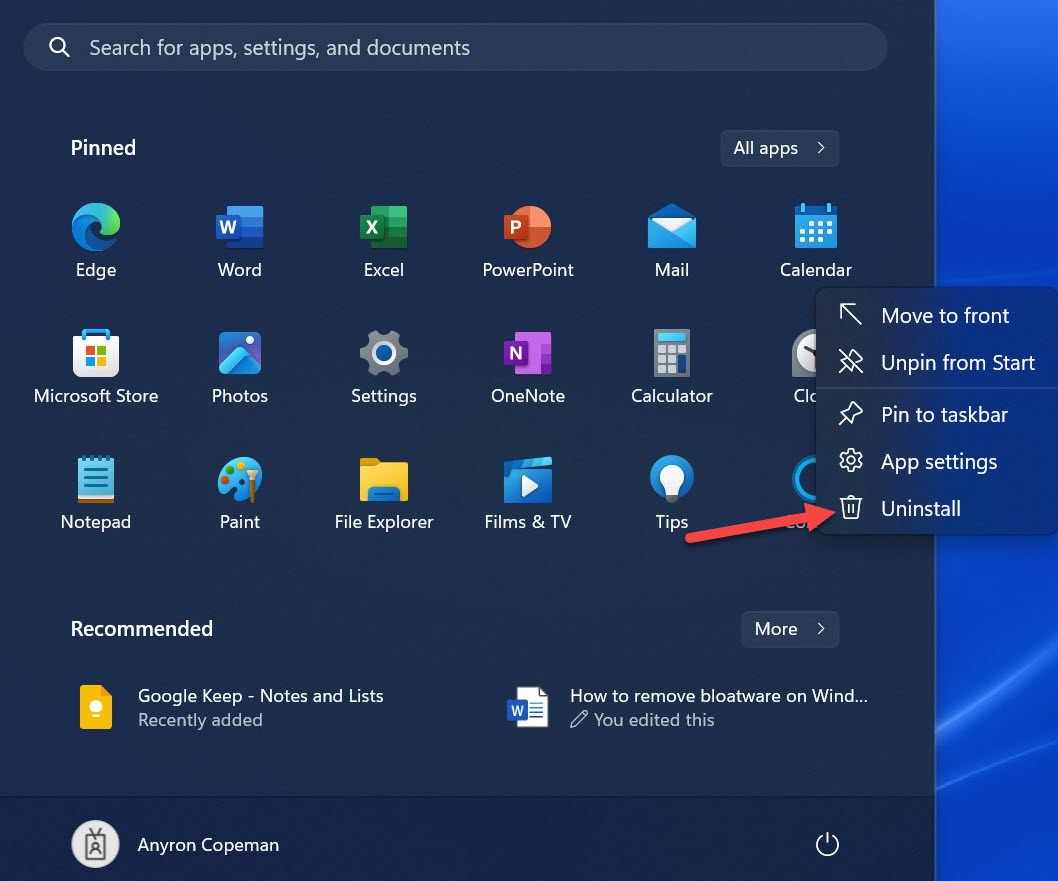
If you’d prefer, it’s also possible to remove apps directly from the Start menu:
Open the Start menu
Right-click any app (click ‘All apps’ to see the full selection) and click ‘Uninstall’
Anyron Copeman / Foundry
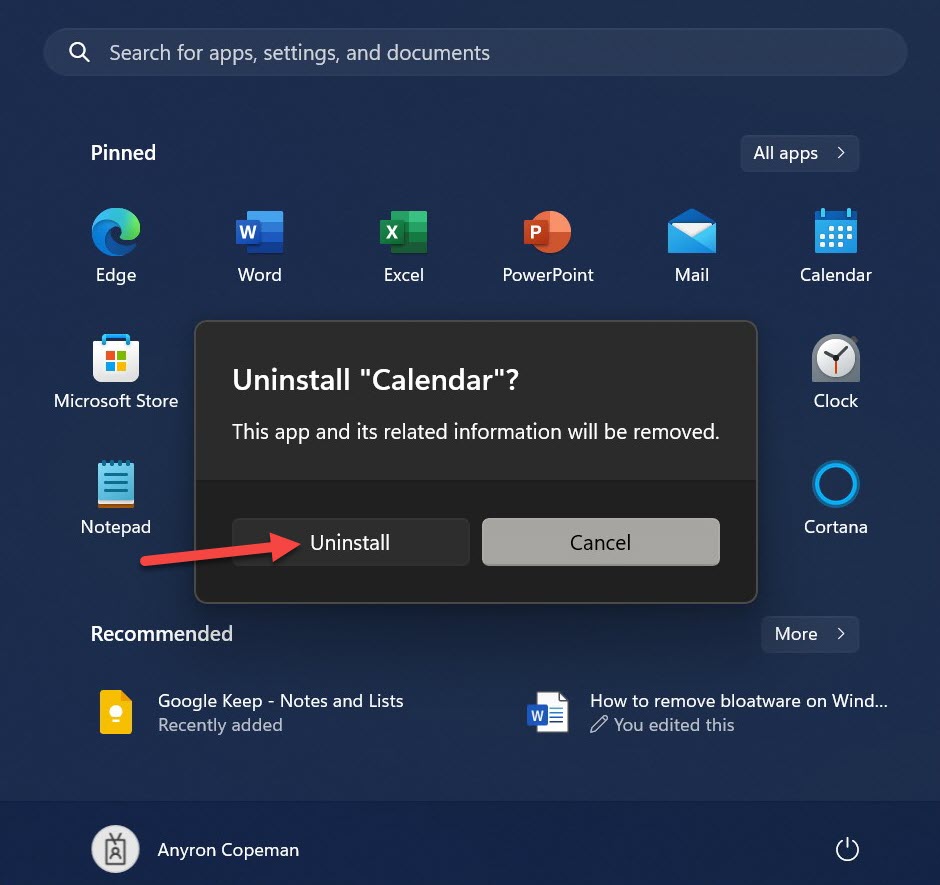
- Click ‘Uninstall’ again to confirm, or follow any other on-screen instructions that appear
Anyron Copeman / Foundry
However, it’s worth noting that many apps must be closed before you can remove them. For others, you’ll need a restart to complete the uninstallation.
- How to disable ads on Windows 11
- How to stop Windows 11 tracking your data
- 12 hidden Windows 11 features that are actually worth using
Author: Anyron Copeman, Mobile Editor, Tech Advisor

Anyron is Mobile Editor at Tech Advisor, where he’s been a mainstay of the editorial team since 2019. In his current role, Anyron is responsible for all smartphone, tablet and mobile network coverage on the site. A BA Journalism graduate, he has experience with a wide range of consumer tech products and services, including smartphones, tablets, foldables, wearables and more.
Recent stories by Anyron Copeman:
- Windows 11 23H2 update: Everything you need to know
- Windows 12: Everything we know so far
- How to get the Google Play Store on Windows 11
