While you’ve previously had to take the Oculus Quest 2 off to check, an update now allows you to mirror your iPhone notifications and see them in VR, allowing you to quickly check and get back to the action.
While it was initially exclusive to iPhone users, Oculus has since pushed out an update that brings the functionality to Android users. So, as long as you have an iPhone or Android and an Oculus Quest 2, here’s how to see your notifications while in VR.
How to get phone notifications in VR using Quest 2
Before we get started, it’s worth noting that you’ll need Oculus Quest software v30.1 or later if you’ve got an iPhone, or v34 or later if you’ve got an Android. You can check this from the Quest 2 itself by going to Settings > About and if there’s an update button there, click it to update to the latest software.
Once you’re running the latest Quest software, here’s how to get your phone notifications to show up in VR.
On your smartphone
- Open the Oculus app on your phone (the smartphone you set the headset up with).
- Tap the Devices tab at the bottom of the screen.
- Your Oculus Quest 2 should appear in the list if nearby and powered on – tap it.
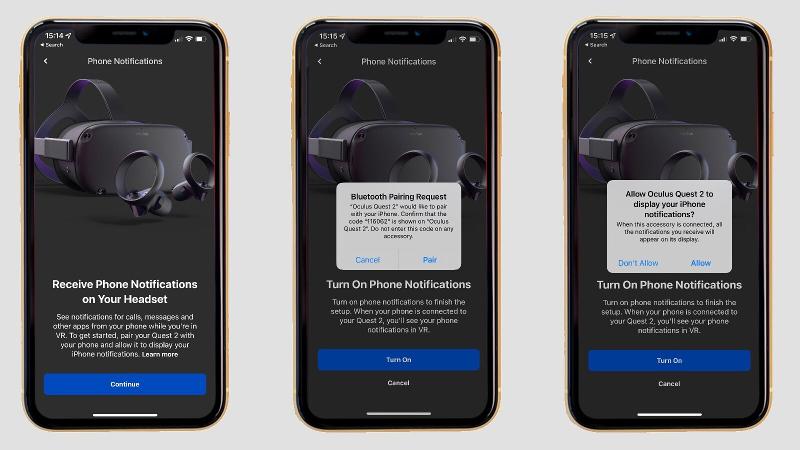
- Tap Phone Notifications.
- Tap Continue.
- Confirm the pairing request on your phone by tapping Pair on the pop-up.
- Tap Allow on the next pop-up to give the app permission to mirror your iPhone notifications.
- Tap Turn On to enable the feature.
- You’ll then be taken to the Phone Notification settings menu, where you can tweak which notifications you’ll receive in your headset.
On your Oculus Quest 2
- Put the Oculus Quest 2 headset on.
- Go to Settings > Notifications and toggle on Phone Notifications.
- You can also customise notification settings from the Phone Notifications menu in the headset.

That’s it! Once you’ve followed those steps and enabled the functionality on both your phone and Oculus Quest 2, you should begin seeing notifications appear in VR. They’ll appear at the bottom of the screen, and clicking them will take you to the notification menu.
It’s worth noting that while you can see notifications, you can’t yet action messages (allowing you to reply to texts in-headset) or clear them from your smartphone notification centre, though those would be nice additions in future.
Related content
- Top Oculus Quest 2 tips and tricks
- culus Quest 2 review
- Best Oculus Quest 2 accessories
- How to use an Oculus Quest 2 with PC wirelessly
- How to set up multiple accounts on Oculus Quest 2
- Where to buy the Oculus Quest 2 in the UK
- Latest Oculus Quest 2 Pro rumours
Author: Lewis Painter, Contributor, Tech Advisor

Lewis Painter was once a Tech Advisor Senior Staff Writer. He covers everything from iPhone to AirPods, plus a range of smartphones, tablets, laptops and gaming hardware.
Recent stories by Lewis Painter:
- Huawei Watch GT 3 review
- Where to buy the Dyson Zone
- The best gaming chairs 2023
