The process of setting up a new Alexa device is easier than ever. The first step is to install the free Alexa app on your phone, so if you don’t already have it, go to the Play Store on an Android phone or the App Store on an iPhone and search for Alexa.
But that’s not the only source of music: Alexa can play music from other services such as Spotify and Apple Music, as well as for free from internet radio stations.
- Install the Amazon Alexa app on your phone and sign in with your Amazon account
- Connect your Echo’s power supply and turn on the switch at the socket
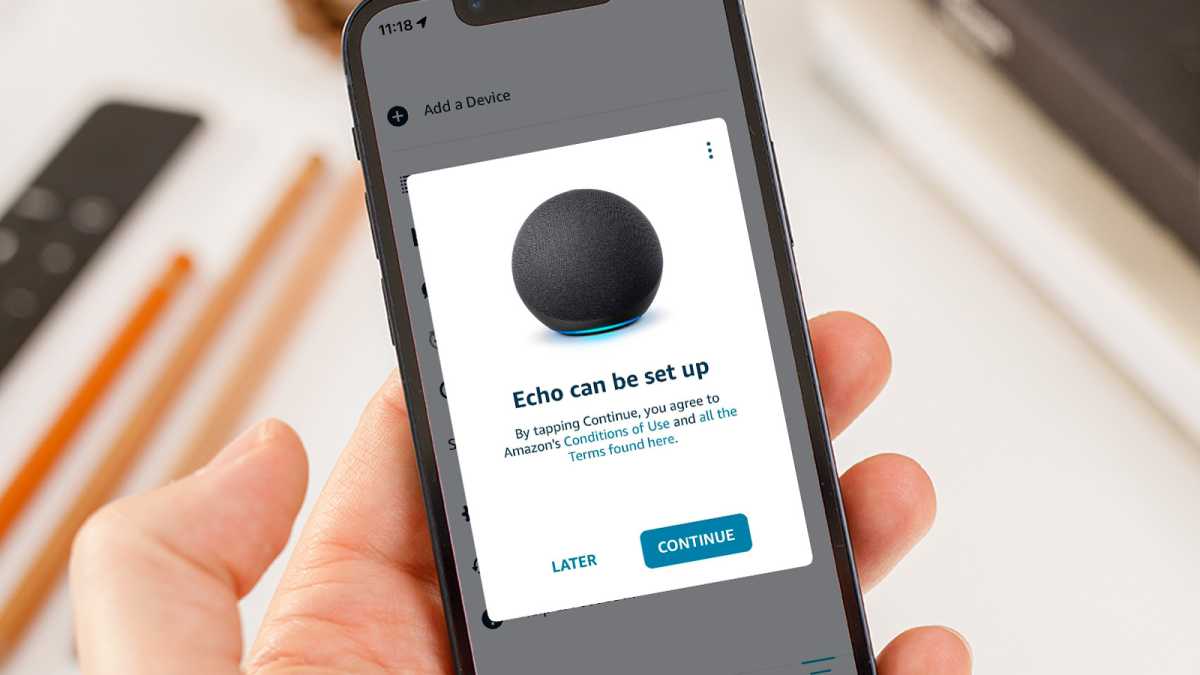
- Open the Alexa app. You may see a notification that an Echo is ready to set up. Tap on it.
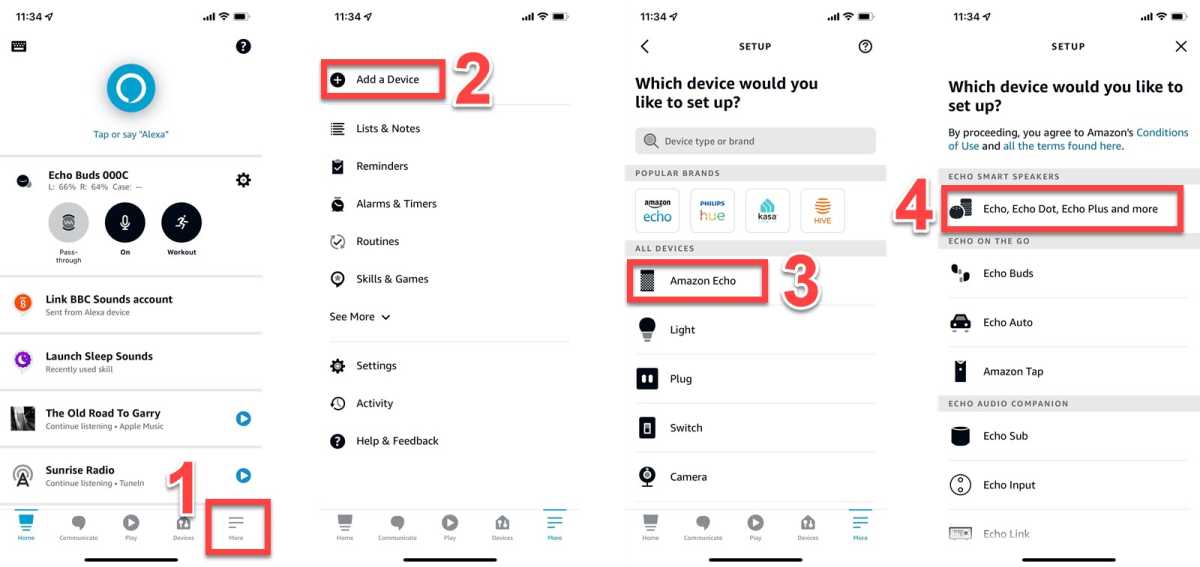
- If you don’t see a notification, tap More (bottom right), then Add a Device
- Tap Amazon Echo
- Choose the appropriate model and follow the instructions on-screen
- Once Alexa is connected to your Wi-Fi network, set-up is complete
Note: if you have more than one Echo device, each has to be set up individually in the Alexa app.
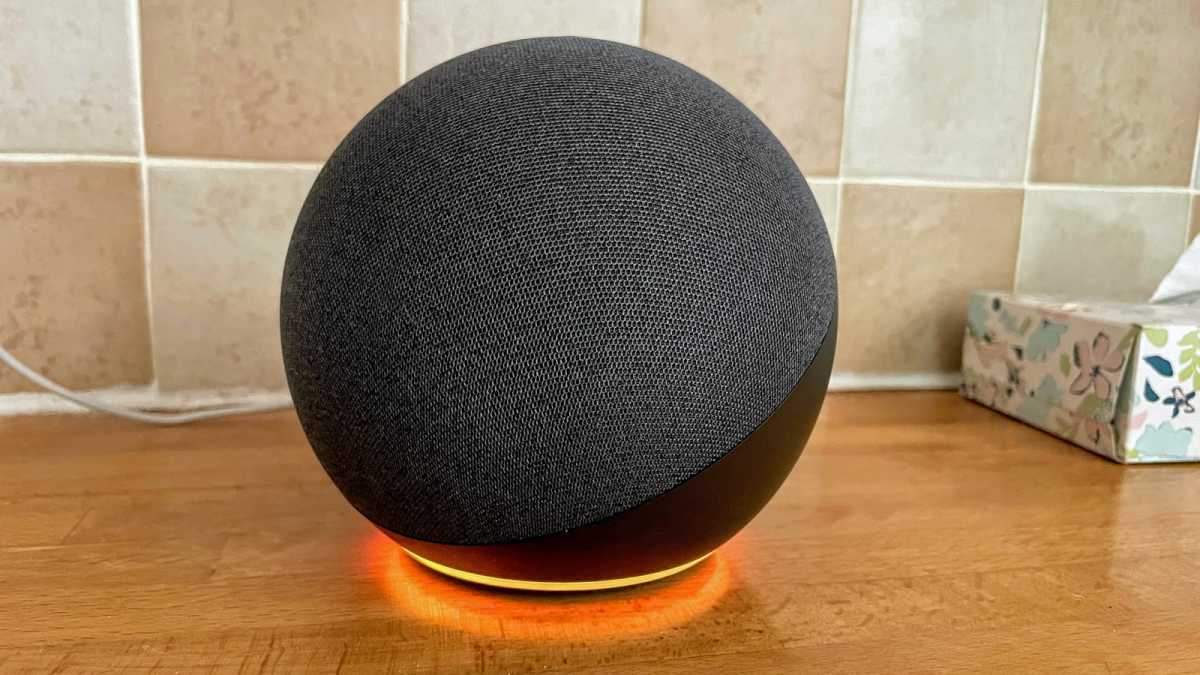
After unboxing your Echo remove the plastic protection, attach the power cable and plug the power supply into a mains socket.
Plug in your Alexa device
Jim Martin / Foundry
Wait for the pop-up
Jim Martin / Foundry
When you open the Alexa app, you might see a pop-up message asking you to set up your new Echo. If so, tap Continue.
If there’s no pop-up, add a new device manually
Jim Martin / Foundry
If you don’t see the prompt from Step 1, then tap on More (labelled 1) and then on Add a Device (2).
Choose your Echo model
Jim Martin / Foundry
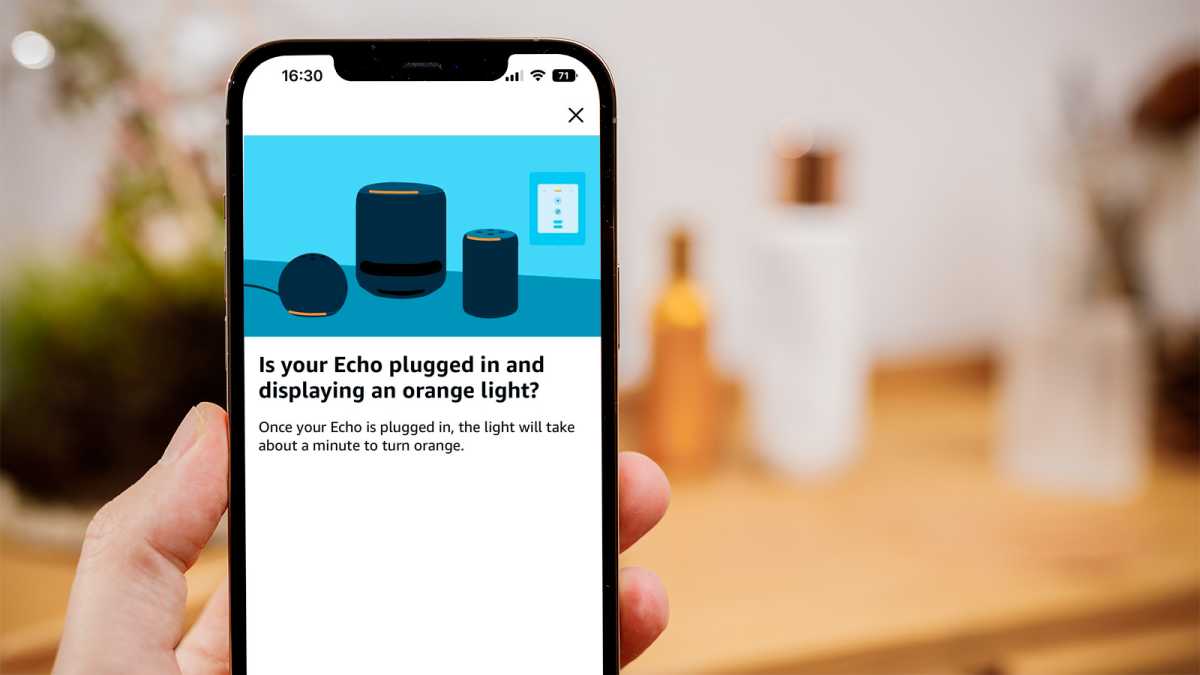
Make sure there is an orange light on your Echo, which indicates that it’s in setup mode. If not, you may have to reset it.
When you have the orange light, tap Yes, and then on the exact model of Echo that you have from the list. This should be clearly shown on the box it came in.
Connect Echo to Wi-Fi
Jim Martin / Foundry
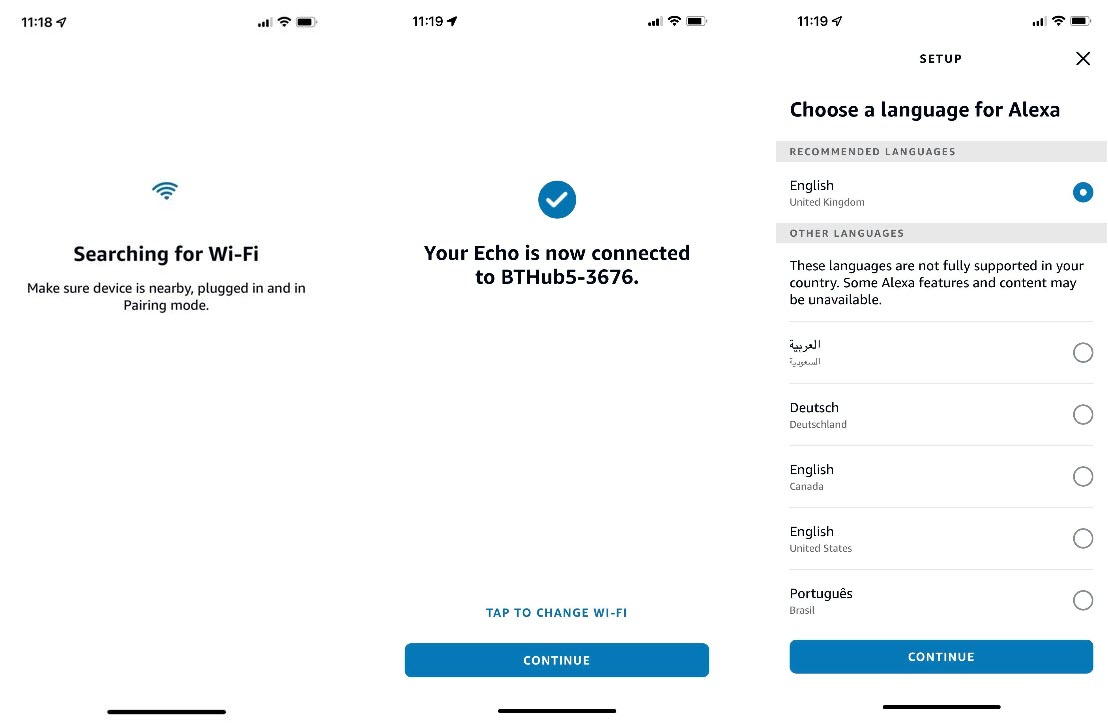
The app will search for devices and you should then see your new Echo appear in the list.
Tap it, and then wait while the Echo searches for available networks to connect to. Tap on your Wi-Fi network and, if prompted, enter the password for the network and after a short while you’ll see a screen confirming that the Echo is connected.
Alexa should announce that there is a connection to the internet, and the app will prompt you to select which language to use.
Enter your address, and select a room
Jim Martin / Foundry
Next, you’ll be asked for your address, so you can get local weather forecasts and other location-based information such as how long it will take to get to work or other places. Last, tell the app which room you’ve placed the Echo in. This is for various things such as grouping smart devices and playing music.
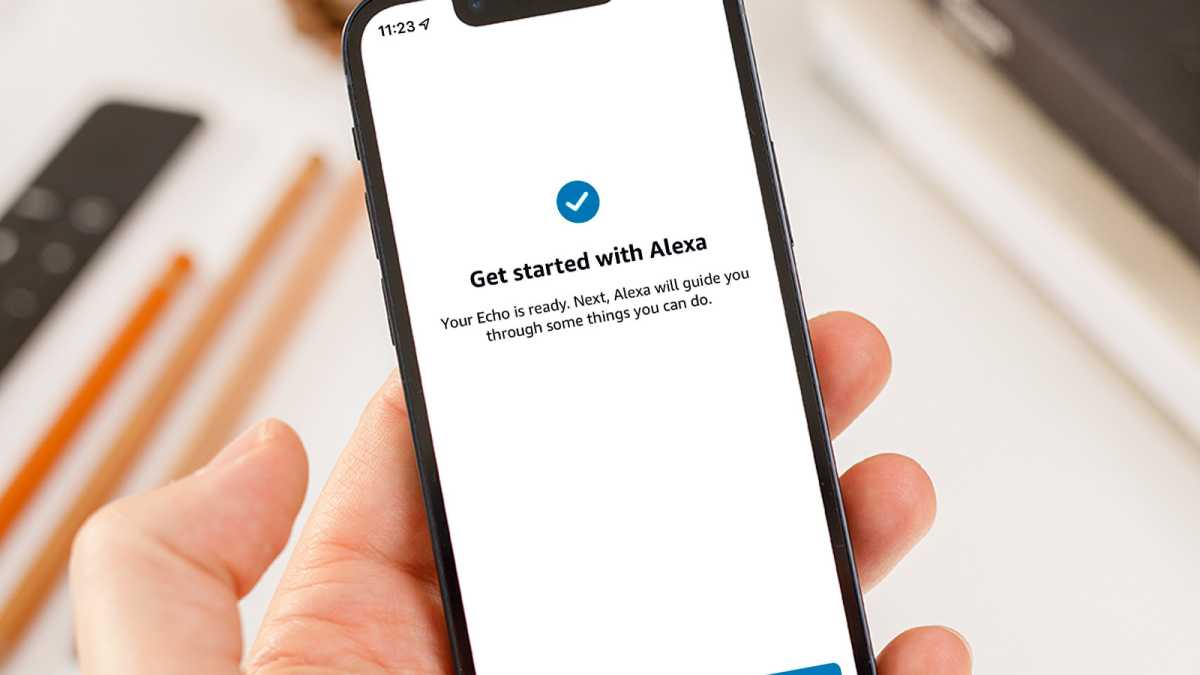
At the end of the setup process, you’ll see the screen above. Tap Let’s Go to finish.
What to do once Alexa is set up
On your Echo, Alexa should talk you through a few functions, including showing you how to set an alarm and a reminder, what the alarm sounds like and more.
In the app, you might see a prompt to set up smart home devices (which could be smart plugs, smart lights, or other gadgets).
You can tap Skip if you don’t have any, or Yes if you have one and are ready to set it up.
For more information on what you can say and what’s on offer, see our guide on how to use Alexa.
Do I have to say “Alexa”?
You can’t choose your own wake word.
To find the voice settings, tap Devices (1), Echo & Alexa (2) and then select your Echo from the list (3). Tap the settings cog (4) and then scroll down to Wake Word (5) and tap on the word you want to use.

Each Echo has its own settings so you can have different wake words for each one.
There are other settings here, such as Alexa’s Voice where you can choose from Original (female) and New (male).
Tip: you can also get Alexa to whisper her replies.
How to set up an Echo Show
You can swipe down from the top of the screen on an Echo Show (or Spot) to get to the settings and shortcuts. This is the fastest way to update the Wi-Fi password or network if you ever change your router or the name of the Wi-Fi.

How to reset an Echo
Tips for getting the most out of Alexa
Now your Echo is set up, you will want to know what to say. That’s covered in our separate guide on how to use Alexa .
She is great for the basics, but really comes into her own when paired with compatible gadgets, such as lights , thermostats, switches and more. When your hands are full, it’s really useful to be able to say “Alexa, turn on the lights” when you walk into a dark room.
If Alexa can’t control something directly and requires you to enable a Skill , you may need to use its name in your command.
If you have a Nest thermostat, for example, you can’t just say “Alexa, set the heating to 20 degrees”.
Instead, you need to say “Alexa, set the [name of thermostat] to 20 degrees” or “Alexa, make the [name of thermostat] warmer”.
Where possible, change the names of your devices to be simple and short so Alexa can more easily recognise and understand them.
We’ve also complied a list of the funny things to say to Alexa as well as the best games to play on Alexa .
If you see a pulsing yellow, purple or other lights on your Echo, here’s what all the colours mean .
We’ve also put together some useful tips & tricks for getting the most from Alexa .
Here’s a rundown of all the current Echo models , should you decide you want to have extra smart speakers around your home.
Author: Jim Martin, Executive Editor, Tech Advisor

Jim has been testing and reviewing products for over 20 years. His main beats include VPN services and antivirus. He also covers smart home tech, mesh Wi-Fi and electric bikes.
Recent stories by Jim Martin:
- Is Amazon Alexa down? It’s probably not just you
- Best Bluetooth trackers 2025
- The best ethernet cables to buy
