Five years ago, Apple launched the iPhone X. It had a fairly radical design with the ever-controversial notch at the top of the screen.
Quite apart from how it looked, it vastly reduced the amount of space available for icons and information in the status bar. And one of the casualties was that Apple removed the option to display the battery percentage.
You could (and still can) see the exact percentage of battery power remaining by swiping down from the top-right side of the screen to show Control Centre, but this – and other workarounds using Widgets – aren’t satisfactory for everyone.
The good news is that with iOS 16, the option is back, and you can now see the percentage at a glance without even unlocking your iPhone. If you can see the battery icon, you can now see the percentage remaining.
How to enable the battery percentage in iOS 16
The process is very simple.
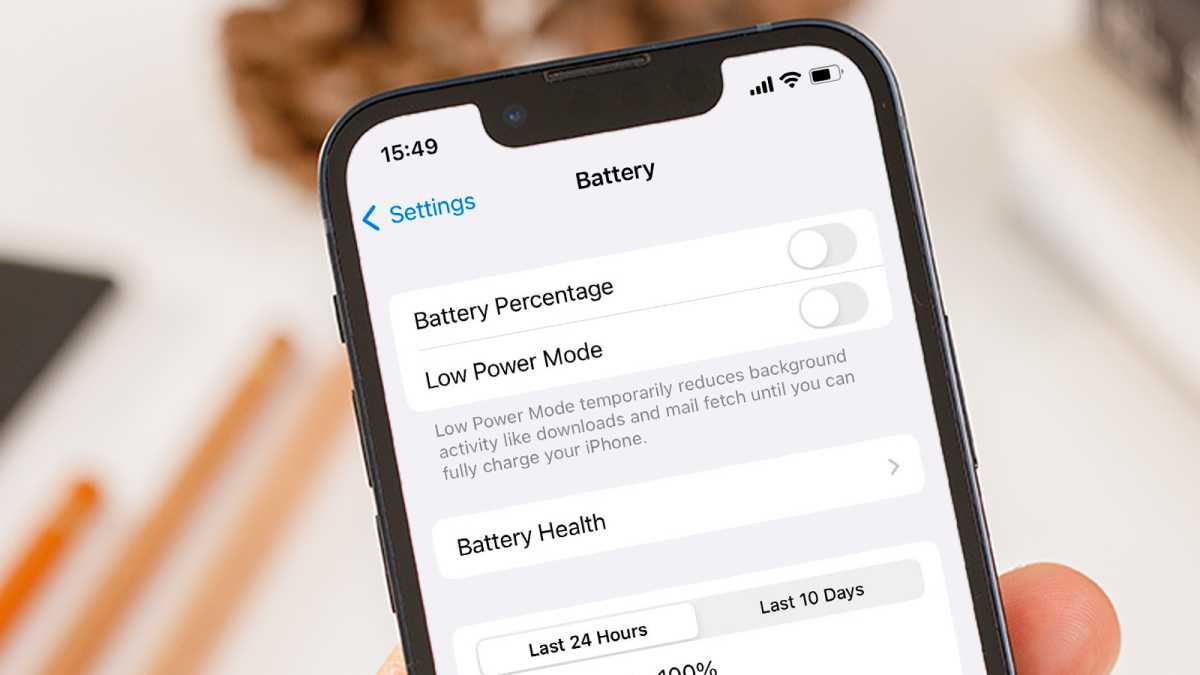
Open Settings, scroll down to Battery and tap on it.
Now tap the toggle for Battery Percentage.
Dominik Tomaszewski / Foundry
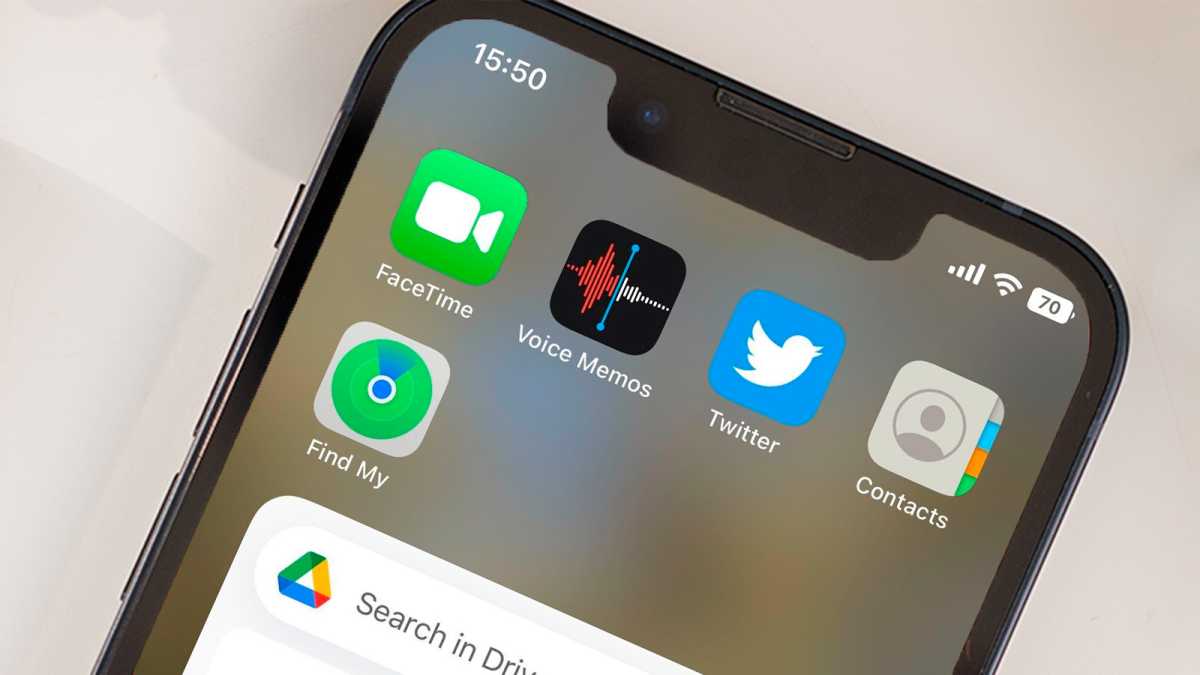
Unlike the old way of displaying it, with the figure next to the battery icon, iOS 16 deals with the restricted space issue by placing the figure inside the battery icon without a percent symbol.
Dominik Tomaszewski / Foundry
So it isn’t quite as good, especially if your eyesight isn’t wonderful, as the small font can be hard to read at a glance. It becomes easier to read if you enable Low Power mode (the setting below Battery Percentage) which turns the icon yellow with a black font.
The trade-off for showing the percentage is that the level inside battery icon won’t change as it does if you don’t enable this option. However, since you can see the precise amount left, there’s no need for the graphical display which, frankly, wasn’t always representative of how much power was left.
Chances are, if you’re desperate to know the battery percentage, you may be interested to read these tips on extending your phone’s battery life , or perhaps invest in a USB power bank so you can use your iPhone for longer away from the mains.
- How to customise your lock screen in iOS 16
- iOS 16: Get to know the new features
- How to delete duplicate photos in iOS 16
Author: Jim Martin, Executive Editor, Tech Advisor

Jim has been testing and reviewing products for over 20 years. His main beats include VPN services and antivirus. He also covers smart home tech, mesh Wi-Fi and electric bikes.
Recent stories by Jim Martin:
- How to make your own iPhone ringtone from a song for free
- When is iOS 17 coming out & how do I get it?
- How to use the weird new photo cutout feature in iOS 16
