We all like a good binge when enjoying our favourite shows, but when episodes automatically play one after another it can be too much of a temptation to watch too much.
And if you get annoyed by previews of shows and movies that start playing automatically as you browse to find what to watch, we can also help to stop those as well.
How to stop Prime video autoplaying
Turning off the auto-play feature can be a little tricky at first, because the setting is in different places depending on the device you’re using, and in some cases not there at all. We’ve broken down the instructions to cover various formats, so you can skip to the one you need.
- Open the Fire TV app
- On the Home screen select Settings
- Choose Preferences
- Select Featured Content
- Disable Allow Video Autoplay and Allow Audio Autoplay
How to disable autoplay in the Prime Video app for Android, iOS and iPadOS
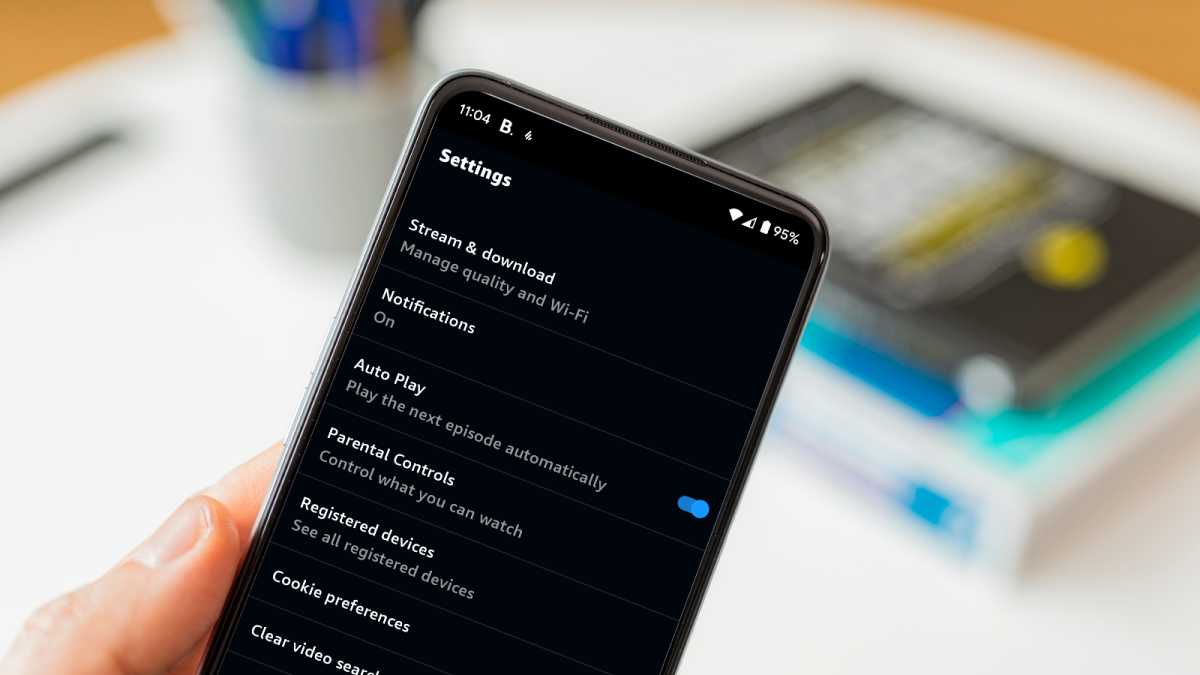
Thankfully, the app is pretty consistent, whatever device or operating system you’re on. So here’s what you need to do:
- Open the Amazon Prime app.
- Tap on your Profile icon (usually in the top right corner)
- Tap the Settings icon (the one that looks like a cog)
- Disable the Auto Play option
Martyn Casserly
This will only stop episodes from auto-playing on that specific device, so you’ll need to repeat these steps if you have other phones or tablets.
Also, there doesn’t seem to be a setting currently available to prevent the previews from auto-playing on the mobile apps, but hopefully this will change before too long.
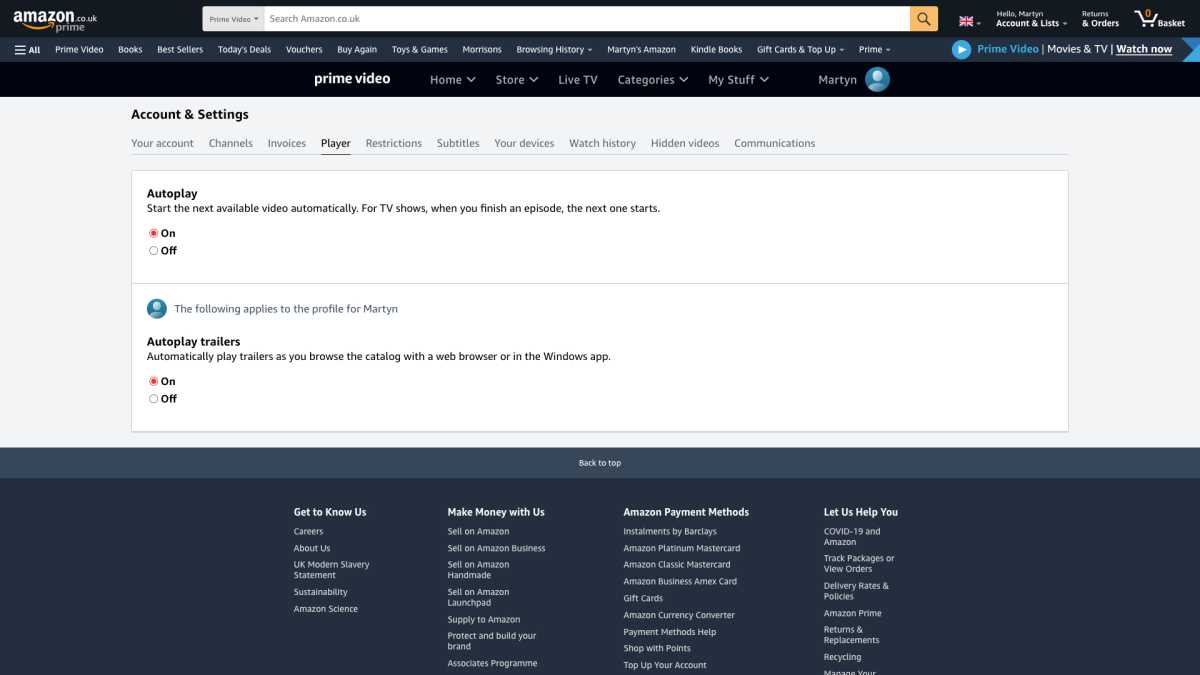
If you stream through a web-browser or use the Windows app, it’s easy to stop Prime from auto-playing the next episodes or preview trailers.
To achieve this, follow these steps:
- Open your browser and go to the Amazon website.
- Log into your account
- Select the Prime Video tab
- Move the mouse cursor over your profile icon
- From the menu that appears, select Account & Settings
- Select the Player tab
- Disable Autoplay and Autoplay trailers
Martyn Casserly
- Open the Prime Video app
- In the left column, go down and select Settings
- Choose Autoplay
- Disable the feature.
Obviously, with so many different manufacturers making Smart TVs, each with its own interface, we can’t provide a comprehensive outline for every variant. It should be noted though, that the ones we tested didn’t have options to allow autoplay to be disabled. Again, this wasn’t exhaustive, as we only have access to so many Smart TVs.
If your particular model does support the feature, then we’d say that it would most likely work in the same way as on consoles, so follow those steps and hopefully you’ll be able to turn off autoplay.
Now you should be able to watch what you want without being bothered by trailers or the temptation to sneak in one more episode.
- Everything you need to know about Amazon Prime
- The best TV streaming services
- How to share your Amazon Prime membership
- Amazon Prime ad-supported tier: Everything we know
Author: Martyn Casserly, Contributor, Tech Advisor

Martyn has been involved with tech ever since the arrival of his ZX Spectrum back in the early 80s. He covers iOS, Android, Windows and macOS, writing tutorials, buying guides and reviews.
Recent stories by Martyn Casserly:
- How to get a YouTube Premium Student Discount
- How to stop Disney+ autoplaying previews and next episodes
- How to open EPUB files in Windows
