When Microsoft launched Windows 11, one app seemed to get special treatment. You might have heard of it before: Microsoft Teams.
Teams was first released back in 2017, but the arrival of Windows 11 saw it take centre stage. As well as being pre-installed and opening every time you boot up your computer, a dedicated chat window is now built into the taskbar.
If Teams is your go-to app for staying in touch, that might be fine. But if you prefer Zoom, another video calling app or simply meeting in real life, it can quickly get annoying.
Fortunately, it’s relatively easy to significantly reduce the influence of Microsoft Teams in Windows 11. Whether you just want to stop it bugging you or completely remove the app, this is the tutorial for you.
How to stop Microsoft Teams from launching on startup
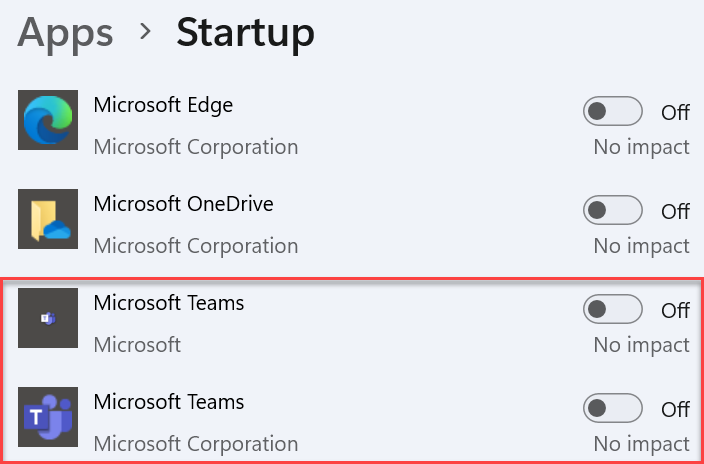
By default, many apps will open every time you turn your computer on. Microsoft Teams is one of them, but stopping this from happening is easy:
Head to Settings > Apps > Startup
Scroll down to find Microsoft Teams (you may see both work and personal versions) and click the toggle next to each to switch them off
Anyron Copeman / Foundry
How to manage Microsoft Teams notifications
But even if Teams isn’t launching at startup, it can still pester you throughout the day via notifications. Some of these may be useful, but it’s worth checking if you need everything turned on:
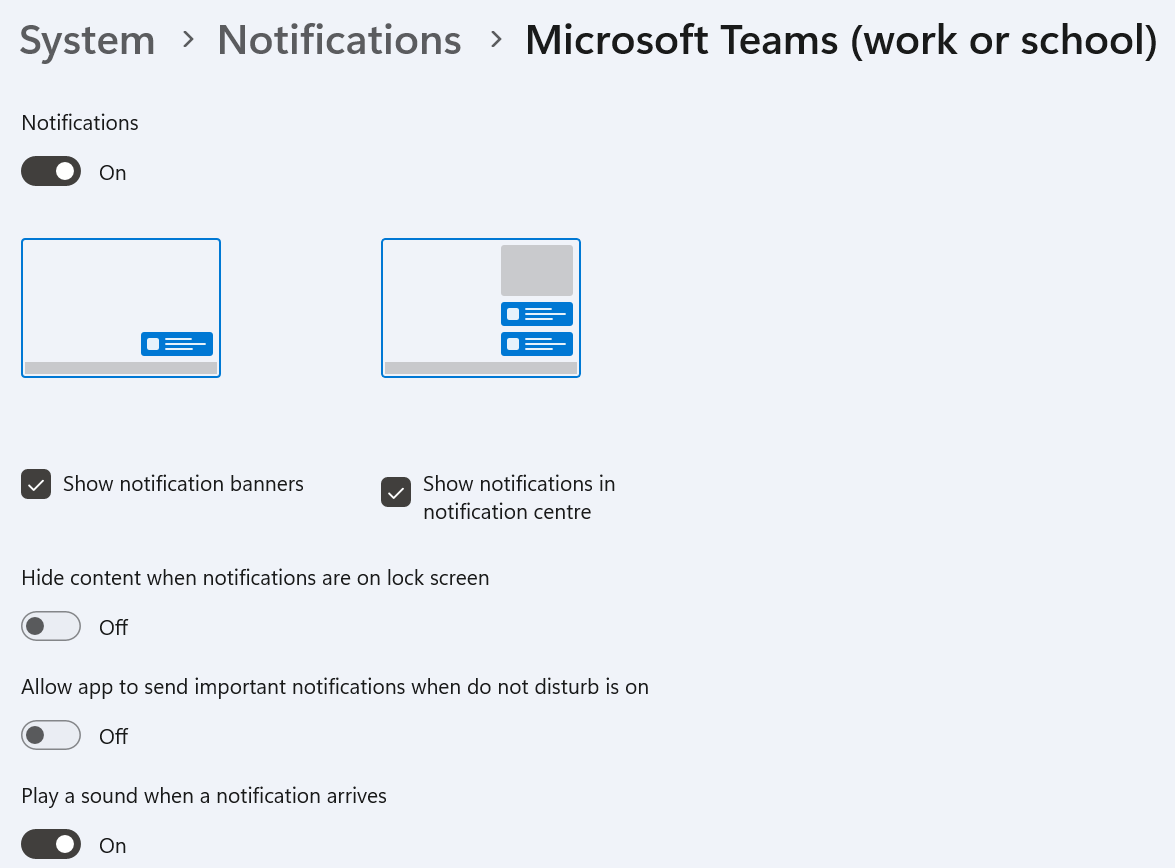
Head to Settings > System > Notifications
Scroll down to the ‘Notifications from apps and other senders’ sub-heading, then choose ‘Name’ from the drop-down menu below it
Find Microsoft Teams in the list (again, you may see both work and personal versions) and click it
Click the toggle at the top of the screen to turn off all notifications. Alternatively, click it to choose where and how these notifications are delivered. Any changes you make will be saved automatically
Anyron Copeman / Foundry
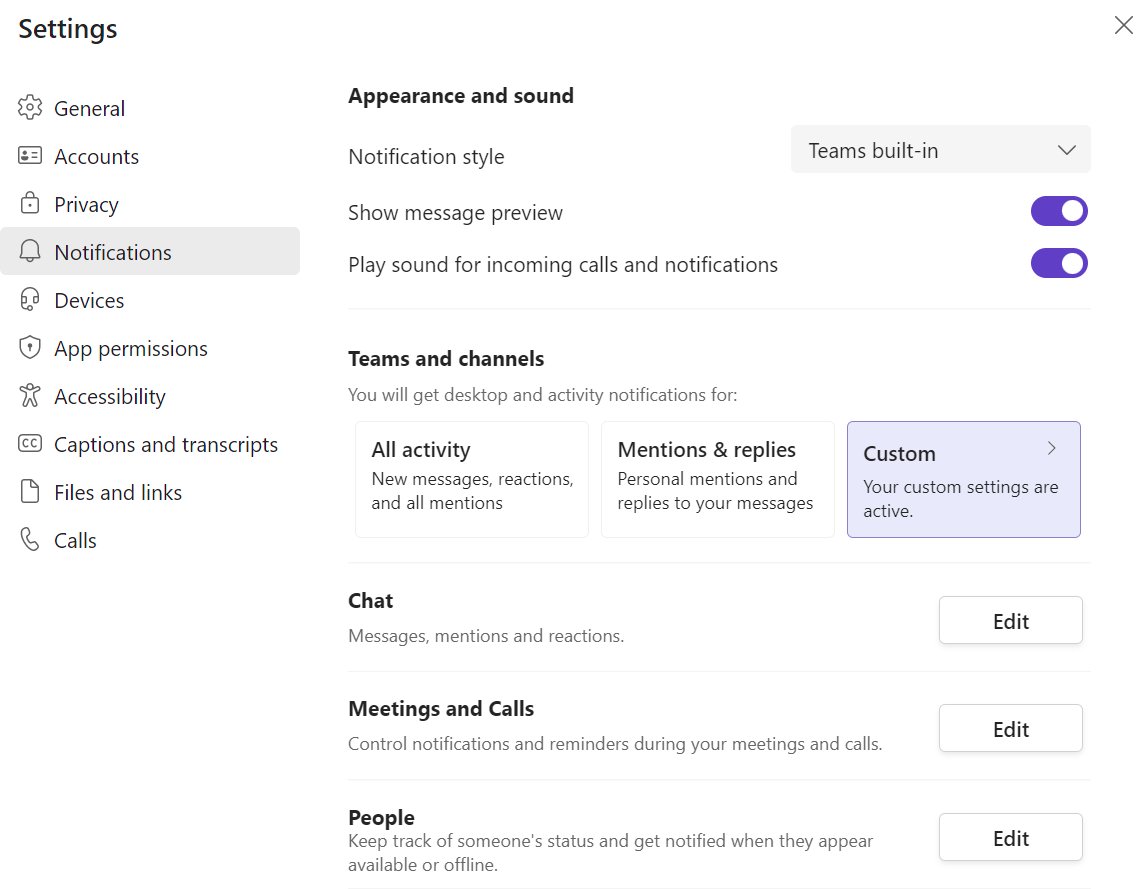
Next, open the Teams app itself
Click your icon at the top of the screen, then choose ‘Manage account’
Click the ‘Notifications’ tab on the left side, then choose which types of notifications you’d like. Again, any changes will be saved automatically
Anyron Copeman / Foundry
How to remove Microsoft Teams from the taskbar
Teams chat is one of the Windows 11 taskbar’s biggest new features. Luckily, Microsoft makes it easy to turn off:
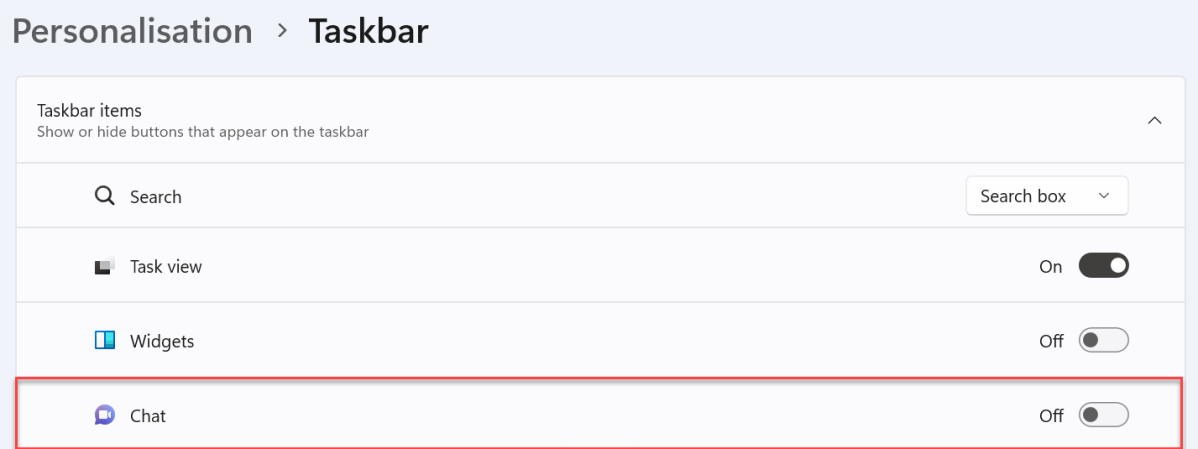
Head to Settings > Personalisation > Taskbar
Under ‘Taskbar items’, click the toggle next to ‘Chat’ to turn it off. The change will be applied immediately
Anyron Copeman / Foundry
How to uninstall Microsoft Teams
But if even the sight of Teams on your computer is too much, Microsoft does let you uninstall it:
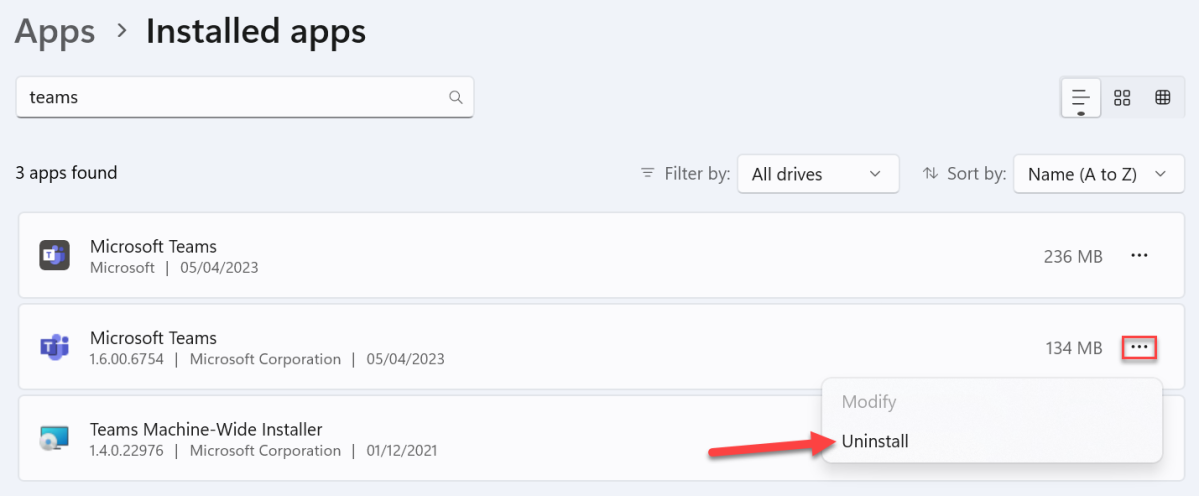
Head to Settings > Apps > Installed apps
In the search bar at the top of the screen, type ‘teams’
For any results labelled as ‘Microsoft Teams’, click the three dots on the right, then choose ‘Uninstall’
Anyron Copeman / Foundry
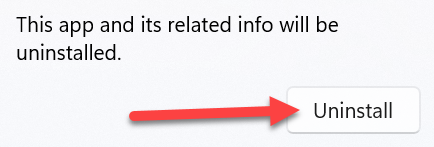
- Click ‘Uninstall’ again to confirm
Anyron Copeman / Foundry
After you follow these steps, Teams can become a distant memory while using Windows 11. The app will be genuinely useful to many people, though, and there are also some ways to have fun .
- How to remove bloatware on Windows 11
- How to stop Windows 11 tracking your data
- How to disable ads on Windows 11
Author: Anyron Copeman, Mobile Editor, Tech Advisor

Anyron is Mobile Editor at Tech Advisor, where he’s been a mainstay of the editorial team since 2019. In his current role, Anyron is responsible for all smartphone, tablet and mobile network coverage on the site. A BA Journalism graduate, he has experience with a wide range of consumer tech products and services, including smartphones, tablets, foldables, wearables and more.
Recent stories by Anyron Copeman:
- Windows 11 23H2 update: Everything you need to know
- Windows 12: Everything we know so far
- How to get the Google Play Store on Windows 11
