Pop-up ads on your Samsung phone can be an annoying interruption. They get in the way of what you’re trying to do on your phone. Nobody needs these annoying ads from the early 200s on their smartphone!
Fancy getting rid of them for good? Here’s how you can say goodbye to those pesky intruders on a Samsung smartphone .
Why am I seeing pop-up ads on my Samsung phone?
Often, pop-up ads are caused by third-party apps. They show these ads to earn money, but they’re not what you want to see. If the ads started appearing recently, check your latest app installs:
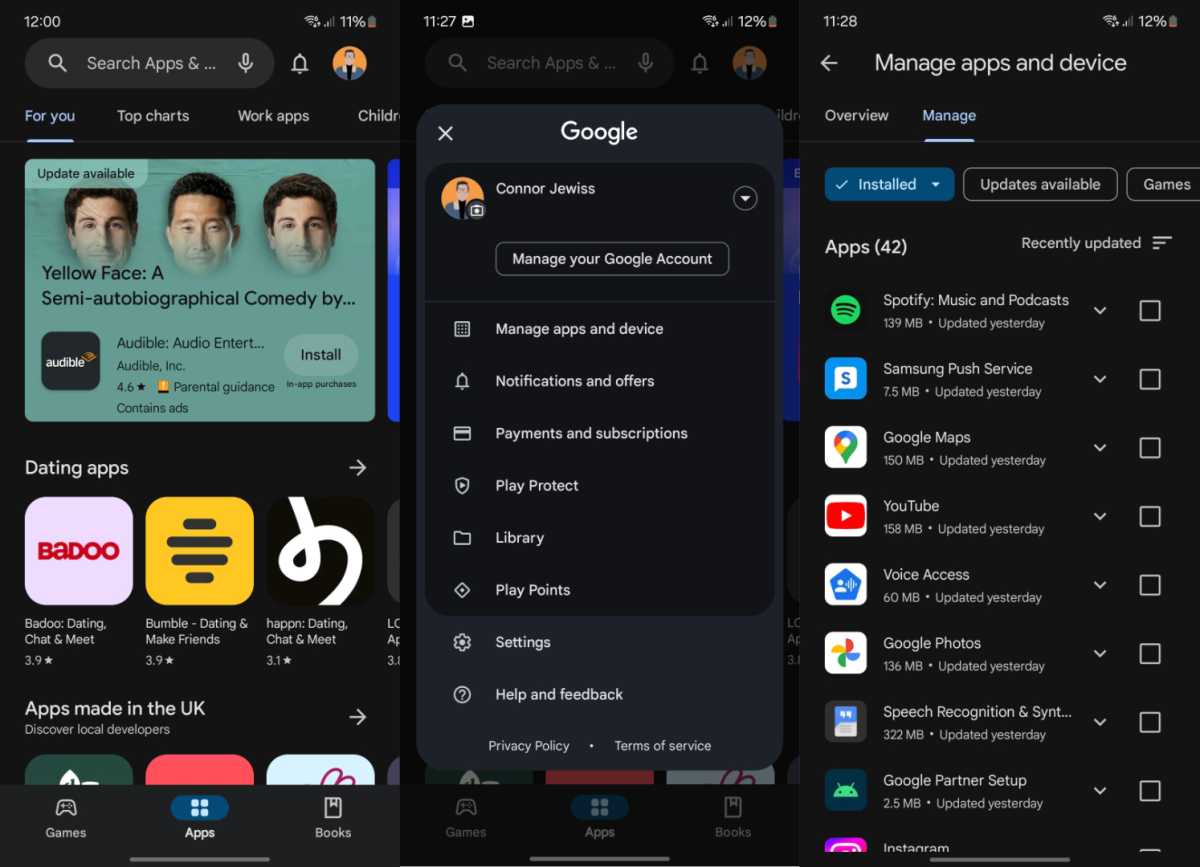
- Open the Google Play Store: And tap your profile picture in the top-right corner
- Go to Manage apps and device: Choose Installed , then sort by Last used
- Uninstall suspicious apps: Remove any apps you don’t recall using until the ads stop
Connor Jewiss/Foundry
If you’re still seeing pop-up ads, this might be due to something you’ve seen on the web.
How to block pop-up ads on your Samsung phone
If getting rid of suspected apps doesn’t get rid of pop-up ads on your Samsung phone, you might find that the culprit is a website you recently visited.
Fortunately, you can block pop-up ads in your browser. Here’s how.
How to block pop-up ads on Google Chrome
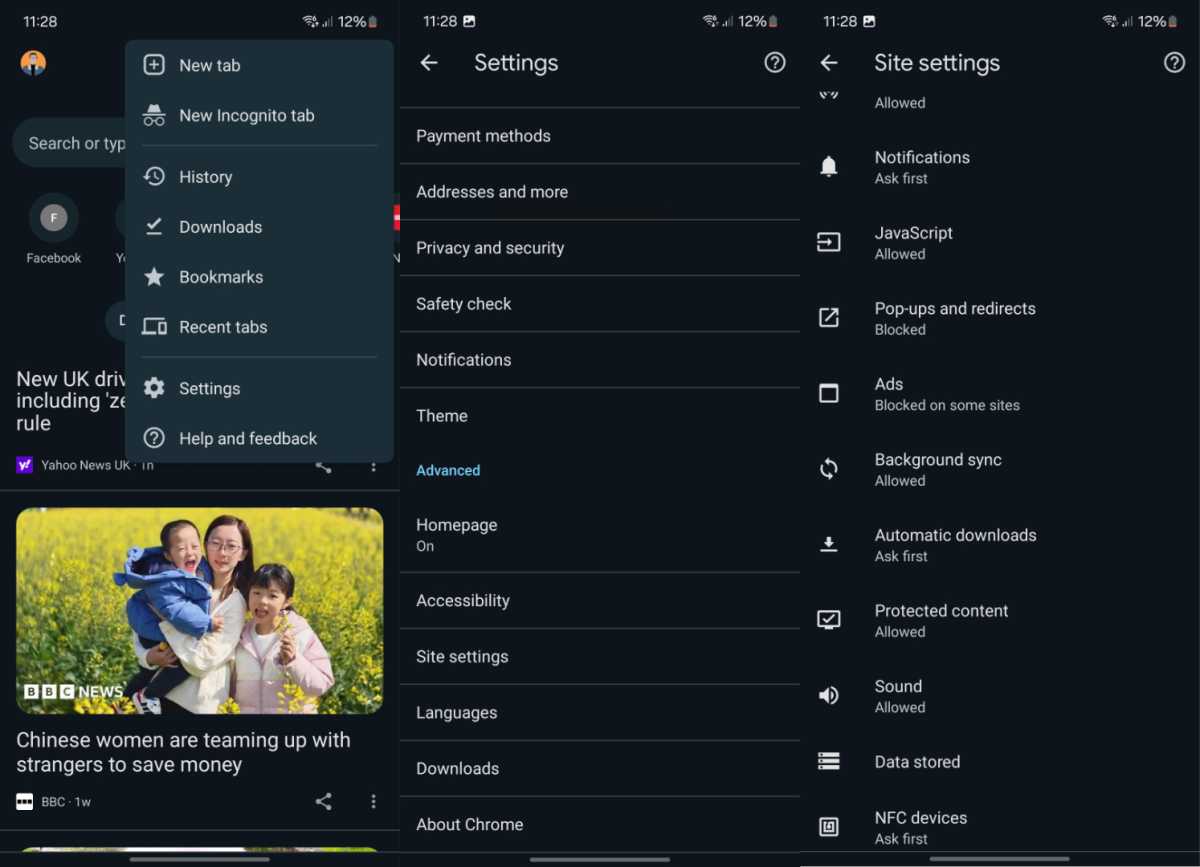
- Open Chrome, then tap the three dots and go to Settings
- Head to Site settings , then Pop-ups and redirects and set the toggle to the off position
- Go back and select Ads , toggling this off as well
Connor Jewiss/Foundry
How to block pop-up ads on Samsung Internet
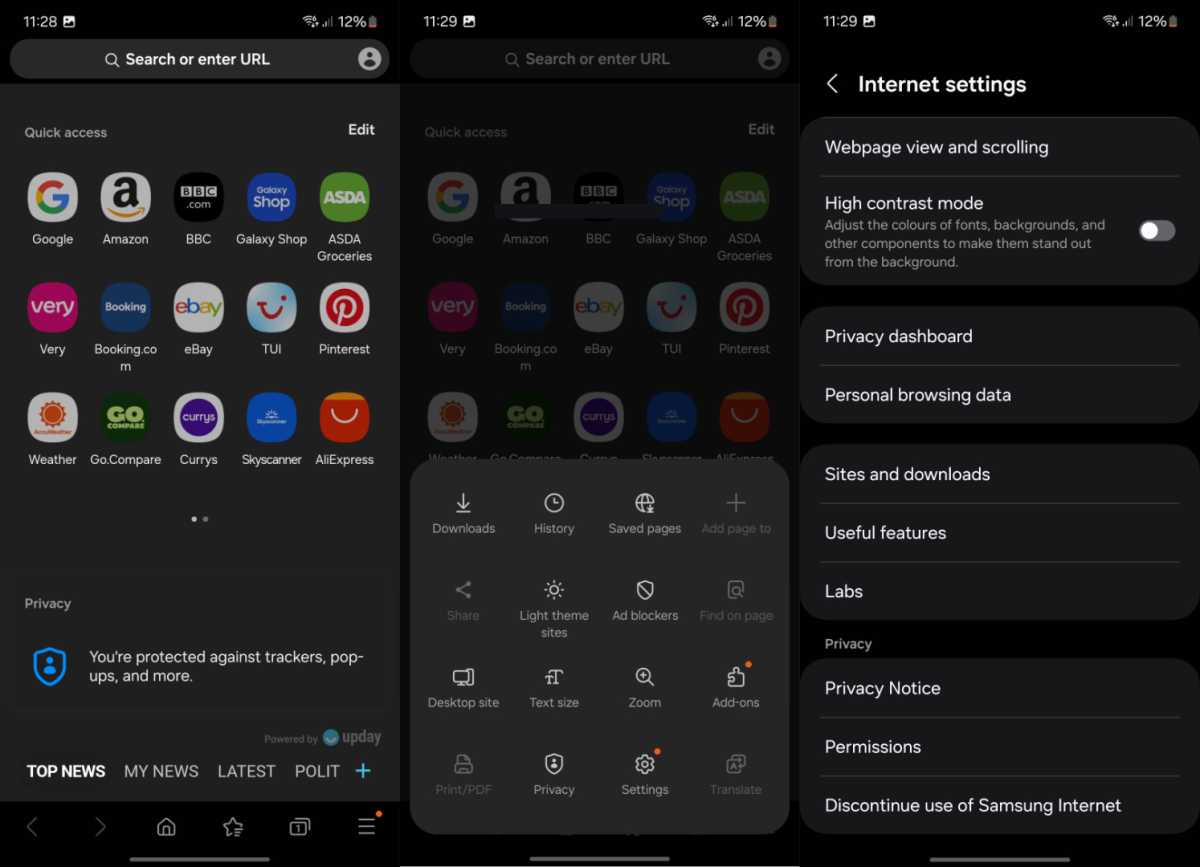
- Open the app, then tap the three lines in the bottom-right corner and select Settings
- Choose Sites and download , then toggle on Block pop-ups
- You might also want to add an ad blocker from the suggested list under Ad blockers
Connor Jewiss/Foundry
Other ways to block pop-up ads on your phone
If that’s still not solved the problem, you might consider these methods to stop pop-up ads. Here’s what else to try:
- Disable notifications on your web browser: Go to your browser settings and manage notifications to prevent sites from showing pop-ups
- Check app permissions: Sometimes, apps that require unnecessary permissions can generate ads. Review and modify app permissions to limit this
- Factory reset: As a last resort, if your device is heavily affected by ads, consider backing up your data and performing a factory reset
Author: Connor Jewiss, Contributor, Tech Advisor

Connor is a technology writer and editor, with a byline on multiple platforms. He has been writing for around seven years now across the web and in print too. Connor has experience on most major platforms, though does hold a place in his heart for macOS, iOS/iPadOS, electric vehicles, and smartphone tech. Just like everyone else around here, he’s a fan of gadgets of all sorts. Aside from writing, Connor is involved in the startup scene, which puts him at the front of new and exciting tech - he is always on the lookout for innovative products.
Recent stories by Connor Jewiss:
- Oppo Reno 13 FS review: Well-priced battery champ
- Oppo Reno 13 Pro review: Camera-first mid-ranger that excels
- Samsung Galaxy A26 review: Budget phone that looks like a flagship
