Windows 11 is a very capable operating system, but it’s also prone to bugs and other issues.
One problem almost everyone will have encountered before is a frozen screen. For no apparent reason, the display keeps getting stuck and won’t refresh, meaning you lose everything you’re working on.
Most of the time, holding down the power button to manually restart the device will get it up and running again. If not, restarting your device or resetting the BIOS usually does the trick.
But if the problem is happening repeatedly, there’s an underlying cause of some description. In this article, we’ll run through 10 things you can do to potentially fix this problem once and for all.
Update Windows 11
Microsoft releases regular updates for Windows 11, so it might have already fixed the problem. Even if you have automatic updates turned on, it’s worth checking if there’s a new version available:
Head to Settings > Windows Update
Click ‘Check for updates’
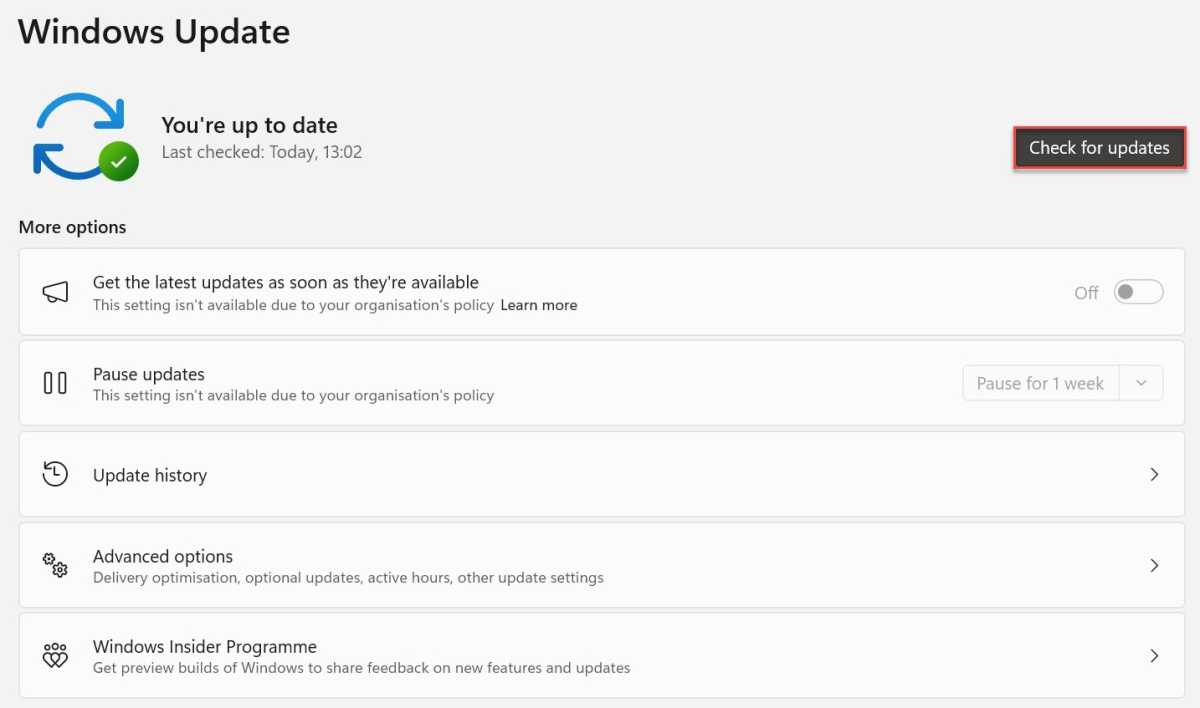
Anyron Copeman / Foundry
Download and install anything that appears, even if it doesn’t seem relevant
If it doesn’t happen automatically, restart your device to apply changes
Update drivers
Sometimes, an outdated driver can be the cause of Windows 11 issues. Most of these are updated in the background, but it’s also worth checking manually:
Head to Settings > Windows Update > Advanced options
Under ‘Additional options’, select ‘Optional updates’
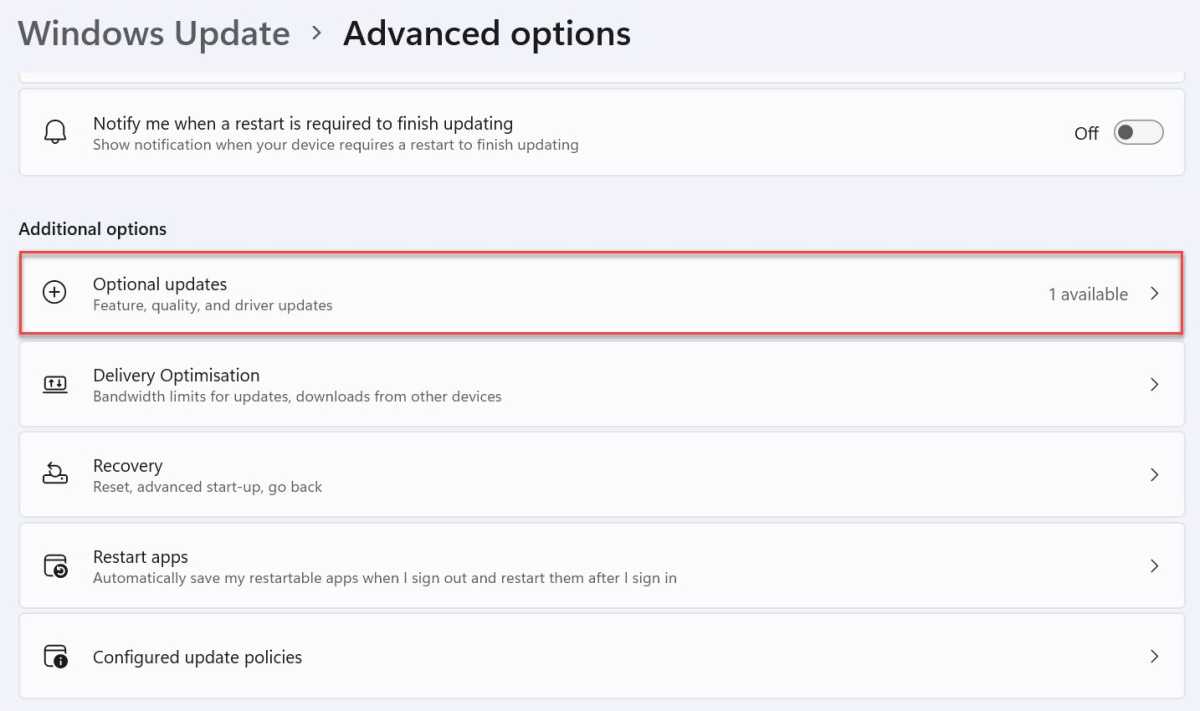
Anyron Copeman / Foundry
Click ‘Driver updates’ to expand it
Check the box next to any updates which appear, then click ‘Download & install’
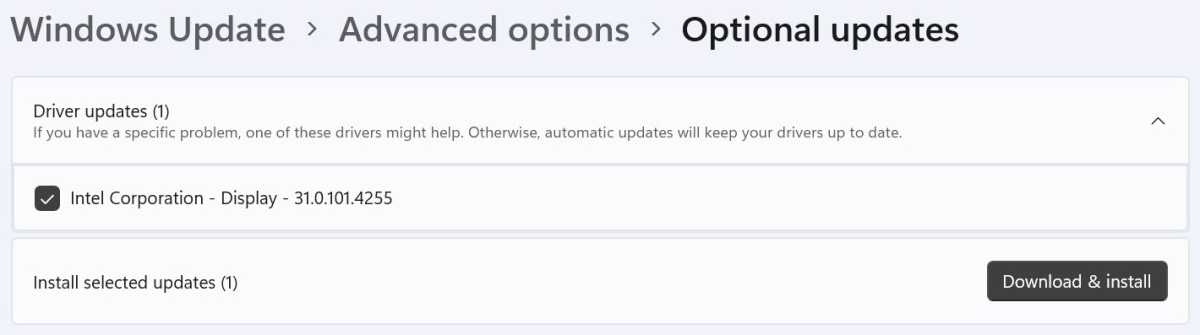
Anyron Copeman / Foundry
- Restart your device if it doesn’t happen automatically
Uninstall the latest update
While an update might fix the problem, it can also be a potential cause. The good news is that Windows 11 also lets you uninstall recent updates and go back to the previous version:
Head to Settings > Windows Update > Update history
Scroll down to the bottom of the page, then select the ‘Uninstall updates’ option

Anyron Copeman / Foundry
- You’ll now see a list of any updates which can safely be uninstalled. To help decide which one, see if you can remember when the freezing issues started happening. If the ‘Installed on…’ date for any updates is similar, click ‘Uninstall’ twice
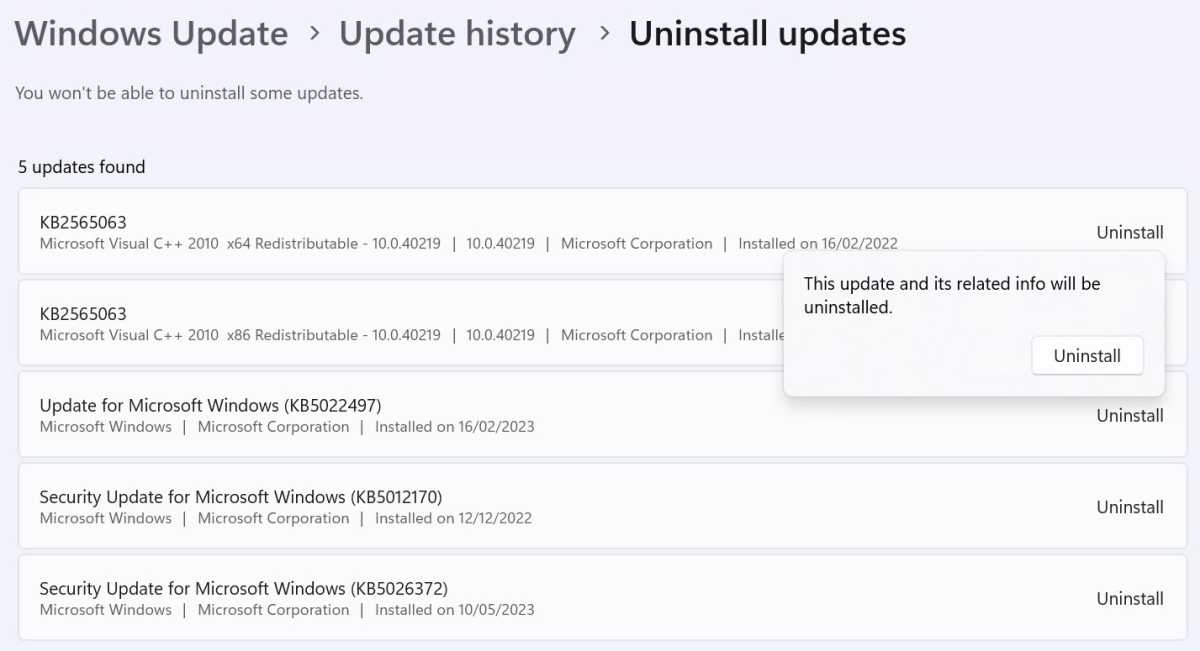
Anyron Copeman / Foundry
Your device will automatically restart to apply these changes, but you won’t lose any of your files and settings. If that doesn’t work, repeat for any other relevant updates.
Reduce screen resolution
Many portable Windows 11 devices don’t have enough graphical power to output at a high resolution, which may lead to freezing. This is especially true if you regularly connect a laptop to external displays.
Fortunately, Microsoft makes it easily to adjust this to something lower:
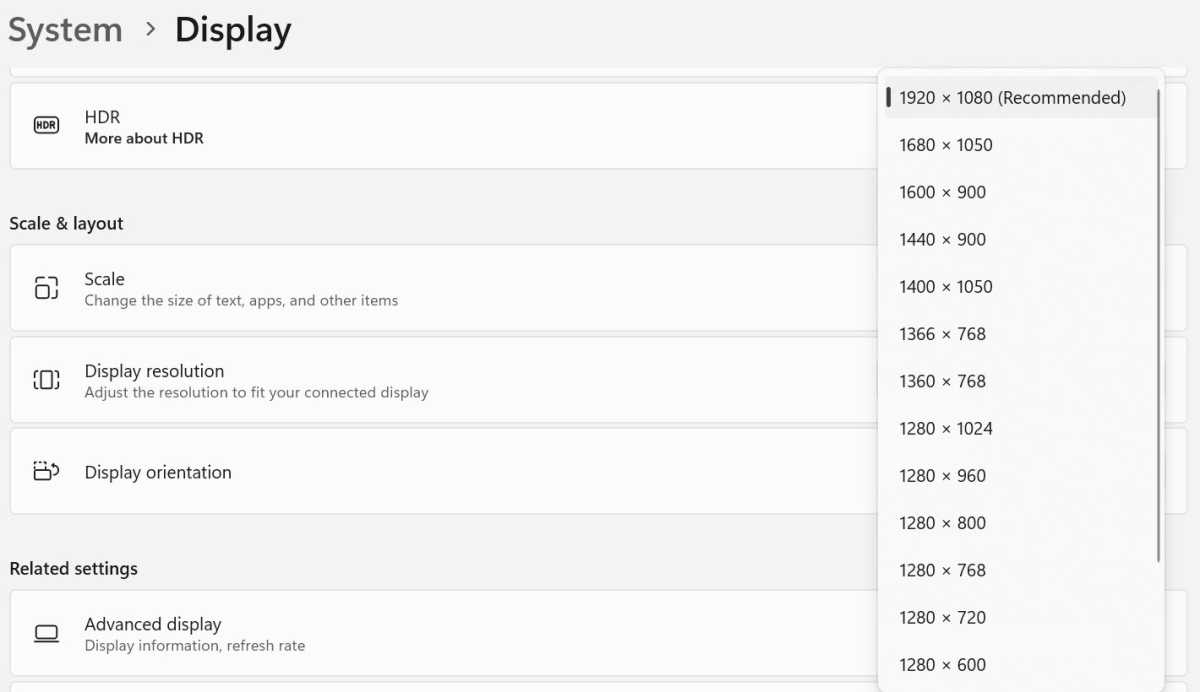
Head to Settings > System > Display
Scroll down to the ‘Scale & layout’ sub-heading
Next to ‘Display resolution’, click the drop-down box and choose your desired option. In the example below, reducing it from 1920 x 1080 to 1280 x 720 seems to make sense
Anyron Copeman / Foundry
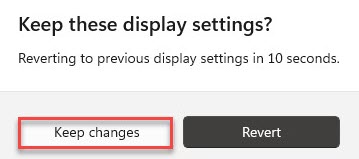
- From the pop-up that appears, click ‘Keep changes’ within 15 seconds
Anyron Copeman / Foundry
- If it doesn’t make any difference to the freezing, try decreasing the resolution even further
Delete temporary files
When you remove apps from a Windows 11 device, some files are occasionally left behind. These are known as temporary files, which are used to retain key data while the app is being installed or updates.
But if you’ve deleted an app and don’t plan on reinstalling it, they can take up valuable space and affect performance over time. The good news is that these can safely be deleted:
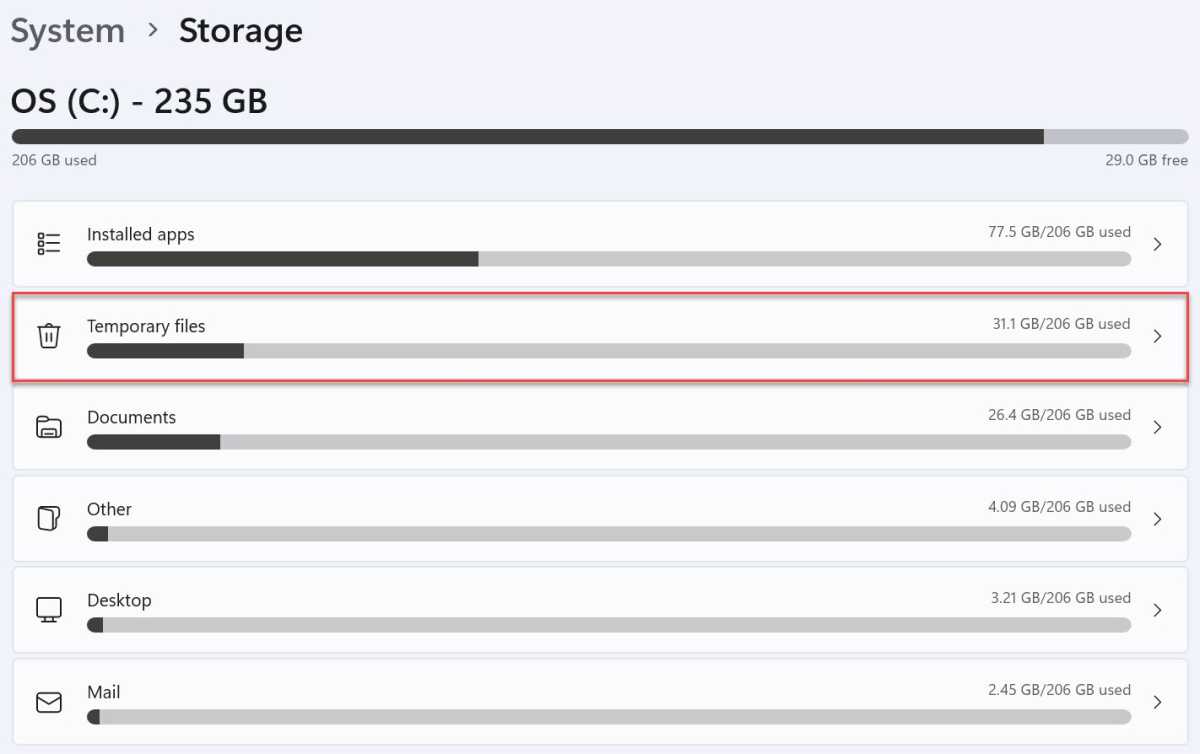
Head to Settings > System > Storage
Wait for it to calculate the total size of all ‘Temporary files’, then click on that section
Anyron Copeman / Foundry
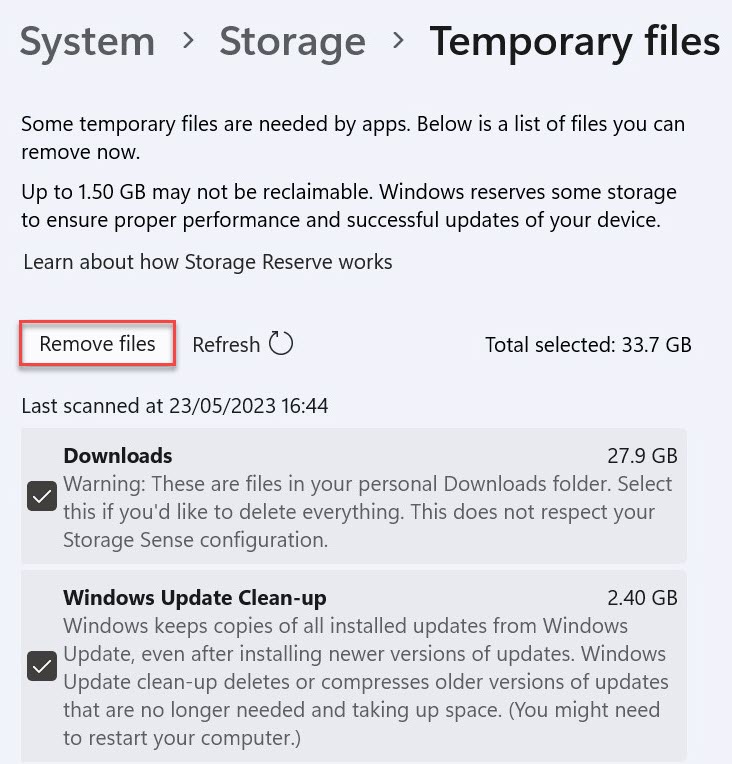
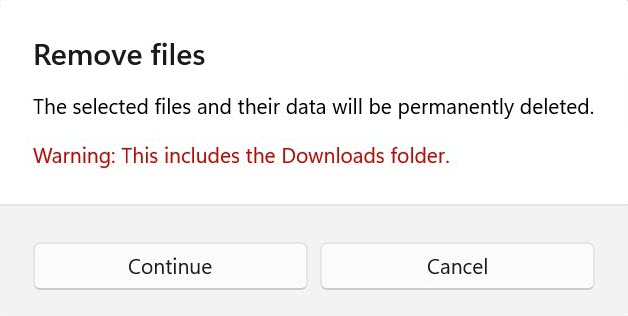
- Only the files that you can safely delete will be displayed. Check the box next to any you’d like to remove, then click ‘Remove files’
Anyron Copeman / Foundry
- From the pop-up that appears, click ‘Continue’
Anyron Copeman / Foundry
Fix corrupted files
Corrupted files can cause a lot of damage to a device – including freezing. Fortunately, Windows 11 has a built-in tool to search for any, then repair them automatically:
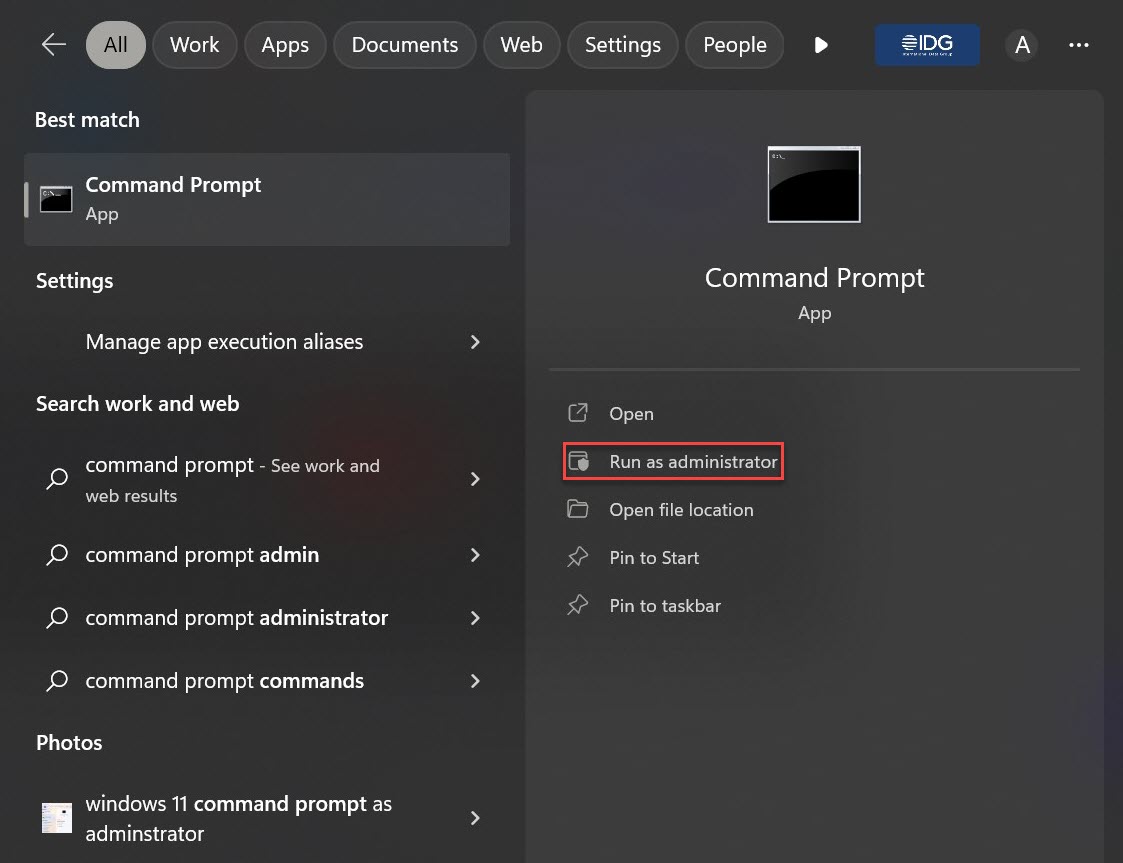
In the search bar next to the Start menu, type ‘command prompt’. The relevant option will now be highlighted
Click ‘Run as administrator’, then ‘Yes’ to confirm
Anyron Copeman / Foundry
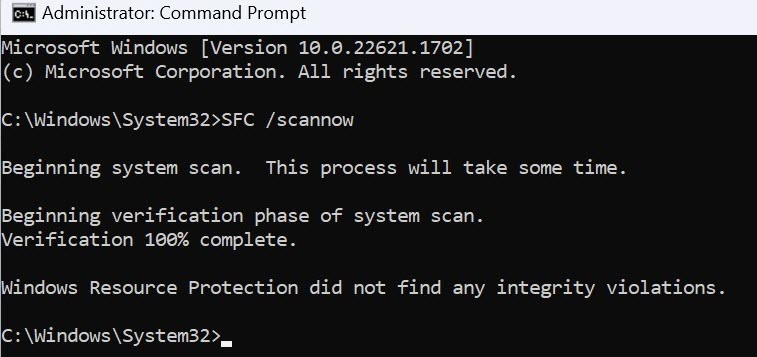
From the window that appears, type ‘SFC /scannow’ and hit enter
After a few minutes, the process will be complete. If any corrupted files are discovered, they’ll be mentioned. Otherwise, you’ll see a message saying ‘Windows Resource Protection did not find any integrity violations’
Anyron Copeman / Foundry
Repair system image
Like temporary files, system images are sometimes used as a backup if you ever need to restore any data. They can’t be removed, but missing files can cause freezing if they’re ever relied on. Here’s how to repair it:
In the search bar next to the Start menu, type ‘command prompt’. The relevant option will now be highlighted
Click ‘Run as administrator’, then ‘Yes’ to confirm
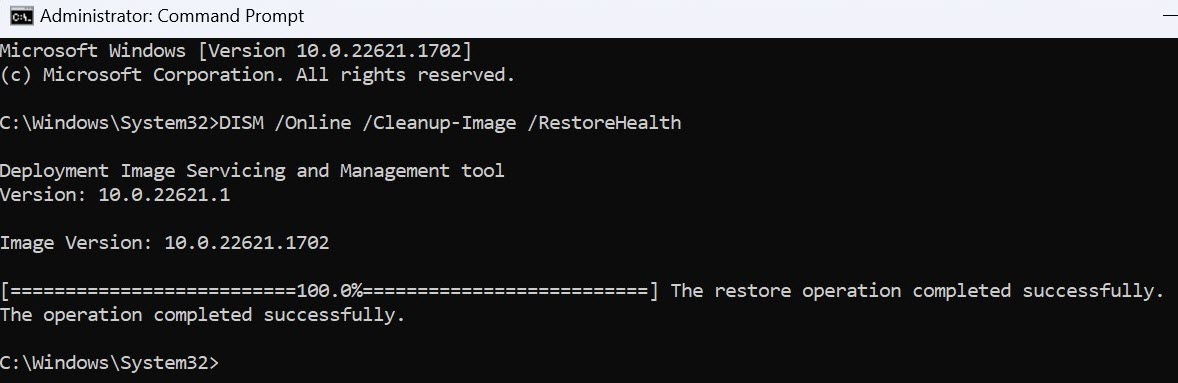
From the window that appears, type ‘DISM /Online /Cleanup-Image /RestoreHealth’ and hit enter
After a few minutes, you’ll see a message saying ‘The operation completed successfully’
Anyron Copeman / Foundry
Run Disk Check
Another command to run is Disk Check, which can find and fix any problems with the hard drive or SSD:
In the search bar next to the Start menu, type ‘command prompt’. The relevant option will now be highlighted
Click ‘Run as administrator’, then ‘Yes’ to confirm
From the window that appears, type ‘chkdsk F:/f/r’ and hit enter
If you get a message saying the volume is in use, type ‘Y’ and hit enter again
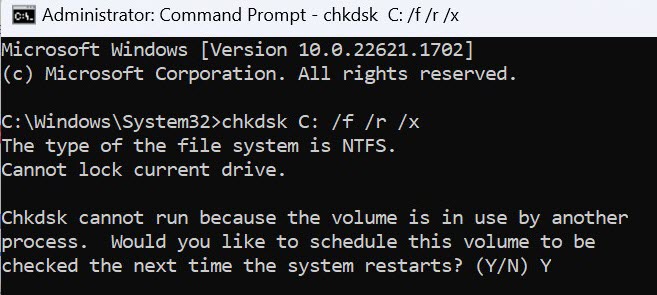
Anyron Copeman / Foundry
- For it to be checked immediately, restart your computer. Otherwise, it’ll be checked next time you boot up the device (unless you cancel within a few seconds)
This process takes anywhere from a few minutes to a few hours to complete, depending on the total volume of files stored on your device.
Use Startup Repair tool
If you can’t even turn on your device and logging in without freezing issues, it’s worth running the Startup Repair tool:
Turn off your computer if it’s not already
Turn on the device, but hit the F11 key as soon as it begins booting up
From the menu that appears, navigate (using touch or the arrow keys) to Troubleshoot > Advanced options > Startup repair
Reset your device
This should be considered a last resort, but if all else fails it’s time to reset your computer. Before proceeding, make sure you back up everything so you don’t lose it. Then, it’s only a few simple steps:
Head to Settings > System > Recovery
Click ‘Reset PC’
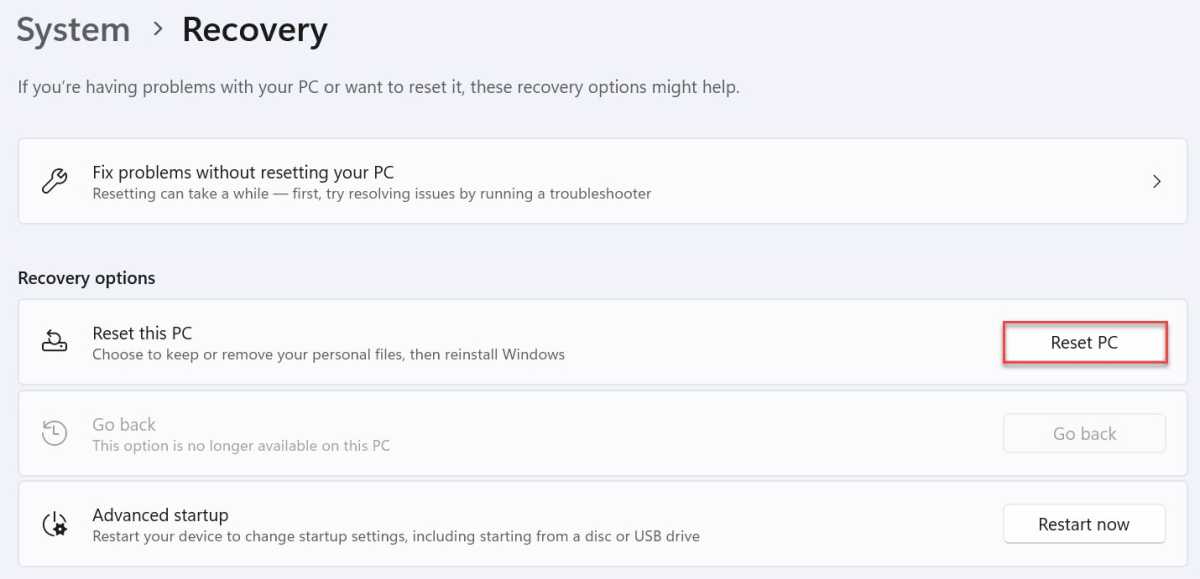
Anyron Copeman / Foundry
- Choose ‘Keep my files’
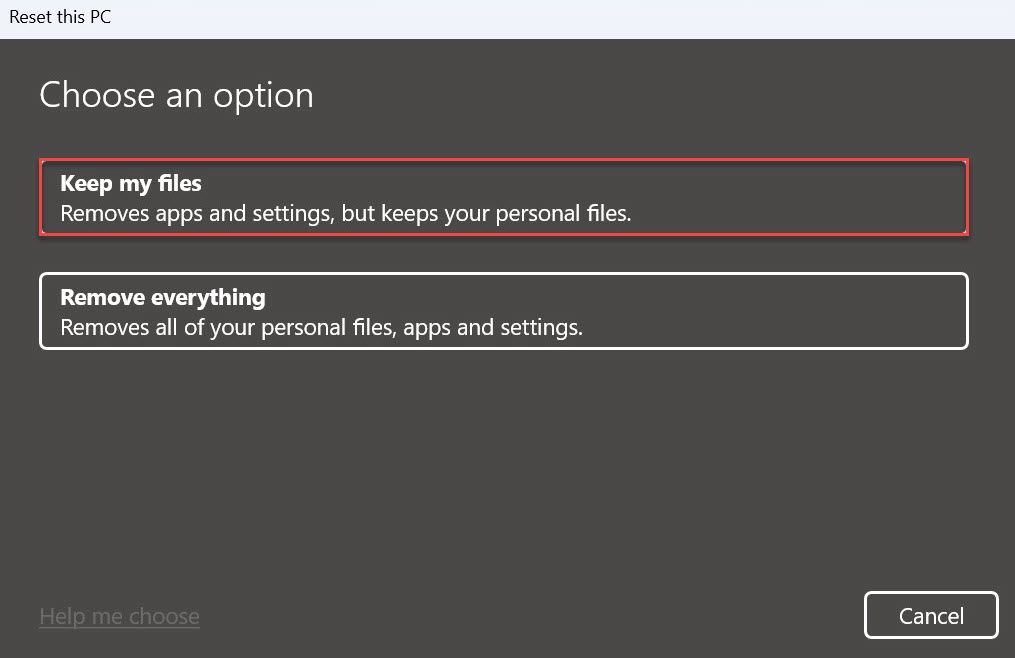
Anyron Copeman / Foundry
Choose whether to reinstall Windows 11 from the cloud or local storage (the latter is quicker)
Follow any further instructions to complete the reset
If that doesn’t work either, it’s worth repeating the process but choosing ‘Remove everything’ in Step 3.
- How to fix Windows 11 app crashes
- How to fix internet connection problems in Windows 11
- How to fix missing taskbar and Start menu in Windows 11
- Windows 11: Everything you need to know
Author: Anyron Copeman, Mobile Editor, Tech Advisor

Anyron is Mobile Editor at Tech Advisor, where he’s been a mainstay of the editorial team since 2019. In his current role, Anyron is responsible for all smartphone, tablet and mobile network coverage on the site. A BA Journalism graduate, he has experience with a wide range of consumer tech products and services, including smartphones, tablets, foldables, wearables and more.
Recent stories by Anyron Copeman:
- Windows 11 23H2 update: Everything you need to know
- Windows 12: Everything we know so far
- How to get the Google Play Store on Windows 11
