At its Build 2016 developer conference, Microsoft announced new software which turns any Xbox One into a dev kit. Here’s how to turn Xbox One into a dev kit with the Xbox Dev Mode. Also see: Windows 10 review and Windows 10 Mobile review .
During the Build keynote, Microsoft confirmed that Universal App will arrive on the console in the coming months with this summer’s Anniversary Update. The new firmware will also come with a Dev Mode to help create and optimise apps. Although that update is a way off, there’s a preview of the Dev Mode is available now to try out.
Installing this will activate your Xbox One for development and enable you to write UWP (Universal Windows Platform) games and apps.
Before you start
In order to fully setup your Xbox One for development there are some steps you need to take. It’s not quite as simple as installing an app and opening it up on the console. Do and check the following first:
On your PC
• Create a Dev Center account • Join the Windows Insider Program • Make sure you are running Windows 10 • Install Visual Studio 2015 Update 2 (Make sure that you choose Custom install and select the Universal Windows App Development Tools checkbox) • Install the Windows 10 SDK preview build 14295 from the Windows Insider Program
Note: Installing this preview SDK on your PC will prevent you from submitting apps to the store built on this PC.
On your Xbox One
• Connect your console to a wired network • Make sure you have at least 30GB of free internal storage • Download and install the Dev Kit Activation app from the store
How to turn Xbox One into a dev kit with Dev Mode
Step One
Once all the above is done, open the Dev Mode app on your Xbox One and click through to get an activation code.

Step Two
Enter this code into the ‘xbox activate page ‘ in your Dev Center account. Click ‘ agree and activate ‘.
Note: You have a limited number of devices you can activate.

Step Three
Now put the kettle on while your Xbox One console installs the preview build which may take a few hours.

Step Four
Once this has completed, open the Dev Mode Activation app and click ‘Switch and restart’ to go to Developer Mode.
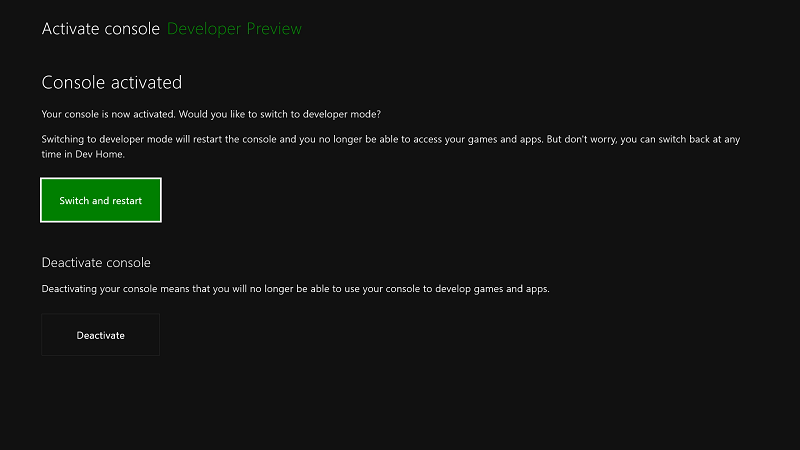
This will take longer than usual but you’re all set once it’s done. From now on, use the Dev Mode to switch between retail and developer mode. Either select ‘Leave developer mode’ or do the above to switch back.

Author: Chris Martin, Managing Editor, Tech Advisor

Tech Advisor Managing Editor Chris got his break as a reporter at infamous site The Inquirer and has been with us for more than 12 years. With a BA degree in Music Technology, audio is his specialism, but over the years he has reviewed all kinds of gadgets, from smartwatches to mesh Wi-Fi to coffee machines.
Recent stories by Chris Martin:
- Tech Advisor Awards 2025-26: Our favourite gadgets this year
- How to download the Android 16 QPR Beta 3 on your phone
- When is Google I/O 2025 and what to expect?
