A keyboard is fundamental to the way most people use a laptop, but it’s not necessary all the time. If you have a touchscreen device and aren’t planning on typing for a few hours, it can actually do more harm than good.
Fortunately, there’s an easy way to completely disable your laptop’s keyboard. Most people will only want to do this temporarily, and it could be worth trying if your keyboard isn’t working properly.
But there’s also a more permanent option, which stops the keyboard from working even if you restart your device. Both methods are covered in this article, and apply to Windows 10 and Windows 11 .
How to temporarily disable a laptop keyboard
To temporarily disable the keyboard on your laptop, you’ll just need to uninstall the necessary drivers. This will remain the case until you restart the device, at which point the drivers will automatically be reinstalled:
- Open the Start menu and type ‘device manager’ into the search bar
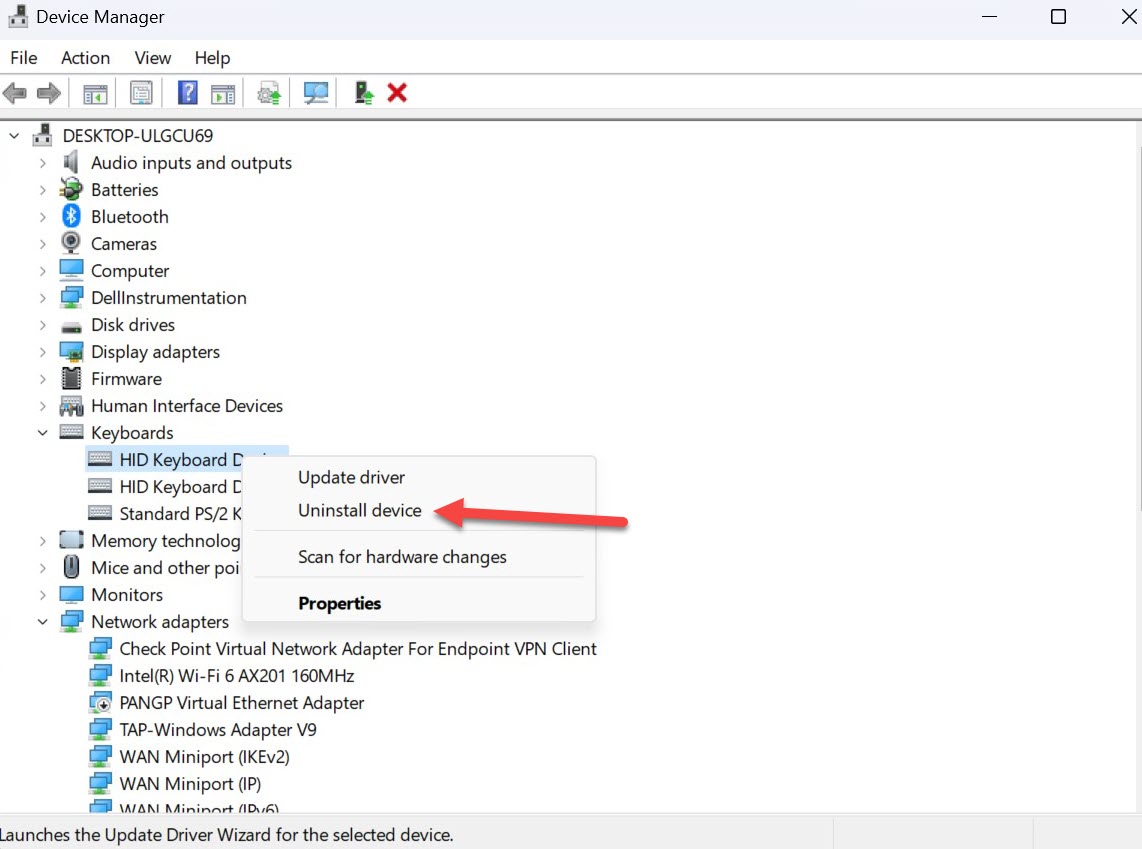
- Open the Device Manager, then find the ‘Keyboards’ heading and double-click it
- You should see two or three drivers listed here. Right-click each one and choose ‘Uninstall’ or ‘Uninstall device’
Anyron Copeman / Foundry
It’s as simple as that! The keyboard now won’t register any input until you restart your laptop.
How to permanently disable laptop keyboard
Understandably, Microsoft makes it a bit more difficult to permanently disable the keyboard. To do so, you’ll have to turn off Windows’ ability to automatically install the driver again. Without doing this, the keyboard will be back up and running every time you reboot your device.
Here’s how to permanently disable your keyboard.
- Open the Start menu and type ‘group policy’ into the search bar
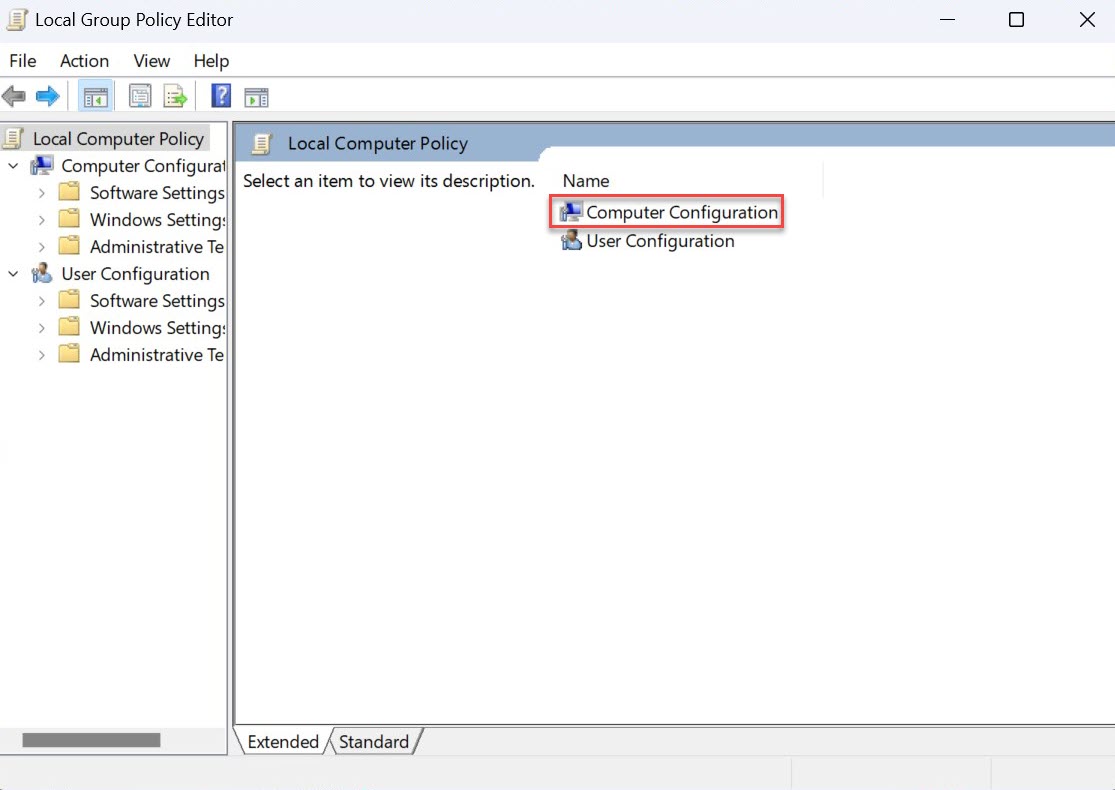
- Click the result named ‘Edit group policy’ and the Local Group Policy Editor window should open
- Under ‘Name’, double-click ‘Computer Configuration’
Anyron Copeman / Foundry
- Next, double-click ‘Administrative Templates’, then ‘System’ followed by ‘Device Installation’
- Double-click the ‘Device Installation Restrictions’ folder
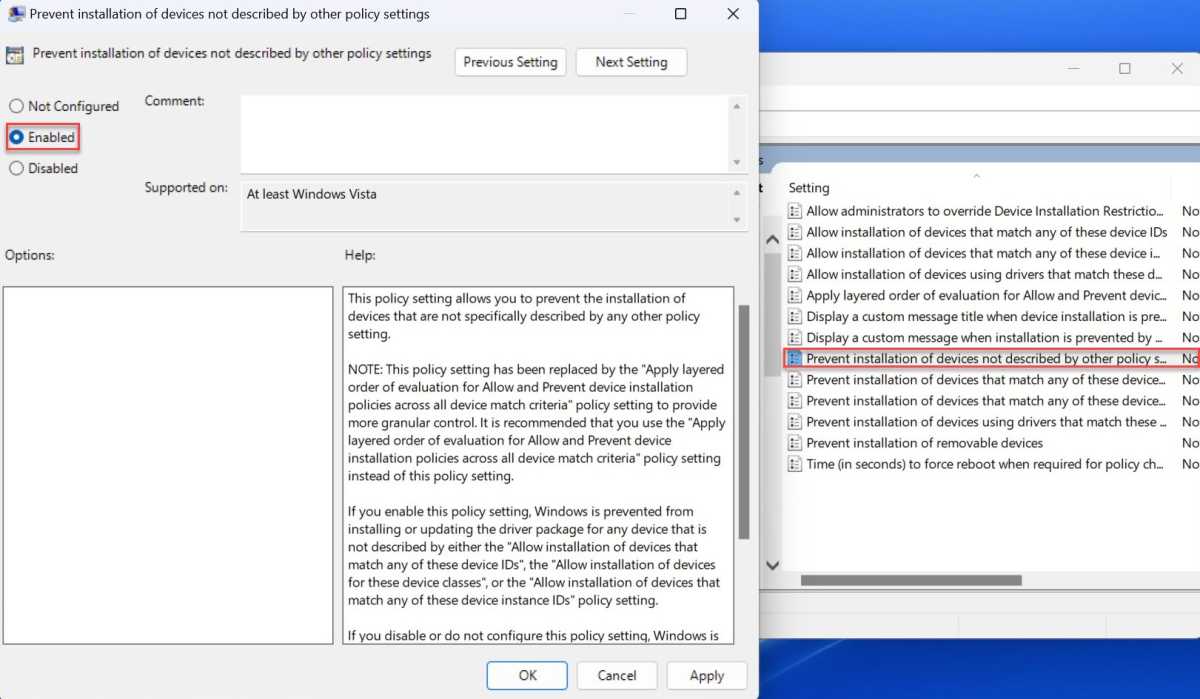
- Right-click the option marked ‘Prevent installation of devices not described by other policy settings’ and choose ‘Edit’
- From the window that appears, click the circle next to ‘Enabled’ to select it and click ‘OK’ to confirm
Anyron Copeman / Foundry
- Head to Device Manager and follow the same steps as to temporarily disable the keyboard
This is very much a permanent change. If there’s any chance you might want to re-activate the keyboard in the future, open the Local Group Policy Editor again and disable the ‘Prevent installation of devices not described by other policy settings’ setting. It’s your last chance to avoid a permanently disabled keyboard.
How to use a USB keyboard with a laptop
Instead of using the keyboard built into your laptop, you’ll probably want to connect an external one of your own at some point.
Connecting a USB version to a laptop really is as simple as plugging it in, provided your laptop has the right port. The drivers for the hardware will automatically install, and then you’re good to go. Unless you’ve permanently disabled it, the built-in keybiard will continue to work while the USB one is plugged in.
How to use a Bluetooth keyboard with a laptop
The process for a wireless keyboard isn’t much more difficult:
- Make sure Bluetooth is turned on on your laptop by heading to Settings > Devices > Bluetooth & other devices
- Turn on your keyboard, making sure it has enough battery and is in pairing mode if necessary
- Back on your laptop, click ‘Add Bluetooth or other device’ and then ‘Bluetooth’
- It will now search for your device, and with a bit of luck, find the keyboard. Simply click on it to complete connection
Considering a new laptop? See our guide to the best you can buy .
- How to fix a laptop keyboard
- How to fix a stuck laptop cursor
- How to clean a keyboard
Author: Anyron Copeman, Mobile Editor, Tech Advisor

Anyron is Mobile Editor at Tech Advisor, where he’s been a mainstay of the editorial team since 2019. In his current role, Anyron is responsible for all smartphone, tablet and mobile network coverage on the site. A BA Journalism graduate, he has experience with a wide range of consumer tech products and services, including smartphones, tablets, foldables, wearables and more.
Recent stories by Anyron Copeman:
- These are the best backpacks and sleeves for carrying your laptop, tablet and tech
- Tech Advisor’s Best of MWC 2025 Awards
- The best student deals and discounts in the US
