Given the huge number of apps available for free on the Google Play Store, it’s all too easy to find yourself installing apps, never using them, and never deleting them. But leaving unused apps, even on the best Android phones , can be problematic.
If you’re low on storage, you’ll waste what precious little space remains downloading updates to those unused apps, and you will likely find your Android device performs better without them bogging it down.
It’s always been easy to uninstall unwanted apps on Android – at least those that you installed yourself; some mobile operators or hardware manufacturers will pre-install apps you don’t necessarily want, but cannot delete.
This guide will walk you through the various methods to uninstall apps on Android 14 .
How to uninstall apps from the home screen
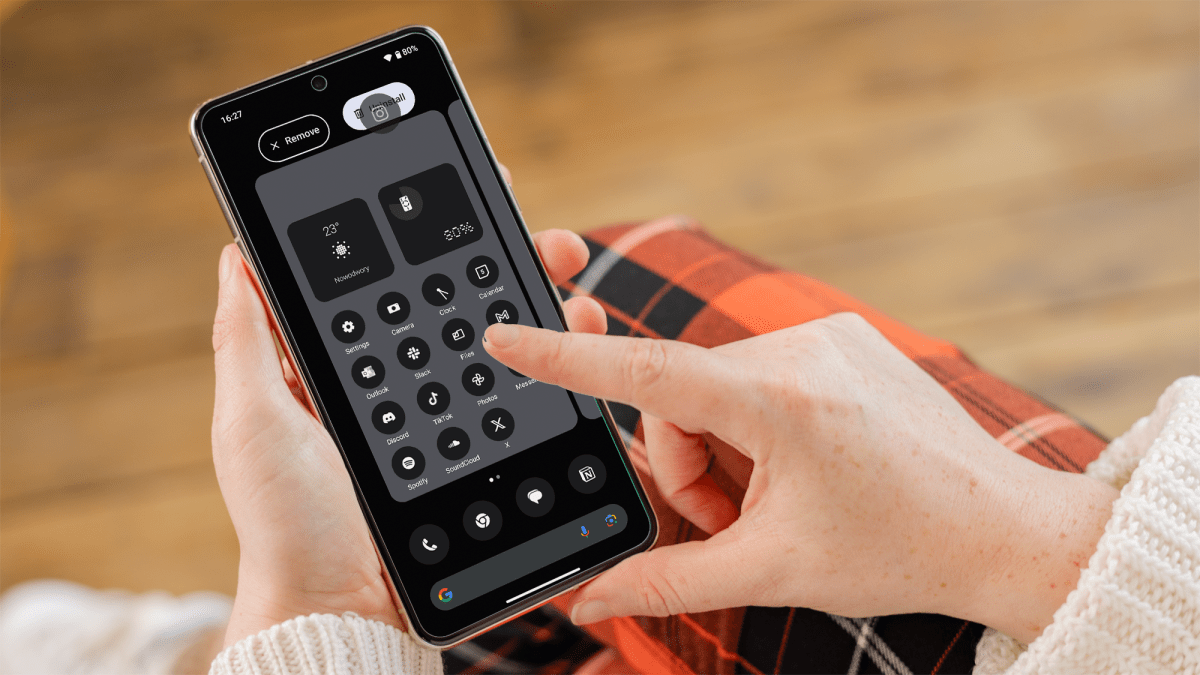
To uninstall an app via the home screen, first, locate the app on your home screen that you want gone. Then, press and hold the app icon until a menu appears.
Drag the icon to the ‘Uninstall’ option that appears at the top or side of the screen (or tap ‘uninstall’ from the pop-up menu itself on the likes of Samsung’s phones).
Dominik Tomaszewski / Foundry
How to uninstall apps from the app drawer
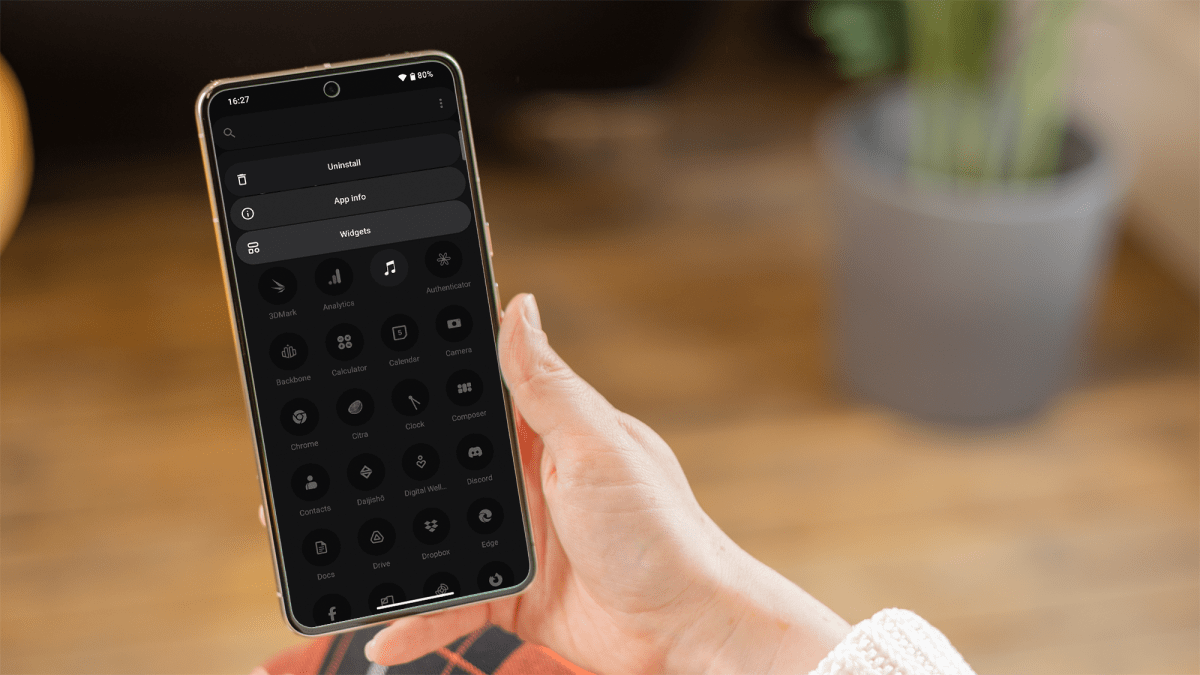
To uninstall an app using the app drawer, swipe up from the bottom of the screen to open your phone’s app drawer and find the app you want to uninstall.
Press and hold the app icon, then drag it to the ‘Uninstall’ option or simply tap on ‘uninstall’ from the list that appears.
Dominik Tomaszewski / Foundry
How to uninstall apps from the settings menu
To uninstall an app from your phone’s settings, open the ‘Settings’ app, scroll down and select ‘Apps & Notifications’ or ‘Apps’ depending on your device. You may also need to open the ‘All Apps’ tab.
Browse the list of installed apps and select the app you wish to uninstall. Tap on it, then tap on the ‘Uninstall’ button and confirm the uninstallation when prompted.

Dominik Tomaszewski / Foundry
How to uninstall apps from Google Play Store
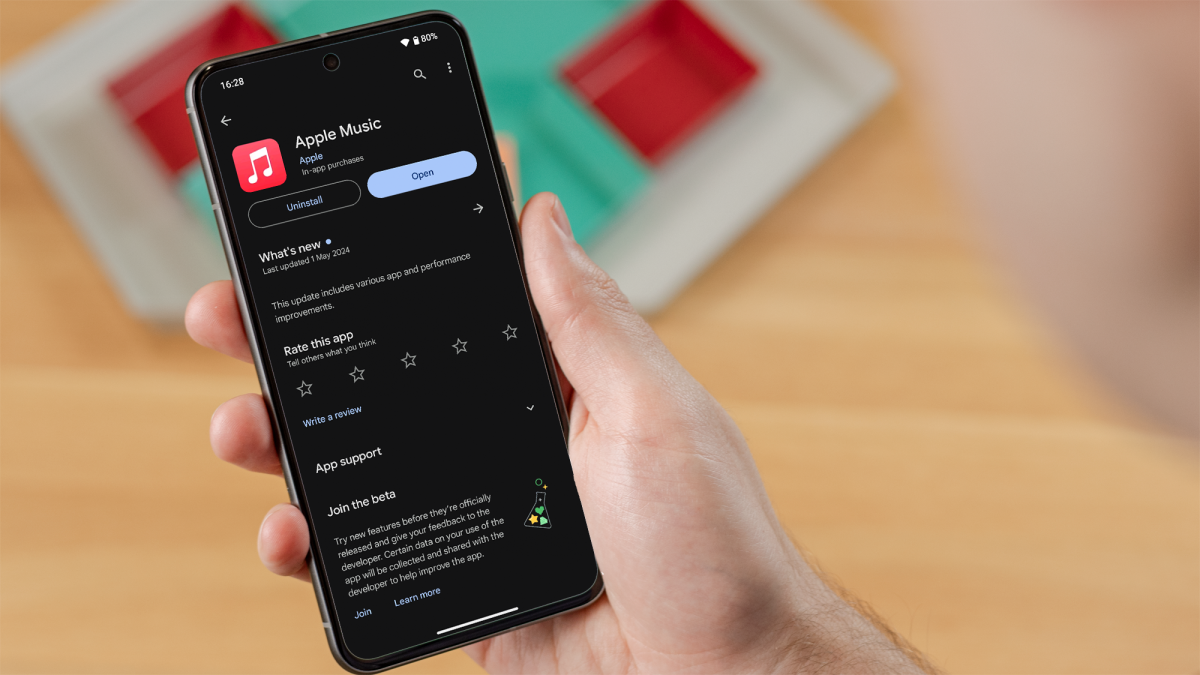
To uninstall an app via the Google Play Store, first, launch the Google Play Store app. Then, simply search the app you wish to uninstall and tap on it.
Choose the ‘Uninstall’ option, which will appear if it’s an app that you’re able to remove.
Dominik Tomaszewski / Foundry
By following the methodology above, you can effectively manage your apps; keeping your Android device clean and efficient. You can also learn how to hide apps on Android and how to find hidden apps on Android , if you can’t delete them for whatever reason.
Author: Artur Tomala, Mobile Writer, Tech Advisor

Artur is a Mobile Writer at Tech Advisor, where he covers a range of smartphone, tablet and smartwatch-related topics. He has been working in the tech industry since 2021, including time spent leading a team focused on mobile news, reviews and product rankings. As an ambassador for the productivity app Notion, he runs training workshops and creates advanced templates to help people stay organised and productive.
Recent stories by Artur Tomala:
- How to set up a new Android phone
- Samsung Galaxy A26: Everything you need to know
- What is an eSIM and how does it work?
