We’ve all locked ourselves out of our phones at some point, but don’t worry, there are various things you can do to get back in without losing your sanity or data. We have five methods to try if you’ve forgotten your Android PIN, password or pattern.
Most phones these days give the option to use biometrics to log in, so try using the fingerprint scanner or facial recognition software first. If you don’t have this configured, then there are some other things you can try.
Are you frustrated by locked phones? Don’t worry. With a few clicks, EaseUS MobiUnlock for Android can bypass the lock screen on all copious Android Phones and tablets. This Android phone unlocker helps to solve forgotten passwords, patterns, Fingerprints, Face Locks, or PINs. Besides, it easily removes Samsung FRP lock without password. Now 25% OFF by using code: TECHADVISOR25.
Free Trial
Use Google’s Find My Device
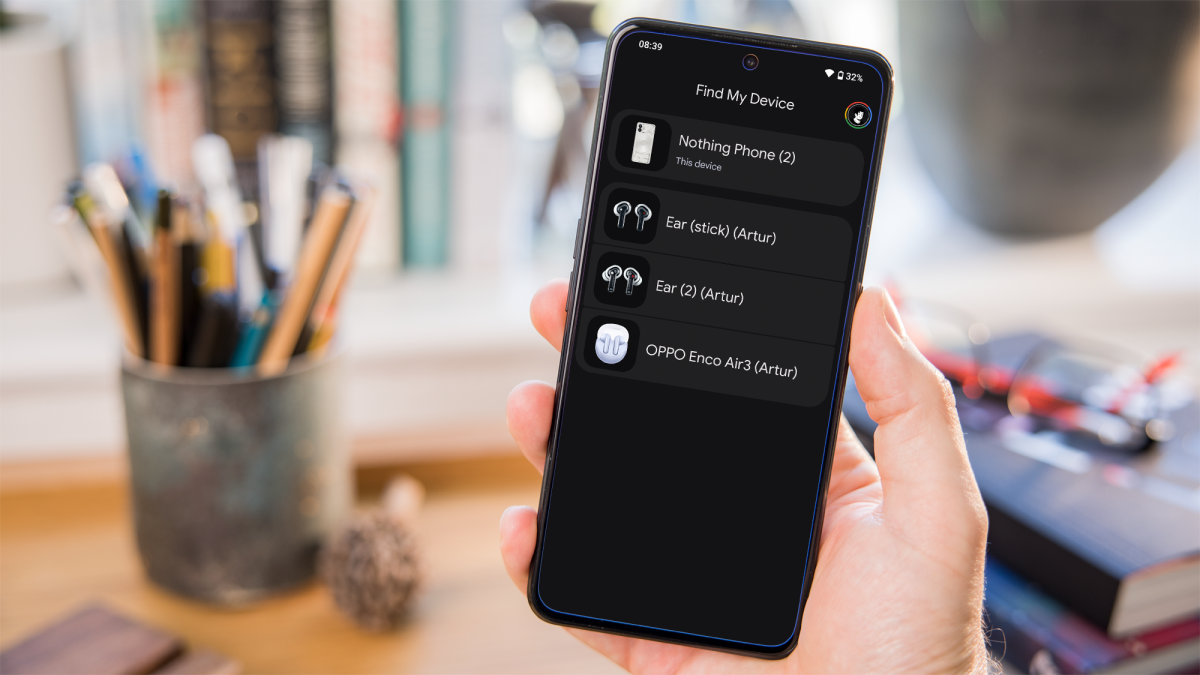
The most immediate solution that springs to mind is Google’s Find My Device .
You’ll need to log into your Google account for this and it will only work on more modern devices, but you can access this service from practically anything with a web browser. You will also need your locked device’s location turned on and ensure it’s connected to mobile data or Wi-Fi.
Dominik Tomaszewski / Foundry
To start, go to Google’s Find My Device website or open the Find Device app on another Android phone . Click on the device you want to unlock and tap on the settings cog, followed by the ‘Factory reset [DEVICE NAME]’ prompt. Then tap ‘Reset’and confirm your choice. From there, you’ll be able to set up your device once again, with a brand new password.
This method does require factory resetting your device, so only proceed if you’re sure any important media – such as photos – are backed up first.;
If Find My Device isn’t picking up your phone, then refresh the page or app a few times. It should get eventually appear.
Check if Extend Unlock is enabled
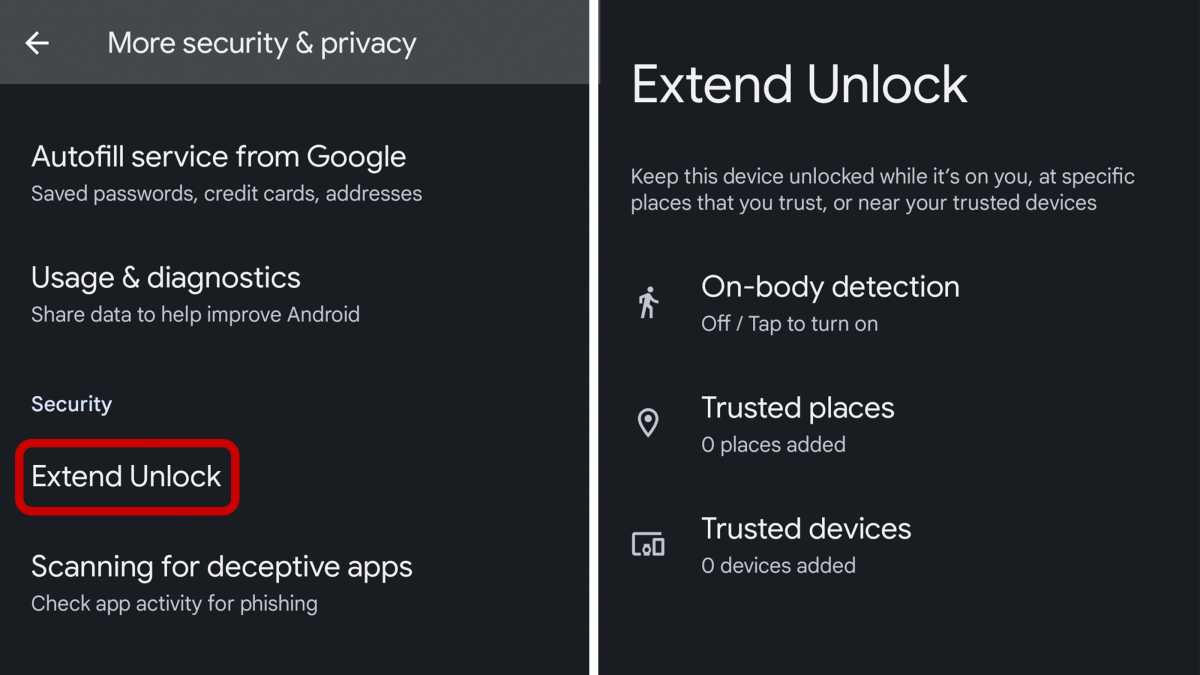
‘Extend Unlock’ (still ‘Smart Lock’ on some devices, including Samsung) is a feature on Android phones which allows your phone to open without a password if it’s in a trusted location it recognises. However, this feature needs to have been enabled before you lost access to your PIN.
It’s most likely that you set it up to activate when at home, so try unlocking your phone there.
Foundry | Alex Walker-Todd
If you’d like to future-proof your device, you can turn on smart lock by heading to ‘Settings & privacy’ > ‘More security & privacy’ > ‘Extend Unlock’.
You can choose from three options for Extend Unlock:
- On-body detection – Keep your device unlocked whilst it’s on your person
- Trusted places – Add a geofenced location, where your device will remain unlocked
- Trusted devices – Add a device (such as Bluetooth headphones or a smartwatch) to keep your phone unlocked when the two are connected
Bypass a non-stock lock screen with recovery mode
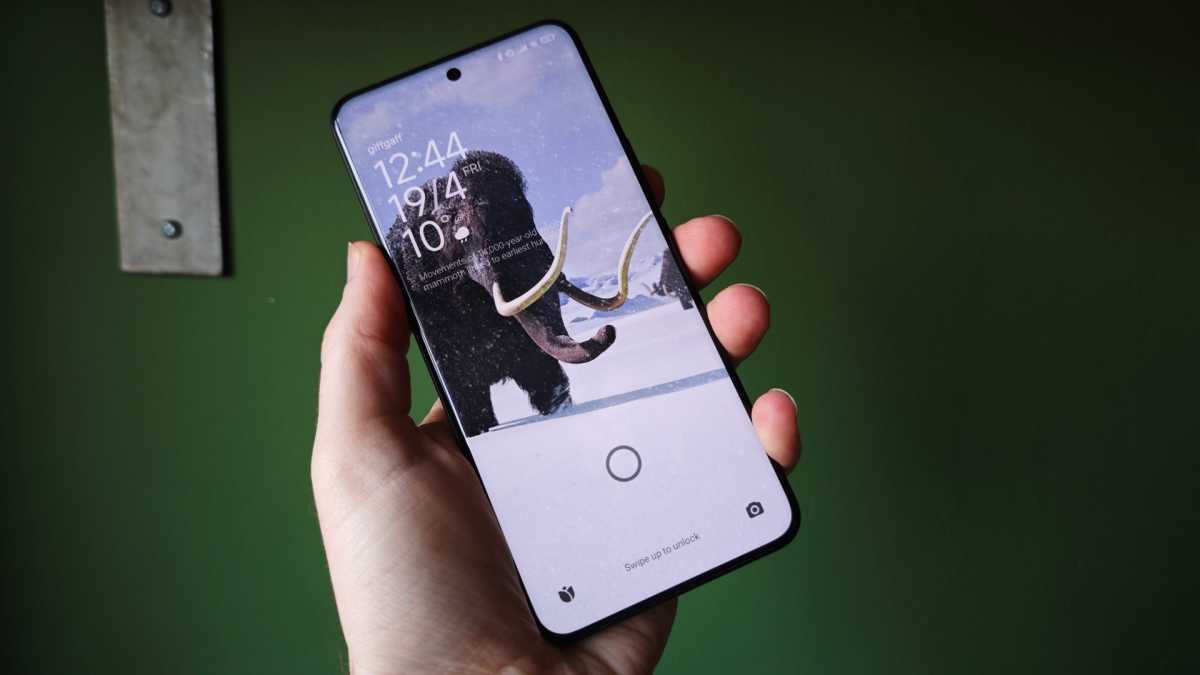
If the lock screen you’re having trouble with is from a third-party app, and not the stock lock screen that comes with your phone, then you can bypass this by booting the phone into recovery mode.
This method will differ depending on what device you have. We suggest searching for your device on the manufacturer’s website for exact instructions.
Chris Martin / Foundry
In most cases, you can bring up the option by long-pressing the power and volume buttons down together when booting up your phone.
You’ll then see an Android mascot and options appear on the screen then. You can cycle through the options by using the volume keys for up and down.
When you reach recovery mode, click on the power button to confirm your choice. When the phone boots up the lock screen should be disabled.
Delete the PIN file using ADB
Using ADB (Android Debug Bridge) can also be a useful method if you’ve forgotten your PIN.
Firstly, ensure that you have ADB installed on your computer. You can download it from the Android Developer website . USB debugging must be enabled on your phone too.
Then, follow the steps below:
- Install ADB on your computer.
- Connect your Android phone to your computer using a USB cable.
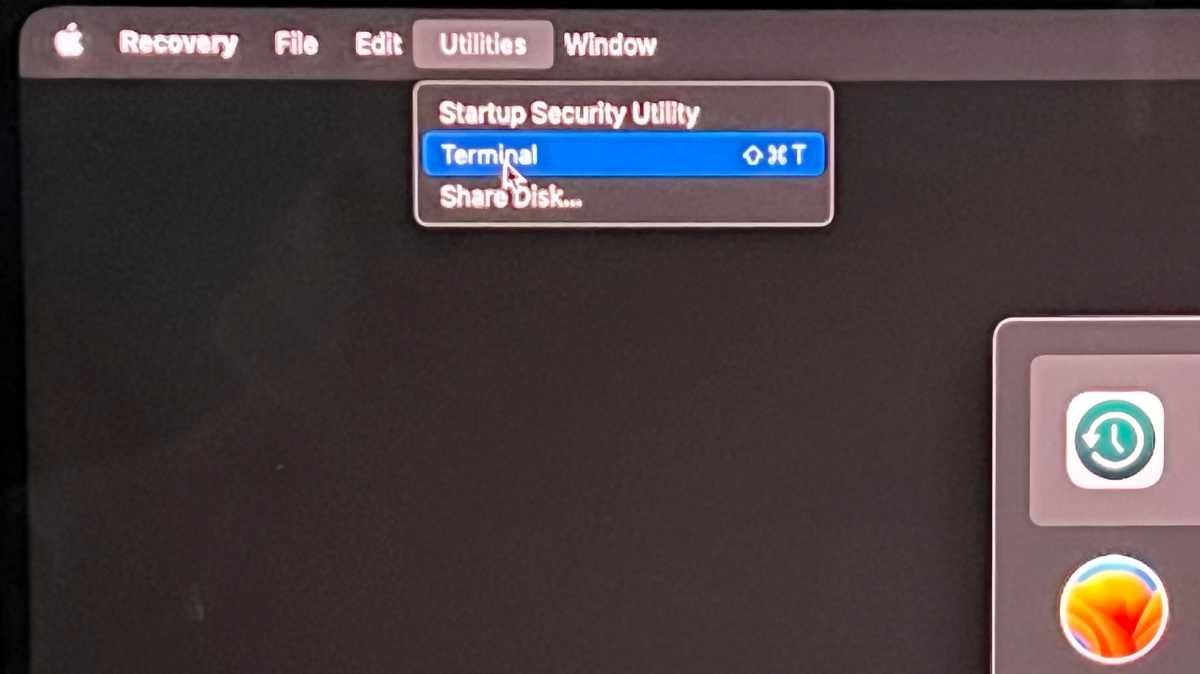
- Open the command prompt (Windows) or terminal window (Mac/Linux) and navigate to the directory where you extracted the ADB tools.
- Delete the files responsible for the PIN lock. Typically, these files are: gesture.key (for pattern lock) password.key (for PIN or password lock)
- After deleting the files, reboot your phone.
Foundry
It’s worth noting that this method isn’t guaranteed to work, and if you’re not careful, it could damage your phone. This process might result in data loss. It’s recommended to back up your data if possible.
What’s more, this method won’t work if your phone runs Android 6.0 or older. If you receive an error saying “rm: /data/system/gesture.key: No such file or directory”, it means you can’t bypass the lock screen this way.
Use the ‘Forgot Pattern’ Feature
If you’re using an older version of Android, namely 4.4 or lower (which you really shouldn’t be), then you’ll be able to use the ‘Forgot Pattern’ feature.

Martyn Casserly
If you’ve failed to unlock your phone five times, a message will pop up in the bottom-right of your screen, stating ‘Forgot Pattern?’ Tap it.
You can then reset your screen lock.
Perform a factory reset
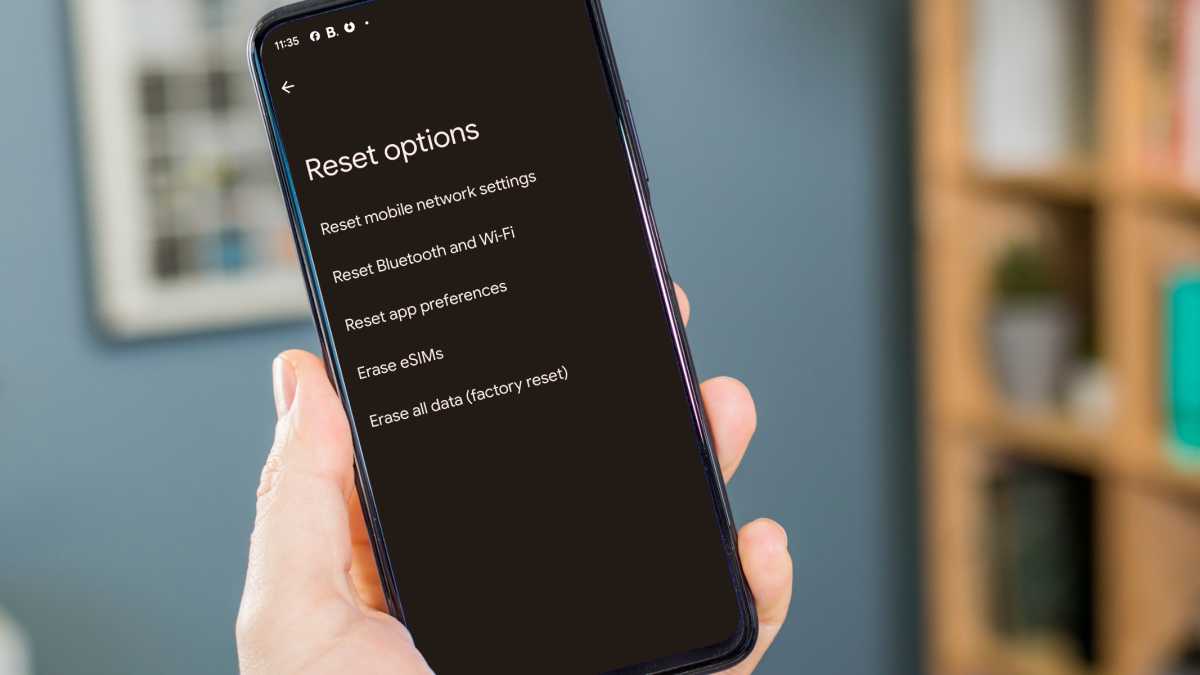
If the previous methods to unlock your Android phone do not work, a factory reset is required. To do so, you can follow our guide on how to reset an Android phone or tablet .
Martyn Casserly
This will erase all data on your phone, however, you can restore much of it by pulling data back down that you already have saved to your Google account. Be sure to back up your Android phone beforehand.
Author: Artur Tomala, Mobile Writer, Tech Advisor

Artur is a Mobile Writer at Tech Advisor, where he covers a range of smartphone, tablet and smartwatch-related topics. He has been working in the tech industry since 2021, including time spent leading a team focused on mobile news, reviews and product rankings. As an ambassador for the productivity app Notion, he runs training workshops and creates advanced templates to help people stay organised and productive.
Recent stories by Artur Tomala:
- How to set up a new Android phone
- Samsung Galaxy A26: Everything you need to know
- What is an eSIM and how does it work?
