Keeping your Android apps up-to-date ensures that you have the latest features, bug fixes and security updates.
Whether you prefer automatic updates or like to handle updates manually, this guide will walk you through the various methods for updating your Android apps.
How to automatically update Android apps
Automatic updates are a convenient way to ensure your apps are always current, without having to remember to check for updates. Here’s how to set up automatic updates for your Android apps:
- Tap on the Google Play Store app.
- Tap on your profile picture in the top-right corner, to open the menu.
- Select ‘Settings’ from the dropdown menu.
- Tap on ‘Network preferences.’
- Tap ‘Auto-update apps.’
- Select one of the options for how you would like your apps to be automatically updated.
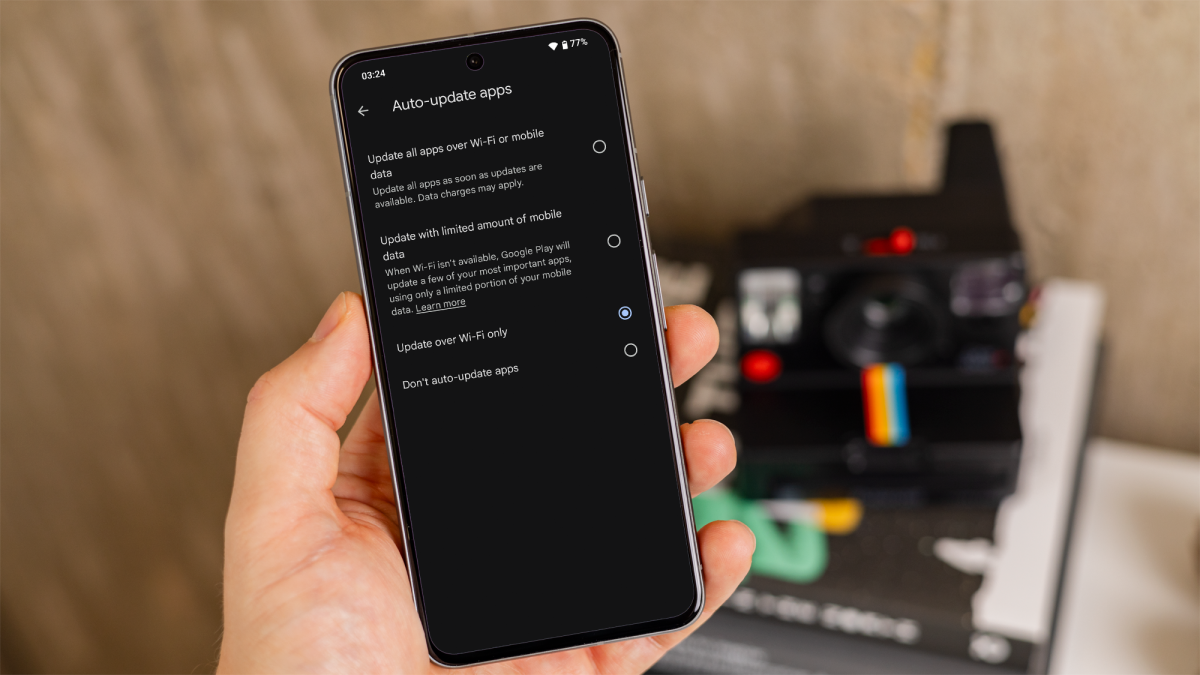
Dominik Tomaszewski / Foundry
By following these steps, your apps will automatically update based on the network preference you selected; ensuring that you always have the latest versions of each, running on your device.
How to get only certain Android apps to auto-update
If you prefer to have only specific apps update automatically, you can manage auto-updates on a per-app basis. Here’s how:
- Launch the Google Play Store app.
- Use the search bar to find the app you want to auto-update.
- Tap on the app to open its detailed page.
- Tap the three vertical dots in the top-right corner of the app’s page.
- Check the box next to ‘Enable auto-update.’
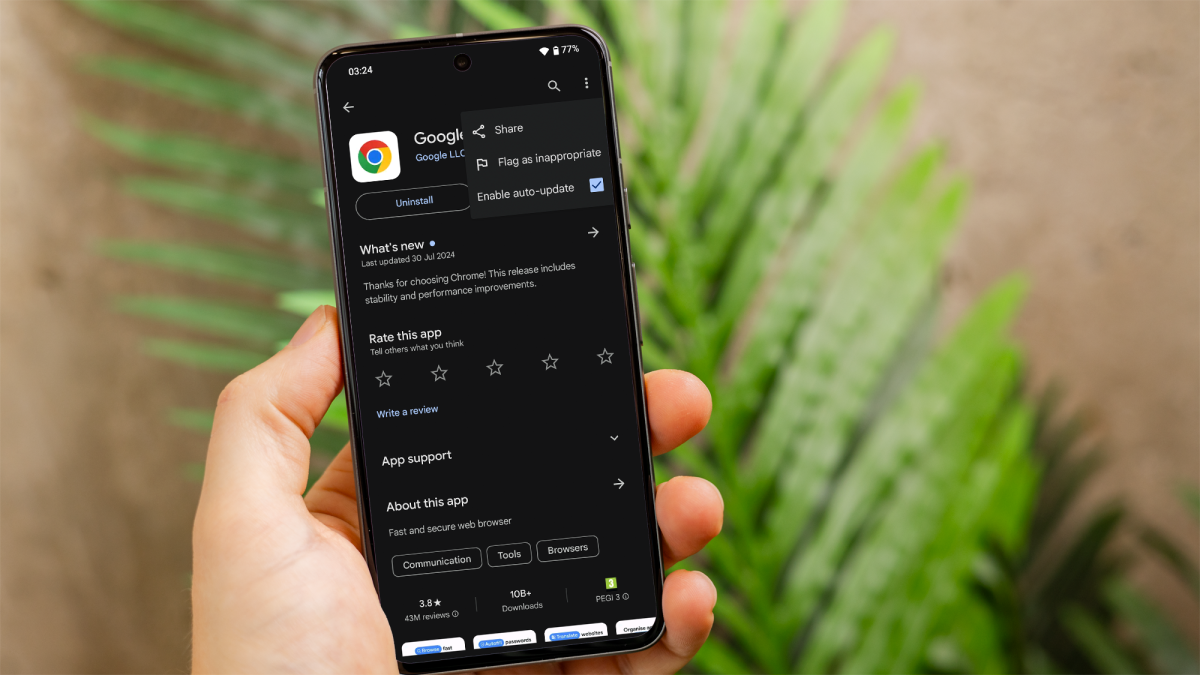
Dominik Tomaszewski / Foundry
Repeat these steps for each app you want to set to auto-update. This way, you can ensure that only the apps you select will update automatically.
How to manually update Android apps
If you prefer to have full control over when your apps are updated, you can manually check for and install updates. Here’s how:
- Open the Google Play Store app.
- Tap on your profile picture in the top-right corner, to open the menu.
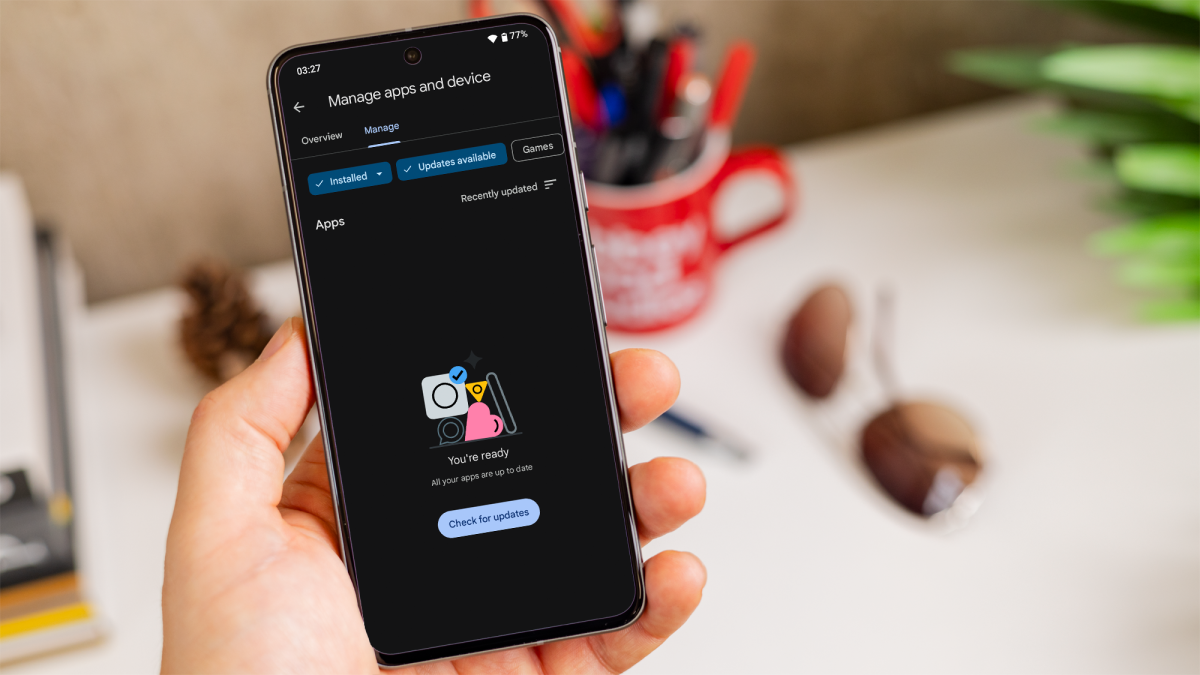
- Select ‘Manage apps and device’ and then ‘Manage,’ you will see a list of your installed apps.
- Apps with available updates will be listed once you tap on ‘Updates available.’
- To update all apps at once, tap ‘Update all.’
- To update individual apps, tap the ‘Update’ button next to a specific app.
Dominik Tomaszewski / Foundry
By manually updating your apps, you can ensure you remain aware of each update, and can then decide when it’s convenient to install them.
You’ll also want to make sure your operating system has the newest patches applied, so take a look at how to update Android for a step-by-step guide to achieving this. If you’re also contemplating upgrading your device itself, our best Android phone chart should prove invaluable.
Author: Artur Tomala, Mobile Writer, Tech Advisor

Artur is a Mobile Writer at Tech Advisor, where he covers a range of smartphone, tablet and smartwatch-related topics. He has been working in the tech industry since 2021, including time spent leading a team focused on mobile news, reviews and product rankings. As an ambassador for the productivity app Notion, he runs training workshops and creates advanced templates to help people stay organised and productive.
Recent stories by Artur Tomala:
- How to set up a new Android phone
- When will my Samsung Galaxy phone get One UI 7?
- How to get One UI 7 on your Samsung Galaxy phone
