The worst effects of the COVID-19 pandemic might have been temporary, but its impact on the world of work has been more permanent.
While some companies have made a full-time return to the office, many others have shifted to a hybrid system or still allow employees to work completely remotely.
And to work effectively from home, most people will need more than one display. But what if you don’t have a dedicated monitor that’s fit for purpose? A spare laptop is your best alternative.
How to connect two laptop screens
Provided it’s running Windows 10 or Windows 11 , connecting to your main computer is relatively straightforward. You can’t just connect them via USB-C or HDMI, though – laptop display ports can only output to other devices, not receive inputs.
Here’s how to do it wirelessly instead with step-by-step instructions below for Windows 11 followed by Windows 10 .
How to use a laptop as a second monitor in Windows 11
Fortunately, Microsoft makes it relatively easy to connect to link two laptops together. Here’s how it’s done:
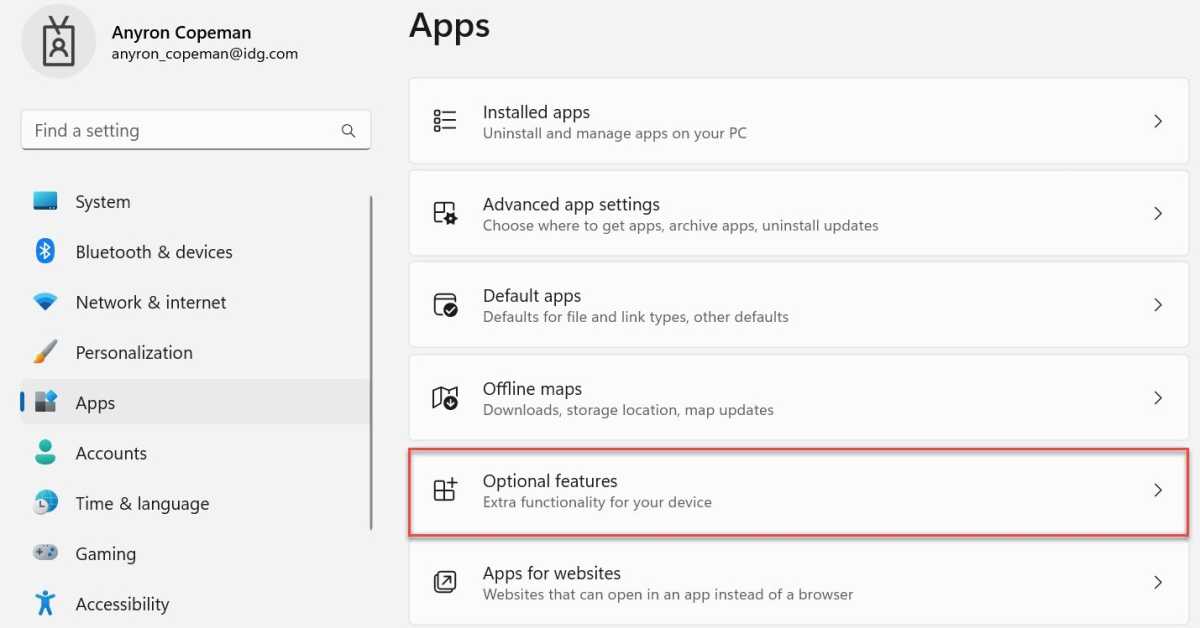
- On the device you’re using as a second screen, open Settings and select ‘Apps’ from the left pane
- Click ‘Optional features’
Anyron Copeman / Foundry
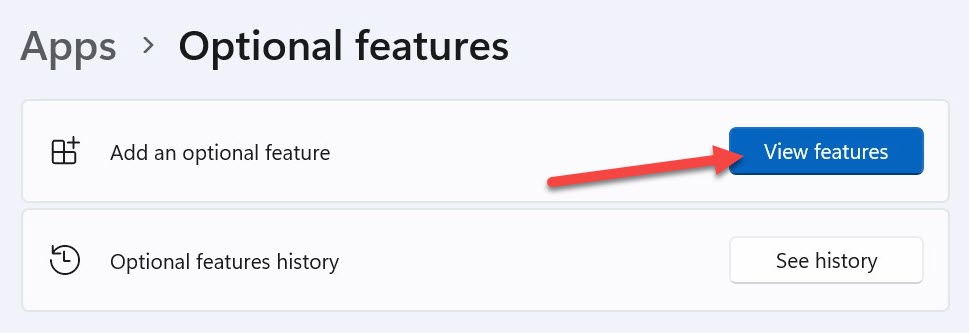
- Click the blue ‘View features’ button
Anyron Copeman / Foundry
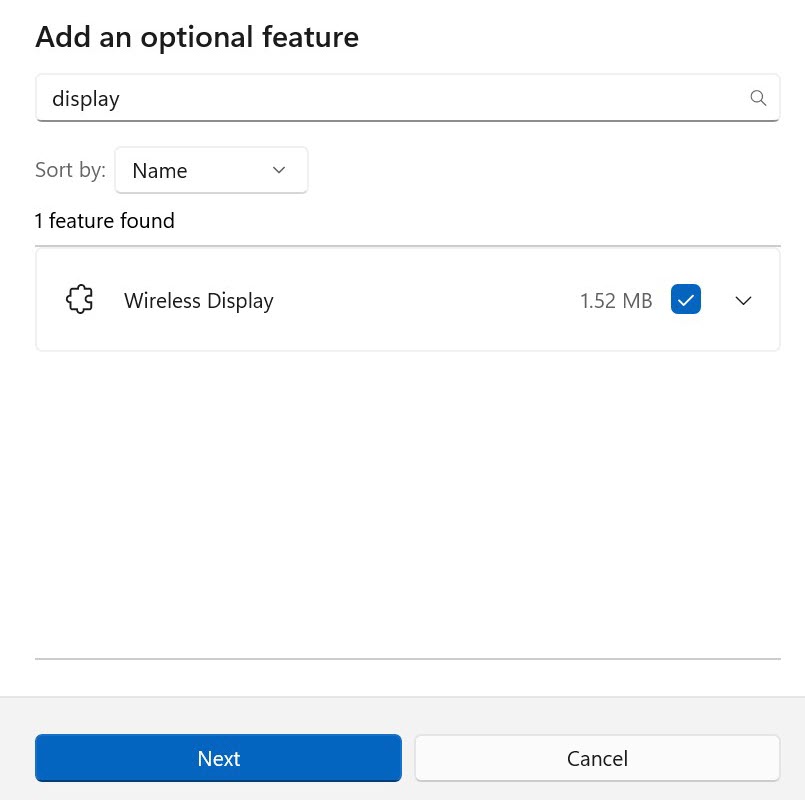
- In the search bar, type ‘display’ and tick the box next to ‘Wireless Display’ and click ‘Next’. If you don’t see it, it’s already installed
Anyron Copeman / Foundry
- Click ‘Install’ from the next screen. Wait for it to finish installing, which should only take a few seconds
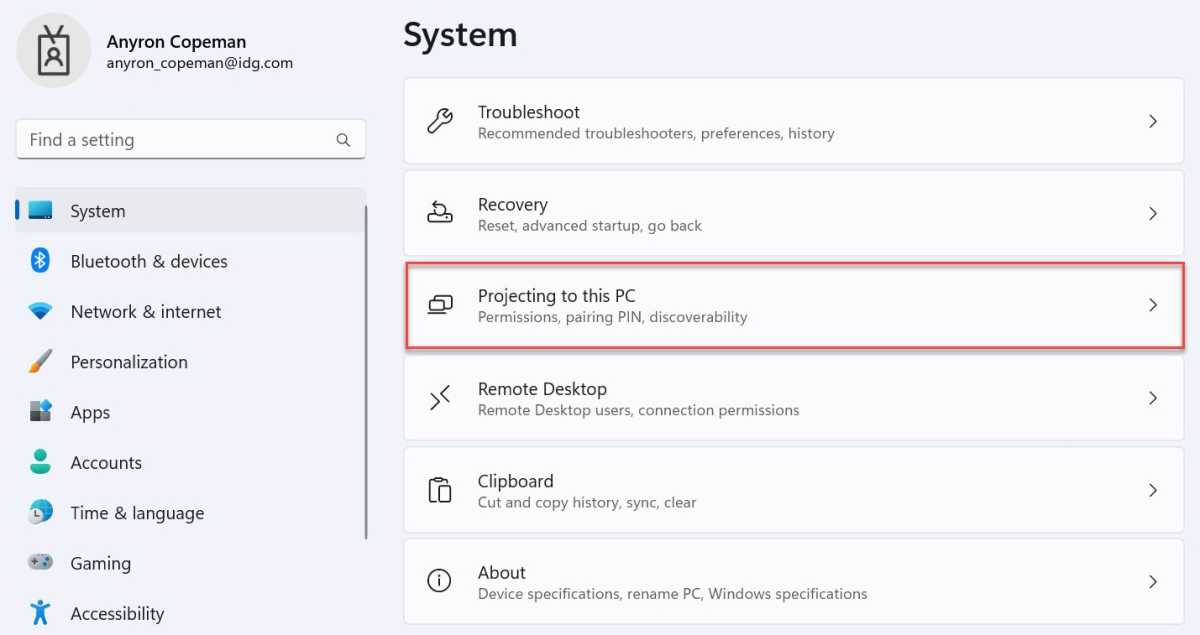
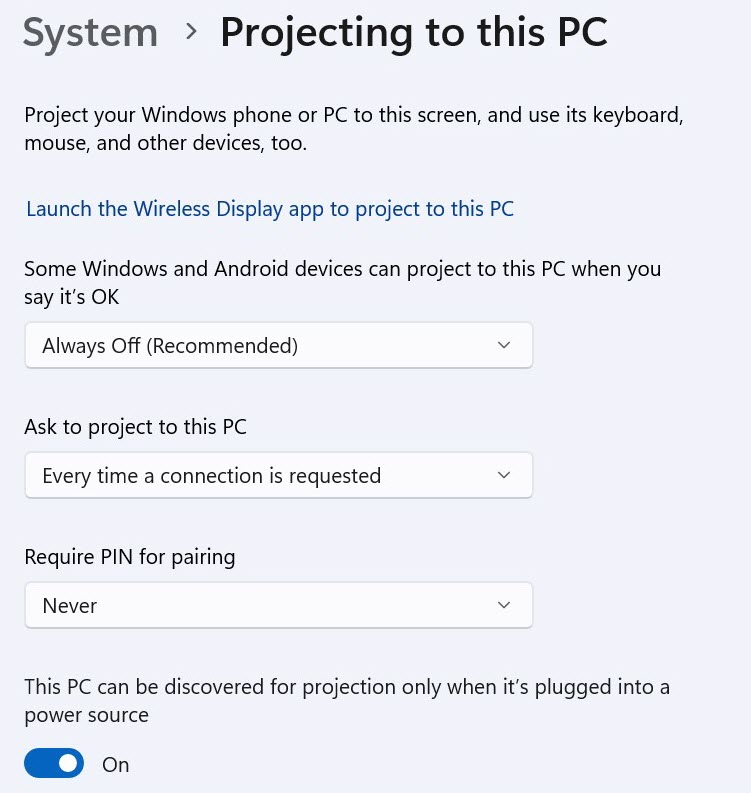
- Next, click ‘System’ from the left pane, then scroll down and choose ‘Projecting to this PC’
Anyron Copeman / Foundry
- Adjust the settings here to your liking, striking a balance between security and accessibility. We’d recommend the options below
Anyron Copeman / Foundry
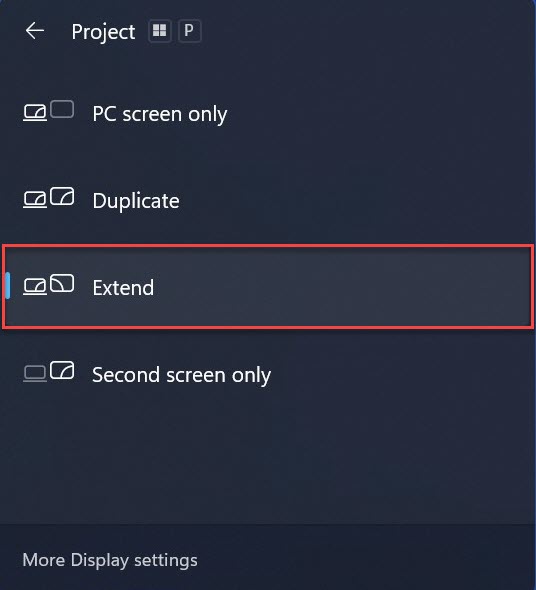
- On your main device, hit the Windows Key + P to open projection options, then choose ‘Extend’
Anyron Copeman / Foundry
- Choose your second screen laptop, and the two should now be connected
The connection is wireless, so it’s not quite the same experience as having a second monitor connected via a cable, but it can be useful if you’re stuck and need a solution.
How to use a laptop as a second monitor in Windows 10
On Windows 10, the process looks slightly different, but works in much the same way:
- On the the device you’re using as a second screen, open Settings
- Click ‘System, then ‘Projecting this PC’ from the left pane
- Again, you can adjust the settings here to your liking

- From your main computer, press the Windows Key + P, and click the ‘Connect to a Wireless Display’ link at the bottom. Make sure you have your Wi-Fi turned on for this to work
- From the options that appear, choose ‘Extend’
- Click ‘Connect to a wireless display’, then choose the name of your other laptop when it appears
The two displays will now be linked, and you should be able to move your cursor and other files between them. You might find it’s not quite as stable as a wired connection, in which case you may still want to consider a new monitor.
Since the process on Windows 11 and Windows 10 Miracast, you might be able make your TV act as a second screen if you have Microsoft’s Wireless Display Adapter. It costs £54.99 / $49.95 , though stock can be patchy.
- How to connect a second display to your laptop or PC
- How to turn your laptop into a desktop PC
- How to set up a home office
- Should I use a VPN when working from home?
Author: Anyron Copeman, Mobile Editor, Tech Advisor

Anyron is Mobile Editor at Tech Advisor, where he’s been a mainstay of the editorial team since 2019. In his current role, Anyron is responsible for all smartphone, tablet and mobile network coverage on the site. A BA Journalism graduate, he has experience with a wide range of consumer tech products and services, including smartphones, tablets, foldables, wearables and more.
Recent stories by Anyron Copeman:
- These are the best backpacks and sleeves for carrying your laptop, tablet and tech
- Tech Advisor’s Best of MWC 2025 Awards
- The best student deals and discounts in the US
