2023 has already been a huge year for AI. The first few months of the year have been dominated by ChatGPT, with Microsoft and many others integrating the technology into various apps and services.
Access to Bing Chat was initially very limited, but those restrictions have now been lifted. Anyone on the Edge browser can use it, and you don’t need wait for an invitation.
While each Bing Chat user is limited to 5 chats per session and 50 chats in total each day, that’s plenty to put the AI chatbot through its paces. Here’s how to get started on your desktop PC, laptop, smartphone or tablet.
How to use Bing Chat on Windows or Mac
Of course, Microsoft wants you to use Windows 11 to access Bing Chat. That’s what we’ll be using for this section of the tutorial, but it also works on Mac. Just download Edge for Mac to get started, then follow the same steps as below:
- Open Microsoft Edge
- Head to bing.com/chat
- From the pop-up that appears, click ‘Start chatting’
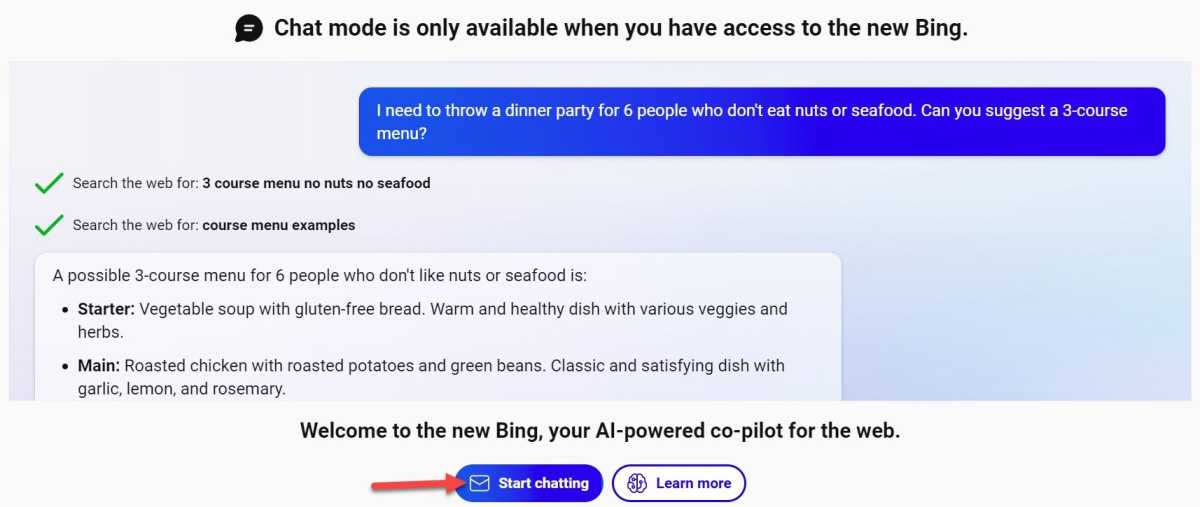
Anyron Copeman / Foundry
- Enter the email address for the Microsoft account you’d like to use and click ‘Next’. If you don’t have one, click ‘Create one!’ just under the text box and follow the instructions
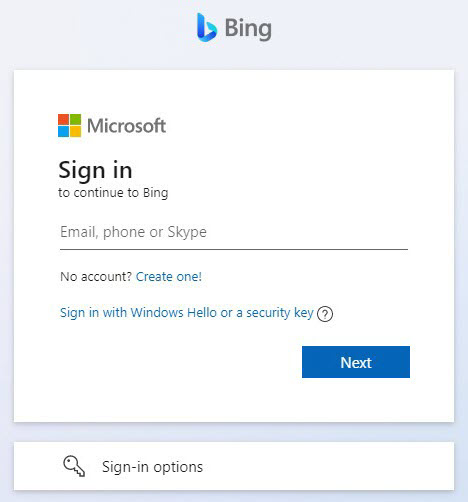
Anyron Copeman / Foundry
- Enter your password when prompted and click ‘Next’
- From the following screen, choose whether you’d like to stay signed in or not
- Click ‘Chat now’
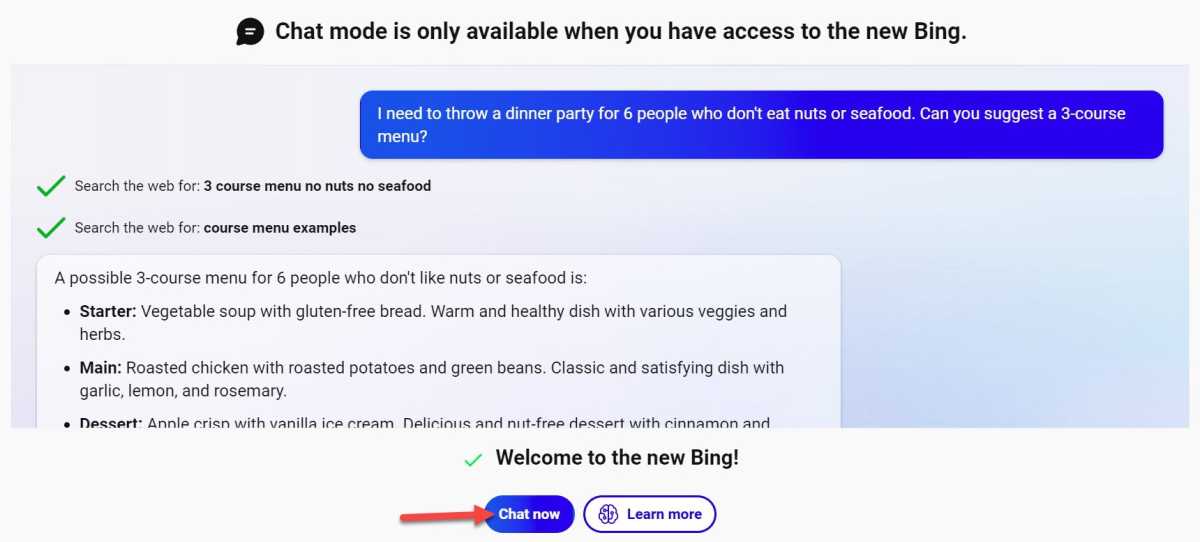
Anyron Copeman / Foundry
- Choose your conversation style. If you’ve never used it before, it’s best to stick with ‘More Balanced’
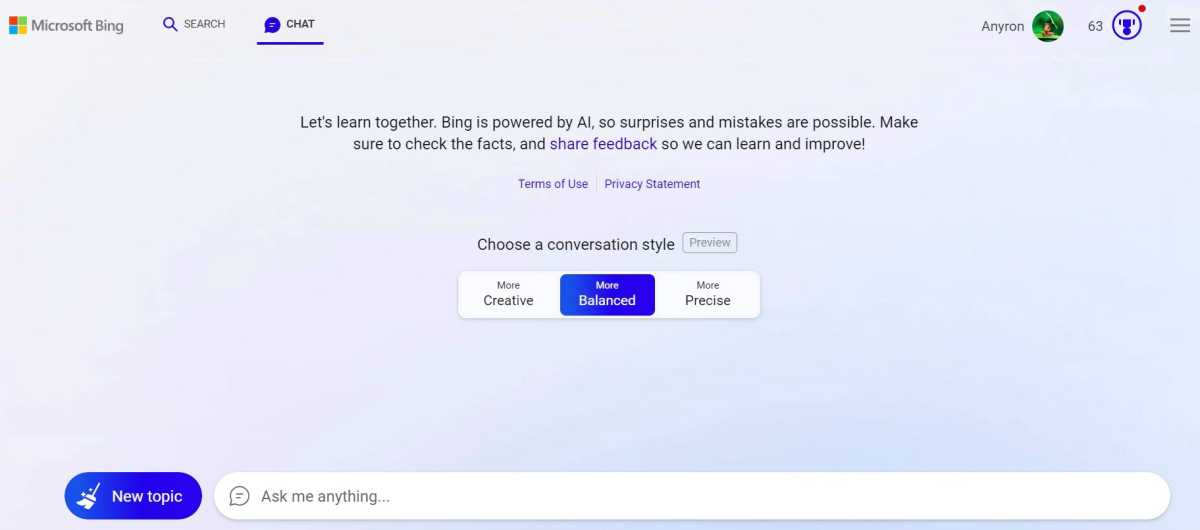
Anyron Copeman / Foundry
That’s it! You can now start chatting.
How to use Bing Chat on Android or iOS
Luckily, Microsoft has also added Bing Chat to the Edge mobile apps. We’re using Android here, but all of the steps below also apply to iOS:
- Download Microsoft Edge from the Google Play Store or Apple App Store
- Once installed, open the app and sign into your account (or create a new one) when prompted
- Follow the on-screen instructions, deciding if you’d like to share data and make Edge your default browser
- Head to bing.com/chat , where you should see a message saying ‘Welcome to the new Bing’
- Use the microphone or keyboard icons to ask any questions, or scroll down and tap ‘Sign in’
- Enter your Microsoft account details again if prompted, then choose a conversation style
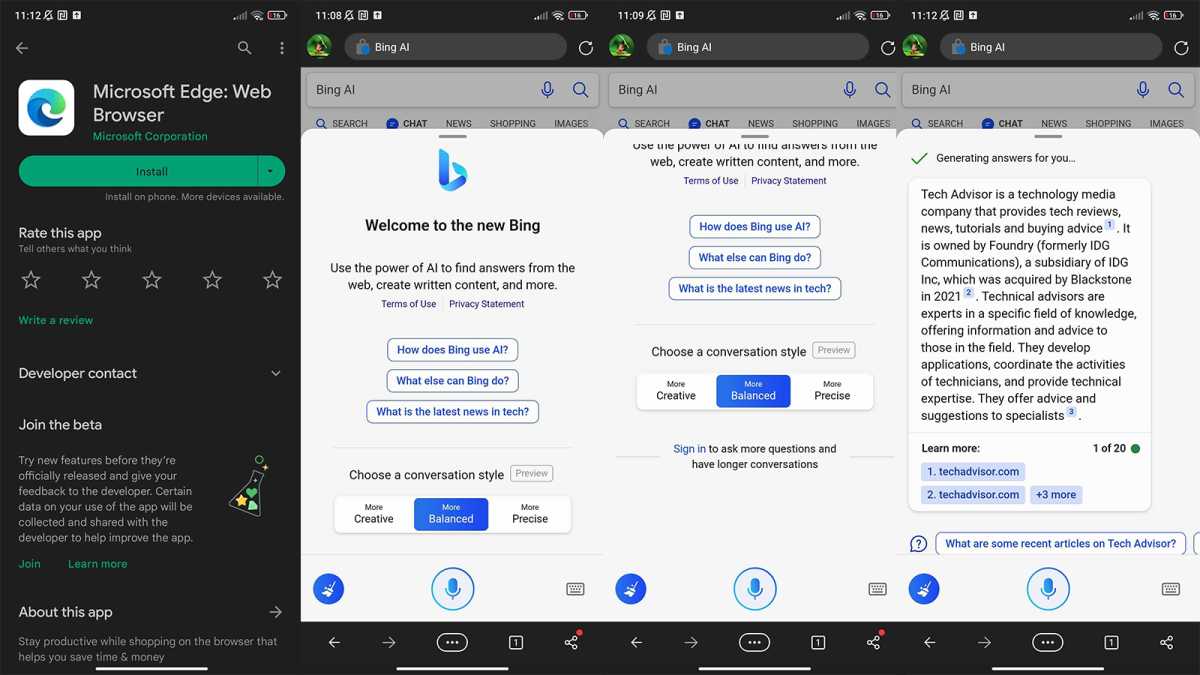
Anyron Copeman / Foundry
Bing Chat is now ready to go, so you can start using it.
- What is ChatGPT?
- 4 ways AI could seriously upgrade the next version of Windows
- If you can imagine it, this AI generator will draw it
Author: Anyron Copeman, Mobile Editor, Tech Advisor

Anyron is Mobile Editor at Tech Advisor, where he’s been a mainstay of the editorial team since 2019. In his current role, Anyron is responsible for all smartphone, tablet and mobile network coverage on the site. A BA Journalism graduate, he has experience with a wide range of consumer tech products and services, including smartphones, tablets, foldables, wearables and more.
Recent stories by Anyron Copeman:
- The truth: Android 17 won’t matter to most people
- As a Google Pixel fan, I can’t wait to see the first Android PC
- Samsung Galaxy phones’ most embarrassing feature looks set for a big upgrade
