If you’re out and about and see something you don’t recognise, Google Lens can take a look for you and tell you what it is. But about when what you want to look up is on your screen? That’s where Circle to Search comes in.
It’s a new AI-powered feature on some of the latest Android phones that’ll tell you what you can see on your screen. It’s as easy as it sounds – you just have to circle it. But how does it work, and what devices is it available on? Here’s everything you need to know.
What is Circle to Search?
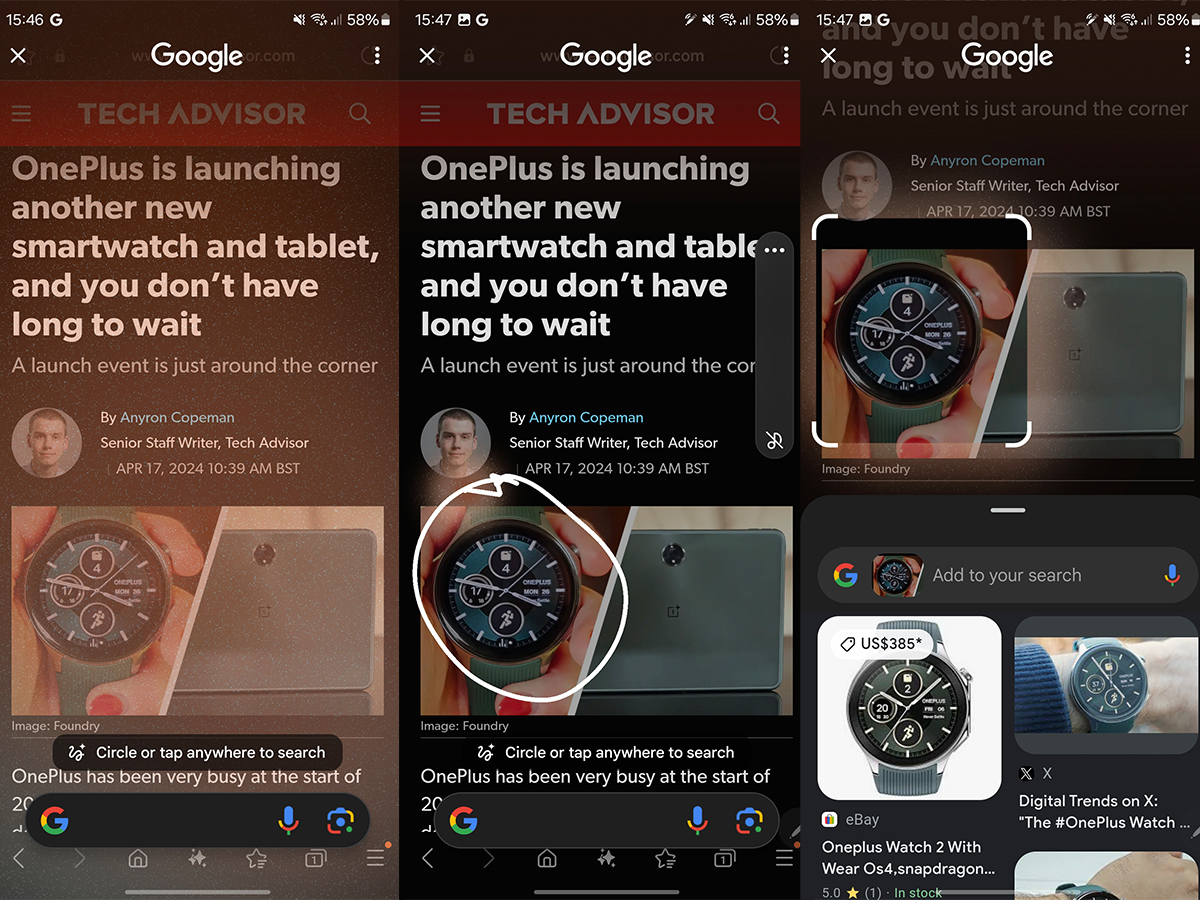
Imagine you’re scrolling through Instagram and spot something that piques your interest – an orange lamp, perhaps? Instead of typing out a long-winded description into Google, you can simply circle the object on your screen with your finger. You’ll get instant search results without the hassle of describing what you’re looking at.
Circle to Search isn’t just for shopping addicts looking for their next buy; it’s a universal tool. Whether you’re trying to identify a mysterious plant, decipher a bewildering word, or just get the scoop on anything you see, this feature has got you covered. It’s just like Google Lens, but for what’s on your screen instead.
How to Use Circle to Search
Using the Circle to Search feature is a breeze. It’s as simple as it sounds – all you need to do is circle an object on your screen. Here’s a step-by-step guide:
- The first time you use a device Circle to Search on it, you’ll get a little tutorial. Hit ‘ Try it now ‘ to jump straight in. Don’t worry – you only have to go through this tutorial the first time
- If you’re old school and use navigation buttons, long-press the home button. Gesture fans can use a long press on the bottom screen handle, which is usually shown as a horizontal bar at the bottom of the screen
- Want to search for something? Circle it, scribble on it, or even just tap it. The system should be smart enough to understand what you’re after
- Once you’ve made your selection, you can refine it. Drag the handles around your selection to resize or tweak your search area
Connor Jewiss / Foundry
- Got results but need more? Use the search bar atop your results to add more context or ask further questions. Fancy a voice search? Tap the mic icon and speak your mind
- Done searching? A simple tap on the X button or exploring more options via the three dots menu will end your search session
Which devices does Circle to Search work on?
Circle to Search is one of the newest AI features for the latest Android phones – but it’s only available on selected devices. As of now, you need one of the following:
- Samsung Galaxy S24
- Samsung Galaxy S24+
- Samsung Galaxy S24 Ultra
- Google Pixel 8
- Google Pixel 8 Pro
Galaxy S24 Ultra owners have the extra perk of using the S Pen for even more precise selections.
The feature debuted with Samsung’s Galaxy S24 series , but was quickly adopted by Google’s Pixel 8 range .
However, from early May, there’ll be a lot more supported devices . Think flagship Samsung phones , tablets and foldables released since 2022. Its not clear if the rollout will be expanded to include phones from other companies, though.
You may also be interested in real-time call translation and article summaries , two other key Galaxy AI features.
Author: Connor Jewiss, Contributor, Tech Advisor

Connor is a technology writer and editor, with a byline on multiple platforms. He has been writing for around seven years now across the web and in print too. Connor has experience on most major platforms, though does hold a place in his heart for macOS, iOS/iPadOS, electric vehicles, and smartphone tech. Just like everyone else around here, he’s a fan of gadgets of all sorts. Aside from writing, Connor is involved in the startup scene, which puts him at the front of new and exciting tech - he is always on the lookout for innovative products.
Recent stories by Connor Jewiss:
- Oppo Reno 13 FS review: Well-priced battery champ
- Oppo Reno 13 Pro review: Camera-first mid-ranger that excels
- Samsung Galaxy A26 review: Budget phone that looks like a flagship
