These days, many of the most popular apps and operating systems have the option for a dark mode. They typically shift background colours from white to black, making it easier on your eyes.
Microsoft finally added dark mode to Windows 10 in 2019, and the feature has, of course, made it into Windows 11 . Functionality is relatively limited, but third-party software makes it much more powerful. Here’s everything you need to know.
How to turn on dark mode in Windows 11
Activating dark mode in Windows 11 is very straightforward:
Open Settings
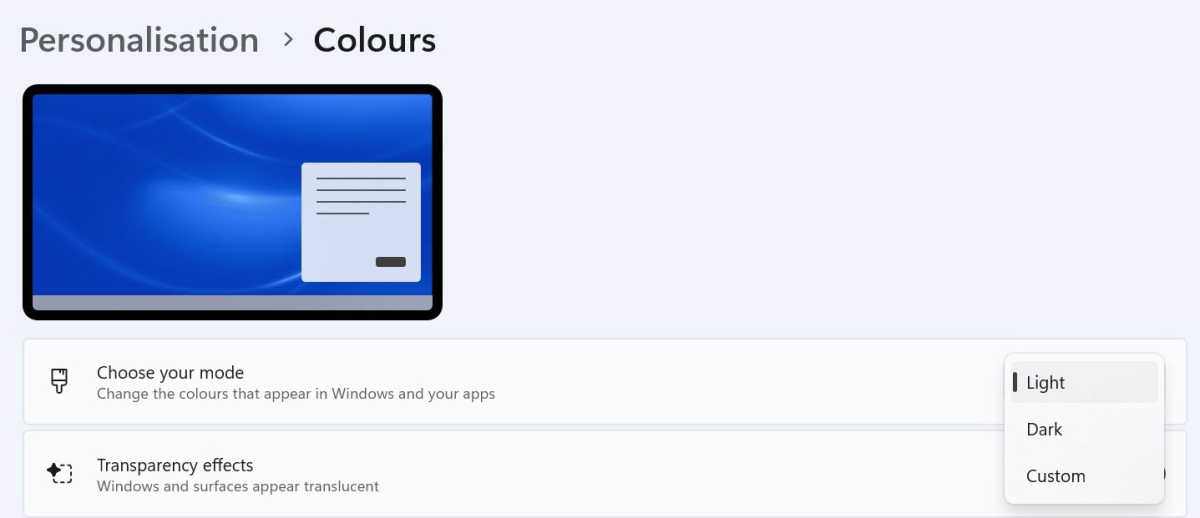
Head to Personalisation > Colours
Click the drop-down next to ‘Choose your mode’ and select one of ‘Light’, ‘Dark’ or ‘Custom’
Anyron Copeman / Foundry
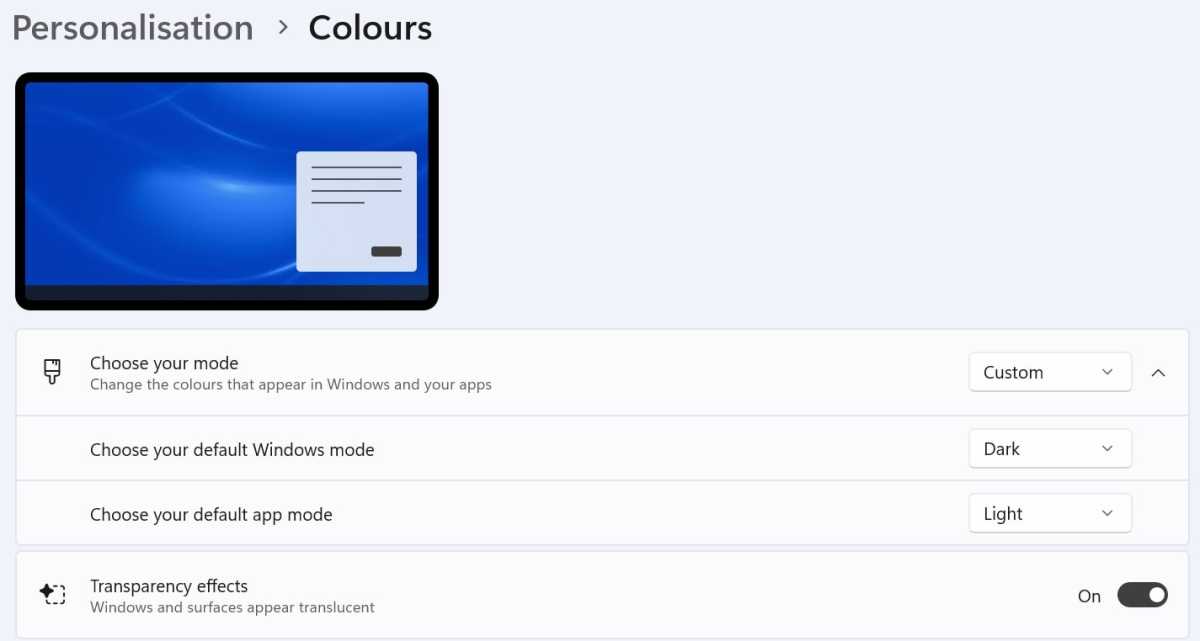
- If you choose the latter, select a default ‘Windows mode’ (for elements like the Start menu and taskbar) and ‘app mode’
Anyron Copeman / Foundry
Below this, you can also set a custom accent colour from a wide range of options.
Any changes you make will be saved automatically and applied immediately, so you can try all the options and see what works for you.
How to schedule dark mode in Windows 11
By default, Windows 11 only allows you to have dark mode on or off. That means there’s no option to have it set to activate on a schedule, such as when bedtime is approaching.
To do that, you’ll need to download a third-party app – specifically, Auto Dark Mode. Here’s how to set it up:
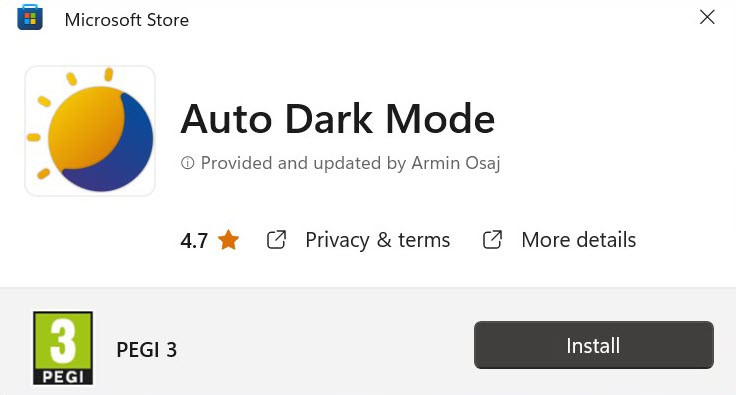
- Head to the Microsoft Store and download ‘Auto Dark Mode’ . Alternatively, it’s available via GitHub
Anyron Copeman / Foundry
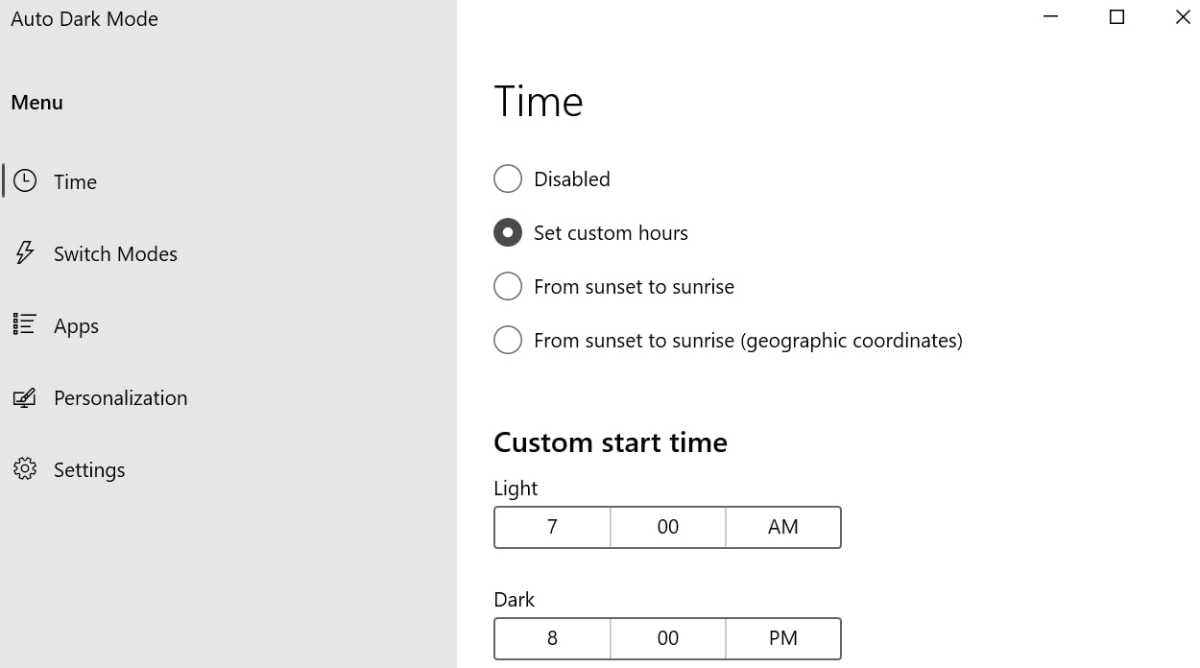
Once installed, open the app. The ‘Time’ section should already be selected, but click it if not
Instead of ‘Disabled’, choose one of the other three options
For ‘Set custom hours’, manually select the start times for light and dark mode below it
Anyron Copeman / Foundry
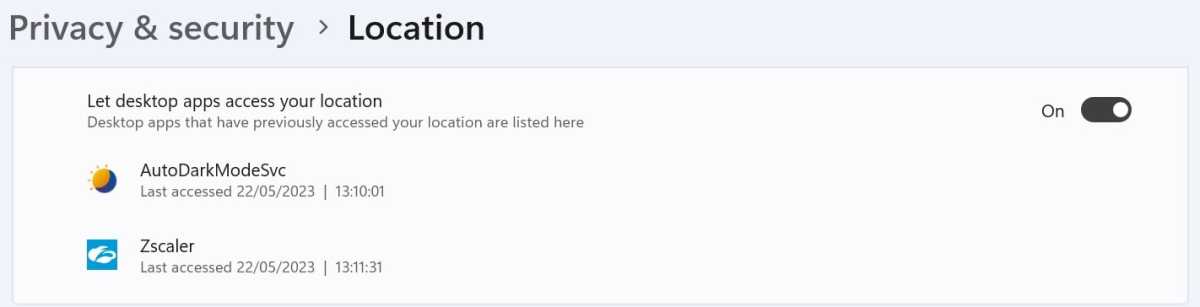
- For ‘From sunset to sunrise’, you’ll be prompted to give permission to ‘Let apps access your location’ and ‘Let desktop apps access your location’ in Settings. This will regularly update to ensure the times are accurate
Anyron Copeman / Foundry
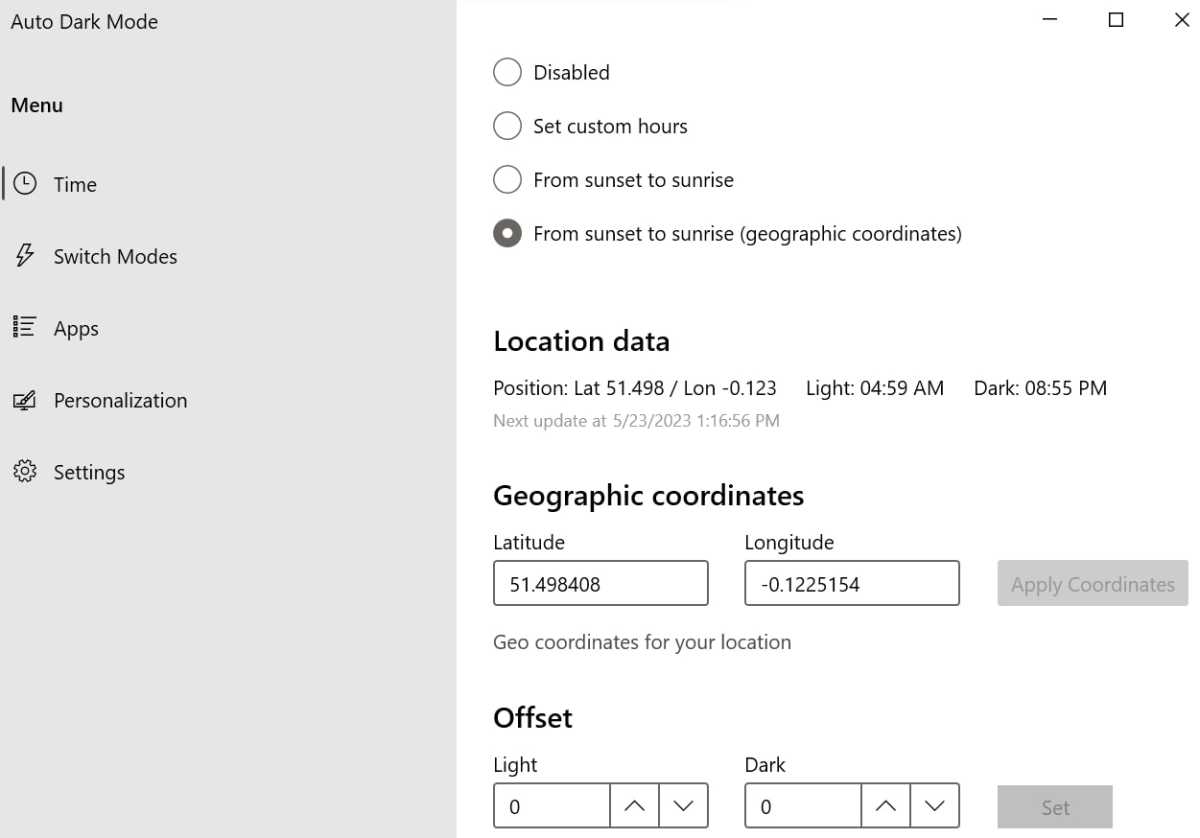
- Alternatively, ‘Fron sunset to sunrise (geographic coordinates)’ means you can enter specific latitude and longitude coordinates without needing to keep your location data turned on. Coordinates for any location are available via Google Maps or Apple Maps. You can even offset this by having it activate a specific number of minutes earlier or later
Anyron Copeman / Foundry
As with the system settings, all changes are saved automatically.
- How to use Dark Mode in Windows 10
- How to get Dark Mode on Microsoft Office
- How to enable Dark Mode on Android
Author: Anyron Copeman, Mobile Editor, Tech Advisor

Anyron is Mobile Editor at Tech Advisor, where he’s been a mainstay of the editorial team since 2019. In his current role, Anyron is responsible for all smartphone, tablet and mobile network coverage on the site. A BA Journalism graduate, he has experience with a wide range of consumer tech products and services, including smartphones, tablets, foldables, wearables and more.
Recent stories by Anyron Copeman:
- Windows 11 23H2 update: Everything you need to know
- Windows 12: Everything we know so far
- How to get the Google Play Store on Windows 11
